
There's was a time the governor of Kogi state instructed the SSAs to go to their ward for PVC drive. At least someone I know spent two weeks in his ward.
1
265

🚀 Power BI Roadmap — Topic 4
📊 Power BI Basics
In this section, you'll learn:
- How Power BI works
- The Power BI ecosystem
- Connecting data
- Creating your first report
- Understanding the Power BI interface
📌 1. What is Power BI?
Microsoft Power BI is a Business Intelligence (BI) and Data Visualization platform developed by Microsoft.
It helps organizations:
✔ Analyze data
✔ Create reports
✔ Build dashboards
✔ Share insights
✔ Make data-driven decisions
📌 2. Components of Power BI
Power BI consists of three major components.
🔹 Power BI Desktop
Used for: Creating reports, Building data models, Writing DAX, Data transformation
👉 This is where developers spend most of their time.
🔹 Power BI Service
Cloud-based platform used for: Publishing reports, Sharing dashboards, Scheduled refresh, Collaboration
🔹 Power BI Mobile
- Used for: Viewing reports, Monitoring KPIs, Accessing dashboards on mobile devices
📌 3. Installing Power BI Desktop
Download Options:* Microsoft Store, Official Microsoft website
Installation Steps:
1. Download installer
2. Run setup
3. Complete installation
4. Launch Power BI Desktop
📌 4. Understanding the Power BI Interface
When Power BI opens, you'll see:
Main Sections:
Area | Purpose
Ribbon | Commands & tools
Report Canvas | Build visualizations
Fields Pane | Tables & columns
Visualizations Pane | Charts & visuals
Filters Pane | Filtering
📌 5. Three Main Views in Power BI
🔹 Report View
Used to:
✔ Create reports,
✔ Add charts,
✔ Build dashboards
Icon: 📄 Report
Most work happens here.
🔹 Data View
Used to:
✔ Inspect data,
✔ Create calculated columns,
✔ Verify loaded tables
Icon: 📋 Table
🔹 Model View
Used to:
✔ Create relationships,
✔ Build star schemas,
✔ Manage data models
Icon: 🔗 Relationship
📌 6. Connecting Data Sources
Power BI supports hundreds of data sources.
Common Sources:
Files: ✔ Excel, ✔ CSV, ✔ XML, ✔ JSON
Databases: ✔ SQL Server, ✔ MySQL, ✔ PostgreSQL, ✔ Oracle
Cloud: ✔ Azure, ✔ SharePoint, ✔ Google Analytics
Web: ✔ APIs, ✔ Websites
📌 7. Get Data Process
Steps:
1. Click "Get Data"
2. Choose source
3. Connect
4. Load or Transform
Example:
Excel File: Sales.xlsx
Power BI imports: Sheets, Tables, Named Ranges
📌 8. Import vs DirectQuery vs Live Connection
🔹 Import Mode
Data is loaded into Power BI memory.
Advantages:
✅ Fast performance,
✅ Full DAX support,
✅ Better user experience
Disadvantages:
❌ Requires refresh
🔹 DirectQuery
Data remains in database.
Advantages:
✅ Real-time data
Disadvantages:
❌ Slower performance
🔹 Live Connection
Direct connection to enterprise models.
Example: SSAS Tabular Models
📌 9. Loading Data
After connecting:
Options:
Load: Directly loads data
Transform Data: Opens Power Query Editor
Used for:
✔ Cleaning data,
✔ Removing duplicates,
✔ Formatting columns
👉 In real projects, you'll often choose Transform Data first.
📌 10. Creating Your First Visualization
Suppose you have:
Product | Sales
Laptop | 50000
Phone | 30000
Create Bar Chart:
1. Select Bar Chart
2. Drag Product → Axis
3. Drag Sales → Values
Power BI automatically generates a chart.
📌 11. Understanding Visualizations Pane
Contains Charts:
✔ Bar Chart,
✔ Column Chart,
✔ Line Chart,
✔ Pie Chart,
✔ Area Chart,
✔ Scatter Plot
Advanced Visuals:
✔ KPI Card,
✔ Gauge,
✔ Waterfall,
✔ Funnel,
✔ Matrix
📌 12. Understanding Fields Pane
Shows: Tables, Columns, Measures
Example:
Sales Table
├─ Product
├─ Quantity
├─ Revenue
Used to build visuals.
📌 13. Understanding Filters Pane
Three levels:
Visual-Level Filter: Affects one visual
Page-Level Filter: Affects one page
Report-Level Filter: Affects entire report
📌 14. Saving Power BI Files
File Extension: .pbix
Contains:
✔ Data,
✔ Model,
✔ DAX,
✔ Reports
📌 15. Publishing Reports
Steps:
1. Save PBIX
2. Click Publish
3. Sign in
4. Select Workspace
5. Publish
Report becomes available in Power BI Service.
📌 16. First Mini Dashboard
Create:
KPI Cards: Total Sales, Total Orders
Charts: Sales by Product, Sales by Region
Filters: Region, Month
📌 17. Common Beginner Mistakes
❌ Loading unnecessary columns
❌ Ignoring data types
❌ Using too many visuals
❌ Poor naming conventions
❌ Skipping Power Query cleaning
📌 18. Practice Project
🛒 Sales Dashboard
Dataset: Product, Region, Sales
Tasks:
✔ Import Excel Data
✔ Create: Bar Chart, Line Chart, KPI Cards
✔ Add Filters
✔ Publish Report
📌 19. Interview Questions
1. What is Power BI?
2. Difference between Desktop and Service?
3. What are the three views in Power BI?
4. What is Import Mode?
5. What is DirectQuery?
6. What is a PBIX file?
7. How do you publish reports?
8. What is a Workspace?
9. What is Power Query?
10. What is a Dashboard?
🎯 Goal of This Topic
After this topic you should be able to:
✅ Install Power BI
✅ Connect data sources
✅ Load data
✅ Create visualizations
✅ Build simple dashboards
✅ Publish reports
Double Tap ❤️ For Part-5

2
5
28
2,025

The truth is that Abba still doesn’t fully understand the situation. The majority of his commissioners are with Kwankwaso, and about 80% of his chairmen remain loyal to him. The only people firmly in his corner are his SAs, SSAs, and SSRs.

5
11
23
777

Once Peter obi is elected, every damn certificate forger must go for rehabilitation be it young or old, terrorist and their sympathisers will live in kuje and those SSAs to criminals will remain in jail until all money is refund back to the federation account.
4

I do not believe I've ever had ancestors that resembled SSAs. I will never believe that. If anything, I believe SSAs ancestors resembled me. Take your narrative and flip it.
29

🌙 retweeted

Jun 13
Not to be a boastful baboon, but I think reptilians fuck with SSAs the most with us having the most physical similarities, them giving the dogon tribe knowledge, and heavily influencing our indigenous beliefs & cultures, with camaroon, South Sudan, and Benin being a few examples.



Jun 6

Reptilians can't take the frequency coming off a bell neither can they be in the Sun as well
4
10
81
3,961

ele fica fazendoe ssas coisas se ele fizer na minha frente em outubro ele vai ver

4

Mayor Mamdani proposed slashing 264 school safety agents from city schools in the coming fiscal year — a reduction parent groups warn could spell disaster in the wake of rising felony assaults in schools.
The cut, called for in Hizzoner’s preliminary budget, was announced Monday by New York City Council Education Chair Eric Dinowitz at the fiscal year 2027 budget hearing.
“The DOE savings plan calls for a vacancy reduction of 264 school safety agents, meaning that schools would not be able to fully staff SSAs if desired,” Dinowitz said at the City Council hearing.
14
Amy Booms Lemons retweeted

FCS continues to excel! 🎉Congratulations to our schools recognized through the Annual SSAS (Single Statewide Accountability System) recognitions for their commitment to academic excellence and student success. #FCSAchieve #SLI26 #FultonCountySchools


3
18
1,180

Jun 13
Your IQ ? They're obviously light skinned compared to SSAs and that was his point. Also ancient folks were right light skin is feminine nothing beats a good tan
1
80

What chutayag!ri?
If a ssas is bossing & controlling her bahu then why call it patriarchy? In 90% households saas controls even her husband i.e. helpless sasur also.
In most murder cases,dowry deaths it's saas & other women in the house who are criminal culprits.
1
37

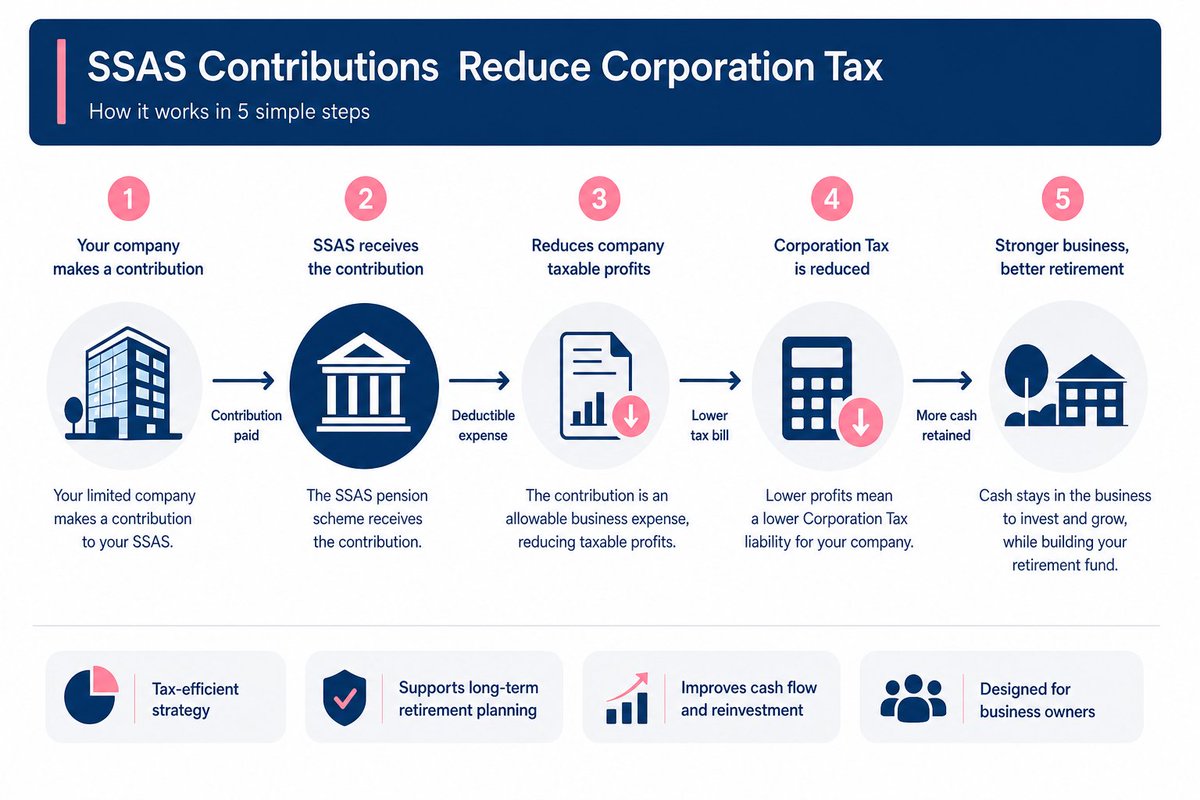
Employer contributions to a SSAS pension are deductible as a business expense, reducing taxable profits and Corporation Tax. Understand how SSAS benefits your company: hubs.li/Q04fbG6W0
3
The_tired_artist guy retweeted

25 Mar 2023
hi guys this is my take on NightMaric from the FNaS series for my FNaS take Speedy Shifts at Sonic's (SSaS for short)
#fnas #fivenightsatsonics

1
4
516