Joined October 2024
27 Photos and videos
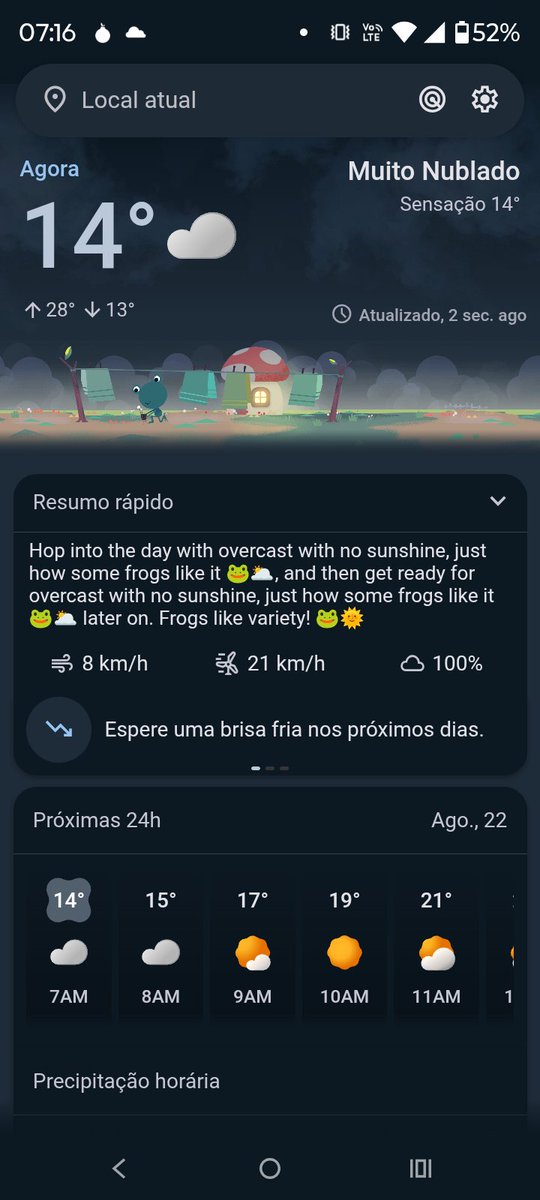
Enfim um Sol ☀️!a
5
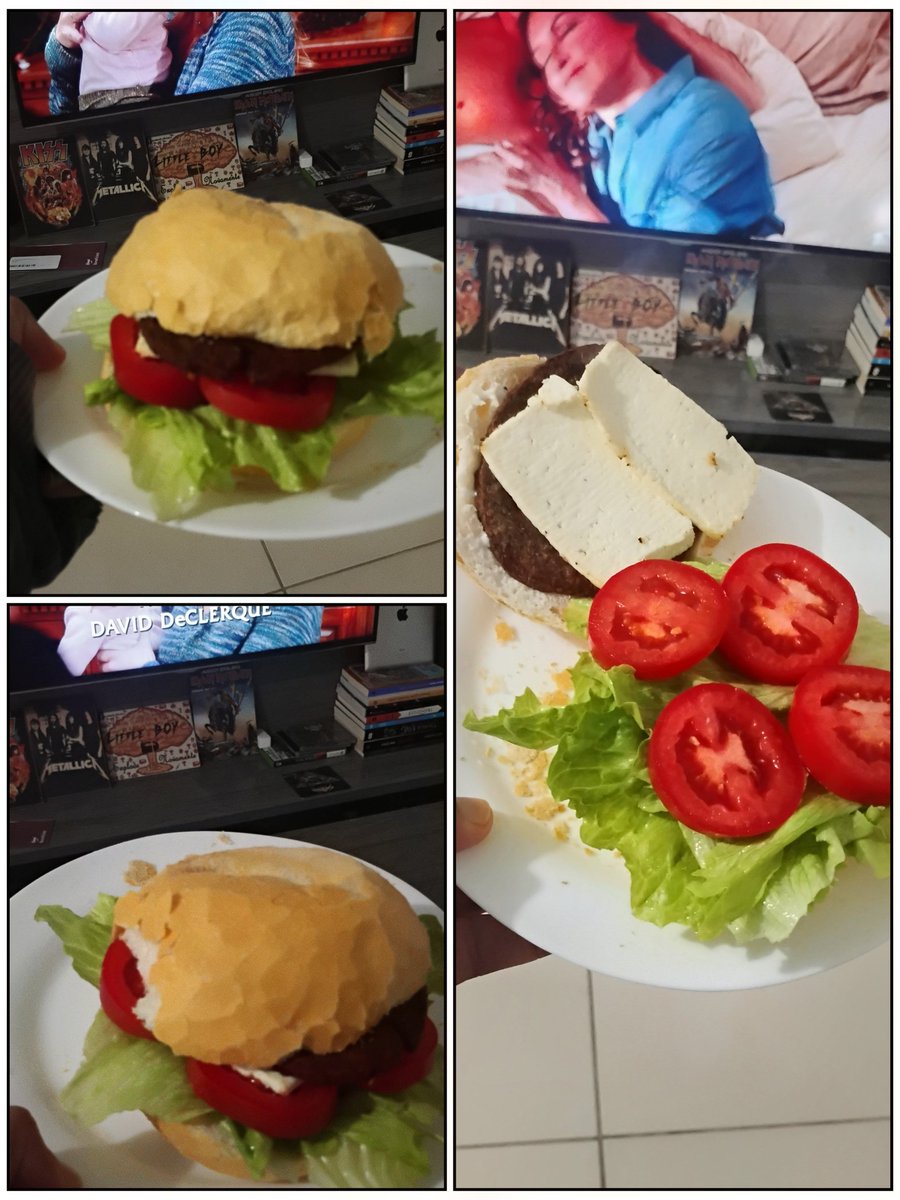
Hoje tava cansado para fazer uma janta, então vamos de X Salada caseiro com ricota.
6
charles@stna💲: retweeted
Eu abomino a palavra “colaborador”. Colaborador é o caralho. O nome é EMPREGADO.
353
2,460
30,824
603,293
charles@stna💲: retweeted
Replying to @neeraj7105
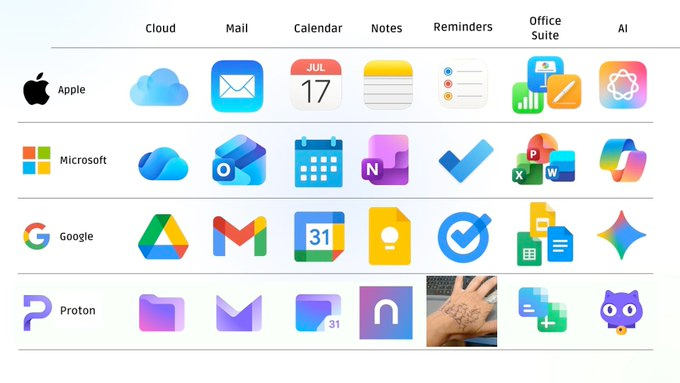
The missing one
8
5
127
2,366
████████ O Google ███ ███████████ nunca ███████████ ████████ ████████ ████████ ████████ violaria ████████ ████████ ████████ ████████ sua ████████ privacidade██████
████████ Google ███ ███████████ would never ███████████ ████████ ████████ ████████ ████████ violate ████████ ████████ ████████ ████████ your ████████ privacy ██████
19
Sim eu uso o #geminipro Chat não me faça nenhuma pergunta. apenas gere uma imagem com tudo que te faz lembra de mim, as nossas conversas, como vejo o mundo
39
charles@stna💲: retweeted
15
798
5,133
54,058
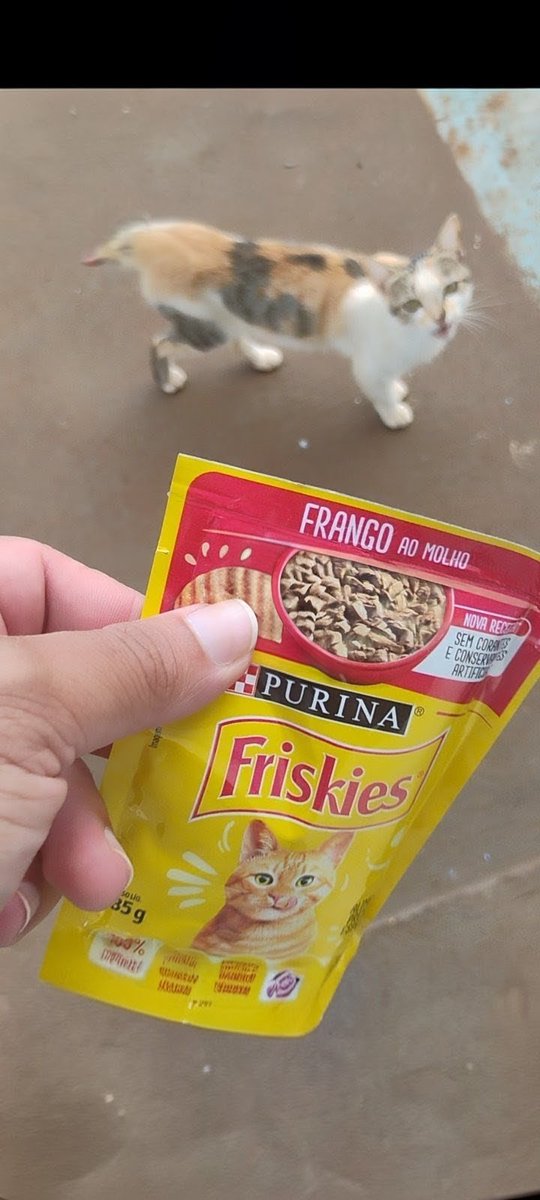
Já tenho uma infiltrada 🫛#cat
17
Iniciando mais um dia. 🫛
1
14
Folga 🙌
1
20
charles@stna💲: retweeted
Guía para desactivar Gemini en todas partes
Gmail welcoming the Gemini era? That's it. Guide to disable Gemini everywhere: tuta.com/blog/how-to-disable…
2
1
5
1,018
O #Jabber, atual #XMPP, completa hoje 27 anos desde o seu primeiro anúncio oficial ao público em 4 de janeiro Dia 04 do meu Desafio pessoal de #365DiasComXMPP
58
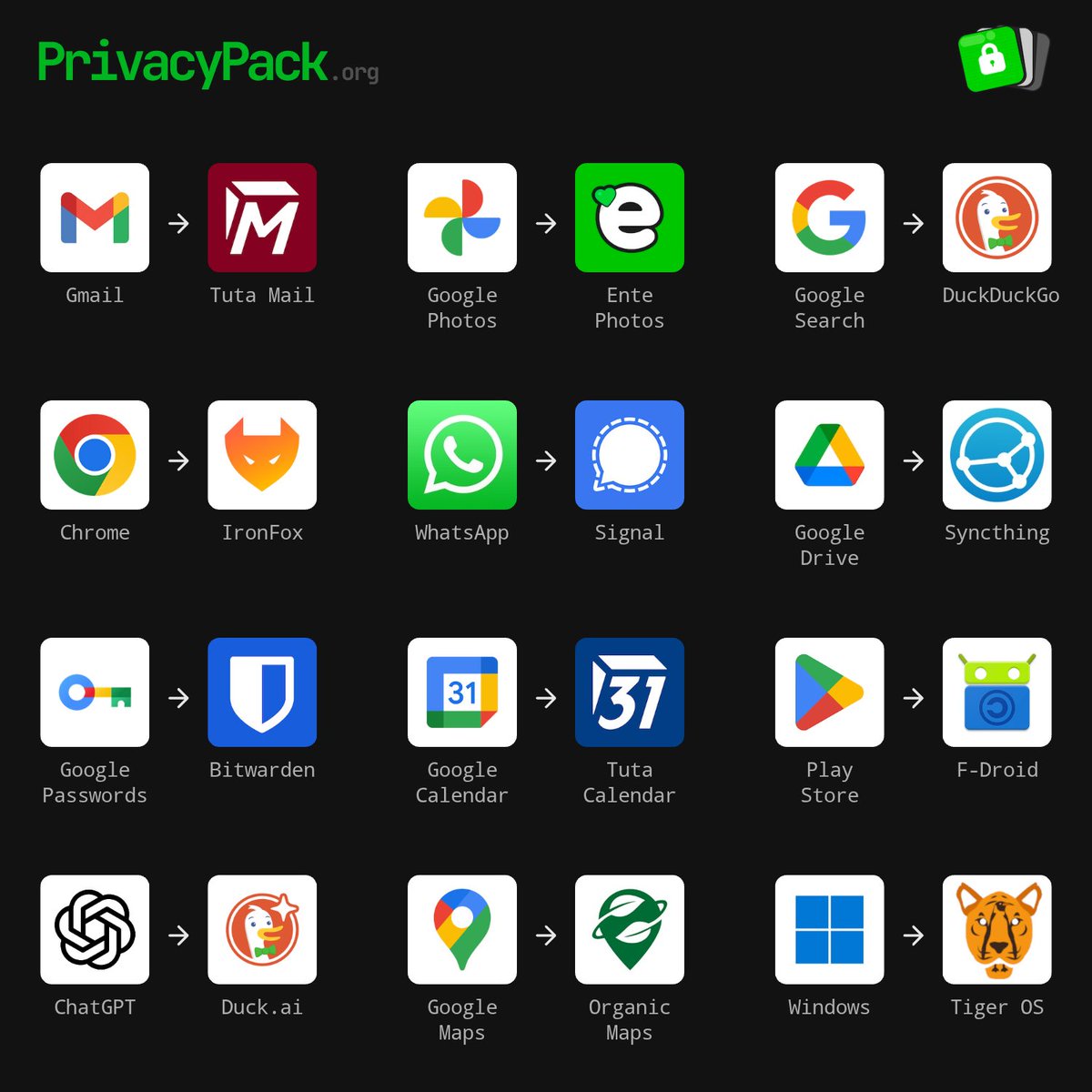
Meu Pack do Privacy 🤣🤣 privacypack.org/
39
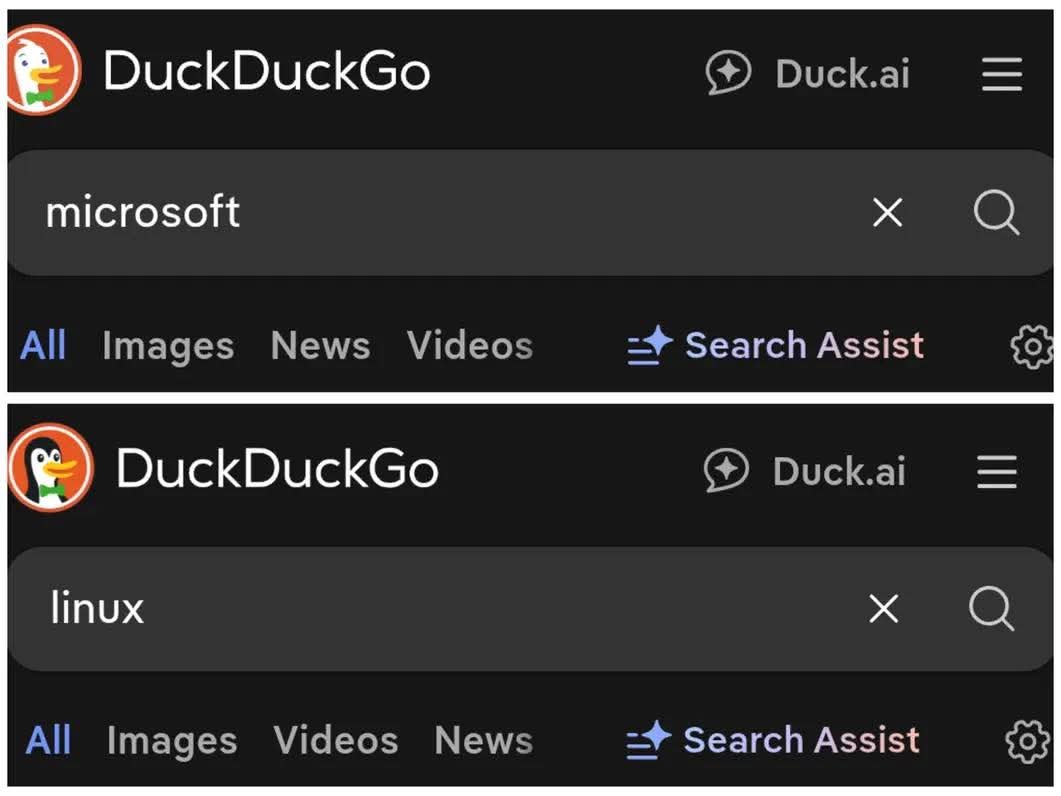
Se você pesquisar por algo relacionado ao Linux no motor de busca DuckDuckGo, o logotipo dele se transforma discretamente em um pinguim.
1
35
Sites adultos mais acessados:🔞 Gov, Caixa Econômica; Procon e Serasa.
24
O #Zoom infelizmente é mais limitado no #Linux. As anotações só funcionam se estiver usando o #Xorg, se tiver pouca memória ou em um hardware limitado não funciona os fundos virtuais ( no windows funciona) e as vezes dá alguns bugs. Tive que fazer o dual boot.
27
Lista de projetos concluídos com êxito esse ano : - HelloWorld en C - HelloWorld en C# - HelloWorld en Python - HelloWorld en Rust - HelloWorld en Go A cada dia, mais dev 😏
39
charles@stna💲: retweeted
VIM Shortcut Keys / Commands Basic Navigation `h` = Move cursor left `j` = Move cursor down `k` = Move cursor up `l` = Move cursor right `0` = Go to beginning of line `$` = Go to end of line `gg` = Go to first line of file `G` = Go to last line of file `Ctrl f` = Page down `Ctrl b` = Page up `:n` = Go to line number *n* Insert Mode / Editing `i` = Insert before cursor `I` = Insert at beginning of line `a` = Append after cursor `A` = Append at end of line `o` = Open new line below and insert `O` = Open new line above and insert `r` = Replace a single character `R` = Enter replace mode `cw` = Change word (delete and go to insert) `c$` = Change to end of line `s` = Substitute character (delete insert) `S` = Substitute entire line `u` = Undo `Ctrl r` = Redo `.~` = Toggle case of character under cursor Deleting / Changing / Copying (Yanking) / Pasting `x` = Delete character under cursor `X` = Delete character before cursor `dw` = Delete word `d$` = Delete to end of line `dd` = Delete entire line `D` = Delete to end of line `c{motion}` = Change (delete go to insert) for given motion `y{motion}` = Yank (copy) for given motion `yy` = Yank entire line `p` = Paste after cursor `P` = Paste before cursor `~` = Swap case Search & Replace / Finding `/pattern` = Search forward for *pattern* `?pattern` = Search backward for *pattern* `n` = Repeat search forward `N` = Repeat search backward `:%s/old/new/g` = Replace all occurrences in file `:s/old/new/g` = Replace in current line `:%s/old/new/gc` = Replace with confirmation Visual Mode & Selections `v` = Visual mode (character-wise) `V` = Visual line mode `Ctrl v` = Visual block mode `y` = Yank selection `d` = Delete selection `>` = Indent selection `<` = Unindent selection `=` = Auto-indent selection Buffers, Tabs, Windows & Splits `:e filename` or `:edit filename` = Open file `:bnext` (or `:bn`) = Go to next buffer `:bprev` (or `:bp`) = Go to previous buffer `:bd` = Delete (close) buffer `:tabnew filename` = Open new tab `:tabnext` (or `:tabn`) = Go to next tab `:tabprev` (or `:tabp`) = Go to previous tab `gt` = Go to next tab `gT` = Go to previous tab `Ctrl w s` = Split window horizontally `Ctrl w v` = Split window vertically `Ctrl w w` = Cycle through windows `Ctrl w q` = Close window `Ctrl w =` = Make windows equal size `Ctrl w h/j/k/l` = Move to left/down/up/right window Marks, Macros & Registers `m{a–z}` = Set mark named *a–z* at cursor `'{a–z}` = Jump to beginning of line of mark `` `{a–z}` `` = Jump to exact position of mark `q{a–z}` = Start recording macro into register *a–z* `q` = Stop recording macro `@{a–z}` = Execute macro from register *a–z* `@@` = Repeat last macro `"{a–z}p` = Paste from register *a–z* `"{a–z}y` = Yank into register *a–z* Other Useful Commands `:w` = Save (write) file `:wq` = Save and quit `:q` = Quit `:q!` = Quit without saving `:w filename` = Save as *filename* `:!command` = Run external shell *command* `:%!command` = Filter entire file through external *command* `>>` = Shift line right `<<` = Shift line left `~` = Toggle case of character `ga` = Show ASCII code of character under cursor `:set number` = Show line numbers `:set nonumber` = Hide line numbers `:syntax on` / `:syntax off` = Enable/disable syntax highlighting `:set hlsearch` = Highlight search results `:set nohlsearch` = Turn off highlight search `:set incsearch` = Incremental search `:set ignorecase` = Ignore case in searches `:set smartcase` = Smart case in searches `:help {topic}` = Show help for *topic* EBOOK Get the full ebook here to Master Vim Course: codewithdhanian.gumroad.com/…
7
60
401
19,399
Você se lembra de quando ingressou no X? Eu me lembro! #MeuAniversárioNoX
13
charles@stna💲: retweeted
5
40
867
30,416