
Joined July 2020
- Tweets 265
- Following 4
- Followers 82
- Likes 6
169 Photos and videos
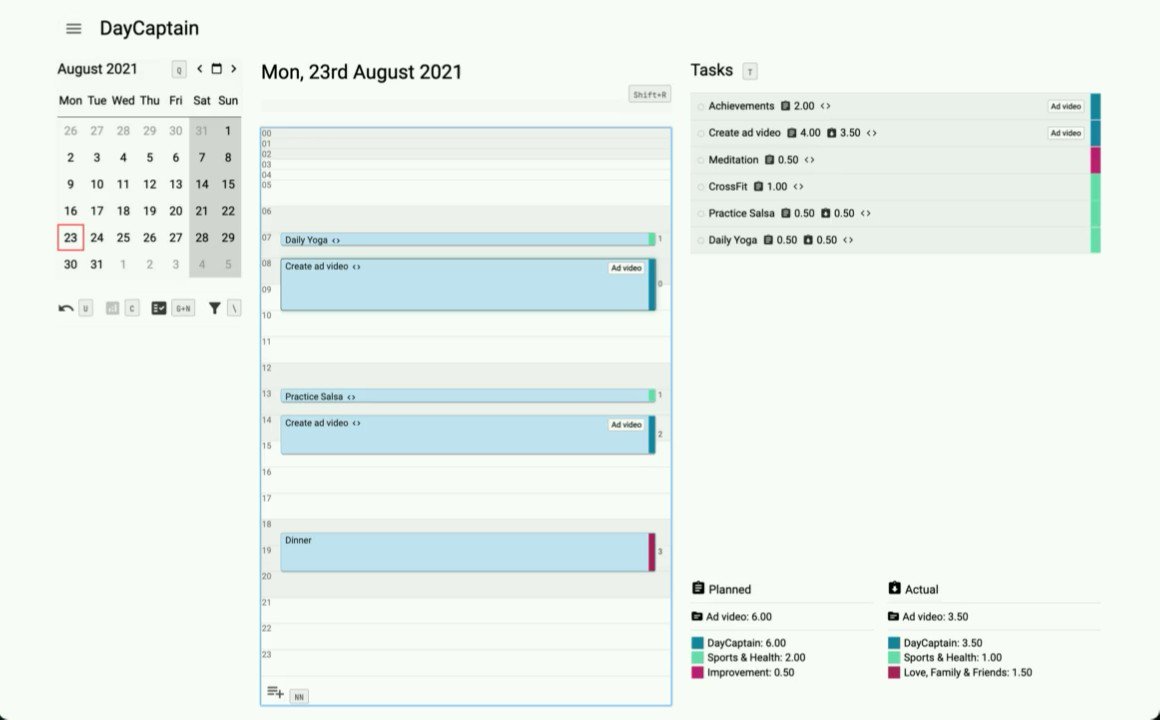
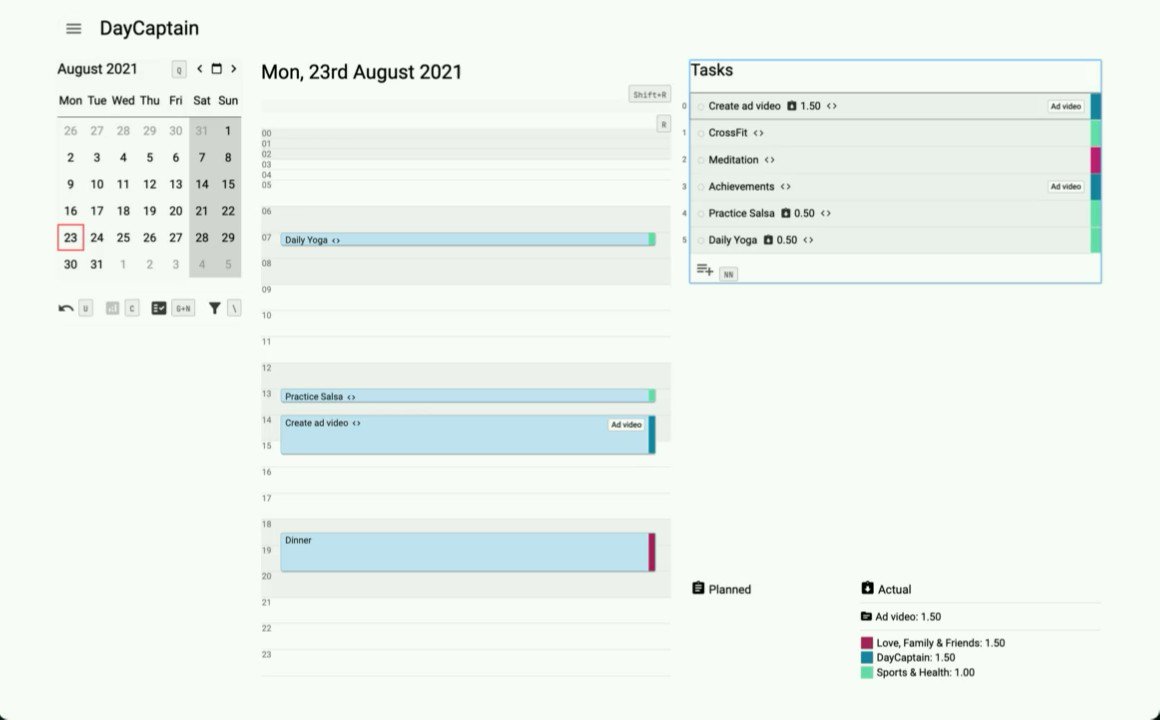
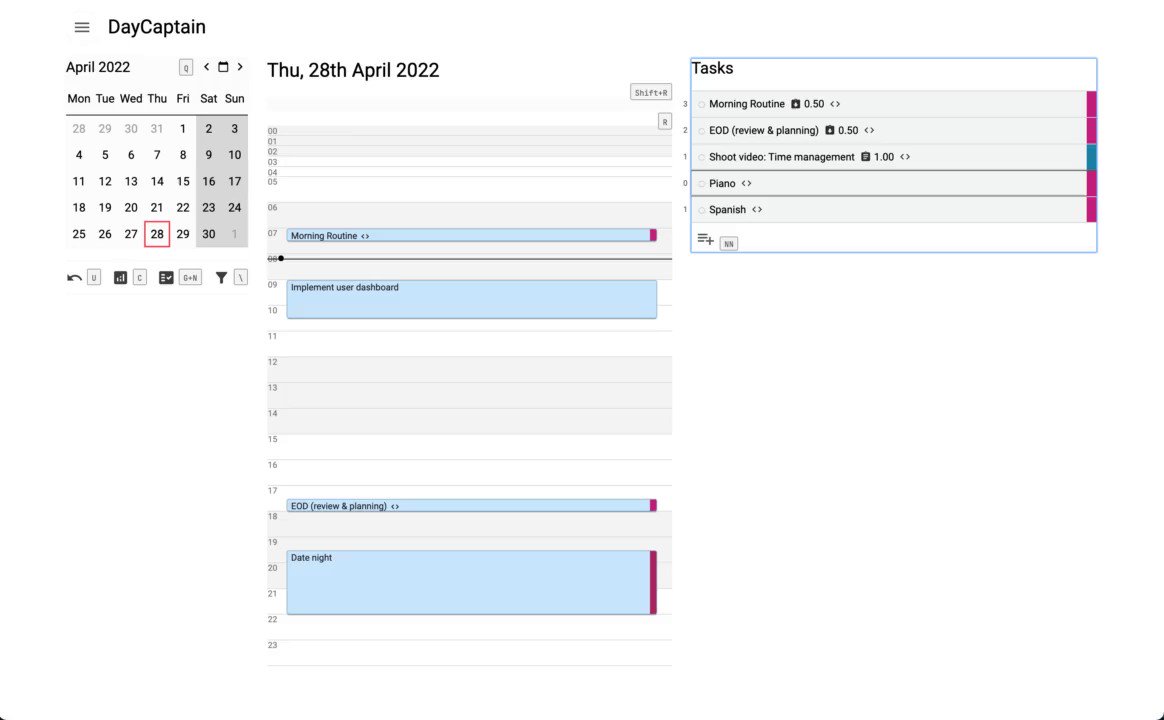
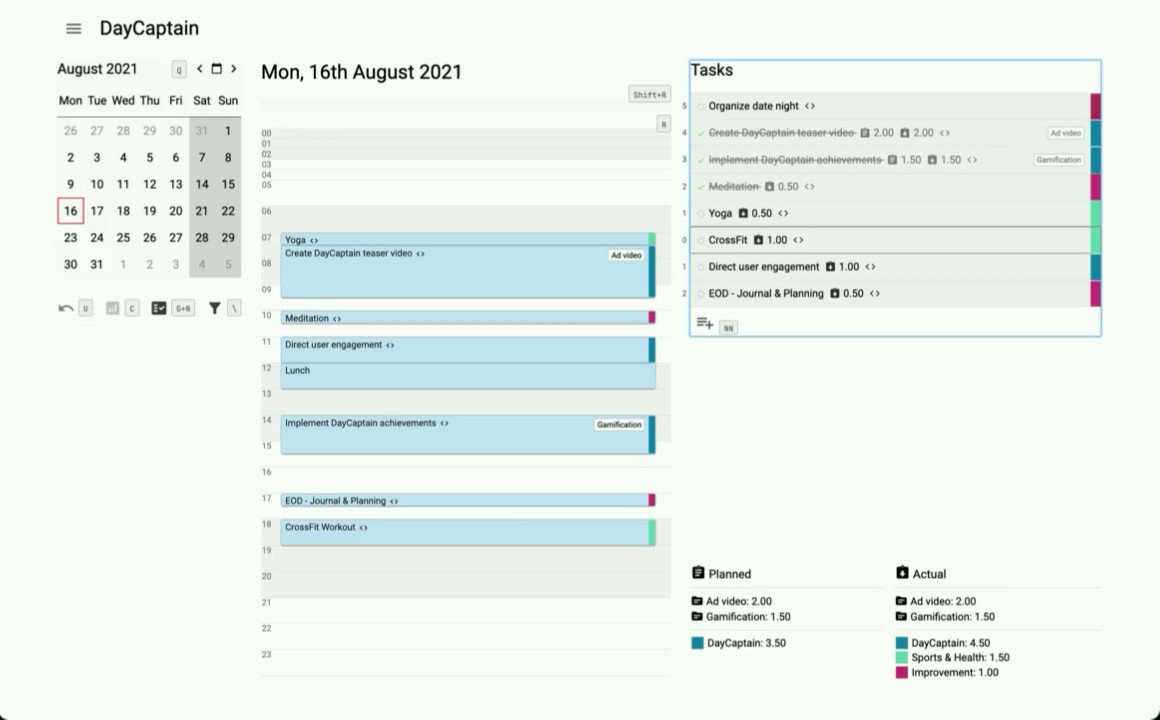

1 Dec 2022
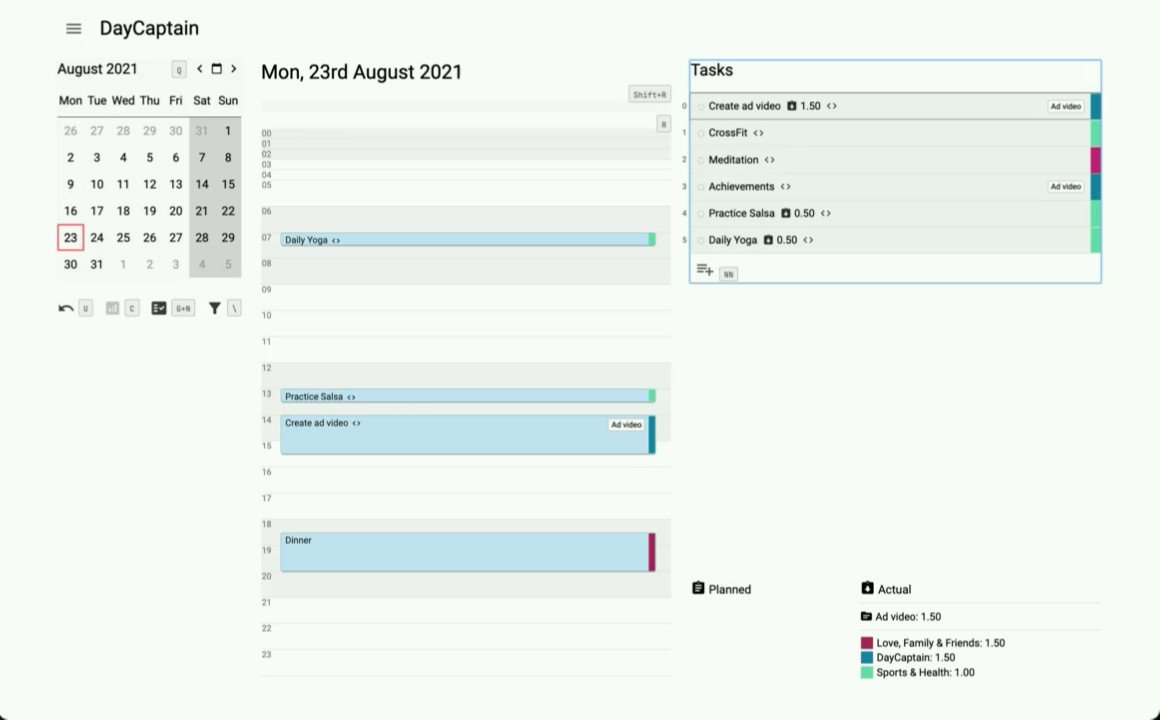
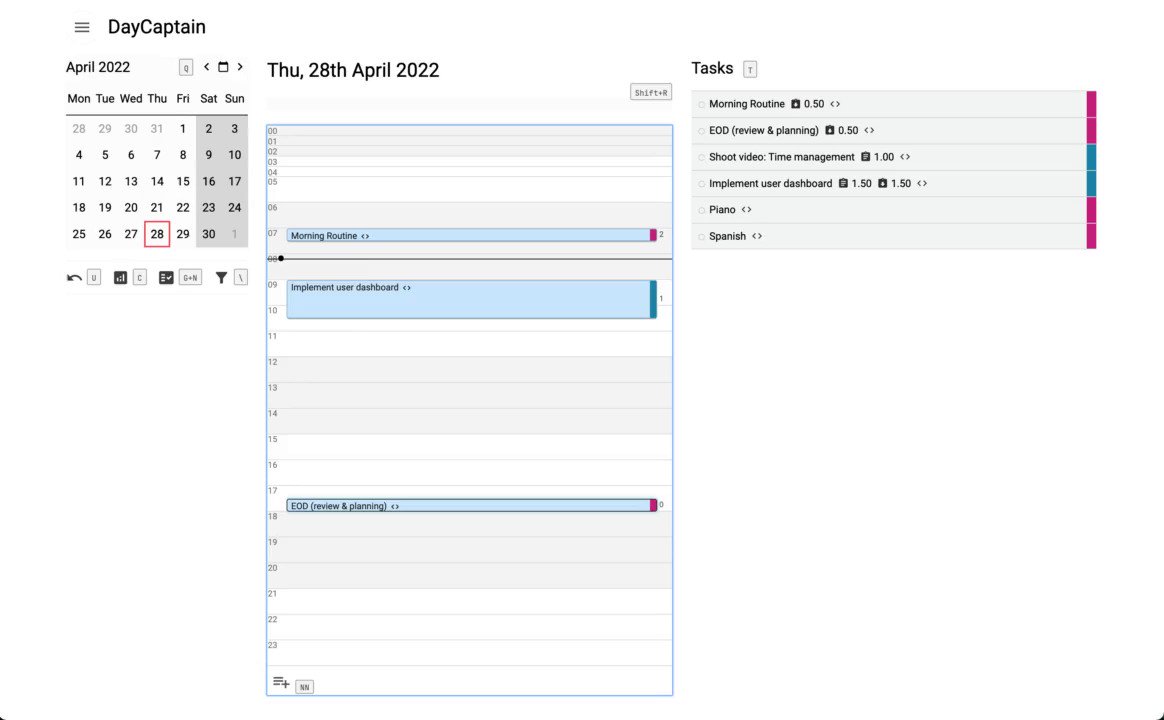
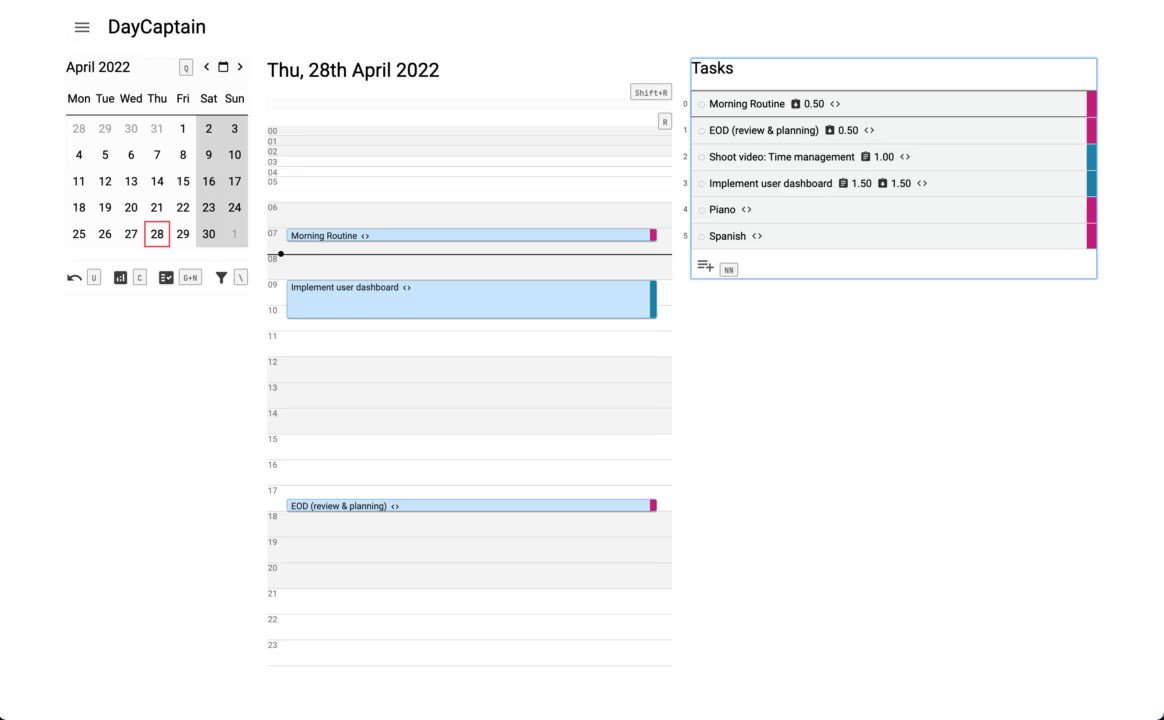
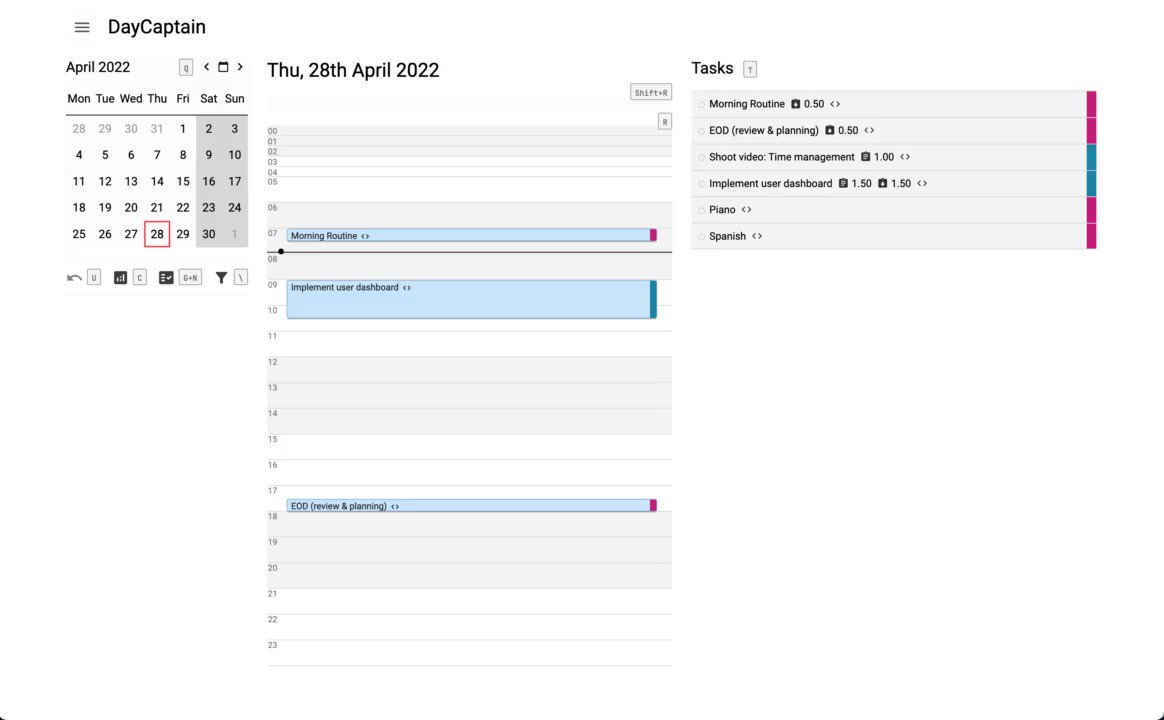
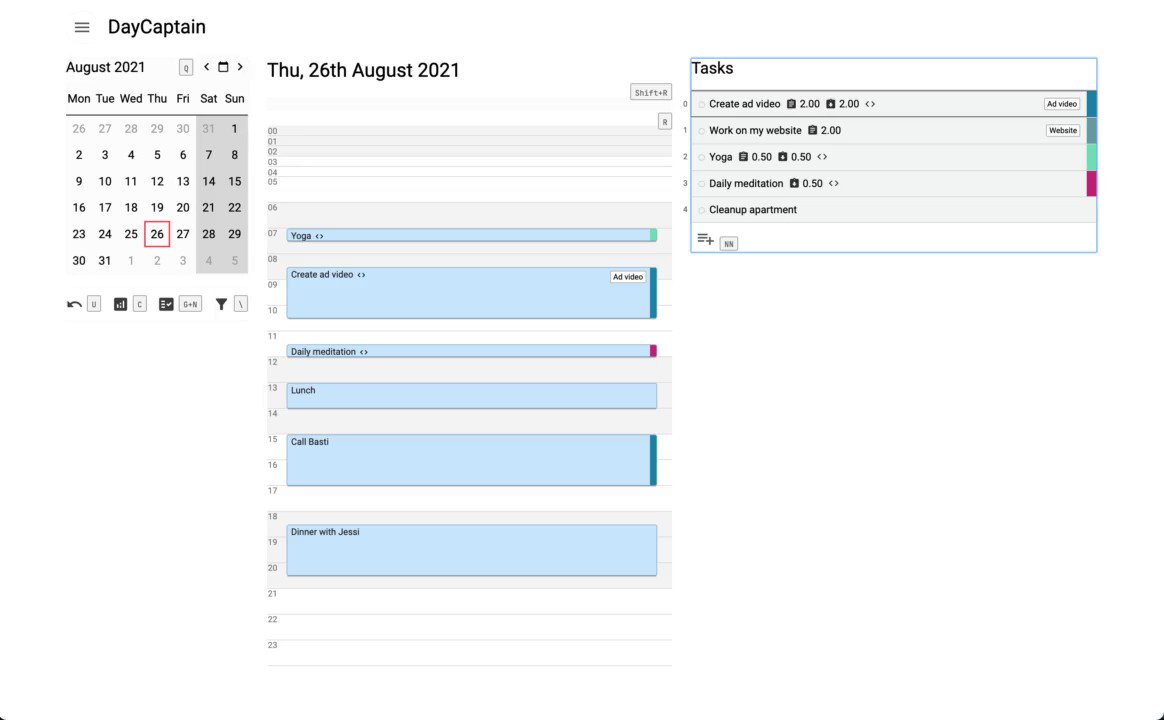
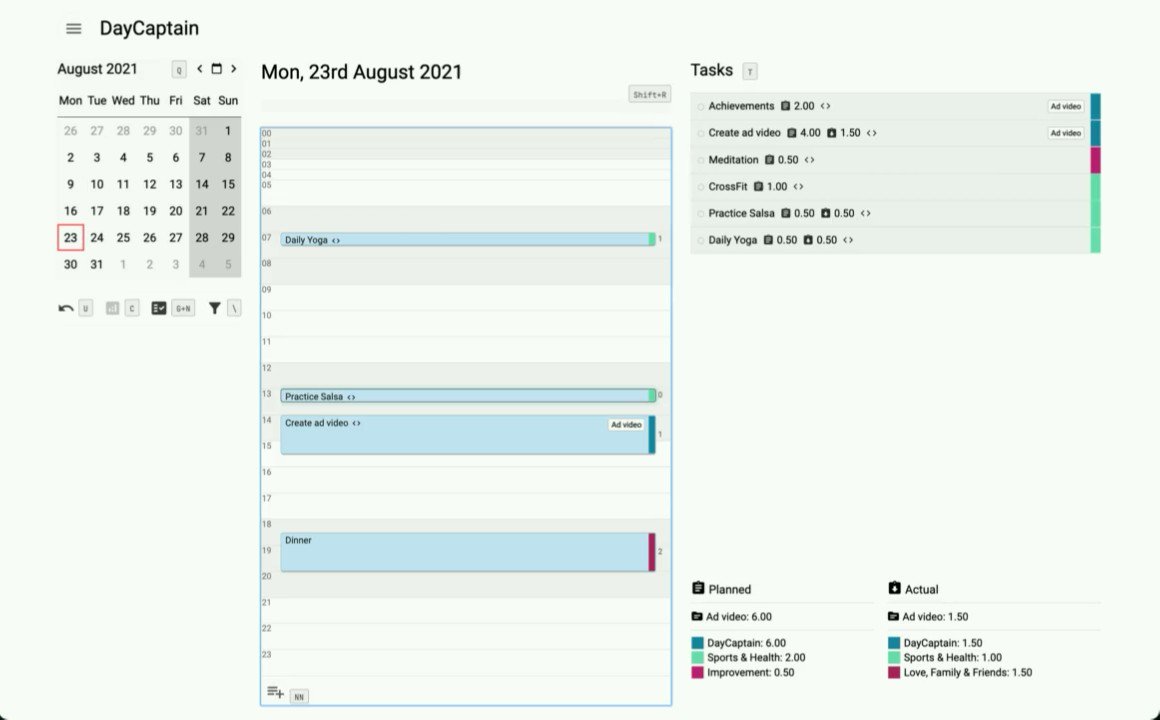
💡Productivity Pro-Tip#6💡
We need strict time budgets on our tasks to not fall short at other areas of our lives.
You can assign a time budget to each of your tasks by:
- pressing and holding 'SHIFT'
- while using 'H'(◀)️ and 'L'(▶)️ to increase or decrease.
27 Nov 2022
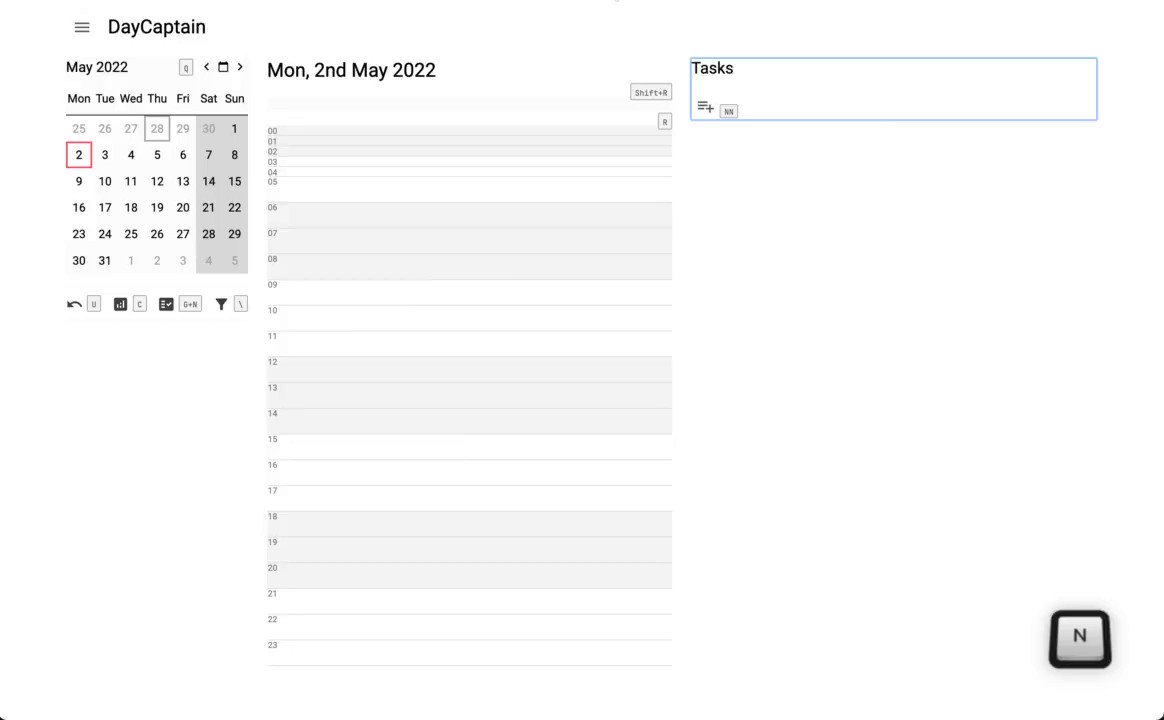
💡Productivity Pro-Tip#2💡
Fixed appointments and events in our days act as natural time-boundaries for our working blocks. 📅
We need to be well-aware of them to craft realistic plans.
To create a new event in the day timeline
- press 'NN',
- enter a title,
- hit 'Enter'.
23 Nov 2022
💡Productivity Pro-Tip#1💡
DayCaptain has a powerful keyboard concept based on vim-keybindings.
It allows you to interact with it magically fast 🪄, and is fun. 🎮
Pressing '?' on any focused element of the app, gives you a context dependent help to find the right shortcut.
1
20 Nov 2022
💡Productivity Pro-Tip#5💡
As we realize that we cannot get everything done, we need to prioritize our tasks strictly.
Order your tasks in the DayCaptain task list by
- pressing and holding 'ALT'
- while using 'J' (🔽) and 'K' (🔼) to move them up or down in the list.
16 Nov 2022
💡Productivity Pro-Tip#4💡
You can easily select the day on the day view of DayCaptain:
- press 'Q' to focus the day picker
- use 'J/K/H/L' to move around.
It's much like flicking through your diary.
1
12 Nov 2022
💡Productivity Pro-Tip#20💡
✅ It's easy to create tasks for you habits in DayCaptain.
🔁 DayCaptain has a feature for that: repeated tasks.
When creating a task
- hit 'R'
- use 'J/K/H/L' to select the interval.
1
7 Nov 2022
💡Productivity Pro-Tip#18💡
You can create Projects in DayCaptain to get detailed statistics and coloring.
To assign a task or event to a project:
- Press ','
- and use 'J/K' to select the project.
3 Nov 2022
💡Productivity Pro-Tip#19💡
DayCaptain tries to detect the right area or project for you.
Magic!
31 Oct 2022
💡Productivity Pro-Tip#7💡
⏰ We need to allocate actual time slots in our days to our tasks.
💤 Otherwise, they remain just 'wishful thinking'.
To schedule a task in your day
- press 'NR' on the selected task
- set start and end time in the overlay.
29 Oct 2022
💡Productivity Pro-Tip#10💡
✅ Nothing is more satisfying than checking-off tasks in our days, which we have accomplished.
In the task list
- ✅ hit 'ENTER' to finish a task
- 🚫 hit 'X' to cancel a task
- ↩️ hit 'Backspace' to reset the task state.
25 Oct 2022
💡Productivity Pro-Tip#20💡
✅ It's easy to create tasks for you habits in DayCaptain.
🔁 DayCaptain has a feature for that: repeated tasks.
When creating a task
- hit 'R'
- use 'J/K/H/L' to select the interval.
20 Oct 2022
💡Productivity Pro-Tip#19💡
DayCaptain tries to detect the right area or project for you.
Magic!
16 Oct 2022
💡Productivity Pro-Tip#9💡
You can set the duration (end time) of an event directly in the timeline without using your mouse.
Press and hold 'SHIFT' while using 'J/K/H/L' to lengthen or shorten your event.
J ⬇️️ / K ⬆️ => move 1 hour.
H ⬅️ / L ➡️ => move 15 min.
14 Oct 2022
💡Productivity Pro-Tip#6💡
We need strict time budgets on our tasks to not fall short at other areas of our lives.
You can assign a time budget to each of your tasks by:
- pressing and holding 'SHIFT'
- while using 'H'(◀)️ and 'L'(▶)️ to increase or decrease.
11 Oct 2022
💡Productivity Pro-Tip#3💡
To work focused, we need to be specific about what we want to accomplish each day.
To create a new task in the day task list
- press 'NN',
- enter a title,
- hit 'Enter'.
30 Jul 2022
💡Productivity Pro-Tip#13💡
You can undo the last action in DayCaptain by hitting 'U'.
This will also restore all connections of the item changed. 💯
27 Jul 2022
💡Productivity Pro-Tip#15💡
One of the most powerful things of using DayCaptain is to get beautiful statistics about how we spend our time.
Press 'C' on the day or week view to see the statistics.
24 Jul 2022
💡Productivity Pro-Tip#16💡
DayCaptain allows you to go into focus mode.⚡️
You can filter by area or project to see only what's relevant at the moment.
Press '\' and select the area or project to filter by.
1
21 Jul 2022
💡Productivity Pro-Tip#18💡
You can create Projects in DayCaptain to get detailed statistics and coloring.
To assign a task or event to a project:
- Press ','
- and use 'J/K' to select the project.
1
18 Jul 2022
💡Productivity Pro-Tip#19💡
DayCaptain tries to detect the right area or project for you.
Magic!
1