Gecko is a leading approved global reseller of Google Meet Hardware solutions, Chrome Enterprise & Chrome devices, Google Workspace and related technologies.
Want to instantly transform 📝 Gemini’s text-heavy outputs into visually appealing 🖼️ infographics? With a 🖱️ click, Canvas in #Gemini can instantly generate shareable infographics that come complete with images and 🎨 a theme.
Learn how 👇
youtu.be/FhUdAApINvE
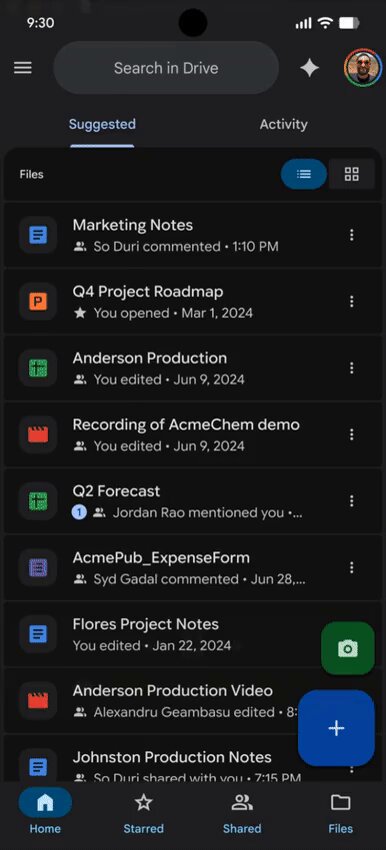
Need to 📷 scan and 📤 upload multiple documents to #GoogleDrive? On 📱 Android, you can now save time by including 📖 multiple pages in one camera shot instead of having to photograph them one by one.
Available now. Learn more: workspaceupdates.googleblog.…
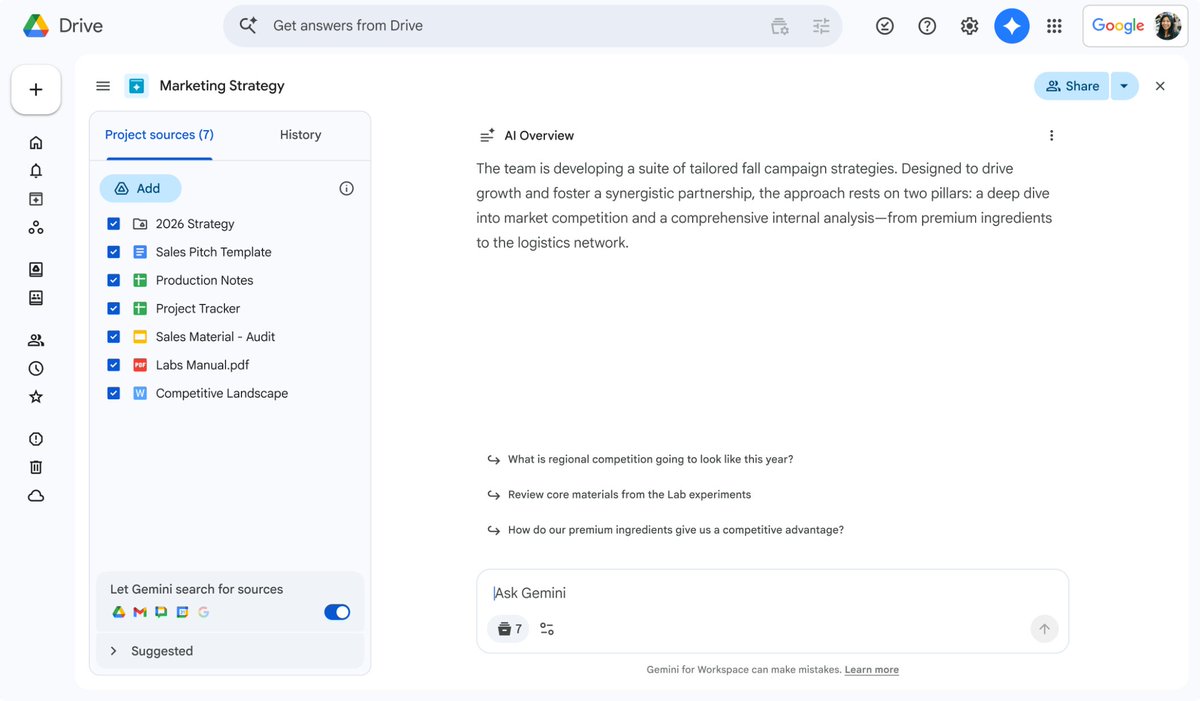
The ability to use ✉️ #Gmail as a source when utilising ✨ Ask Gemini ✨ in #GoogleDrive is rolling out more widely, meaning that you can reference 🧵 email threads alongside your 📂 files and folders when using #Gemini.
Rolling out now. Learn more: workspaceupdates.googleblog.…
ALT A screenshot of the Google Drive interface. The user has Ask Gemini open. On the left-hand side is a list of selected "Project sources” that include various files such as PDFs, Sheets and Docs. Below this, the option called “Let Gemini search for sources”, which shows logos for Drive, Gmail, Google Chat and Google Calendar, is enabled. On the right is an AI overview of the project, three prompt suggestions and the Ask Gemini prompt bar.
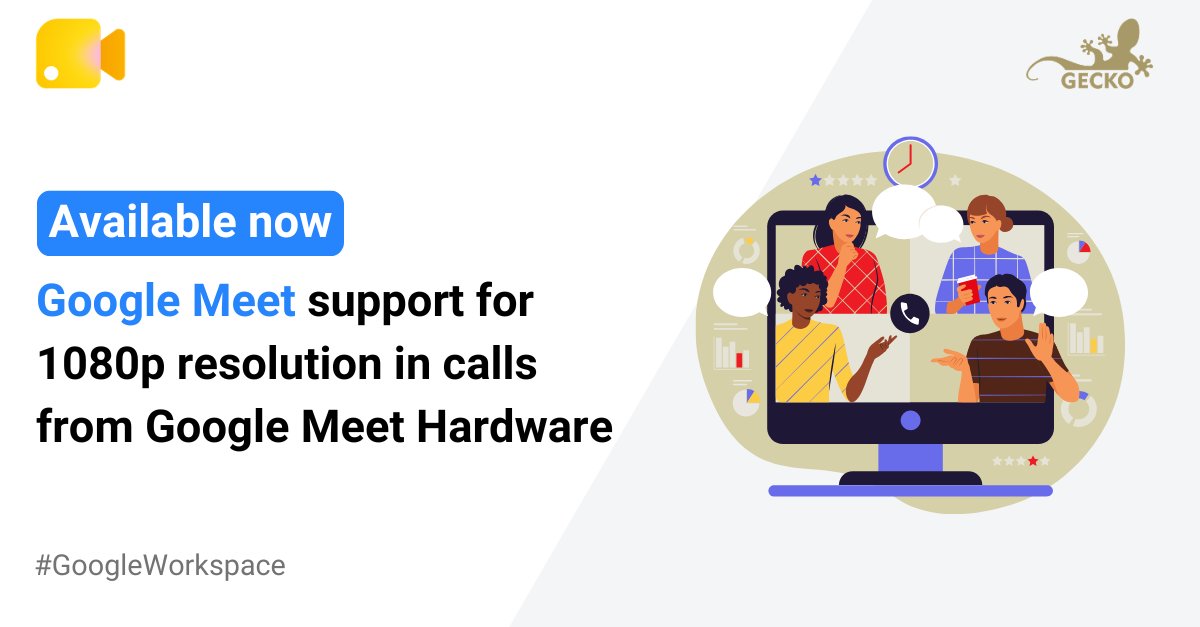
📹 Google Meet’s Full HD video capabilities are extending to ChromeOS-based #GoogleMeetHardware, increasing the video quality to 1080p when someone:
📌 Pins the room’s feed
🖥️ Uses a large screen
🔴 Records the call
Available now. Learn more: workspaceupdates.googleblog.…
ALT A composite image with the text “Available now. Google Meet support for 1080p resolution in calls from Google Meet Hardware”. To the right of the text is an illustration of a monitor with four people appearing to be on a video call. There are various speech bubbles and charts surrounding the screen. The Google Meet and Gecko logos are along the top edge of the complete image.
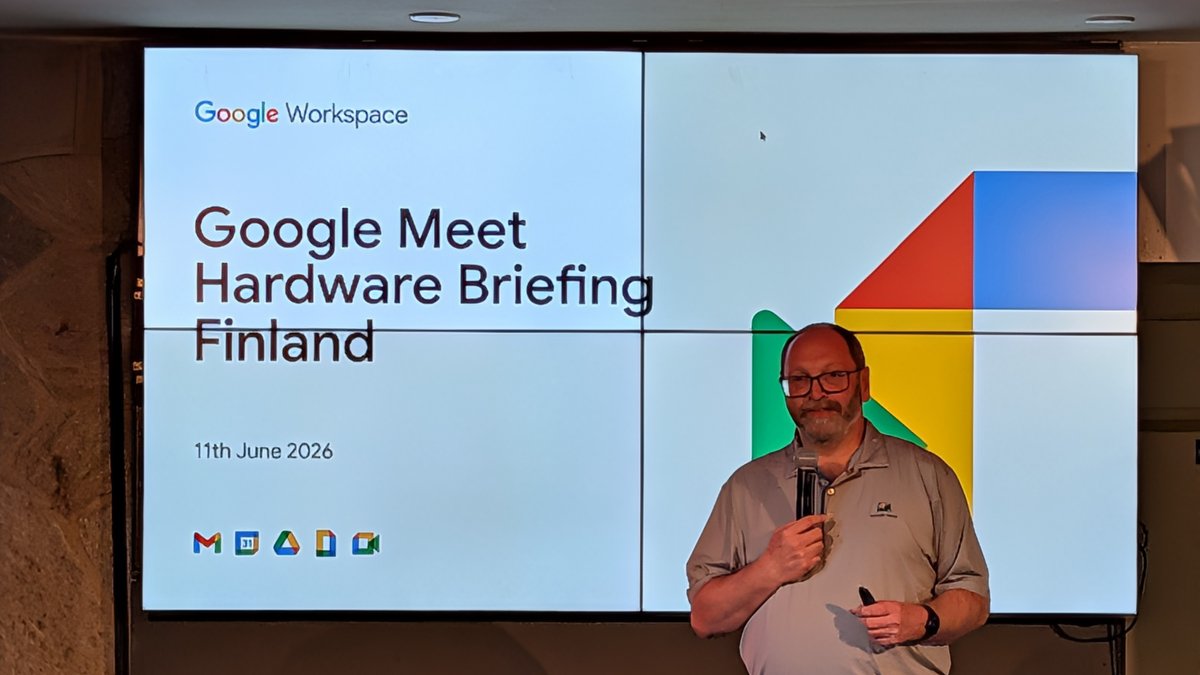
Good morning from 🇫🇮 Helsinki! ☀️ We’re at the Google office for the Google Meet & Voice Briefing.
There are more briefings coming up this year. Check out details and sign up for them here: forms.gle/zPJctptsqxNvsEyr8
ALT A photo of a man standing in front of large screens, holding a microphone as he presents. On the screens are the words “Google Meet Hardware Briefing Finland” and the date of the event.
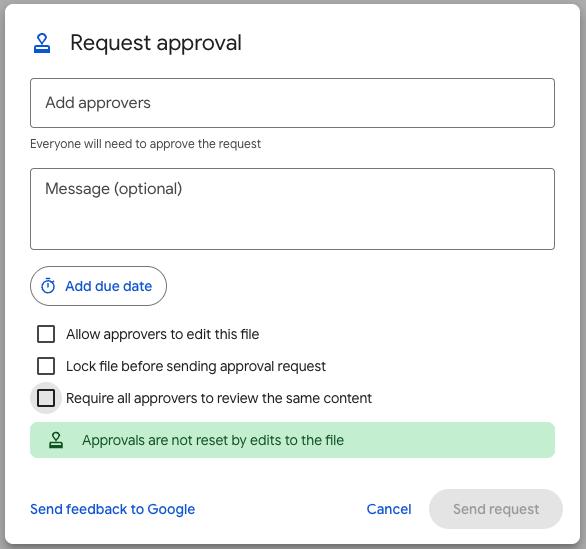
When sending 📄 documents for approval in 📂 #GoogleDrive, you’ll soon have a new option that will enable a you to keep ✏️ editing a partially-approved document without resetting the entire review process.
Rolling out now. Learn more: workspaceupdates.googleblog.…
ALT A screenshot of the “Request approval” dialog in Google Drive. There are three checkbox options for the user to select: Allow approvers to edit this file; Lock file before sending approval request; and Request all approvers to review the same content. There are also options for the user to add approvers, type a message and add a due date. The “Require all approvers to review the same content” option is highlighted in grey and there is a green notification below that states “Approvals are not reset by edits to the file”. Options to “Cancel” and “Send request” are in the bottom-right corner of the dialog.
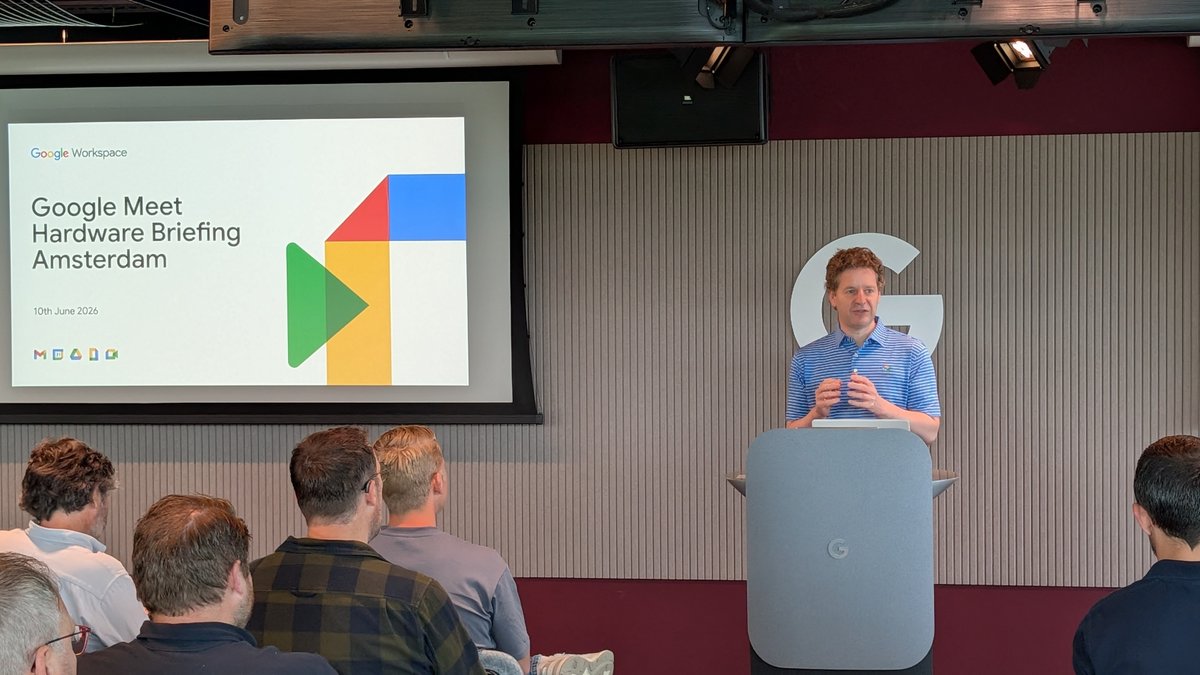
We’re in 🇳🇱 Amsterdam this morning for the first of two Google Meet & Voice Briefings this week!
Next up: 🇫🇮 Helsinki tomorrow!
There’s still time to register for the Finland event and other upcoming sessions: forms.gle/zPJctptsqxNvsEyr8
ALT A photo of a man standing at a podium at the front of a room. On the wall behind him, and on the front of the podium, is the letter “G” for “Google”. To his right is a projector screen with the Google Meet logo and the words “Google Meet Hardware Briefing Amsterdam” and the date of the event. In the foreground is a seated audience.
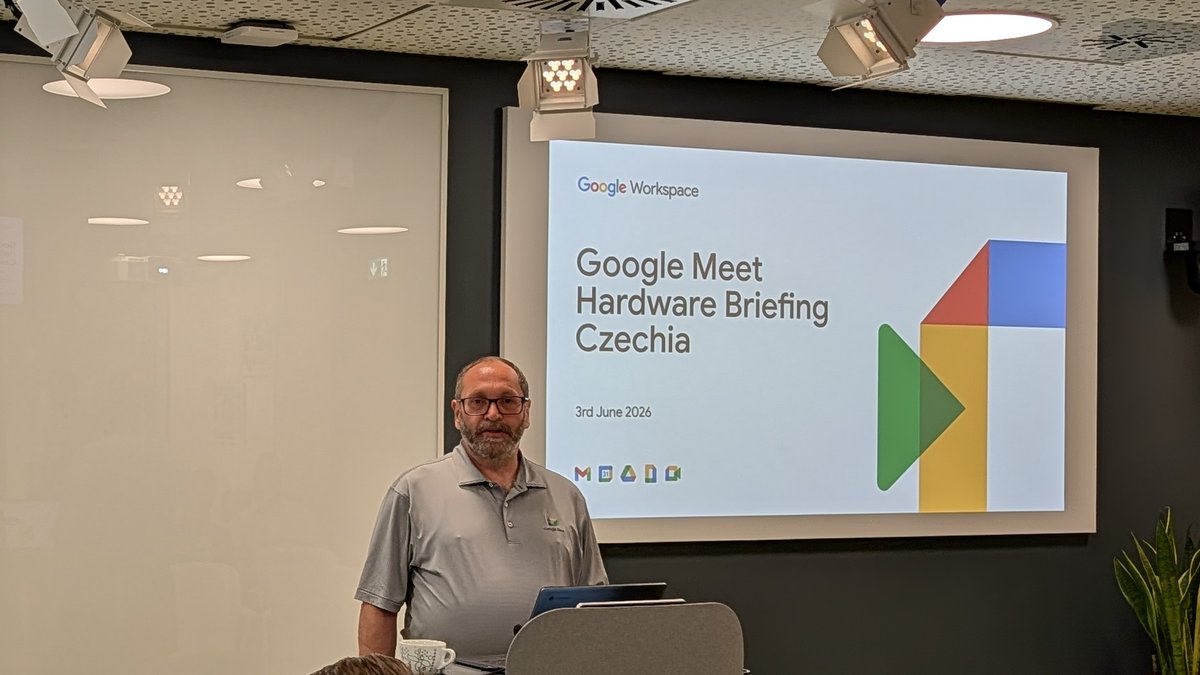
We’re in 🇨🇿 Prague today where the #GoogleMeetHardware ecosystem has congregated for a morning of presentations and networking.
Join us at upcoming events in Europe, such as:
🇳🇱 Amsterdam
🇫🇮 Helsinki
🇫🇷 Paris
➕ ... and more! Register here: forms.gle/zPJctptsqxNvsEyr8 🦎
ALT A photo of a man standing at the front of the room. He is facing an audience and behind him is his first slide, on which are the words “Google Meet Hardware Briefing Czechia” and the date of the event, 3rd June 2026.
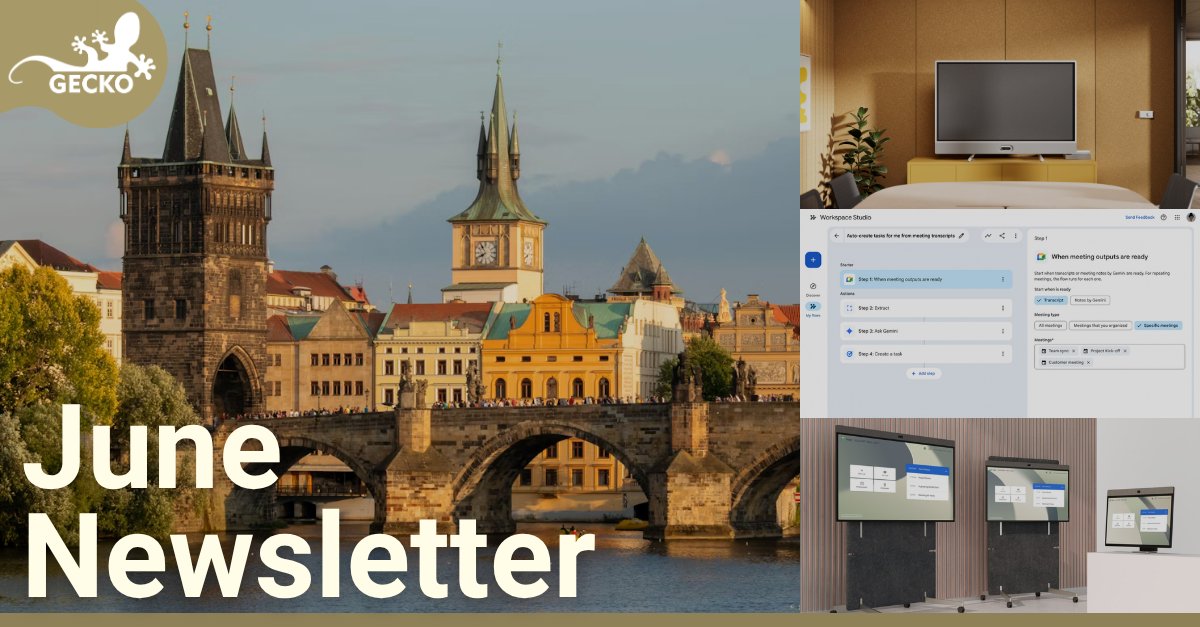
💡 In this month’s newsletter, we’ve recapped:
🖥️ Newly-certified Google Meet Hardware from Logitech and Neat
📆 Upcoming events with Neat, Pexip, BABC and more
✨ Recent Google Meet and Google Workspace platform updates
➕ ... and more!
📖 Read it here: mailchi.mp/geckotech/june-20…
ALT A composite image split into four sections with the words “June Newsletter” overlaid: three images are stacked vertically on the right, occupying an approximate third of the width, whilst a fourth image occupies the remaining two-thirds of the image. On the right, from top to bottom, the images are: a Logitech Rally Board 65 in a meeting room, sitting on a credenza with a meeting room table in the foreground; a screenshot from a user configuring an automatic workflow in Google Workspace Studio; and a picture of three all-in-one meeting room devices, the Neat Board Pro, Board 50 and Board 32. The image on the left depicts the Charles Bridge in Prague, Czech Republic. In the upper-left corner of the overall image is the Gecko logo.
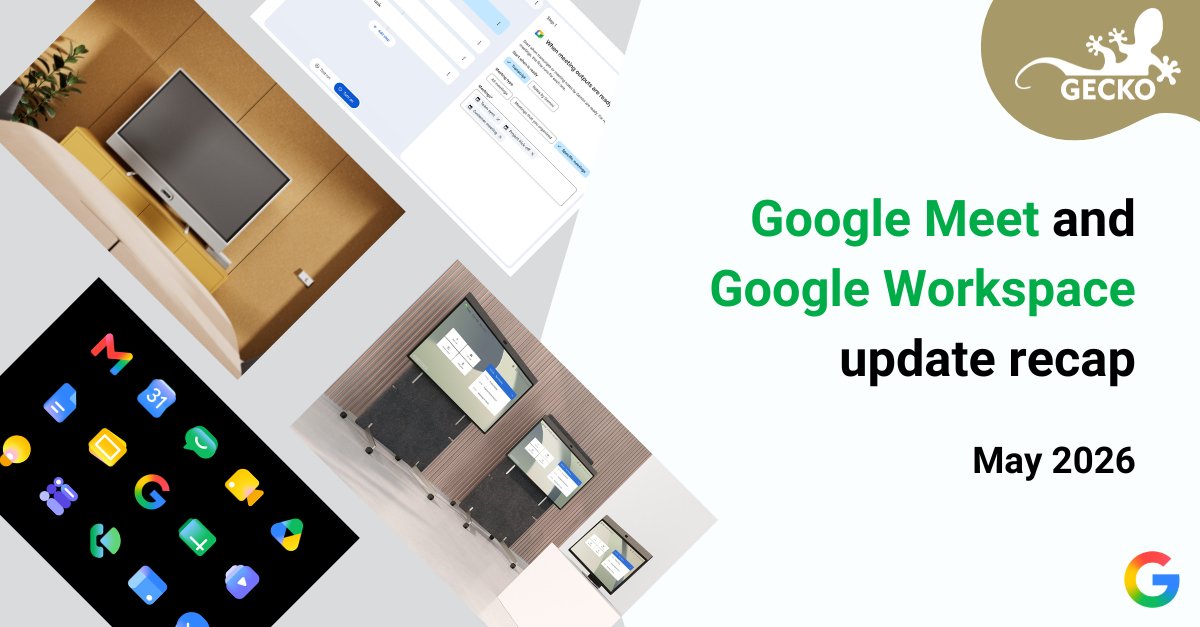
📢 We’ve rounded up the biggest announcements and updates in the Google world from May:
📹 New devices from Logitech and Neat
📺 Livestream improvements
🤖 More options in Workspace Studio
📖 Read all of these and more in our May 2026 recap: geckotech.cloud/blogs/gecko/…
ALT A composite image with the text “Google Meet and Google Workspace update recap. May 2026”. To the left of the text are four images. From the top down, the images are: a screenshot on automated workflow in Google Workspace Studio; a picture of the Logitech Rally Board 65 in a meeting room; a picture of the Neat Board Pro, Board 50 and Board 30 in a room; and an image of the new Google Workspace application logos. There are also the Gecko and Google Workspace logos along the right-hand edge of the complete image.
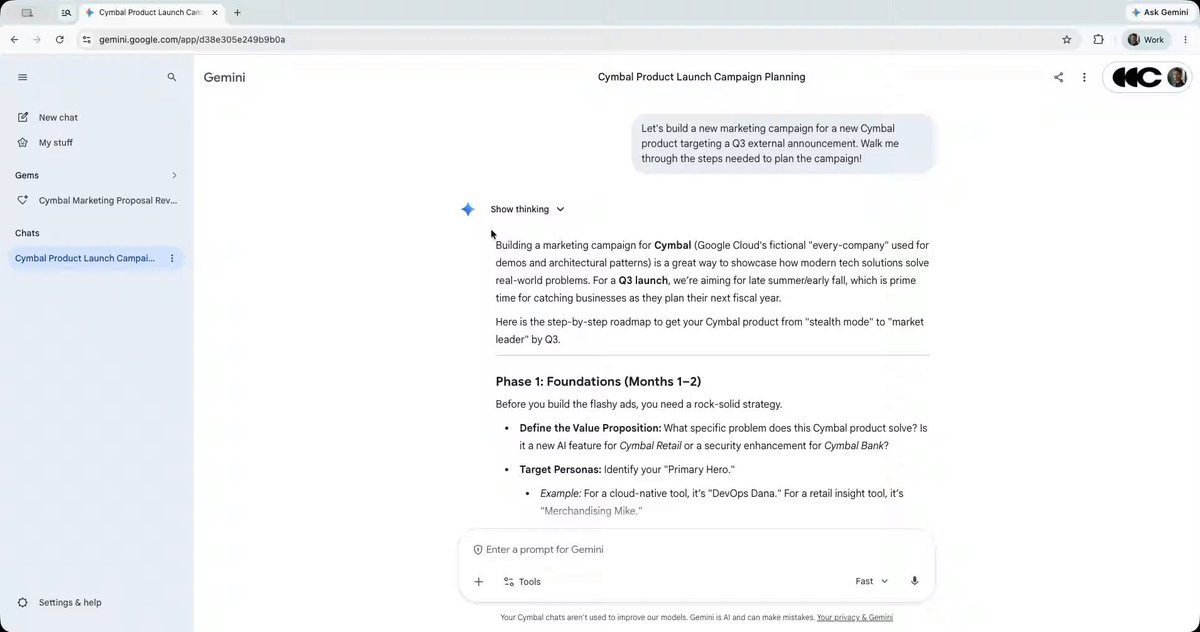
Soon, from the 🌐 web, you’ll be able to share 📸 snapshots of your 💬 #Gemini chats, 🖼️ canvases and 🎬 media using #GoogleDrive.
Content shared via Drive will be protected by your organisation's existing Drive policies.
Rolling out now. Learn more: workspaceupdates.googleblog.…
ALT A short video of a user using Gemini on the web. The user is having a conversation with Gemini about a new marketing campaign. The user clicks the “Share via Drive” icon in the top-right corner. A pop-up appears explaining that shared chats will be saved to Google Drive if they proceed; the user clicks “Proceed”. The user then enters the name “Alice Demo” as the person with whom they want to share the conversation, granting them “Editor” access and choosing to notify them. The user then clicks “Send”. A small notification appears at the top with the text “Access updated”.
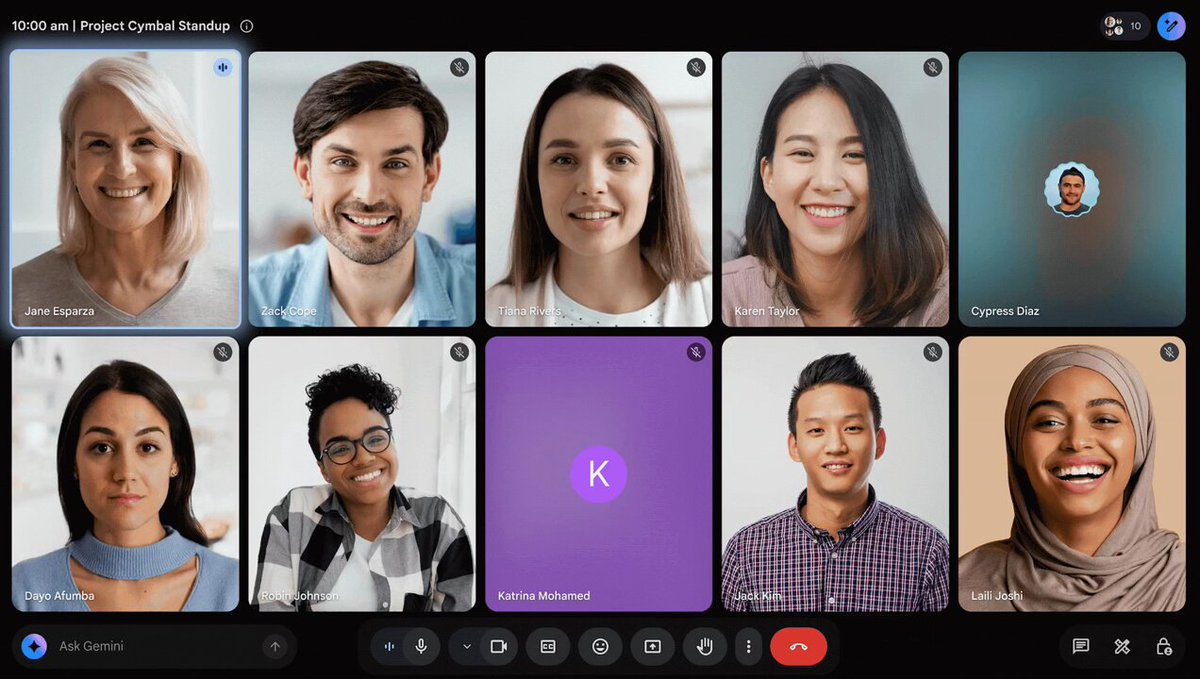
✨ Ask Gemini ✨ is becoming more prominent and accessible within the 📹 #GoogleMeet web interface with a move to the bottom-left corner of the screen, instead of being hid behind a 🖱️ button.
Rolling out now. Learn more: workspaceupdates.googleblog.…
ALT An image of two logos either side of arrows rotating in a small circle. On the right is the NotebookLM logo and, on the left, the image rotates between various Google Workspace logos: Google Drive, Google Docs, Google Slides and Google Sheets.
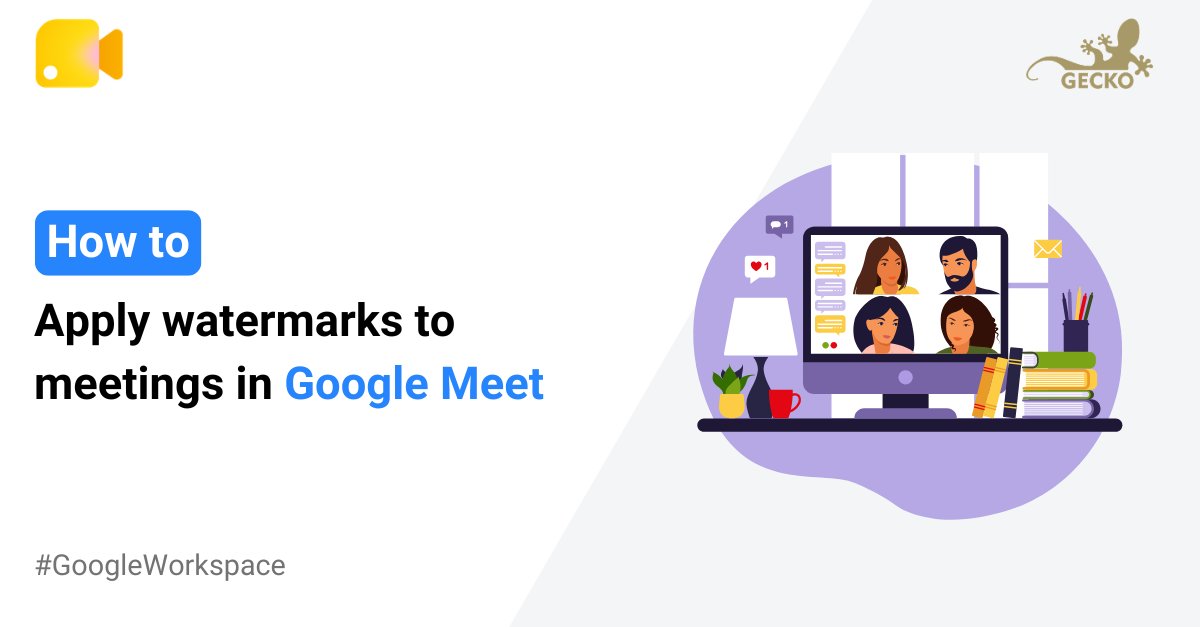
Did you know that you can apply 💦 watermarks to your 📹 video and 🖼️ presented content in #GoogleMeet? When enabled, all guests will see a text overlay of the meeting’s Meet code and their own email address on the screen.
Learn how: support.google.com/meet/answ…
ALT A composite image with the text “How to: Apply watermarks to meetings in Google Meet”. To the right of the text is an illustration of a computer on a desk. On the computer screen is a virtual meeting between four people with a stream of messages on the left-hand-side. Along the top of the complete image are the Google Meet and Gecko logos.
Want to save time and create a complete set of editable 🛝 slides in #GoogleSlides? With ✨ Workspace Intelligence, #Gemini can now generate 🖼️ ready-to-present decks using a simple prompt and context from your Workspace data.
See how 👇
youtu.be/MIZSg5XlWSE
At Google I/O 2026, Google announced some new 🤖 AI-powered features that will be coming soon to #GoogleWorkspace, including:
🗣️ Docs Live & Gmail Live
🖼️ Google Pics
✨ Gemini Spark
➕ ... and more!
Rolling out now. Learn more: blog.google/products-and-pla…youtu.be/pXExwYBWDz4
You can now generate 🖼️ interactive simulations and models in the ✨ #Gemini app to help you 👀 visualise and deepen your understanding of complex topics directly within your conversation.
Learn more: blog.google/innovation-and-a…
ALT A short video of the Gemini app interface. It shows a Gemini-generated simulation of fractal growth. There are interactive controls at the bottom. The user increases the “Iterations” variable which simultaneously affects the growth of the tree.
Forgot to save a shared 🔗 link or 📂 file during a #GoogleMeet call? Meeting chats are now connected directly to 💬 #GoogleChat, meaning that the conversation, including any shared materials, can be easily 🔎 located in Chat post-meeting.
See how 👇
youtu.be/YrYNzyfJl5Y
Looking for a way to 👀 visualise your data within 📈 #GoogleSheets? You can build ✏️ custom interactive visuals using canvas in✨ Gemini, including:
⭐ Dashboards
⭐ Heat maps
⭐ Kanban boards
➕ ... and more!
See how 👇
youtu.be/7yDj2MlCA-o
You can soon customise your 📋 #GoogleForms with header images sourced directly from 🗃️ #GoogleDrive, 🌐 Google Images or a 🔗 URL, allowing you to personalise your forms more easily.
Rolling out now. Learn more: workspaceupdates.googleblog.…
ALT A short video of the Google Forms interface. The user is editing a form titled “Team offsite”. The user clicks on the existing header image and selects the “Add image” icon. The user has the option to select an image from “Themes”, “Upload”, “Photos”, “Google Drive”, “Google Images” or “By URL”. The user clicks “Google Drive”, chooses an image from their “Recent” folder that shows two people canoeing on a river and clicks “Insert”. The user edits the exact image header positioning and clicks “Save”. The form then updates with the new image.