
62 Photos and videos
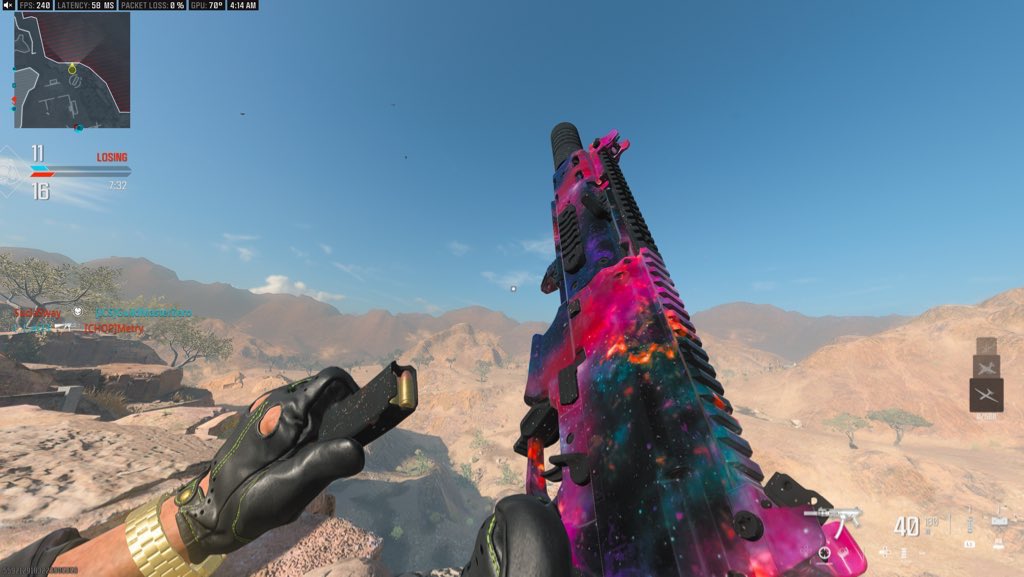
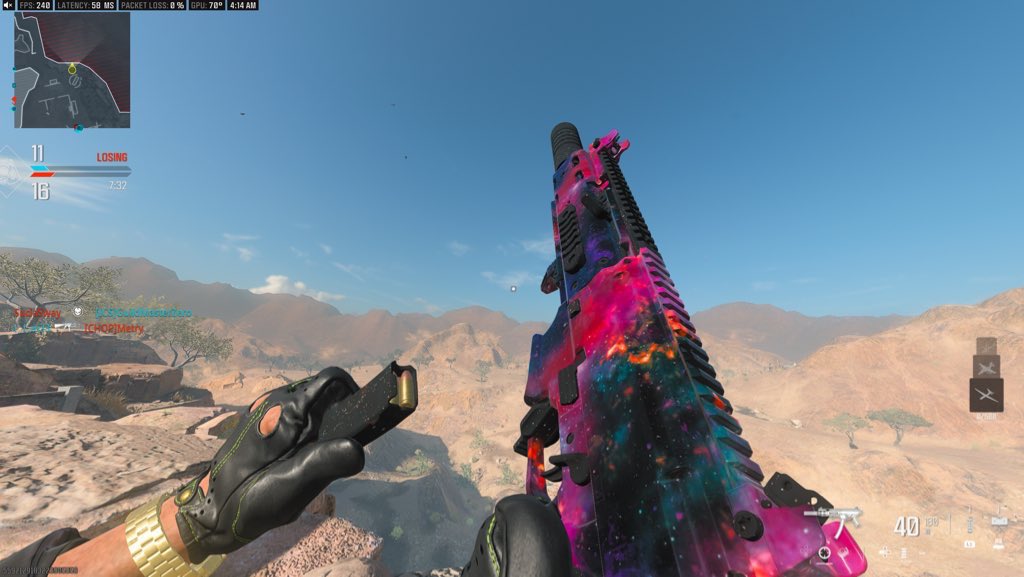
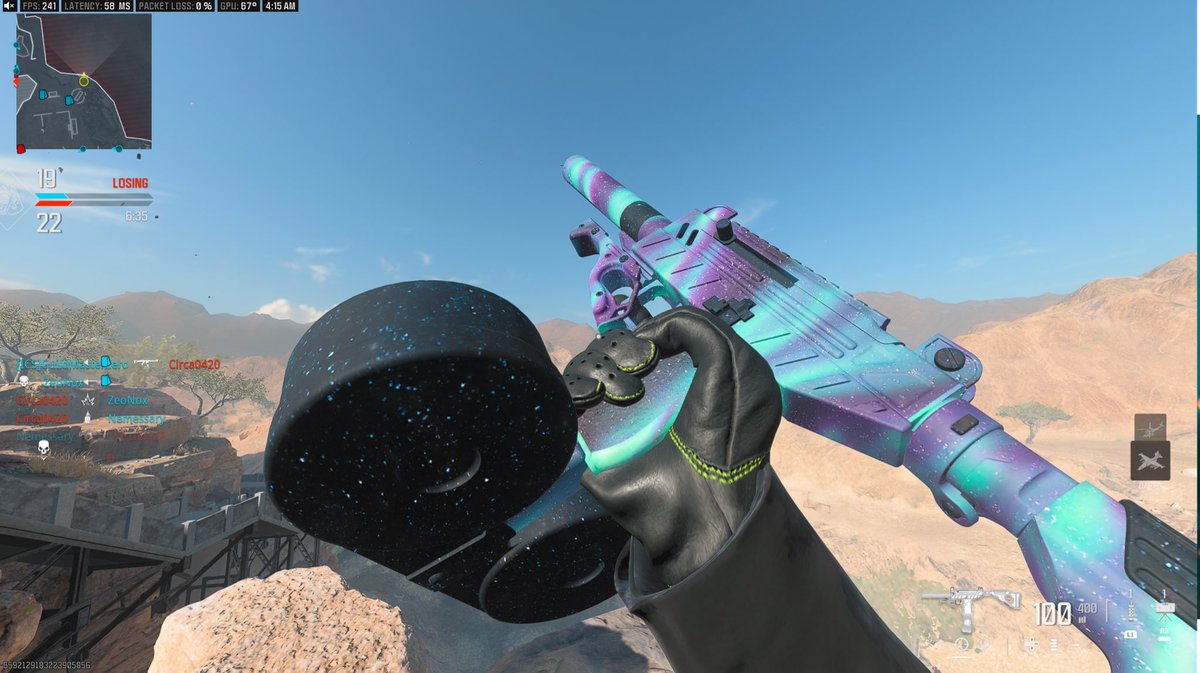
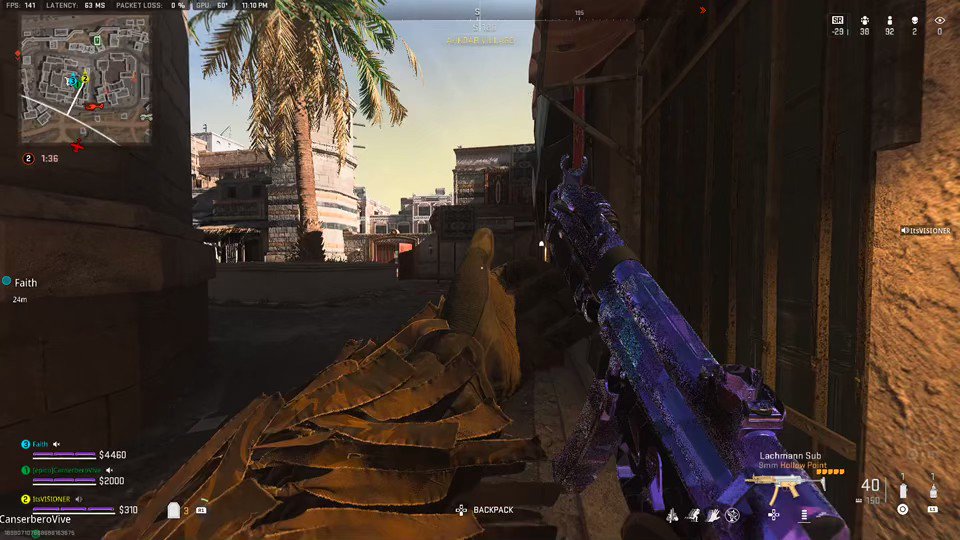
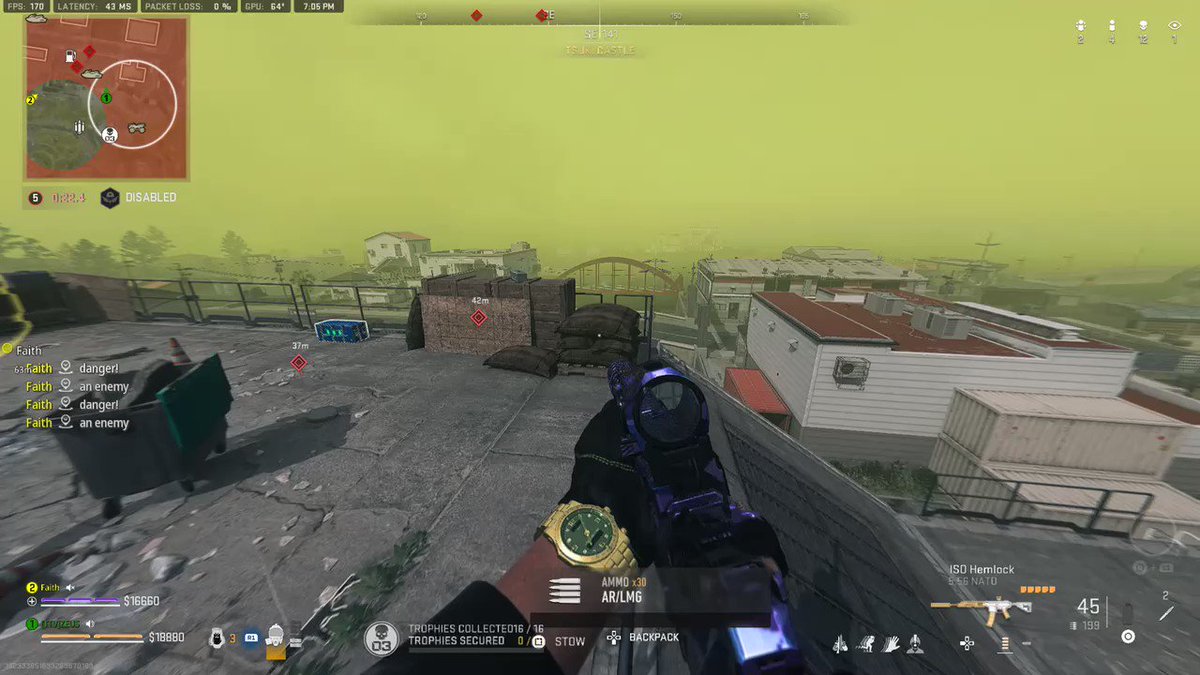
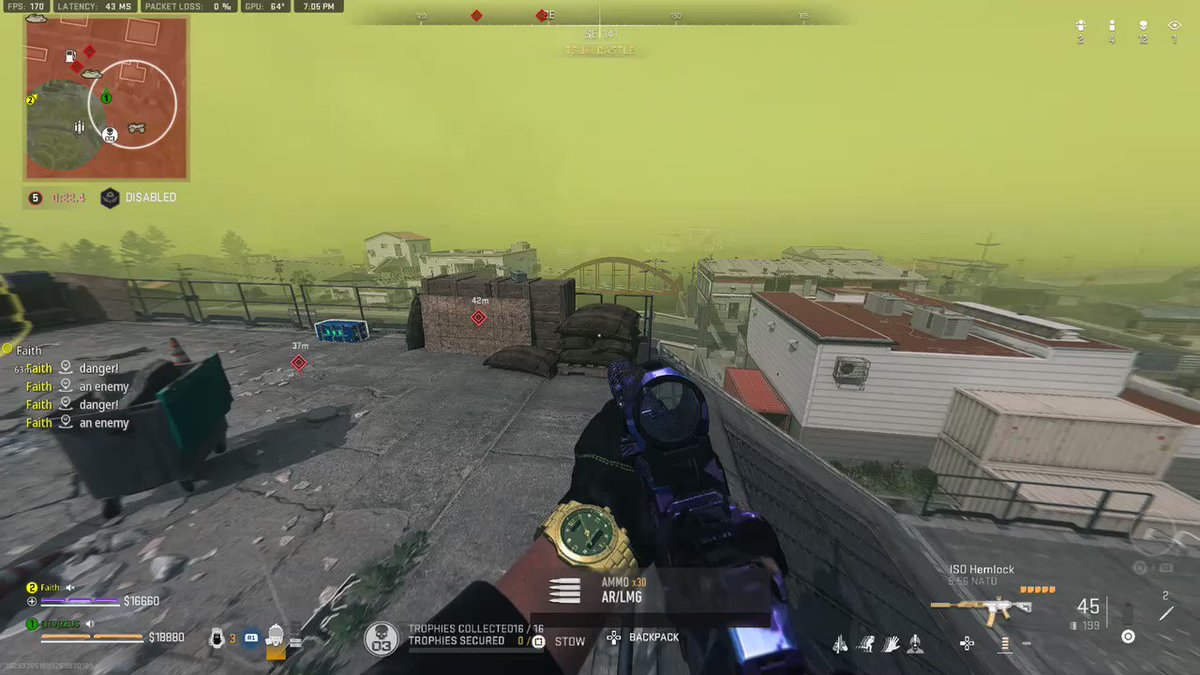
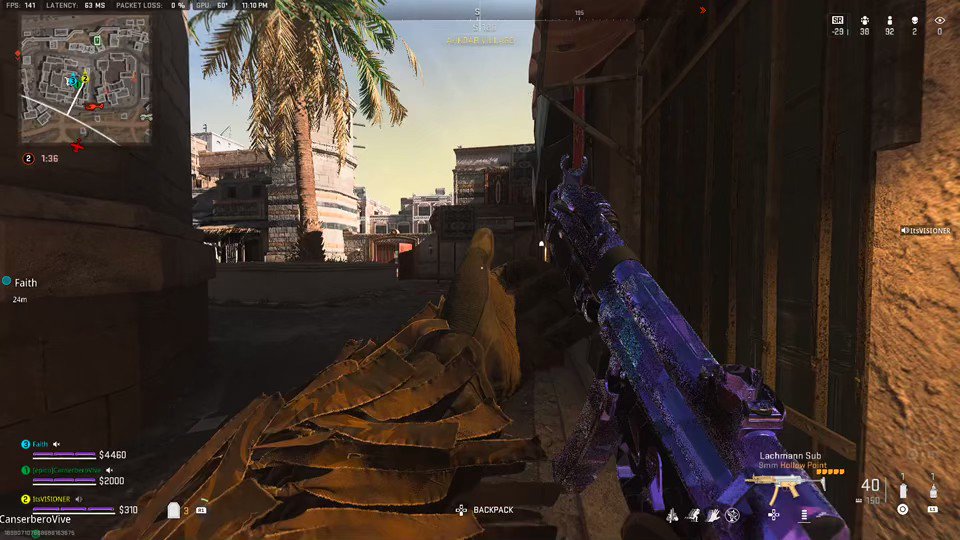

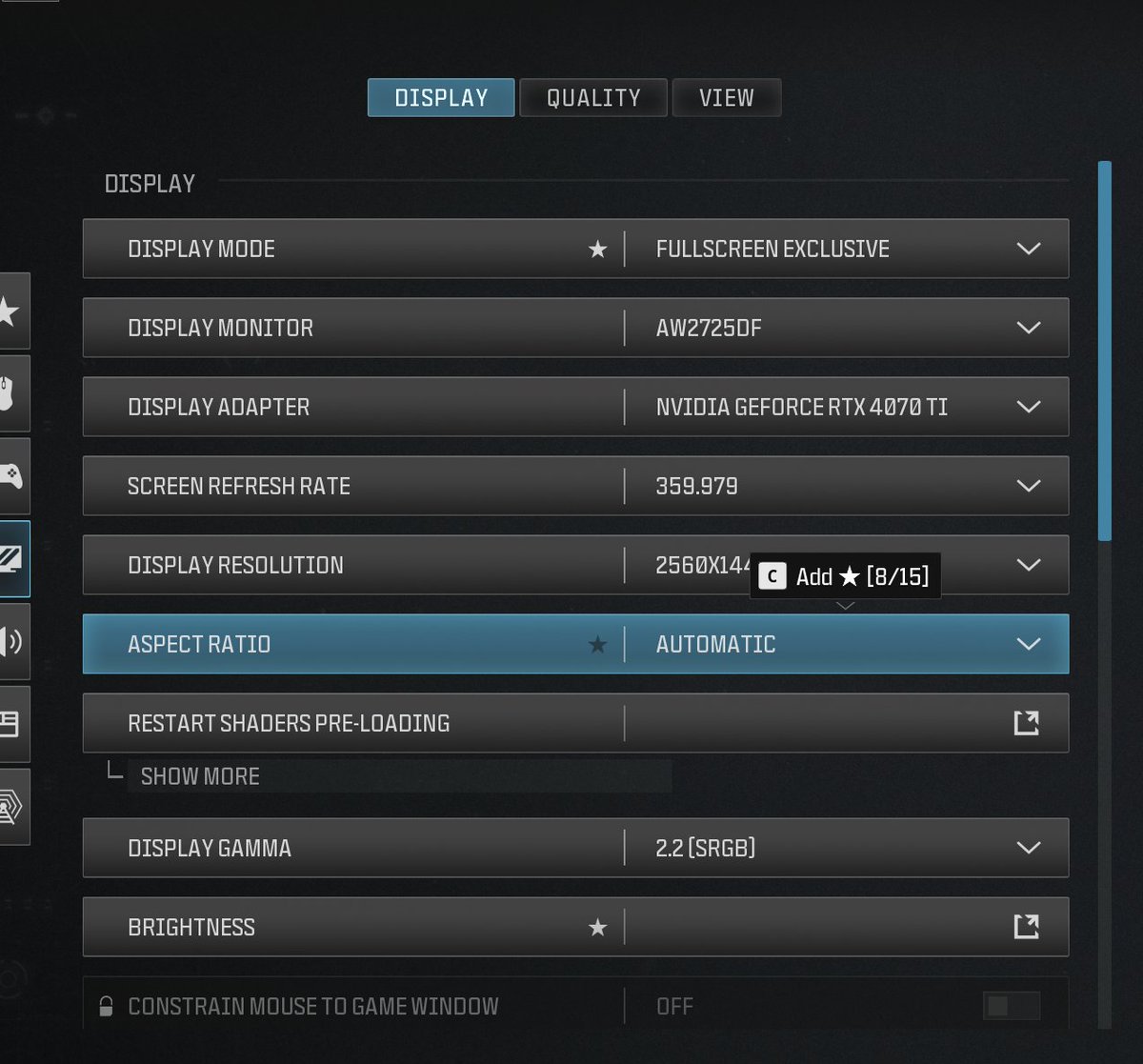
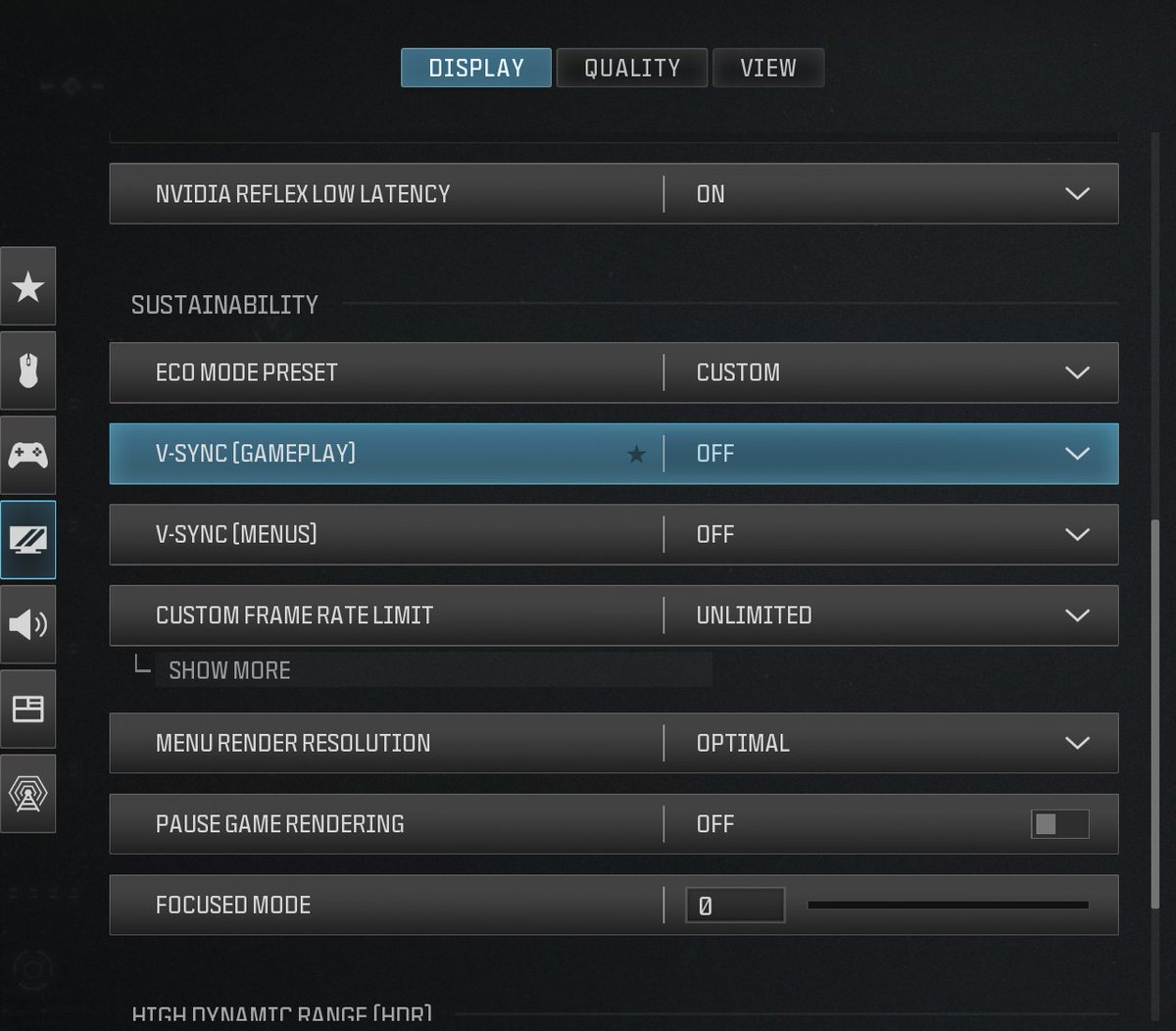
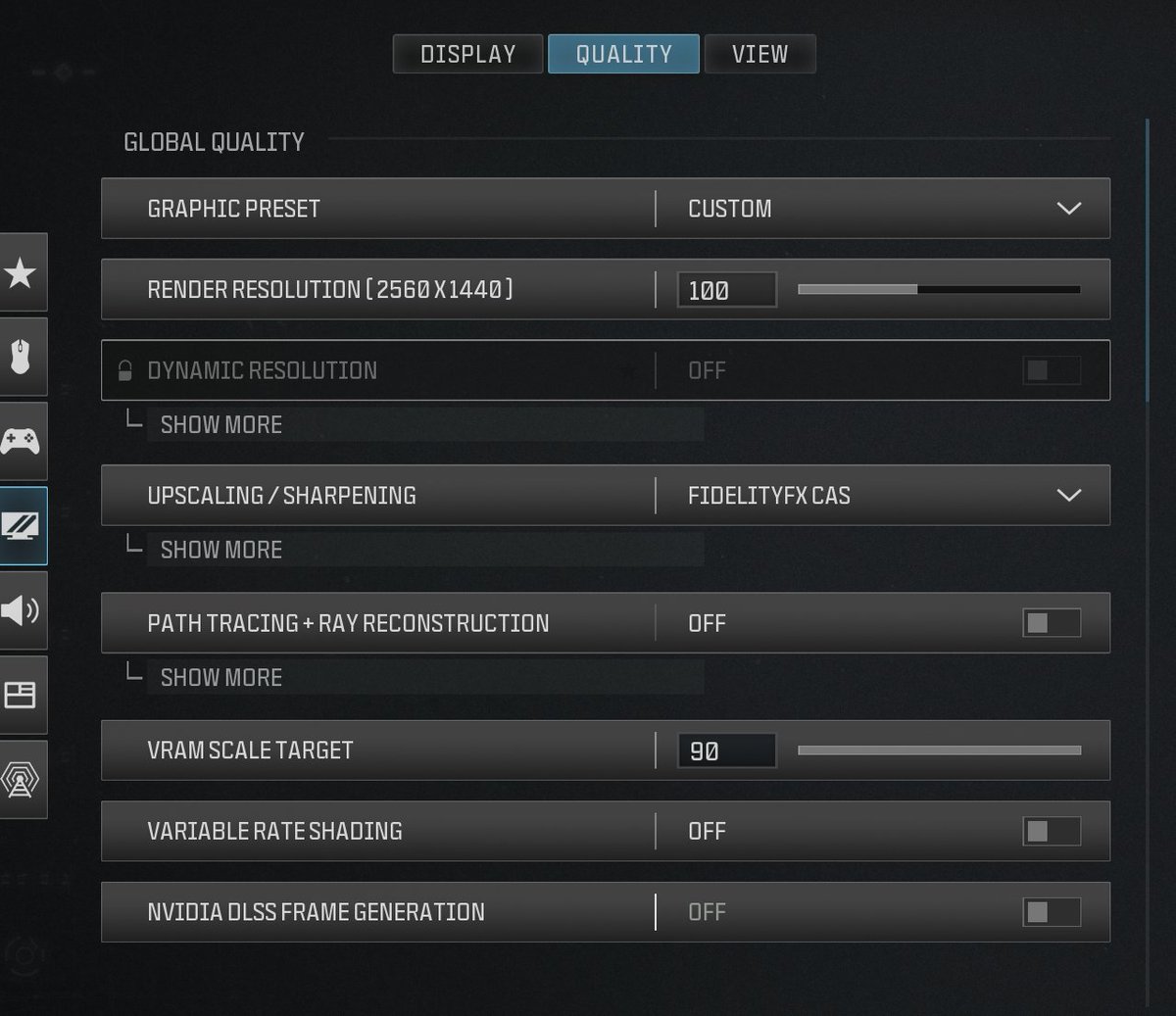
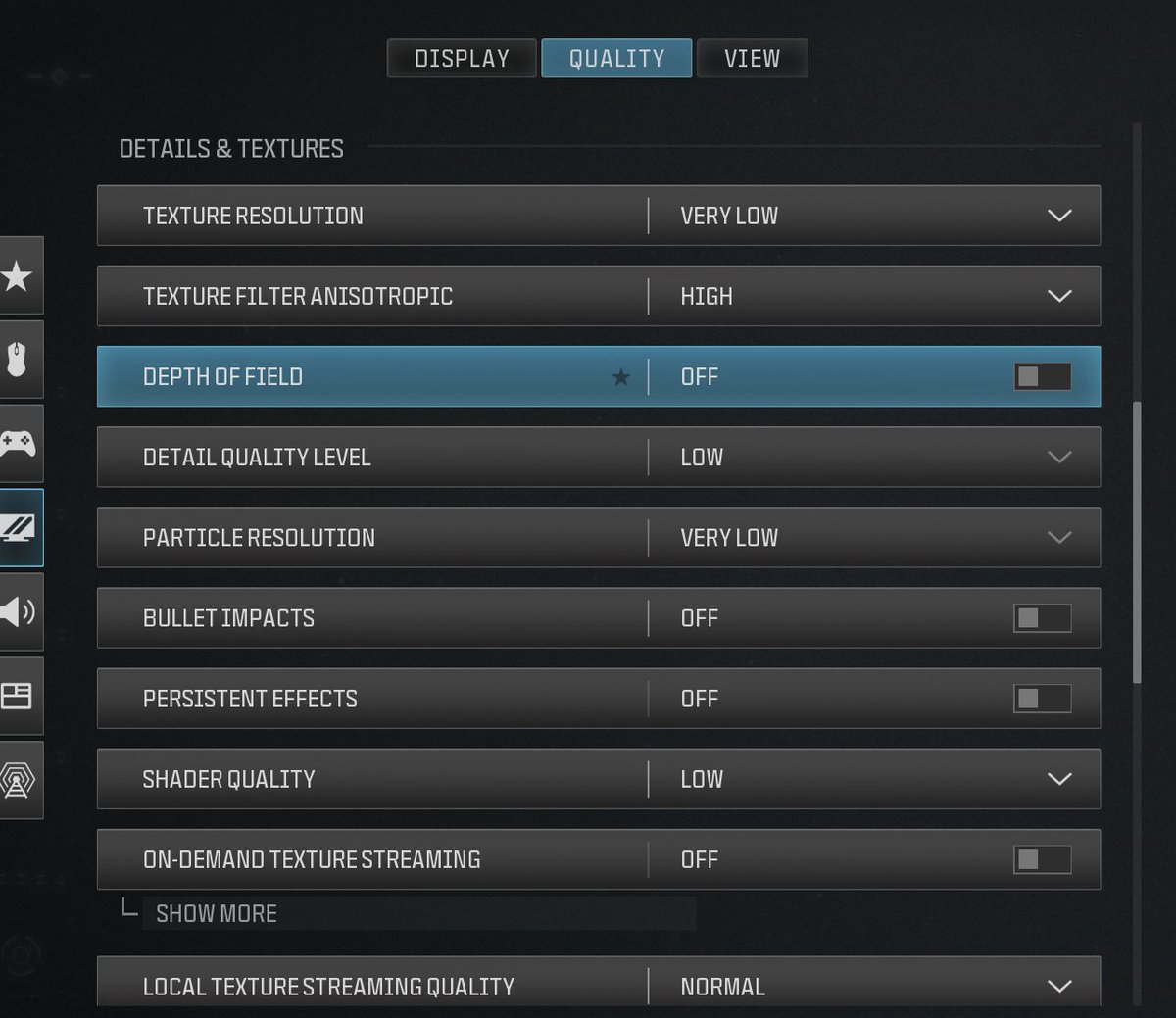
BEST COD #MWIII / #Warzone Settings Post-Update for Max FPS
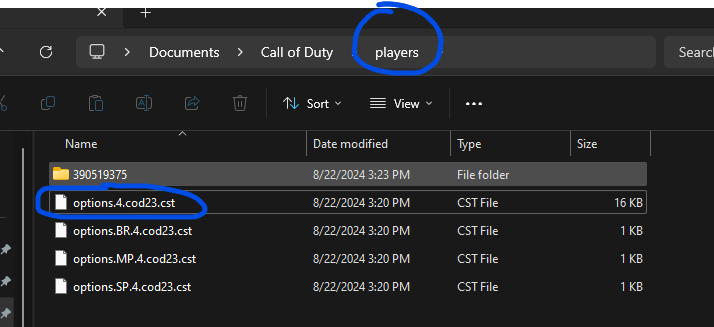
1. Go to Documents -> Call of Duty Folder -> players folder -> options.4.cod23.cst -> Open it with notes
2. Once in the options.cod23.cst file, use CTRL F to find the settings below
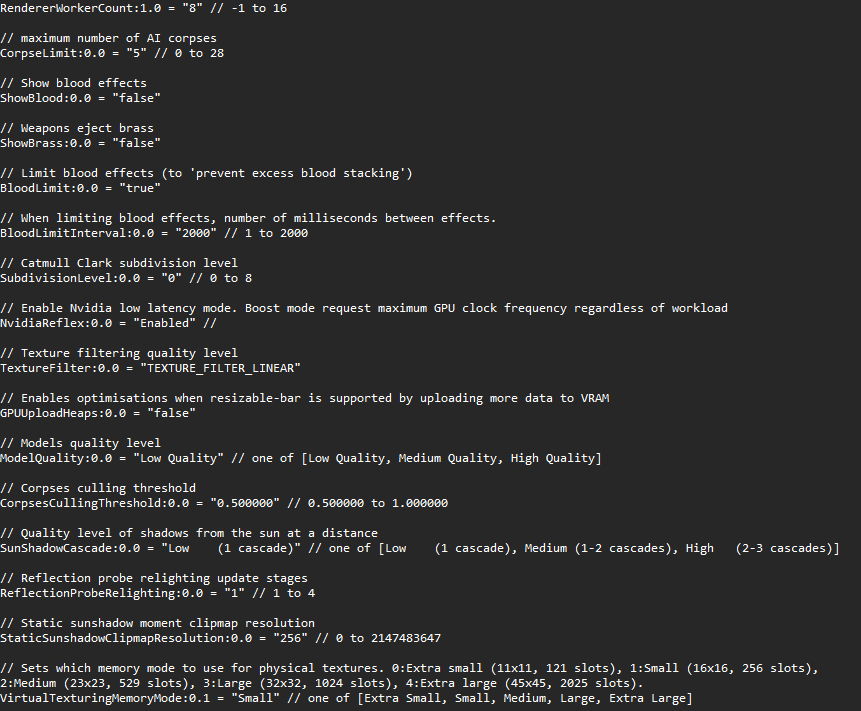
3. Change these settings for an FPS boost 👇
// maximum number of AI corpses
CorpseLimit:0.0 = "5" // 0 to 28
// Show blood effects
ShowBlood:0.0 = "false"
// Weapons eject brass
ShowBrass:0.0 = "false"
// Limit blood effects (to 'prevent excess blood stacking')
BloodLimit:0.0 = "true"
// When limiting blood effects, number of milliseconds between effects.
BloodLimitInterval:0.0 = "2000" // 1 to 2000
// Catmull Clark subdivision level
SubdivisionLevel:0.0 = "0" // 0 to 8
// Enable Nvidia low latency mode. Boost mode request maximum GPU clock frequency regardless of workload
NvidiaReflex:0.0 = "Enabled" //
// Texture filtering quality level
TextureFilter:0.0 = "TEXTURE_FILTER_LINEAR"
// Enables optimisations when resizable-bar is supported by uploading more data to VRAM
GPUUploadHeaps:0.0 = "false"
// Models quality level
ModelQuality:0.0 = "Low Quality" // one of [Low Quality, Medium Quality, High Quality]
// Corpses culling threshold
CorpsesCullingThreshold:0.0 = "0.500000" // 0.500000 to 1.000000
// Quality level of shadows from the sun at a distance
SunShadowCascade:0.0 = "Low (1 cascade)" // one of [Low (1 cascade), Medium (1-2 cascades), High (2-3 cascades)]
// Reflection probe relighting update stages
ReflectionProbeRelighting:0.0 = "1" // 1 to 4
// Static sunshadow moment clipmap resolution
StaticSunshadowClipmapResolution:0.0 = "256" // 0 to 2147483647
// Sets which memory mode to use for physical textures. 0:Extra small (11x11, 121 slots), 1:Small (16x16, 256 slots), 2:Medium (23x23, 529 slots), 3:Large (32x32, 1024 slots), 4:Extra large (45x45, 2025 slots).
VirtualTexturingMemoryMode:0.1 = "Small" // one of [Extra Small, Small, Medium, Large, Extra Large]
18
58
719
113,046
PC Gamer Tip:
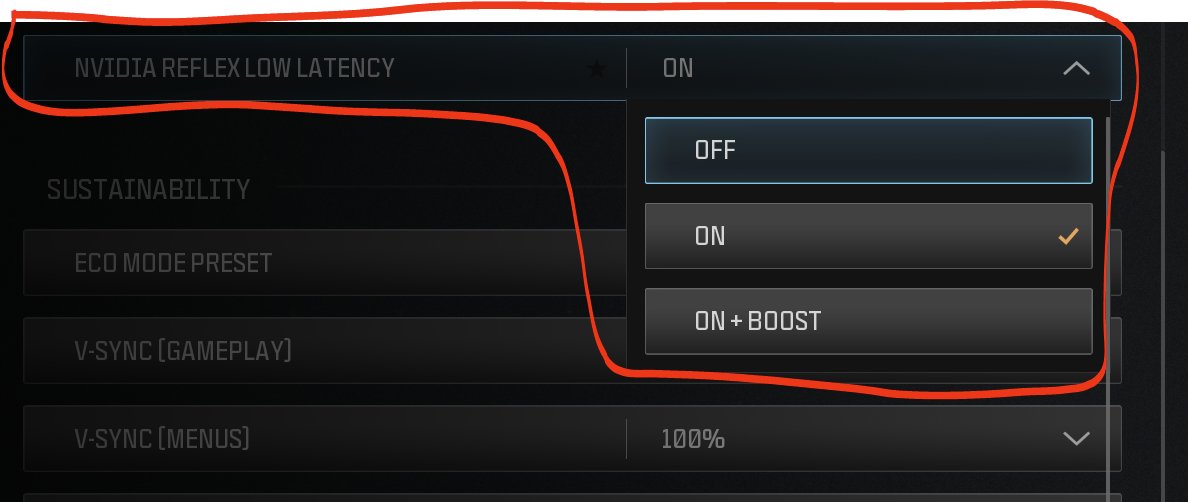
NVIDIA Reflex reduces latency but you have to use the right setting in order to maximize performance and being able to react faster to your opponents
- Use NVIDIA Reflex ON if you are GPU Bounded
- Use NVIDIA Reflex ON Boost if you are CPU Bounded
35
100
1,693
329,136
RyZe retweeted

10 Mar 2024
Nuevo meta en #Warzone: Las mejores clases, actualizado: 10/03/2024.
Largas distancias
- Bruen MK9 (Ametralladora ligera)
- Holger 556 (Fusil de Asalto)
- SOA Subverter (Fusil de combate)
Cortas distancias
- RAM 9 (Subfusil)
- HRM 9 (Subfusil)
11
110
1,004
52,869

RyZe retweeted

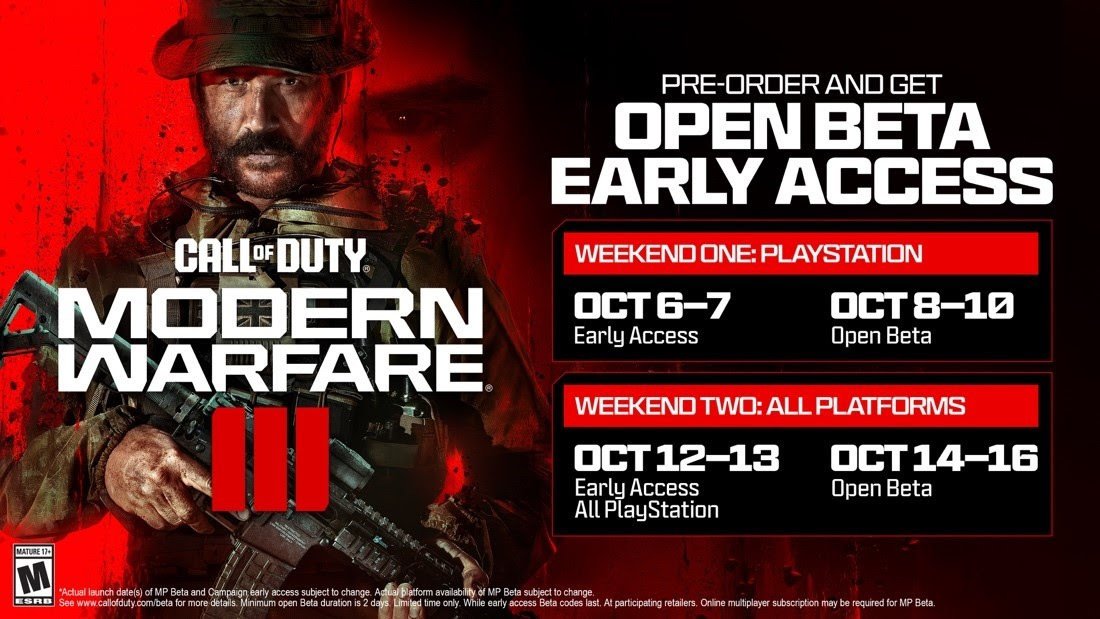
13 Oct 2023
17
167
1,079
73,276
RyZe retweeted

6 Oct 2023
🚨 MW3 GIVEAWAY 🚨
Retweet ✅
Tag 2 friends ✅
Follow on kick ✅
winner will be picked 3-4pm EST
58
61
93
14,761
RyZe retweeted

🚨 WHO NEEDS A #MW3 BETA CODE? 🚨
👇 REPLY with the platform you play on! 👇
2,611
291
2,075
257,248
RyZe retweeted

5 Oct 2023
YO WHO WANTS A #MW3 BETA CODE??
I got a few 😉
Like retweet follow
163
551
861
76,772
RyZe retweeted
🚨 15 #MW3 BETA CODES GIVEAWAY 🚨
To win 1 of 15 beta codes, just:
• FOLLOW @MW3CODInformer @ImGraysonRogers
• RT this tweet
That’s it! Winners DM’d in 2 days.

102
639
611
84,946

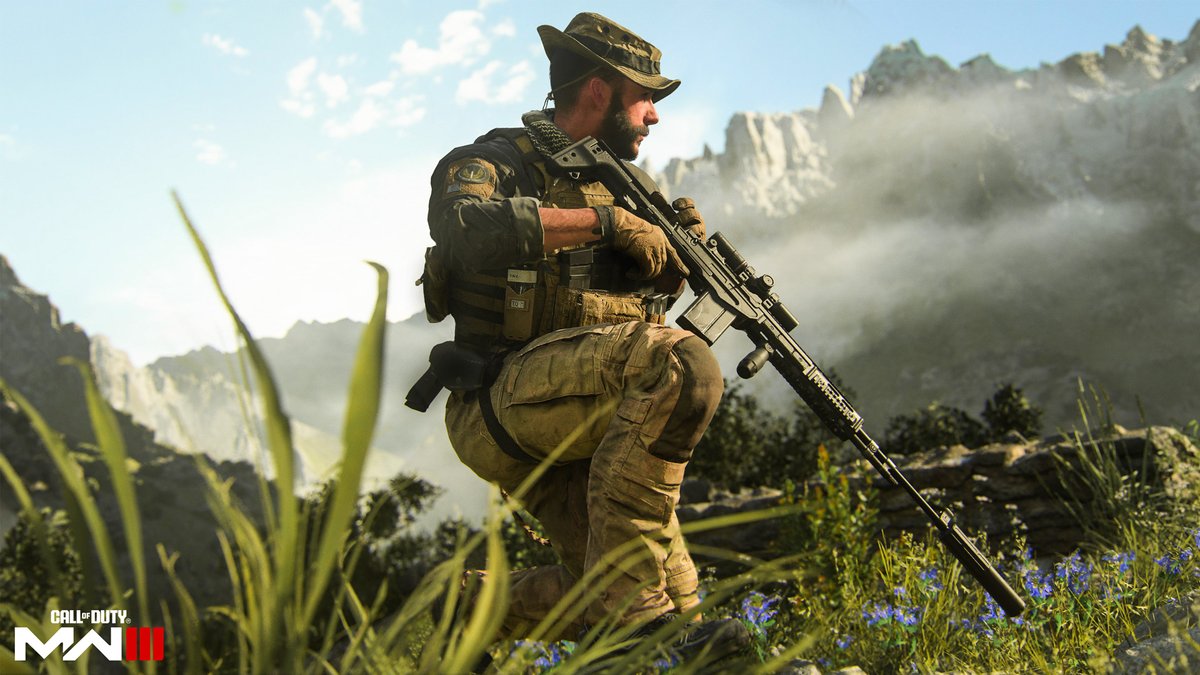
We'll be giving away #MW3 #ModernWarfare3 beta codes later and we have a LOT of codes courtesy of Activision. Who wants one?
Details and link to it incoming later. #RT and share now.
114
268
285
67,791
RyZe retweeted

2 Oct 2023
#MW3 Beta Codes GIVEAWAY‼️..
To enter:
✅Like
✅Follow
✅Retweet
For your chance to WIN a Beta Code‼️
Winner will be chosen in 24hrs!
#ModernWarfare3 @CallofDuty

29
187
271
41,495

RyZe retweeted

3 Oct 2023
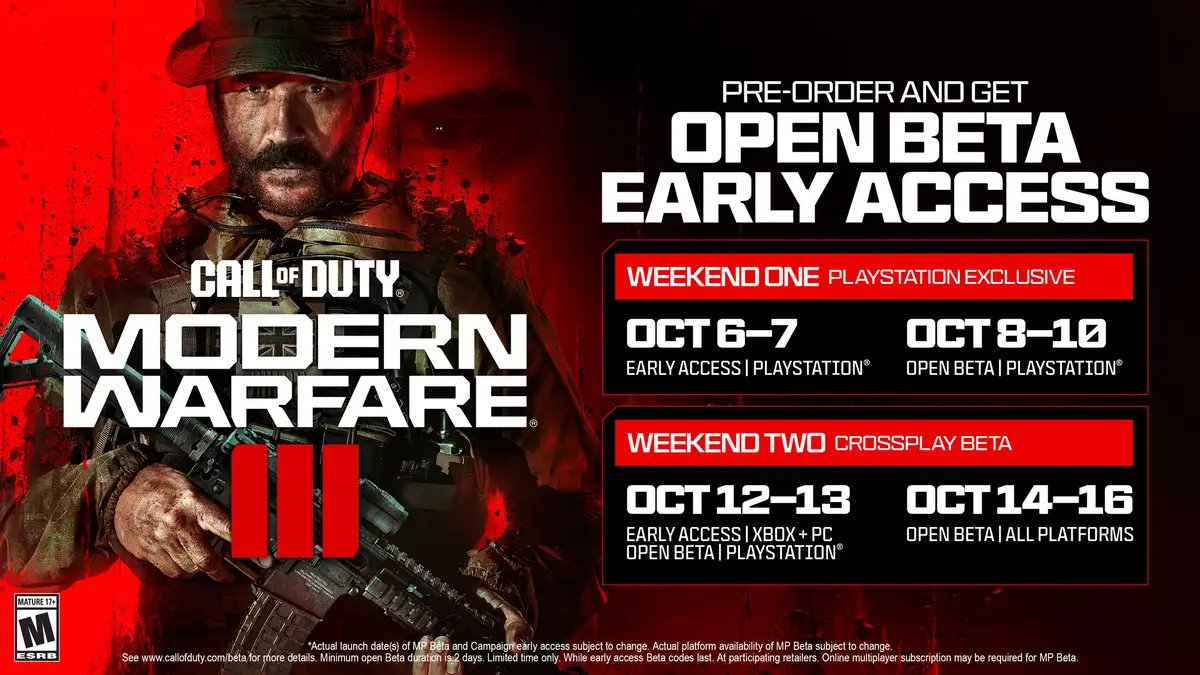
🎁 MW3 BETA CODE GIVEAWAY🎁
@CallofDutyUK was super nice and gave me a code to giveaway :)
To enter, follow @Warzone_Loadout and retweet!
Good luck :)
65
619
537
118,514
RyZe retweeted

3 Oct 2023
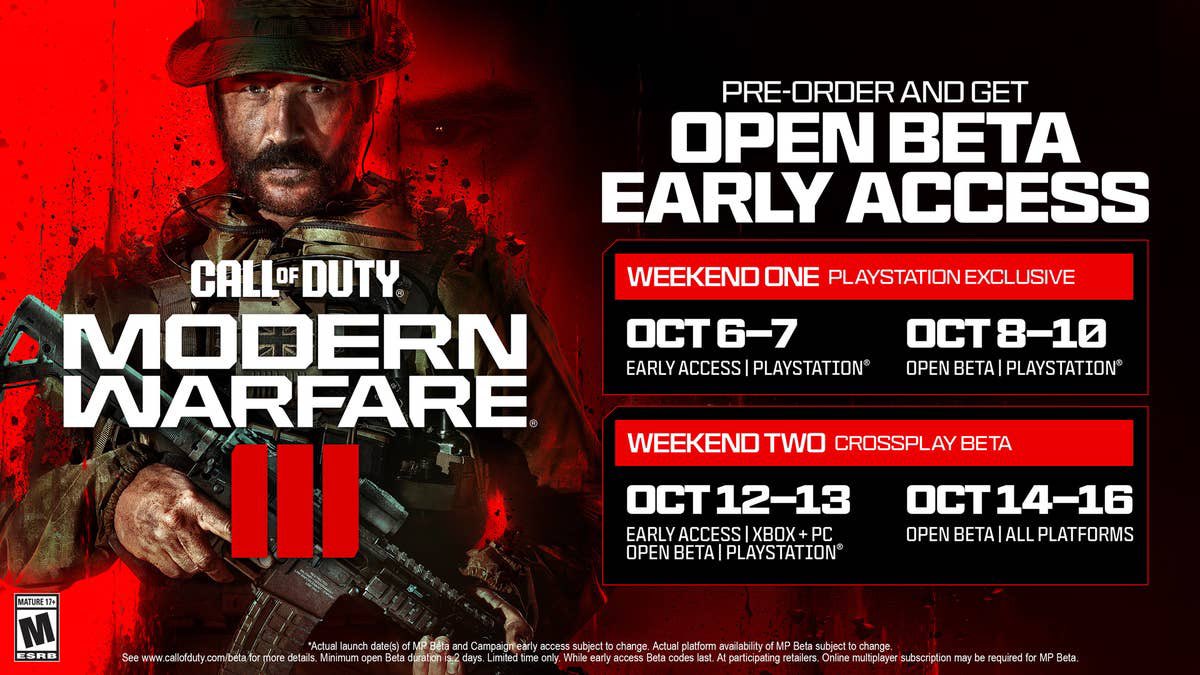
🚨 MW3 BETA EARLY ACCESS GIVEAWAY 🚨
🎁 We’re giving away an Early Access #ModernWarfareIII Beta to a lucky winner!
Courtesy of @CallofDutyUK 🤝
To Enter giveaway:
1️⃣ Like & Retweet 👍
2️⃣ Follow @WZStatsGG 🫡
3️⃣ Tag a friend you’ll 1v1 on Rust 😈
Winner announced on Friday!
387
427
776
192,104

29
36
173
128,143
RyZe retweeted

16 Jun 2023
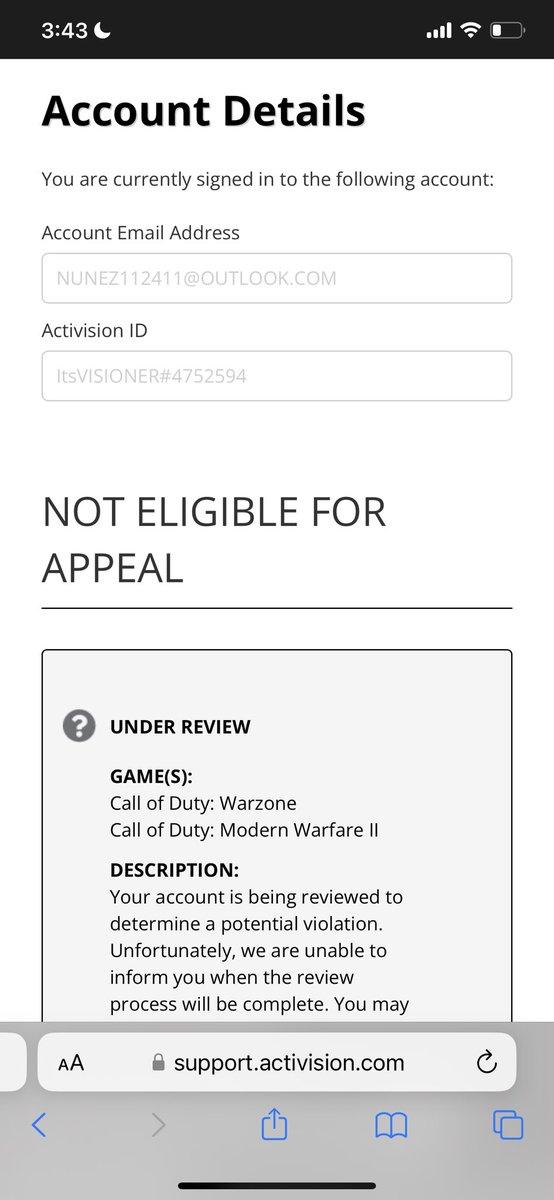
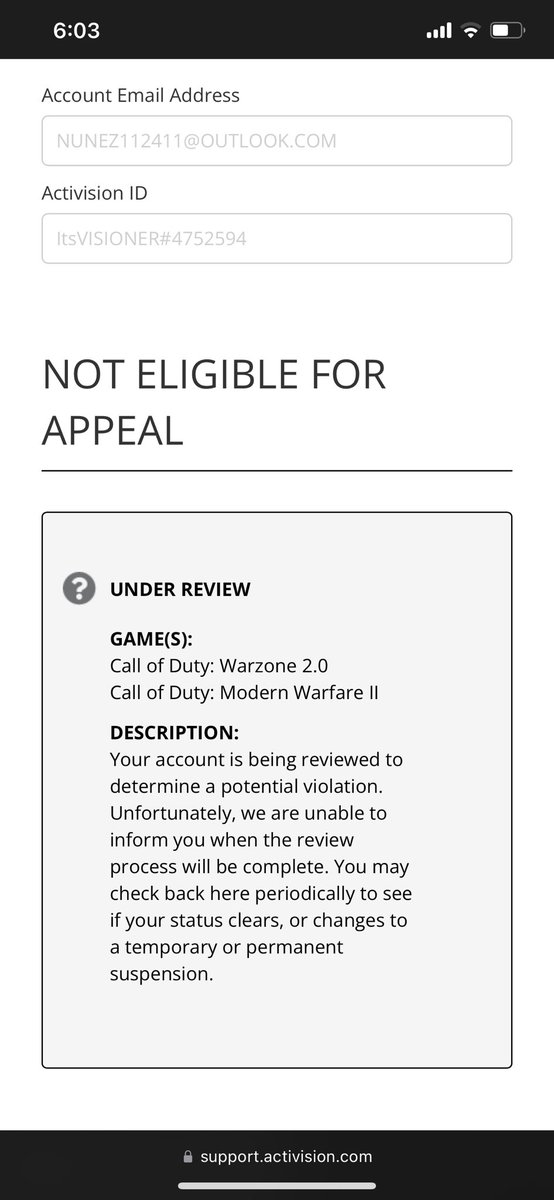
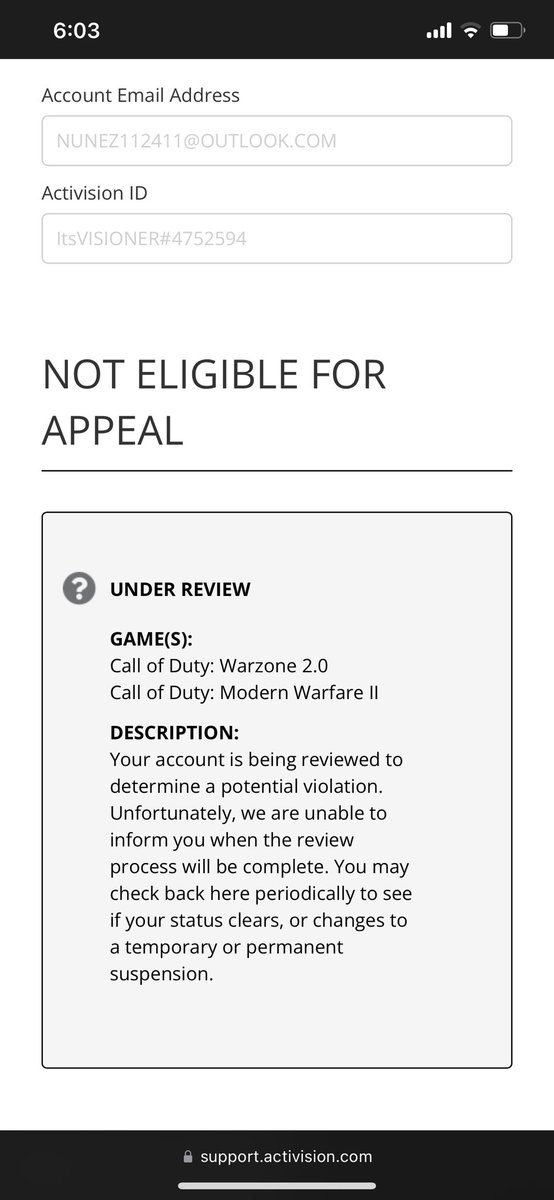
Respond to this Tweet if you're shadowbanned or have been falsely shadowbanned in the past.
I'm tryna see something.
1,281
108
1,456
576,616

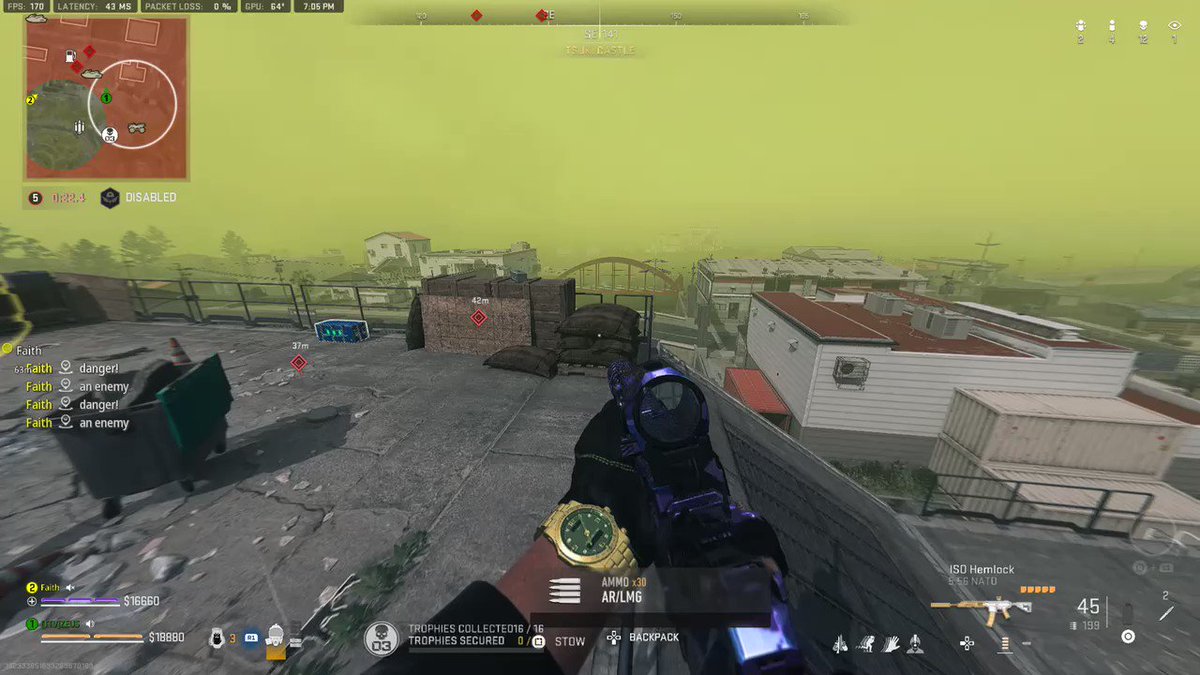
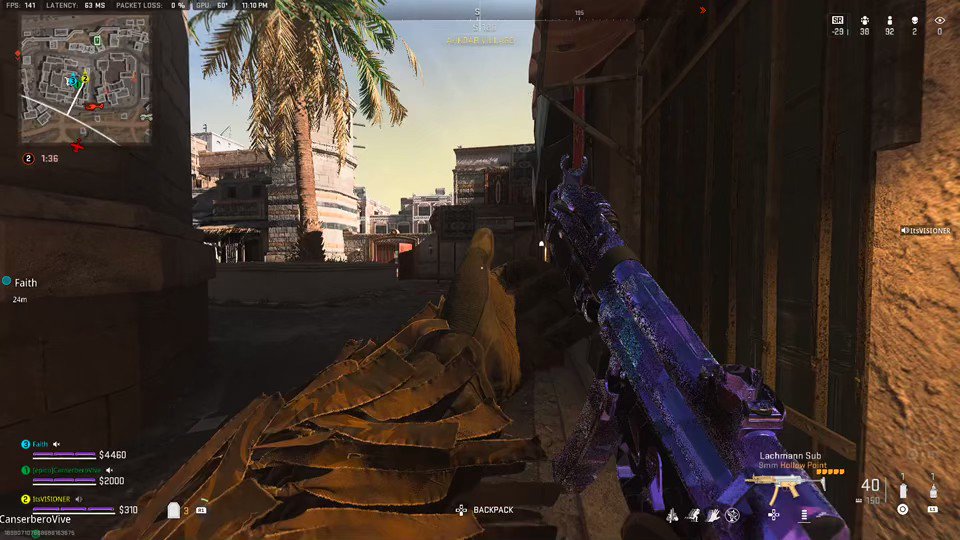
Shadow ban bug montage, been months no fix. Game is still unplayable for people who have this problem.
@Activision @ATVIAssist @JakeSucky @charlieINTEL
11
12
44
16,279