

May 7
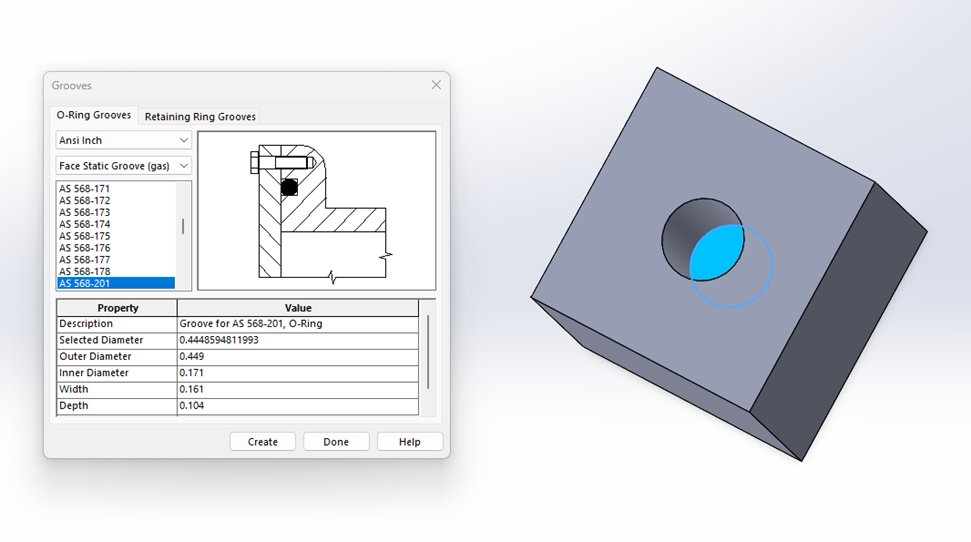
O-rings are everywhere, but despite their versatility, designing for them can be a tedious task. In our latest blog, we explore the automated workflows in @SOLIDWORKS for adding O-ring grooves, tailored to your application.
Read on: hubs.la/Q04fP6_-0
#solidworks #cadtips
2
4
110
May 1
What if we told you a shape that shouldn’t flatten, actually can?
If you’ve ever struggled to get a clean flat pattern from a cone in @SOLIDWORKS, you’re going to want to try this. The secret is the Rip feature. Check it out 👇
#solidworks #3dcad #cadtips
1
6
275

COPYコマンド、正しく使えていますか?
基点 → 配置先を指定するだけで
正確にコピー可能。
基本だけど重要な操作👇
jp-help.graebert.com/?p=5392…
#ARES #CAD #AutoCAD互換 #CAD初心者 #CADTips
2
34
ブロック属性、バラバラになっていませんか?
UPDATEBLOCKATTRIBUTESで
属性(色・文字高など)を一括リセット可能。
地味だけど効く実務テク👇
jp-help.graebert.com/?p=6009…
#ARES #CAD #AutoCAD互換 #CADTips #設計効率化
2
70

Don't get tricked by the 'Wire Is Not Closed' error in FreeCAD 1.1! youtube.com/shorts/mgTS4rkPC… #AllVisuals4U #3DParts4U #FreeCADTutorial #FreeCAD #Tutorial #Tutorials #MadeWithFreeCAD #FC3D #3DModeling #3DCAD #CAD #3D #Engineering #HowTo #CADTips #SketcherWorkbench #ParametricDesign
1
6
1,337
Don't get tricked by the 'Wire Is Not Closed' error in FreeCAD 1.1! youtu.be/zK4uiVj0PVo #AllVisuals4U #3DParts4U #FreeCADTutorial #FreeCAD #Tutorial #Tutorials #MadeWithFreeCAD #FC3D #3DModeling #3DCAD #CAD #3D #Engineering #HowTo #Wiki #Manual #FreeCADTutorial #CADTips
2
67
図面の“文字だけ”コピーしたいとき、ありませんか?👀
JToolsの
JD_CUTCOPYコマンド+スマート選択なら
✔ 指定範囲から
✔ 特定エンティティだけ
✔ まとめてコピー可能
CAD作業の時短に便利な機能です。
使い方はこちら👇
jp-help.graebert.com/?p=5698…
#ARESCAD #AutoCAD互換 #CADTips #JTools #DWG
3
42
5 FreeCAD tips that will change how you design! youtube.com/shorts/87NO0fAmX… #AllVisuals4U #3DParts4U #FreeCADTutorial #FreeCAD #Tutorial #Tutorials #MadeWithFreeCAD #FC3D #3DModeling #3DCAD #CAD #3D #Engineering #HowTo #Short #Shorts #FreeCADTips #OpenSourceCAD #DesignTips #CADTips
1
16
1,386
5 FreeCAD tips that will change how you design! youtu.be/DDhLwnrN8SU #AllVisuals4U #3DParts4U #FreeCADTutorial #FreeCAD #Tutorial #Tutorials #MadeWithFreeCAD #FC3D #3DModeling #3DCAD #CAD #3D #Engineering #HowTo #Wiki #Manual #FreeCADTips #OpenSourceCAD #DesignTips #CADTips
3
13
1,587

23 Dec 2025
Don’t let an expired license slow you down! This #TechTipTuesday we’re teaching you about updating the various licensing types so you can stay ahead of the curve and keep designing without interruption. #SoftwareLicense #IronCAD #cadtips
Learn how: zurl.co/ueRhK

2
34

14 Nov 2025
Must-Know #AutoCAD Trick That’ll Save You HOURS:
Ever had to manually update the title block on 15 sheets…
Just to change a date?
Yeah. We’ve all been there 😅
But there’s a better way, and it’s built right into AutoCAD.
It’s called FIELDS — and most people aren’t using them (yet).
🔧 What are Fields?
Fields are like smart text:
They automatically update things like:
✅ Sheet numbers
✅ Viewport Scales
✅ Project names
✅ Drawing titles
✅ Block counts
✅ Even object areas or custom properties!
And they update everywhere, automatically.
I just posted a new video that shows:
What fields actually are (and why they matter)
How to insert and link them in MTEXT, Blocks, and Title Blocks
My favorite custom field workflows
How to use FIELDS for consistent data across all drawings
BONUS: How I update 50 drawings from one central field 🔁
If you want fewer mistakes, cleaner drawings, and faster revisions…
👇 Watch the new video here:
youtu.be/dXSUSwWpksI
💬 Have you used fields before in your projects?
Let me know your favorite tricks — or what you'd love to automate next.
#AutoCAD #CADTips #SmartTitleBlocks #Fields #AutoCADTricks #DraftingWorkflow
youtu.be/dXSUSwWpksI
2
3
176
12 Nov 2025
5 Steps to Fix Slow AutoCAD Drawings (Fast!)
#AutoCAD #CADTips #FixSlowDWGs #DraftingHelp
We’ve all been there…
You open a drawing and suddenly it feels like you’re drafting in slow motion.
Zooming lags.
Commands take forever.
Saving takes minutes.
Here’s the good news:
Slow drawings are usually fixable — and these steps will help speed things up right away 👇
✅ 1. Run the Cleanup Crew: PURGE, AUDIT, and OVERKILL
PURGE removes unused blocks, layers, styles, and junk.
AUDIT fixes common drawing errors and corruption.
OVERKILL deletes duplicate or overlapping geometry.
Bonus Tip: Run PURGE near or at the end of projects for a final clean before sending/archiving files!
✅ 2. Use XREFs — Don’t Paste Everything In
Copy-pasting between drawings might seem faster…
But it bloats your file, imports random layers/styles, and slows everything down.
Instead, XREF large or repeated geometry like:
Survey data
Floor plans
Title blocks or base maps
Xrefs = smaller DWG size, easier updates, and faster opens.
✅ 3. Check for Broken or Missing XREFs
A single broken Xref can slow down every open/save.
AutoCAD keeps searching for the missing file — wasting time.
🛠 Fix or detach any broken Xrefs ASAP.
(Use XREF command to check status)
✅ 4. Don’t Work Off Wi-Fi (If You Can Help It)
Working from cloud drives (OneDrive, SharePoint, Dropbox) or network paths?
Wi-Fi is often the culprit of random lag, crashing, and save delays.
Use a wired connection whenever possible, especially on big projects.
And if your PM allows it, cache large imagery or lidar locally for speed (but always update paths and tell your team!).
✅ 5. Check Your System & Graphics Settings
Sometimes it’s not the drawing… it’s your system.
Try turning off hardware acceleration: GRAPHICSCONFIG
Check for GPU driver updates
Run RESETSETTINGS if everything feels off
Even a small tweak can make a big difference in performance.
Reminder:
A clean, fast drawing = fewer crashes, smoother plotting, and happier teams.
If your DWGs feel like they’re stuck in molasses — give these steps a shot today.
(And save this post so you don’t forget 😉)
Have a go-to tip that speeds up YOUR AutoCAD workflow?
Drop it in the comments below 👇
PS. Want to learn more about optimizing your drawings and automating workflows, including templates, cheatsheets and my Sheetsets Mini Course!
Get my new Complete CAD Toolbox Package for a huge discount now!
Included in the package deal:
1. AutoCAD Kickstart Course (Basics for new Users to Get Started Fast!)
2. AutoCAD Fundamentals & Workflows Course (My Workflows, Tips/Tricks & more from 20 years as a Designer!)
3. AutoCAD Sheet Sets Mini Course (Learn Sheet Set basics Fast!)
4. AutoCAD Productivity Webinar
5. Gold Title Block Template Packages
Learn more here: cadintentions.com/hurry
4
89
10 Nov 2025
Tidy Files, Happy Drafters: AutoCAD File Organization Tips That Actually Work
#AutoCAD #CADTips #DWG #FileOrganization #DraftingWorkflows
Let’s be honest…
If your AutoCAD files look like:
Final_Final2_v3_PlotThisOne_recover.dwg
You’re not alone 😅
But staying organized isn’t just for neat freaks — it saves time, avoids mistakes, and keeps your whole team (and future you) sane.
Here are simple but powerful tips to organize your AutoCAD files like a pro 👇
✅ 1. Use a Standardized Folder Structure
Keep it consistent across all projects. Example layout:
/ProjectName
/01_Survey
/02_Design
/03_Sheets
/04_Xrefs
/05_Images
/06_PDFs
Bonus: Use numbers to keep folders ordered logically.
✅ 2. Name Your DWG Files Clearly
Avoid Stuff.dwg or Sketch1.dwg. Use names like:
Site_Grading_Base_2024.dwg or Drawing_A201_FloorPlan.dwg
Tip: Include the discipline, type, and version/date if needed.
✅ 3. Use Relative Paths for XREFs
Always XREF using relative paths, not full drive paths.
This makes sharing and archiving much easier — especially for remote teams or zipped project folders.
Use the REFERENCE command and set Path type: Relative.
✅ 4. Keep Old Versions in an Archive Folder
Don’t clutter your working folder with old drafts. Move them into /Archive or /OLD with a date in the filename like:
SiteLayout_v2_2023-10-15.dwg
It's always good to have an aditional backup or copy of an old version to revert to if needed!
✅ 5. Make Favorites or Shortcuts to Key Folders
Whether you're on a server, cloud, or local drive — set favorites to your active projects for one-click access.
On Windows? Use the Quick Access bar or pinned folders in Explorer.
✅ 6. Clean Up Regularly
Set a reminder every 2–4 weeks to purge junk DWGs, clean up unused folders, and keep things fast and efficient.
✅ 7. Use eTransmit for Deliverables
When sending drawings to clients or other teams, use ETRANSMIT to bundle everything (DWGs, XREFs, fonts, images) into one neat package.
No more "Missing XREF" errors!
Pro Tip: Save your folder template as a ZIP and reuse it every time you start a new project. Instant consistency.
💬 What’s YOUR go-to system for organizing CAD files?
Drop your best folder tip in the comments — or tag a coworker whose desktop could use some spring cleaning
PS. If you need help setting up your folder structure, drawing templates (.dwts) or organizing xrefs and mor...
Check out my new Complete CAD Toolbox Package for a huge discount now!
Included in the package deal:
1. AutoCAD Kickstart Course (Basics for new Users to Get Started Fast!)
2. AutoCAD Fundamentals & Workflows Course (My Workflows, Tips/Tricks & more from 20 years as a Designer!)
3. AutoCAD Sheet Sets Mini Course (Learn Sheet Set basics Fast!)
4. AutoCAD Productivity Webinar (1 hour of my best Time Saving Tips & Tricks!)
5. Gold Title Block Template Packages (Save time with preset Templates/Titleblocks)
Get it now: cadintentions.com/hurry
1
3
186
20 Oct 2025
7 Must-Know #AutoCAD Editing Tools That Will Save You HOURS
AutoCAD isn’t just about drawing lines, it’s about editing smart and getting work done faster.
Here are 7 powerful editing tools you need to master. Some are underrated, but all will help you cut hours off your workflow 👇
1️⃣ ARRAY
Create multiple copies of objects in rectangular, polar, or path-based patterns.
✅ Great for regularly spaced items like parking stalls, fence posts, bolt holes, etc.
💡 Tip: Use associative arrays so you can edit the whole group later.
2️⃣ FILLET
Connect two lines with a smooth arc. It’s cleaner than manually drawing arcs and faster.
✅ Perfect for rounding corners on road layouts, piping, cabinetry, and more.
💡 Tip: Use Radius = 0 to make sharp corners by trimming and joining lines.
3️⃣ CHAMFER
Similar to Fillet, but instead of a curve, it adds a beveled corner between two lines.
✅ Ideal for architectural or mechanical details that need a clean angled join.
💡 Tip: You can control distance or angle depending on the use case.
4️⃣ MOCORO (Move, Copy, Rotate, Scale)
A hidden gem! Type MOCORO and access 4 editing tools in one command.
✅ Saves time switching tools—especially handy for fast layout edits.
💡 Pro Tip: It’s not on the ribbon—add it to your custom toolbar or remember the alias.
5️⃣ STRETCH (S)
One of the most powerful editing commands—stretch selected geometry without redrawing.
✅ Great for changing room sizes, road lengths, or adjusting elevations.
💡 Tip: Use crossing windows only—this is key for getting it to work right.
6️⃣ MIRROR (MI)
Create perfectly symmetrical copies across an axis.
✅ Ideal for floor plans, mechanical parts, and repetitive layout design.
💡 Tip: Use the “Delete source object” option depending on if you want to keep the original.
7️⃣ ALIGN
Move, rotate, and scale objects all in one command by picking source and destination points.
✅ Super useful for aligning imported objects, images, or survey data.
💡 Tip: Use 3 points to fully rotate/scale in 2D space and make perfect matches.
Bonus Tip: Combine these tools with grips, OSNAP, and ORTHO/F8 for precision edits at warp speed.
Learn even more AutoCAD Workflows and Systems that will save you time in my course: cadintentions.com/hurry
Which one do you use the most?
Drop your favorite time-saving edit trick below 👇
And save this post for later, your future self will thank you.
#AutoCAD #CADTips #DraftingLife #DesignTools #AEC #Productivity
3
183
14 Oct 2025
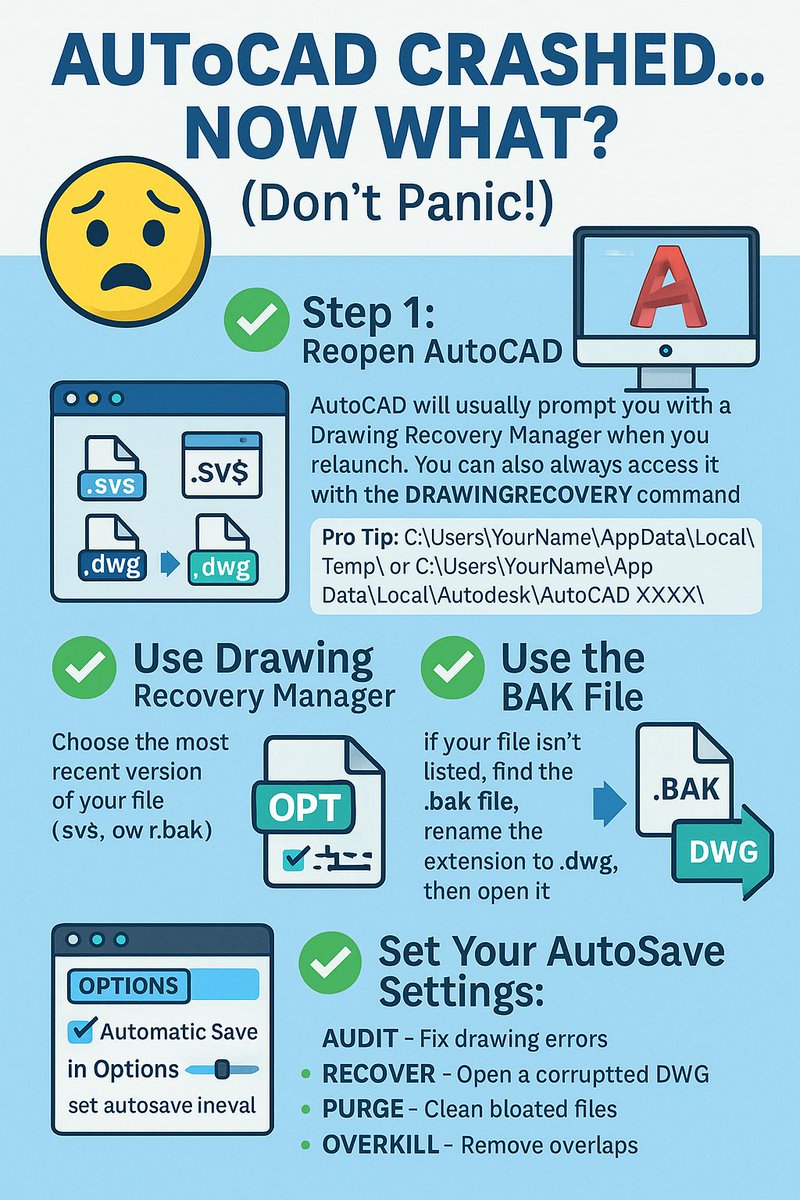
AutoCAD Crashed… Now What? (Don’t Panic!)
We’ve all been there…
You’re mid-edit on a drawing when suddenly
#AutoCAD crashes. Gone. Poof.
So… what should you do next?
Here’s your crash recovery checklist 👇
✅ Step 1: Reopen AutoCAD
AutoCAD will usually prompt you with a Drawing Recovery Manager when you relaunch. You can also always access it with the DRAWINGRECOVERY command.
Look for your file name with a .sv$ or .bak version and open the latest autosave.
Pro Tip: You can also search your autosave folder manually, typically in one of these locations:
C:\Users\YourName\AppData\Local\Temp\
or
C:\Users\YourName\AppData\Local\Autodesk\AutoCAD XXXX\
✅ Step 2: Use Drawing Recovery Manager to Open your crashed file
Choose the most recent version of your file, either the .sv$, dwg, or bak and open it to see what it left off.
✅ Step 3: If you don't see your file in the Recovery Manager Use the BAK File
If your .dwg is corrupted, missing, or has some other issue and you want to go back to the previous version of it:
Find the .bak file version of your drawing, typically in the same folder as your .dwg.
Make a copy and rename the file and change it's extension from .bak to .dwg
Open the renamed file in AutoCAD. Continue on :)
✅ Step 4: Set Your AutoSave Settings (Now!) Hopefully you were able to find/recover your files!
But, whether you recovered your file or had to redo it… now’s the time to protect yourself next time:
Use the command: OPTIONS
Go to Open and Save tab
Checkmark AutoMatic Saves
Set Autosave interval to 10-20 minutes (depending on what you are willing to lose)
Also, Take note of the autosave file location (Found in the Options, FILES Tab under Automatic Save File Location) or change it to a more convenient location!
✅ Bonus Commands for Crash Cleanup: Once you do get your drawing open/recovered, be sure to run through some or all of these commands to fix any issues and hopefully prevent another crash:
AUDIT – Fix drawing errors that may have caused the crash
RECOVER – Try opening a corrupted DWG directly
PURGE – Clean bloated drawings
OVERKILL – Remove overlapping geometry
SAVEAS – Always make a clean copy once you’ve recovered!
Final Tip:
If AutoCAD is crashing often, check/update your graphics drivers, disable hardware acceleration temporarily, or reset your AutoCAD profile using RESETSETTINGS.
Have you ever lost hours of work from a crash?
Drop your best recovery tips below 👇 or save this post for later—you will need it eventually 😅 Want to speed up your AutoCAD workflows, learn tips & Tricks that will save you hours and more:
Check out my AutoCAD Workflows & Fundamentals Course:
cadintentions.com/hurry
#AutoCAD #CADTips #CrashRecovery #DrawingRecovery #Productivity
2
7
225
10 Oct 2025
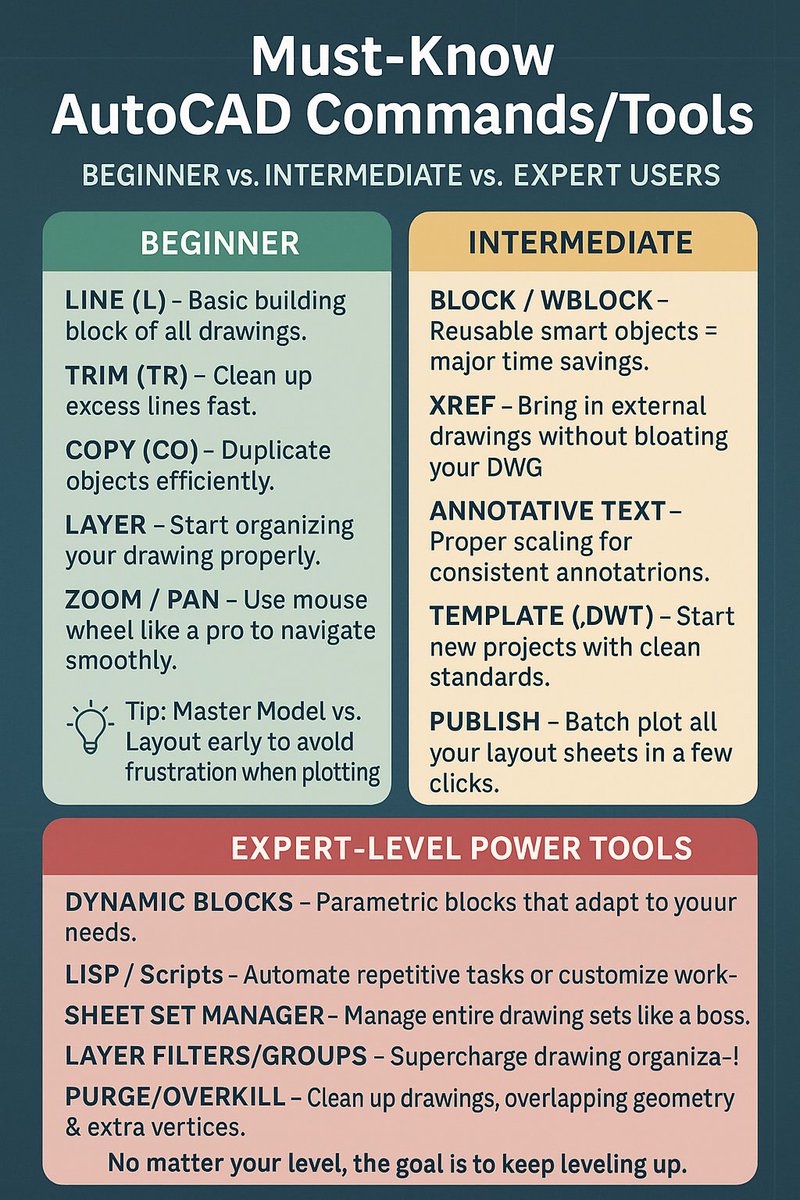
Must-Know AutoCAD Commands/Tools: Beginner vs. Intermediate vs. Expert Users
#AutoCAD #CADTips #LevelUpYourDrafting
No matter where you are in your AutoCAD journey, there’s always a next level.
Here’s a quick breakdown of the top 5 commands/workflows every AutoCAD user should know and use, whether you’re just getting started or have years under your belt:
🟢 Beginner Must-Knows
LINE (L) – Basic building block of all drawings.
TRIM (TR) – Clean up excess lines fast.
COPY (CO) – Duplicate objects efficiently.
LAYER – Start organizing your drawing properly.
ZOOM / PAN – Use mouse wheel like a pro to navigate smoothly.
💡 Tip: Master Model vs Layout early to avoid frustration when plotting.
🟡 Intermediate Essentials
BLOCK / WBLOCK – Reusable smart objects = major time savings.
XREF – Bring in external drawings without bloating your DWG.
ANNOTATIVE TEXT – Proper scaling for consistent annotations.
TEMPLATE (.DWT) – Start new projects with clean standards.
PUBLISH – Batch plot all your layout sheets in a few clicks.
💡 Tip: Set up Fields in title blocks to auto-fill project data.
🔴 Expert-Level Power Tools
DYNAMIC BLOCKS – Parametric blocks that adapt to your needs.
LISP / Scripts – Automate repetitive tasks or customize workflows.
SHEET SET MANAGER – Manage entire drawing sets like a boss.
LAYER FILTERS/GROUPS – Supercharge drawing organization with Layerfilters and Groups!
PURGE/OVERKILL – Clean up drawings, overlapping geometry & extra vertices.
💡 Pro Tip: Combine smart templates, tool palettes, and scripts to fly through drafting.
No matter your level the goal is to keep leveling up.
AutoCAD isn’t just about drawing lines. It’s about mastering systems, workflows, and tools that make you faster and more effective.
Save this post as your skill checklist ✅
Which level are you at right now?
Want to get to the next level faster and master AutoCAD now?
Check out my AutoCAD Fundamentals & Workflows Course:
cadintentions.com/hurry
1
6
266

10 Sep 2025
🤔 ¿Trabajas con varios dibujos en #ZWCAD?
🖇️ El comando REFX te ayuda a gestionar referencias externas de forma rápida y organizada ⚡
📩 Descárgalo gratis y pruébalo:
👉 zwspain.com/zwcad/descargar-…
#CADtips #ZWSOFT #ZWCAD
2
149

Feature of the day: Extrude to Face ⚙️
When your extrusion needs to stop at a specific surface, even if it’s curved or irregular, this tool adapts automatically. No manual distance calculations required.
Have you tried it already?
#Shapr3D #3Dmodeling #CADtips
3
23
1,384
One problem two approaches.
🔹 Beginner: project and drag to cut. Easy to overshoot, cut through parts you didn’t mean to, then fix the mess.
🔹 Pro: start from an existing hole, target only what needs cutting, and keep the rest untouched. No dragging, no guesswork.
Which approach sounds familiar? 👀
#Shapr3D #CADworkflow #CADtips #3DModeling
7
792