Filter
Exclude
Time range
-
Near
Still making PDF edits the hard way? From comments and annotations to quick document updates, the right tools can save you time and simplify your workflow! 👇 #pdfeditor #productivity #documentediting #icecreamapps
22
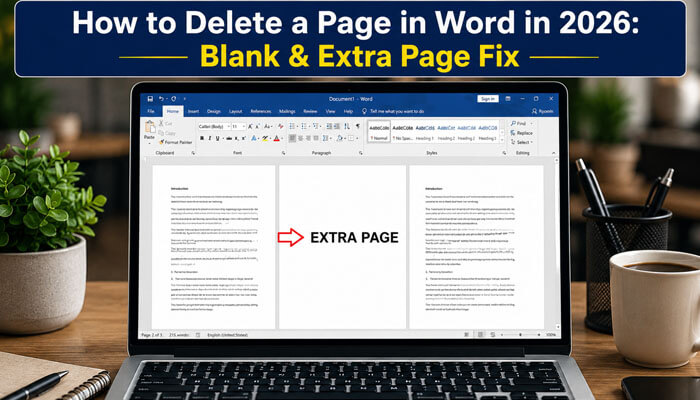
How to Delete a Page in Word on Mac and Windows ●Remove unwanted page breaks ● Fix section break problems ● Delete a full page with content ● Check your document before converting it to PDF tycoonstory.com/how-to-delet… #documentediting #productivitytips
2
12
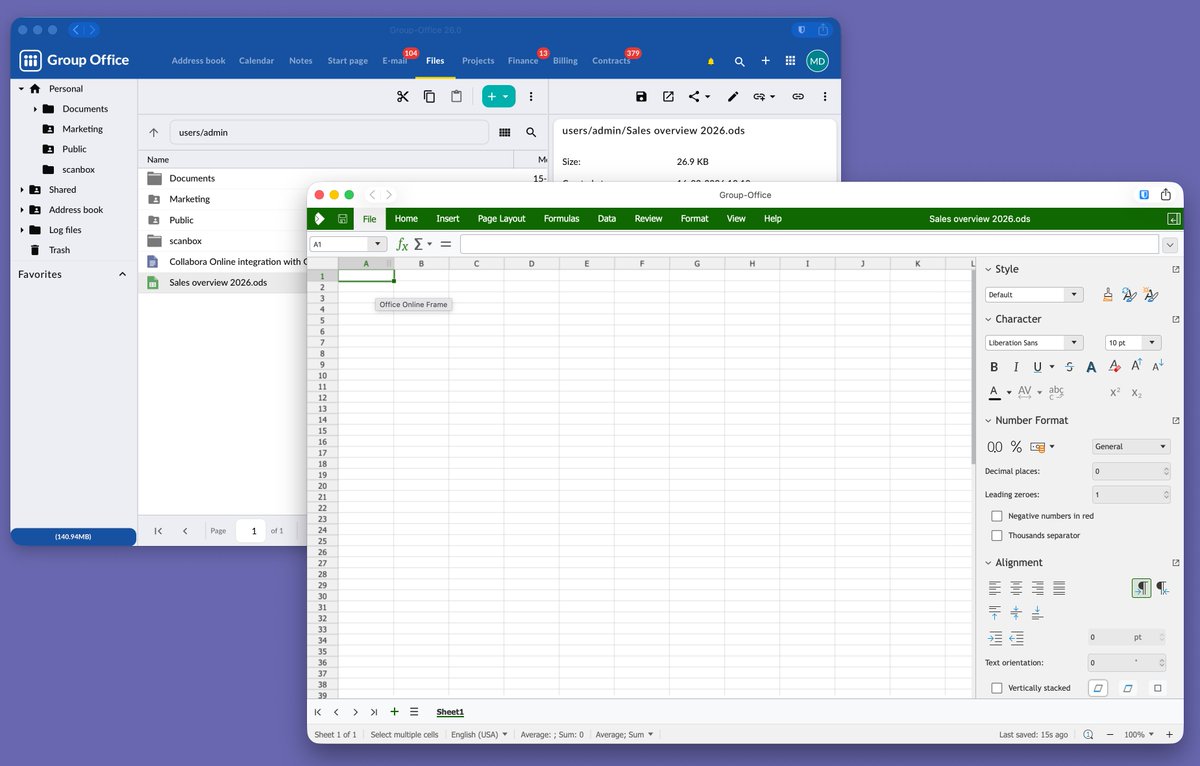
We’re excited to announce our new partnership between GroupOffice and Collabora Online! Our partner and integration page is now live: collaboraonline.com/integrat… #OpenSource #Collabora #DocumentEditing
3
31
A shoutout to @Typora which makes writing and editing in markdown such a joyful experience ... #Markdown #DocumentEditing
2
173
Butuh jasa edit hasil scan dokumen dari CamScanner biar kelihatan kayak hasil scanner mesin. Ada yang bisa bantu? #documentediting #zonauang️ #zonajajan
6
1
197
1
46
📑 Want your documents to look 100% professional? We offer expert editing for: ✔️ Bank Statements ✔️ Paystubs ✔️ Certificates ✔️ PDFs & More! 📩 Get in touch now! #DocumentEditing #EditingExperts
1
1
60
✍️ Need any type of document edited? I specialize in: ✔ PDF Editing ✔ Photoshop Document Fixes ✔ Scanned File Corrections ✔ Bank Statement, Paystub, Invoice Edits 📩 Message now for fast, private service! #DocumentEditing #PDFEditor #PhotoshopFixer
1
2
100
Need professional document editing? Whether you're in the USA, UK, or Europe, I deliver fast and reliable editing for PDFs, scanned files, and more! ✅ 100% Confidential ✅ Quick Turnaround ✅ Client Satisfaction Guaranteed #DocumentEditing #USAClients #UKClients #EuropeClients
1
3
87
Unlock the power of Microsoft Word with Copilot! I explore the four main concepts: Create, Edit, Catch Up, and Ask. #MicrosoftWord #Copilot #DocumentEditing #MicrosoftAI #WordHacks #Office365
2
5
731
Why Adding a DRAFT Watermark to Your Word Document Can Save You from Embarrassing Mistakes onecooltip.com/2023/03/why-a… When working on a document in Microsoft Word, have you ever shared a document via email, only to realize that you've accidentally sent an incomplete or unedited version of your document? Adding a DRAFT watermark to your Word document is a subtle but effective way to indicate that a document is not yet final and can save you from potential mistakes and embarrassment. It also provides a visual cue to remind you to review and edit your document before sharing or printing. Here's how to add a DRAFT watermark to your Word document: 1. Open your Word document. 2. Click on the Design tab in the Ribbon. 3. Click on Watermark in the Page Background group. 4. Select Draft from the Watermark menu. 5. The DRAFT watermark will be applied to your document. Besides several DRAFT options, you can also select Confidential watermarks. You can also customize your DRAFT watermark by changing its font, size, and color to suit your preferences.  Select Custom Watermark to customize the watermark. The next time you're working on a document in Word, remember to add a DRAFT watermark for an added layer of protection and professionalism. OneCoolTip onecooltip.com Cool Tech Tips for a Cooler Life! #Microsoft #Word #DraftWatermark #MicrosoftWord #DocumentEditing #WritingTips #ProductivityHacks #MistakePrevention #Professionalism #OneCoolTip @Microsoft
2
2
30
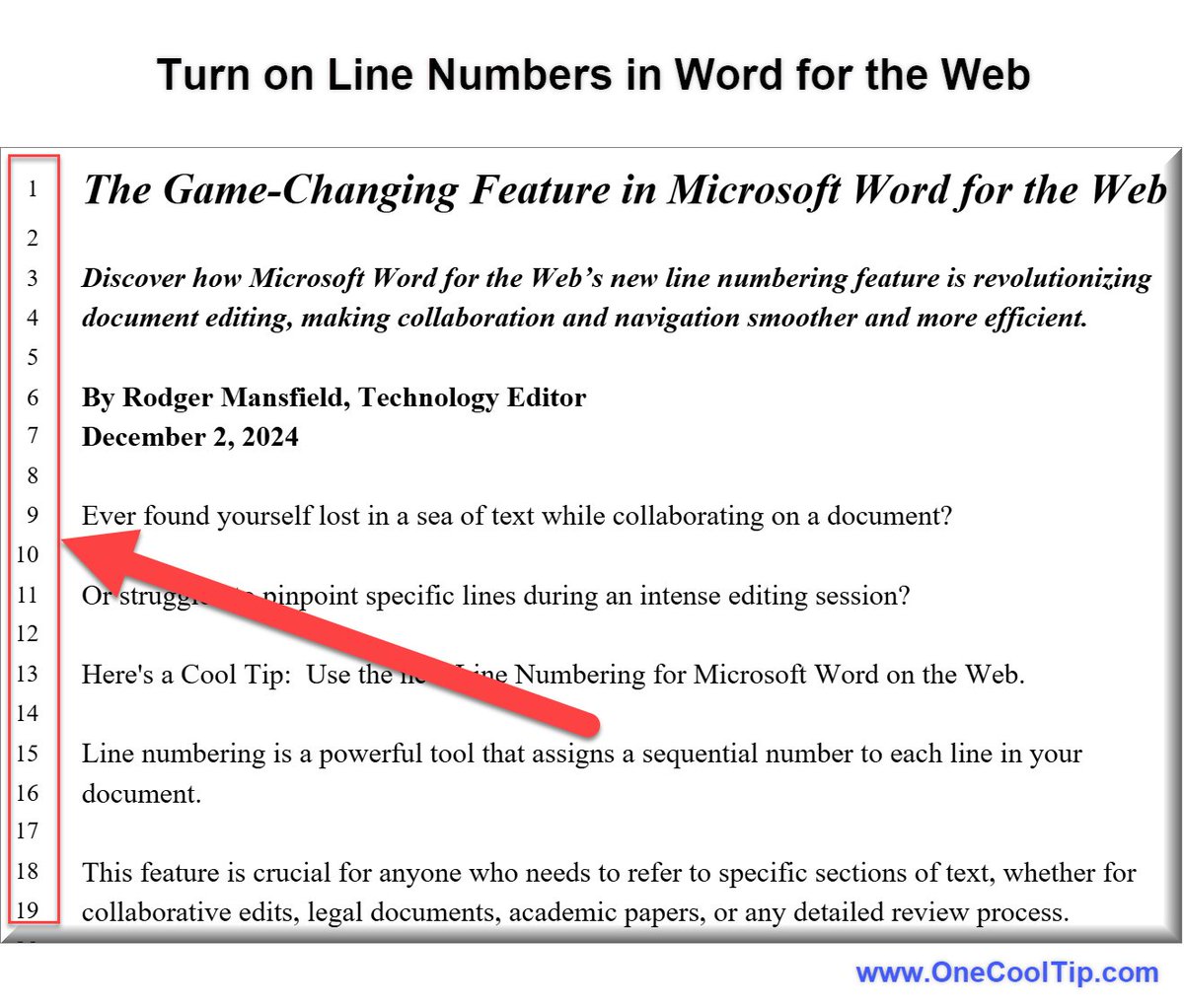
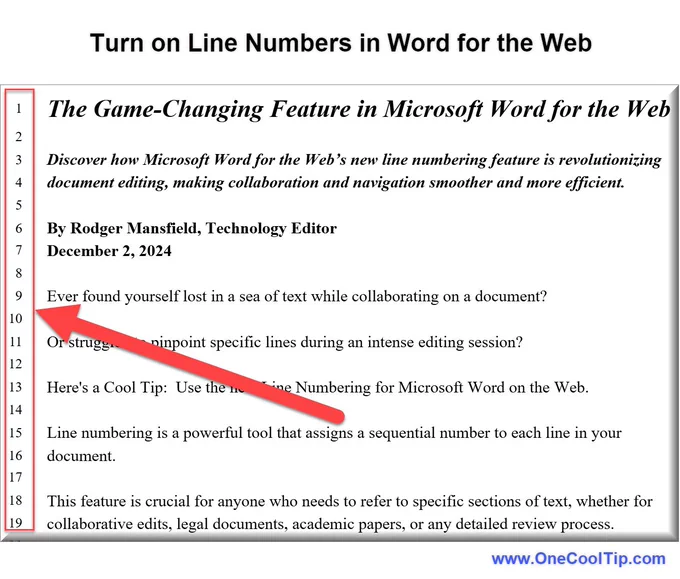
The Game-Changing Feature in Microsoft Word on the Web Discover how Microsoft Word on the Web’s new line numbering feature is revolutionizing document editing, making collaboration and navigation smoother and more efficient. By Rodger Mansfield, Technology Editor December 2, 2024 onecooltip.com/2024/12/the-g… Ever found yourself lost in a sea of text while collaborating on a document? Or struggled to pinpoint specific lines during an intense editing session? Here's a Cool Tip:  Use the new Line Numbering for Microsoft Word on the Web. Line numbering is a powerful tool that assigns a sequential number to each line in your document. This feature is crucial for anyone who needs to refer to specific sections of text, whether for collaborative edits, legal documents, academic papers, or any detailed review process. Here's how to do it. 1. Open your document in Microsoft Word on the Web. 2. Navigate to the Layout tab. 3. Click on Line Numbers in the Page Setup section. 4. Choose a numbering option that suits your needs—continuous, restart each page, or restart each section. For advanced configuration, go to File > Options > Advanced and tweak the line numbering settings to match your specific requirements. Line numbers make referencing specific lines easier during teamwork and facilitates quick access to particular sections of the document. This also reduces the chances of miscommunication and errors. Currently, this feature is available to all users of Microsoft Word on the Web, including those in enterprise, education, and consumer segments. Microsoft Word on the Web’s line numbering feature is a valuable addition that enhances the efficiency and accuracy of document collaboration. What do you think of this new feature? Share your thoughts in the comments below and spread the word by sharing this article on your social media! Please LIKE and SHARE OneCoolTip.com! Subscribe to the FREE OneCoolTip Newsletter. Visit the OneCoolTip YouTube Channel: youtube.com/@onecooltip X: x.com/OneCoolTip Threads:   threads.net/@onecooltip Do you have a Cool Tip or question? Email us at onecooltip.com@gmail.com Rodger Mansfield, a seasoned tech expert, is the mastermind behind OneCoolTip.com where he serves as both writer and editor. With a keen eye for simplifying complex tech, Rodger delivers practical advice that empowers readers to navigate the digital world with confidence. Dive into OneCoolTip.com for a treasure trove of savvy tips and tricks that keep you one step ahead in tech. One Cool Tip onecooltip.com Cool Tech Tips for a Cooler Life! #MicrosoftWord #DocumentEditing #ProductivityTools #microsoft365 @microosft365 #WordOnTheWeb #BackToWorkMonday #TechTips #TechGuide #OneCoolTip @OneCoolTip Copyright © 2008-  2024 | OneCoolTip.com | All Rights Reserved
2
2
16