
Mar 16
DATA VISUALIZATION WITH PYTHON: MASTERING MATPLOTLIB (PART 2) ✍️📊
After wrapping up the Model Development phase, I have spent the last few days diving deep into the Data Visualization with Python module of the IBM Data Analyst Professional Certificate. I have learned that effective visualization is not just about calling a function; it is about the coder's ability to manipulate the underlying libraries to tell a specific story.
I will be honest, Python visualization depends entirely on the coder's deep understanding of specific libraries. It is not just about making things look pretty; it is about knowing how to paint with code. To ensure I truly own the syntax, I have continued my practice of highlighting key points and handwriting chunks of code. From transposing dataframes to setting up axes, writing it by hand has been my secret weapon for retention. I have compiled these notes into a PDF to document my progress from raw data to visual insights (shared on my LinkedIn account).
THE TWO FACES OF MATPLOTLIB
A major takeaway from my notes is the distinction between the two ways we interact with Matplotlib:
a) The Scripting Layer (Pyplot): This is the procedural interface using import matplotlib.pyplot as plt. It is highly efficient for quick exploration and generating standard plots with minimal code. It is great for when you need to see a trend quickly.
b) The Artist Layer (Object-Oriented): This is where the real control happens. By using fig, ax = plt.subplots(), I can treat every element of the chart as an individual object. This allows for granular, surgical control over line styles, markers, and labels—essentially moving from generating a chart to professional data storytelling.
BUILDING THE PLOTTING MUSCLE
Using the United Nations dataset on Canadian Immigration (1980-2013), I have moved past the basics to master several key visualization types:
a) Line Plots: Perfect for tracking the 33-year immigration trends of specific countries. I practiced using markers, markersize, and custom line styles to make data points distinct and readable.
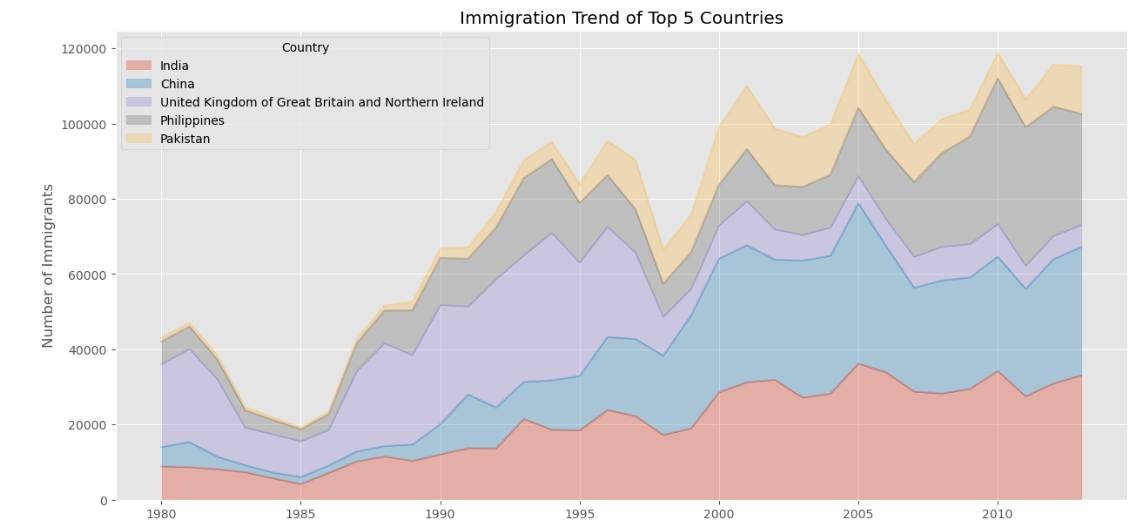
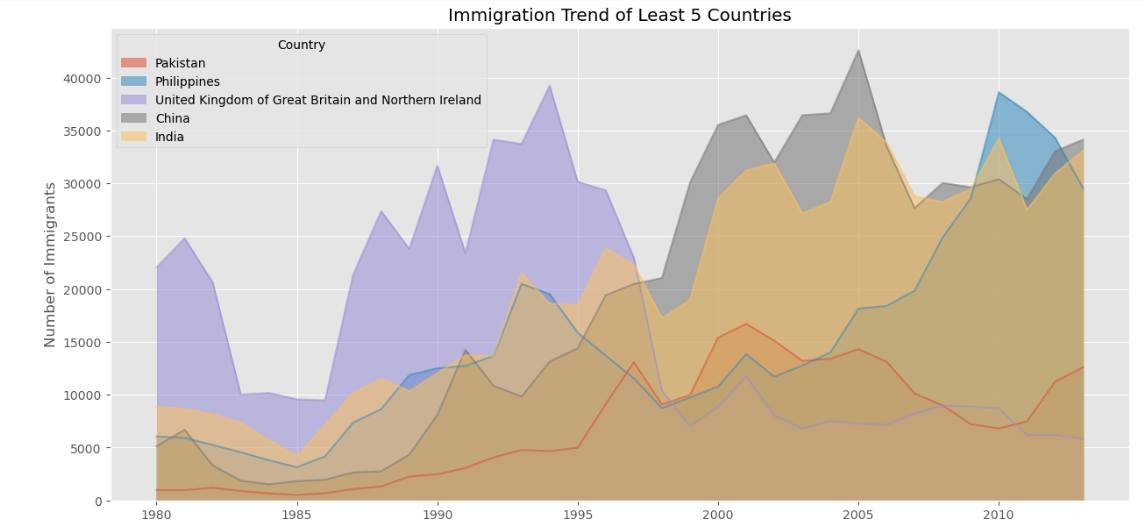
b) Area Plots: I explored both stacked and unstacked versions. Using the alpha parameter for transparency was key to ensuring that overlapping data remained visible and professional.
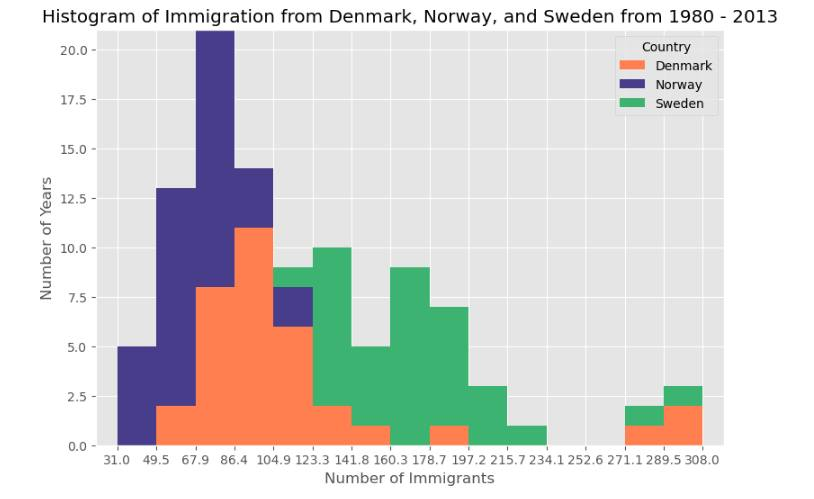
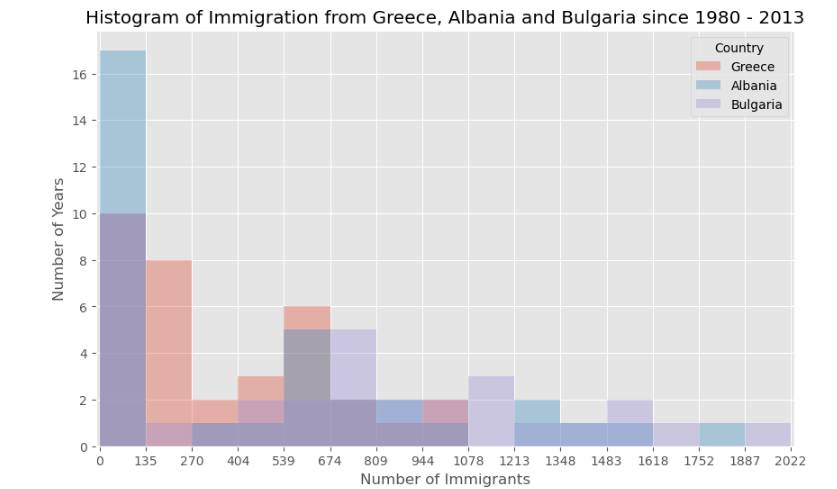
c) Histograms: These allowed me to visualize the frequency distribution of immigrants, helping to identify common volume ranges across different years.
d) Bar Charts: I implemented both vertical and horizontal charts. Horizontal bars (kind=barh) proved especially useful for maintaining readability when dealing with longer country names.
This post is dedicated to showcasing the charts and graphs I have created so far using Matplotlib. Seeing the transition from pen and paper to a fully rendered chart in Jupyter is incredibly rewarding. If you can understand the logic on the page, the implementation in the notebook becomes second nature.
I am curious to hear from other data analysts in the community about their experience. When you first started with Matplotlib, did you find the Scripting layer or the Artist layer more intuitive for your specific workflows? Also, what are your favorite tricks for making complex charts more readable?
Connect with me on LinkedIn: linkedin.com/in/emycodesanal…
Live Portfolio:
github.com/emycodesanalytics…
© EmyCodes Analytics | March 4, 2026
#EmyCodesAnalytics #DataVisualization #Python #Matplotlib #HandwrittenCode #LearningInPublic #IBMDataAnalyst #DataScience #DataAnalytics #Pandas #MatplotlibArtist #CertificationJourney #2026Goals
1
1
2
56