
15 Oct 2025
Secure IKEv2 VPN from iOS to Vigor Router
Need secure remote access from your iPhone or iPad?
With Vigor routers, setting up an IKEv2 VPN (Pre-Shared Key) is simple and reliable.
Enable IPsec VPN on the router, create a Teleworker VPN profile, select IKEv1/v2, and enter a Peer ID with your Pre-Shared Key.
On iOS, go to Settings > VPN > Add VPN Configuration, choose IKEv2, enter the router’s domain name, match the Peer ID, and input the same Pre-Shared Key.
Save and toggle VPN On - you’re securely connected.
Stay protected with fast, encrypted remote access anywhere.
🔗 draytek.com/support/knowledg…
#DrayTek #VPN #IKEv2 #RemoteAccess #NetworkSecurity #VigorRouter #iOS
2
2
171
17 Sep 2025
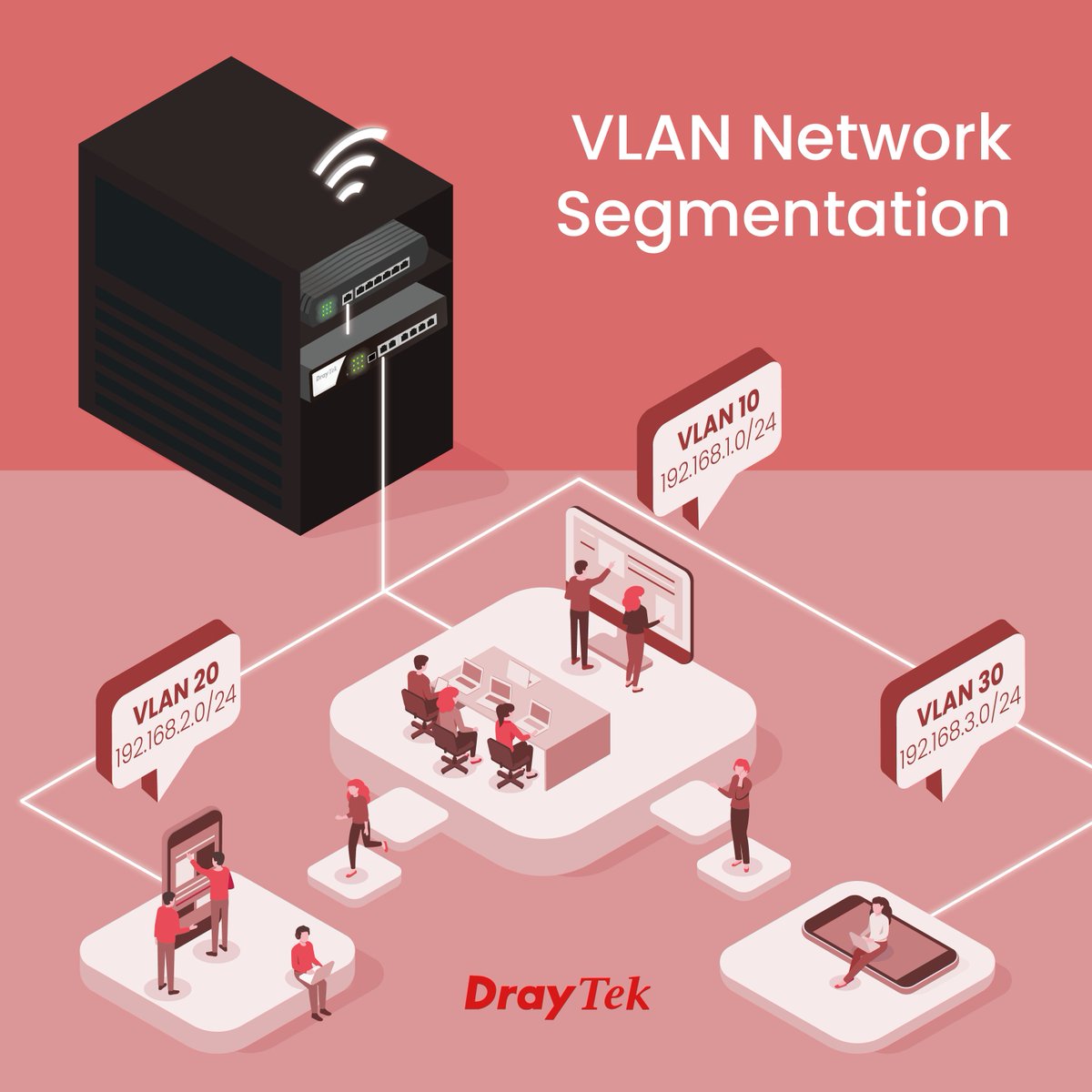
One common challenge in network design is segmenting clients without adding too much hardware complexity.
DrayTek Vigor Routers and Switches solve this by supporting multiple IP subnets and tag-based VLANs.
Here’s what you can achieve:
Isolate departments or device groups for enhanced security
Reduce broadcast traffic and improve overall efficiency
Scale easily-IoT, guest Wi-Fi, and VoIP can each have their own subnet
Key Benefits
Simplified VLAN tagging with VigorSwitch integration
Better network organization
Enhanced security and access control
Optimized use of hardware resources
See Full setup guide on DrayTek Website:
draytek.com/support/knowledg…
#VLAN #Subnet #NetworkSegmentation #DrayTek #VigorRouter #VigorSwitch #NetworkSecurity
1
2
79
11 Jun 2025
Secure Remote Management of Your DrayTek Vigor Router - Even with a Dynamic IP
Managing Vigor Routers remotely over the Internet is essential but comes with security challenges. Allowing unrestricted IP access to your router's management interface can expose your network to risks. The best practice? Use an Access List to restrict who can connect.
But what if your network administrator doesn't have a static IP address? No worries — DrayTek routers support using hostnames for Access List configuration, making secure remote access possible even with dynamic IPs.
Here's how it works:
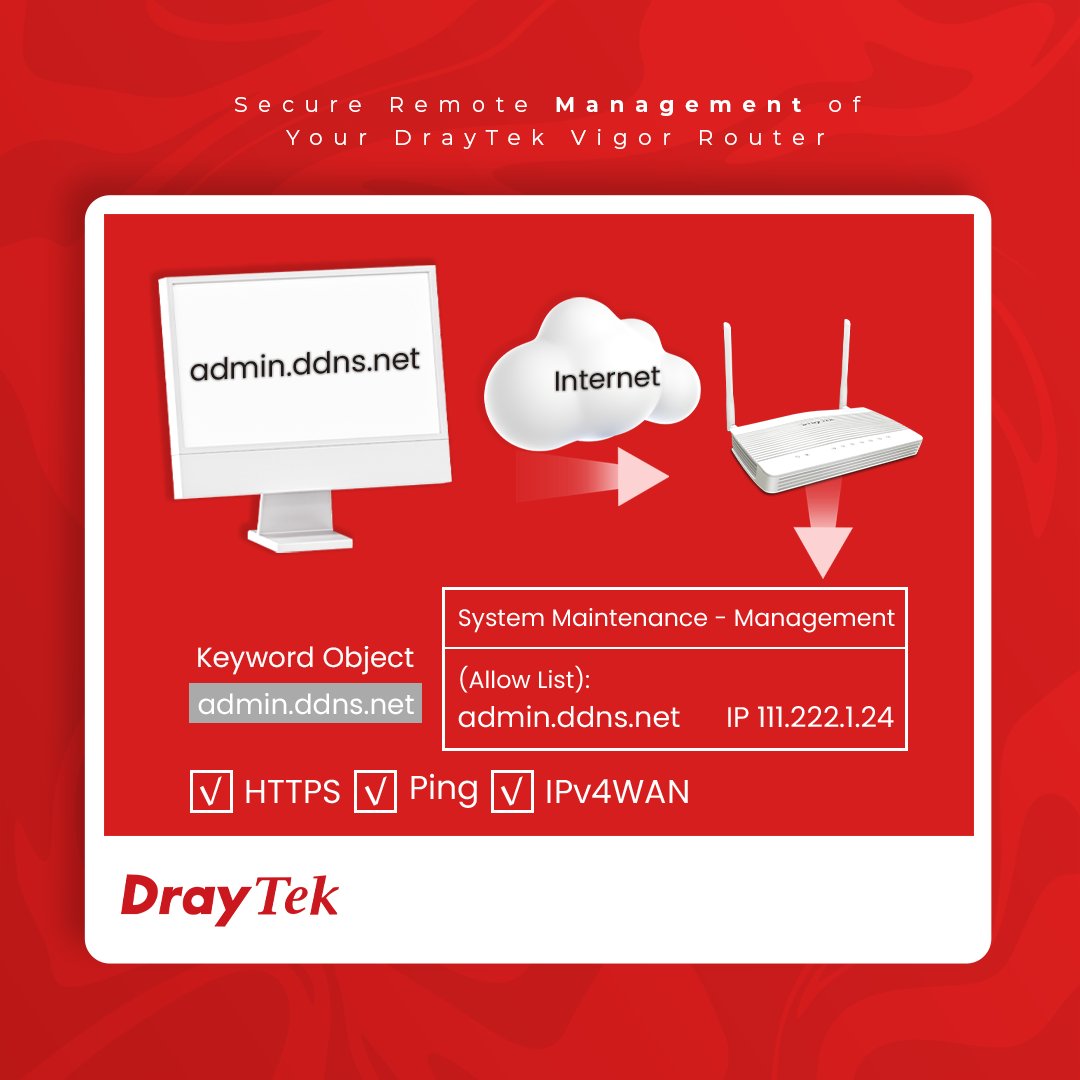
1. Set up a hostname for the remote device - this can be a Dynamic DNS name or a registered static domain linked to the admin's router or computer.
2. Go to Configuration > Objects on your Vigor Router, and create a Keyword Object for the hostname you want to allow access.
3. Navigate to System Maintenance > Management, switch WAN Access Control to Allow List, select the hostname Keyword Object, and specify which services can be accessed remotely. Don't forget to enable IPv4 WAN Access for those services.
Now, your network admin can securely manage the router remotely using the hostname - even if their IP changes.
Secure, flexible, and easy to configure - DrayTek's hostname-based Access List keeps your network management safe, no matter where your team is.
#NetworkSecurity #RemoteManagement #DrayTek #VigorRouter #DynamicDNS #AccessControl #ITSecurity #NetworkAdmin #CyberSecurity
1
1
3
171
11 Feb 2022
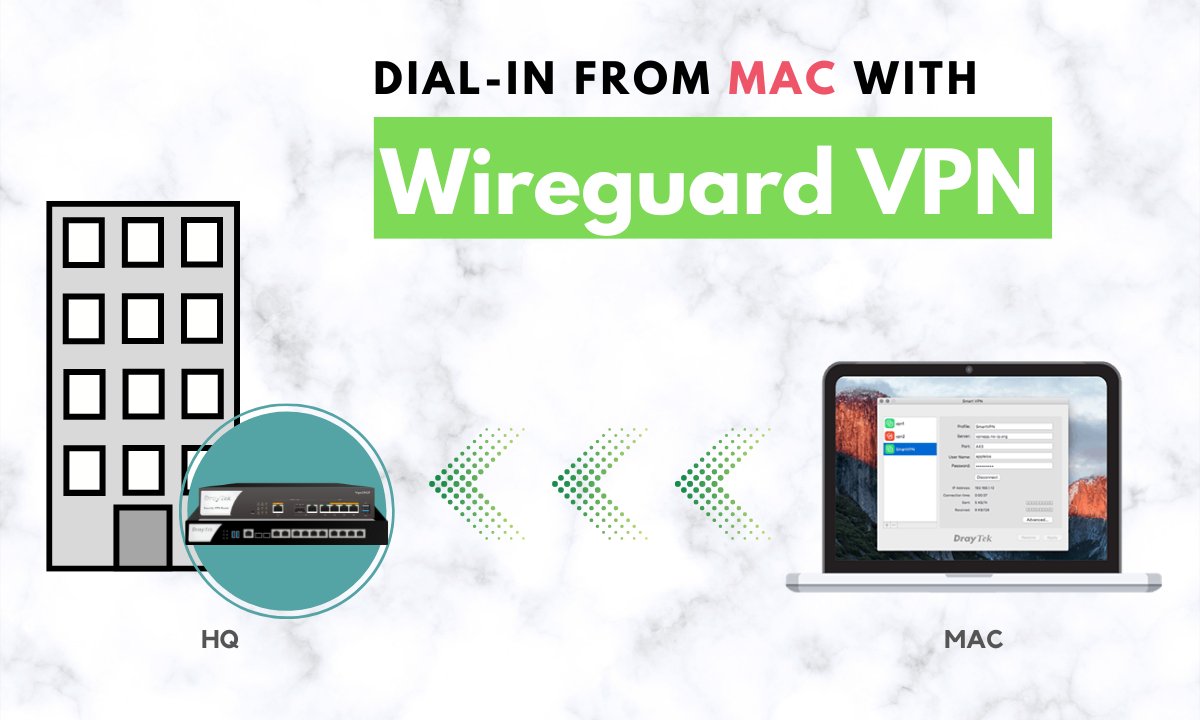
For ➡️Mac OS Client, we now support Host-to-LAN application🎉, you can dial-in Wireguard VPN from your Mac to the VigorRouter in the company, which provides a high-performance VPN connection for telework or WFH staffs.
🔗bit.ly/3JeLnTm
#DrayTek #VPN #Wireguard
1
2