
362 Photos and videos



If you want to learn more Vim, check out my Learn-Vim guide on Github!
(Did I tell you it's free? 😁)
github.com/iggredible/Learn-…
#vim
1
33
104

As much as I love TextMate, I've come to realize the folly of being tied to one commercial OS on the basis of an editor. I considered going all-in on VSCode, but if I'm going to switch editor after 20 years, I'd like it to be my last change. Vim will be here and free in 100 years
28
6
187
17,781
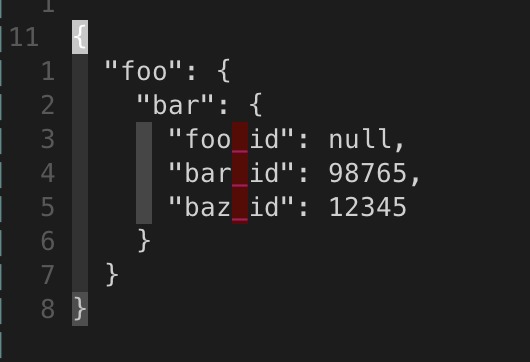
If you have the jq command github.com/jqlang/jq installed, you can use it to format JSON in Vim!
On the line where you have a large JSON object:
{ "foo": { "bar": { "foo_id": null, "bar_id": 98765, "baz_id": 12345 } } }
Run:
:.!jq .
Vim bang operator/cmd: :h !
#vim
4
35
3,691
The vim-yoink plugin lets you to yank multiple times and quickly choose which yanked text to paste (with Ctrl-n/Ctrl-p).
If you use copy/paste often, check it out!
github.com/svermeulen/vim-yo…
#vim
3
11
2,111
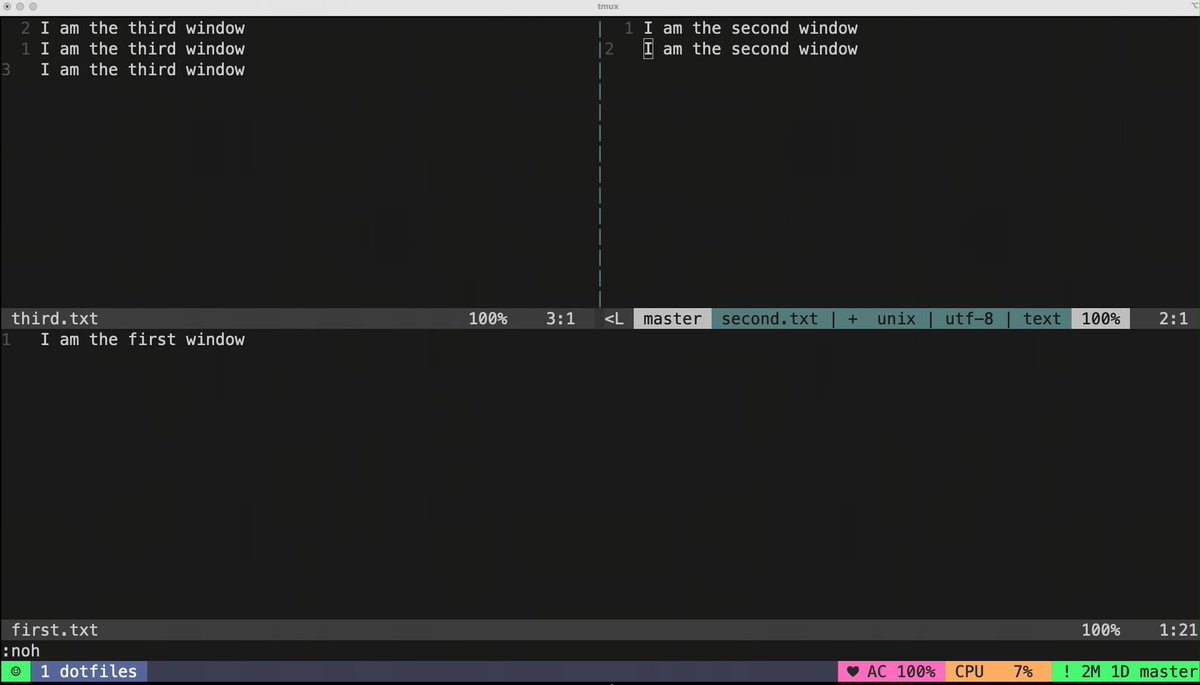
If you want to resize, swap, and move windows, the winresizer plugin (github.com/simeji/winresizer) can quickly resize your vim window with its resize mode.
Check it out!
#vim
5
21
3,779
= is the filter operator (by default it indents). If you want to indent the entire buffer, run:
gg=G
- gg goes to the top
- =G indent operator all the way to the bottom
Use `` to go back to the original location.
Try: gg=G``
More:
stackoverflow.com/questions/…
:h =
#vim
3
26
1,976
If you use fugitive.vim, you can use git grep to use a keyword in a specific branch / SHA
:Ggrep MY_FOO some-branch
:Ggrep MY_FOO some-sha
Useful if you want to see if / how a text looks like in a different branch
:h :Ggrep
github.com/tpope/vim-fugitiv…
#vim
6
28
5,050
Last time we looked at :vimgrep to search for keywords.
:vimgrep /Waffles/ app/**/*.rb
To add more results into your last search, you can use :vimgrepa. To also search for Pancakes:
:vimgrepa /Pancakes/ app/**/*.rb
Now you have a list of Waffles AND Pancakes.
#vim
2
14
2,817
When you pass multiple file names when you run Vim from the terminal (vim bar.rb foobar.lua), Vim stores those files inside the argument lists, which you can access with
:args
You can navigate through the argument lists with :next, :prev, :first, :last.
:h arglist
#vim
1
8
1,615