
Convert and compress any media on your Mac. Made by @albertogalca.
Joined July 2025
- Tweets 59
- Following 1
- Followers 12
- Likes 11
35 Photos and videos

Jun 12
˗ˏˋ NEW FEATURE ˎˊ˗
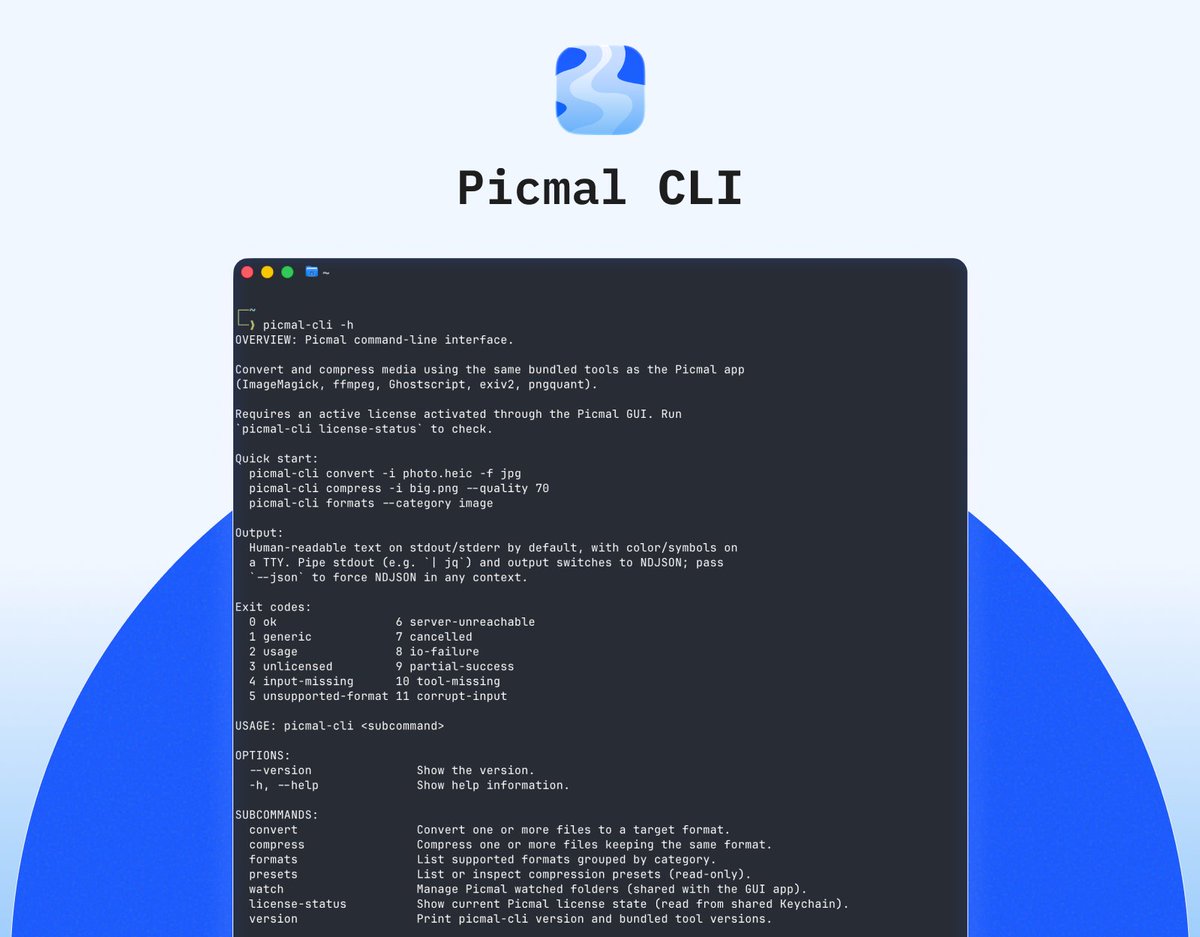
Introducing the Picmal CLI.
Now you can convert and compress images, audio, and video directly from the Terminal using the same powerful engines as the app.
1
1
12
Jun 12
✨ Use commands like:
- `picmal-cli convert -i photo.heic -f jpg`
- `picmal-cli compress -i big.png --quality 70`
- `picmal-cli watch` to monitor a folder
Also supports presets, resize, metadata stripping, color/DPI options, watermarks, and NDJSON output for easy integration.
1
8
Jun 11
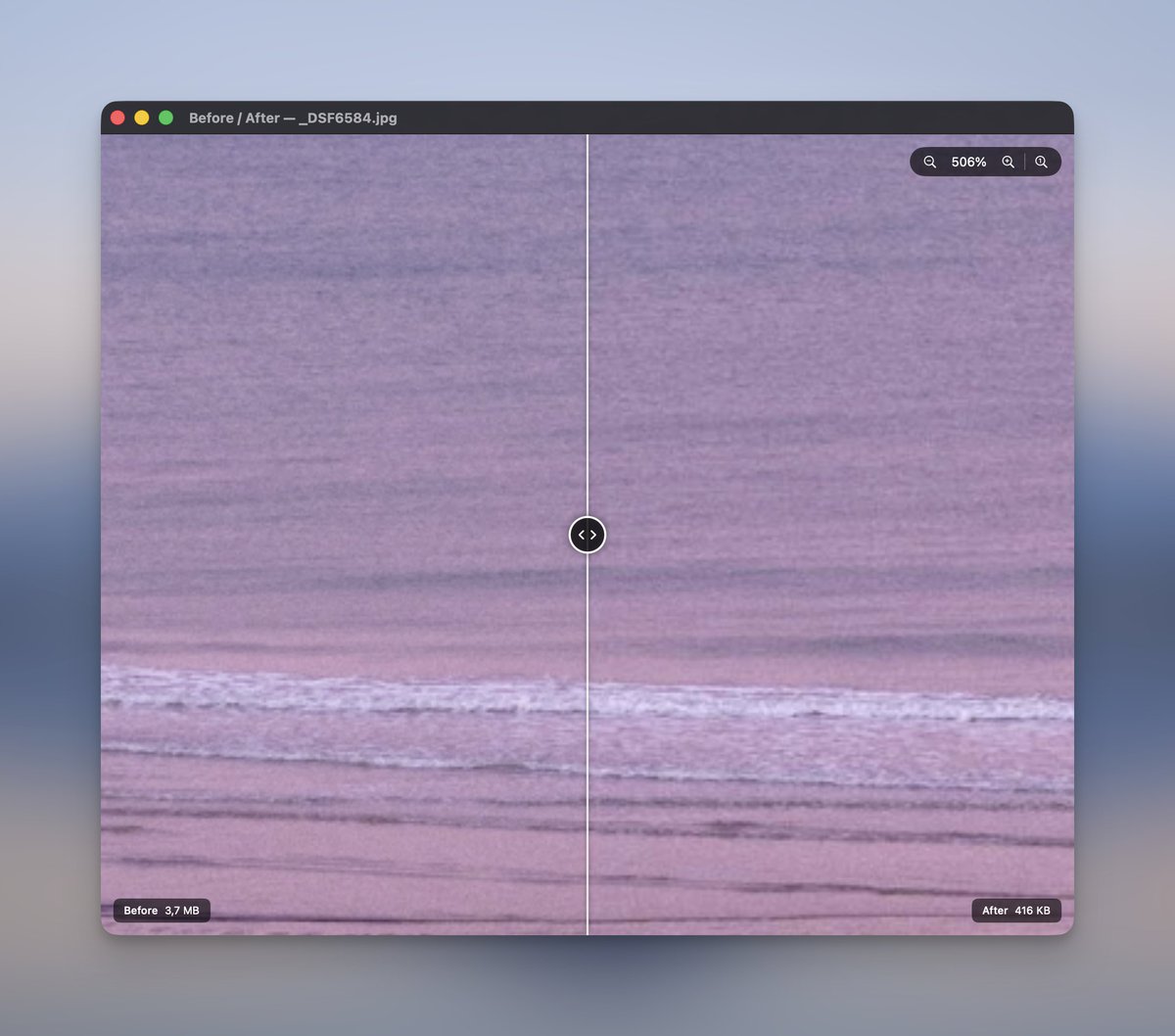
Enhanced zoom is here in the Before/After window.
Inspect compression details with:
- Pinch to zoom or use , −, 100%
- ⌘ , ⌘−, ⌘0 shortcuts
- Drag to pan; the slider works at any zoom
- Double-click to reset
10
Jun 11
˗ˏˋ NEW FEATURE ˎˊ˗
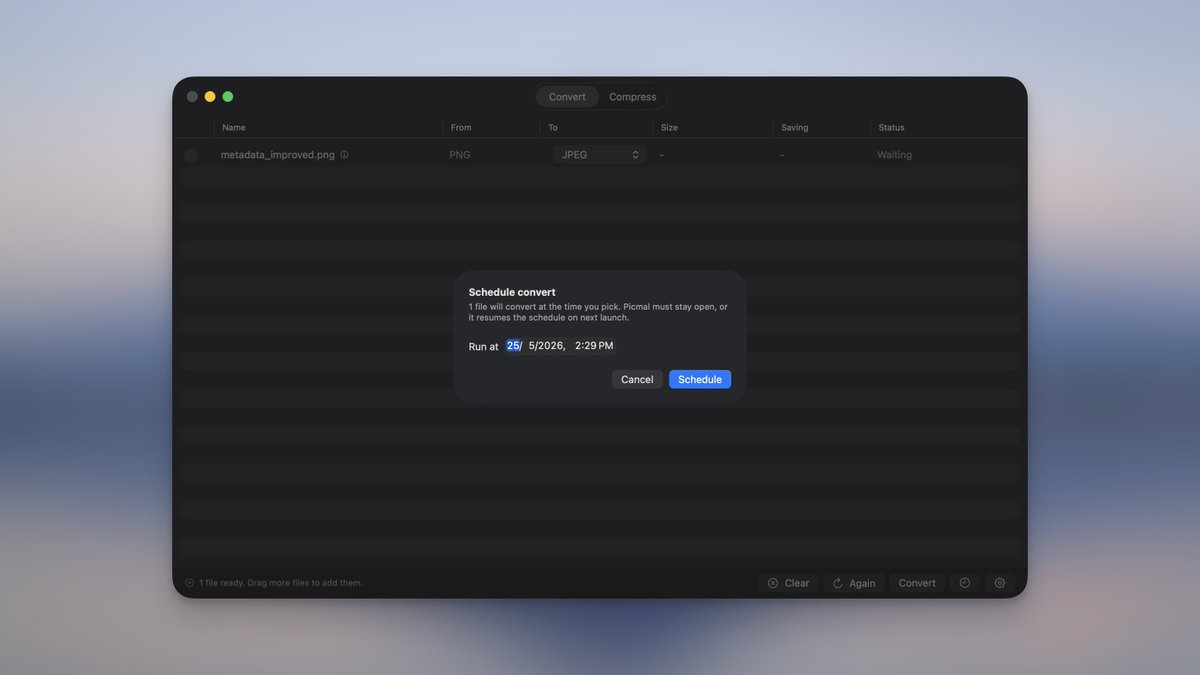
Schedule batches to run later. Tap the clock next to convert or compress to choose a start time—great for overnight jobs.
Track them in the queued jobs bar, get a done notification, and your schedules are still saved if you quit and reopen picmal.
4
Jun 10
˗ˏˋ NEW FEATURE ˎˊ˗
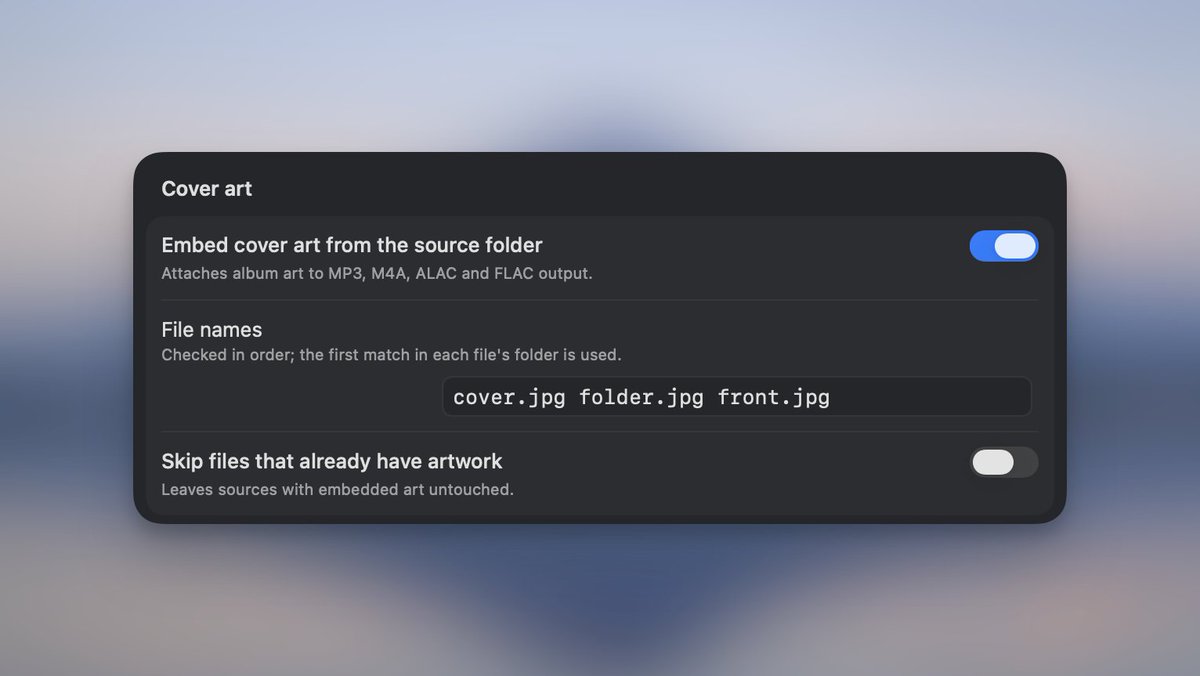
Embed album art automatically.
Enable “Embed cover art from the source folder” and Picmal will grab nearby images and embed them into MP3, M4A, ALAC, and FLAC.
Turn on “Skip files that already have artwork” to keep existing covers.
2
36
Jun 10
˗ˏˋ NEW FEATURE ˎˊ˗
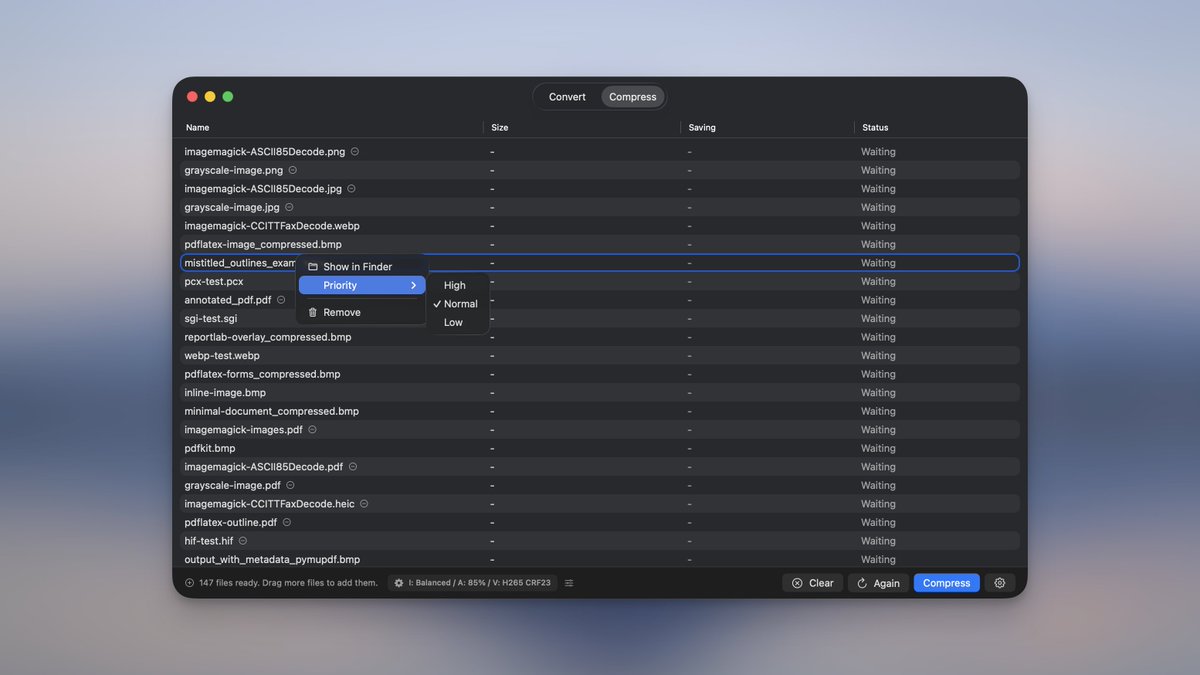
Introducing Priority File Management!
Set a file’s priority with a simple right-click. Choose High, Normal, or Low, and high-priority files will be processed first, even in the middle of a batch.
2
Jun 9
˗ˏˋ NEW FEATURE ˎˊ˗
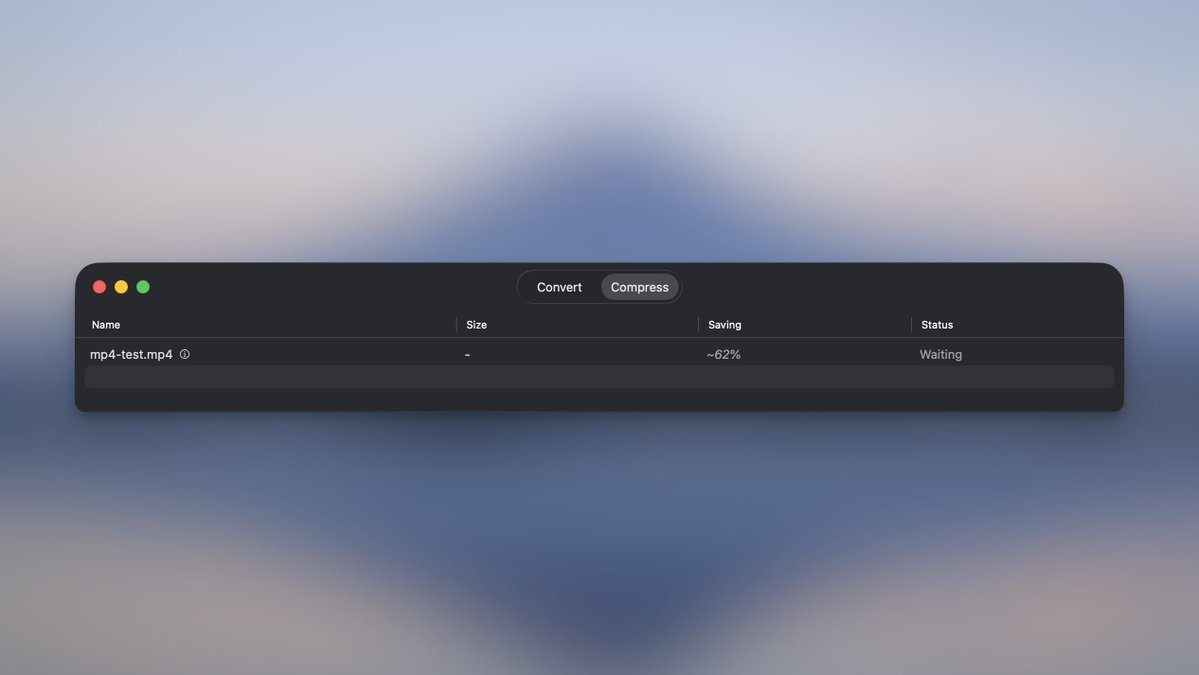
Get a sneak peek of your video’s compressed size before you hit go! Now you’ll know exactly how much space you’ll save!
7
Jun 9
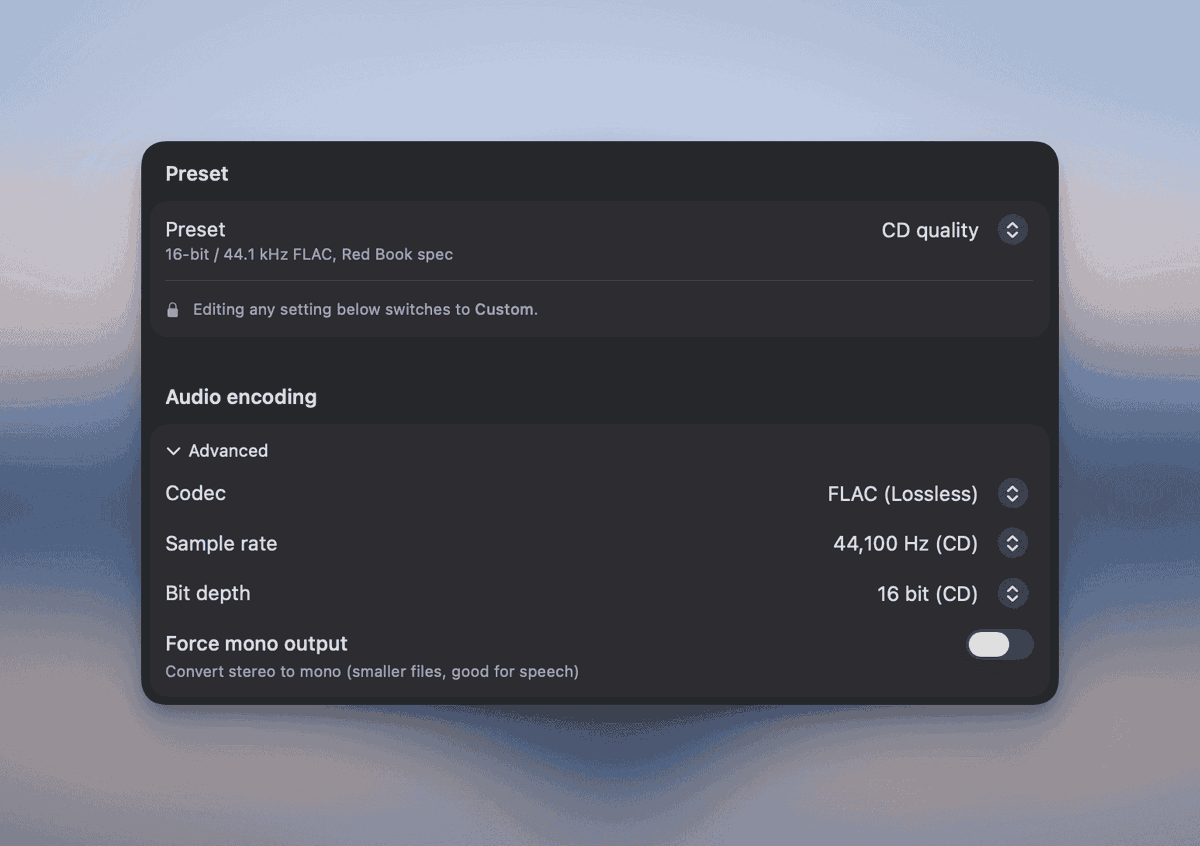
Audio Conversions Just Got Better.
Now you can choose your bit depth (16, 24, or 32 bit) along with the sample rate.
Check out our new “CD Quality” preset: 16 bit 44.1 kHz FLAC.
12
Jun 8
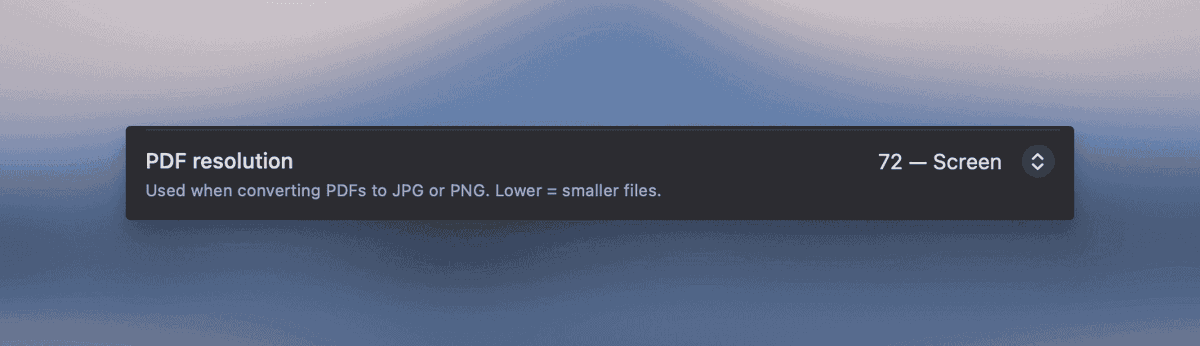
Say goodbye to oversized files.
Now you can choose your rasterization DPI for PDF to JPG/PNG conversions in Settings → Images. Options include 72, 150, 300, or 600 DPI, with a default of 150. Get the perfect balance of quality and size!
12
Jun 8
˗ˏˋ NEW FEATURE ˎˊ˗
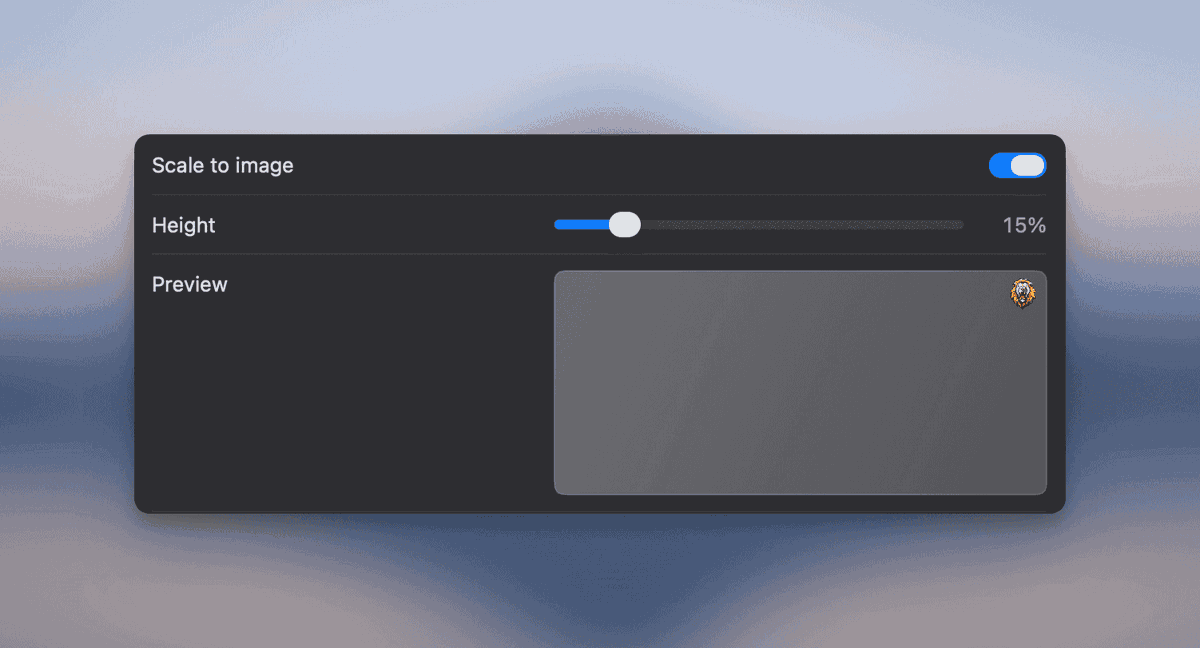
Now, you can ensure your watermark looks perfect on any photo size.
Just enable “Scale to image” in the watermark editor, then adjust the slider to your liking.
6
Jun 5
˗ˏˋ NEW FEATURE ˎˊ˗
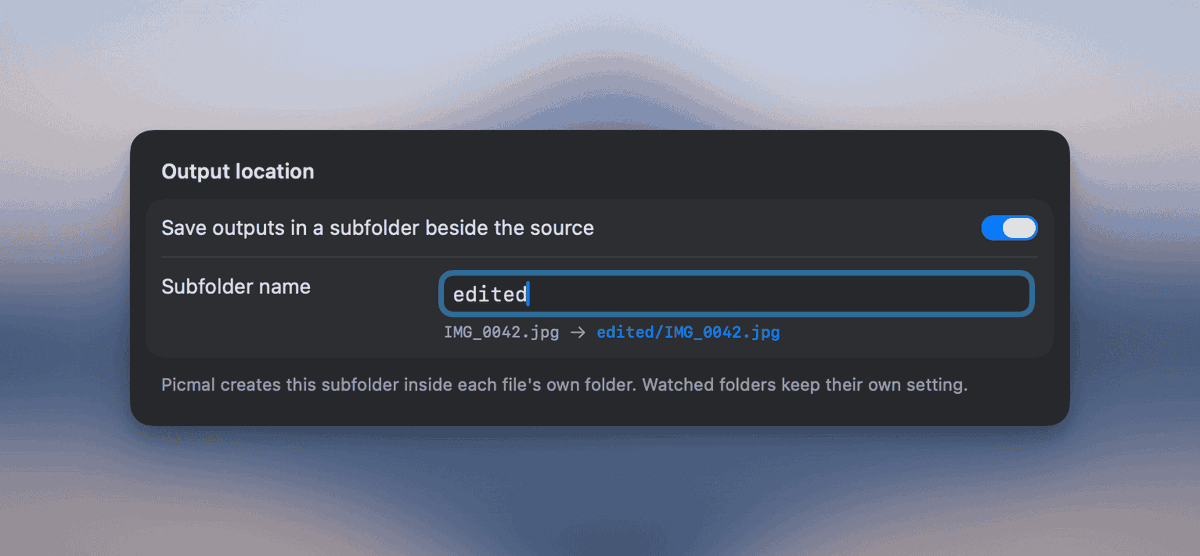
Now you can save outputs to a subfolder next to each source file. Keep your originals safe while keeping everything organized. Works with images, audio, and video in convert and compress.
4
Jun 5
˗ˏˋ NEW FEATURE ˎˊ˗
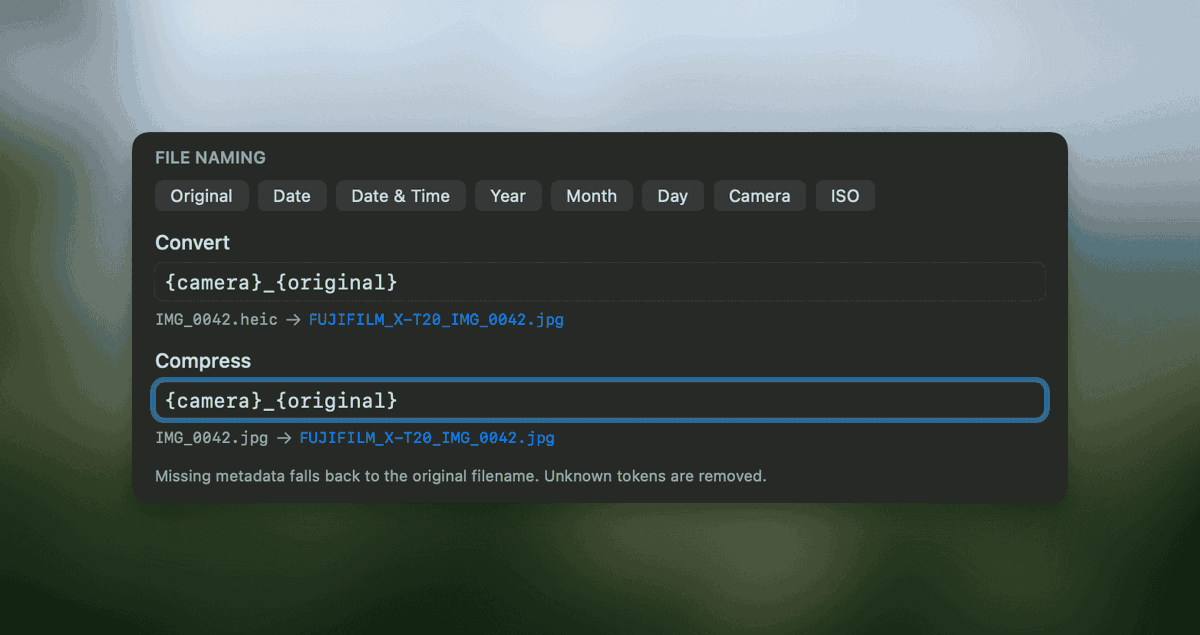
Rename output files with EXIF metadata effortlessly. Just set your pattern in Settings → Output, and watch Picmal auto-fill tokens from each file’s metadata as they’re processed.
ALT A user interface displaying file naming options for converting and compressing images with EXIF metadata integration.
3
Jun 5
I've been fully focused on building 🏗️, so I didn't have much time to share here.
I'm going to start from today 📅.
2
Apr 22
˗ˏˋ NEW FEATURE ˎˊ˗
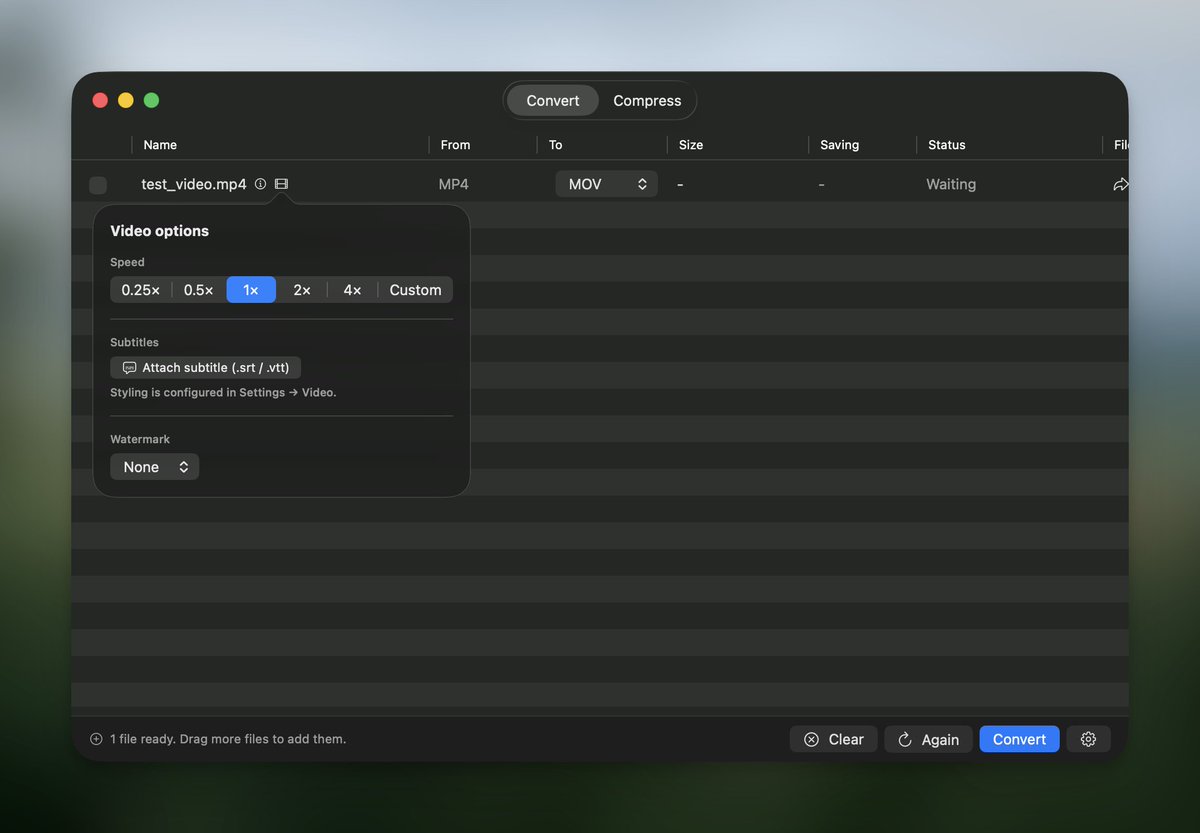
Speed videos up or slow them down, without messing up the audio pitch.
Perfect for:
⏱️ cutting meeting recordings down fast.
⏩ turning tutorials into time-lapses.
🏌️ slowing a golf swing for a closer look.
ALT Video conversion interface showing options to adjust playback speed, add subtitles, and choose watermark settings.
1
1
46
Apr 21
˗ˏˋ NEW FEATURE ˎˊ˗
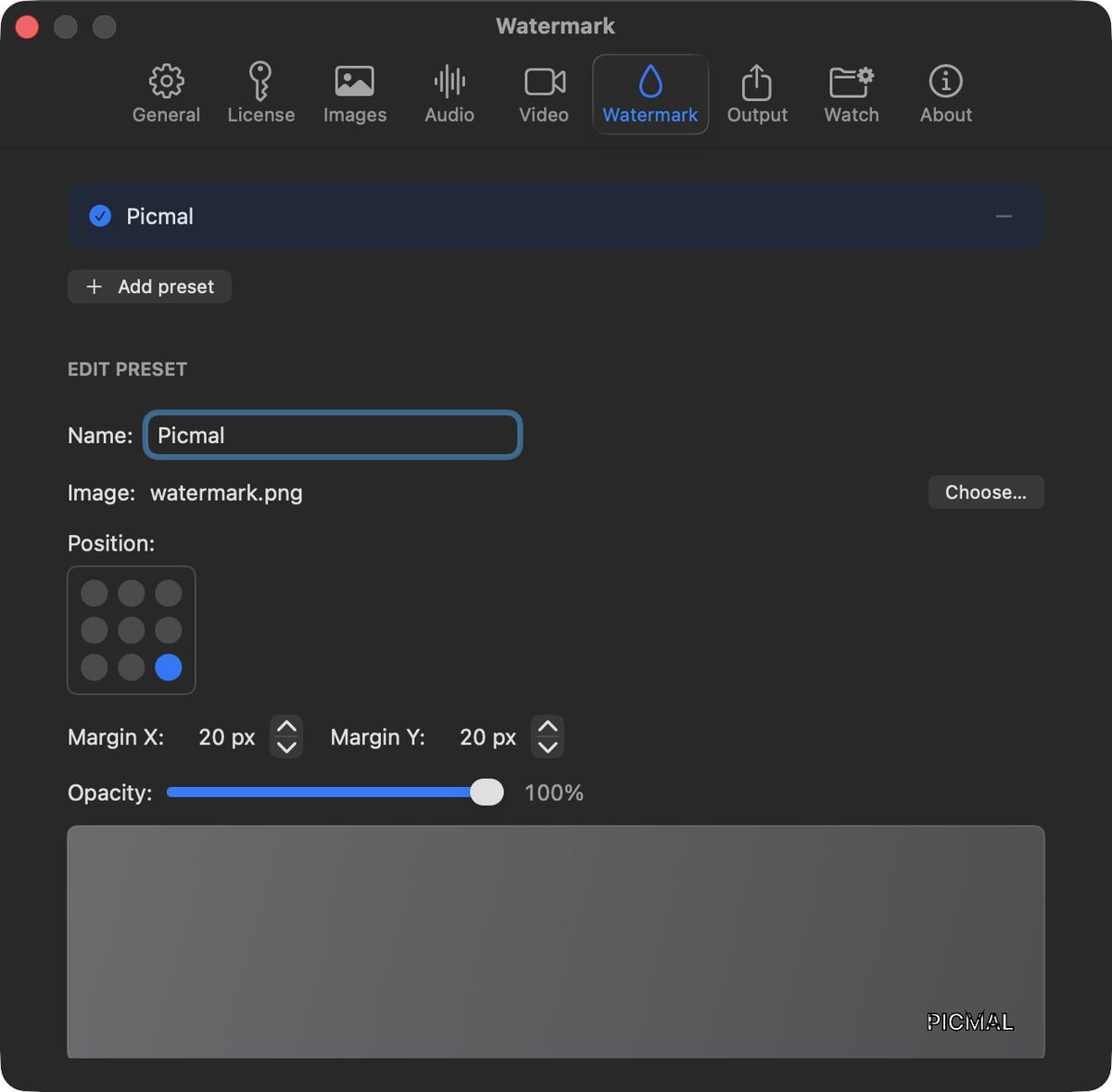
Watermark your videos
Add your logo or PNG overlay during conversion.
Perfect for:
🏷️ branding client deliverables
📝 marking previews as “draft”
✍️ signing batches of clips before they leave your Mac
ALT A digital interface displays watermark settings, featuring options for image upload, position selection, and opacity adjustment.
28
Apr 21
˗ˏˋ NEW FEATURE ˎˊ˗
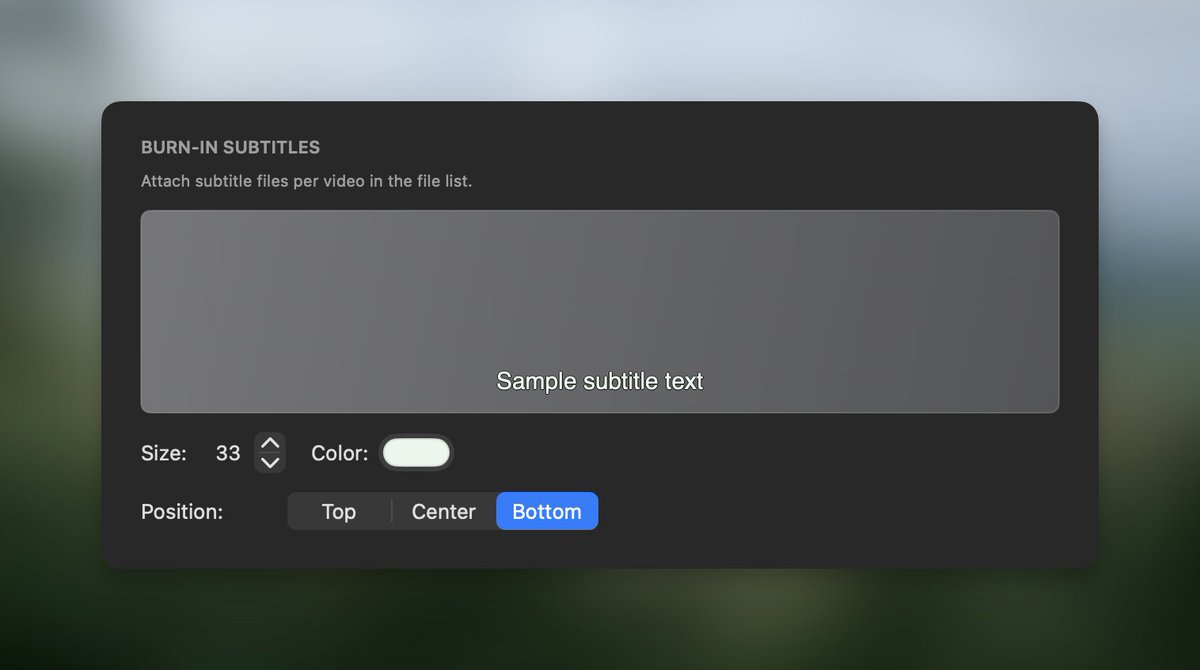
Picmal now lets you add subtitles to videos.
🎬 Tap the film icon.
📤 Upload an SRT or VTT.
🔥 We bake subtitles into the export (no sidecar files).
Customize in Settings → Video:
🔠 size
🎨 color
📍 position (top, middle, bottom)
ALT Subtitle settings interface showing options for size, color, and position. Sample text indicates where subtitles appear in a video.
1
39
Apr 14
˗ˏˋ NEW FEATURE ˎˊ˗
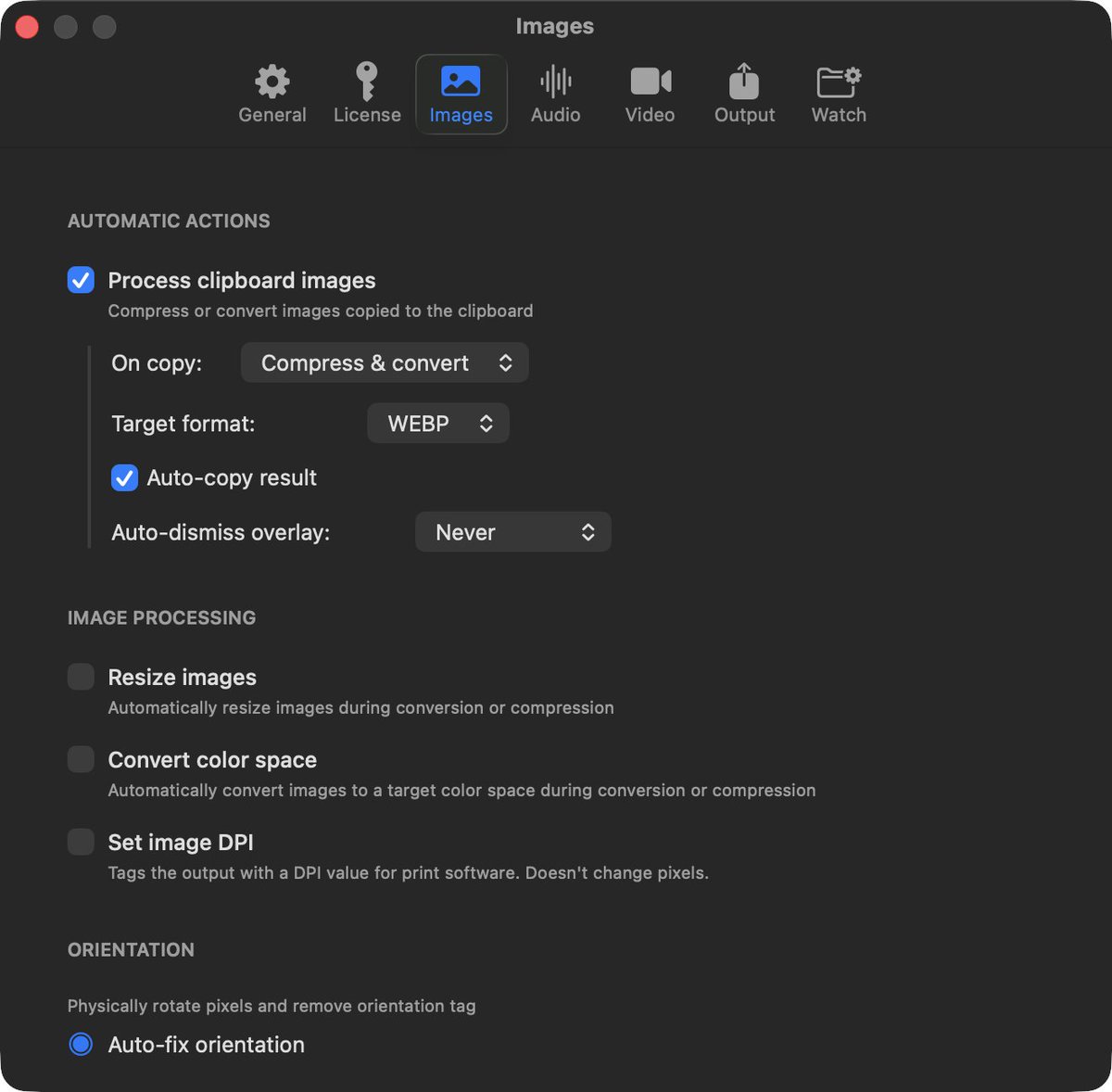
Now you can compress and convert images as you copy them to your clipboard.
Copy an image, and Picmal can:
- compress it
- convert it to JPEG, PNG, WebP, HEIC, AVIF, TIFF, or GIF
- do both at once
1
2
37
Apr 6
˗ˏˋ NEW FEATURE ˎˊ˗
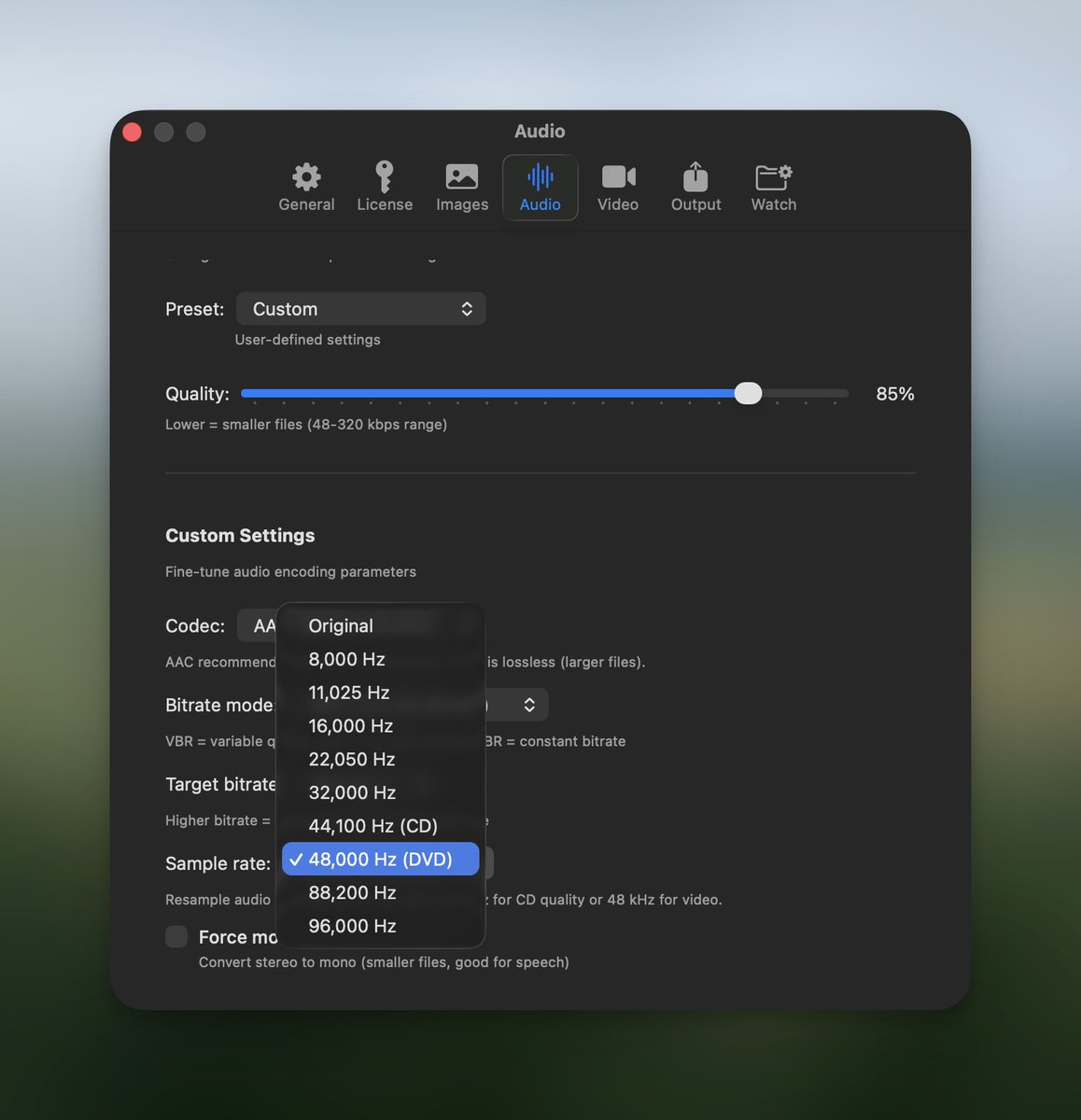
You can now convert audio files to the same format they’re already in.
For example, you can resample FLAC → FLAC at a different sample rate, without touching the codec.
1
30
Mar 31
🚀 Picmal 1.4.2 is here
→ Flags corrupted videos (e.g., missing moov atom) with precise errors
→ Notch-animated progress overlay
→ Live conversion % in the menu bar
→ Faster launch: setup won’t block the first screen
→ Smoother cancel, clearer errors, concurrency fixes
1
1
1
200