
Joined July 2018
- Tweets 6,231
- Following 1,088
- Followers 11,164
- Likes 10,483
1,261 Photos and videos

Pinned Tweet

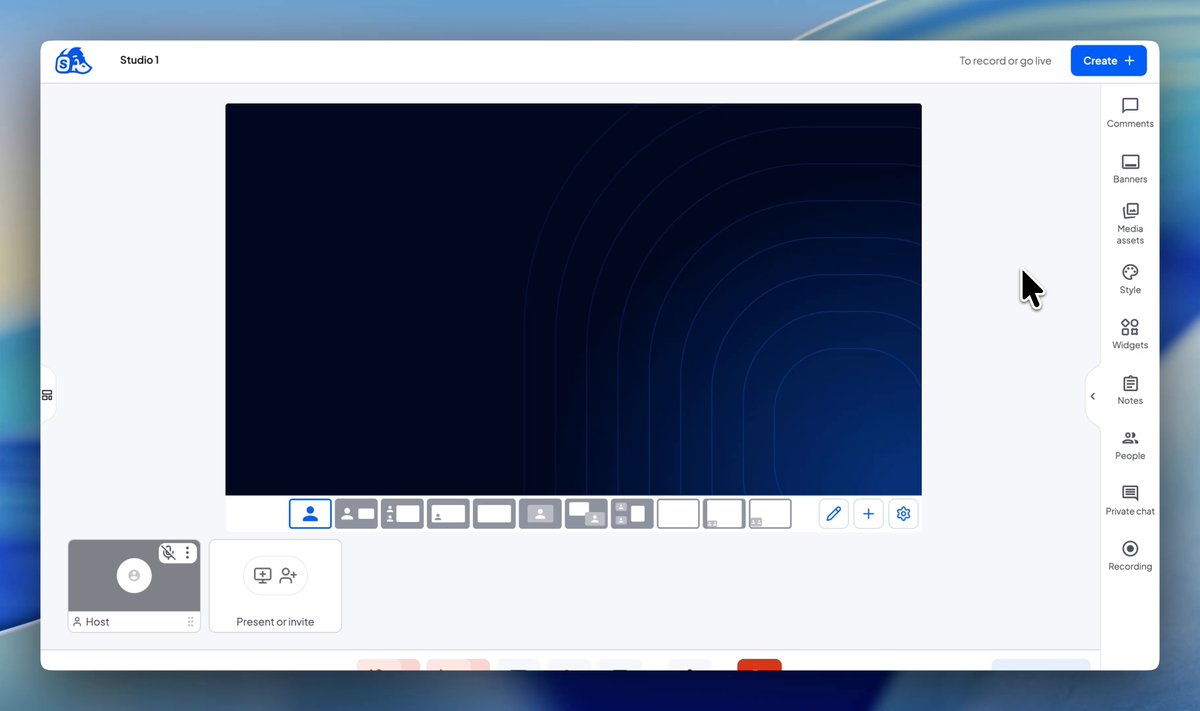
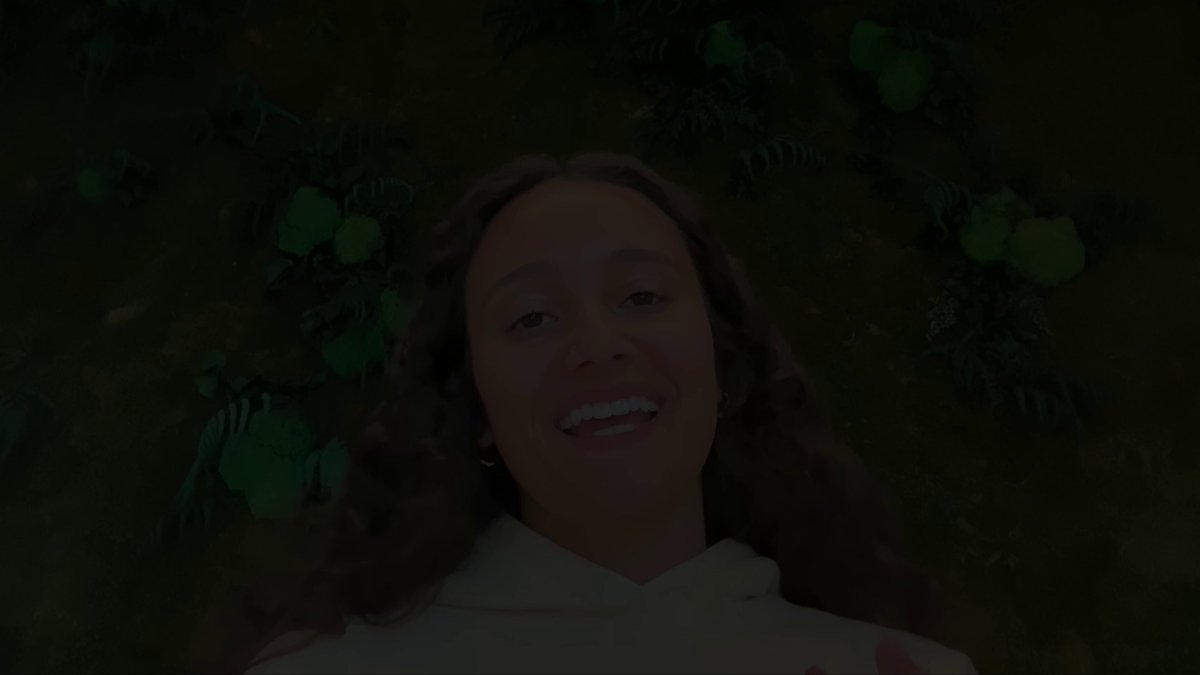
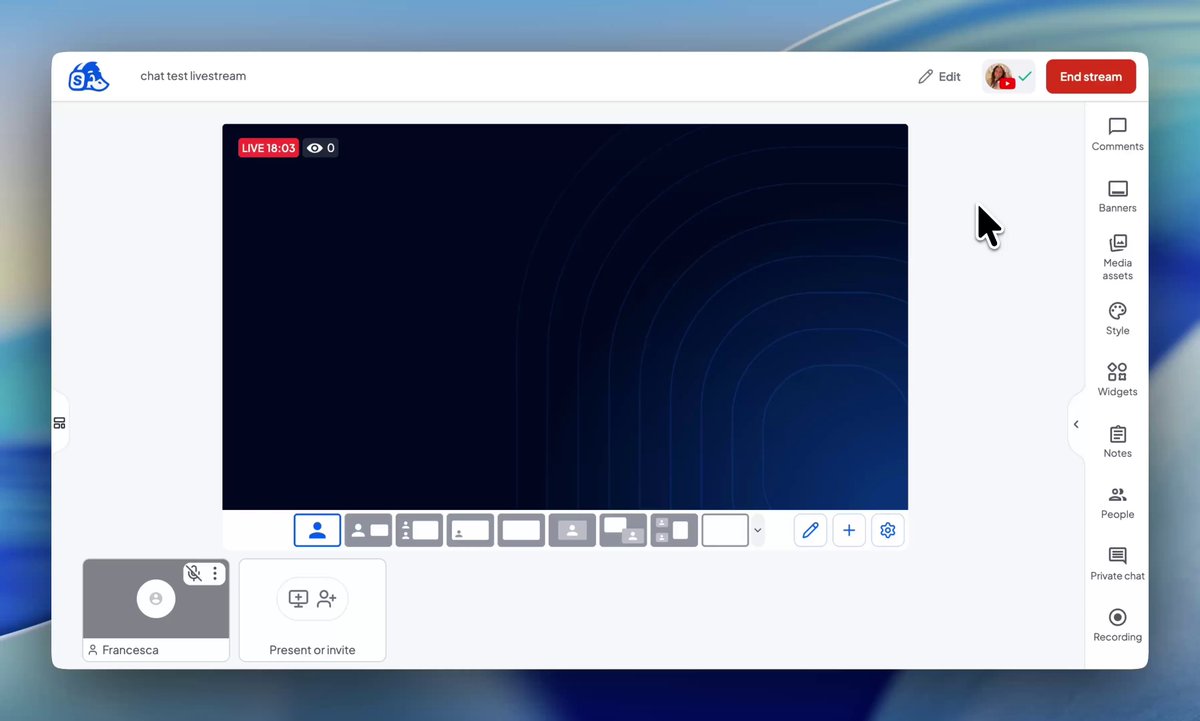
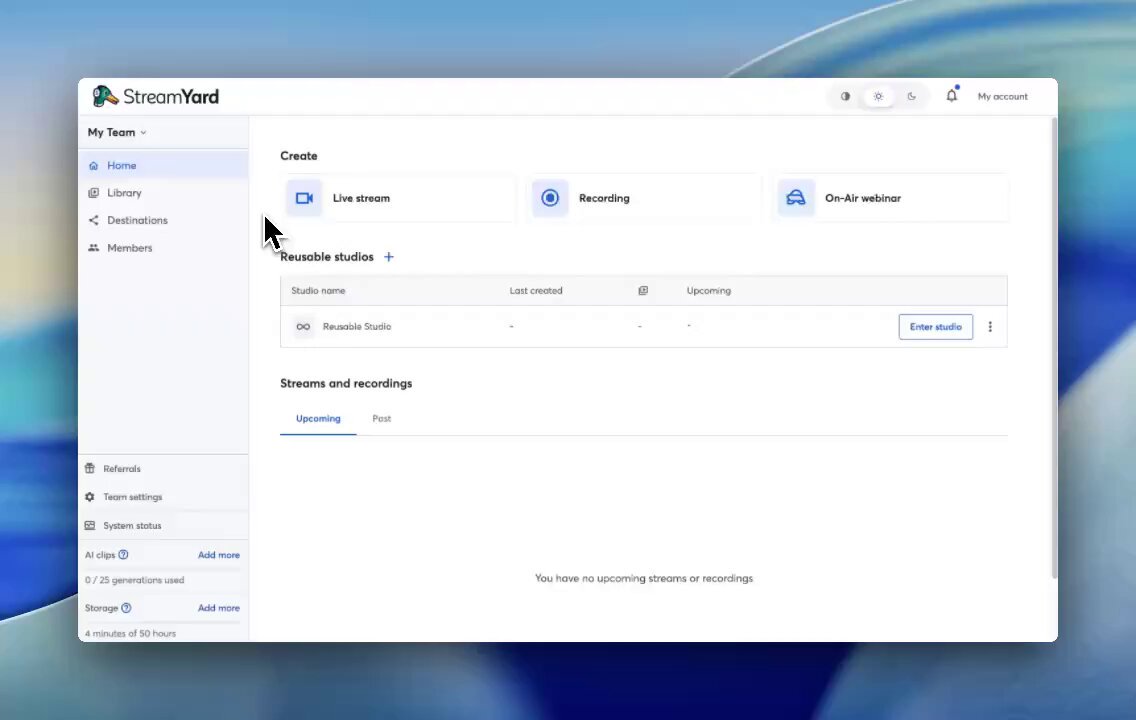
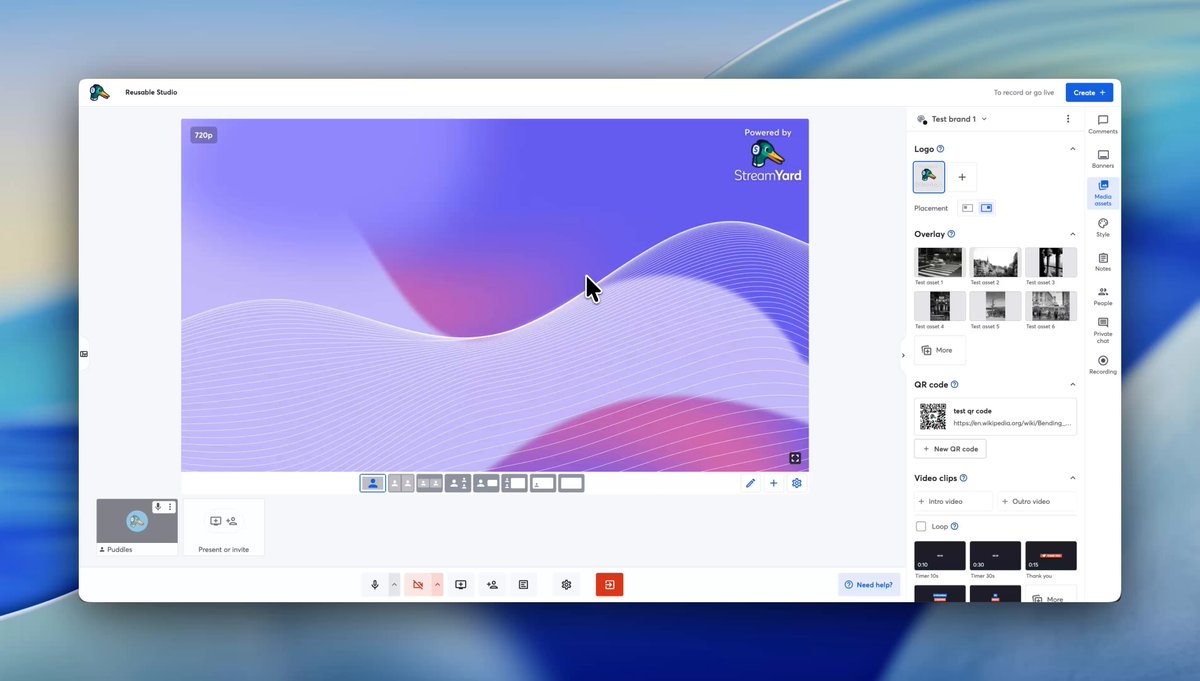
Introducing Streamyard’s new look 🦆
Brighter colors…
A cleaner interface…
A simpler dashboard…
And a fresh look for Puddles… 🦆
All designed to make Streamyard simpler, friendlier and more delightful to use than ever 💙
Read the full story here: bit.ly/40SQZxO
6
1
12
3,130
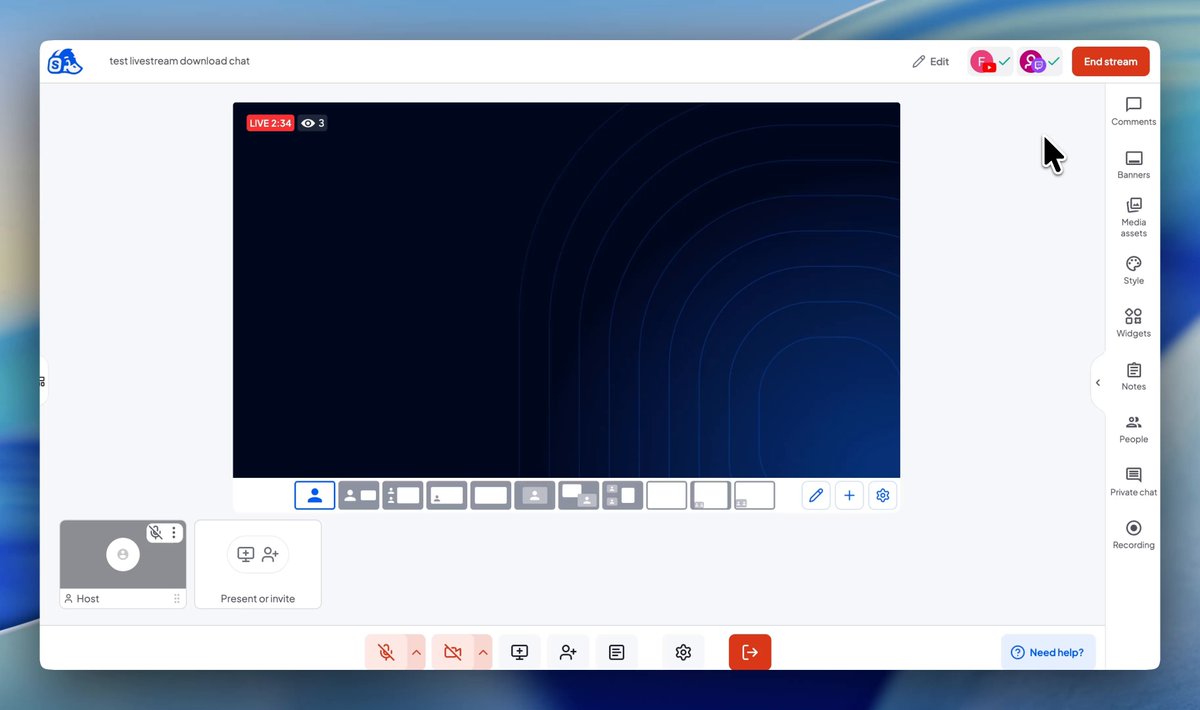
💬 Download chat history from your streams
You can now export chat history after your stream ends.
See exactly what happened in the chat. Catch missed questions, review audience feedback, and see which topics sparked the most conversation.
📍 Available on all plans
Note: Chat exports are only available for livestreams.
3
145
🎵 More ways to control your background music
You can now navigate through your background music without leaving the studio.
- See the full duration of your track
- Jump to any point in your music
- Check how much time is left while a track plays
📍 Available on all plans
1
137
🎁 React to YouTube gifted memberships in real time
If you're monetized on YouTube, you can now see gifted membership messages directly in your Streamyard chat.
Show gifted memberships on screen, acknowledge supporters live, and keep the momentum going without switching to YouTube Studio.
📍 Available on all Streamyard plans
1
2
139
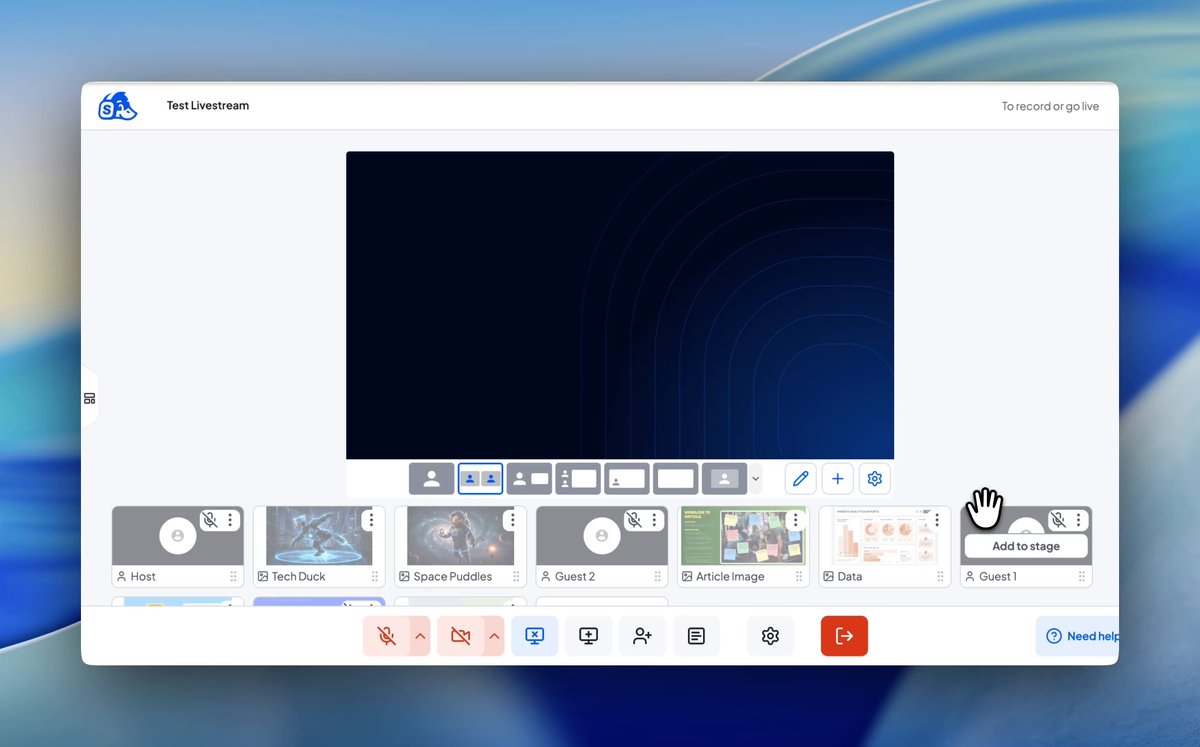
📂 Reorganize your backstage lineup
You can now reorder guests and media assets in your backstage area, making it easier to keep your studio organized while live.
Group related guests and assets together, and arrange your backstage in whatever order works best for your stream.
📍 Available on all plans
1
214
🎨 Transform your overlays without leaving the studio
You can now resize and reposition overlays directly inside your layout.
Move overlays around your guests, resize them to better fit your scene, and customize your layout exactly how you want—without leaving the studio.
📍 Available on paid plans
1
1
357
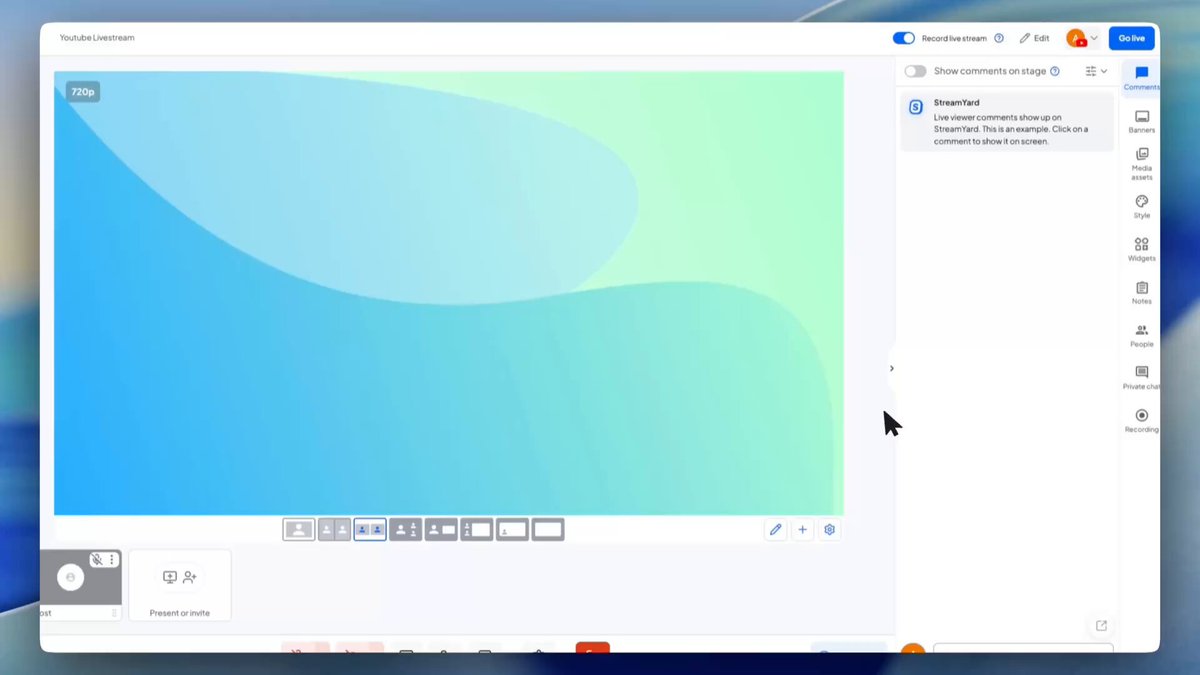
💬 Know which comments you’ve already shown
When your chat is moving fast, it’s easy to lose track of which comments you’ve already shown on screen.
When you hide a comment from the stage, it now appears faded in the Comments section—so you always know what’s already been shown.
Stay on top of busy chats and keep your stream flowing smoothly.
📍 Available on all plans
4
2
691
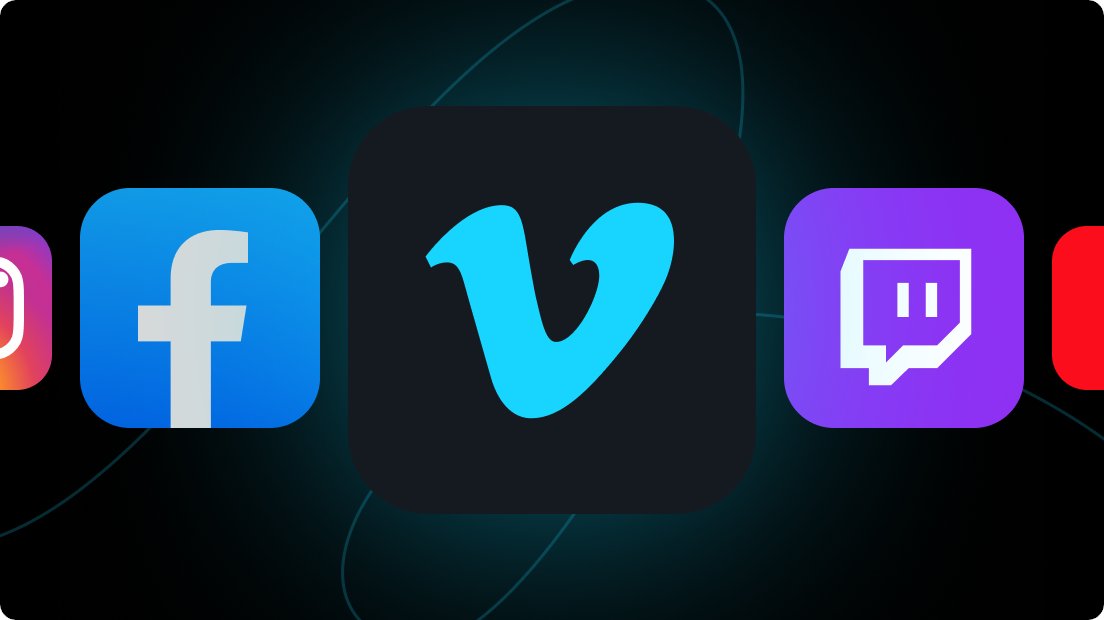
📺 Stream to Vimeo natively from Streamyard
You can now add Vimeo as a destination and go live or stream your recordings—no RTMP setup or switching tools.
📍 Available from all Streamyard plans
Requires Vimeo Advanced or Enterprise plan with Events functionality
1
1
589
🎉 GIVEAWAY WINNERS ANNOUNCEMENT 🎉
Hey everyone! Thanks again for joining the livestream and participating in the giveaway. 🙌
Here are the winners:
👉 YT @KeshiaH-StayBlessed
👉 YT @carlosandres2775
👉 YT @Steve_Gonzales_72
Quick note: during the livestream I mentioned I’d DM the winners, but YouTube doesn’t allow direct messages—so I’ll need you to reach out to me instead. 🙏
📩 Send me an email at sweepstakes@streamyard.com
⚠️ Important:
- Please contact me within 48 hours
- Include your YouTube handle in your DM
- I will NEVER ask for sensitive information publicly in comments
- I will not contact you first—only respond to messages you send
Congrats again! 🎉
1
308
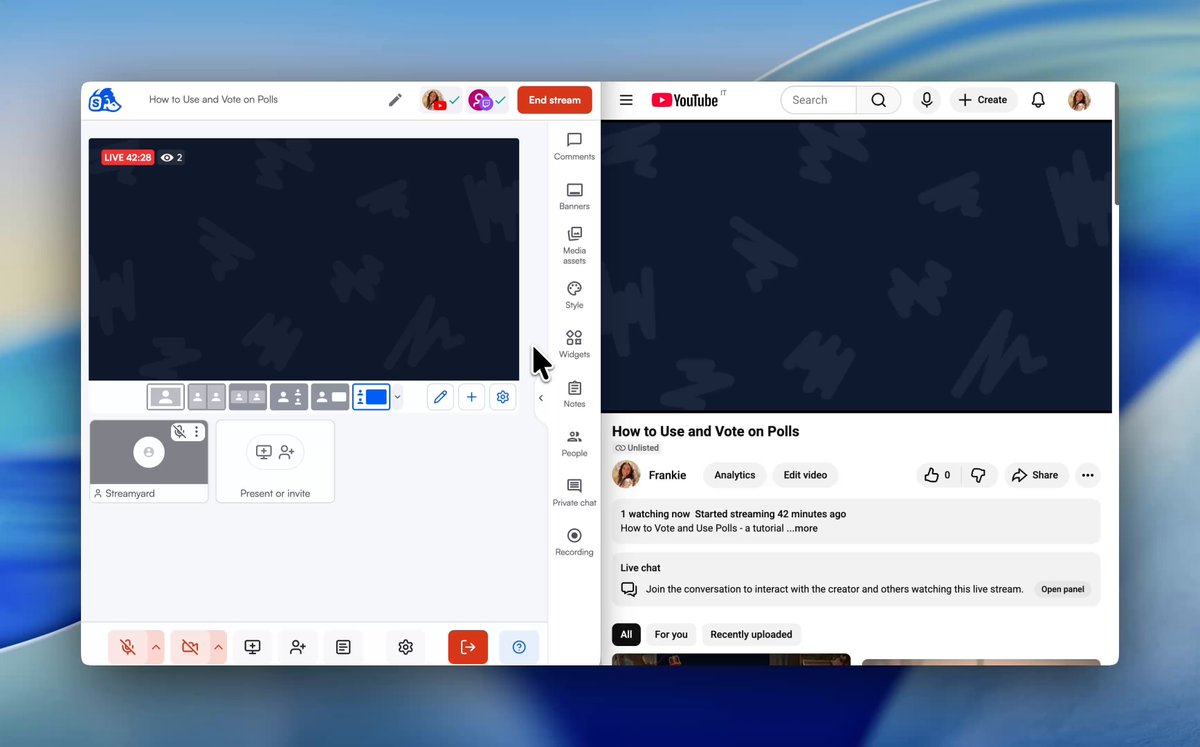
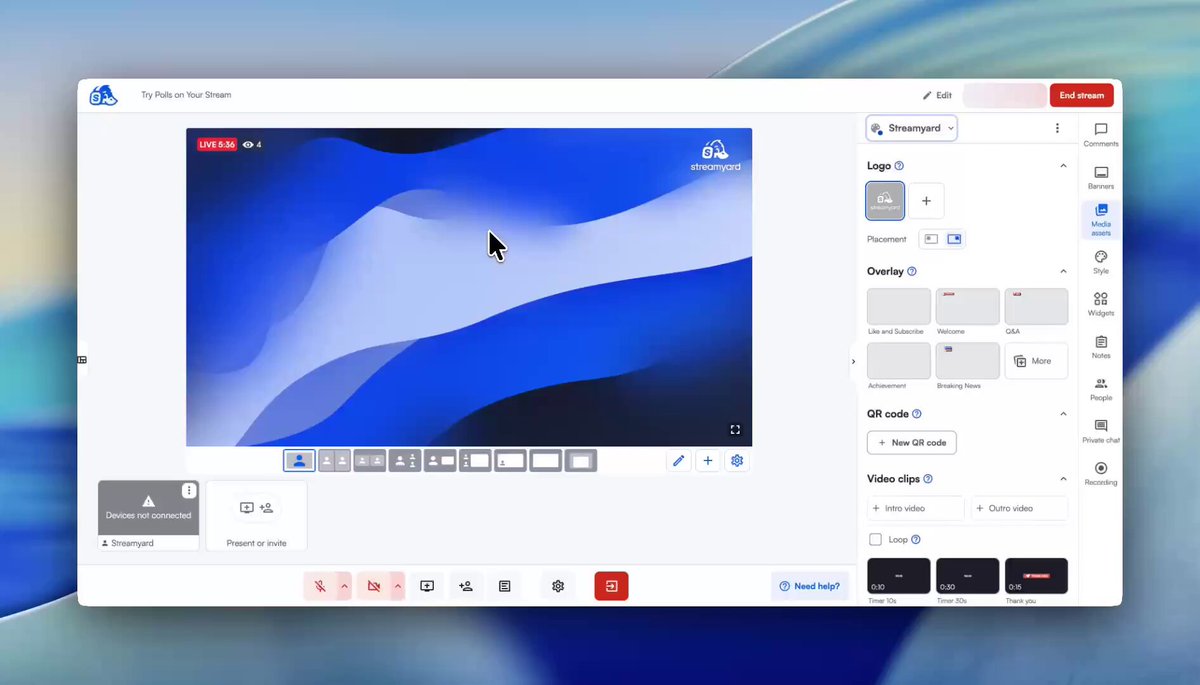
We've seen a few questions about how Polls work, so here’s a quick walkthrough.👇
Voting happens directly in the chat.
Once your Poll is on screen, viewers can vote by commenting either the text of the option itself or the number tied to it (for example, commenting “2” votes for option 2).
Each viewer can vote once, and you’ll see responses from all channels update live in your stream.
This works across destinations that support live chats, like YouTube and Twitch.
How to set it up:
- Start a Livestream
- Go to Widgets and click New Poll
- Add your question and answer options
- Click Create
- Hit Start & Show to display it during your stream
- Watch results update automatically on the Poll widget on screen
💡 Tip: Encourage viewers to comment and vote through the chat.
Keep your audience engaged and see what they’re thinking in real time.
📍Available on all plans
1
315
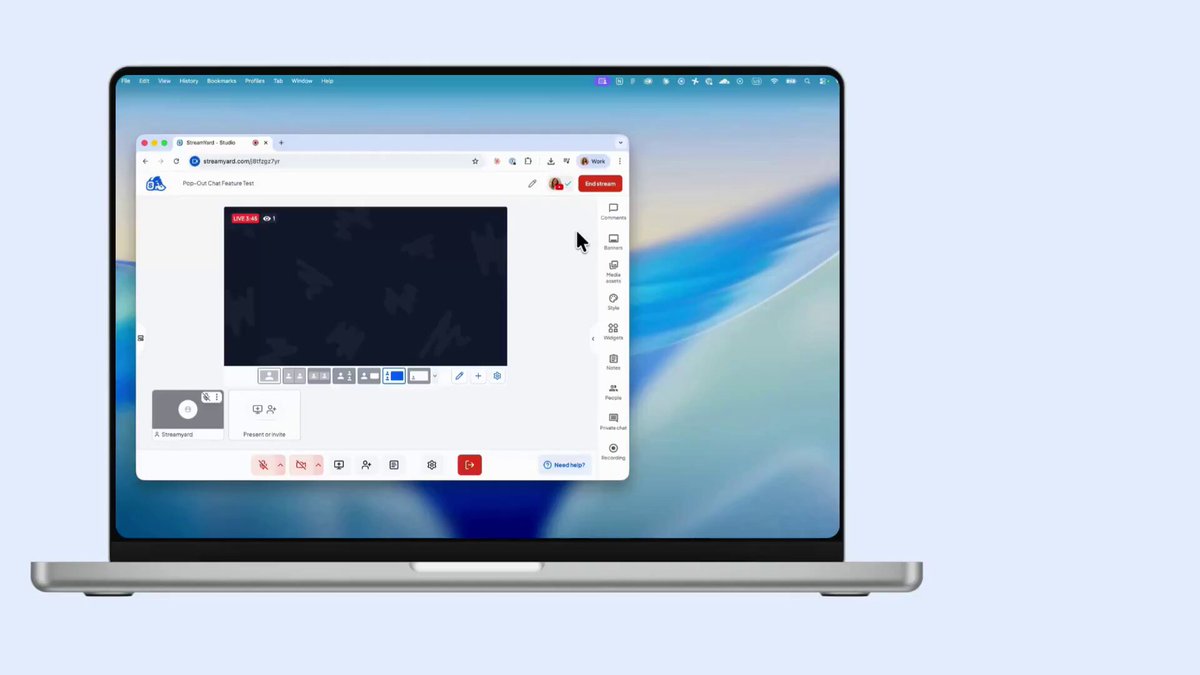
💬 Pop-out your chat and stay on top of your audience
You can now open your live chat in a separate browser window, or scan the QR code to open it from your phone.
That means you can keep an eye on your chat without it getting in the way—giving you more room to move between panels while you stream.
Stay on top of your audience, without crowding your setup.
📍Available on all plans
1
5
395
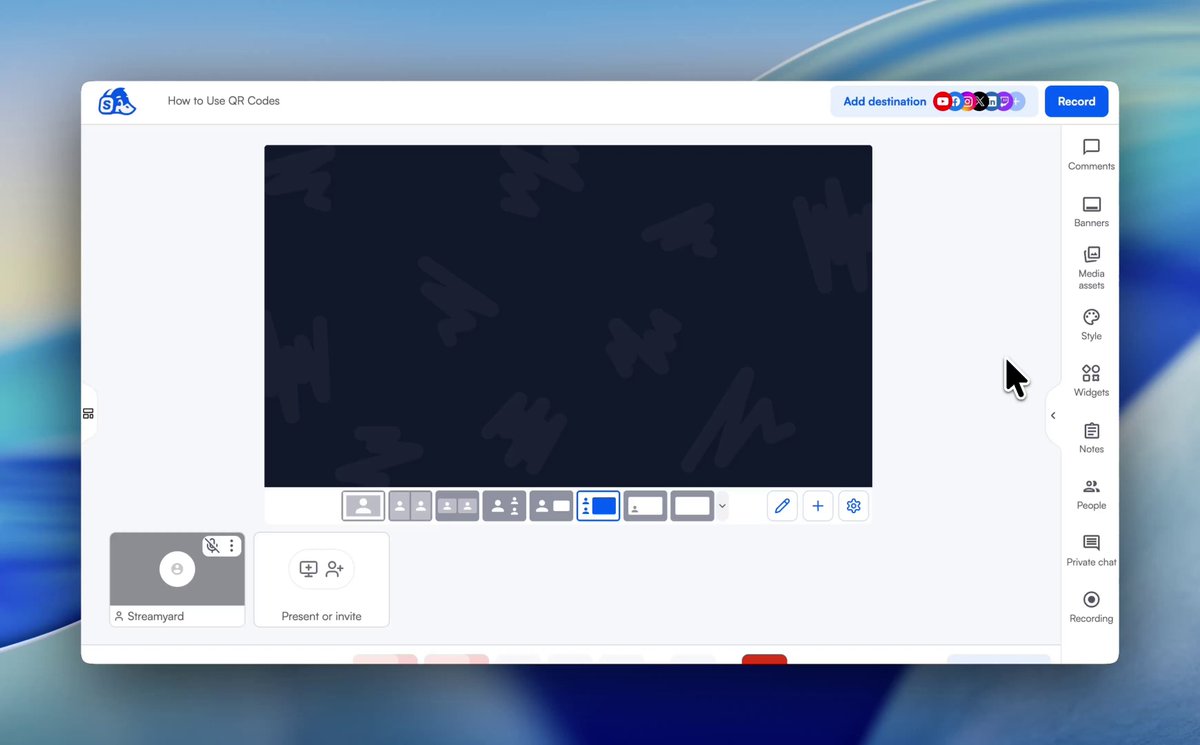
🔗 Customize your QR codes to match your brand
You can now customize QR codes with your brand colors, logos and text—so every link you share feels like a natural part of your stream.
📍 Available on all plans
2
1
2
992
📊 Survey your audience live with Polls
Turn your viewers into participants with built-in Polls. Ask questions, get instant feedback, and see who’s actually paying attention. 👀
📍 Available on all plans
2
405
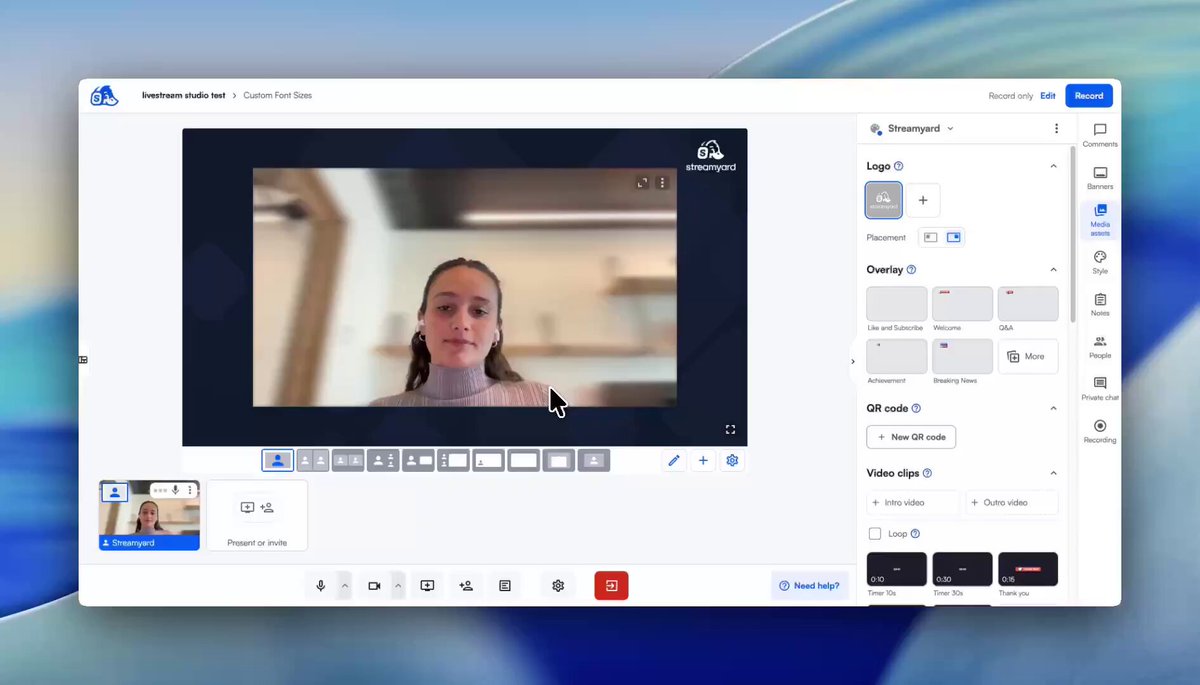
🔤 Change the size of display names and headlines
You can now make display names and headlines larger or smaller.
Use different sizes to better match your layout or highlight guest names on screen.
📍 Available on all plans
4
627
Something big is taking shape at StreamYard… 👀
The same product you know and trust…
But with one monumental change. 🦆
More soon. ✨
1
8
657
🔍 Find any recording in seconds with Library Search
Your Library now has a search bar — instantly find any recording, clip, or upload by title 🎯
📍 Available on all plans
2
4
839
🎨 Upload your assets once, and easily duplicate them to your other brands.
You can now copy your assets—logos, overlays, backgrounds, and more—directly from one brand to another, without reuploading a single file.
📍 Available on all plans
3
1
5
613
🎥 Your dashboard now shows you when AI clips are ready
We’ve added a new element to the left sidebar, where you’ll see any ongoing AI clips generations, and an instant preview when they’re done 🔔
No more checking back to see whether your clips are ready—you’ll find out directly from the dashboard!
📍 AI clips are available on all plans.
1
4
474
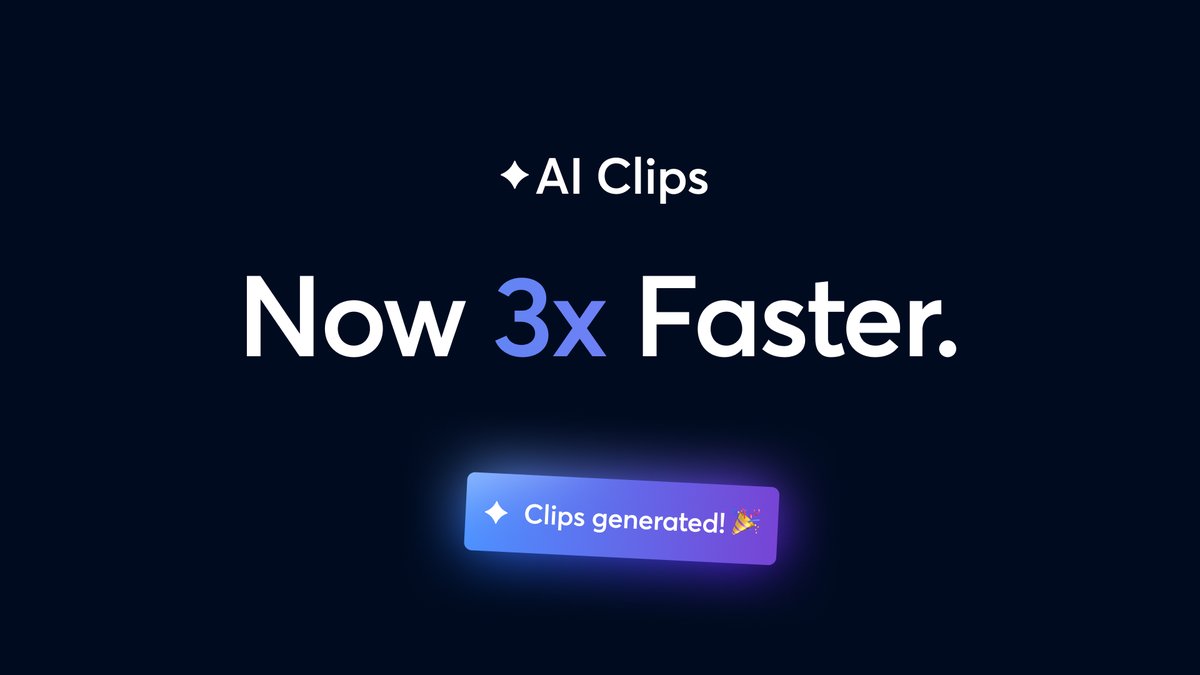
🚀AI Clips now generate 3x faster!
We've rebuilt the video processing behind AI Clips, so you can view and share your highlights in a fraction of the time—with zero reduction in clip quality.
To use AI Clips, go to your Library, open a recording, and click Generate clips.
📍 Available for everyone with plan-based monthly limits.
1
2
385