
993 Photos and videos

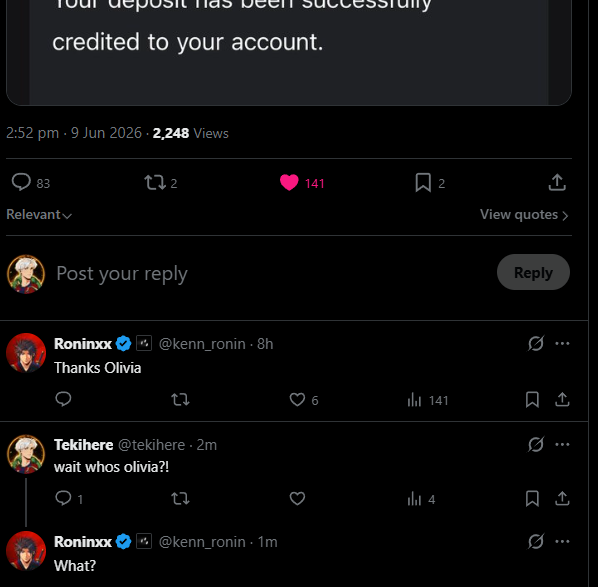

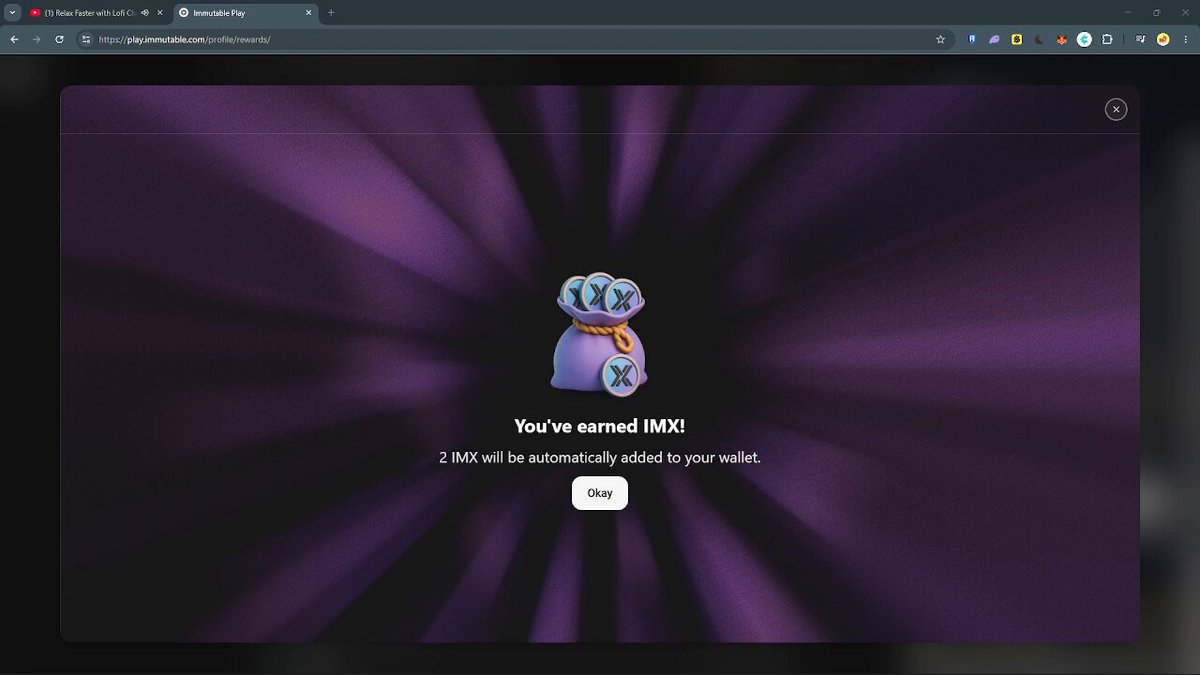

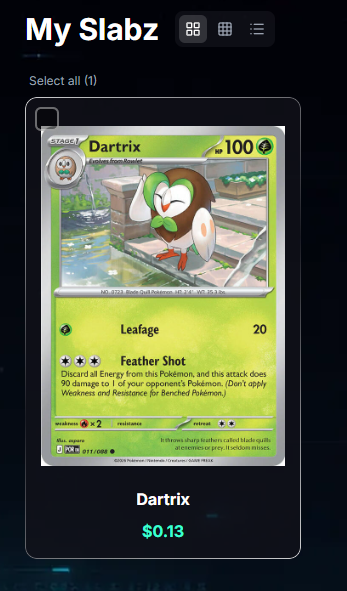





Ngl, I didn't expect @Mintory_labs to drop another game this soon 👀
🎁$15 FREE reward pack before launch!
Check below for more details
60
1
65
784
Ngl, I didn't expect @Mintory_labs to drop another game this soon 👀
🎁$15 FREE reward pack before launch!
Check below for more details
60
1
65
784
Ngl, I didn't expect @Mintory_labs to drop another game this soon 👀
🎁$15 FREE reward pack before launch!
Check below for more details
60
1
65
784
Pre-Register here on @Immutable Play!
play.immutable.com/games/poc…
IOS : apps.apple.com/us/app/pocket…
Android : play.google.com/store/apps/d…
10
60
Not every game survives on my PC for long.
But @MedievalEmpires is still part of my daily routine.
Level 12 is under construction!
And let's be honest... it's also one of the easiest ways to secure that @Immutable Daily Streak 😆
Who's still grinding?
32
2
50
1,092
FREE IMX Token from Wheel Spin @Immutable
Not a bad way to start the weekend 😎
Anyone else got lucky today?
12
1
26
1,049
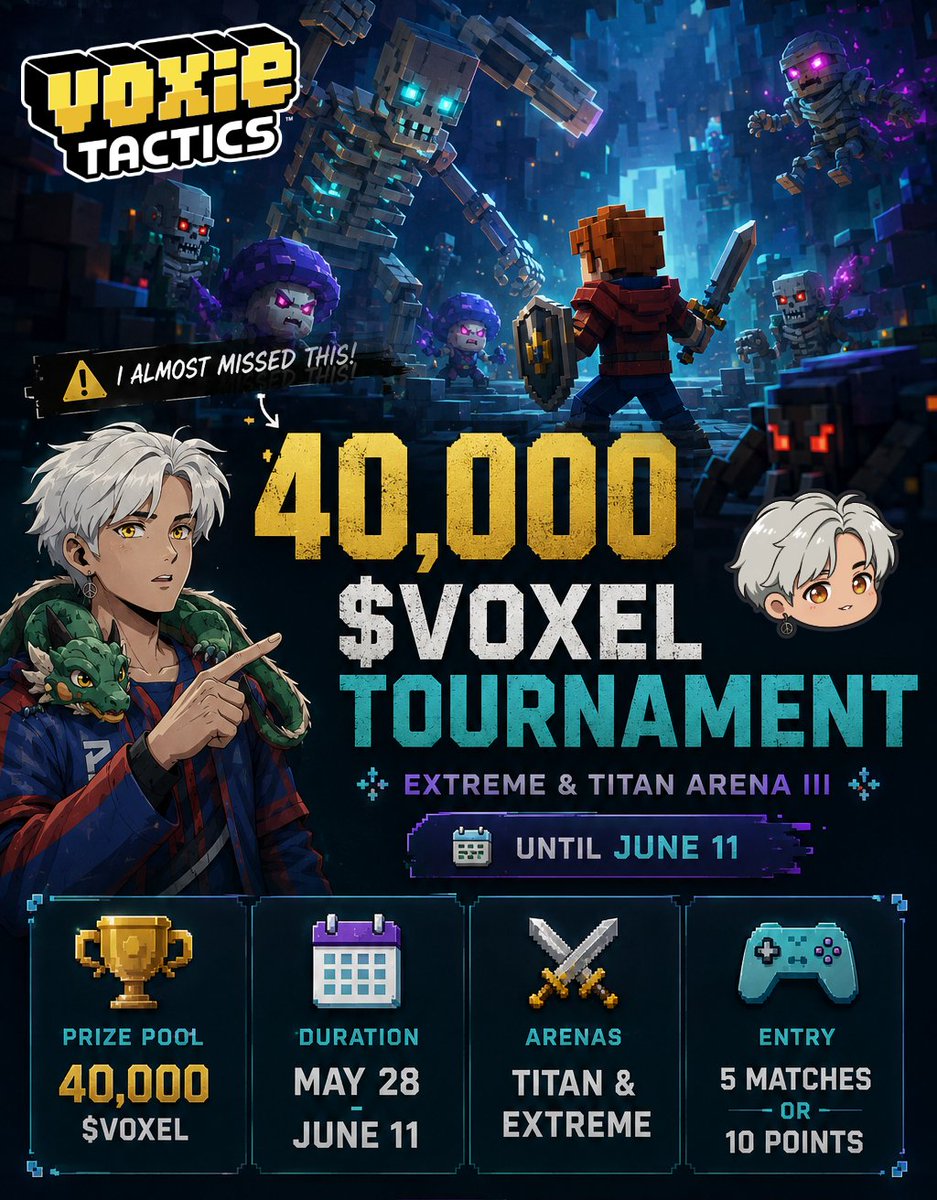
After looking deeper into the tournament, one thing stood out to me 👀
You don't need to be at the very top of the leaderboard to earn rewards.
The 40,000 $VOXEL prize pool uses a pro-rata system, meaning your rewards depend on the points you contribute relative to the rest of the community
That's why I'm focusing on getting as many points as possible before June 11.
Also, I was surprised by how low the entry requirement is:
✅ 5 matches played
✅ 10 points earned
Much more accessible than I initially thought @VoxieTactics

I was checking out @VoxieTactics latest update...
Then realized I completely missed their Extreme & Titan Arena Tournament 😭
Good news: you JUST only need 5 matches played or 10 points to eligible for the rewards
🏆 40,000 $VOXEL Prize Pool
📅 Ends June 11
Guess I'm grinding this instead of making content today😋
46
2
56
1,436
After looking deeper into the tournament, one thing stood out to me 👀
You don't need to be at the very top of the leaderboard to earn rewards.
The 40,000 $VOXEL prize pool uses a pro-rata system, meaning your rewards depend on the points you contribute relative to the rest of the community
That's why I'm focusing on getting as many points as possible before June 11.
Also, I was surprised by how low the entry requirement is:
✅ 5 matches played
✅ 10 points earned
Much more accessible than I initially thought @VoxieTactics
I was checking out @VoxieTactics latest update...
Then realized I completely missed their Extreme & Titan Arena Tournament 😭
Good news: you JUST only need 5 matches played or 10 points to eligible for the rewards
🏆 40,000 $VOXEL Prize Pool
📅 Ends June 11
Guess I'm grinding this instead of making content today😋
46
2
56
1,436
Another tips for u NEW PLAYER guys.
SO to @FeranRepom for making this!
x.com/FeranRepom/status/2061…
Jun 1

FOR NEW GAMERS @Immutable
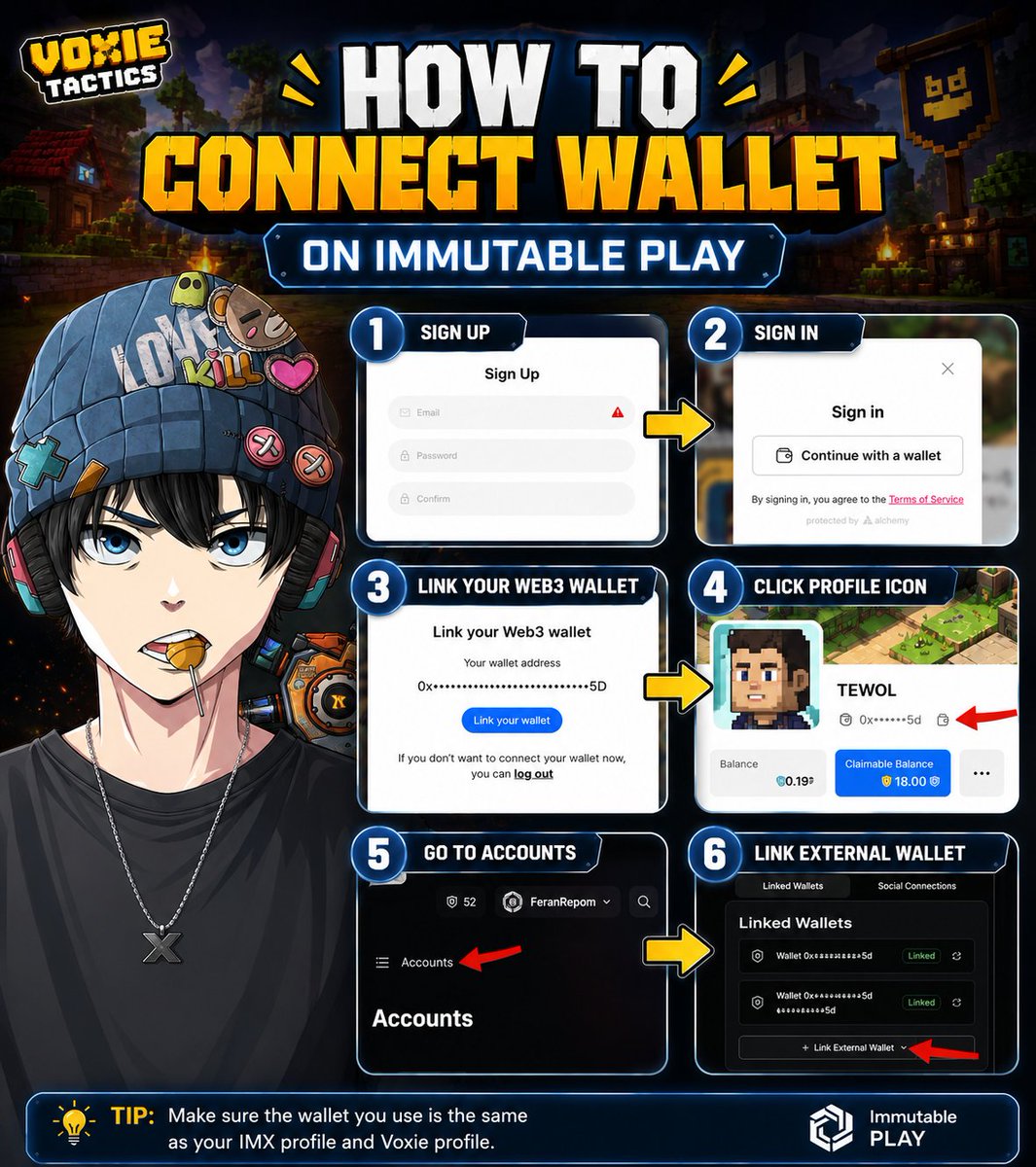
Still having trouble connecting your wallet to Immutable Play? Here's a quick guide 👇
• Go to login.voxies.io/?origin=mark…
and create an account if you don't already have one
• Sign in and select Continue with a Wallet.
• Connect your preferred Web3 wallet and approve the connection request.
• Once connected, go to immutable profile
• Open the menu and go to Accounts.
• Under Linked Wallets, click Link External Wallet to verify that your metamask wallet address
• Connect the wallet you use for Voxie Tactics and confirm the request.
✅ Done! Your wallet is now linked to Immutable Play and ready to use across the Voxie ecosystem.
⚠️ Important: Make sure the wallet connected to Immutable Play is the same wallet linked to your Voxie account.
This step is essential if you want your Voxie Tactics quests on Immutable Play to be tracked properly. If the wrong wallet is connected, your quest progress may not be detected
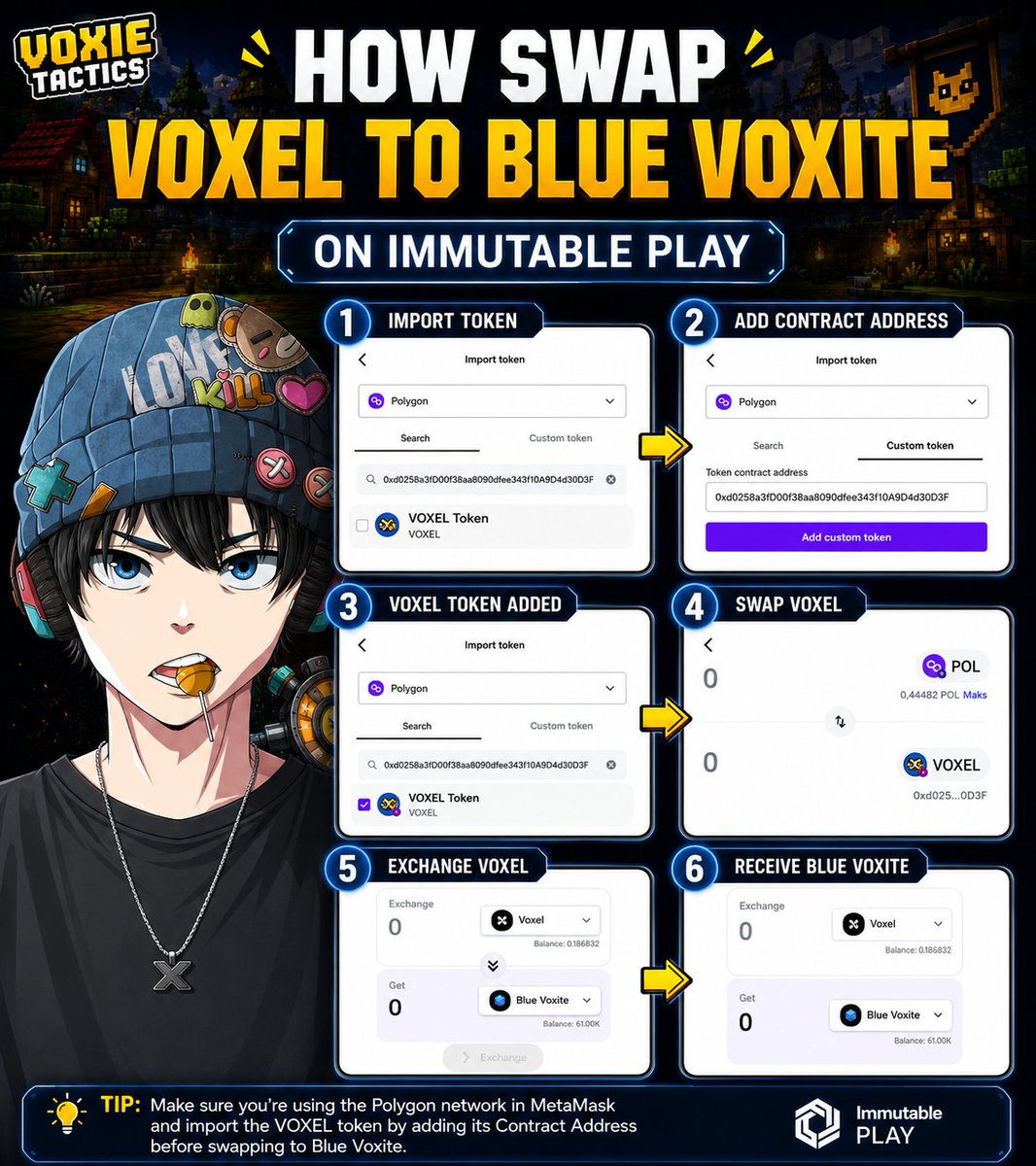
*HOW TO SWAP VOXEL to Blue Voxite?
Make sure your MetaMask is connected to the Polygon Network.
- If the VOXEL token is not showing in your wallet, go to Import Token and enter the following contract address:
0xd0258a3fD00f38aa8090dfee343f10A9D4d30D3F
- Once detected, click Add Custom Token and then Import Token.
- After VOXEL appears in your wallet and your balance is visible, swap your POL/USDT into $VOXEL.
- Confirm the transaction.
Then head back to the Voxie market:
- In the Swap section, select VOXEL to Blue Voxite.
- Confirm the transaction in MetaMask and wait for it to be processed on the Polygon network.
⚠️ Remember: Keep a small amount of $POL in your wallet for gas fees, and always double-check the contract address before making any transactions.
Feel free to share this tutorial with your friends who might be struggling with it. If you still have any questions, just send me a DM.
1
7
104
I was checking out @VoxieTactics latest update...
Then realized I completely missed their Extreme & Titan Arena Tournament 😭
Good news: you JUST only need 5 matches played or 10 points to eligible for the rewards
🏆 40,000 $VOXEL Prize Pool
📅 Ends June 11
Guess I'm grinding this instead of making content today😋
68
2
70
3,128
I was checking out @VoxieTactics latest update...
Then realized I completely missed their Extreme & Titan Arena Tournament 😭
Good news: you JUST only need 5 matches played or 10 points to eligible for the rewards
🏆 40,000 $VOXEL Prize Pool
📅 Ends June 11
Guess I'm grinding this instead of making content today😋
68
2
70
3,128
Voxie Tactics is one of game @0xPolygon Hub on @Immutable Play!
Check the game here :
play.immutable.com/games/vox…
9
114
It's Out!
The First Game @GodsUnchained
GU is the first game i played on Immutable also
already played the game from 2020 and now finally i can make a long video for Beginners on YT haha
Apprecieted you guys to check the full of the video (link below) ☺️
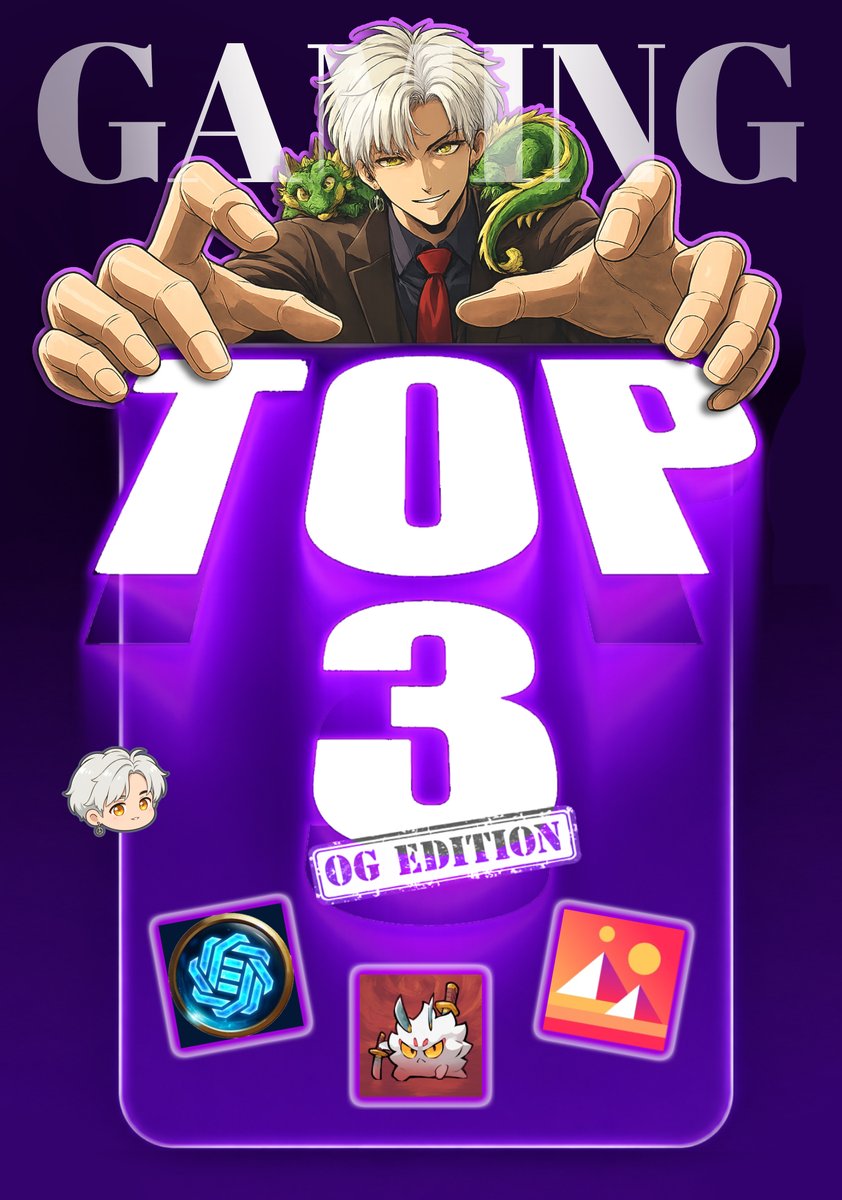
TOP 3 OG Games that made me stuck.
@GodsUnchained
My first TCG where I actually learned deck building
@AxieInfinity
Countless hours breeding, battling, and chasing the next upgrade
@decentraland
The first metaverse that actually felt alive to me
for a week i played the game and will made 3 gameplay about those games... i hope it will be nice later...
6
1
13
341
It's Out!
The First Game @GodsUnchained
GU is the first game i played on Immutable also
already played the game from 2020 and now finally i can make a long video for Beginners on YT haha
Apprecieted you guys to check the full of the video (link below) ☺️
TOP 3 OG Games that made me stuck.
@GodsUnchained
My first TCG where I actually learned deck building
@AxieInfinity
Countless hours breeding, battling, and chasing the next upgrade
@decentraland
The first metaverse that actually felt alive to me
for a week i played the game and will made 3 gameplay about those games... i hope it will be nice later...
6
1
13
341
TOP 3 OG Games that made me stuck.
@GodsUnchained
My first TCG where I actually learned deck building
@AxieInfinity
Countless hours breeding, battling, and chasing the next upgrade
@decentraland
The first metaverse that actually felt alive to me
for a week i played the game and will made 3 gameplay about those games... i hope it will be nice later...
56
3
63
1,629