
Joined May 2017
- Tweets 3,302
- Following 123
- Followers 54,151
- Likes 630
2,852 Photos and videos
Pinned Tweet

6 Apr 2025
We have removed our book, Git Better With Vim, from @gumroad due to its CEO's support for @DOGE.
wired.com/story/doge-departm…
7
3
35
8,591
6 Apr 2025
We have removed our book, Git Better With Vim, from @gumroad due to its CEO's support for @DOGE.
wired.com/story/doge-departm…
7
3
35
8,591
6 Apr 2025
We have also ceased posting on @X for the same reason and hope to migrate over to Bluesky soon:
bsky.app/profile/vimtricks.c…
1
3
15
4,892
7 Mar 2025
The :reg command in Vim will show you the contents of your registers. The Peekaboo plugin shows a sidebar with the same automatically.
👉 Read the tip: bit.ly/39McpCp
📨 Subscribe for more: bit.ly/vimtricks
3
51
5,235
7 Mar 2025
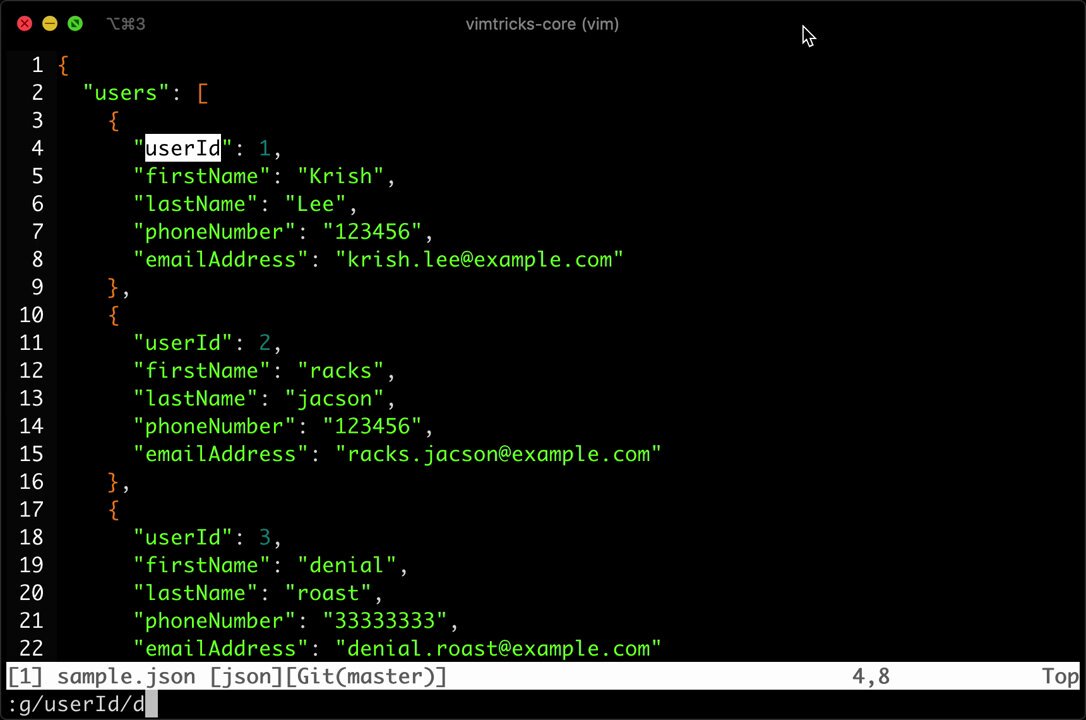
Remove lines matching a pattern with the g command:
• :g/pattern/d - Remove lines matching pattern
• :g!/pattern/d - Remove lines that do NOT match
👉 Read the tutorial: bit.ly/3e19bvX
📨 Subscribe to the newsletter: bit.ly/vimtricks
1
5
66
4,994
6 Mar 2025
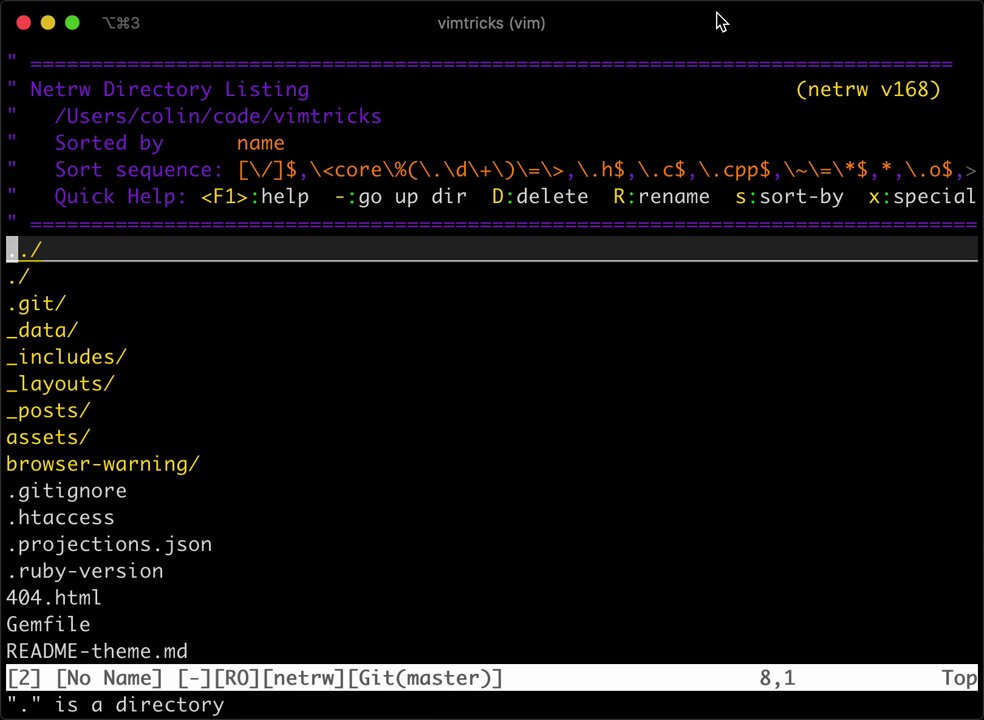
Did you know that Vim's built in netrw plugin lets you edit files remotely over SCP?
👉 Tutorial: bit.ly/2Hn2IPi
📨 Subscribe for weekly Vim tricks: bit.ly/vimtricks
1
18
3,627
6 Mar 2025
Use text objects to make efficient changes:
• da" - Delete Around quotes
• di] - Delete Inside brackets
• ci{ - Change Inside braces
• dap - Delete Around Paragraph
• vaw - Visually select Around Word
👉 Read: bit.ly/3o2Dff7
📨 Subscribe: bit.ly/vimtricks
1
11
100
4,978
5 Mar 2025
Do you Vim 8's package manager or third-party options? Why?
We wrote up an overview of 4 options in today's edition of VimTricks:
• Vim 8 native
• Pathogen
• Vim-Plug
• Vundle
Read the post: bit.ly/2T1pRJG
Get weekly Vim tips: bit.ly/vimtricks
1
2
12
2,968
4 Mar 2025
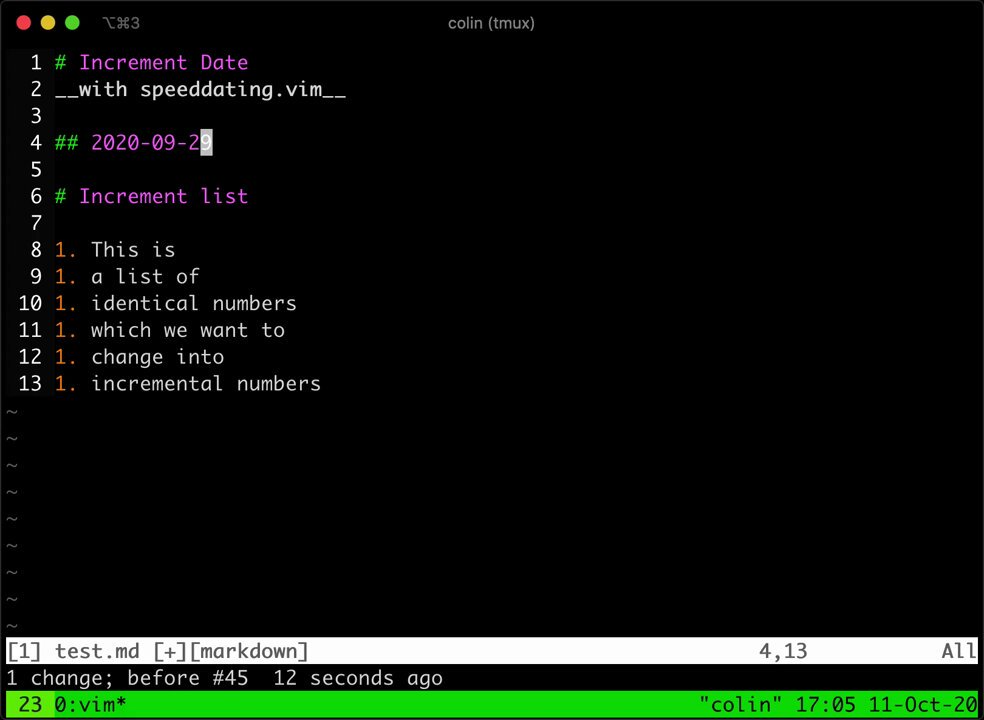
Ctrl-a and Ctrl-x will increment or decrement the next number on the line. But also:
• Use speeddating.vim to increment dates
• Try visual-increment.vim to increment a whole list
👉 Read the tip: bit.ly/2GXIwU6
📨 Get weekly Vim tips: bit.ly/vimtricks
1
8
34
3,549
4 Mar 2025
You can use ddp to move the current line down in Vim. But I use mappings for Ctrl-j and Ctrl-k to move one or more lines up or down quickly...
👉 Read the tip: bit.ly/3dhJuqn
✉️ Free weekly tips: bit.ly/vimtricks
3
26
2,773
3 Mar 2025
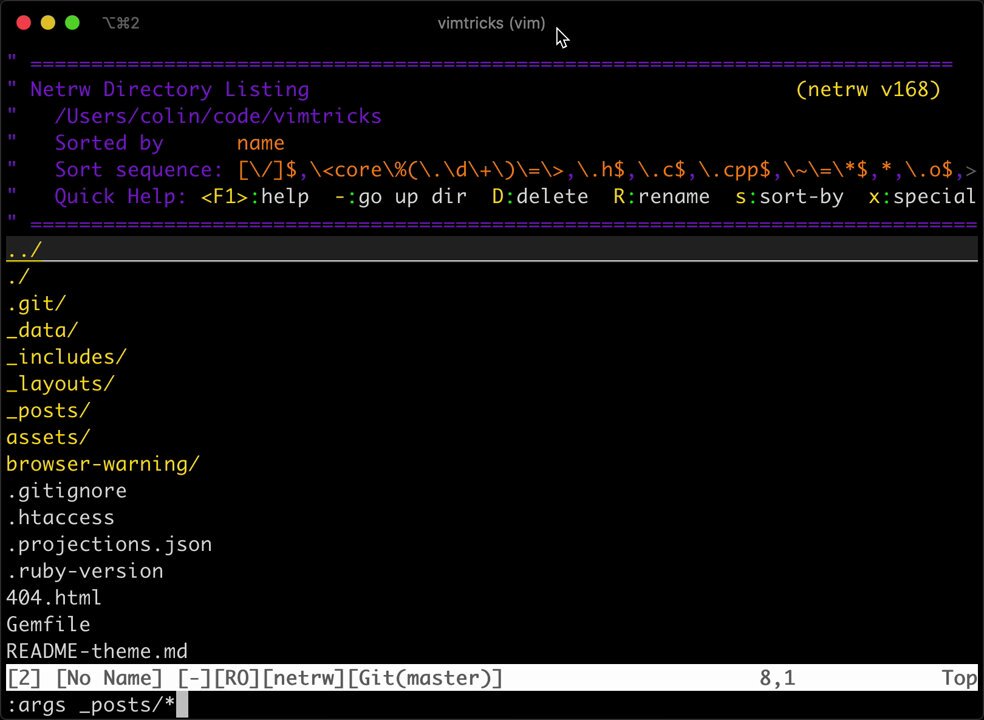
Replace across multiple files in Vim, without any plugins:
• :args path/*
• :argdo %s/some/sub/g
• :argdo update
👉 Read the tutorial: bit.ly/36vrTtP
📨 Get weekly Vim tips: bit.ly/vimtricks
5
57
3,336
2 Mar 2025
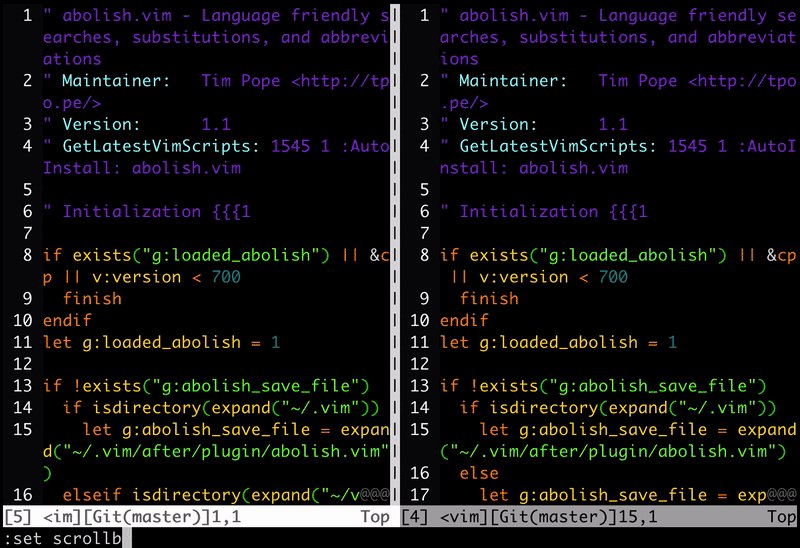
Scroll two splits simultaneously in Vim with :set scrollbind or toggle with :set scb! Useful for comparing two files.
Read the tip: bit.ly/33h01rb
Subscribe for free weekly Vim tricks: bit.ly/vimtricks
8
57
3,635
2 Mar 2025
Enable mouse support in Vim:
set mouse=a
Our blog post has a list of reasons. But the most useful, even for keyboard warriors, is to resize splits with a quick drag.
👉 Read the tip: bit.ly/3dsIjET
📨 Subscribe for more: bit.ly/vimtricks
2
15
2,965
1 Mar 2025
Use :%! to filter the entire buffer through an external command. Many great uses for this, such as using Unix text tools or linting.
👉 bit.ly/3CqE5sE
📨 Subscribe for more tips: bit.ly/vimtricks
1
11
45
3,367
1 Mar 2025
Stay in search mode in Vim by using Ctrl-g and Ctrl-t after searching for a pattern, instead of pressing enter. Refine your pattern faster this way.
Read the tip: bit.ly/2Gq6p6u
Subscribe for free Vim tips: bit.ly/vimtricks
12
80
4,630
28 Feb 2025
3 ways to delete in insert mode - build edits you can repeat with dot:
• ctrl-h – Delete previous char
• ctrl-w – Previous word
• ctrl-u – Entire line (except indent)
👉 Read the tip: bit.ly/3onx4CM
📨 Subscribe for more: bit.ly/vimtricks
3
60
3,683
28 Feb 2025
Indent or backdent the current line while in insert mode -- helps to make more repeatable edits.
• ctrl-t - Indent the current line
• ctrl-d - Backdent the current line
👉 Read the tip: bit.ly/3onx4CM
📨 Subscribe for more: bit.ly/vimtricks
1
27
2,432
28 Feb 2025
Open a file directly to a pattern in Vim:
vim some_file.name /your_pattern
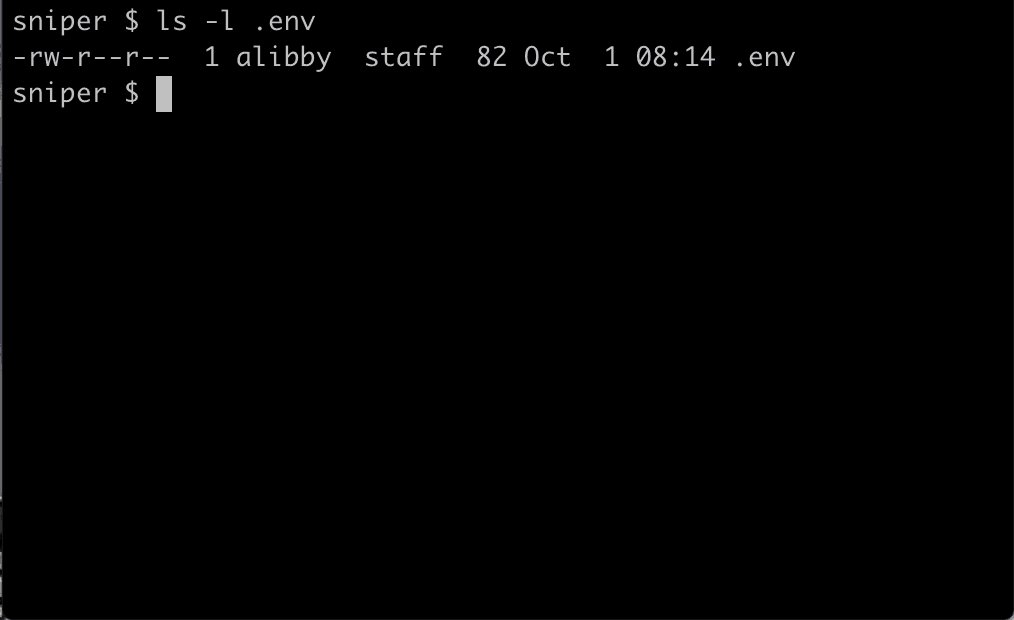
Why? The pattern in your terminal history allows repetition. Useful for .env or config files.
👉Read the tip: bit.ly/2GvpSCE
📨 Free weekly tips: bit.ly/vimtricks
5
28
2,530
27 Feb 2025
Did you know you can paste into Vim's command line with Ctrl-r and * ?
👉 Read the tip: bit.ly/3cDjbui
📨 Level up with our weekly VimTricks newsletter: bit.ly/vimtricks
7
44
2,342
27 Feb 2025
Lost inside your parenthesis? Tangled up in a web of Lisp?
Vim can highlight the other side of your current bracket with :set showmatch
👉 Full write-up: bit.ly/2EvNfuR
📨 Subscribe for weekly Vim tricks: bit.ly/vimtricks
7
41
2,448
26 Feb 2025
More accurately match patterns in Vim by using non-greedy matching:
Instead of using .* use .\{-}
👉 Read the tip: bit.ly/340ORGc
📨 Get exclusive tips and tricks in our newsletter: bit.ly/vimtricks
5
43
2,627