
Joined July 2016
- Tweets 5,067
- Following 513
- Followers 135
- Likes 18,549
826 Photos and videos










Pinned Tweet

15 Apr 2024
I have a kofi now! Join now for exclusive content and more!
ko-fi.com/slothfang/tiers

9
292
SlothFang retweeted

May 16
This indie dev is making a hide-and-seek game where you literally paint your own body to blend into the environment
- Your artistic skills are key to survival
- Pose to blend in
- Up to 10 players in public or private matches
Would you play this? It's called MECCHA CHAMELEON.
267
3,141
54,114
6,563,643
SlothFang retweeted

2k now btw

1k reviews in just 3 days 😭👌
Everyday we indie devs see someone saying that you shouldn't make a big or linear game. Or that you should give up on what you like.
This is not true. Believe in your vision, trust your guts.
Thank you friends, and everyone who made a review!

91
159
3,372
46,854
SlothFang retweeted
May 11
Wipeout & F-Zero fans, this solo indie dev has spent 5 years making your next favourite game
- New anti-gravity racer
- 25 tracks from Earth to the lunar frontier
- 375 events across 7 game modes
Get a new look on May 28 in the Insider Gaming Showcase!
It's called AGX GP.
91
521
3,624
212,941

SlothFang retweeted

Apr 22
Look fear in the face. Clayface only in theaters this October.
500
8,566
56,738
4,981,146
SlothFang retweeted

Apr 22
#ClayfaceMovie Only in theaters, October 23, 2026…
Apr 22

Look fear in the face. Clayface only in theaters this October.
146
1,387
19,532
681,638
SlothFang retweeted

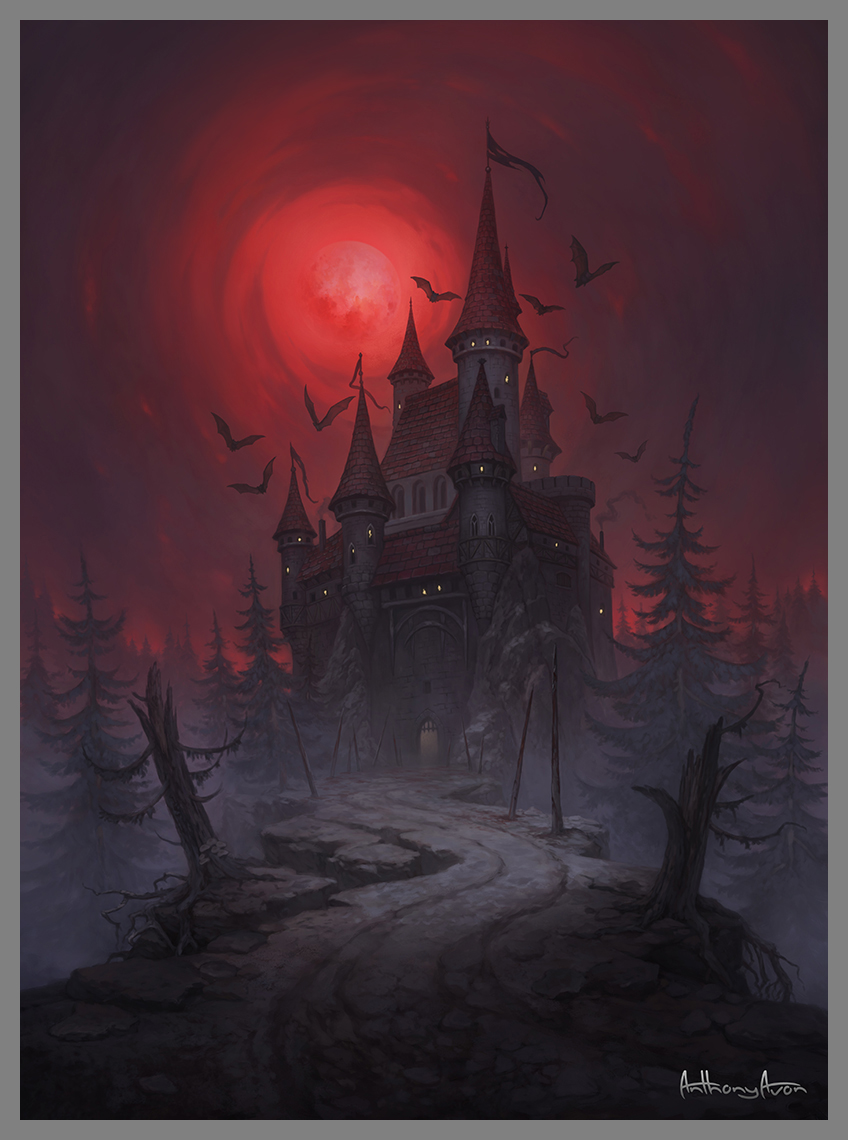
Of all the artists you can commission for dark fantasy art, I'm certainly one of them.
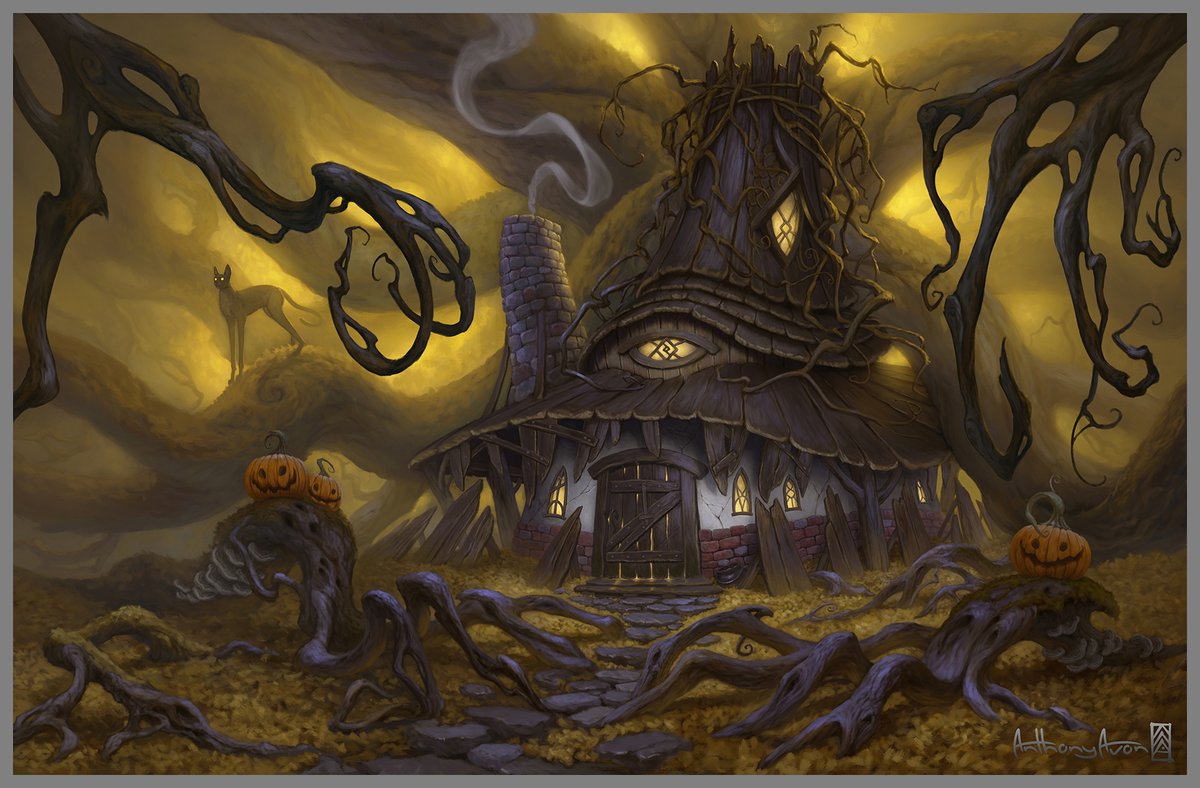
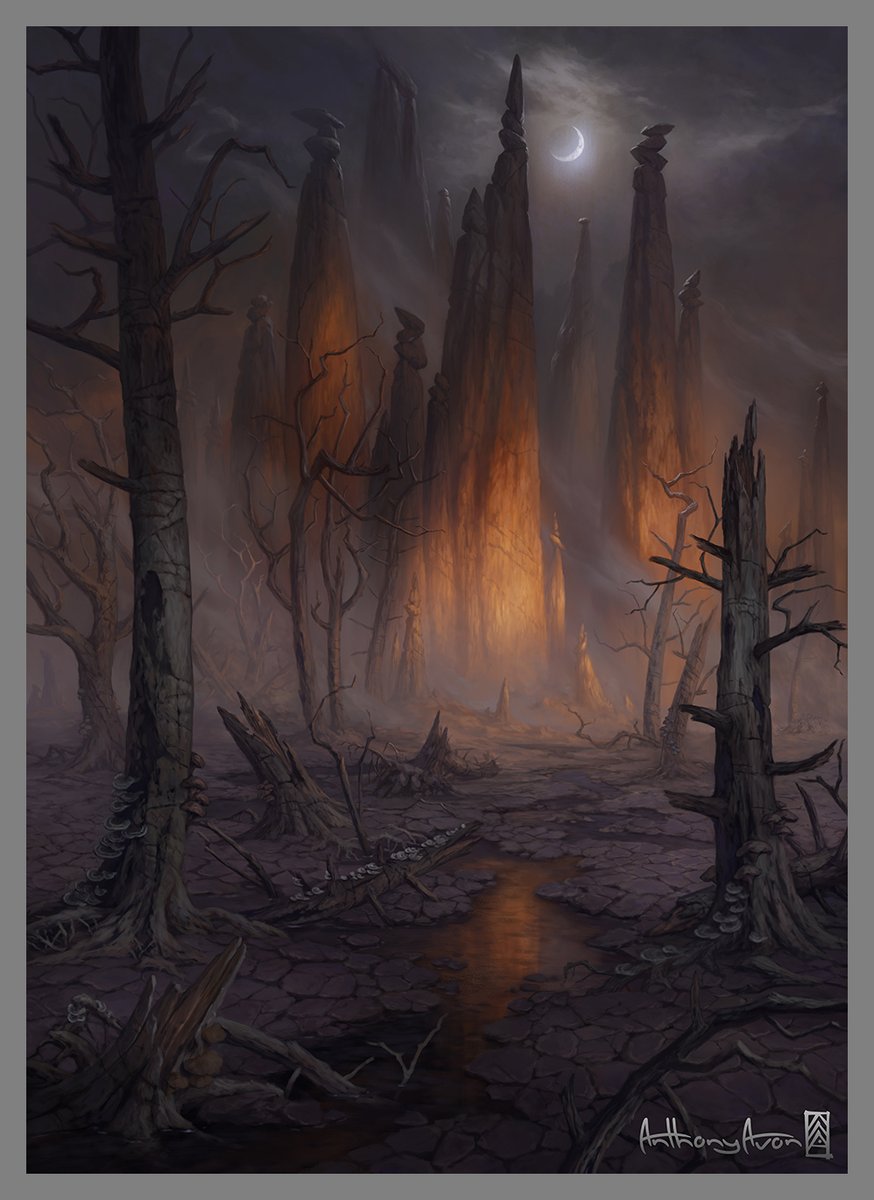
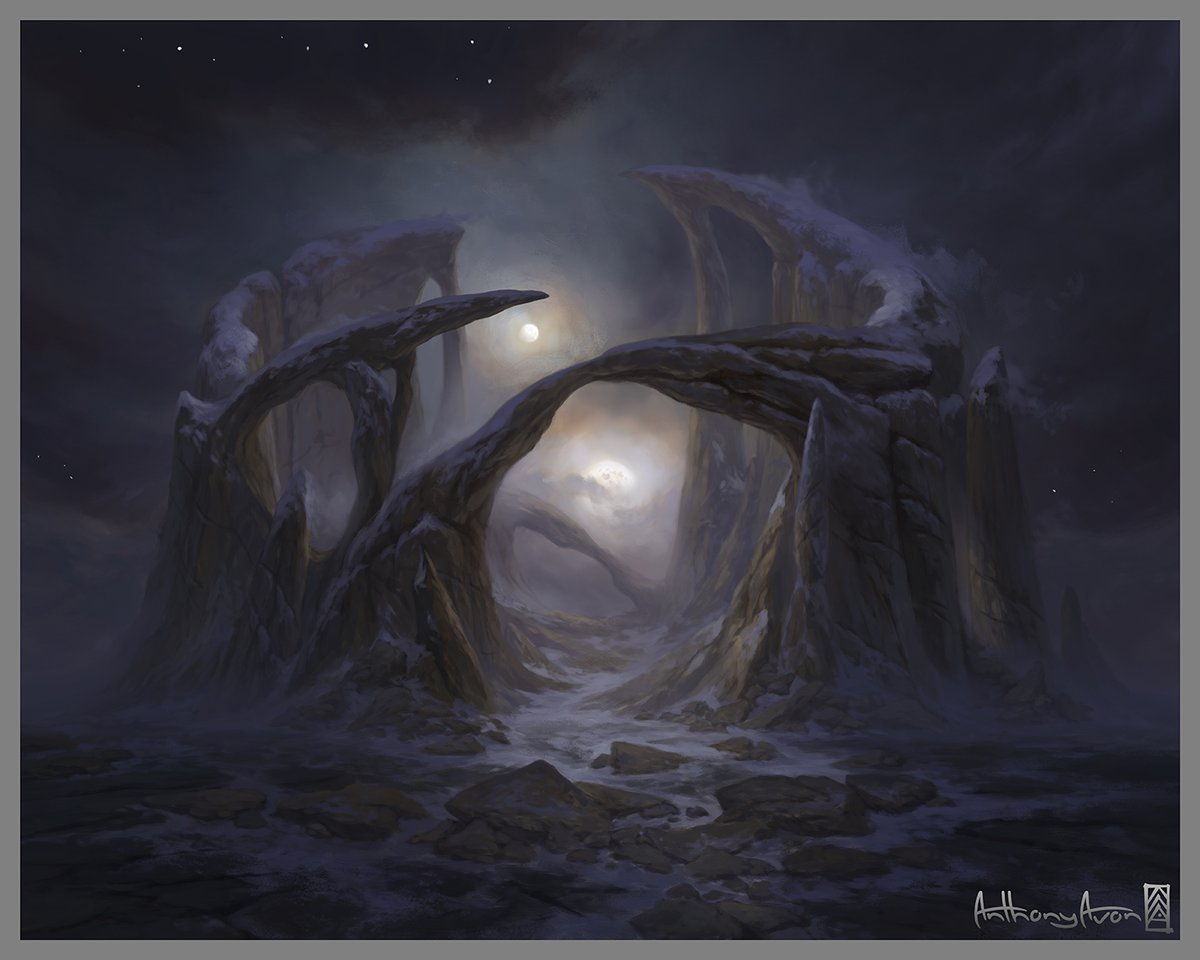
9
109
989
15,346


SlothFang retweeted

FromFB: @colbertlateshow
Ian McKellen - and Shakespeare, really are staggeringly good.
I can't believe we're still dealing with the same hatred as this.
1
8
22
1,797
SlothFang retweeted

Feb 6
10 days into making our online co-op game in Unreal Engine. Here's an update clip (hastily thrown together)
Do you like the direction we are going?
Aim to get an end-to-end prototype created within 7 weeks! stay tuned 🤗 #gamedev #developer #indie #indiedev #indiegame #NoAI
9
6
103
6,909
SlothFang retweeted

Sad that #Everhaven is cancelled? You really REALLY wish for it to return? Join me in the effort to alert other gamers, communities, and game devs/studios of this wonderful near-Early Access game. Spread the word! Help me #BringBackProjectDragon! #ProjectDragon #cancelledgames
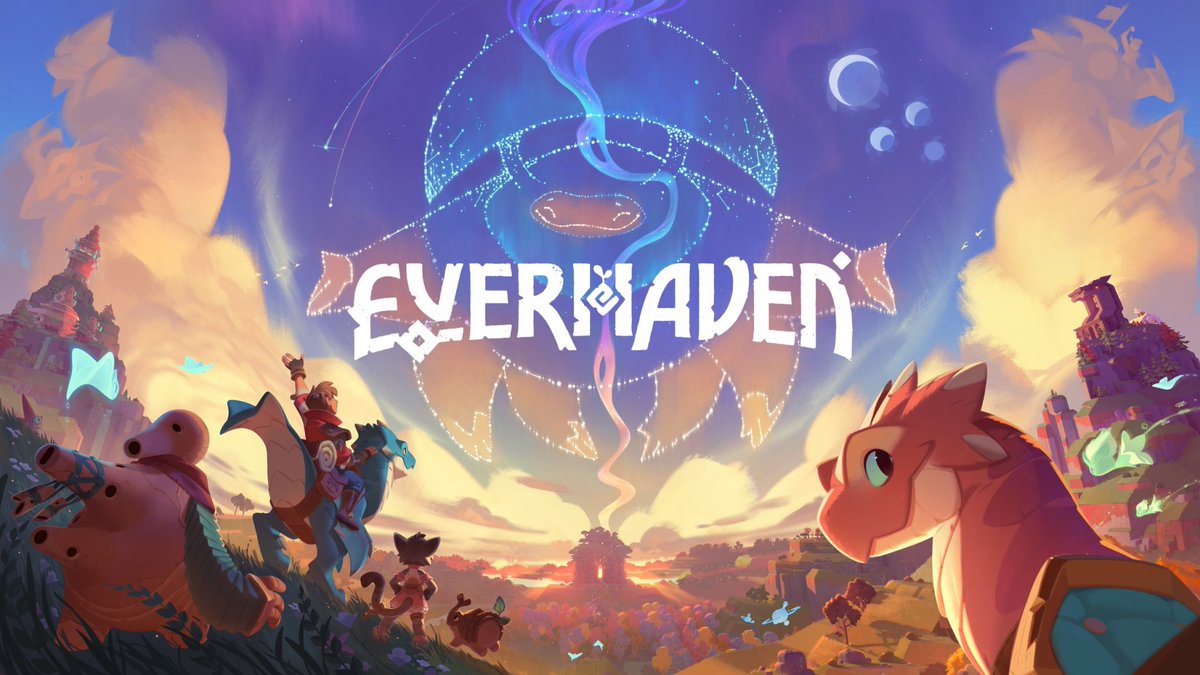

1. What is #Everhaven, aka #ProjectDragon? Here is a mega thread about this game, began in 2021 and cancelled this year in 2024 close to Early Access release. Spread the word! #BringBackProjectDragon! #cancelledgames #cozygames
Google doc version: docs.google.com/document/u/0…
6
132
490
22,726
SlothFang retweeted
Feb 3
1 week into creating a game prototype over the next 7 weeks. Steam Release Aim (1 year)
When is a good time to start building a discord & community around the game?
After the prototype is made & we have something tangible to get excited about? 🤔 #gamedev #indiegame #indie
23
11
212
15,311

pepsi needs to stop being fucking cowards and bring pepsiman back already
Jan 29

Pepsi has released their Super Bowl ad that restarts the soda wars by stealing Coca Cola’s iconic polar bear mascot.
185
2,989
55,985
848,895

SlothFang retweeted

[GAME REVEAL] MOLE - Pilot the Mole, a monstrous post-war drilling machine built to descend deep below the Slavic soil. But the crew is gone. The vessel is silent. And the Signal won’t stop calling.
Fan of Mouthwashing and Iron Lung? Then this is for you 🪛
DEMO AVAILABLE NOW
21
215
2,085
79,295
SlothFang retweeted

The new DeGen Rivals gameplay trailer 😎💥

18
19
55
7,062
SlothFang retweeted

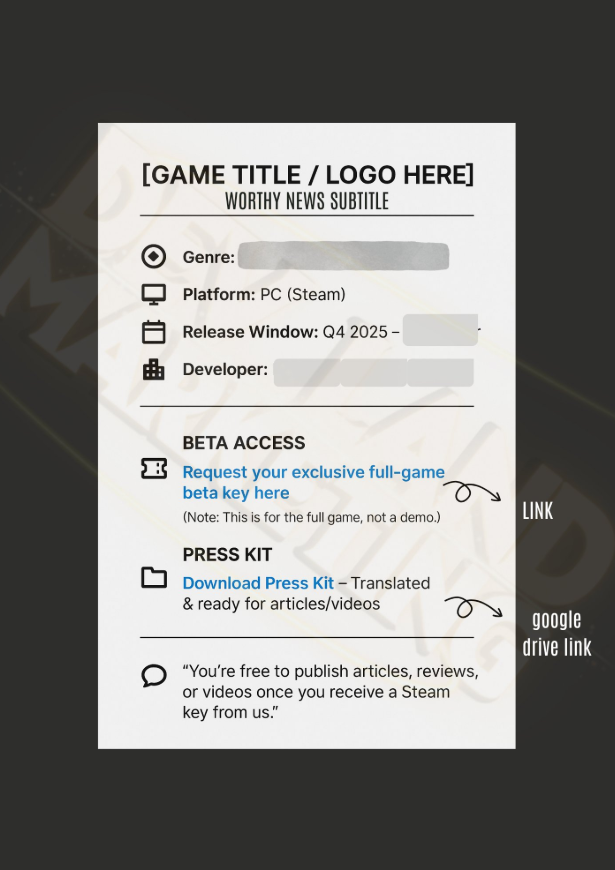
By following these steps, you can create a well-organized structure for your press materials in Google Drive named “Media Kit”
Create a Main Folder:
Open your Google Drive.
Click on the " New" button on the left side.
Choose "Folder" and give it a name, such as "Press Materials" or "Media Kit."
Create Subfolders: Inside your main folder, click on the " New" button again.
Select "Folder" to create subfolders for different types of materials.
For example:
"Images"
"Videos"
"Press Releases"
"Logos"
"Screenshots"
"Documents"
"Graphics"
Upload Files:
Open the subfolder where you want to upload materials.
Click on the " New" button and choose "File upload" to upload individual files, or "Folder upload" to upload an entire folder.
File Naming Convention:
Establish a consistent and clear file naming convention to make it easy for others to find what they need.
Share Folders:
Right-click on the folder you want to share.
Click on "Share."
Enter the email addresses of the people you want to share the folder with and set their permissions (view, comment, or edit).
Add Descriptions:
For each file or folder, you can add descriptions to provide additional context.
Use Color Labels (Optional): Right-click on a folder.
Choose "Change color" to assign a color label for better visual organization.
#gamedevs
1
5
29
1,719
SlothFang retweeted

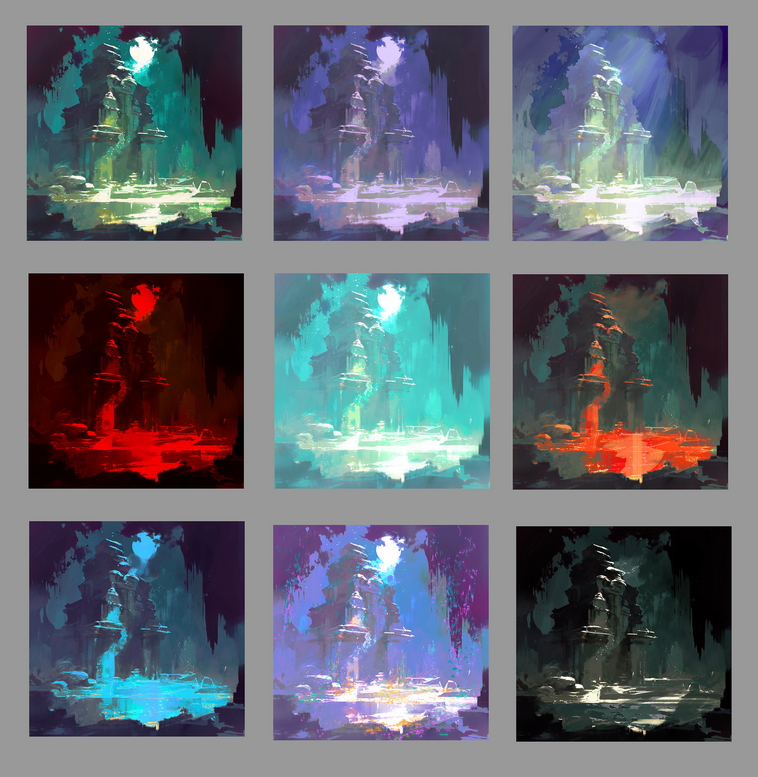
Night can be anything you want.
7
1,222
13,513
158,289

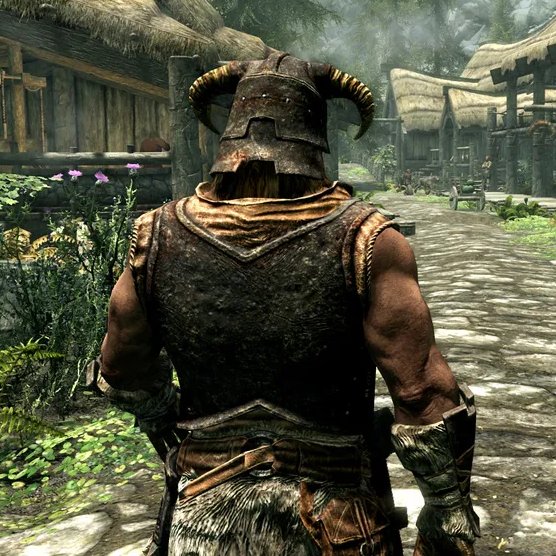
Former Elder Scrolls writer and lore master Kurt Kuhlmann speaks on why he left Bethesda:
▫️ Elder Scrolls 6 was supposed to be their next game after Fallout 4
▫️ Todd Howard had promised him the lead design role on TES6, only to find out 11 years later that they went with someone else
▫️ The vibe at Bethesda was very different after Skyrim's success (Kuhlmann was co-lead on Skyrim)
▫️ "Of course, after Fallout 4 we didn't go to TES6, we made Fallout 76, and then even then we didn't make TES6, we made Starfield, which became this extremely long project compared to other ones."
▫️ Kuhlmann left Bethesda in 2023 after 20 years
▫️ He says the problems at Bethesda pre-date the Microsoft acquisition
▫️ As the years went on, design leads (including Todd Howard's role) became less hands-on and more "bureaucratic"
▫️ His version of Elder Scrolls 6 was going to be like 'Empire Strikes Back'.
▫️ The elven supremacists were the bad guys and they would ultimately come out on top, setting up TES7.
(Source: pcgamer.com/games/the-elder-…)

576
1,843
30,493
4,232,515
SlothFang retweeted

We at TwoPeaks are trying to make a fun Kart Racer where players can be a bit more creative and expressful.
Here's an early blockout of a level I am currently working on.
30
61
663
53,306