Maximize Your PC's Performance: How to Limit Microsoft Edge's RAM Usage
Microsoft Edge introduces a feature that allows users to set limits on the browser's RAM usage, optimizing system performance during resource-intensive activities like gaming.
By Rodger Mansfield, Technology Editor
March 1, 2025
onecooltip.com/2023/03/why-a…
Is your web browsing slowing down your gaming sessions?
Here's a Cool Tip: Set RAM usage in Microsoft Edge.
Microsoft Edge now offers a solution to control its memory consumption, ensuring a smoother experience across all your applications.
In today's multitasking world, it's common to have multiple applications running simultaneously—from web browsers and design software to immersive PC games.
However, browsers like Microsoft Edge can consume significant memory, potentially impacting the performance of other applications.
Recognizing this challenge, Microsoft has introduced a feature in Edge that empowers users to manage and limit the browser's RAM usage.
This feature is particularly beneficial during high-resource activities, such as gaming, where it's crucial to allocate system memory efficiently.
Users can set specific memory caps for Edge, starting from as low as 1 GB, adjustable in 1 GB increments.
This customization ensures that the browser doesn't overshadow other critical applications.
Here's how to do it.
1. Ensure you're running the latest version of Microsoft Edge.
2. Click on the three dots (...) in the upper-right corner.
3. Navigate to Help and feedback > About Microsoft Edge.
4. The browser automatically checks for updates and prompts a restart if needed.
Set How Much RAM Edge Can Use
1. Click on the three dots (...) again.
2. Select "Settings".
3. Go to "System and performance".
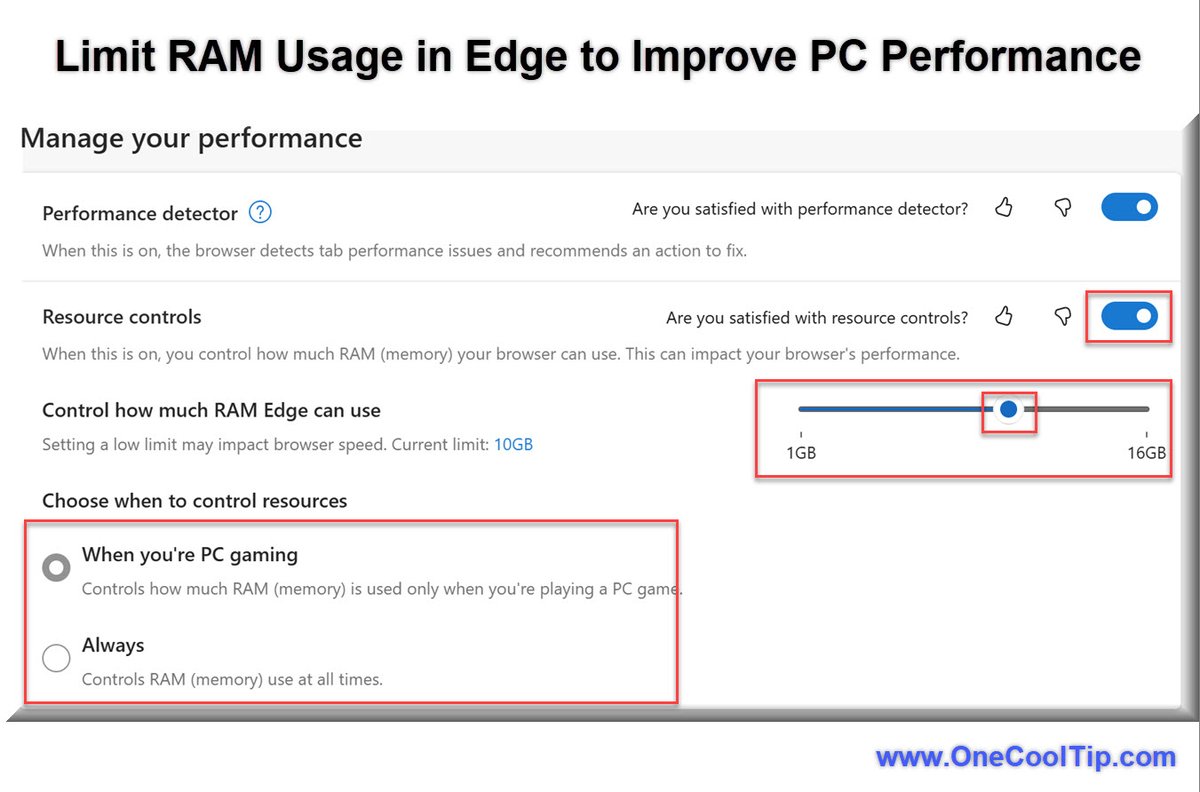
4. In the "Manage your performance" section, toggle on the "Resource controls" option.
5. Select "Always" to enforce the limit at all times.
6. Select "When you're PC gaming" to apply the limit only during gaming sessions.
7. Set the desired RAM limit using the slider.
By capping Edge's RAM usage, more memory is available for other applications, reducing potential slowdowns.
But setting the RAM limit too low may lead to increased page reloads, more frequent tab sleeping, or slower browser responsiveness.
It's essential to find a balance that suits your usage patterns.
Managing system resources effectively is crucial in today's multitasking environments.
Microsoft Edge's Resource Controls offer a practical solution to balance browser performance with other demanding applications.
Have you tried adjusting Edge's RAM settings?
Share your experiences in the comments below!
For more insightful tips and the latest tech updates, subscribe to our newsletter and follow us on social media.
Don't forget to share this article with friends who might benefit from optimizing their browser performance.
Please LIKE and SHARE OneCoolTip.com!
Subscribe to the FREE OneCoolTip Newsletter.
Visit the OneCoolTip YouTube Channel: youtube.com/@onecooltip
X: x.com/OneCoolTip Threads: threads.net/@onecooltip
Do you have a Cool Tip or question? Email us at onecooltip.com@gmail.com
Rodger Mansfield, a seasoned tech expert, is the mastermind behind OneCoolTip.com where he serves as both writer and editor. With a keen eye for simplifying complex tech, Rodger delivers practical advice that empowers readers to navigate the digital world with confidence. Dive into OneCoolTip.com for a treasure trove of savvy tips and tricks that keep you one step ahead in tech.
One Cool Tip
onecooltip.com
Cool Tech Tips for a Cooler Life!
#MicrosoftEdge @MicrosoftEdge #BrowserPerformance #RAMManagement #OptimizeYourPC #GamingPerformance
#TechTips #TechGuide #OneCoolTip @OneCoolTip
Copyright © 2008- 2025 | OneCoolTip.com | All Rights Reserved
ALT Limit RAM Usage in Microsoft Edge
2
2
53

15 Jan 2025
Tame Your Tabs: How to Monitor Chrome Tab Memory Usage
Unmask the memory hogs and keep your browser running smoothly.
By Rodger Mansfield, Technology Editor
December 15, 2024
onecooltip.com/2024/12/tame-…
Ever felt your computer slow to a crawl with too many Chrome tabs open?
Wondering which websites are the biggest resource gluttons?
Here's a Cool Tip: Check the Chrome tab!
Chrome now offers a handy feature to monitor the memory usage of each tab, giving you the power to optimize your browsing experience.
Why is Monitoring Tab Memory Usage Important?
High memory usage can significantly impact your computer's performance, leading to slowdowns, freezes, and even crashes.
By identifying tabs that consume excessive memory, you can take action to improve your browsing experience.
This feature allows you to:
- Pinpoint problematic tabs: Quickly identify which tabs are using the most memory.
- Improve browser performance: Close or reload memory-intensive tabs to free up resources.
- Troubleshoot issues: Diagnose performance problems caused by specific websites or extensions.
- Increase awareness: Understand how different websites impact your system's resources.
Here's how to do it.
1. Open some tabs in your Chrome browser.
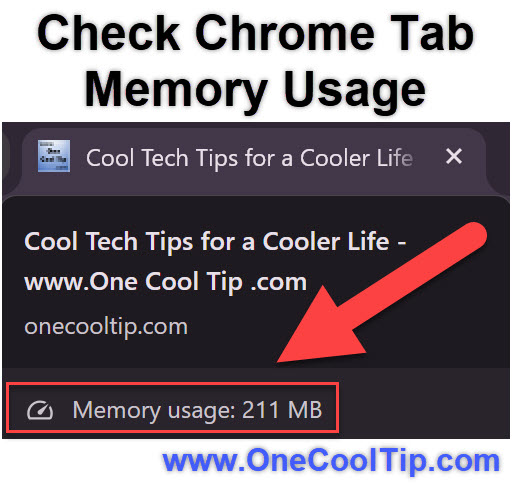
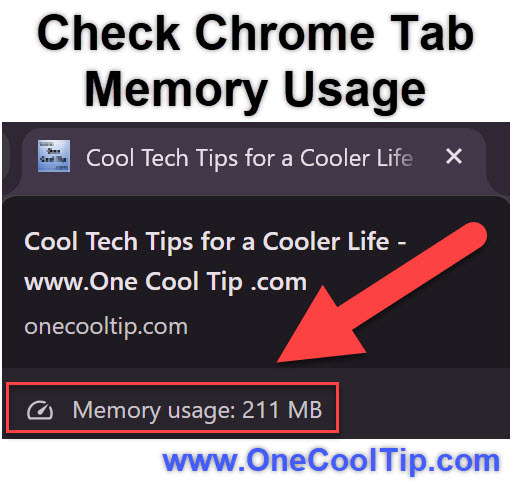
2. Hover your mouse cursor over any tab.
3. A hovercard will appear, displaying the tab's memory usage.
This feature provides valuable insights into Chrome's memory management.
It empowers users to make informed decisions about their browsing habits and optimize their system's performance.
By identifying and managing memory-hungry tabs, you can enjoy a smoother, more efficient browsing experience.
Have you tried using Chrome's tab memory usage feature?
Share your thoughts and experiences in the comments below!
Don't forget to share this article with your friends and followers on social media.
Please LIKE and SHARE OneCoolTip.com!
Subscribe to the FREE OneCoolTip Newsletter.
Visit the OneCoolTip YouTube Channel: youtube.com/@onecooltip
X: x.com/OneCoolTip Threads: threads.net/@onecooltip
Do you have a Cool Tip or question? Email us at onecooltip.com@gmail.com
Rodger Mansfield, a seasoned tech expert, is the mastermind behind OneCoolTip.com where he serves as both writer and editor. With a keen eye for simplifying complex tech, Rodger delivers practical advice that empowers readers to navigate the digital world with confidence. Dive into OneCoolTip.com for a treasure trove of savvy tips and tricks that keep you one step ahead in tech.
One Cool Tip
onecooltip.com
Cool Tech Tips for a Cooler Life!
#ChromeTips #BrowserPerformance #Google #Chrome @google @googlechrome
#TechTips #TechGuide #OneCoolTip @OneCoolTip
Copyright © 2008- 2024 | OneCoolTip.com | All Rights Reserved
ALT Chrome Tab Memory Usage
2
3
41

15 Dec 2024
😩Tired of a sluggish Chrome browser?
onecooltip.com/2024/12/tame-…
Learn how to monitor your tab memory usage and reclaim your computer's performance! 🚀
#ChromeTips #BrowserPerformance #Google #Chrome @google @googlechrome #TechTips #TechGuide #OneCoolTip @OneCoolTip
ALT 😩Tired of a sluggish Chrome browser? https://www.onecooltip.com/2024/12/tame-your-tabs-how-to-monitor-chrome.html Learn how to monitor your tab memory usage and reclaim your computer's performance! 🚀 #ChromeTips #BrowserPerformance #Google #Chrome @google @googlechrome #TechTips #TechGuide #OneCoolTip @OneCoolTip
1
1
30

8 Nov 2023
Google क्रोम पर मल्टीपल टैब के साथ क्रैशिंग और स्लोडाउन की नहीं आएगी परेशानी, मेमोरी यूसेज वाला नया फीचर आएगा अब काम
#GoogleChromeUpdate #BrowserPerformance #MemoryUsage #TabManagement #WebBrowsing
jagran.com/technology/tech-n…
1
1
749

19 Jul 2021
📣 New Podcast! "State of Web Performance Optimization in 2021 with Sergey Chernyshev" on @Spreaker #browserperformance #dynatrace #jamstack #meetup #performance #souders #ux #webperf #webvitals spreaker.com/user/pureperfor…
3
5

5 Aug 2020
Tip on Css Performance :
Box shadows, text shadows and gradients take a lot of power because you are shifting the burden of interpreting and rendering onto the browser. The more you use, the slower performance will be.
#css #browserperformance #webdesign #webdev
2
1

30 Apr 2019
Azure test runners, new browser performance metrics, and more. Checkout our release blog for more details! testable.io/azure-test-runne… #browserperformance #azure
2

26 Nov 2018
OMG loving the improved about:performance in @firefox. It's nearly a full Task Manager / Activity Monitor now. #browserperformance
Thanks @asadotzler for mentioning it in the call this morning :)
1