
How to Create and Mount ISO Files Easily in Windows 11 dellenny.com/how-to-create-a… #Windows11 #ISOFiles #TechTips #Microsoft #PCGuide #ComputerTips #HowTo
4

That old computer collecting dust in your office may but more than just an eyesore, it might actually be a security threat.
#EwasteRecycling #CyberAwareness #LegacyHardware #computertips
valleytechlogic.com/2026/06/…
2

Jun 11
Antimalware Service Executable using TOO much CPU? 😩🔥
Fix high CPU & memory usage on Windows with these quick tips 💻⚡
#WindowsTips #ComputerTips #TechHacks #PerformanceTips
30

Jun 11
Sometimes your browser is the real culprit. Every open browser tab uses RAM, CPU resources, and battery power.
🧹 A quick tab cleanup may help your computer run smoother and feel more responsive.
#Chrome #Browser #PCPerformance #WindowsTips #ComputerTips #ProductivityTips
11


Learn about #Whiteboard Integration in #Microsoft365 - see this week's Bite Size IT Tip conta.cc/4x9Ig9d
#bitesize #learningsolutions #ITTips #howto #computertips #M365 #microsoft365 #MicrosoftOffice #ITTraining #virtualtraining #onlinecourses #HR #learninganddevelopment

11

Jun 9
How to Use Excel Sparklines to Spot Trends at a Glance youtu.be/HSk7v0dwN5E?si=5f9Z… via @YouTube #Excel #Sparklines #ComputerTips #M365
8


Jun 4
વર્ચ્યુઅલ મીટિંગ કે ગેમિંગ વચ્ચે જ ફ્રીઝ થઈ જાય છે લેપટોપ ? જાણી લો સ્લો પરફોર્મન્સ પાછળના મુખ્ય કારણો
#LaptopTips #TechNews #LaptopSpeed #ComputerTips #Windows #GamingLaptop #TechHacks #PerformanceBoost #Technology #DigitalLife
tv9gujarati.com/photo-galler…
98

May 31
1
19
1,131
May 31
Je juge cette fraude à 1000€ #techbasics #pcknowledge #computertips #education #techhacks #learntoik
1
7
478

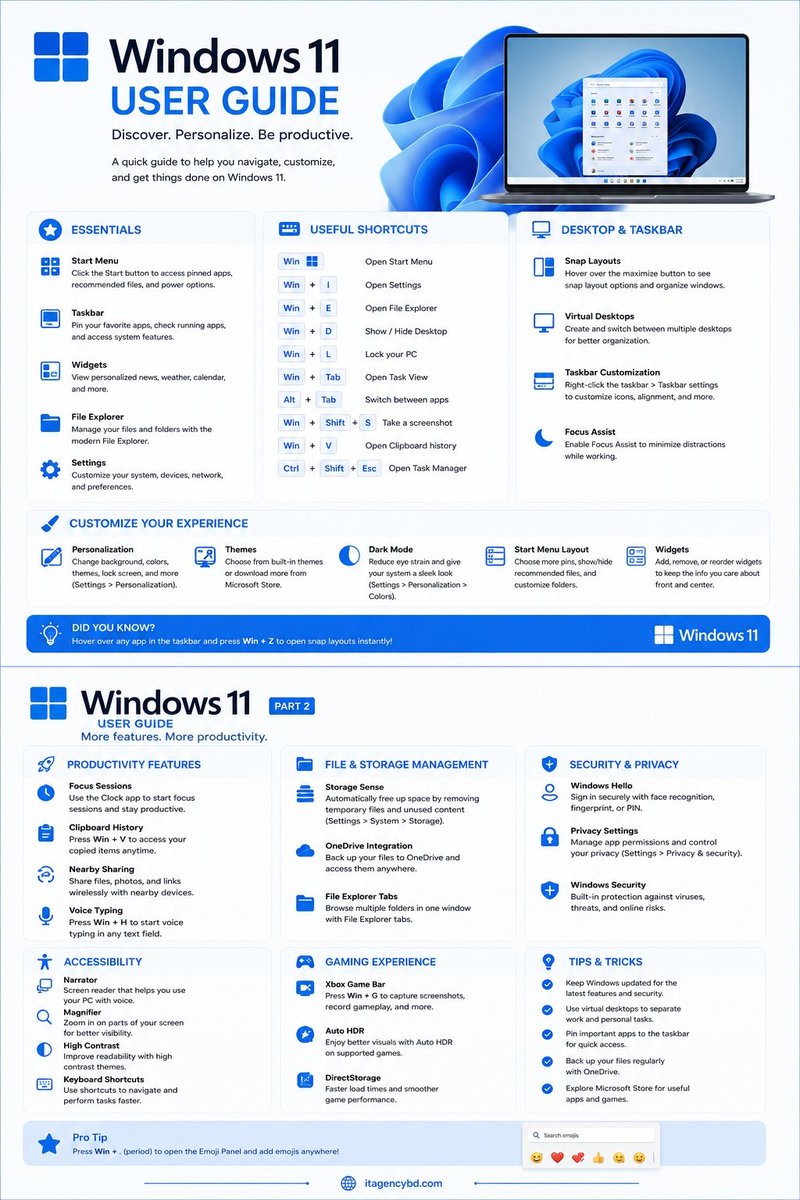
🫵 Here’s the easiest way to understand it.
Essential tips, features & settings every Windows 11 user should know.
#Windows11 #MicrosoftWindows #WindowsGuide #ComputerTips #TechTips #OperatingSystem
2
15
May 25
પેનડ્રાઇવ માત્ર ફોટો-વીડિયો સાચવવા માટે નથી ! કોમ્પ્યુટરના લોકથી લઈને સ્માર્ટ ટીવીના સ્ટોરેજ સુધીના આ 5 પાવરફુલ ઉપયોગ જાણી લો
#Pendrive #USBDrive #TechTips #GadgetHacks #Technology #SmartTV #ComputerTips #USBTricks #TechNews
tv9gujarati.com/photo-galler…
111
May 25
2
15
388

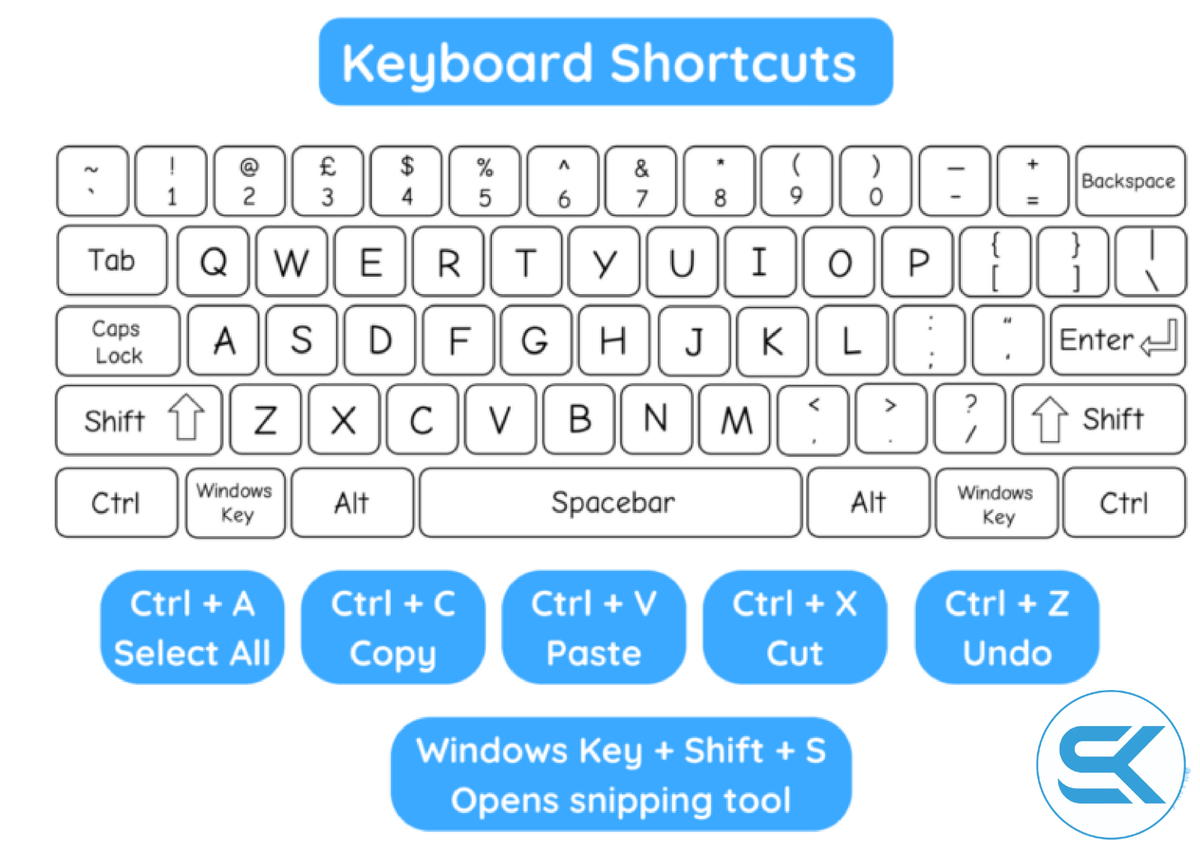
Here are 30 essential Excel keyboard shortcuts for Windows, presented without bold formatting, including Alt A E as requested:
#Computer #window11 #tech #laptop #computertips #laptoptips #technology #pctipsandtricks #fbpost #usa📷 #reels #pctips #uganda #sktechnologies
2
4
63

Apr 25
8/ Try It Yourself (Safe Experiment)
Take a spare USB
Copy some photos onto it
Quick format the USB
Download Recuva (free) → Deep Scan → be amazed at what comes back! 😲
Want a follow-up thread on:
How SSDs vs HDDs actually work?
Best encryption tools in 2026?
Professional data recovery techniques?
Just reply below! 👇
Follow for more practical tech lifehacks that actually make you smarter! 🚀
#DataRecovery #TechExplained #DigitalForensics #ComputerTips #CyberSecurity
1,002

Apr 6
The "Life Hack" Post (Tips & Tricks)
Stop wasting time with your mouse! 🖱️❌
Did you know you can work 3x faster just by mastering a few keyboard shortcuts? Most people only know Ctrl C and Ctrl V, but these 3 are absolute game-changers:
Win D: Instantly hides all windows and shows your Desktop (perfect for a quick pivot!).
Ctrl Shift T: Accidentally closed a browser tab? This brings it back from the dead instantly.
Win V: Opens your "Clipboard History" so you can see everything you’ve copied today, not just the last item.
Which keyboard shortcut is your literal lifesaver? Let me know in the comments! 👇#Rwanda #RwOT #Technology #ComputerTips #Kigali.
1
2
57

Still Defragmenting Your SSD? You Might Be Damaging It Without Knowing
👉 Watch the full video: 🔗 youtube.com/watch?v=E2ITUIL3…
#TechTips #SSD #ComputerTips #DataStorage #PCPerformance #TechEducation #ITKnowledge #Hardware #CyberTech #WindowsTips #TechExplained #TheNextTech

50

Mar 20
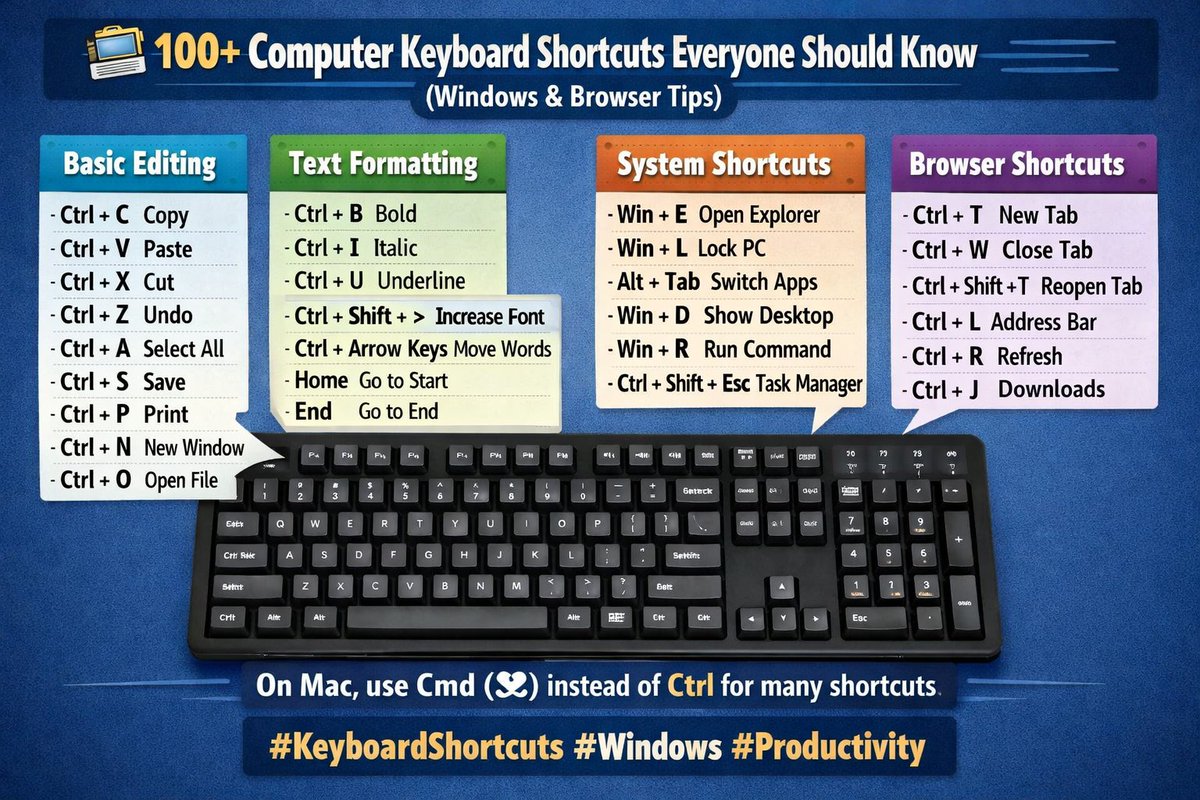
🔴💻 100 Computer Keyboard Shortcuts Everyone Should Know (Windows & Browser Tips)👇
Keyboard shortcuts help you work faster, save time, and improve productivity when using a computer. Below is a large collection of useful shortcuts for Windows, typing, and internet browsers.
✅ Basic editing shortcuts
Ctrl C – Copy
Ctrl V – Paste
Ctrl X – Cut
Ctrl Z – Undo
Ctrl Y – Redo
Ctrl A – Select all
Ctrl S – Save
Ctrl P – Print
Ctrl N – New document/window
Ctrl O – Open file
Ctrl F – Find
Ctrl H – Replace
Ctrl W – Close tab/window
Ctrl Q – Quit app
✅ Text formatting shortcuts
Ctrl B – Bold
Ctrl I – Italic
Ctrl U – Underline
Ctrl Shift > – Increase font
Ctrl Shift < – Decrease font
Shift Arrow – Select text
Ctrl Arrow – Move between words
Home – Go to beginning
End – Go to end
Ctrl Home – Top of page
Ctrl End – Bottom of page
✅ Windows system shortcuts
Windows E – File Explorer
Windows L – Lock PC
Windows D – Show desktop
Windows R – Run
Windows I – Settings
Windows Tab – Task view
Windows S – Search
Windows M – Minimize all
Windows Shift M – Restore windows
Windows Up – Maximize
Windows Down – Minimize
Windows Left / Right – Snap window
Alt Tab – Switch apps
Alt F4 – Close program
Ctrl Shift Esc – Task manager
Ctrl Alt Delete – Security menu
✅ Browser shortcuts (Chrome / Edge / Firefox)
Ctrl T – New tab
Ctrl W – Close tab
Ctrl Shift T – Reopen tab
Ctrl Tab – Next tab
Ctrl Shift Tab – Previous tab
Ctrl L – Address bar
Ctrl R – Refresh
Ctrl Shift R – Hard refresh
Ctrl D – Bookmark
Ctrl J – Downloads
Ctrl H – History
Ctrl – Zoom in
Ctrl - – Zoom out
Ctrl 0 – Reset zoom
F5 – Refresh
F11 – Full screen
✅ Function keys (F1–F12)
F1 – Help
F2 – Rename
F3 – Search
F4 – Address bar
F5 – Refresh
F6 – Switch element
F7 – Spell check (some apps)
F8 – Boot options (system)
F9 – Refresh (some apps)
F10 – Menu
F11 – Full screen
F12 – Developer tools (browser)
✅ More useful shortcuts
Ctrl Shift N – New folder
Ctrl Shift Esc – Task manager
Ctrl Backspace – Delete word
Ctrl Delete – Delete next word
Shift Delete – Permanent delete
Alt Enter – Properties
Alt Space – Window menu
Tab – Next field
Shift Tab – Previous field
Esc – Cancel
Enter – Confirm
These shortcuts work on most Windows computers.
On Mac, use Cmd (⌘) instead of Ctrl for many commands.
Learning keyboard shortcuts can make your work faster, easier, and more professional.
#ComputerTips #KeyboardShortcuts #Technology #Windows #Productivity #SmartLearning
1
4
8
1,640

Mar 13
Need to turn off the touch screen on your Lenovo laptop?💻✋
Here’s the quick way to disable it in Windows and avoid accidental touches.
👉Step-by-step guide:devicemag.com/how-to-turn-of…
#Lenovo #WindowsTips #LaptopTips #TechTips #PCUsers #ComputerTips #TechGuide #HowTo
7
8
55