
4h
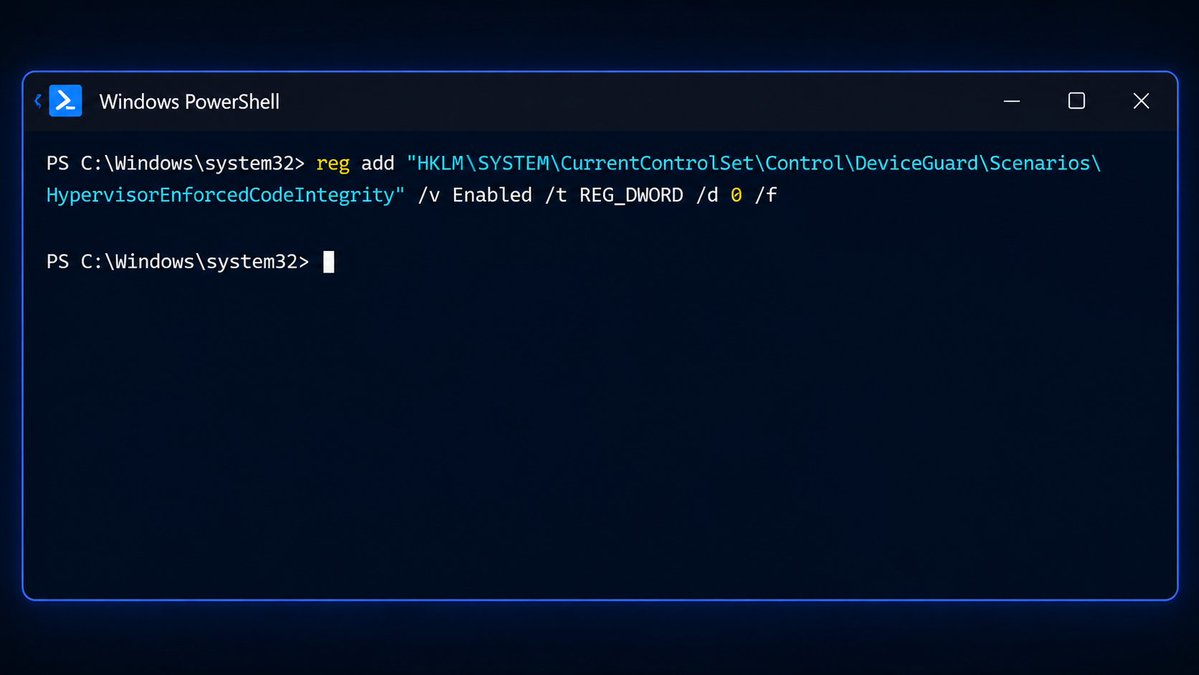
Alternatively, you can achieve the same result by running the registry command provided below. 😎
reg add "HKLM\SYSTEM\CurrentControlSet\Control\DeviceGuard\Scenarios\HypervisorEnforcedCodeIntegrity" /v Enabled /t REG_DWORD /d 0 /f
3
207

19h
CMD as admin.
reg add "HKLM\SYSTEM\CurrentControlSet\Control\DeviceGuard\Scenarios\HypervisorEnforcedCodeIntegrity" /v Enabled /t REG_DWORD /d 1 /f
reboot
2
33

🔍 MITRE Technique Spotlight: T1543.003 — Windows Service Persistence
Adversaries install malicious Windows services to execute payloads at system startup with SYSTEM-level privileges. This technique provides both persistence and privilege escalation in a single move.
Services are registered in HKLM\SYSTEM\CurrentControlSet\Services and execute automatically during boot or on-demand. Attackers use sc.exe or PowerShell's New-Service cmdlet to create entries that blend with legitimate system services.
Detection relies on monitoring Event ID 7045 (System log) for new service installations and Sysmon Event ID 13 for registry modifications under the Services key. Hunt for services with binary paths pointing to temp directories, user profiles, or suspicious locations like C:\ProgramData or C:\Windows\Temp.
Key hunting queries:
• Services with ImagePath containing .exe files in \Users\ or \Temp\
• Services created outside maintenance windows
• ServiceDll values pointing to unsigned or non-standard paths
• Services with SYSTEM privileges but low prevalence across your environment
Log sources needed: Windows System event logs, Sysmon (registry and process creation), EDR telemetry for service enumeration.
This technique remains a staple in ransomware deployment and APT toolkits because it's reliable, well-documented, and often overlooked in baseline configurations.
#MITREATTACK #ThreatIntel

10

I got this error CONSTANTLY immediately after installing my new GPU.
The only thing that actually solved it was setting a registry key:
HKEY_LOCAL_MACHINE\SYSTEM\CurrentControlSet\Control\GraphicsDrivers
DWORD: TdrDelay
Value Data: 10
46

Jun 11
Thanks for the help here. I think this would work, but I'm going to try and make Windows abide by UTC.
reg add "HKEY_LOCAL_MACHINE\System\CurrentControlSet\Control\TimeZoneInformation" /v RealTimeIsUniversal /t REG_DWORD /d 1 /f
Man I hate everything about Powershell
1
1
28

Jun 10
ようやくたどりついた、Mac向け日本語JISキーボードを使ってWindows機を直接操作する場合/Windows App(以下WA、旧Microsoft Remote Desktop)経由で操作する場合のどちらでもMac側の操作性に寄せて統一させる方法。。。かな/英数キーも当然使える。自分用メモ。
前提: PowerToysのキーリマップはWA経由で暴れるので使ってはいけない。
・WA側の「Keyboard Mode」を「Scancode Mode」に設定
・WA経由でキーボードを日本語キーボードとして認識させるためにWindows側のレジストリを変更
HKEY_LOCAL_MACHINE\SYSTEM\CurrentControlSet\Control\Keyboard Layouts\00000411
のLayout Fileの値を KBDJPN.DLL から kbd106.dll に変更。Windows再起動。
・Mac側からWAへ送るキーのリマップを設定
Karabiner Elementsでキーボードの配置と好みに応じてリマップ設定する。
※自分の場合、Keychron K15 MAXの左下CtrlとMacBook Air内蔵キーボードの左下Caps Lockの両方をF19にリマップした上で、WA限定で
Command→left_control(Ctrl相当)
Option→left_option(Alt相当)
F19→left_command(Win相当)
とそれぞれリマップ。Controlにはまた別の割り当てを行うがここでは割愛。
・Windows側を直接操作する場合のキーボードリマップを設定 Windows上でSharpKeysを使い、キーボードの配置と好みに応じてリマップを設定(自分の場合はCtrlとWinを入れ替え)。
※WA経由では効かないので、逆にいえば棲み分けが可能。
まあその気になれば1時間で解決つくような問題だったのだが、あーめんどくさかった……。
1
1
460

Jun 10
Winキー R→regeditと入力してEnter→HKEY_LOCAL_MACHINE\SYSTEM\CurrentControlSet\Control\GraphicsDriversの場所に移動→何もないところを右クリック→新規→DRORD(32ビット)値→名前を「TdrDelay」→「TdrDelay」ダブルクリック→10進数にして値を8にする→再起動
1
1
133
Fullys🇮🇷🇺🇸 retweeted

Jun 8
To disable the driver and the service, open CMD as Admin and paste
reg add "HKLM\SYSTEM\CurrentControlSet\Services\amd3dvcache" /v Start /t REG_DWORD /d 4 /f && reg add "HKLM\SYSTEM\CurrentControlSet\Services\amd3dvcacheSvc" /v Start /t REG_DWORD /d 4 /f
You can revert the change by setting the values from 4 to 2.
A reboot is required.
4
35
4,624

Jun 6
🚨Fortnite won't download and Epic just keeps erroring out?
🎮 First try a clean reinstall of the launcher, solves it most of the time.
Still broken? Open CMD as ADMINISTRATOR and paste this 1 BY 1:
icacls "C:\Program Files\Epic Games" /grant "ALL APPLICATION PACKAGES":(F,M,RX) /T
icacls "C:\Program Files\Epic Games" /grant "ALL RESTRICTED APPLICATION PACKAGES":(F,M,RX) /T
icacls "C:\Program Files\Epic Games" /grant "CREATOR OWNER":(F,M,RX) /T
icacls "C:\Program Files\Epic Games" /grant "BUILTIN\Users":(F,M,RX) /T
icacls "C:\Program Files\Epic Games" /grant "%USERNAME%":(F,M,RX) /T
reg add "HKEY_LOCAL_MACHINE\SYSTEM\CurrentControlSet\Services\mpssvc" /v Start /t REG_DWORD /d 2
Restart PC and relaunch Epic Games 👇
⚙️ Fixes folder permissions re-enables the Windows Firewall service, both of which Epic needs to function.
1
12
4,203

May 30
دوستان میدونستید که این روشن/خاموش شدن Wifi ویندوزتون باگ نیست؟! بهخاطر فیلترینگ شدید فایروالهای ایرانه🤦🏻♀️ دلیل و راهحلش:
تست اتصال مایکروسافت (NCSI) که فیچر ویندوز ۱۰ به بعده بلاک میشه؛ به زبان ساده، بهخاطر فیلترینگ، ویندوز فکر میکنه اینترنت قطع شده و برای همین هی وایفای رو خاموش/روشن میکنه تا اتصال برقرار شه.
راه غیرفعال کردنش:
۱. همزمان کلید Windows R رو فشار بده (کلید ویندوز همون لوگو ویندوز روی کیبورد)
۲. توی کادر Run که باز شد، بنویس regedit و اینتر رو بزن.
۳. برو این مسیر:
HKEY_LOCAL_MACHINE\SYSTEM\CurrentControlSet\Services\NlaSvc\Parameters\Internet
۴. روی EnableActiveProbing دابلکلیک و بعدش Value رو ۰ کن.
۵. سیستم رو ریاستارت کن و تمام.
دیگه این فیچر غیرفعال میشه و VPNتون قطع نمیشه :(
البته تا وقتی که غیرفعاله حتی اگه اینترنت قطع باشه، همیشه «Connected» نشون میده.
May 29

بیشتر از قطع اینترنت
این که وای فای ویندوز 11 حی روشن خاموش میشه این بیشتر رو مخم رفته
44
63
1,070
68,368

May 29
🚨 Windows 11 has been silently causing microstutter since launch
Your game requests a 1ms timer. Windows nods… then ignores it and stays stuck at the old 15.6ms tick rate. The result is microstutter that doesn’t show up as an FPS drop — especially in busy fights, large lobbies, and fast movement.
This was a deliberate Microsoft change for laptop battery life. They applied it to every Windows 11 machine, including desktops.
✅ Best for:
• Windows 11 desktop users
• Anyone with persistent microstutter that doesn’t match CPU/GPU usage
• Competitive players in Warzone, BlackOps7, CS2 & Valorant
❌ Skip if:
• You’re on Windows 10
• You’re on a laptop running on battery
🔍 Quick check first:
1. Open your game → minimize it
2. Open CMD as Administrator
3. Run: `powercfg /energy`
4. Wait 60 seconds and open the report
5. Look for “Platform Timer Resolution”
If your game requested a low timer but it’s stuck at 156250 — Windows is ignoring it.
🛠️ THE FIX (Windows 11 only):
**Fastest method (CMD):**
Open CMD as Administrator and paste this:
```reg add "HKLM\SYSTEM\CurrentControlSet\Control\Session Manager\kernel" /v GlobalTimerResolutionRequests /t REG_DWORD /d 1 /f```
Then restart your PC.
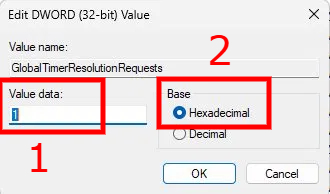
**Alternative (Registry Editor):**
1. Win R → `regedit` (Run as Admin)
2. Go to: `HKEY_LOCAL_MACHINE\SYSTEM\CurrentControlSet\Control\Session Manager\kernel`
3. Right-click in the right pane → New → DWORD (32-bit) Value
4. Name it exactly: `GlobalTimerResolutionRequests`
5. Set value to `1` (Hexadecimal) → Restart
After rebooting, run `powercfg /energy` again to confirm Windows is now honoring the timer request.
This won’t increase your FPS, but it often delivers noticeably smoother and more consistent frame pacing — the kind of smoothness you feel.
Drop your before/after results below 👇
#PCGaming #Windows11 #WindowsTweaks #RegistryTweak #Microstutter #Warzone #BlackOps7 #CS2 #Valorant
11
62
858
65,341

May 29
برای حل این مشکل regedit رو باز کنید. به این آدرس برید: Computer\HKEY_LOCAL_MACHINE\SYSTEM\CurrentControlSet\Services\NlaSvc\Parameters\Internet در سمت راست روی EnableActiveProbing کلیک کنید و مقدارش برو به 0 تغییر بدین. ویندوز رو ریستارت کنید.
1
4
211
May 28
🚨 Windows is secretly hurting your mouse feel in 2026
Even on high-end PCs, background tasks can make your aim feel heavy and movements laggy in Warzone, BlackOps7, Valorant, and CS2.
This 45-second registry tweak gives your game more foreground priority for snappier responsiveness.
✅ Best for:
Competitive players who run Discord Chrome in the background
❌ Skip if:
You're a heavy multitasker or on an unstable/low-end system
🛠️ THE FIX:
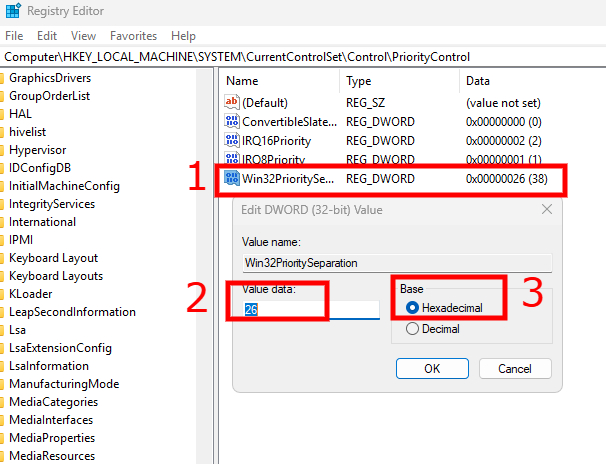
1. Win R → type `regedit` → Run as Administrator
2. Go to: `HKEY_LOCAL_MACHINE\SYSTEM\CurrentControlSet\Control\PriorityControl`
3. Double-click **Win32PrioritySeparation**
4. Set to **Hexadecimal** → Change value to **26** → OK
5. Restart your PC
⚠️ Create a System Restore Point first (search “Create a restore point”).
Some players use **2A** instead for a more aggressive effect.
Won’t add FPS, but a lot of competitive players report it feels noticeably smoother and more responsive.
Test it and drop your before/after results below 👇
#PCGaming #FPSBoost #WindowsTweaks #RegistryTweak #Win11
20
53
691
58,616

Akt. @github-Client macht plötzl. Stress wg. (angeblich) "zu langer Dateinamen" (tatsächl. eher Pfad zu lang, also inkl. Verzeichnissen)
Window$-Lösung:
1/4) Admin-CMD öffnen
2/4) reg add HKLM\SYSTEM\CurrentControlSet\Control\FileSystem /v LongPathsEnabled /t REG_DWORD /d 1 /f
1
2
3
72

Método principal: Cambiar el TTL (el más fácil y efectivo para la mayoría de casos como Tigo).
Esto hace que tu PC o Linux parezca un dispositivo móvil directo conectado a internet, no un hotspot. Funciona en Windows y Linux.
1. En Windows (el conectado al hotspot)
Pasos estúpida y literalmente fáciles:
Opción A - Comando rápido (recomendada, temporal):
💡Conecta tu PC al WiFi hotspot de tu Android (o USB tethering).
💡Presiona la tecla Windows S, busca “CMD” o “Símbolo del sistema”.
💡Haz clic derecho sobre él y elige “Ejecutar como administrador”.
💡Pega estos dos comandos uno por uno (presiona Enter después de cada uno):
netsh int ipv4 set glob defaultcurhoplimit=65
netsh int ipv6 set glob defaultcurhoplimit=65
💡Cierra la ventana y reinicia el PC.
Prueba navegando o haciendo speedtest. Debería usar tus GB normales (los 17 GB), no los 5 GB de tethering.
Para revertir (si quieres volver a normal): Usa el mismo comando pero cambia 65 por 128.
Opción B - Registro (permanente hasta que lo borres):
🔋Presiona Windows R, escribe regedit y Enter.
🔋Ve a esta ruta exacta:
HKEY_LOCAL_MACHINE\SYSTEM\CurrentControlSet\Services\Tcpip\Parameters
🔋En la parte derecha, clic derecho → Nuevo → Valor DWORD (32 bits).
🔋Nómbralo exactamente DefaultTTL.
🔋Doble clic sobre él → elige Decimal → pon 65 → Aceptar.
🔋Reinicia el PC.
Haz lo mismo para IPv6 si quieres (en la misma carpeta, otro valor llamado DefaultTTL para IPv6 o usa el comando).
2. En Linux (el conectado al hotspot)
Pasos súper fáciles:
⚙️Temporal (hasta apagar el PC):
⚙️Conecta al hotspot del Android.
⚙️Abre la Terminal (Ctrl Alt T).
⚙️Pega estos comandos (usa sudo y tu contraseña cuando pida):
sudo sysctl -w net.ipv4.ip_default_ttl=65
sudo sysctl -w net.ipv6.conf.all.hop_limit=65
Permanente en Linux (se queda después de reinicios):
⚙️Edita el archivo: sudo nano /etc/sysctl.conf
⚙️Al final del archivo agrega estas líneas:
net.ipv4.ip_default_ttl=65
net.ipv6.conf.all.hop_limit=65
⚙️Guarda (Ctrl O, Enter, Ctrl X).
⚙️Aplica: sudo sysctl -p
¡Listo! Reinicia y prueba.
1
4
59
2,826

May 25
Windows runs a service called NDU (Network Diagnostic Usage) in the background by default. It Silently monitors your network data usage and is known To cause Memory leaks over time.
Here's how to disable it :
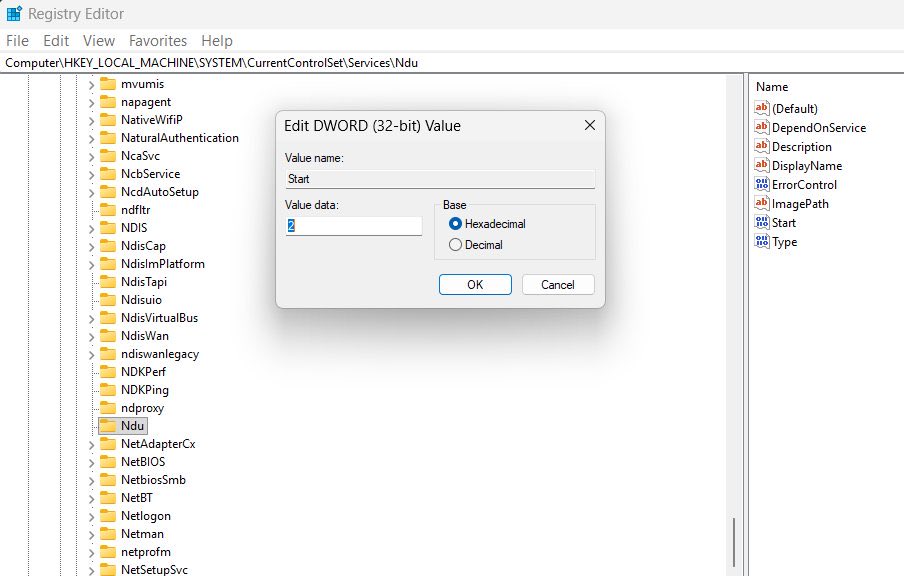
- Open regedit (Win R → regedit)
- Go to :
Computer\HKEY_LOCAL_MACHINE\SYSTEM\CurrentControlSet\Services\Ndu
- Change "Start" value to 4
- Restart
Value 4 = disabled. windows will no longer load the driver on boot.
Result : LOWER idle ram usage. ZERO downside. TAKES 30 seconds♻️
5
18
140
10,888

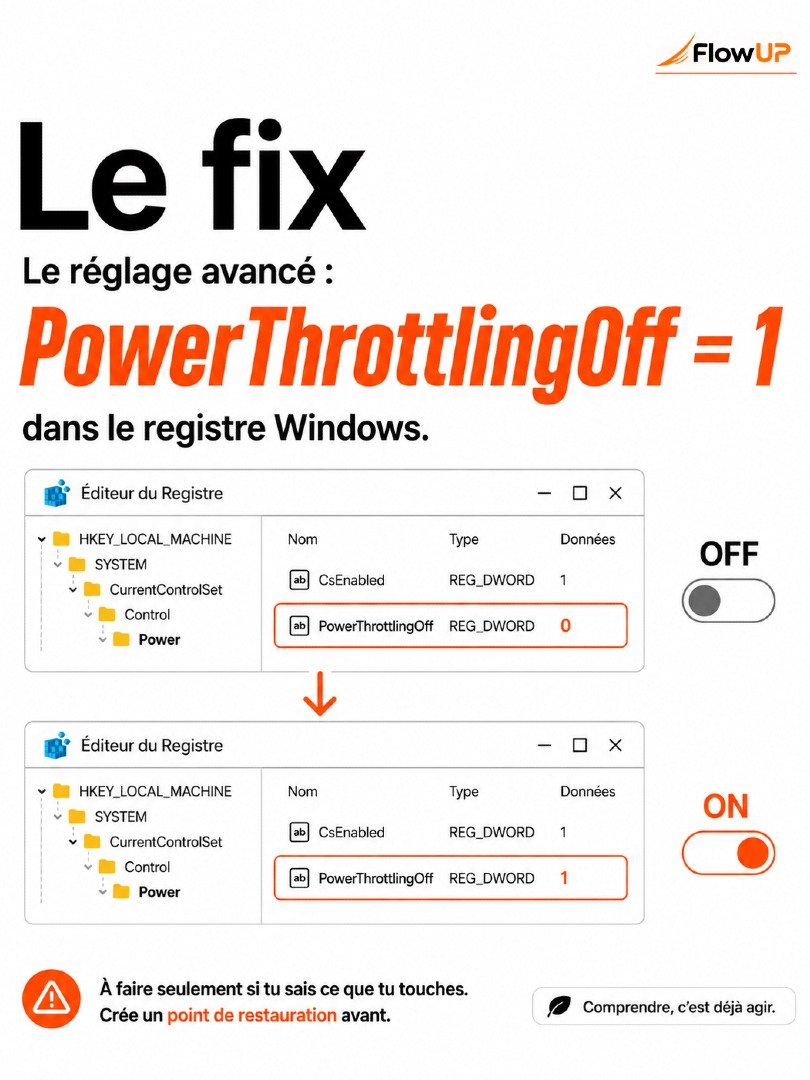
Comment désactiver le Power Throttling Windows 👇
- Appuie sur Windows R.
- Tape regedit, puis clique sur OK.
- Dans l’Éditeur du registre, va dans Fichier > Exporter pour sauvegarder ton registre.
- Va ensuite ici : Ordinateur\HKEY_LOCAL_MACHINE\SYSTEM\CurrentControlSet\Control\Power
- Fais un clic droit sur Power > Nouveau > Clé.
- Nomme cette clé : PowerThrottling
- Clique sur cette nouvelle clé PowerThrottling.
- À droite, fais clic droit > Nouveau > Valeur DWORD 32 bits.
- Nomme-la exactement : PowerThrottlingOff
- Double-clique dessus et mets la valeur : 1
- Clique sur OK, puis redémarre ton PC.
1
3
302

May 22
This one:
HKLM:\SYSTEM\CurrentControlSet\Control\Power
An script nuked it while trying to add PlatformAoAcOverride property and after restarting Windows: boom ;-)
2
126
May 22
Additional Optimizations & Performance Stack
Disabling Fullscreen Optimizations works best when combined with other Windows gaming tweaks:
Optimization 1: Disable HPET
Win R → cmd (Run as Admin) → type:
bcdedit /deletevalue useplatformclock
Restart your PC
This removes High Precision Event Timer overhead that adds input lag.
Optimization 2: Disable Dynamic Tick
Win R → cmd (Run as Admin) → type:
bcdedit /set disabledynamictick yes
Restart your PC
Prevents Windows from dynamically adjusting timer frequency.
Optimization 3: Set High Performance Power Plan
Settings → System → Power & battery → Power mode → Best performance
Or for advanced users:
Control Panel → Power Options → High performance
Advanced settings to change:
- Minimum processor state: 100%
- Maximum processor state: 100%
- System cooling policy: Active
- PCI Express Link State Power Management: Off
Optimization 4: Disable Game Mode (Yes, Really)
Settings → Gaming → Game Mode → Toggle OFF
Despite the name, Game Mode can cause stuttering in some games by forcing resource allocation.
Optimization 5: GPU Scheduling
Settings → System → Display → Graphics → Change default graphics settings
Toggle "Hardware-accelerated GPU scheduling" to ON
Reduces latency by allowing GPU to manage its own memory.
Optimization 6: Disable Windows Search Indexing
Win R → services.msc → Find "Windows Search" → Right-click → Stop
Set Startup type to: Disabled
Prevents background disk activity during gaming.
Optimization 7: Set Game Priority
While game is running:
Ctrl Shift Esc → Details tab → Right-click game.exe → Set priority → High
Gives your game priority over background processes.
Optimization 8: Disable Unnecessary Services
Services to consider disabling (Win R → services.msc):
- Windows Update (set to Manual, not Disabled)
- Superfetch/SysMain
- Windows Search
- Print Spooler (if you don't print)
- Bluetooth Support Service (if you don't use Bluetooth)
- Fax services
Optimization 9: Network Optimizations
For online competitive games:
Disable Nagle's Algorithm:
Win R → regedit
Navigate to: HKEY_LOCAL_MACHINE\SYSTEM\CurrentControlSet\Services\Tcpip\Parameters\Interfaces
Find your network adapter
Create DWORD values:
- TcpAckFrequency = 1
- TCPNoDelay = 1
Optimization 10: Graphics Driver Settings
NVIDIA Control Panel:
- Low Latency Mode: Ultra
- Power Management: Prefer maximum performance
- Texture filtering - Quality: Performance
- Threaded optimization: On
AMD Radeon Settings:
- Radeon Anti-Lag: Enabled
- Radeon Boost: Enabled (optional)
- Enhanced Sync: Enabled
- Texture filtering quality: Performance
The Complete Performance Stack
For maximum gaming performance on Windows:
1. Disable Fullscreen Optimizations (this post)
2. Disable HPET
3. Disable Dynamic Tick
4. High Performance power plan
5. Disable Game Mode
6. Enable GPU Hardware Scheduling
7. Disable Windows Search
8. Set game to High priority
9. Disable unnecessary startup programs
10. Keep GPU drivers updated
11. Network optimizations
12. GPU-specific settings
Each tweak individually might give 1-5% improvement, but combined they can reduce system latency by 10-20ms and eliminate micro-stuttering entirely.
Performance Monitoring Tools
To measure your improvements:
- MSI Afterburner RivaTuner: Frame time graphs
- LatencyMon: System latency analysis
- CapFrameX: Detailed frame time statistics
- NVIDIA Reflex Analyzer: End-to-end latency measurement
- Windows Performance Monitor: Resource usage
Testing Methodology
Before and after each optimization:
1. Benchmark your game for 5 minutes
2. Record average FPS, 1% lows, 0.1% lows
3. Note subjective feel (smoothness, input responsiveness)
4. Compare frame time graphs
5. Test in actual gameplay scenarios, not just benchmarks
Some optimizations help benchmarks but hurt real gameplay, or vice versa. Always test in your actual use case.
Maintenance Schedule
1
1
7
1,160