
He is Founder/advisor of the Following tech startups
Some of them are his own founded startups
1. Playruo (Tech Founder) - playruo.com/
2. FFLabs (Founder & President) - fflabs.eu/
3. Scaleway (CTO)
4. Klabs (Founder)
5. Veepee (Top management)
6. eShot Labs (Tech Founder) - eshotlabs.com/
7. Shadow (CTO)
8. Fair Play Interactive (CTO)
9. Dacast (Video technical expert & Shareholder)
10. French Consulate of san francisco (Scientific advisor)
11. Kyber (Founder & CEO)
These are his ventures and much more....
So, nothing more to tell about him from where he is earning....
2
797

26 Dec 2025
### Step-by-Step Guide for Twitter Artists: Converting Your Art Images into DRM-Protected Videos
As a Twitter (now X) artist, sharing your work publicly can expose it to theft via screenshots or recordings. Option 2 from the earlier response leverages video DRM (like Apple's FairPlay) to display your static art in a protected video format, where supported players (e.g., on iOS Safari) automatically blank out the content during screen captures. This isn't foolproof (e.g., external cameras bypass it), but it adds a strong deterrent compared to plain images.
The process involves turning your image into a short, looping video (e.g., a static hold or subtle animation), uploading it to a secure video hosting service that applies DRM, and sharing a protected link on X. Viewers clicking the link see your art in a web player that enforces the protection. You won't upload directly to X (as X doesn't support this DRM), but you'll post teasers or links instead.
This guide is designed to be accessible for non-technical artists—use free or low-cost tools where possible. Expect some setup time (1-2 hours initially) and potential subscription costs for hosting (starting at ~$20/month for basic plans). Always test on your own devices.
#### Step 1: Prepare Your Image and Convert It to a Short Looping Video
To use video DRM, your static art needs to become a video. Make it a simple loop (e.g., 5-10 seconds) to keep file sizes small and mimic a static display—add subtle effects like a fade or zoom if desired, but keep it minimal to preserve your art's integrity.
- **Tools to Use**:
- **CapCut** (free mobile/desktop app, user-friendly for beginners).
- Alternatives: Adobe Express (free online), Kapwing (free online with watermarks on export unless upgraded), or Descript (free for basic edits).
- **Steps**:
1. Download and open CapCut on your phone or computer.
2. Start a new project: Import your image file (JPEG, PNG, etc.).
3. Set the timeline: Drag the image to the timeline and extend its duration to 5-10 seconds.
4. Add looping: Duplicate the clip if needed, or use the "Loop" effect (in CapCut, go to Effects > Animation > Loop). For a static feel, just hold the image without motion.
5. Optional: Add subtle animation (e.g., slow pan/zoom via keyframes) to make it feel more "video-like" without altering your art.
6. Export: Save as MP4 at 1080p resolution (or higher for detailed art). File size should be under 100MB for easy uploading.
This takes 5-10 minutes. If you're comfortable with code, you could use FFmpeg (free command-line tool): Run `ffmpeg -loop 1 -i yourimage.png -c:v libx264 -t 10 -pix_fmt yuv420p output.mp4` for a 10-second loop.
#### Step 2: Sign Up for a Video Hosting Service with DRM Support
You need a platform that encrypts your video with multi-DRM (FairPlay for iOS/macOS, Widevine for Android/Chrome, PlayReady for Windows) to enable anti-screenshot features. These services host your video securely and provide a player that blanks captures on compatible devices.
- **Recommended Services for Artists (Based on 2025 Options)**:
- **VdoCipher**: Artist-friendly with strong DRM focus; starts at ~$99/year. Excellent for anti-piracy, including dynamic watermarks.
- **Gumlet**: Easy interface, supports FairPlay; pricing from ~$10/month. Good for small-scale creators.
- **Vimeo OTT**: Pro plan (~$75/month) includes DRM; great for embeds and analytics.
- Alternatives: Dacast (~$39/month) or Muvi Flex (custom pricing)—both offer robust security for creative content.
- **Steps**:
1. Choose one (start with Gumlet or VdoCipher for simplicity).
2. Create an account: Sign up with your email; most offer free trials (e.g., 14-30 days).
3. Verify your account: Some require payment info or domain setup for custom players.
#### Step 3: Upload Your Video and Enable DRM Protection
Once uploaded, configure DRM to protect against downloads and screenshots.
- **Steps** (Using Gumlet as an Example; Adapt for Others):
1. Log in and go to the dashboard.
2. Upload your MP4 file: Click "Upload Video" and select your exported file. It may transcode automatically for streaming (HLS format).
3. Enable DRM: In video settings, turn on "Multi-DRM" or "FairPlay Streaming." For Gumlet:
- Go to Video > Settings > Security.
- Select FairPlay (for iOS anti-screenshot), Widevine, and PlayReady.
- If available, add dynamic watermarks (e.g., overlay your username or viewer IP for traceability).
4. Set Access Controls:
- Require viewer authentication (e.g., password, email gating, or token-based for paid access).
- Optional: Geo-restrict to certain countries or expire links after viewing.
5. Test Protection: Preview the video in the dashboard. Try screenshotting on an iOS device via Safari—it should blank the video area. On other platforms, it may watermark or block recording software.
For VdoCipher, the process is similar: Upload, enable "Hollywood-Grade DRM," and customize watermarks. If you're technical, services like Gumlet provide API options, but stick to the UI for simplicity.
#### Step 4: Generate a Shareable Protected Link or Embed
- **Steps**:
1. In the service dashboard, select your video and click "Share" or "Embed."
2. Copy the secure link (e.g., a viewer page URL) or embed code (for your website if you have one).
3. Customize: Set the player to autoplay or loop for a seamless art-viewing experience.
#### Step 5: Share on Twitter (X) and Promote Safely
- **Steps**:
1. Post a teaser: Upload a low-res or watermarked version of your art as an image on X, with a caption like: "Check out my latest piece! View the full protected version here: [link]. No screenshots allowed! #DigitalArt #ProtectedArt"
2. Encourage clicks: Mention the protection to build intrigue (e.g., "DRM-enabled to keep my work safe").
3. Monitor: Use the service's analytics to track views and detect unauthorized attempts.
4. Optional: If selling art, integrate paywalls (e.g., via Vimeo OTT) so viewers pay to access.
#### Tips and Limitations
- **Cost**: Free tools for conversion; hosting starts low but scales with views (e.g., Gumlet charges per GB streamed).
- **Effectiveness**: Strongest on iOS/macOS (FairPlay blanks screenshots). On Android/Windows, Widevine/PlayReady prevents downloads but may not fully block software recorders—use watermarks as backup.
- **Bypasses**: Dedicated users can use external cameras or disable hardware acceleration in browsers (e.g., Chrome settings). Combine with legal notices or traceable watermarks.
- **Alternatives if Video Feels Overkill**: For pure image protection without conversion, consider VeryPDF DRM Protector—it streams images as encrypted tiles, blocks saves/screenshots on desktop, and adds watermarks on mobile. Upload your art, get a protected viewer link, and share similarly on X.
- **Advanced**: If you develop apps (rare for artists), use ScreenShieldKit SDK to overlay your image under a transparent DRM video in an iOS app for full protection.
- **Legal Note**: Ensure your setup complies with platform terms and copyright laws.
This method lets you share high-quality art on X while minimizing theft. Start small—test with one piece—and scale as needed. If you run into issues, most services have support chats.
2
279

10 Dec 2025
Ufficiale: accordo con la multinazionale americana Dacast per la trasmissione di tutte le partite del Messina. Telecronaca e commenti dedicati.
3
256

30 Oct 2025
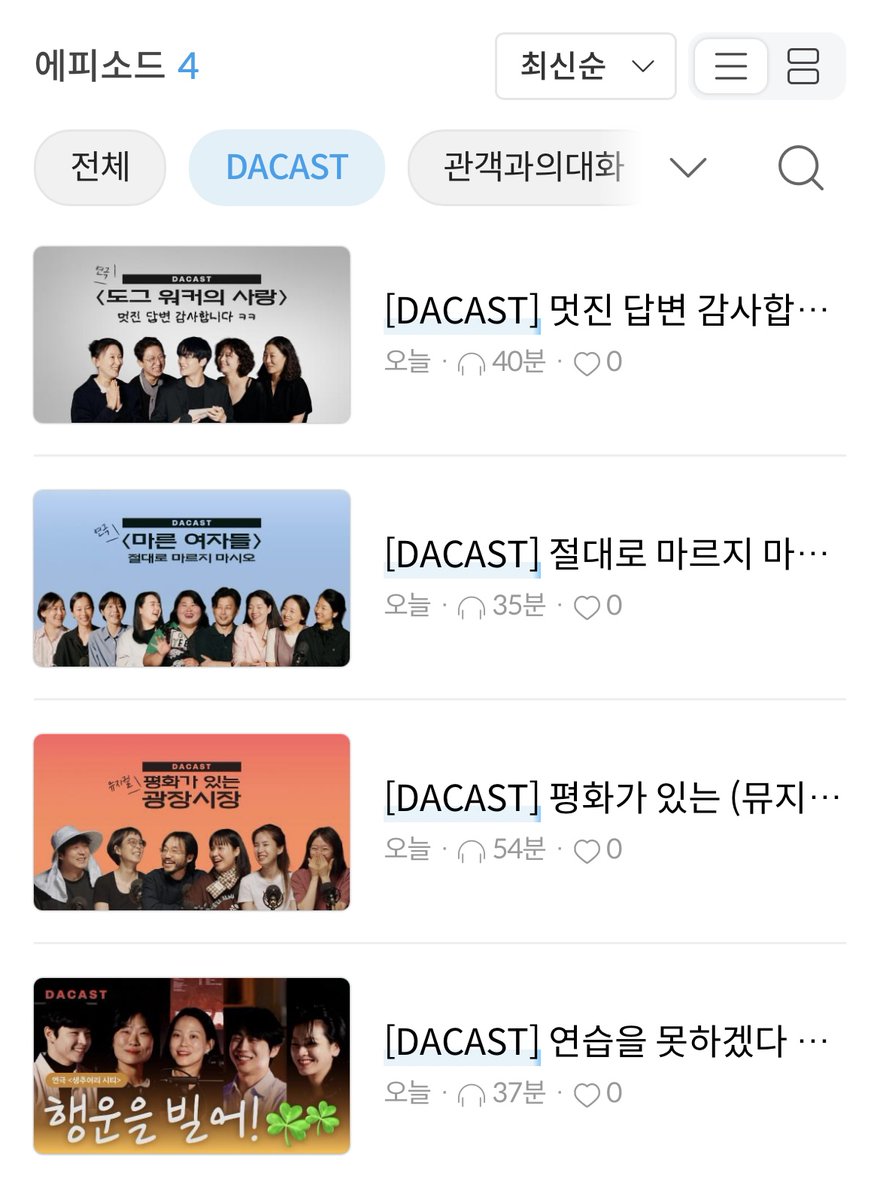
젊은 예술가들의 상상과 이야기가 모이는 곳
🎙️DAⓒAST🎧
이제 DACAST를 '두산아트센터 팟빵' 채널에서도 만나보실 수 있습니다!
지금 바로 이전 에피소드들을 확인해보세요🙌
🎧두산아트센터 팟빵 채널 바로가기
podbbang.com/channels/7508

2
4
1,271
28 Oct 2025
Dacast, piattaforma americana di live streaming e hosting di video online trasmetterà in diretta le partite del Messina. Accordo fino a giugno in fase di definizione. #ForzaMessina
1
1
5
377
26 Oct 2025
🐕🦺🤍 #DACAST
"멋진 답변 감사합니다🙏🏾"
'도그 워커의 사랑' 대본 첫 인상부터
다섯 배우들의 본격 영업멘트까지!
아직은 조금 어색했'던' DACAST!
🔹Full 영상은 유튜브에서🔹
youtu.be/CZwGlJlPDYw
19
6
2,284
3 Sep 2025
절대 마르지 마시오❗|DAⓒAST|<마른 여자들>팀
다이어트, 러닝, 고양이... 그리고 이너피스🧘
누구보다 도시락에 진심인 <마른 여자들>팀과
나눠본 '마름'과 '몸'에 대한 이야기
젊은 예술가들의 상상과 이야기가 모이는 곳
🎙️DAⓒAST🎧
🔹Full 영상은 유튜브에서🔹
youtu.be/_WmyQfqcLqc
💬
- 마르면 벌금! 연습 근황
- 작품 첫 인상
- 연극 배우들의 외모 관리?
- 나는 지금 OOO이 말라있다!
- <마른 여자들> 이렇게 봐주세요.
#DACAST #닥캐스트 #DAC_Artist #박주영 #마른여자들 #두산아트센터
2
4
1,720

23 Jun 2025
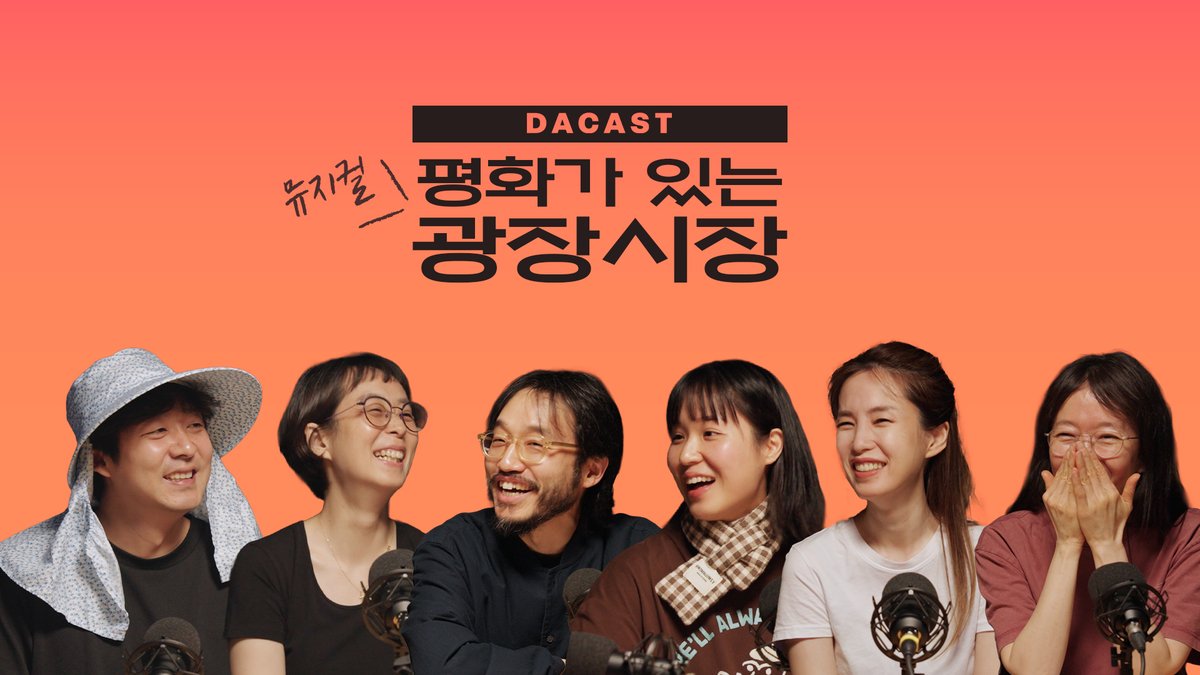
🍚평화가 있는(뮤지컬) 광장시장🚲 |DAⓒAST|<광장시장>팀
쉬는 시간에도 연습을 하는 팀이 있다?!
평소에도 찜질방 수다를 즐긴다는
뮤지컬 <광장시장>팀과 긴 수다를 떨어 봤습니다.
젊은 예술가들의 상상과 이야기가 모이는 곳
🎙️DAⓒAST🎧
🔹Full 영상은 유튜브에서🔹
buly.kr/GvnDgub
💬
- 요즘 근황(연습, 연습, 연습)
- 광장시장에 관한 기억
- 작품의 첫 인상
- 오디션과 캐스팅 비하인드
- 연습 과정
- 관객 사연: 광장시장에 관한 추억 그리고 환대
#우리들의긴이야기 #DACAST #다캐스트
#광장시장 #뮤지컬 #두산인문극장 #두산아트센터
2
916

21 Jun 2025
Even before Kick, you had Beam, then Mixer, YouTube Gaming, Facebook Gaming, Instagram Live, USScreen, Twitter Live (now X), Dlive, Vimeo Livestream, LinkedIn Live, Dacast, WOWZA, Restream, Crowdcast, Rumble, chzzk, Trovo. The list is exhaustive, needless to say
1
2
43


2 May 2025
I too have had this on my DACAST shortlist, I was just waiting for a time when I’d be free to weather the inevitable blowback/capitalize on the drama.
2
2
39
30 Apr 2025
연습을 못하겠다 싶을 땐 '당근'을 흔들어 주세요🥕|DAⓒAST|연극 '생추어리 시티'팀
젊은 예술가들의 상상과 이야기가 모이는 곳
🎙🎧 DAⓒAST 🎙🎧
개막을 11일 앞두고 있던 '생추어리 시티'팀과 함께 했습니다.
#우리들의긴이야기
youtu.be/LHbWDtinYV8?si=S-iq…

15
9
5,171
8 Apr 2025
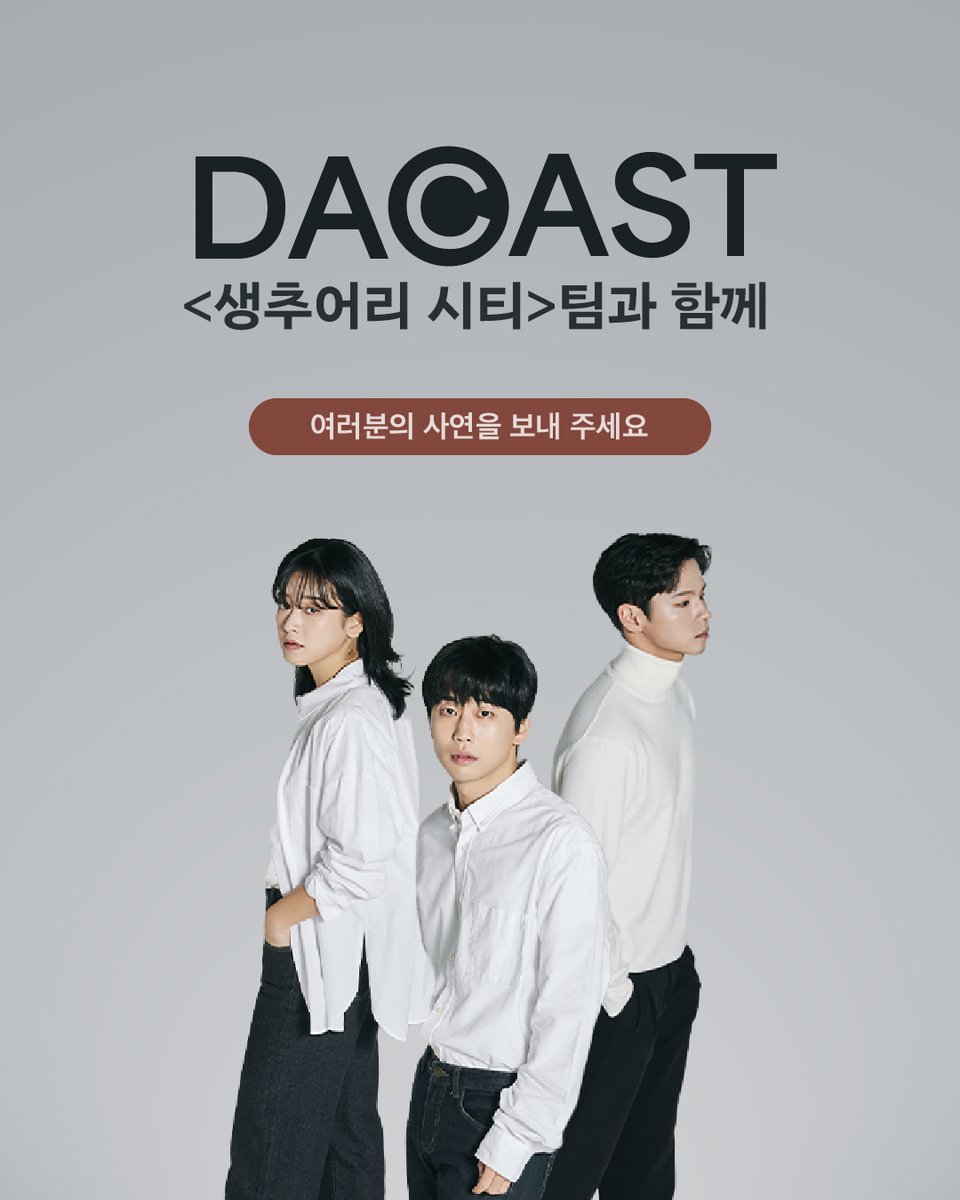
🎙DAⓒAST🎙 사연 접수
두산아트센터 보이는 팟캐스트 🎧DACAST🎧
그 첫 번째 시간으로 4월 개막을 앞둔 <생추어리 시티>팀과 함께합니다.
"여러분의 ‘생추어리 시티’는 어디인가요?"
‘생추어리(Sanctuary)’는 안식처, 보호구역을 의미하는 단어로,
‘생추어리 시티’는 미국 내 미등록 이민자에게 우호적인 지역을 일컫는 일종의 은어인데요.
시민권을 획득한 G와 불법 체류로 추방의 불안을 안고 살고 있는 B는
살고 있으나 속해 있지 않은 지역에서 자신의 존재를 인정받으려 분투합니다.
이들처럼
Q. '나는 이곳에 속한 사람일까?' 생각이 드신 적 있으신가요?
Q. 혹은 살고 있으나 속해 있지 않은 지역이 있으신가요?
여기서 말하는 ‘지역’은 꼭 행정 구역만을 이르지 않습니다.
커뮤니티 혹은 정서적인 구역이 될 수도 있겠죠.
각자 마음 속 경계 또는 내가 속하기로 정한 것으로 정한 곳이 될 수도 있겠고요.
여러분의 '생추어리 시티'에 관한 사연을 보내주세요.
<생추어리 시티>팀이 함께 읽고 생각을 나눠봅니다.
💍 출연자: 이오진(연출), 이주영, 김의태, 아마르볼드(배우)
☝🏻 사연 접수 forms.gle/XtuUBW1C66sCaHGGA
🎁 사연을 보내주신 분 중 선정되신 분들께는 아메리카노(기프티콘)을 선물로 드립니다.
✔ 접수기간: ~ 4.10(목)까지
🎧젊은 예술가들의 꿈과 이야기가 모이는 곳 DAⓒAST
6
5
1,976

18 Mar 2025
Here a couple other ones
StreamYard
Crowdcast
Butter
Castr
Dacast
VMix
vXSplit
2
34

12 Feb 2025
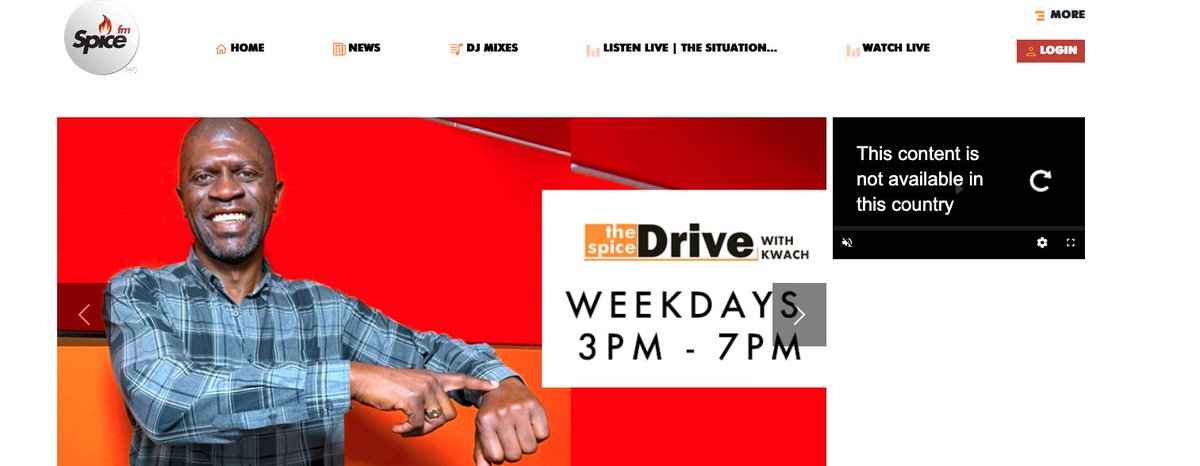
Spice FM stream is not working on Starlink. I had to turn on mobile data, and the network connection is terrible. The stream cannot be consistent for 5 seconds without buffering exponentially per stop.
They seem to be using dacast[.]com for the streaming
3
1
23
4,902

like fr tho.. miss valkyrae literally can move to Facebook, caffeine, dlive, trovo, restream, vimeo, dacast, mirrativ, periscope, azubu, bigo live, mixer, etc.. i will still be a sucker for her.. let the woman stream wherever she wants.. it ain't that deep..
4
560

18 May 2024
🏆 Our Wembley Documentary Series 'REMEMBER YOUR WHY' has now finished streaming on Dacast
Thank you to everybody that has supported the project by signing up - the feedback has been very positive
News on a physical release for the series will be announced in due course 🔵⚪️🐾

13
967
18 Apr 2024
7PM TONIGHT - WEMBLEY WATCH PARTY FINALE 🔵⚪️🐾
Enjoy 'Episode 5 - Ecstasy And Legacy' of our documentary series 'Remember Your Why' at @ImperialHalifax
£5pp entry on the night. All are welcome
Full episode will be uploaded to dacast tomorrow
#BWO #Wembley #Documentary

1
2
7
864

6 Feb 2024
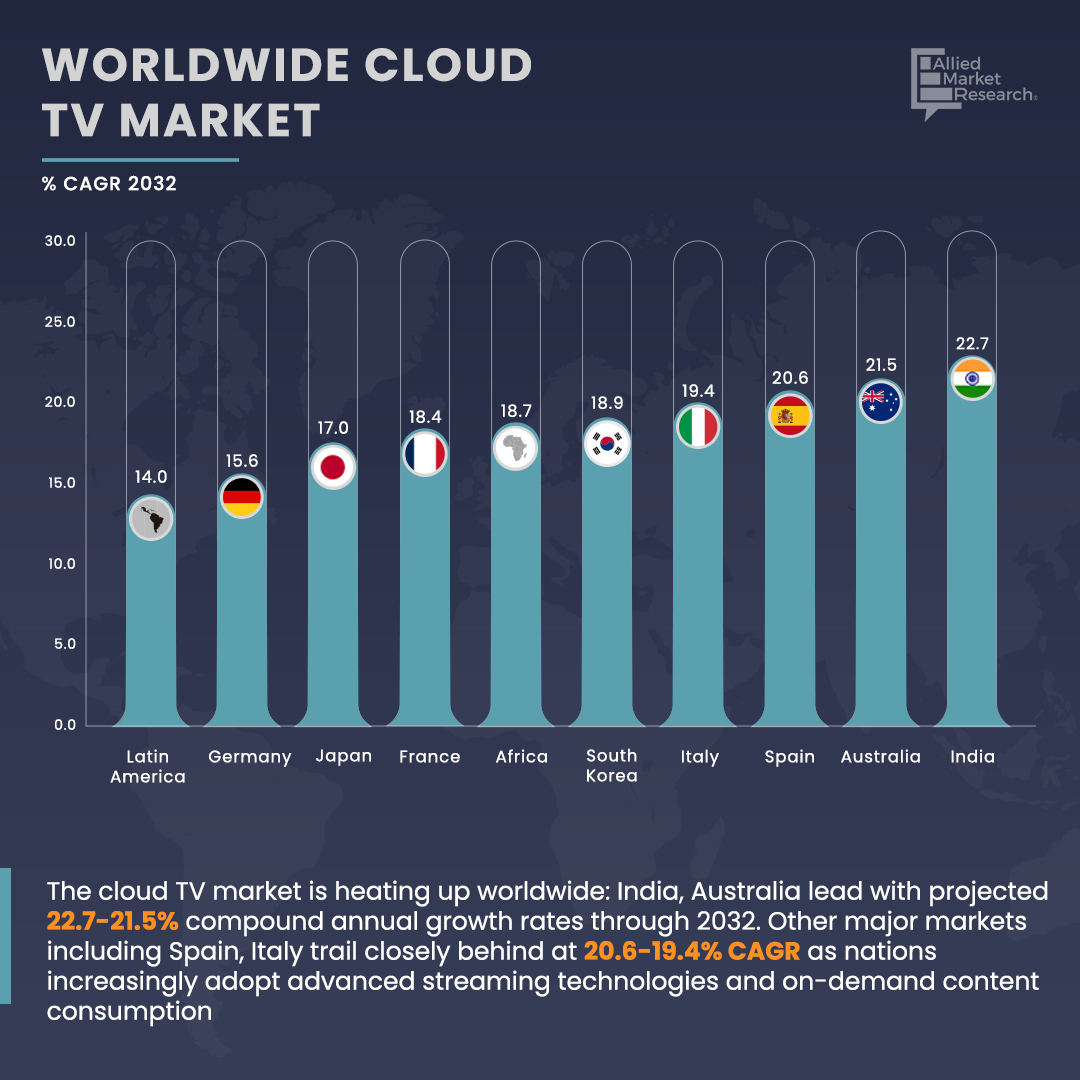
Cloud TV Market: CAGR Forecast!
🇮🇳 India 22.7%
🇦🇺 Australia 21.5%
🇪🇸 Spain 20.6%
🇮🇹 Italy 19.4%
🇰🇷 South Korea 18.9%
🇫🇷 France 18.4%
🇯🇵 Japan 17.0%
🇩🇪 Germany 15.6%
🇨🇳 China 13.9%
🇨🇦 Canada 12.8%
🇬🇧 UK 8.0%
🇺🇸 U.S. 7.2%
📈Find out what CAGR other countries will have:
tinyurl.com/39fnb48v
Key Market Players:
Muvi - @Muvi
Oracle - @Oracle
MatrixStream Technologies, Inc. - @MatrixStream
Kaltura Inc. - @Kaltura
Amagi Media Labs - @AmagiCorp
Comcast Technology Solutions - @ComcastTechSol
Brightcove Inc. - @Brightcove
Dacast - @Dacast
Mediakind - @Media_Kind
Amino Communications - @AminoTV
#AMRinsights #Alliedmarketresearch #marketresearch #research #b2b #CloudTV #StreamingServices #DigitalEntertainment #OTTPlatforms #OnlineStreaming #MediaIndustry
2
3
103