
Are we selling equipment...or delivering outcomes?
#Hospitality #AVTechnology #Hotels #Innovation #FullResolution #AV
1
2
6

15 May 2025
Many-Light Rendering Using ReSTIR-Sampled Shadow Maps
Song Zhang, Daqi Lin, Chris Wyman, Cem Yuksel
(University of Utah, NVIDIA)
diglib.eg.org/items/bb8dfc3d…
Abstract:
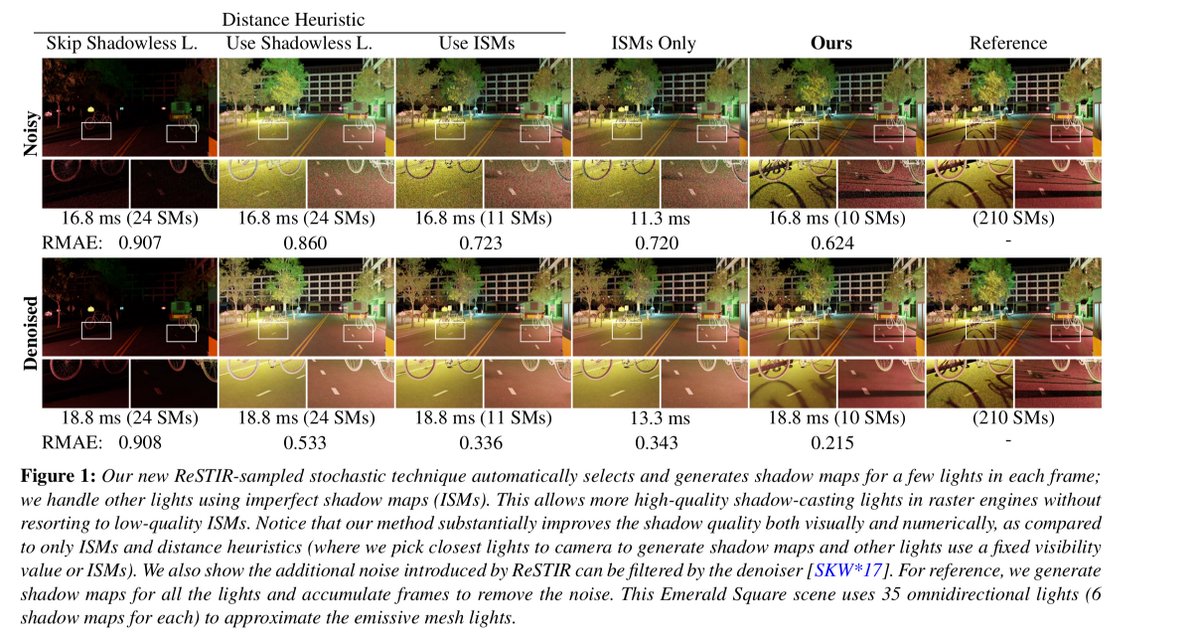
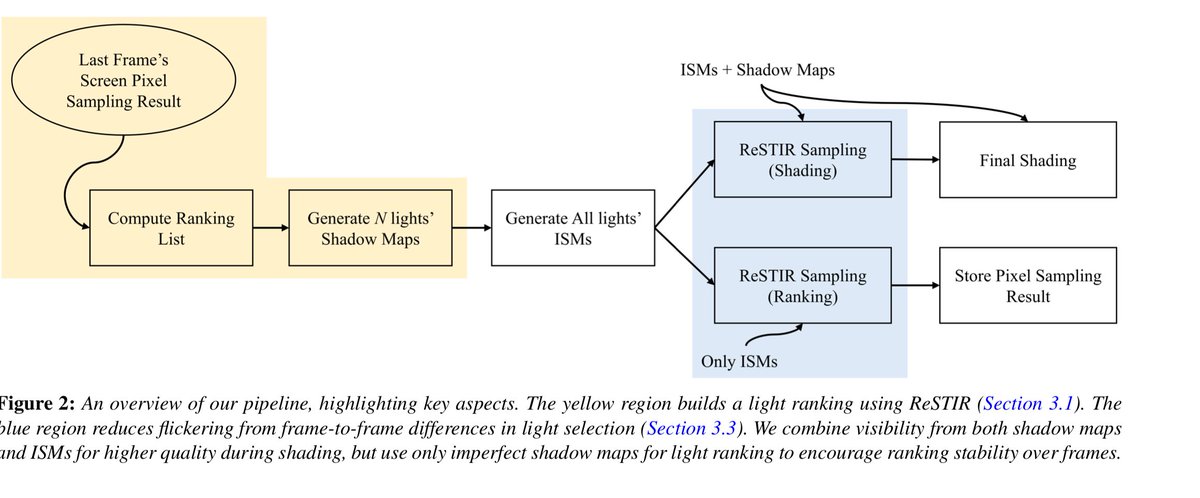
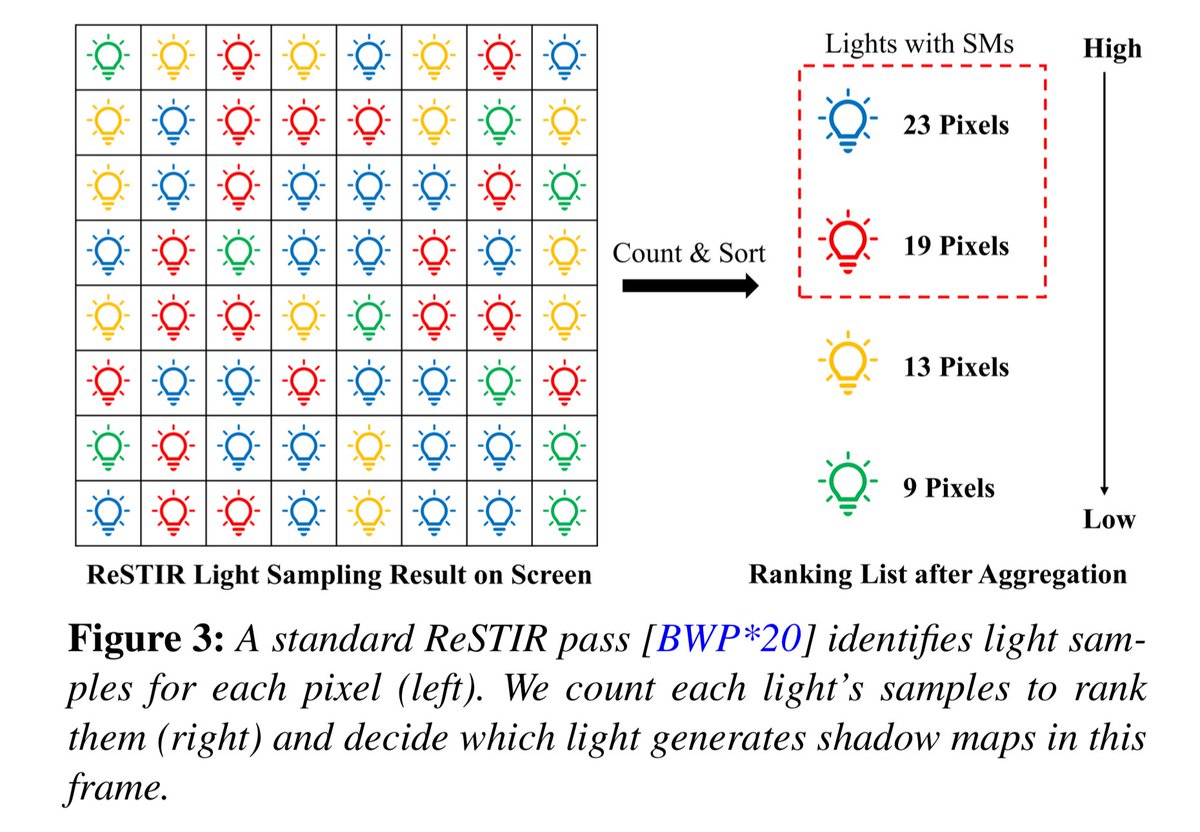
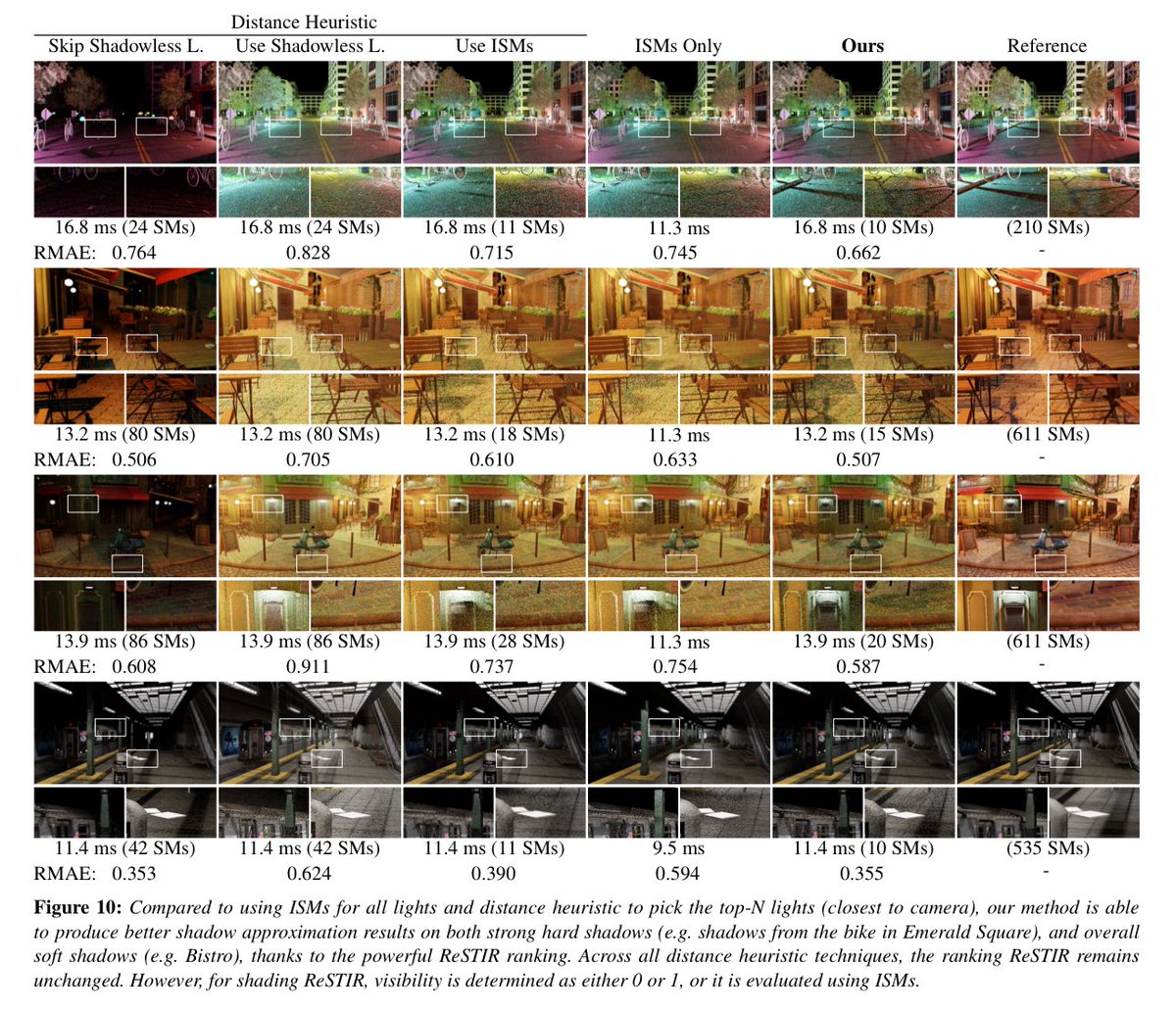
We present a practical method targeting dynamic shadow maps for many light sources in real-time rendering. We compute fullresolution shadow maps for a subset of lights, which we select with spatiotemporal reservoir resampling (ReSTIR). Our selection strategy automatically regenerates shadow maps for lights with the strongest contributions to pixels in the current camera view. The remaining lights are handled using imperfect shadow maps, which provide low-resolution shadow approximation. We significantly reduce the computation and storage compared to using all full-resolution shadow maps and substantially improve shadow quality compared to handling all lights with imperfect shadow maps.
18
88
4,660

27 Mar 2025
It's a playful post not an attack.
------
AI might be wrong:
To optimize the performance of the original Doom on DOS, you might need to make some adjustments to your AUTOEXEC.BAT and CONFIG.SYS files. These adjustments can help ensure that Doom runs smoothly and takes advantage of your system's resources. Here are some common modifications you can make:
AUTOEXEC.BAT
Set a High Memory Area (HMA):
HIMEM.SYS
DOS=HIGH
Load Drivers into Upper Memory Blocks (UMBs):
EMM386.EXE NOEMS
Set the Sound Blaster (if applicable):
SB16.SYS DMA1=1 DMA2=5 IRQ=7 MPU=3
Set the Path and Prompt:
PATH C:\DOS;C:\
PROMPT $P$G
Run Doom:
CD C:\DOOM
DOOM -FILE DOOM.WAD
CONFIG.SYS
Set the Number of File Handles:
FILES=40
Set the Number of Buffers:
BUFFERS=20
Enable UMBs:
DEVICE=C:\DOS\HIMEM.SYS
DEVICE=C:\DOS\EMM386.EXE NOEMS
Set Device Drivers:
DEVICE=C:\DOS\ANSI.SYS
DEVICE=C:\DOS\RAMDRIVE.SYS 2048 1024 512
DEVICE=C:\DOS\SMARTDRV.EXE
Set the Shell:
SHELL=C:\DOS\COMMAND.COM C:\DOS /E:1024 /P
Additional Tips
Use a DOS Extender: Doom itself uses a DOS extender (typically DOOM.EXE), but you can use additional tools like CWSDPMI to ensure better compatibility and performance:
PATH C:\CWSDPMI
Run in a Safe Mode: Sometimes, running Doom in a safe mode can help avoid conflicts with other drivers:
CD C:\DOOM
DOOM -SAFEMODE
Use a DOS Emulator: If you are running on a modern system, using a DOS emulator like DOSBox can help you run Doom more reliably. Here is a basic configuration for DOSBox:
[sdl]
fullscreen=true
fulldouble=true
fullresolution=desktop
output=overlay
autoscale=true
[dosbox]
language=
machine=svga_s3
captures=capture memsize=16
[render] frameskip=0 aspect=true scaler=normal2x
[cpu] core=dynamic cputype=auto cycles=4000 cycleup=100 cycledown=100
[mixer] nosound=false rate=22050 blocksize=2048 prebuffer=20
[midi] mpg123=false timidity=false
2
2
91

14 Oct 2024
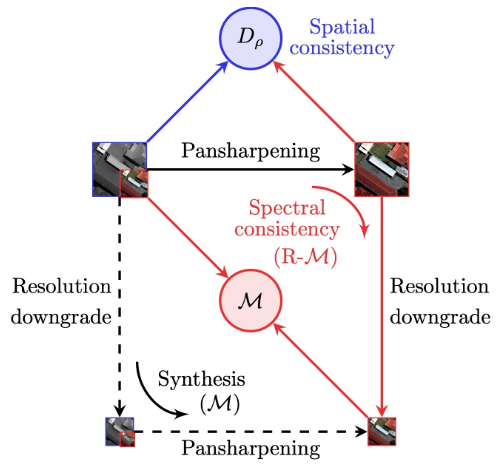
👋👋👉 #FullResolution Quality Assessment for #Pansharpening
✍️ Giuseppe Scarpa and Matteo Ciotola
📎 brnw.ch/21wNKCi
2
5
453


deviantart.com/jaynl
Dogs Under Water (AI)
#dogs #under #water #underwater #dog #ai #stablediffusion #happy #funny #moreinlink #animals #aiart #sdxl #fish #puppy #puppies #art #fullresolution #morecoming #jaynl #deviantart




6
335

2 Jan 2023
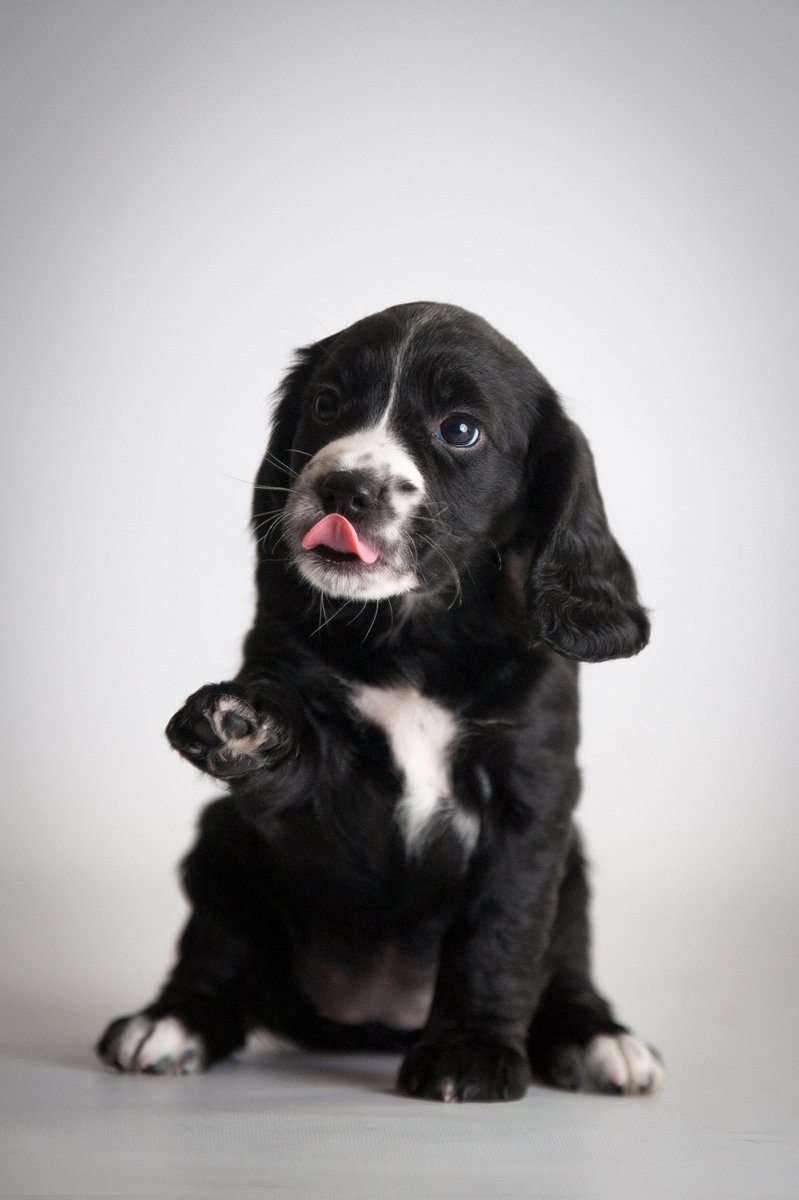
Run any good results through img2img at 512x640. Once you get something good from that inpaint at fullresolution at low denosing. Inpaint the subject first then the background.
2
42


24 Feb 2022
2
1
13

17 Nov 2021
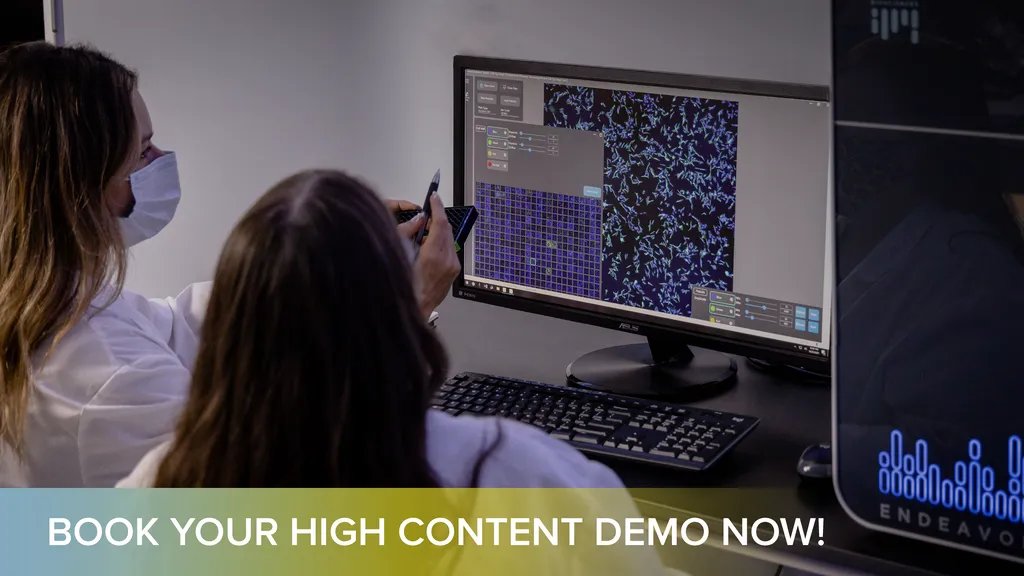
Our application scientist team is imaging plates and excited to show you what Endeavor can do! Ready to see a #fullwell, #fullresolution screen in 10 minutes? Just want to stay up to date on the latest #highcontentscreening tech?
Book your virtual demo buff.ly/3DwEdY8
2

6 Oct 2021
SSAOのHalfResolutionを4.26で実装しなおした。
HalfRes時にちらつくのでちょっと調整。(別なアーティファクトは出てるかも)
SSAO None→SSAO FullResolution →SSAO HalfResolution→SSAO Noneと切り替えてます。
2ms→0.4ms
元ネタ
adriancourreges.com/blog/201…
4.26版
youtube.com/watch?v=vLKTvHeO…
#UE4
4
5

1 Jul 2021
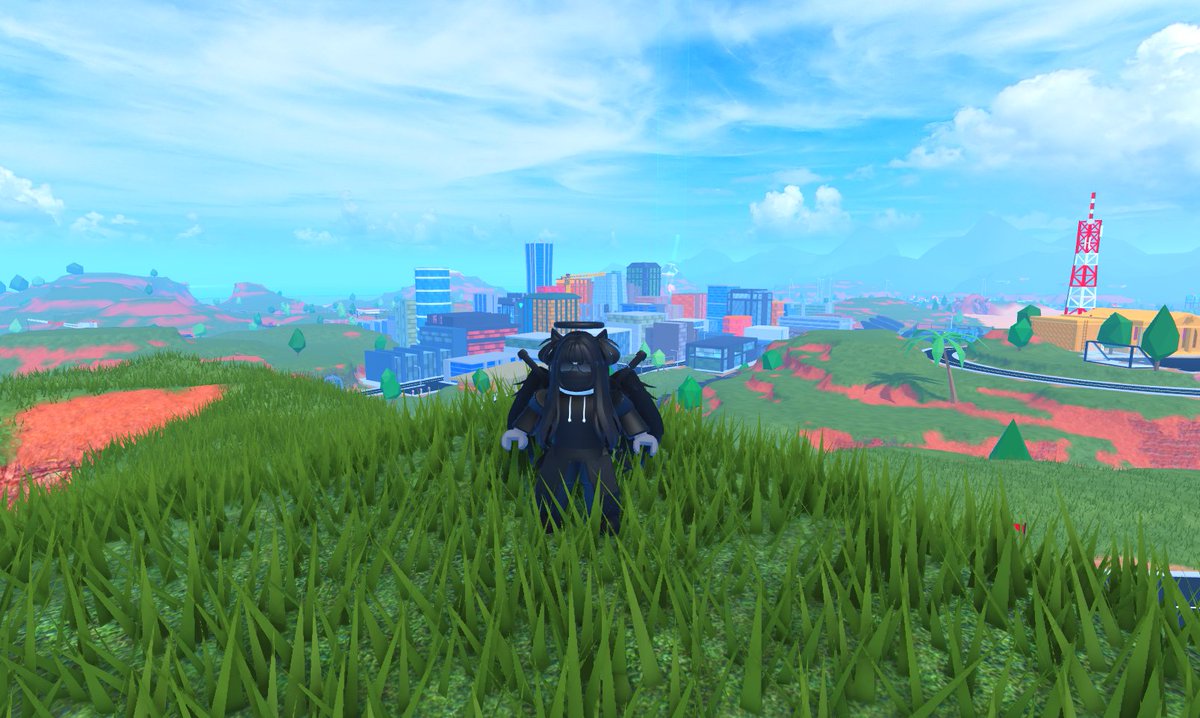
If anyone wanted to know what JailBreak in full resolution wanted to look like, here it is.
#jailbreak #Roblox #robloxmaxgraphics #robloxJB #robloxJailBreak #fullresolution #gamer #yay
3
1
4

27 Apr 2021
will need to research it abit, not aware if there is unblockable content option on FND or if its platform unique to opensea.. the middle ground would be to state in descrition that a fullresolution will be provided to the collector, while placing a mid reso in the NFT.
1
2

26 Nov 2020
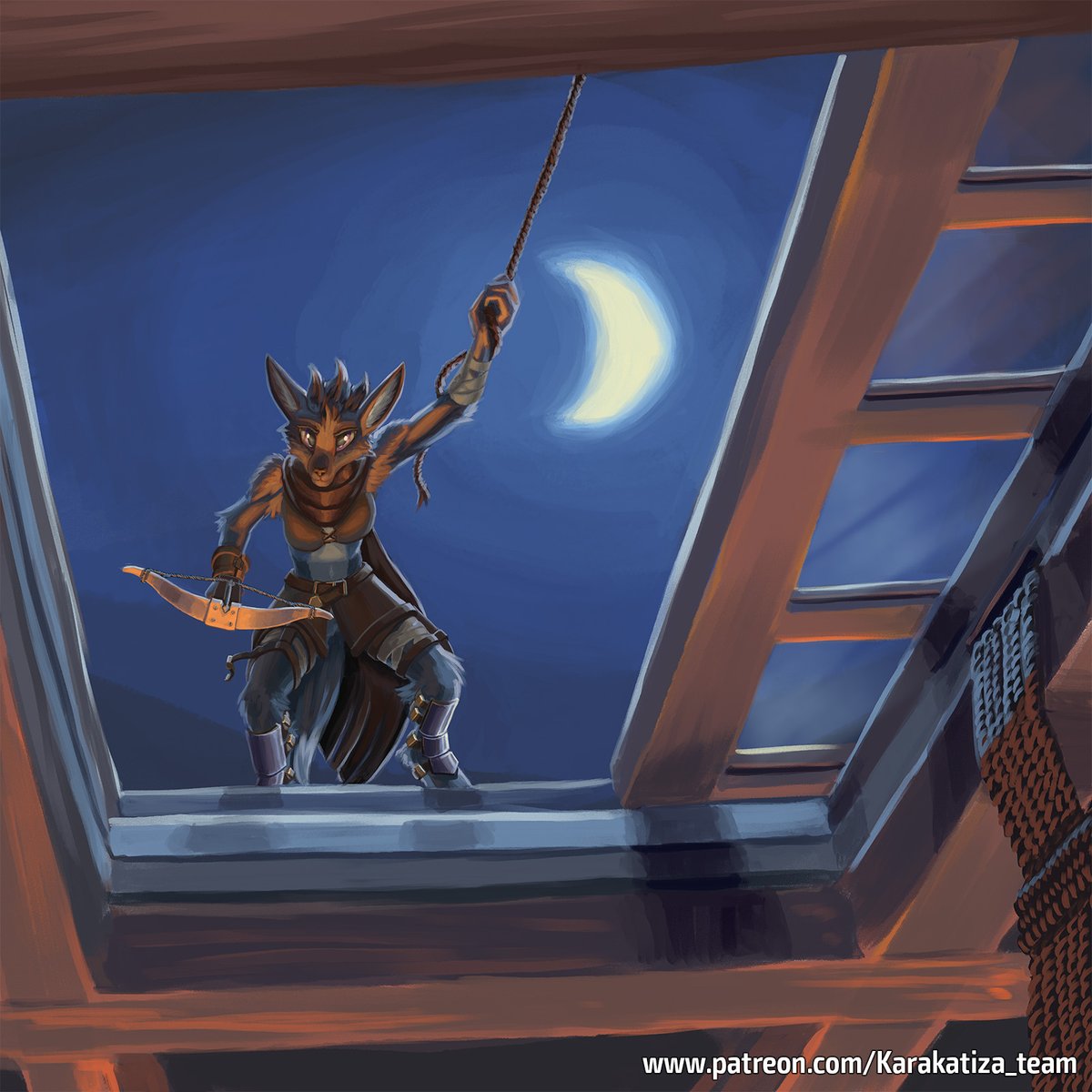
As usual, fullresolution without logo... ( steps this time) at patreon.com/Karakatiza_team
3
23 Oct 2020
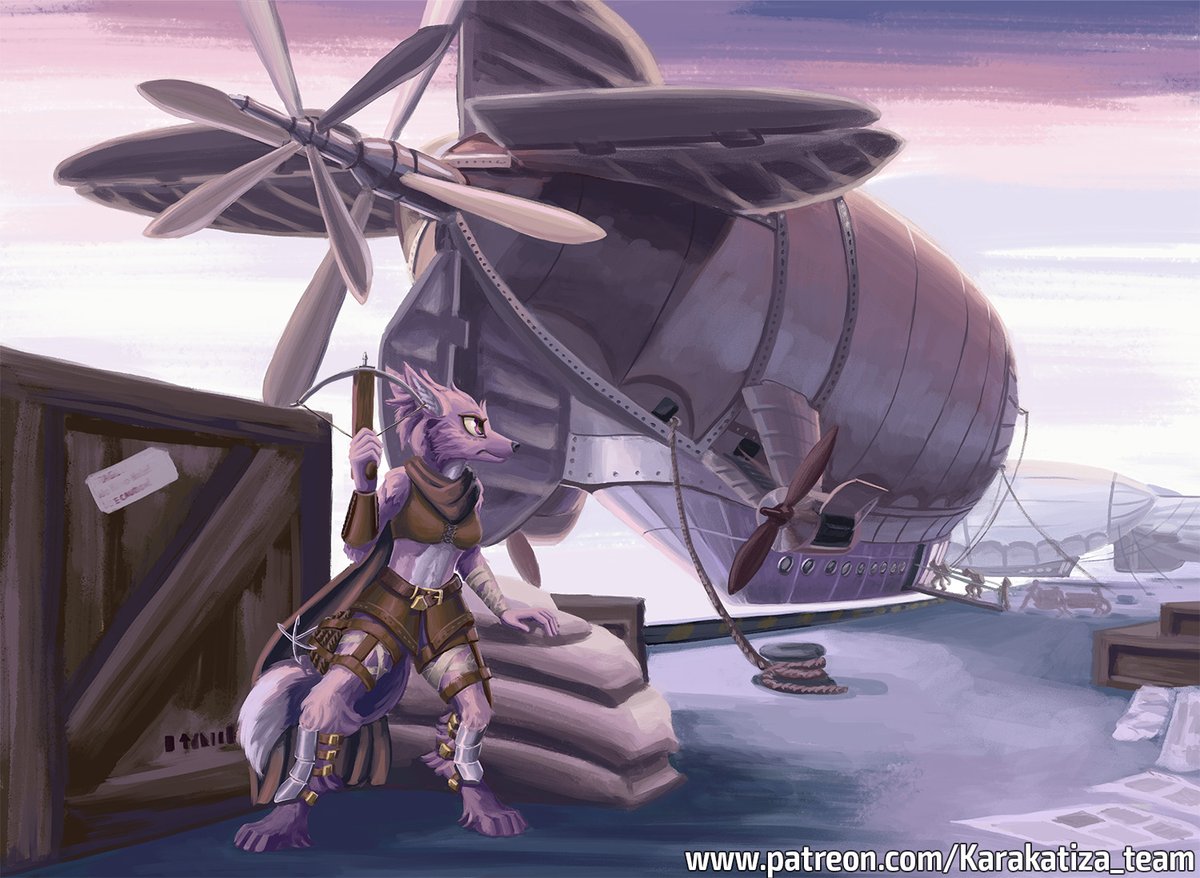
Another one with this wolfgirl. Thank you Idie970 for making it possible.
As usual, fullresolution without logo... (and steps this time) at patreon.com/Karakatiza_team
1
9

Os compartimos el cartel que hemos hecho por el #DíaDelAnestesiólogo a #FullResolution Por si gustáis compartirlo ☺️☺️🙌

19
42

30 Sep 2020
#OCoftheMonth #August2020
Now the #fullresolution Version is available for everyone. The other #illustration (completly #nude #lewd #nsfw), will forever stay #patreon exclusive.
» Patreon: patreon.com/user?u=23516263


1
27 Sep 2020
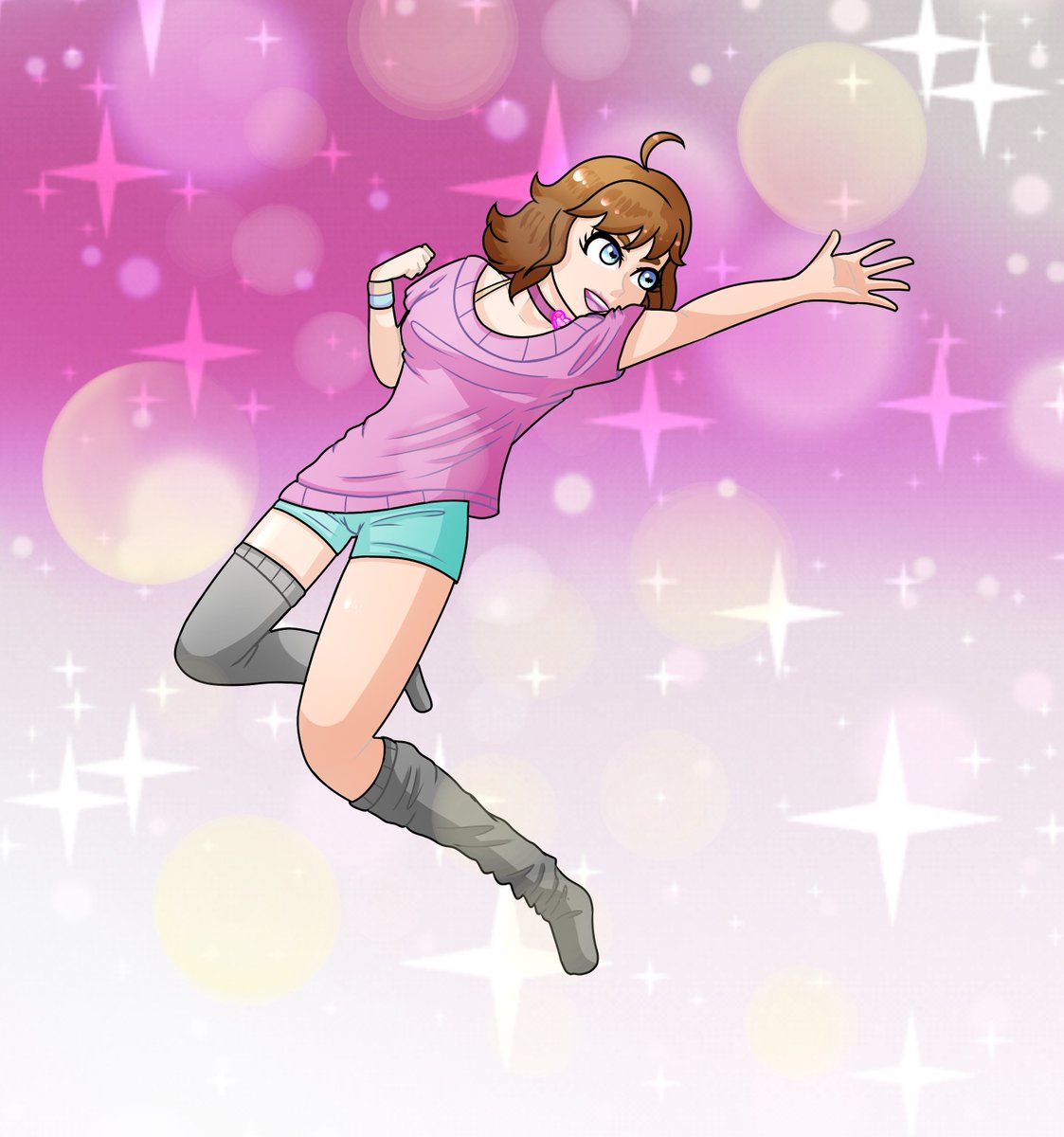
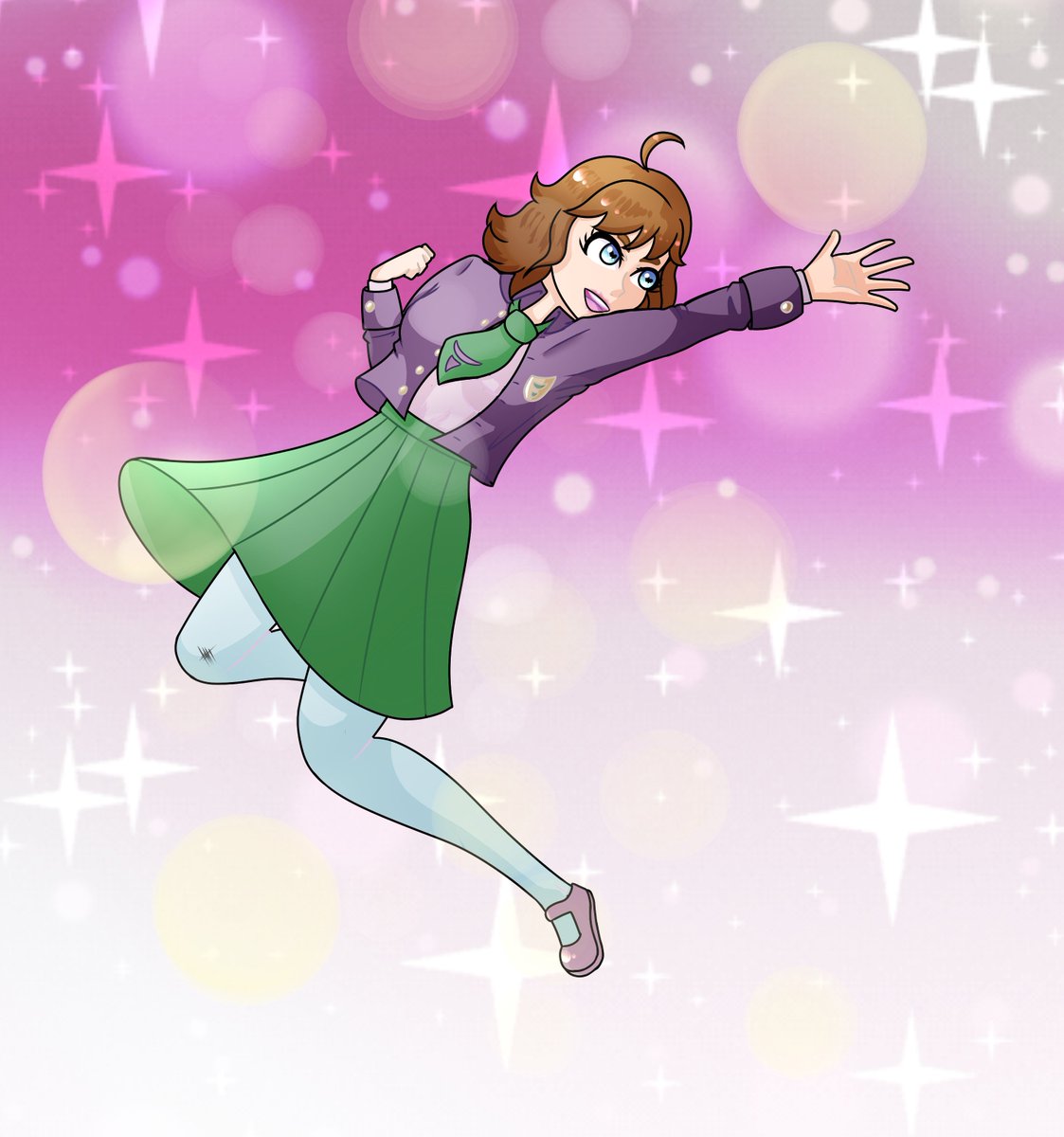
#OCoftheMonth #September #OC
#Fullresolution Version will be available on October 27th for everyone. The other #illustration (completly #nude #lewd #nsfw), will forever stay #patreon exclusive.


2

9 Sep 2020
New post about #Seili island up. Now Seili is even more #boat'er friendly with new #marina:
sail-in-finland.info/2020/09…
Post is also #showcase for new features of site: annotated 360° #Panorama, #fullresolution images @OurFinland @DiscoverFinland @FinlandExplorer @ArchipelagoBios
2
8