

Jun 10
Most people download PDFs they never read
The format is the problem not you.
Readloudly converts any PDF to audio. Instantly.
Listen on your commute, walk, or lunch.
Same content. Less mental load.
→ readloudly.com
#TextToSpeech #PDFReader #StudyTips #Readloudly
1
1
26

Jun 9
Vibes might be off: PDF document indexing likely doesn’t work. In AI-Blueprint/app/core/document_indexer.py:180, _extract_pdf_pages() imports PdfReader but never reads pages, and the actual reader code is unreachable later under _xlsx_cell_text() after return raw at AI-Blueprint/app/core/document_indexer.py:251
58

Does anyone have any advice for an AI tool that can read PDFs and pull specific information from individual PDF files into an Excel summary? Trying to use Co-Pilot to turn a PDF into an Excel file has been unsuccessful to say the least.
@bcherny
#AI #PDFReader
24

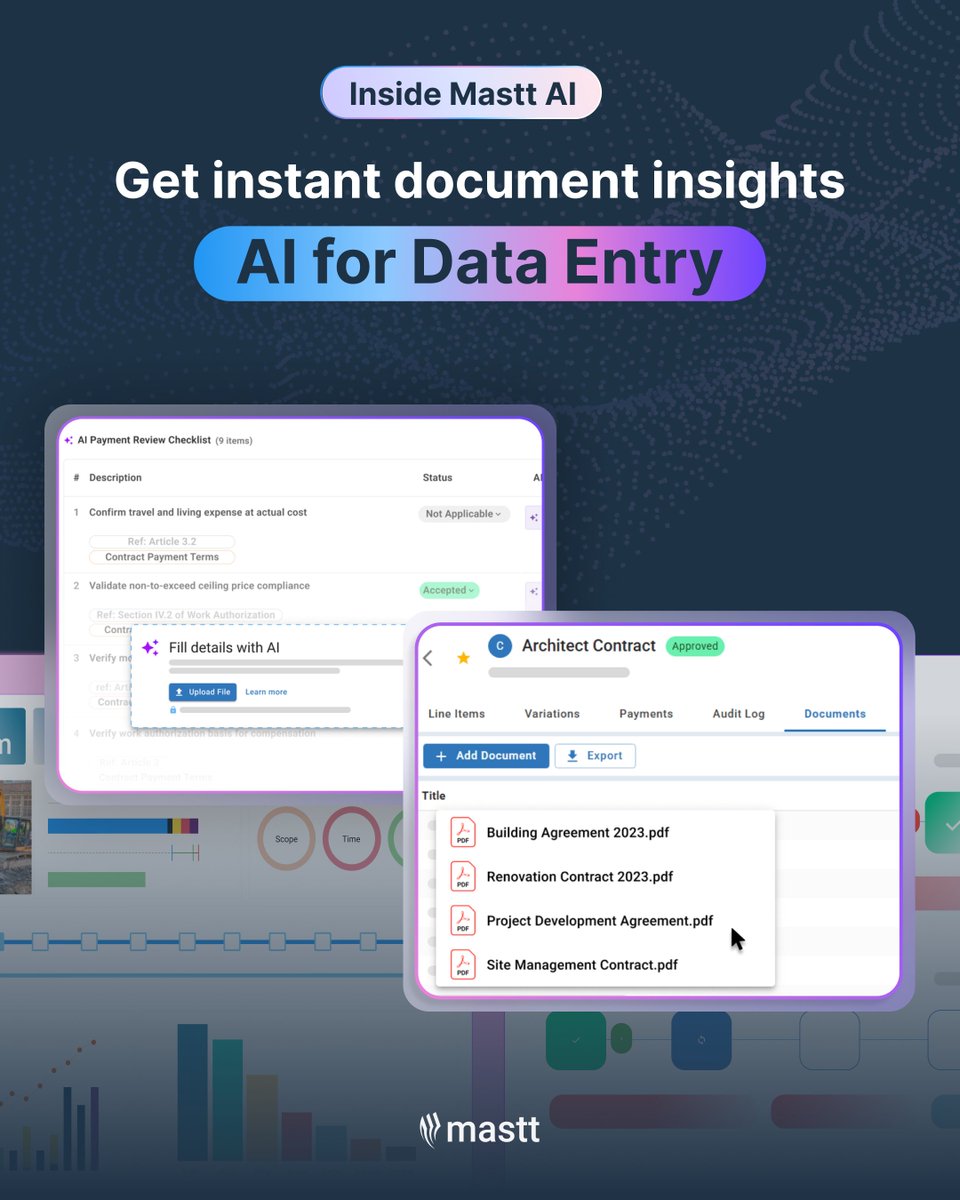
📄 Your regular AI summarizes. 𝗠𝗮𝘀𝘁𝘁 finds obligations, deadlines, risks fast. Upload a PDF and try 𝗠𝗮𝘀𝘁𝘁'𝘀 𝗔𝗜 𝗣𝗗𝗙 𝗥𝗲𝗮𝗱𝗲𝗿 free! mastt.com/ #AIForConstruction #PDFReader #ConstructionManagement #AIProductivity #ConstructionTeams
5

**PDF Content Streams** are the heart of page rendering. They contain sequences of **operators** (postfix notation: operands first, then the operator) that tell the PDF renderer exactly what to draw—text, paths, images, transformations, etc. Content streams live in the `/Contents` entry of a page (one or more stream objects, often compressed with FlateDecode). They operate in **default user space** (bottom-left origin) and are affected by the **Current Transformation Matrix (CTM)**. ### Core Concepts - **Graphics State Stack**: `q` (save/push) and `Q` (restore/pop) — essential for isolating changes. - **Text Objects**: Enclosed in `BT` … `ET`. - **Path Construction & Painting**: Build shapes then stroke/fill. - **Compatibility**: Most operators are in ISO 32000-1/2 (PDF 1.7/2.0). ### Major Operator Categories & Examples #### 1. Graphics State | Operator | Operands | Purpose | Example | |----------|-------------------|----------------------------------|--------------------------| | `q` / `Q` | — | Save / Restore graphics state | `q ... Q` | | `cm` | 6 numbers | Concatenate CTM | `1 0 0 1 100 200 cm` | | `w` | width | Line width | `2 w` | | `J` / `j` | style | Line cap / join | `1 J` | | `d` | [dash] phase | Dash pattern | `[3 2] 0 d` | | `rg` / `RG` | r g b | Non-stroking / Stroking RGB color| `1 0 0 rg` (red fill) | #### 2. Path Construction & Painting - `m` — Move to (x y) - `l` — Line to (x y) - `c` — Bézier curve (6 coords) - `re` — Rectangle (x y w h) - `h` — Close path - `S` — Stroke - `f` / `f*` — Fill (nonzero / even-odd) - `B` — Fill then stroke **Simple example** (draw a red rectangle): ``` 1 0 0 1 100 600 cm % translate 0.9 0.2 0.2 rg % fill color 100 100 200 150 re % rectangle f % fill ``` #### 3. Text Operators | Operator | Operands | Purpose | |----------|------------------------|-----------------------------| | `BT` / `ET` | — | Begin / End Text | | `Tf` | fontname size | Set font & size | | `Td` / `TD` | x y | Move text position | | `Tm` | 6 numbers | Set text matrix | | `Tj` | (string) | Show text | | `TJ` | [array] | Show text with adjustments | | `TL` | leading | Line spacing | **Text example**: ``` BT /F1 24 Tf 100 700 Td (Hello Quad PDF!) Tj ET ``` #### 4. Other Important Operators - `Do` — Paint XObject (images, forms) - `BI` / `ID` / `EI` — Inline images (rare) - `gs` — Set graphics state parameters (from ExtGState) - Marked content: `BMC` / `BDC` / `EMC` (for structure/tagging) ### Practical Python Exploration **1. Inspect Content Stream (PyMuPDF)** ```python import fitz # pymupdf doc = fitz.open("your.pdf") page = doc[0] # Raw concatenated content (decompressed) content = page.read_contents() # bytes print(content.decode("latin1", errors="replace")[:2000]) # peek # Or low-level xref streams for xref in page.get_contents(): stream = doc.xref_stream(xref) print(stream.decode("latin1", errors="replace")) ``` **2. With pypdf (pure Python)** ```python from pypdf import PdfReader reader = PdfReader("your.pdf") page = reader.pages[0] # Raw content stream(s) contents = page.get_contents() # or page["/Contents"] print(contents) # may be StreamObject or list ``` **3. Create / Modify a Simple Content Stream** Using pypdf or by updating streams manually (advanced). For drawing, libraries like ReportLab or fpdf2 are easier, but for raw control: ```python # Example: Append custom operators via PyMuPDF page.insert_text((100, 100), "Custom QuadPoints Demo", fontsize=18) doc.save("modified.pdf") ``` ### Tie-In to Previous Topics (Quad PDF Workflow) - **CTM (`cm`)** directly affects QuadPoints positioning. - Text positioning `Tm` determines exact glyph quads for highlights. - To "refresh" annotations: Parse content streams → locate text → generate new QuadPoints → re-apply markup annotations. - For dynamic 4-quadrant layouts: Use `q`/`Q` around each quadrant’s `cm` drawing commands. **Cheat Sheets for Quick Reference** (highly recommended): PDF Association provides excellent free PDFs. Would you like: - A full runnable script to generate a **Quad PDF** with 4 quadrants, each containing text custom paths highlights using raw operators? - Code to parse and transform operators in an existing stream? - Examples for specific effects (gradients, transparency, rotated text)? Share your target use case or a sample PDF, and I’ll build the exact code!
2
13
**Here’s a practical Python implementation for working with QuadPoints in PDFs.** QuadPoints enable precise, non-rectangular text markup annotations (highlights, underlines, etc.) that follow text exactly, even across lines or with rotation. ### Recommended Library: PyMuPDF (fitz) PyMuPDF is the easiest and most powerful for QuadPoints. It handles text searching → quads → annotations seamlessly. ```bash pip install pymupdf ``` #### 1. Basic: Search text and add Highlight with QuadPoints (recommended) ```python import fitz # pymupdf doc = fitz.open("input.pdf") # or fitz.open() for new doc page = doc[0] # first page (0-based) # Search for text → returns list of Quad objects (perfect for QuadPoints) text_to_highlight = "your search phrase" quads = page.search_for(text_to_highlight, quads=True) if quads: for quad in quads: # one per line/fragment annot = page.add_highlight_annot(quad) # Auto-sets QuadPoints internally annot.set_colors(stroke=(1, 0, 0), fill=(1, 0.8, 0.8)) # red-ish highlight annot.set_opacity(0.5) annot.update() # Apply changes doc.save("highlighted.pdf", garbage=4, deflate=True, clean=True) doc.close() ``` This automatically generates correct **QuadPoints** arrays (8 numbers per quad: x1 y1 x2 y2 x3 y3 x4 y4). #### 2. Manual QuadPoints Control (for custom shapes or imported data) ```python import fitz doc = fitz.open("input.pdf") page = doc[0] # Example QuadPoints (one quad): bottom-left → bottom-right → top-right → top-left # Coordinates in PDF user space (bottom-left origin, points) custom_quad = fitz.Quad( fitz.Point(100, 600), # lower-left fitz.Point(300, 600), # lower-right fitz.Point(300, 650), # upper-right fitz.Point(100, 650) # upper-left ) annot = page.add_highlight_annot(custom_quad) annot.set_colors(stroke=(0, 1, 0)) # green annot.update() doc.save("custom_quad.pdf") doc.close() ``` #### 3. Extract QuadPoints from Existing Annotations ```python doc = fitz.open("annotated.pdf") page = doc[0] for annot in page.annots(): if annot.type[1] in ("Highlight", "Underline", "StrikeOut", "Squiggly"): print("Type:", annot.type) print("QuadPoints (vertices):", annot.vertices) # list of Point objects print("Bounding Rect:", annot.rect) doc.close() ``` **Note**: `annot.vertices` gives the raw points used for QuadPoints (groups of 4 points per quad). ### Alternative: pypdf (pure Python, lower-level) pypdf is lighter but requires manual QuadPoints arrays. ```python from pypdf import PdfReader, PdfWriter from pypdf.annotations import Highlight from pypdf.generic import ArrayObject, FloatObject reader = PdfReader("input.pdf") writer = PdfWriter() writer.add_page(reader.pages[0]) # Example QuadPoints: [x1,y1, x2,y2, x3,y3, x4,y4] — typically top-left order in practice quad_points = [100, 650, 300, 650, 100, 600, 300, 600] # adjust to your text rect = (100, 600, 300, 650) # bounding box [llx, lly, urx, ury] annotation = Highlight( rect=rect, quad_points=ArrayObject([FloatObject(x) for x in quad_points]), highlight_color="ff0000" # red ) writer.add_annotation(page_number=0, annotation=annotation) with open("pypdf_highlight.pdf", "wb") as f: writer.write(f) ``` ### Tips for "Quad PDF" Workflows - **Multi-line highlights** → `search_for(..., quads=True)` returns multiple `Quad` objects. - **Coordinate system**: Bottom-left (0,0). Page height (e.g., 792 for Letter) flips Y for screen coords: `screen_y = height - pdf_y`. - **Precision**: Quads support rotated/skewed text perfectly. - **Refresh annotations**: Load old PDF → extract vertices → re-apply to updated base PDF. - **Debugging**: Use tools like `qpdf --qdf` or PDF editors to inspect raw `/QuadPoints` arrays. Would you like a full script for: - Generating a fresh 4-quadrant PDF layout with sample text highlights? - Batch processing multiple annotations? - Converting screen coords ↔ PDF coords? - Or integrating with your specific "Quad PDF" structure? Share more details (page size, quadrant headings, sample text, or a base PDF description), and I’ll tailor the code!
1
16

May 25
AdobeでPDF見るのもっさりしすぎてて、練習兼ねて自分でPDFreader作った
ローカルLLM機能もつけて、PDFの見ながら質問できる機能もつけちゃった
1
4
313

May 18
New Feature 🚀
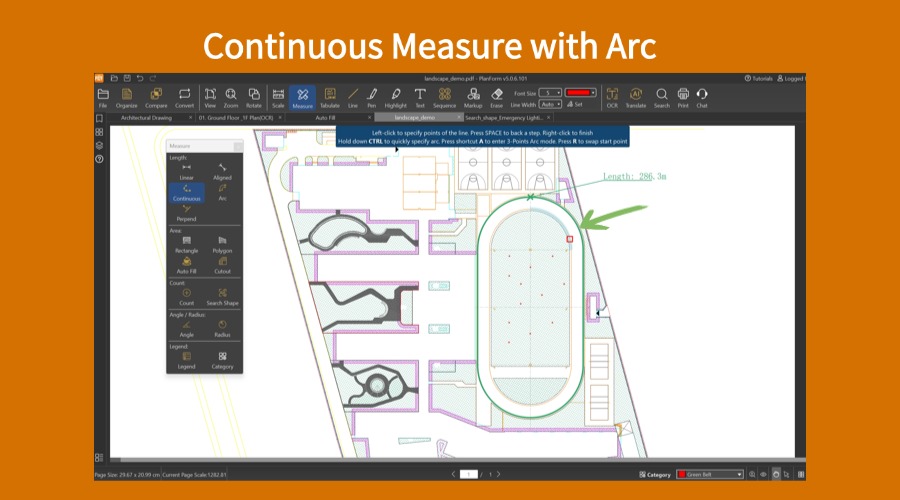
PlanForm now supports continuous measurement with arcs for for smoother and more accurate takeoffs.
Try it now: pdf.fastcadreader.com/
#PlanForm #PDFReader #ContinuousMeasurement #MeasurementTool #Engineering #Architecture
5

May 16
タブレットで図面チェックする時、なんのアプリ使ってますか、、、?私は図面をPDFにかけてGoogleDriveとPDFReaderを紐付けてipadに入れたPDFReaderで赤入れのチェックしてるんですけど、その他良い方法ないですか、、?
48

🚀 Launched Adhyay PDF Reader for Windows!
Built with Flutter 💙
✨ Lightweight
✨ Fast PDF Reading
✨ Clean UI
✨ Desktop Support
🌐 Download 👇
supread.netlify.app/
#Flutter #WindowsApp #PDFReader #BuildInPublic
24

PDFを自動で1ページずつ分割する方法。
Pythonのpypdfを使う。
from pypdf import PdfReader, PdfWriter
reader = PdfReader("input.pdf")
for i, page in enumerate(reader.pages):
writer = PdfWriter()
writer.add_page(page)
with open(f"page_{i 1}.pdf", "wb") as f:
writer.write(f)
月末に手作業で分割している人は、これを1度書くだけで終わる。
16


Apr 28
افتح ملفات PDF على أندرويد بسهولة أكبر!
إذا كنت تواجه مشكلة في فتح ملفات PDF أو تريد قارئ PDF أفضل لهاتفك، هذا المقال سيوفر لك الحل الكامل مع خطوات واضحة وسريعة.
updf.com/ar/mobile-app/how-t…
#قارئ_PDF #أندرويد #PDFReader
29
🚀 Introducing Adhyay PDF Reader
Fast, lightweight & simple PDF app 📄
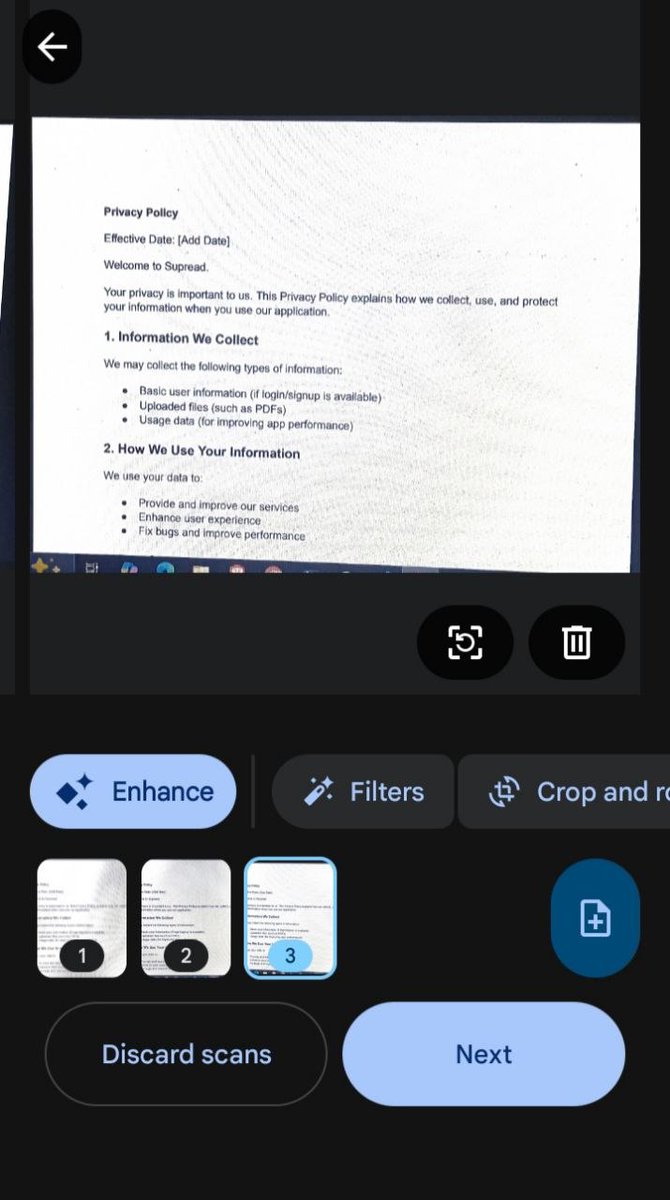
✔️ Scan to PDF
✔️ Open & read
✔️ Share instantly
No clutter. Just performance.
👉 Download: supread.netlify.app/
💬 Feedback welcome!
#Adhyay #PDFReader #Startup

15

Apr 15
I just want a quick and simple PDF viewer on android. So I created one. Check out "PDF View And Launch" play.google.com/store/apps/d… via @GooglePlay #android #pdfviewer #pdfreader
34

クレジットの出費が多いのでカード明細をチェックしていたら、PDFLEADERという覚えのないところから月5000も落ちていた。覚えがないのだが、どうやら無料を装ったウェブサービスのアドビのPDFreader の類似サイトを使ってしまった記憶が蘇る。以前は受付は日本語でできて、停止は英語メールでないと出来ないという意地悪があったが、今は即時翻訳が当たり前になり、企業側もその手はつかえない。支払い停止を申し入れたら、即時停止してくれたが、2年間の無料使用サービスはいかがですか?だとまたこちらが失念することを期待しているのがわかる。やれやれである。みなさんもカード明細要チェックですよ。でも、5000円だから必死になったけど、500円だったら、スルーしてしまったかも。
Apr 10

知り合いから聞いた話が、あまりにもリアルだったので書いておく。
サブスクを解約しようと思い、解約専用の電話番号に何度かけても繋がらなかったらしい。
10分、20分、30分。保留音だけが流れ続けた。「もう諦めようかな」と思いかけたとき、ふと試してみたことがあった。
同じ会社の、申し込みフォームに載っている番号にかけてみた。
2コールで繋がった。
「なんで?」と思ったらしい。
でもこれは偶然じゃない。構造的な話だ。
多くの企業にとって、解約は「損失」で、申し込みは「利益」だ。
だからオペレーターの数が、そのまま優先順位に反映される。
申し込み窓口には人を厚く配置し、解約窓口は意図的に繋がりにくくする。
待たせることで「面倒だからまあいいか」と諦めさせる。
これはダークパターンと呼ばれる、企業が意図的に設計したユーザー体験の罠だ。
その知り合いは申し込み窓口から繋いでもらい、そのまま解約の手続きを取り次いでもらったらしい。
担当者は少し戸惑っていたが、断られることはなかった。
知っておくと役立つ対抗手段がある。
解約電話が繋がらないとき、申し込み番号に電話する。それでも対応されない場合、「解約の意思を内容証明郵便で送る」と伝えると、対応が急に変わることがある。
契約上、解約の意思表示は書面でも有効だからだ。
企業が設計した「諦めさせる仕組み」に気づいた瞬間、もう騙されない。
9
48
10,031

Apr 13
これって、ブラウザをPDFreaderにしてたら、リスク軽減されるのかな?(それはそれでだとは思うけど)
Apr 12

72時間以内の更新を推奨──「PDFを開くだけで乗っ取られる」アドビリーダーのゼロデイ攻撃が進行(Forbes JAPAN)
#Yahooニュース
news.yahoo.co.jp/articles/6b…
132
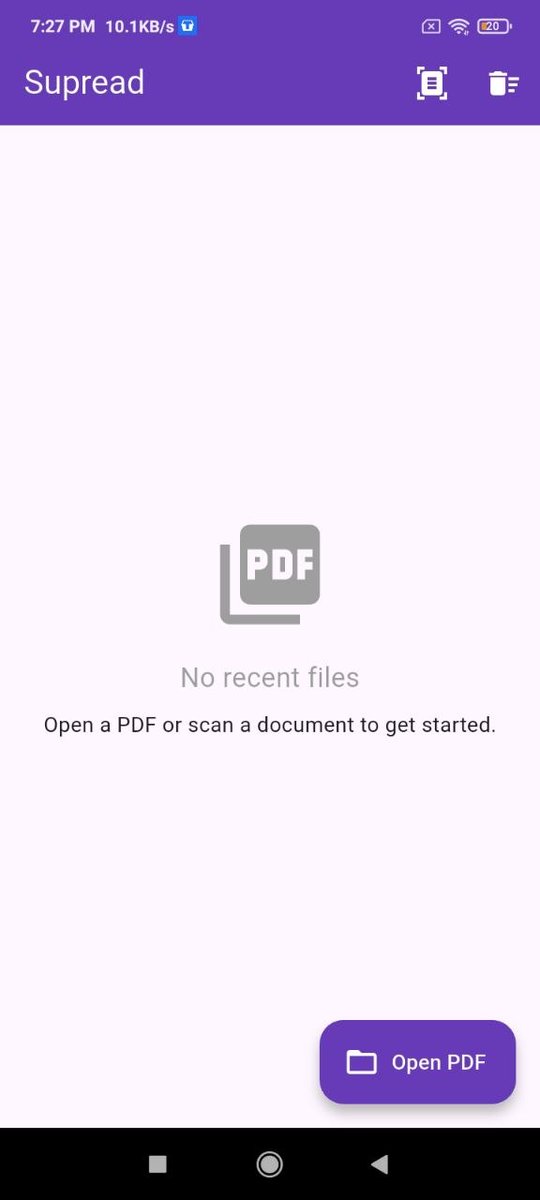
🚀 Introducing Supread — your smart PDF reader!
Read, edit & manage PDFs effortlessly. Fast, clean & built for productivity.
Try it now 👉 supread.netlify.app
#Supread #PDFReader #Productivity #Startup #Tech

16

初年度担当の先生方はAdobe PDFreaderを入れろと新入生に案内するが、PCサポーターとしては入れさせてない
正直Chromeでいいのと、どうせClassroomを導入させるので結局Googleとは手を繋ぐわけでして…みたいなとこ
2
74