
When combining multiple PDFs, check for hidden annotations or comments. Flatten text layers to maintain consistent searchability. Use OCR on scanned pages to make documents selectable and searchable by keyword. #PDFtips #DigitalProductivity
1
Merge PDFs by ordering your pages in advance to avoid later fixes. Inspect page breaks and bookmarks after combining to ensure smooth navigation. To shrink file size, remove unused images and embed only necessary fonts. #PDFtips #DigitalProductivity
4
When compressing a PDF, downsample high-res images and remove hidden data to reduce file size. For signing, flatten form fields first to lock content in place. Always verify the final document visually before sharing. #PDFtips #Paperless
1
6

How to Make All Checkboxes the Same Size in a Fillable PDF Form using Fo...#FoxitPDFEditor #FillablePDFForm #PDFForms #PDFEditing #Checkboxes #FoxitTutorial #PDFEditor #FormFields #PDFTips #DocumentEditing youtu.be/1tAOBrFvOdI?si=3tqr… via @YouTube
1
Batch signing multiple PDF pages at once saves time and ensures consistent certification. Embedding metadata fields keeps files organized and searchable. Verifying the OCR layer after scan conversion maintains text searchability. #PDFtips #Paperless
5
Before compressing a PDF, crop scanned margins and remove hidden metadata. Lower image resolution slightly to balance clarity and file size. Flatten form fields to reduce layers without losing text. #PDFtips #Paperless
1
4
Combine PDFs by reviewing page order first to prevent unnecessary edits. Use clear file names after merging to stay organized. Before sharing, check final size and remove hidden elements to keep documents clean. #PDFtips #Paperless
5
Embed fonts before exporting to PDF to ensure consistent text rendering across devices. Remove unused elements like hidden layers or bookmarks to reduce file size. #PDFtips #DigitalProductivity
1
4
Split large PDFs into sections to make merging easier. Remove unused pages and downsample images to reduce file size before compression. Convert scanned pages via OCR for better searchability. Apply a digital signature to verify authenticity. #PDFtips #DigitalProductivity
2
Before merging PDFs, rename files with leading numbers to set the merge order automatically. This simple step can save editing time and prevent misordered pages. #PDFtips #Paperless
When merging PDFs, maintain consistent page numbering and use bookmarks to preserve navigation. Flatten form fields to prevent interactive element conflicts. #PDFtips #Paperless
2
Ensure all pages share the same orientation and margin settings before combining. This prevents unexpected layout shifts in the final file. Add bookmarks for each section to improve navigation in large documents. #PDFtips #Paperless
9
Remove blank or duplicate pages before merging PDFs to keep the file concise. OCR makes scanned documents searchable. Adjust image resolution only when needed to balance clarity and size. #PDFtips #Paperless
1
Combine PDFs with matching page sizes and orientations. Update bookmarks and page numbers after merging. Compress by lowering image DPI, removing embedded fonts, and clearing metadata. #PDFtips #Paperless
4
Before merging PDFs, remove duplicate or outdated pages and reorder the rest by section. A logical sequence makes navigation simpler and saves time during reviews. #PDFtips #DigitalProductivity
6
Enable text search and copying in scanned PDFs by running an OCR process. Check for correct recognition and adjust settings to improve accuracy. Saving as PDF/A ensures long-term compatibility. #PDFtips #DigitalProductivity
2

May 29
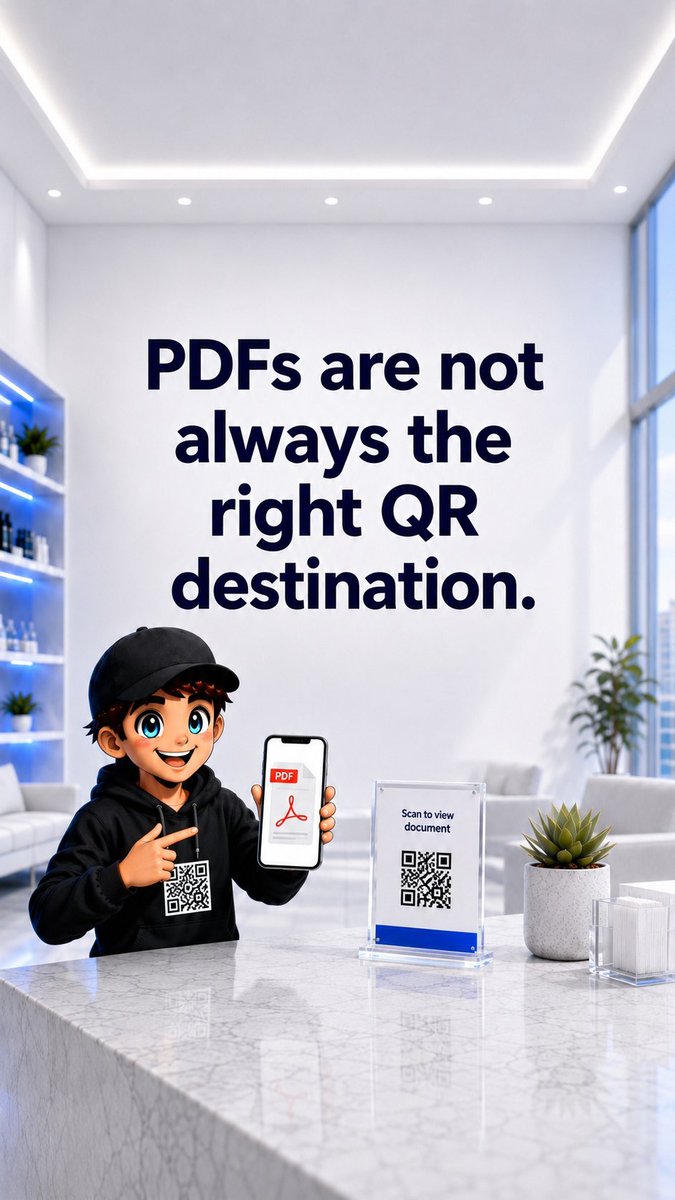
PDF QR Destination Problem
PDFs can work, but they often create a bad mobile experience. Before using a PDF QR, ask if a mobile page, menu, form, or video would work better.
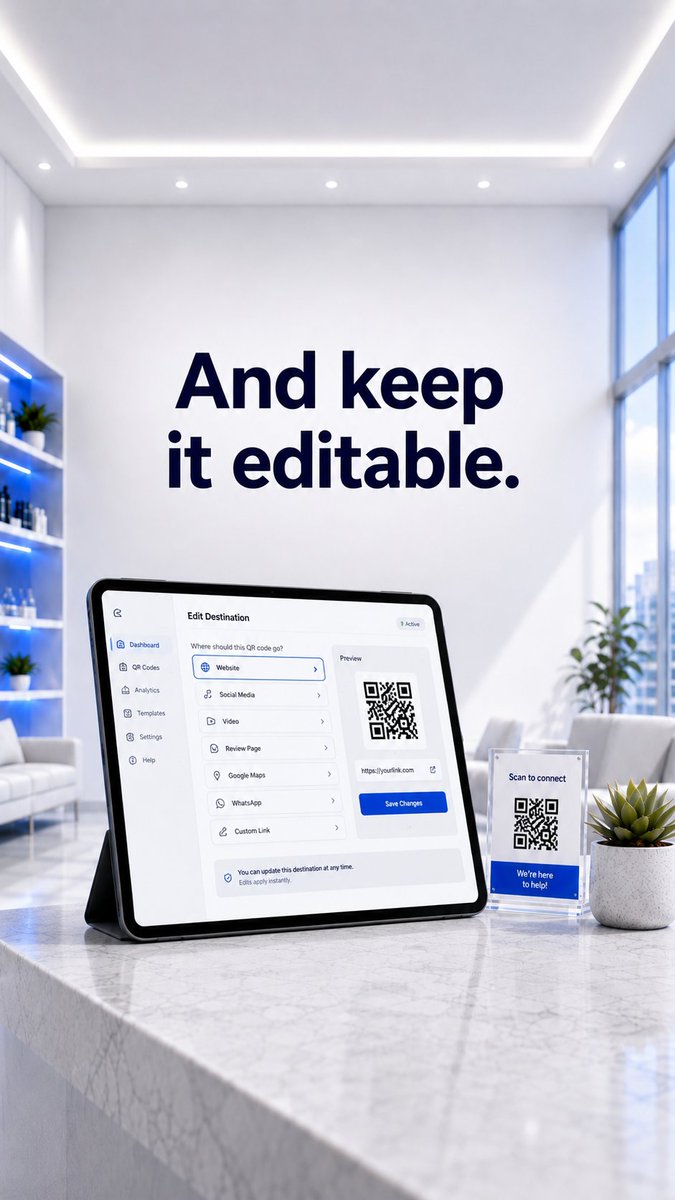
With QRMaster, you can choose the right destination and keep it editable after printing.
qrmaster.net
#QRCode #DynamicQRCode #PDFTips #UXDesign #QRMaster


6
When merging multiple PDFs, arrange pages by topic or date in advance. Renaming source files with clear labels helps maintain order. After combining, check bookmarks and metadata. A clean structure improves navigation and reduces review time. #PDFtips #DigitalProductivity
9
Flatten layers before compression to reduce file size without affecting text clarity. Downsample images to 150 dpi for on-screen use and embed only necessary fonts. #PDFtips #DigitalProductivity
3
Remove hidden layers and unused objects to slim a PDF before saving. Embed fonts to avoid substitution and preserve layout. Linearize for faster page-by-page web viewing. Flatten form fields to cut file size and improve compatibility. #PDFtips #Paperless
6