
Apr 4
Explainer: ટુ-ફેક્ટર ઓથેન્ટિકેશન (2FA) શું છે? જાણો સરકાર કેમ આ નવી ટેકનોલોજી પર મૂકી રહી ભાર
#TwofactorAuthentication #onlinesecurity #accountprotection #authenticationmethods #Gujaratinews
zeenews.india.com/gujarati/t…
145

reintech.io/blog/enabling-2f…
やったの基本これだけです
auth required pam_google_authenticator.so
で ヌルオーケーにして
AuthenticationMethods publickey,password publickey,keyboard-interactive
はいじらなかったくらい
1
2
68
Here is my working configuration. Some users have authenticator enabled and some don't, and only SSH logins with public keys are permitted, never passwords.
In /etc/ssh/sshd_config,
UsePAM yes
PasswordAuthentication no
ChallengeResponseAuthentication yes
AuthenticationMethods publickey,keyboard-interactive
PermitEmptyPasswords no
In /etc/pam.d/sshd,
# Standard Un*x authentication.
#@include common-auth
# Require authenticator, if not configured then allow
auth required pam_google_authenticator.so debug nullok
auth required pam_permit.so
@include comon-auth must be disabled because it includes pam_unix, which I don't want to use. Then you need pam_permit to make authentication successful for users without authenticator (for which pam_google_authenticatorreturns ignore rather than pass).
serverfault.com/questions/10…
/etc/pam.d/sshd は
# Standard Un*x authentication.
#@include common-auth
# Require authenticator, if not configured then allow
auth required pam_google_authenticator.so debug nullok
auth required pam_permit.so
のように設定するんやでって書いてありますね
1
2
61

3 Sep 2024
fail2ban es susceptible de ataques de IP spoofing, pudiendo bloquear tráfico legítimo si el atacante sabe nuestras IPs. Si configuramos SSH con "AuthenticationMethods publickey" y deshabilitamos root, ¿sigue siendo fail2ban relevante?
1
5
184

8 Mar 2024
Do you have 2FA for your SSH access on your server? If not, here is how you can setup 2FA with an authenticator app.
👇
First, you need to install the Google Authenticator package:
sudo apt-get install libpam-google-authenticator
Then run the app to configure it:
$ google-authenticator
Do you want authentication tokens to be time-based (y/n)
Answer `yes`, and read the QR code in your app of choice, then enter the generated code and make sure you save your recovery codes.
Answer `yes` to the "Do you want me to update your "/root/.google_authenticator" file? (y/n)" question.
Set the rest of the config options based on your preference and threat level (rate-limiting is highly recommended).
Next, we'll need to enable the 2FA for `sshd` by editing `/etc/pam.d/sshd`. Find the line "@include common-auth", and comment it out, then append this to the end of the file:
auth required pam_permit.so
auth required pam_google_authenticator.so nullok
Now open "/etc/ssh/sshd_config" and:
- find "KbdInteractiveAuthentication" and set it to "yes"
- find "ChallengeResponseAuthentication" and set it to "yes"
- find "AuthenticationMethods" and set to "publickey,keyboard-interactive"
If you can't find these settings, just append them as new lines to the end of the file.
Restart "sshd" by running "sudo service sshd restart". You'll then have 2FA enabled for SSH on your server.
1
1
13
1,008

15 Feb 2024
Discover most secure IoT Device Authentication Protocols for seamless connectivity and protection.
globalcybersecurityassociati…
#IoTsecurity #DeviceAuthentication #Protocols #Cybersecurity #DataProtection #AuthenticationMethods #NetworkSecurity #GCA #GlobalCybersecurityAssociation
1
86

31 Dec 2023
The #password identity crisis: Evolving #authenticationMethods in 2024 & beyond
#authentication #cloud #SaaS #devices #networks #CyberSecurity #Passkeys #Biometric
buff.ly/47mCSkS

1
1
1
67

30 Dec 2023
The #password identity crisis: Evolving authentication methods in 2024 & beyond
ow.ly/N2I450QmJPF
#AuthenticationMethods #Cybersecurity #DigitalIdentity #TwoFactorAuthentication #IdentityVerification #security #cybersecurity #tech

5
4
390

22 Sep 2023
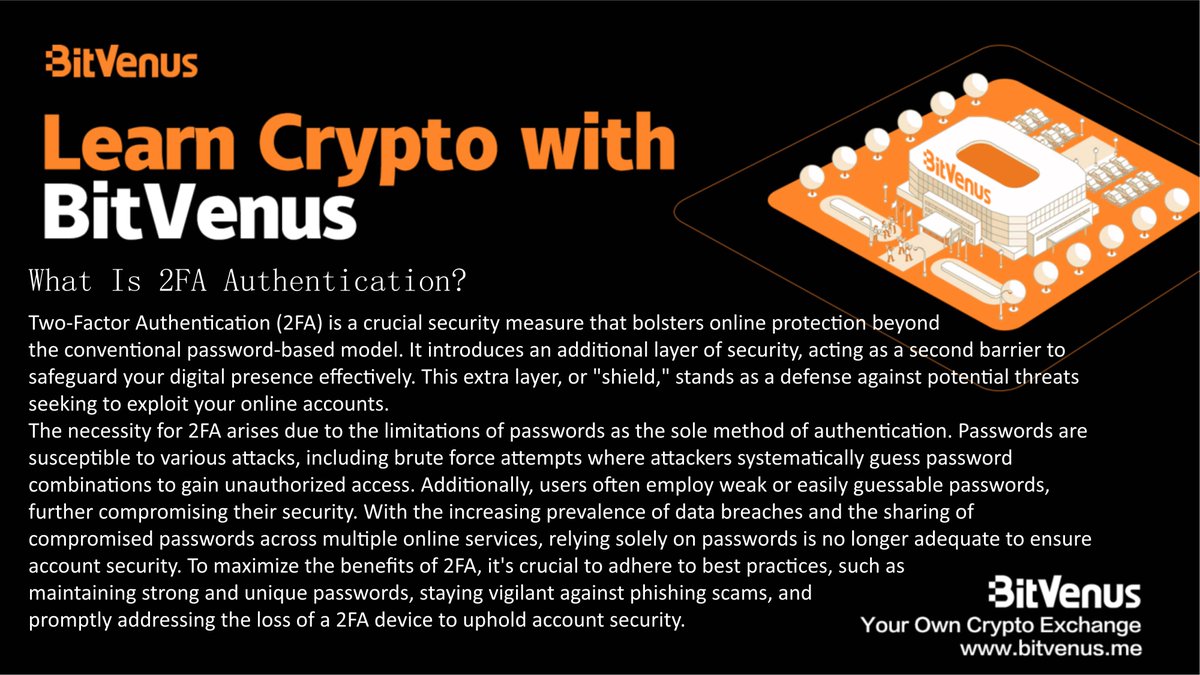
Learn Crypto with Bitvenus
#2FA #TwoFactorAuthentication #OnlineSecurity #PasswordProtection #Cybersecurity #DigitalProtection #AuthenticationMethods #AccountSecurity #DataProtection #CyberSafety
1
3
82

Attention all IT professionals!
Starting early July 2023, Microsoft managed will be rolled out as enabled for system-preferred authentication (MFA).
𝐖𝐡𝐚𝐭 𝐢𝐬 𝐒𝐲𝐬𝐭𝐞𝐦-𝐏𝐫𝐞𝐟𝐞𝐫𝐫𝐞𝐝 𝐌𝐮𝐥𝐭𝐢𝐟𝐚𝐜𝐭𝐨𝐫 𝐀𝐮𝐭𝐡𝐞𝐧𝐭𝐢𝐜𝐚𝐭𝐢𝐨𝐧 (𝐌𝐅𝐀):
In today's landscape, organizations and users utilize various authentication methods with varying levels of security. Unfortunately, users often select less secure MFA methods, even when more secure options are available. This may be due to convenience, lack of awareness, or technical limitations.
To encourage the use of the strongest available method, Microsoft is introducing system-preferred authentication for MFA. This system prompts users to sign in with the most secure method they've registered and the one that's enabled by admin policy.
This transition from choosing a default method to always using the most secure method will promote better security practices. If users can't use the prompted method, they can choose an alternative MFA method.
𝐇𝐨𝐰 𝐢𝐭 𝐰𝐨𝐫𝐤𝐬:
Imagine a user named "John Doe" registered both SMS and Microsoft Authenticator and used SMS as the default option to sign in. The system-preferred method (Authenticator) will be presented to the user once the feature is enabled.
𝐖𝐡𝐞𝐧 𝐭𝐡𝐢𝐬 𝐰𝐢𝐥𝐥 𝐡𝐚𝐩𝐩𝐞𝐧:
The rollout will begin in early July and is expected to be completed by early August.
𝐇𝐨𝐰 𝐭𝐡𝐢𝐬 𝐰𝐢𝐥𝐥 𝐚𝐟𝐟𝐞𝐜𝐭 𝐲𝐨𝐮𝐫 𝐨𝐫𝐠𝐚𝐧𝐢𝐳𝐚𝐭𝐢𝐨𝐧:
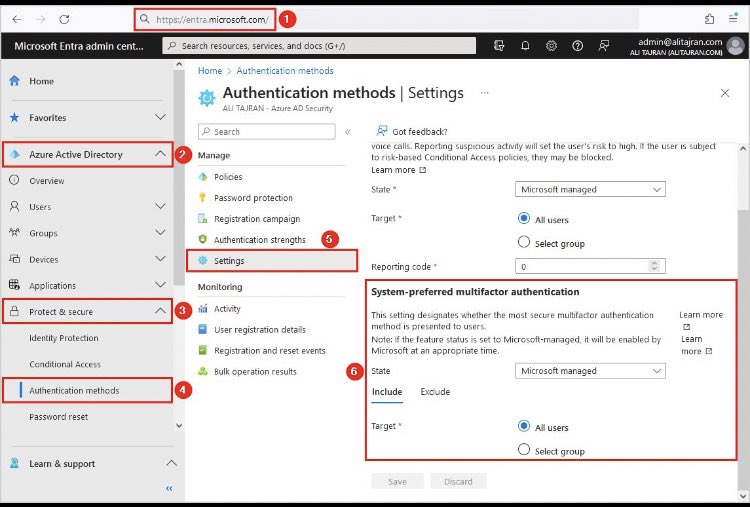
Microsoft managed will be rolled out as enabled for system-preferred authentication (MFA). Admins will have control to enable/disable the feature via the admin UX in the Azure Portal (or GraphAPI):
1. Microsoft Entra (entra.microsoft.com)
2. Azure Active Directory
3. Protect & Secure
4. Authentication Methods
5. Settings
6. System-preferred multifactor authentication
𝐅𝐞𝐚𝐭𝐮𝐫𝐞 𝐥𝐚𝐮𝐧𝐜𝐡:
It's launched with Microsoft-managed set to disabled. As mentioned above, the setting "Microsoft-managed" will be set to enabled from early July 2023.
While it is highly encouraged to adopt this feature for your entire tenant, should you need to, you can either scope the feature for a segment of your user population or disable it if necessary.
The feature will ultimately be set to Microsoft-managed (enabled) for all tenants, with no option to disable it.
𝐖𝐡𝐚𝐭 𝐲𝐨𝐮 𝐧𝐞𝐞𝐝 𝐭𝐨 𝐝𝐨 𝐭𝐨 𝐩𝐫𝐞𝐩𝐚𝐫𝐞:
Enhance security for your organization with System-Preferred Multifactor Authentication (MFA).
Deploying this feature with the rollout controls is highly encouraged to enhance security and ensure users always use the most secure authentication method first.
It's strongly recommended that tenants enable the feature.
#MFA #MultifactorAuthentication #Cybersecurity #Security #AuthenticationMethods #Microsoft #EnhancedSecurity #ITSecurity #DataProtection #UserSecurity #Technology #CloudSecurity #AzureActiveDirectory #Azure
7
589

12 Jun 2023
Take your security to the next level. Learn more about our offerings at Securify Identity.
securifyidentity.com/package… #SecurifyIdentity #CyberSecurity #IAM #AuthenticationMethods #BehavioralBiometrics#ReverseFactorAuthentication
1
3
177

24 Jan 2023
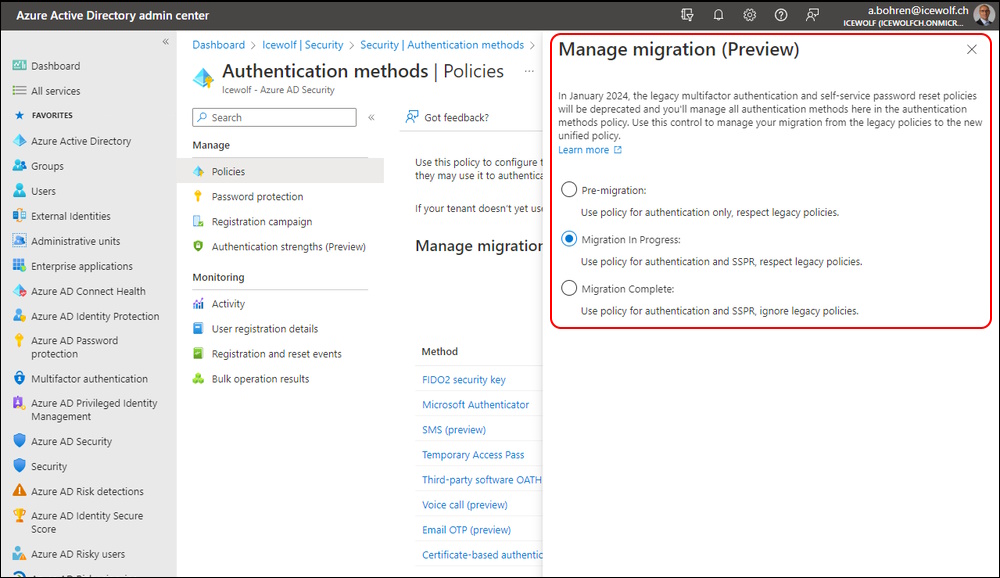
🚨Migrate #MFA and #SSPR #AuthenticationMethods in #AzureAD. Change will come anyway in January 2024. So prepare yourself...
bit.ly/3wxcrsE
1
5
435

2 Aug 2022
Anyone know why an SSH user would suddenly stop accepting publickey as an authentication method?
In /etc/ssh/sshd_config:
AuthenticationMethods publickey,keyboard-interactive
$ ssh user@sever
>> Permission denied (keyboard-interactive).
5
3

31 May 2022
Mozebi port change za pomala guzva vo log, fail2ban default, AuthenticationMethods "publickey,password" "publickey,keyboard-interactive", i sl. Vidov vo security.stackexchange.com/q…
1
2

24 Aug 2021
PermitRootLogin no
PermitEmptyPasswords no
# pubkey TOTP
AuthenticationMethods publickey,keyboard-interactive:pam
UsePAM yes
AllowUsers onlymyuser
12

2 Mar 2021
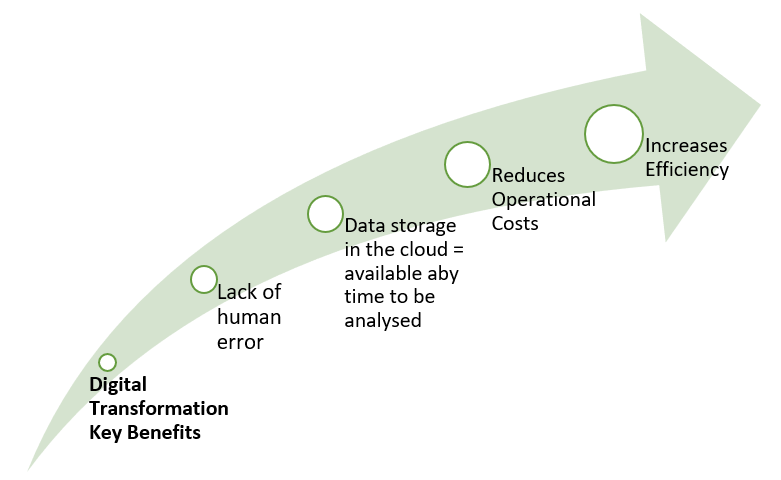
How Corona is driving Digital Transformation
#AUTHENTICATIONMETHODS, #AUTOMATED, #COVID, #DIGITALISED, #HUMANERROR, #CLOUD, #DIGITALTRANSFORMATION buff.ly/3iUz569
2
1

6 Feb 2021
علاوه بر passphrase ست کرد برای کلید، در تنظیم sshd هم AuthenticationMethods publickey,password بزنی که هم کلید اجباری باشد، هم رمز کاربر ریموت. همه این رمزها Random باشد در password manager که آن هم یک Master password داشته باشد. 2FA هم اضافه بکنی. بعد یکیش گم بشود.
3
28 Jan 2021
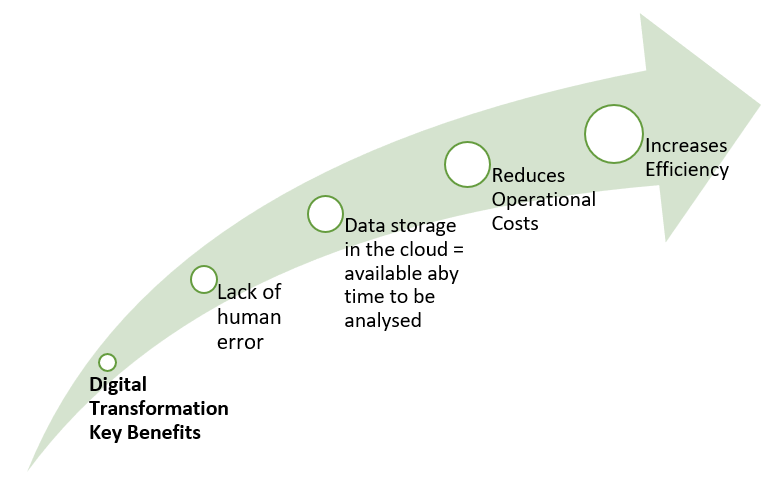
How Corona is driving Digital Transformation
#AUTHENTICATIONMETHODS, #AUTOMATED, #COVID, #DIGITALISED, #HUMANERROR, #CLOUD, #DIGITALTRANSFORMATION buff.ly/3iUz569
1
1
25 Nov 2020
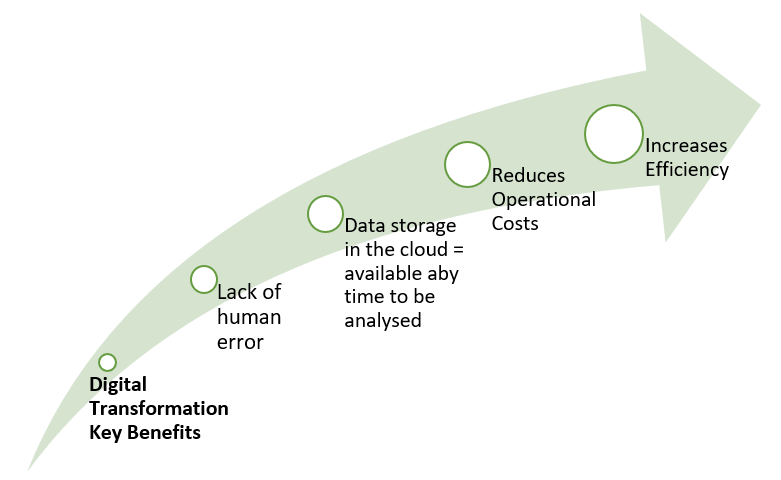
How Corona is driving Digital Transformation
#AUTHENTICATIONMETHODS, #AUTOMATED, #COVID, #DIGITALISED, #HUMANERROR, #CLOUD, #DIGITALTRANSFORMATION buff.ly/3iUz569
1
2
7 Oct 2020
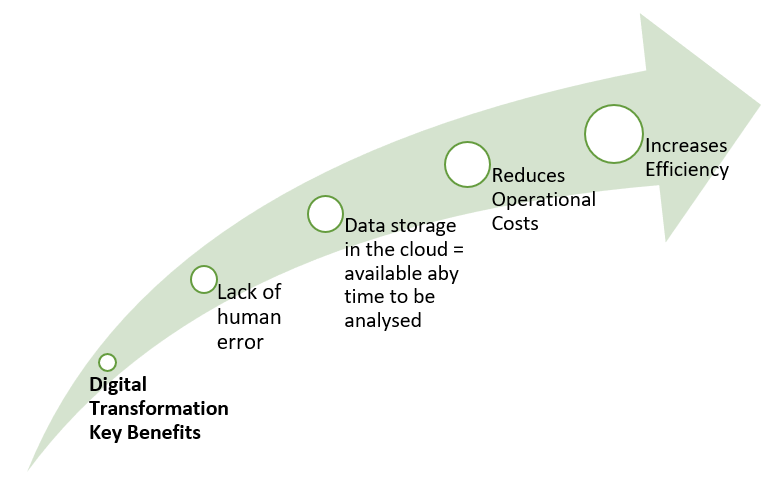
How Corona is driving Digital Transformation
#AUTHENTICATIONMETHODS, #AUTOMATED, #COVID, #DIGITALISED, #HUMANERROR, #CLOUD, #DIGITALTRANSFORMATION buff.ly/3iUz569
2
5