Official X of the CSUF Police Department. Not monitored 24/7. Emergency: Call 9-1-1. Media: upd.pio@fullerton.edu/(657) 279-7399
- Tweets 3,287
- Following 582
- Followers 2,625
- Likes 3,570
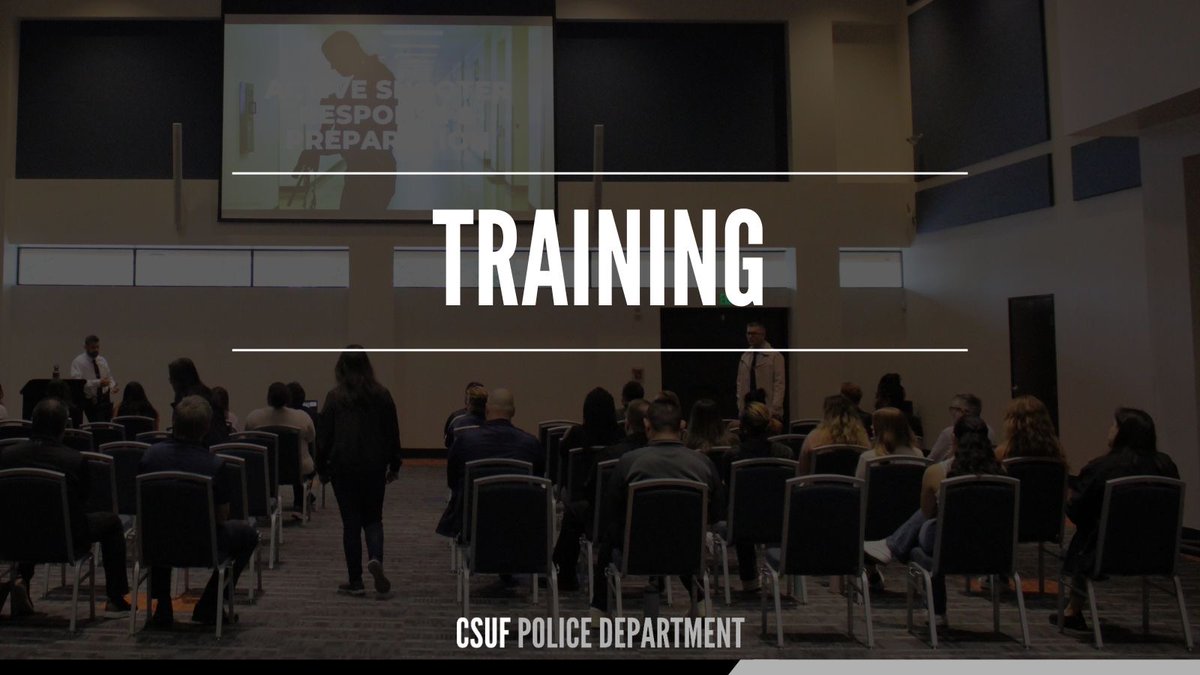




ALT The image shows a dimly lit training presentation inside an auditorium or conference room. Attendees are seated in rows facing a large screen at the front of the room. Large white text across the center reads “TRAINING,” with smaller text at the bottom reading “CSUF POLICE DEPARTMENT.” Two presenters stand near the front while a presentation is projected on the screen.

ALT The image shows a dimly lit training presentation inside an auditorium or conference room. Attendees are seated in rows facing a large screen at the front of the room. Large white text across the center reads “TRAINING,” with smaller text at the bottom reading “CSUF POLICE DEPARTMENT.” Two presenters stand near the front while a presentation is projected on the screen.
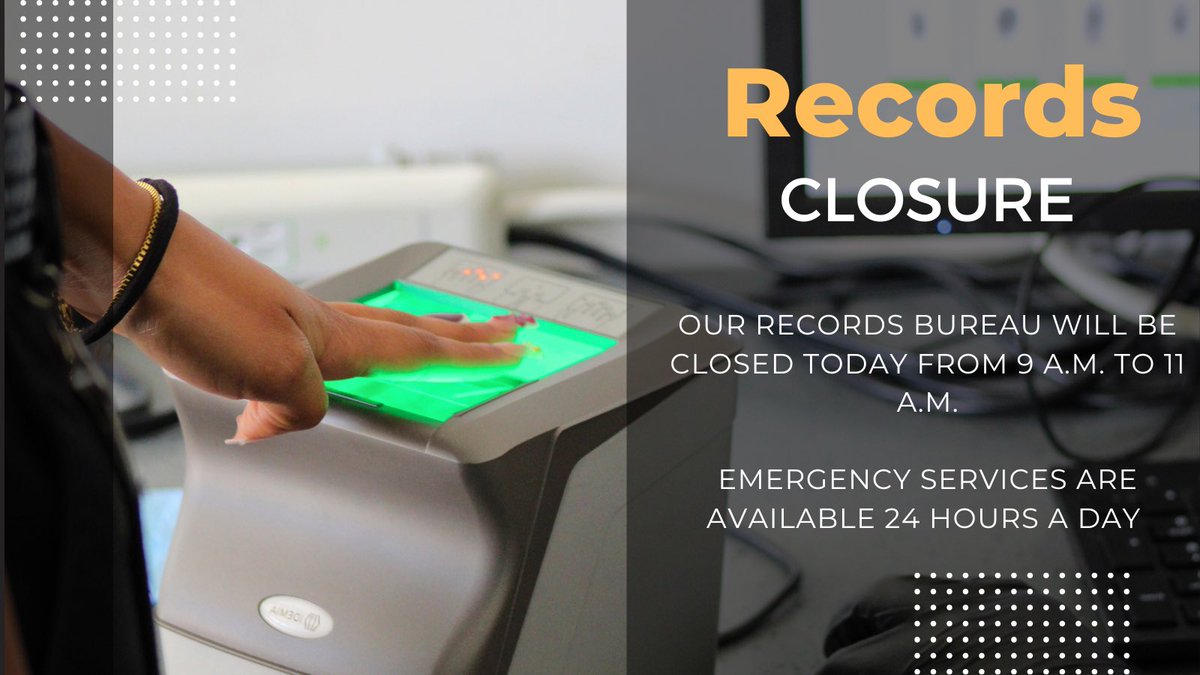
ALT A short social media graphic shows a person placing their hand on a glowing green fingerprint scanner. Text overlays read: “Records Closure” and “Our Records Bureau will be closed on June 8th from 9 A.M. to 11 A.M. Emergency services are available 24 hours a day.”
ALT Person holding dslr camera pointing towards opened laptop on table in near background.


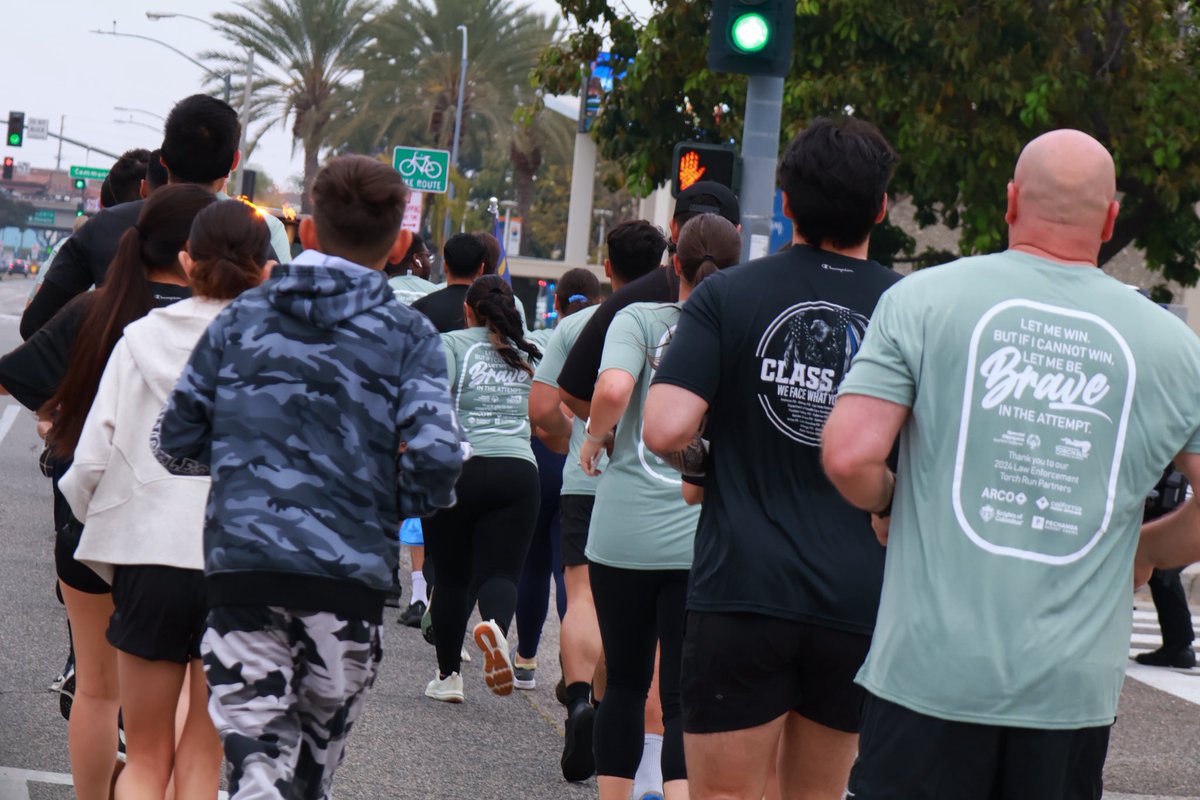
ALT A group of runners supporting Special Olympics Southern California jogs together down a city street lined with palm trees, wearing matching event T-shirts as they pass through an intersection with a green light.
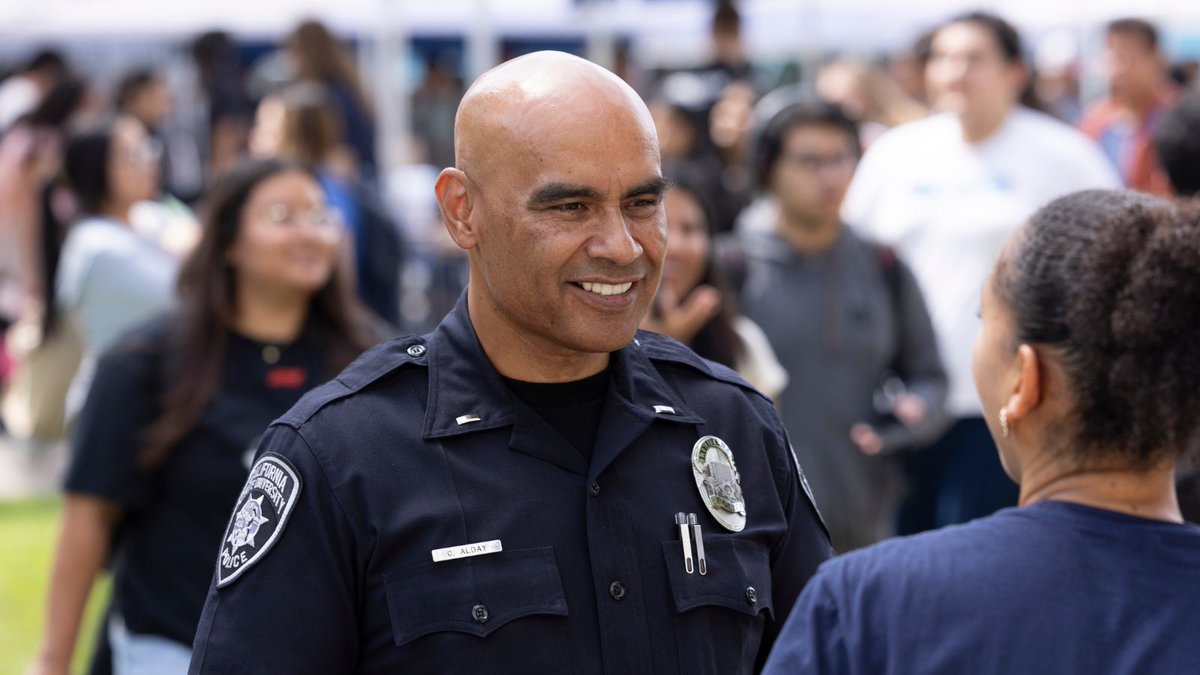
ALT Police officer in a black uniform smiles happily as he talks to a student.
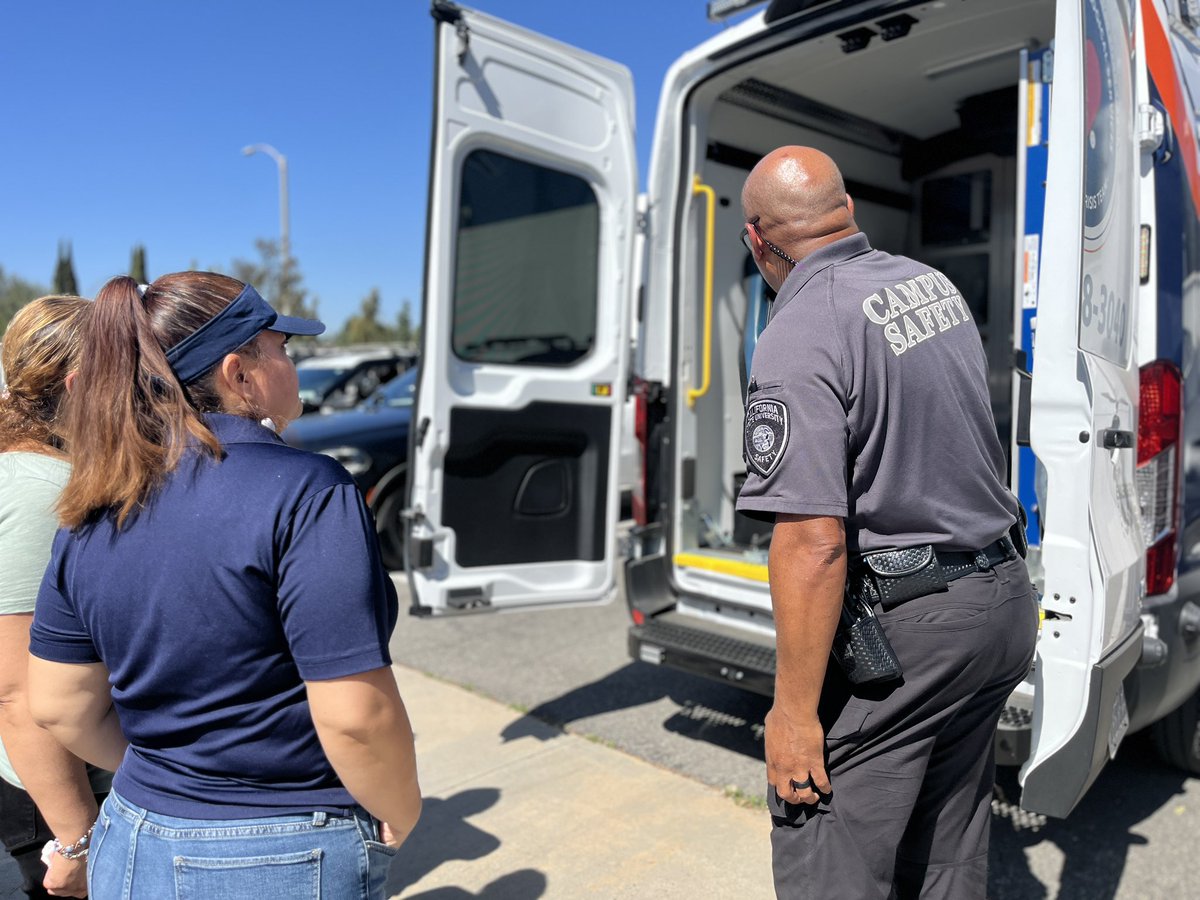
ALT Three people stand behind an open campus MCT van on a sunny day. A campus safety officer in uniform faces the van’s interior while two casually dressed individuals stand nearby, looking inside. The van’s rear doors are open, revealing steps and equipment, with parked cars and a clear blue sky in the background.
ALT Text in the middle says "Happy National Police Week." There is a collage of 6 photos featuring CSUF PD police personnel interacting with the community and within the department.