
Jun 1
most of the custom equipment and microtransaction weapons and the maps of HO are still there. but the points of ED now are expanded Forge, and mod syncing - you can join a multiplayer server and autodownload the mods it's running and it can be basically a totally different game
1
2
37

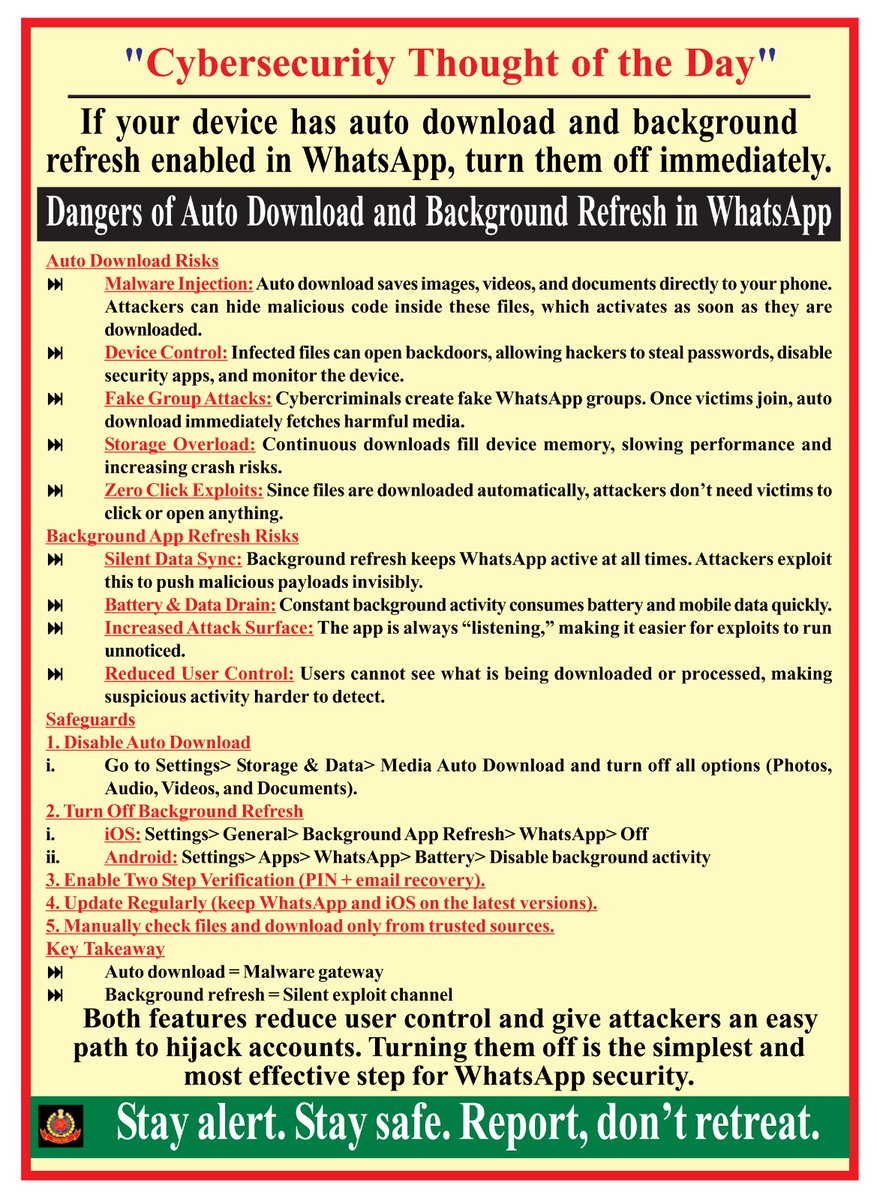
📍Turn OFF Auto Download & Background Refresh in #WhatsApp — NOW!
🔒 Why?
• #AutoDownload = #MalwareGateway
• #BackgroundRefresh = #SilentExploitChannel
👾 #Hackers hide #maliciouscode in #mediafiles, drain battery/data, and #hijack accounts without clicks.
✅ Safeguard Yourself:
Disable Auto Download (Settings → Storage & Data → Media Auto Download → Off)
Turn Off Background Refresh (#iOS/#Android Settings)
👉 One simple step = stronger #WhatsAppsecurity.
#CyberSecurity #WhatsAppSafety #DigitalSafety #DelhiPolice
2
115

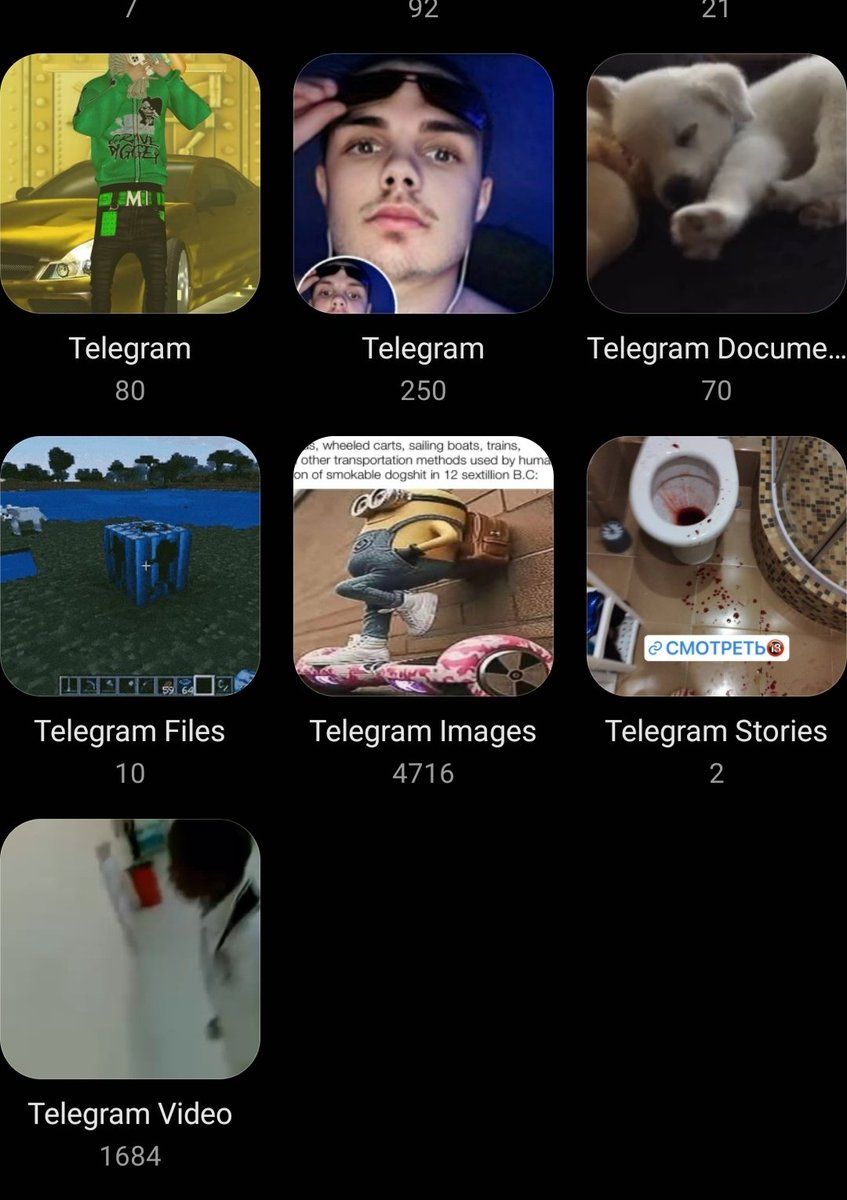
I wonder if there's a way to make it NOT AUTODOWNLOAD EVERYTHING I TOUCH into RANDOM FOLDERS
2
28

relevantly, a new server just opened up with a 128 player limit up from 32 max, and it also has simultaneous multi-map modded map support with autodownload
1
13
838

Mar 20
kayaknya dari autodownload atau gak elu pas ngirim entah foto video file dll ke orang lain. gua biasanya hapusin media apa aja yang pernah gua kirim ke orang lain atau yang pernah gua terima dari orang lain di kelola penyimpanan wa itu sik
4
5,647


Mar 10
men be like oh no we're flying a boeing 777 and expect u to know what that means. & then they have the temerity to pretend they didnt autodownload that knowledge when they turned 29
4
125
5,964

Mar 4
me personally i have never pirated but i heard from a friend that if you used media monkey, you could batch edit the meta data in a simple way and even have the cover art autodownload
Mar 4

when i was younger id download full albums, download cover arts and edit meta data on itunes and add all the cover arts, features and song credits
piracy is a part of me
1
2
224

Feb 21
OK I have this same exact computer. Lenovo legion. Here's a shitty tutorial on how I disabled windows updates and everything else.
COPYPASTED FROM NOTEPAD FOR NOW
WILL FORMAT IT NICELY ANOTHER DAY -_-
Disconnect from the internet.
Start by pressing Win R, type in "taskschd.msc", and press enter.
The task scheduler will pop up. Go to the following folders and disable the following tasks:
Task Scheduler Library
Microsoft
Windows
Application Experience
Microsoft Compatibility Appraiser <-- disable this
ProgramDataUpdater <-- disable this
StartupAppTask <-- disable this
Theres even more stuff to disable but windows wont let you unless youre a system user (higher privilege than admin)
We will also have to disable some things in windows services. Press Win R again, type in "services.msc", and press enter.
Find:
"connected user experiences and telemetry"
"windows update:
"update orchestrator service"
"windows update medic service"
double click each one, and select "disabled" in the dropdown menu. save.
When you're trying to do this, you'll notice that windows will sometimes say "ONLY SYSTEM USER CAN CHANGE THIS" and "YOU DONT OWN THIS COMPUTER, PEASANT"
Take out your win10 USB stick and plug it into a different computer, or if u dont have another computer, plug the USB stick into your smartphone with a usb-to-usbc dongle. Go to learn.microsoft.com/en-us/sy… (at the official microsoft website). Double check you typed this thing in correctly, because this tool youre about to download can do a whole bunch of shady stuff so you really wanna be downloading the real thing and not a knockoff.
Anyways, download PsTools onto your usb stick and plug it back into the windows 10 computer.
Right click it, extract all. Open the folder, copy PsExec, then go your C:\ drive and paste it right into the root.
[009]
Next, right click Command Prompt, and run it as administrator.
[101]
Type in:
C:\psexec.exe -i -s cmd.exe
Agree to the license agreement, and this will open a second command prompt, but this time running as SYSTEM.
This new one running as administrator is the one running as SYSTEM.
Now, you can disable all those tasks you couldnt before. Type in:
schtasks /Change /TN "\Microsoft\Windows\WindowsUpdate\Scheduled Start" /Disable
press enter
And nuke the others, too:
schtasks /Change /TN "\Microsoft\Windows\WindowsUpdate\Refresh Group Policy Cache" /Disable
schtasks /Change /TN "\Microsoft\Windows\WaaSMedic\PerformRemediation" /Disable
schtasks /Change /TN "\Microsoft\Windows\UpdateOrchestrator\Report policies" /Disable
schtasks /Change /TN "\Microsoft\Windows\UpdateOrchestrator\Schedule Scan" /Disable
schtasks /Change /TN "\Microsoft\Windows\UpdateOrchestrator\Schedule Maintenance Work" /Disable
schtasks /Change /TN "\Microsoft\Windows\UpdateOrchestrator\Schedule Scan Static Task" /Disable
schtasks /Change /TN "\Microsoft\Windows\UpdateOrchestrator\Schedule Wake To Work" /Disable
schtasks /Change /TN "\Microsoft\Windows\UpdateOrchestrator\Schedule Work" /Disable
schtasks /Change /TN "\Microsoft\Windows\UpdateOrchestrator\Start Oobe Expedite Work" /Disable
schtasks /Change /TN "\Microsoft\Windows\UpdateOrchestrator\StartOobeAppsScan_LicenseAccepted" /Disable
schtasks /Change /TN "\Microsoft\Windows\UpdateOrchestrator\StartOobeAppsScanAfterUpdate" /Disable
schtasks /Change /TN "\Microsoft\Windows\UpdateOrchestrator\UIEOrchestrator" /Disable
schtasks /Change /TN "\Microsoft\Windows\UpdateOrchestrator\USO_UxBroker" /Disable
schtasks /Change /TN "\Microsoft\Windows\UpdateOrchestrator\UUS Failover Task" /Disable
actually I went thru wayyyy more stuff than this and I disabled a ton.
DONT DISABLE IMPORTANT STUFF LIKE YOUR PIN NUMBER BY ACCIDENT THO LOL. ask AI (send a screenshot to chatgpt or gemini) if youre worried about some random extra shit youre disabling
heres a few more I disabled
schtasks /Change /TN "\Microsoft\Windows\SettingSync\BackgroundUploadTask" /Disable
schtasks /Change /TN "\Microsoft\Windows\UpdateOrchestrator\UpdateModelTask" /Disable
schtasks /Change /TN "\Microsoft\Windows\UpdateOrchestrator\Report policies" /Disable
also I recommend:
sc stop wuauserv
sc stop UsoSvc
sc stop WaaSMedicSvc
sc config wuauserv start= disabled
sc config UsoSvc start= disabled
sc config WaaSMedicSvc start= disabled
schtasks /Change /TN "\Microsoft\Windows\WaaSMedic\PerformRemediation" /Disable
net stop bits
sc config bits start= disabled
reg add "HKLM\SOFTWARE\Policies\Microsoft\WindowsStore" /v AutoDownload /t REG_DWORD /d 2 /f
reg add "HKLM\SOFTWARE\Policies\Microsoft\Windows\CloudContent" /v DisableWindowsConsumerFeatures /t REG_DWORD /d 1 /f
sc stop edgeupdate
sc stop edgeupdatem
sc stop ClickToRunSvc
sc config edgeupdate start= disabled
sc config edgeupdatem start= disabled
sc config ClickToRunSvc start= disabled
schtasks /Change /TN "\Microsoft\EdgeUpdate\MicrosoftEdgeUpdateTaskMachineCore" /Disable
schtasks /Change /TN "\Microsoft\EdgeUpdate\MicrosoftEdgeUpdateTaskMachineUA" /Disable
sc stop InstallService
sc config InstallService start= disabled
these last 2 lines kill even manual windows store installs. enable them back manually if u ever wanna use it again
Next, press Win R, type in "regedit" and press enter. Go to "HKEY_LOCAL_MACHINE\SOFTWARE\Policies\Microsoft\Windows\CloudContent" If theres no CloudContent, right click windows -> new -> key, name it "CloudContent". Inside CloudContent, right click -> new -> dword (32bit) name it DisableWindowsConsumerFeatures and set value to 1
Feb 21

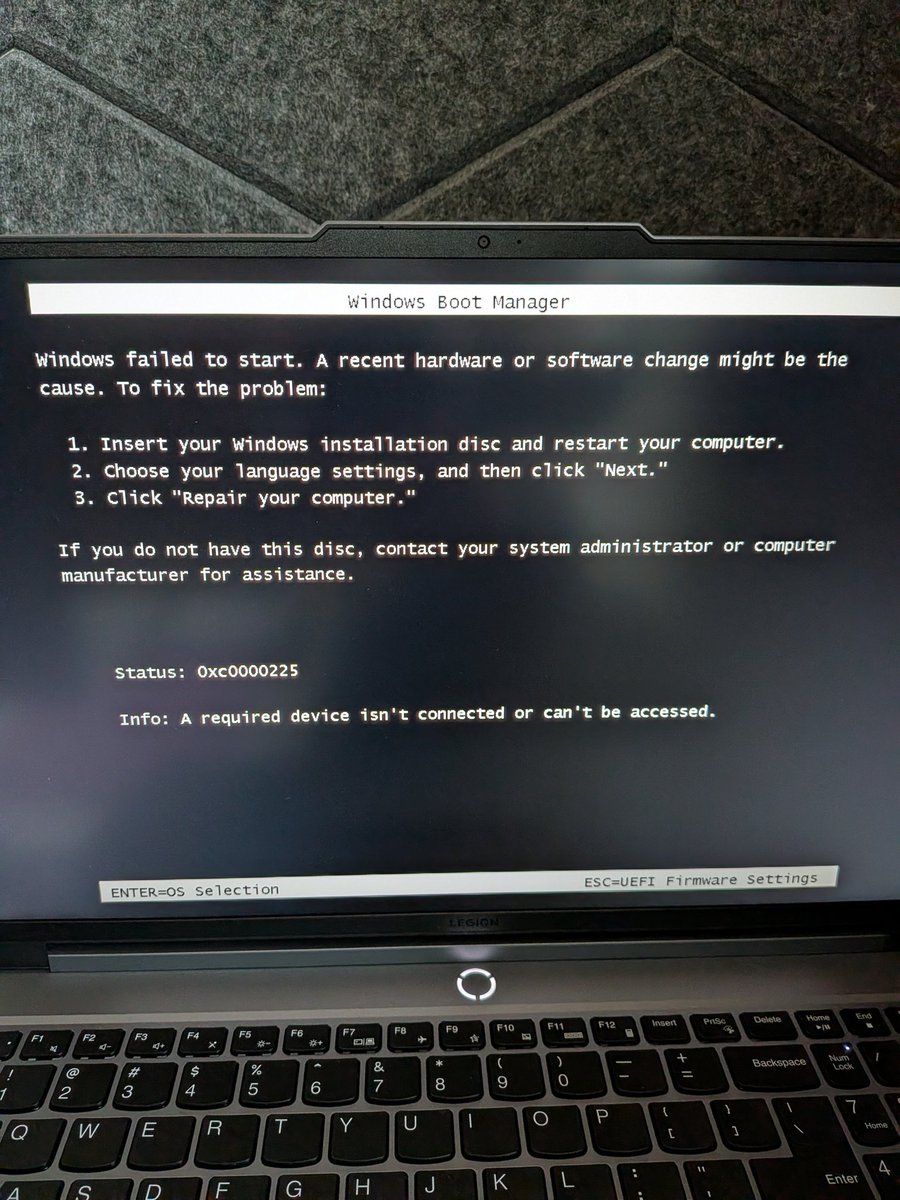
Fuck you Microsoft.
The last thing I did yesterday was update and shut down. Today I have no OS.
2
6
2,963

The difference between cowboy coding and vibe coding is outcome over output.
Fearless App launches in 8 days
Pre-order now - Autodownload with extra
Link in the bio
#scrum #scrumalliance #agile #certification #neurodivergent
52

Feb 11
sem nada pra faze fui olhar os esptenium files e começou um autodownload do arquivo PorqueEuMeMateiCom32TijoladasNoCranio.txt aqui famiglia
5
163
3,226

Sa sobrang cute autodownload. Credits po sa owner huhu.
1
40
236
3,770

24 Dec 2025
you autodownload this mod irl when you start estrogen btw
24 Dec 2025

2
20
695

13 Nov 2025
Having autodownload on while in a groupchat is so confusing cus I have random pictures in my gallery now
4
158


26 Aug 2025
wtf are you on, you literally CAN for years, it’s asking you about you wether you want or don’t want to autodownload on preload
1
10
372



7 Aug 2025
Turned off media autodownload on WhatsApp and I can't be happier
7 Aug 2025

*as soon as you send me a sticker, I steal it and add it to my collection 😌
2
3
148

11 Jul 2025
I was going to play Fallout 76 with my friends. I realized I downloaded the wrong one... bc I left it up to the autodownload ( 。 •̀ ᴖ •́ 。)
2
41