
Jun 14
Best Photoshop Shortcuts
Master the most useful keyboard shortcuts in Adobe Photoshop 2026 and speed up your design workflow like a pro.
Explore our unique 👇 designs!
......................... @badrbrand1
#Photoshop #KeyboardShortcuts #PhotoshopTips #GraphicDesign #PhotoEditing
1
9

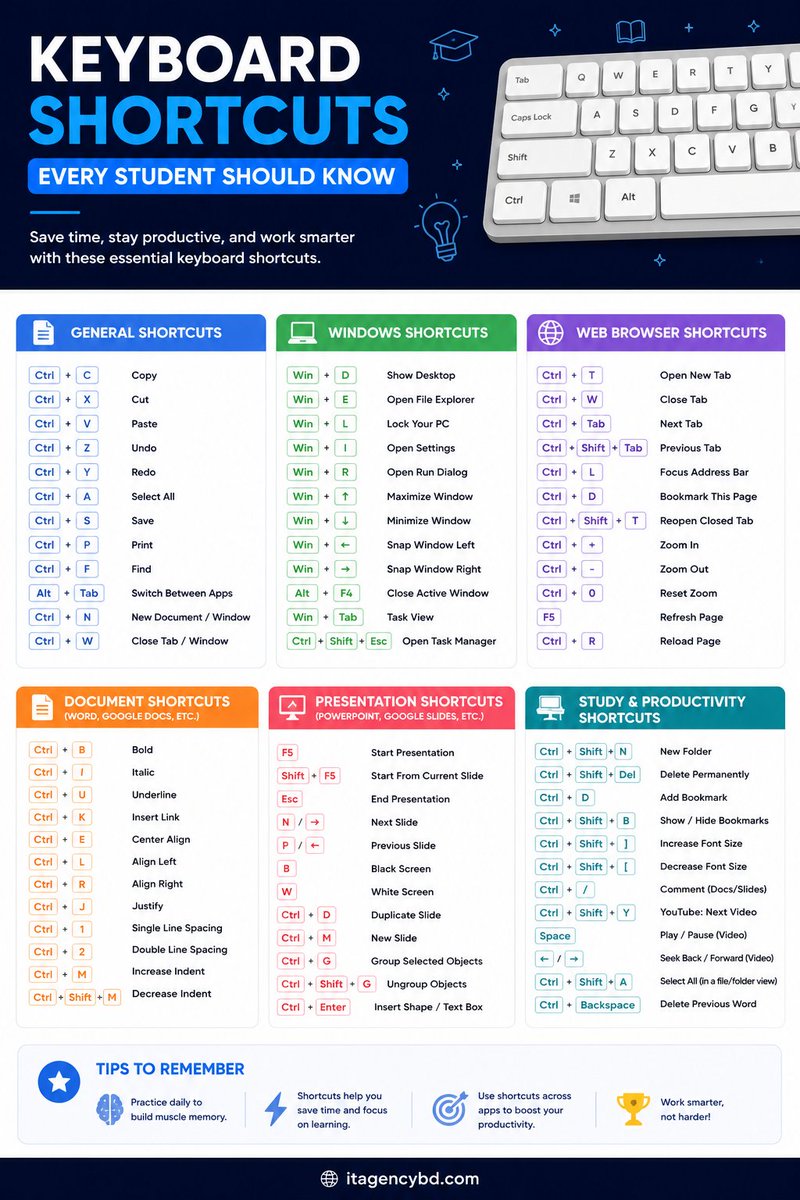
Stop wasting time clicking through menus! ⌨️ These keyboard shortcuts will seriously speed up your study sessions, assignments, and projects. Share with every student you know! 🎓
#KeyboardShortcuts #StudentTips #itagencybd #StudySmart #PCTips #WindowsShortcuts #StudentLife
2

Jun 12
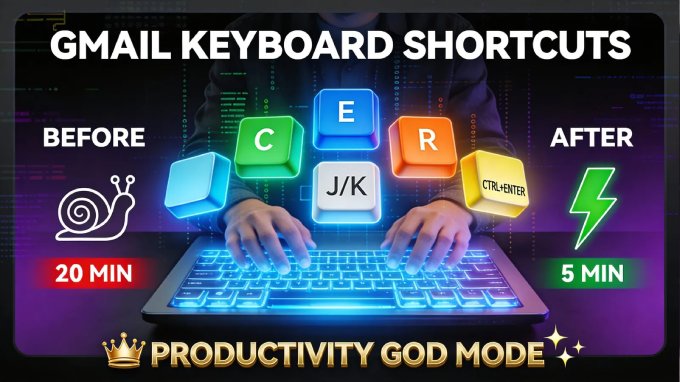
💡 Gmail: 10 Keyboard Shortcuts That Make You 3X Faster linkedin.com/pulse/gmail-key… #Gmail #KeyboardShortcuts #ProductivityHacks
10

Need emojis while typing on your computer?
Press: Windows .
That's it!
The emoji panel pops up instantly, giving you access to emojis, GIFs, symbols and more.
Small shortcut, big time saver.
#MobiGirlz #TechTips #KeyboardShortcuts #WindowsTips #ProductivityHack #trending
1
19

Jun 9
gist.github.com/koach-noir/3…
機能リクエスト: アプリ表示トグルに「モメンタリ(ホールド)」オプションを
Kanary のホットキーによるアプリ表示切り替えを愛用しています。今は1回押すと、
対象アプリが前面にないとき → 前面に表示
対象アプリが前面にあるとき → 非表示
という対称トグル(ラッチ)動作ですよね。これに加えて、「押している間だけその切り替えを適用し、離したら元の状態に戻す」モメンタリ(ホールド)モードをオプションで選べると嬉しいです。QMK でいう MO() を TG() の隣に置くイメージです。
現在の状態に対して対称に効くのが肝です:
対象アプリが非前面の状態でホールド → 押している間だけ前面表示、離すと直前のアプリに戻る(覗き見)
対象アプリが前面の状態でホールド → 押している間だけ一時的に引っ込め、離すと再び前面に戻す(裏をちら見)
ユースケース: 翻訳・メモ・リファレンスを“ちらっと見てすぐ戻る”、あるいは前面の作業ウィンドウを一瞬どけて裏を確認する。今の「行ったら留まる」トグルに対し、モメンタリは「押している間だけ」。両方を選べると操作の幅が大きく広がります。
実装の叩き台: 自作の音声入力アプリ(KiriVoice:近日公開予定)で同等のホールド機構を実装済みで、最小サンプルにまとめました 👉 (Gist URL)
要点だけ:
ショートカットの key-down は KeyboardShortcuts で受ける
その後 AppKit の **NSEvent flagsChanged 監視(local global)**で「修飾キーが全部離れた」を検出してホールド終了(=modifier-latched。メインキーは離してOK)
他アプリ前面中の解放検出には Input Monitoring 権限が必要
開始時に「対象が前面か」と「直前の frontmost アプリ」を記録 → 状態に応じて反転 → 終了時に元の状態へ復帰
よろしくご検討ください。
1
1
160

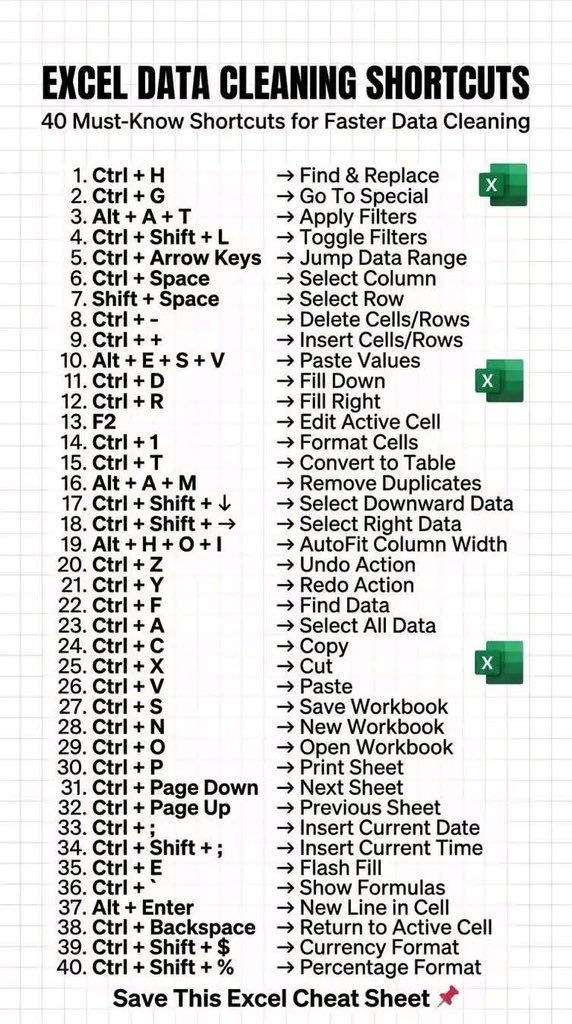
Clean data faster with these 40 Excel Data Cleaning Shortcuts 🚀
Perfect for Data Analysts, Excel beginners & office work productivity 📊
#Excel #ExcelTips #ExcelShortcuts #DataCleaning #DataAnalyst #MicrosoftExcel #ExcelLearning #ExcelFormula #Spreadsheet #DataAnalysis #OfficeTips #KeyboardShortcuts #ExcelHacks #AdvancedExcel #LearnExcel #ExcelFunctions #Productivity #TechTips #DataScience #BusinessAnalyst #DataVisualization #ExcelTricks #Analytics #SQL #PowerBI #Automation #ComputerSkills #WorkSmart #DigitalSkills #KeyboardTips
7
7
139

May 14
In the meantime try my Tuna! It uses both your KeyboardShortcuts and Defaults packages, fully native 😊
Would love to hear what you think!
2
15
1,466

May 4
Microsoft 365 May 2026 Mega Update: New E7 Suite, Retirements, Fresh Copilot Upgrades, and a New Release Model #Authentication #Azure #Copilot #Enterprise #Keyboardshortcuts #Microsoft #Microsoft365 #MicrosoftDefender #MicrosoftTeams #OneDrive #Outlook ...
msftnewsnow.com/microsoft-36…
2
79

Apr 16
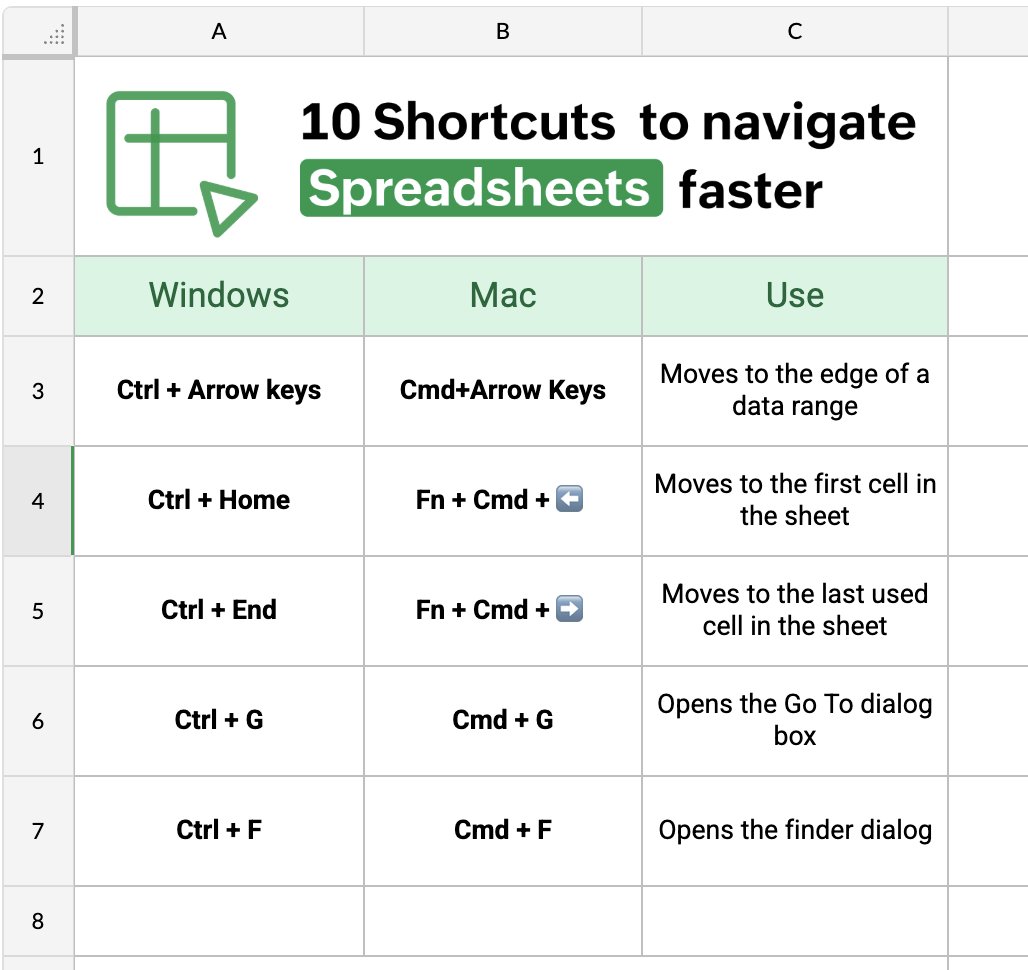
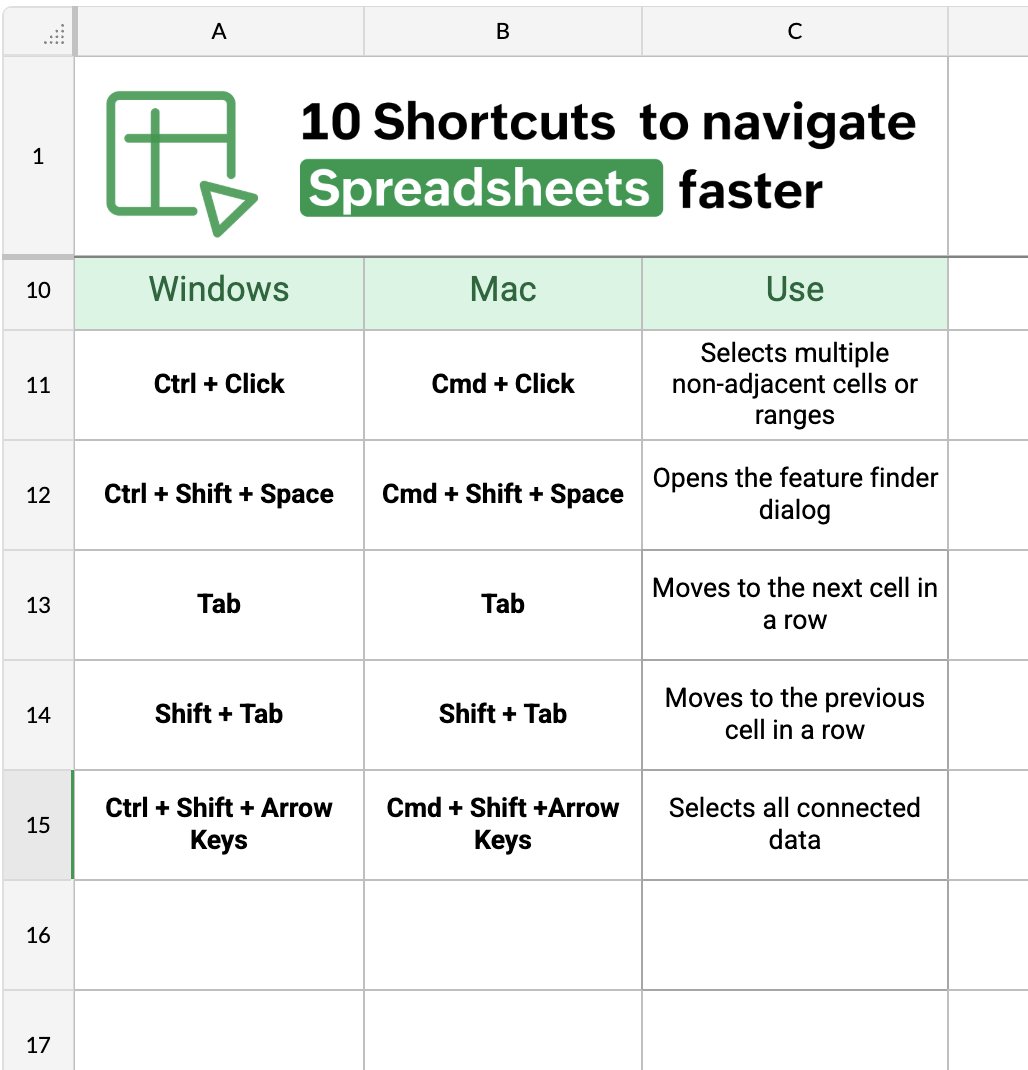
Here’s what every spreadsheet power user has in common: they do not waste time scrolling through large spreadsheets.
Instead, they rely on keyboard shortcuts to move faster, navigate large sheets easily, and find what they need.
Here are 10 navigation shortcuts that make working with large spreadsheets much easier.
Try it now in Zoho Sheet:zurl.co/WcUOe
#zohosheet #spreadsheets #spreadsheettips #spreadsheettricks
#keyboardshortcuts #excelalternative
4
87

Work Smarter, Not Harder; Here are Windows Keyboard Shortcuts You Need to Know!
Stop reaching for your mouse every 5 seconds. These shortcuts will save you HOURS 👇
1. Everyday Essentials:
- Ctrl C — Copy
- Ctrl X — Cut
- Ctrl V — Paste
- Ctrl Z — Undo
- Ctrl Y — Redo
- Ctrl S — Save
2) Navigation & Search
- Win D — Show/Hide Desktop
- Win E — Open File Explorer
- Win S — Open Search
- Alt Tab — Switch between open apps
- Win Tab — Task View (all open windows)
3. Window Management
- Win ←/→ — Snap window left or right
- Win ↑ — Maximize window
- Win ↓ — Minimize window
- Win L — Lock your PC instantly
4. Screenshots
- Win Shift S — Snip a screenshot (best one!)
- PrtScn — Full screenshot to clipboard
- Win PrtScn — Save screenshot to folder
Pro-Level Shortcuts
- Ctrl Shift Esc — Open Task Manager directly
- Win V — Clipboard history
- Win . — Emoji picker 😎
- Ctrl Alt Del — Emergency menu
Which one didn't you know? Drop it in the comments!
Bookmark for later and Retweet for others.
#KeyboardShortcuts
2
6
16
346

Mar 20
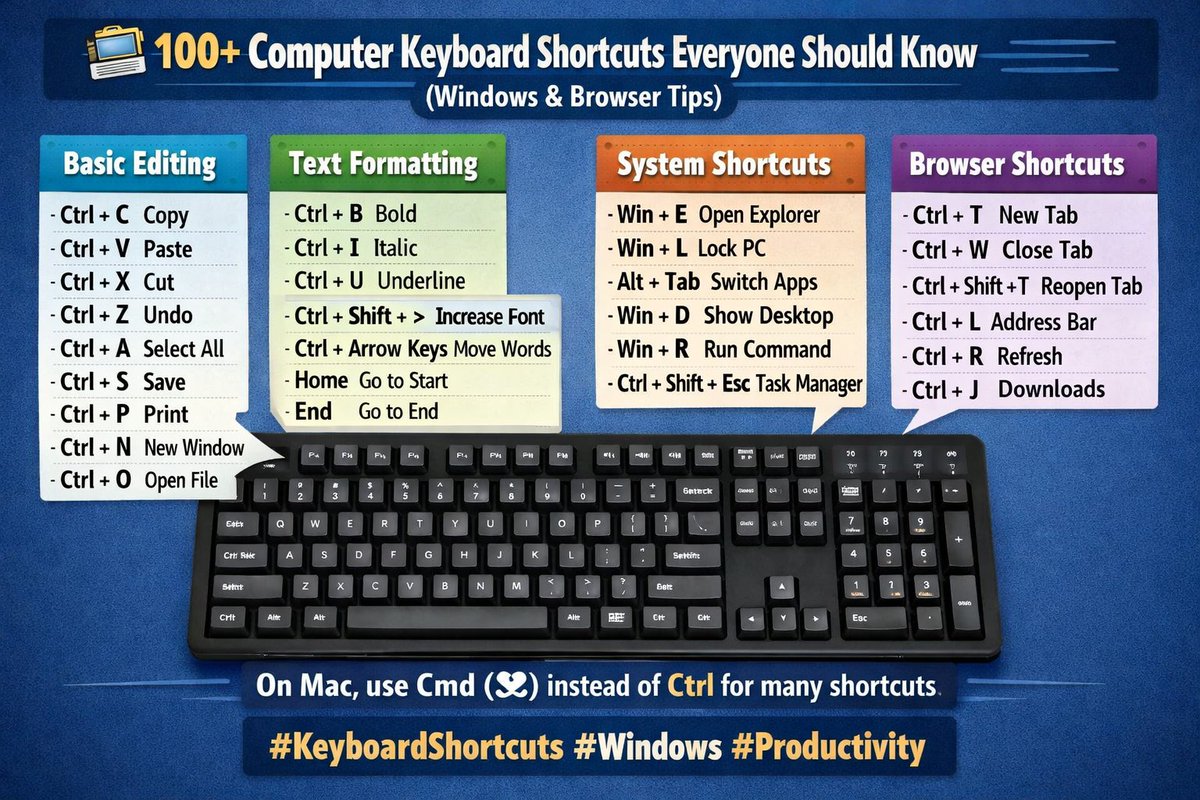
🔴💻 100 Computer Keyboard Shortcuts Everyone Should Know (Windows & Browser Tips)👇
Keyboard shortcuts help you work faster, save time, and improve productivity when using a computer. Below is a large collection of useful shortcuts for Windows, typing, and internet browsers.
✅ Basic editing shortcuts
Ctrl C – Copy
Ctrl V – Paste
Ctrl X – Cut
Ctrl Z – Undo
Ctrl Y – Redo
Ctrl A – Select all
Ctrl S – Save
Ctrl P – Print
Ctrl N – New document/window
Ctrl O – Open file
Ctrl F – Find
Ctrl H – Replace
Ctrl W – Close tab/window
Ctrl Q – Quit app
✅ Text formatting shortcuts
Ctrl B – Bold
Ctrl I – Italic
Ctrl U – Underline
Ctrl Shift > – Increase font
Ctrl Shift < – Decrease font
Shift Arrow – Select text
Ctrl Arrow – Move between words
Home – Go to beginning
End – Go to end
Ctrl Home – Top of page
Ctrl End – Bottom of page
✅ Windows system shortcuts
Windows E – File Explorer
Windows L – Lock PC
Windows D – Show desktop
Windows R – Run
Windows I – Settings
Windows Tab – Task view
Windows S – Search
Windows M – Minimize all
Windows Shift M – Restore windows
Windows Up – Maximize
Windows Down – Minimize
Windows Left / Right – Snap window
Alt Tab – Switch apps
Alt F4 – Close program
Ctrl Shift Esc – Task manager
Ctrl Alt Delete – Security menu
✅ Browser shortcuts (Chrome / Edge / Firefox)
Ctrl T – New tab
Ctrl W – Close tab
Ctrl Shift T – Reopen tab
Ctrl Tab – Next tab
Ctrl Shift Tab – Previous tab
Ctrl L – Address bar
Ctrl R – Refresh
Ctrl Shift R – Hard refresh
Ctrl D – Bookmark
Ctrl J – Downloads
Ctrl H – History
Ctrl – Zoom in
Ctrl - – Zoom out
Ctrl 0 – Reset zoom
F5 – Refresh
F11 – Full screen
✅ Function keys (F1–F12)
F1 – Help
F2 – Rename
F3 – Search
F4 – Address bar
F5 – Refresh
F6 – Switch element
F7 – Spell check (some apps)
F8 – Boot options (system)
F9 – Refresh (some apps)
F10 – Menu
F11 – Full screen
F12 – Developer tools (browser)
✅ More useful shortcuts
Ctrl Shift N – New folder
Ctrl Shift Esc – Task manager
Ctrl Backspace – Delete word
Ctrl Delete – Delete next word
Shift Delete – Permanent delete
Alt Enter – Properties
Alt Space – Window menu
Tab – Next field
Shift Tab – Previous field
Esc – Cancel
Enter – Confirm
These shortcuts work on most Windows computers.
On Mac, use Cmd (⌘) instead of Ctrl for many commands.
Learning keyboard shortcuts can make your work faster, easier, and more professional.
#ComputerTips #KeyboardShortcuts #Technology #Windows #Productivity #SmartLearning
1
4
8
1,641
Mar 12
2. Ctrl Home – Go straight to the first cell of the sheet.
3. Ctrl End – Jump to the last used cell in the sheet.
Follow along for more spreadsheet tips like this. 💡
#spreadsheettips #keyboardshortcuts #zohosheet #prousers
3
97

Feb 19
@Grok suggested I tag! so...
Larry Tesler gave us copy/paste (RIP, legend). Windows rocks Ctrl C/X/V, Mac goes ⌘ C/X/V. And our friend Elon Musk? His favorite keyboard command: Ctrl Space X 😏 #Tesler #KeyboardShortcuts
1
16

Feb 5
Same shortcut. Different result 💡
Ctrl Shift N:
🗂 New folder in File Explorer
🌐 Incognito window in your browser
Context matters - apps decide how shortcuts behave.
Did you know this? 👀
#WindowsTips #KeyboardShortcuts #Productivity
1
2
37

بعد تحديث ويندوز: اختصارات تغيير اللغة تغيّرت… والحل 👇
كنت أعتمد على اختصار معيّن لتبديل لغة الإدخال (Arabic/English)، وبعد آخر تحديث لاحظت أن ويندوز رجّع الاختصارات الافتراضية مثل Win Space أو تغيّر سلوك Alt/Shift.
الحل الرسمي داخل ويندوز:
Settings
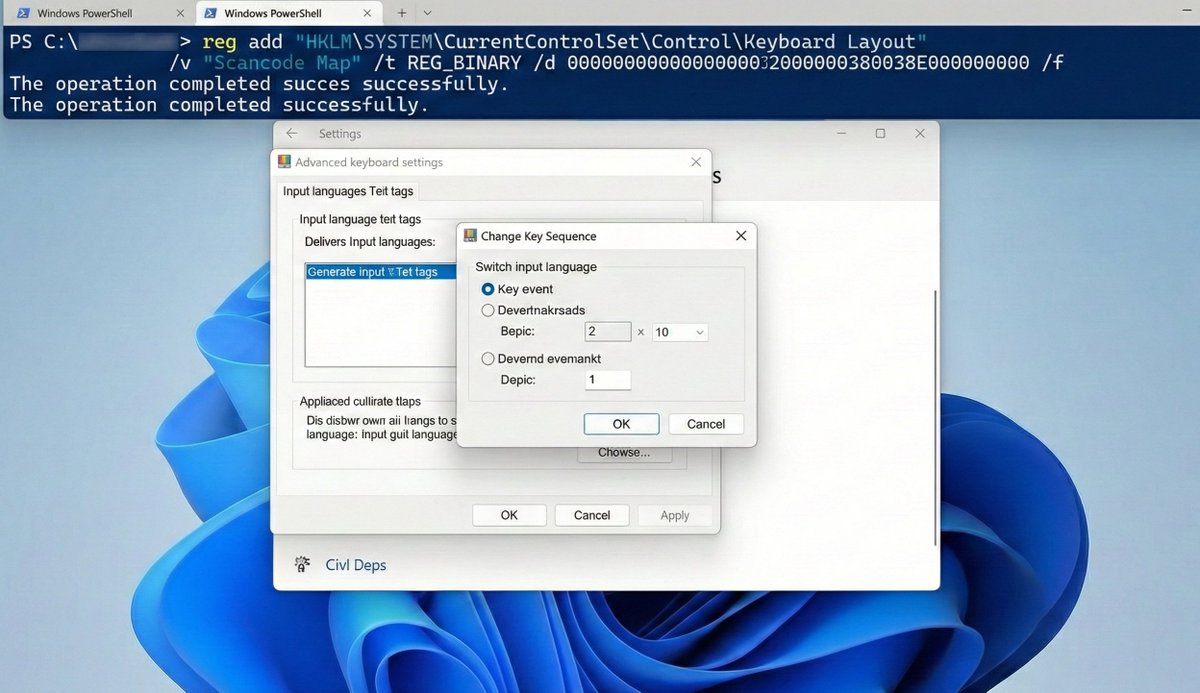
Time & language → Typing → Advanced keyboard settings
Input language hot keys
اختر “Between input languages” ثم Change Key Sequence
فعّل Alt Shift أو Ctrl Shift (حسب تفضيلك)
ولا تنسَ Apply ثم OK.
طيب… ماذا لو تبغى “Right Alt Shift” تحديدًا؟
ويندوز غالبًا ما يوفّرها مباشرة ضمن الإعدادات، فهنا عندك خيارين:
✅ خيار آمن ومرن: PowerToys / AutoHotkey
تعمل Remap للاختصار بحيث Right Alt Shift يرسل Alt Shift.
☑️ شخصيا: أفضل هذا الحل وهو على مستوى النظام (Registry): Scancode Map
هذا يحوّل Right Alt إلى Left Alt (فعليًا)، وقد يؤثر على AltGr وبعض الرموز. يُستخدم فقط إذا كنت فاهم أثره وعندك صلاحيات Admin.
أمر التنفيذ الصحيح (PowerShell كمسؤول):
reg.exe add "HKLM\SYSTEM\CurrentControlSet\Control\Keyboard Layout" /v "Scancode Map" /t REG_BINARY /d 000000000000000002000000380038E000000000 /f
ثم Restart.
للتراجع:
reg.exe delete "HKLM\SYSTEM\CurrentControlSet\Control\Keyboard Layout" /v "Scancode Map" /f
مصادر مرئية لطريقة الحل:
digitalcitizen.life/change-k…
learn.microsoft.com/windows/…
إذا واجهت نفس المشكلة بعد التحديثات، شاركني وش كان اختصارك المفضل قبل وبعد.
#Windows11 #ITSupport #Productivity #KeyboardShortcuts #Microsoft #PowerToys
3
562

Jan 16
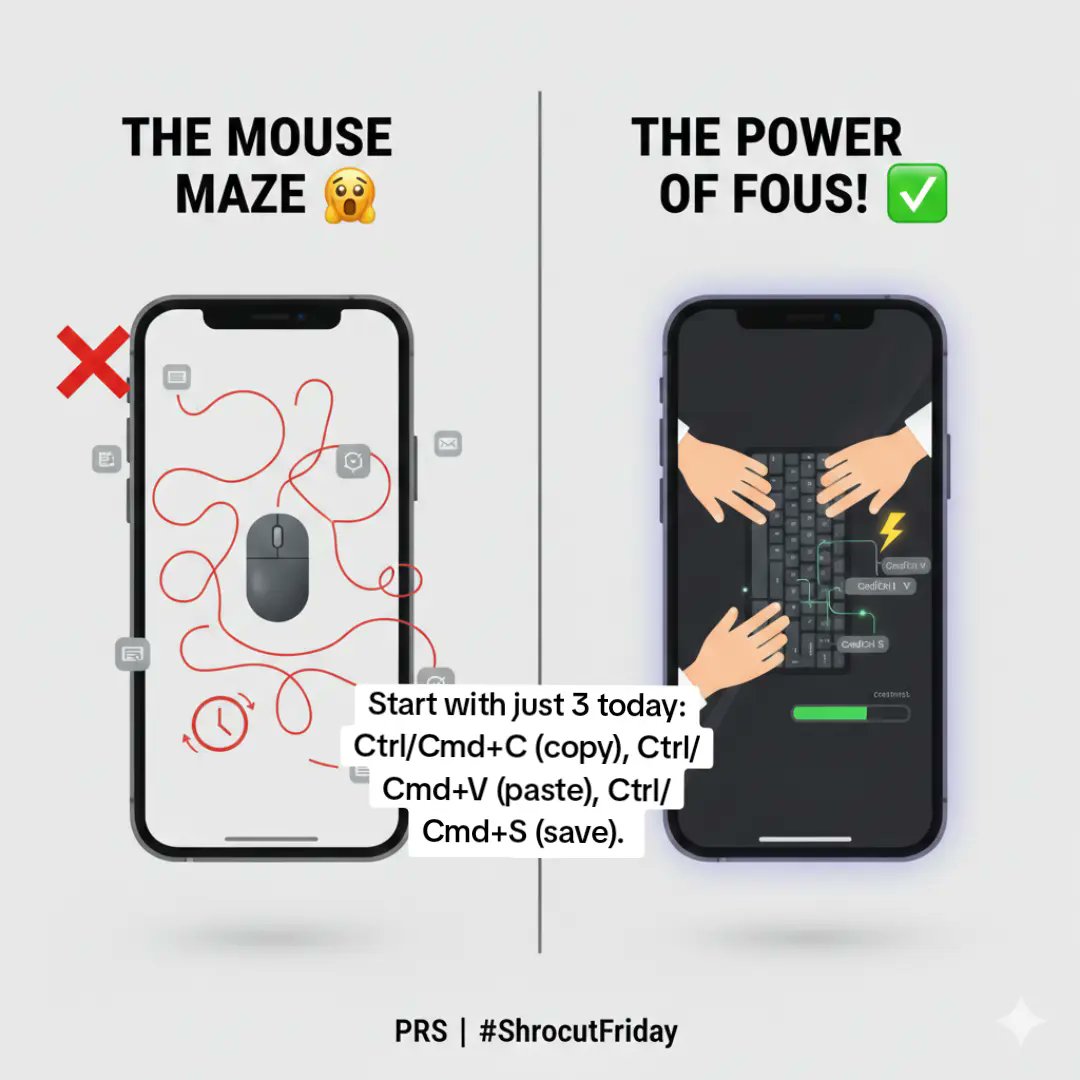
I’m PRS, and this is tech ,i want to show u keyboard shortcuts.
Check comment for full details ..
#KeyboardShortcuts #ProductivityHacks #TechEfficiency #WorkflowTips #PRS #creatorlife
2
2
3
86

25 Dec 2025
Keyboard shortcut kingdom: Win Shift S (Win) / Cmd Shift 5 (Mac). Instant screenshots snips. Saves countless seconds navigating menus. Visual communication at Dex speed.
@DataHaven_xyz #KeyboardShortcuts #Productivity #Tech #Web3 #Crypto #DeFi #NFT #AI #Dev #Design #Support
2
21

20 Dec 2025
Thank you for sharing this comprehensive and practical guide. Such compilations of knowledge represent the quiet, cumulative wisdom that makes our daily interactions with technology more fluid and efficient.
It is a thoughtful reminder that beneath the complex interfaces of modern software lie these simple, universal commands, small bridges between human intention and digital action. Sharing them freely is a genuine service, reducing friction and democratising proficiency.
A particularly useful addition might be Windows L to instantly lock one's workstation, a small command with significant importance for personal security and privacy in shared spaces.
Your effort to organise and distribute this knowledge is greatly appreciated.
#TechTips #Productivity #DigitalLiteracy
#KeyboardShortcuts #KnowledgeSharing
Adhoura Aks
#AdhouraAks
5
6,099

19 Dec 2025
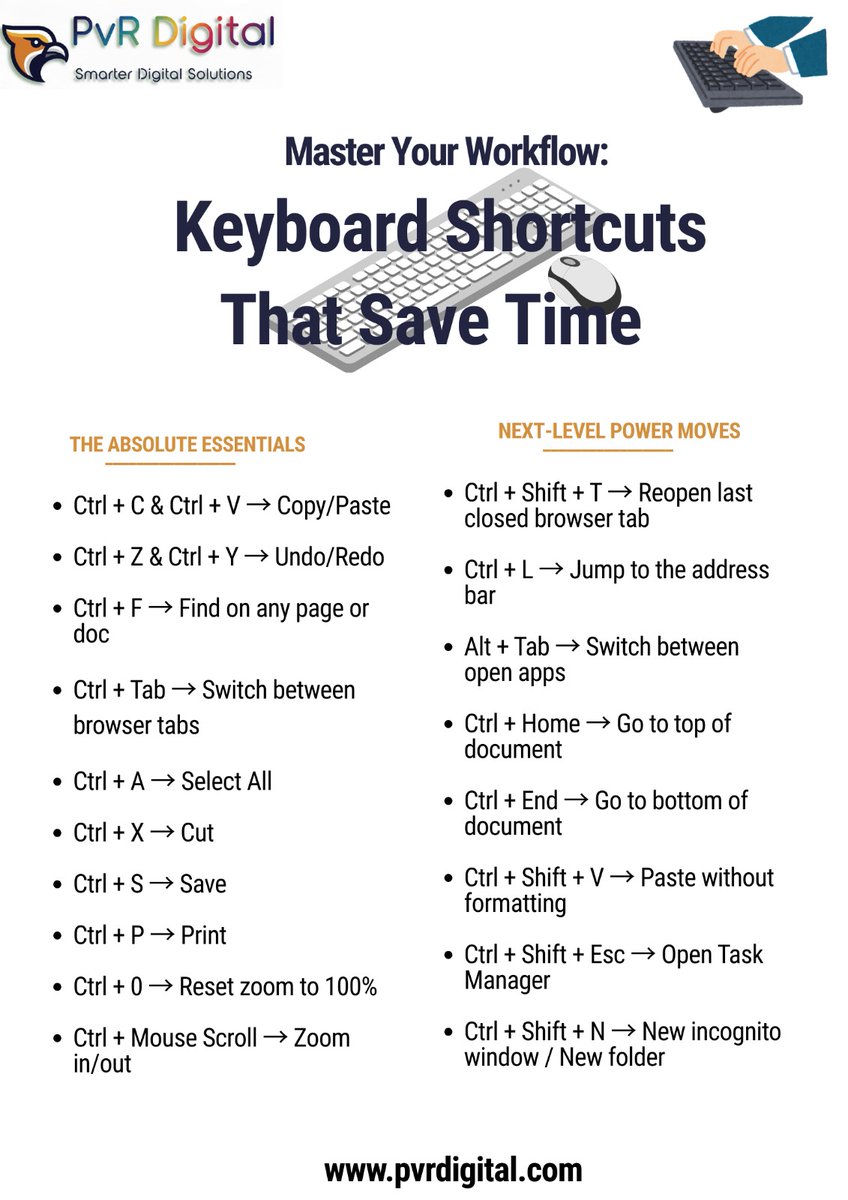
⌨️ Still using mouse to copy & paste? Level up with keyboard shortcuts. Save time & look pro. What's your favorite shortcut?
Follow PvR Digital for more tips!
#KeyboardShortcuts #ProductivityHacks #PVRDigital #TimeSavingTips #TechLife #WindowsTips #CareerGrowth
1
3
6
30

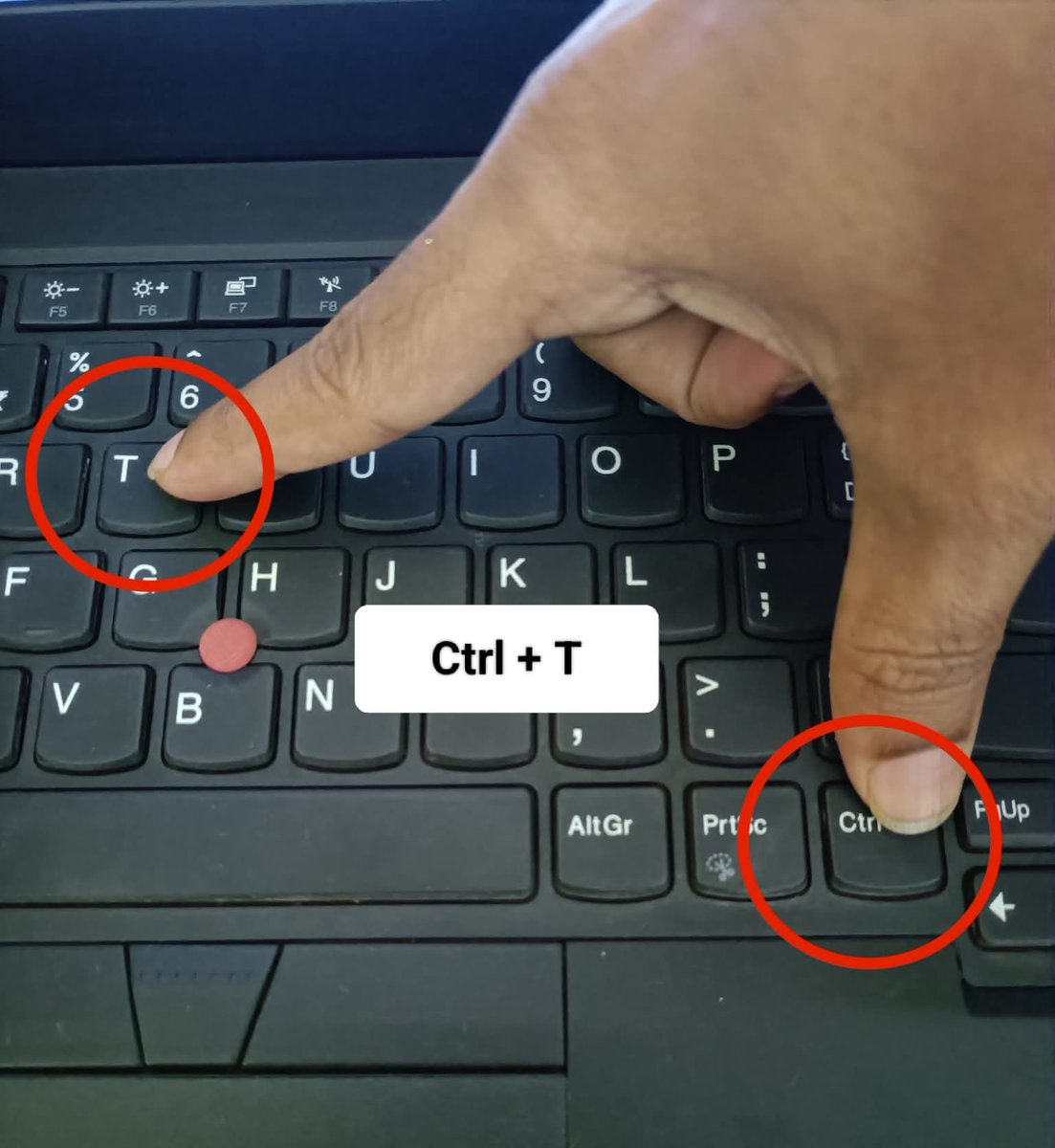
कंप्यूटर के लिए महत्वपूर्ण शॉर्टकट कुंजी
🔹 बेसिक Editing Shortcuts
CTRL A — Select All
CTRL C — Copy
CTRL X — Cut
CTRL V — Paste
CTRL Z — Undo
CTRL B — Bold
CTRL U — Underline
CTRL I — Italic
🔹 Function Keys
F1 — Help
F2 — Rename
F3 — Find Files
F4 — File list drop-down
F5 — Refresh
F6 — Switch Explorer focus
F10 — Activate menu bar
🔹 Window / App Controls
ALT TAB — Switch apps
ALT F4 — Close window
ALT F6 — Switch program windows
ALT ENTER — Properties
ALT SPACE — System menu
ESC — Cancel
🔹 File & Folder Actions
BACKSPACE — Parent folder
CTRL ESC — Start Menu
CTRL ALT DEL — Task Manager
CTRL TAB — Move tabs
CTRL DRAG — Copy file
CTRL SHIFT DRAG — Create shortcut
SHIFT DRAG — Move file
SHIFT DELETE — Permanent delete
SHIFT (CD insert) — Disable auto-play
SHIFT F10 — Right-click menu
🔹 Cursor Navigation
HOME — Start of line
END — End of line
CTRL HOME — Top of document
CTRL END — Bottom of document
PAGE UP / PAGE DOWN — Scroll by page
CTRL → — Next word
CTRL SHIFT → — Select word
🔹 Explorer Tree Controls
NumPad * — Expand all
NumPad — Expand
NumPad – — Collapse
🔹 ALT Codes – Special Characters
‘ — 0145
’ — 0146
“ — 0147
” — 0148
– — 0150 (En dash)
— — 0151 (Em dash)
… — 0133
• — 0149
® — 0174
© — 0169
™ — 0153
° — 0176
¢ — 0162
¼ — 0188
½ — 0189
¾ — 0190
#ComputerBasics
#ComputerSkills
#ComputerEducation
#ComputerTraining
#KeyboardShortcuts
#ShortcutKeys
3
3
8
265