
30 Dec 2025
Linux permissions go beyond chmod. Learn how groups, sudo, and modern policy systems control services, reboot, and system-level authority.
More details here: ostechnix.com/linux-permissi…
#LinuxPermissions #LinuxPrivileges #Linuxadmin #Linuxcommands #Linuxhowto #sudo #Polkit
1
2
44

2 Jul 2025
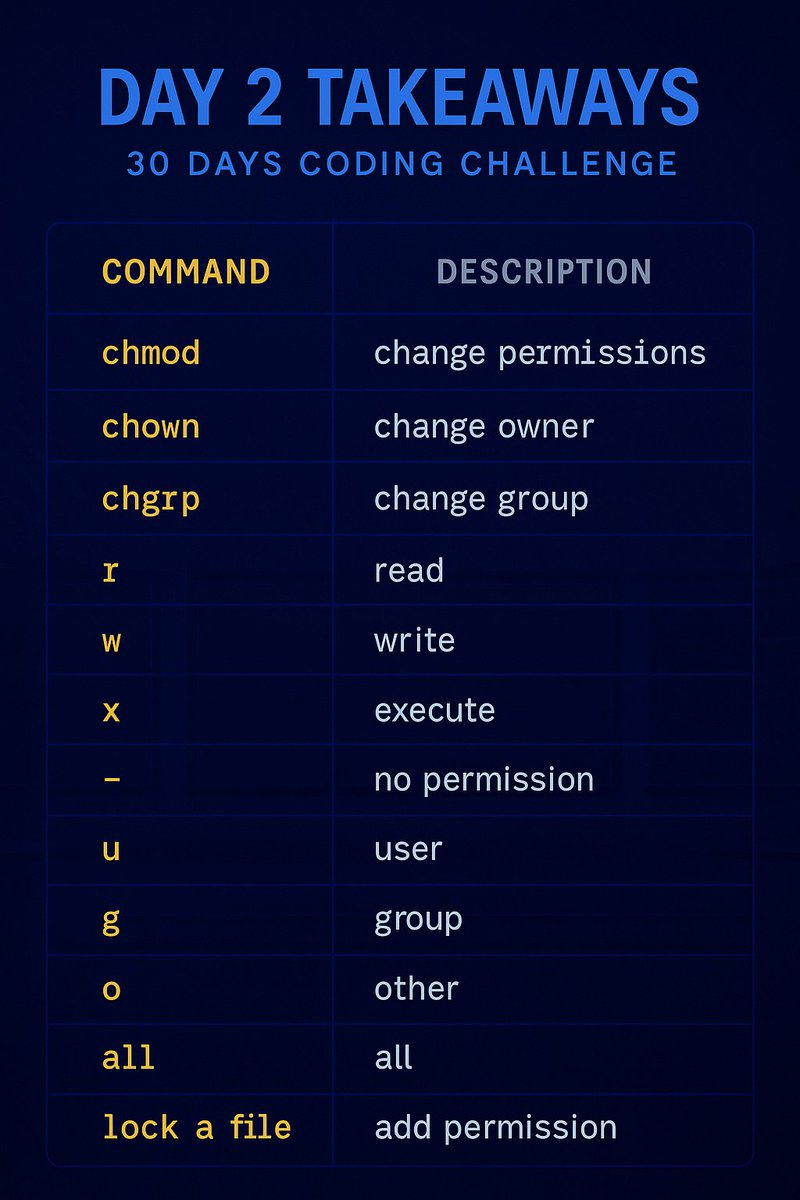
Mastered 20 essential commands to control access, ownership, and execution on files.
From chmod to 777, I’m unlocking real CLI power 💥
#30DaysOfCode #LinuxPermissions #CLI #ShellScripting #iiceekiing #DevJourney #scarfacedoteth #blockfuselabs
1
4
47

11 Mar 2025
Why Linux is Considered a Secure Operating System - When it comes to operating system security, Linux is often praised as one of the safest options avai... myscrappydays.com/news.php?s… #Linuxsecurity #Linuxoperatingsystem #Linuxvulnerabilities #Linuxpermissions #Malware #Securitytools

2
2
66

17 Dec 2023
7/15: Find Files by Permissions 🔐🔍
🔍 Investigate permissions with find /path -type f -perm 644. It's crucial for controlling who can access files.
This command searches for files with specific permissions. #LinuxPermissions #DevOpsSecurity
1
3
452

8 Oct 2023
Linux File Permissions: A User-Friendly Guide
In the mystical world of Linux, where the penguin reigns supreme, understanding file permissions is like learning the ancient language of the land. Fear not, for in this adventure, we shall unravel the secrets of "chown" and "chmod" – the spells that grant you control over your digital treasures.
📜 File Permissions
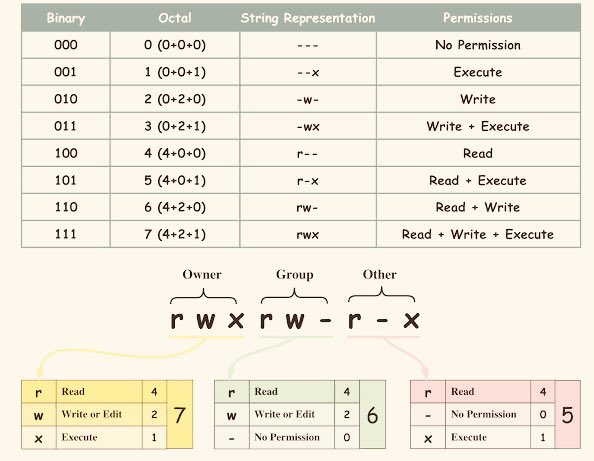
In Linux, every file and directory comes with its set of permissions. These permissions define who can read, write, and execute them. There are three types of permissions: read (r), write (w), and execute (x), each represented by a letter.
- Read (r): Permission to view the contents of a file or list the contents of a directory.
- Write (w): Permission to modify the contents of a file or create and delete files within a directory.
- Execute (x): Permission to run a file as a program or access the contents of a directory.
Permissions are assigned to three categories of users:
1. Owner (u): The user who owns the file or directory.
2. Group (g): A group of users who share access to the file or directory.
3. Others (o): All other users who are neither the owner nor part of the group.
🌟 **Chapter 2: The Mystical Commands - chmod and chown**
`chmod`- The Spell of Permissions:
- `chmod` is the command to change file permissions.
- You can use symbolic notation (like `u r` or `o-w`) or octal notation (like `755`) to set permissions.
Example 1: Symbolic Notation
chmod u rwx,g rw,o-r file.txt
This command grants the owner read, write, and execute permissions, the group read and write permissions, and removes read permission for others on "file.txt."
Example 2: Octal Notation
chmod 644 file.txt
This command sets read and write permissions for the owner and read-only permissions for the group and others on "file.txt."
‘chown’- The Spell of Ownership:
- `chown` changes the owner and/or group of a file or directory.
Example 3: Changing Ownership
chown user1:group2 file.txt
This command changes the owner of "file.txt" to "user1" and the group to "group2."
🚀 Real-Life Scenarios
- Scenario 1: Secure Your Diary
You have a diary file, "my_diary.txt," and you want to make it private.
chmod 600 my_diary.txt
- Scenario 2: Share with the Crew
You have a directory, "treasure_chest," that you want to share with your group, "pirates."
chown :pirates treasure_chest
chmod 770 treasure_chest
- Scenario 3: Safe Scripts
You have a script, "magic_spell.sh," that you want to execute.
chmod x magic_spell.sh
🏰 Conclusion
With the knowledge of "chmod" and "chown," you have the power to protect your digital realm, safeguard your secrets, and share your treasures wisely. Linux file permissions, like the arcane spells of old, are yours to master. Go forth, and may your files be secure, your commands true, and your Linux adventures legendary! 🐧🌟 #LinuxPermissions #FileSecurity #DigitalWizardry
3
343
5 Jun 2023
8/10: Finally, we have the 'sticky' bit (t). When applied to a directory, it ensures that only the owner of a file can delete or rename it.
To set the sticky bit, use 'chmod t directory'. #LinuxPermissions
1
2
269
5 Jun 2023
7/10: Another special permission is 'setgid' (s) which allows a user to execute a file with the permissions of the group owner.
To set the setgid permission for a directory, use
'chmod g s directory'.
#LinuxPermissions
1
2
297
5 Jun 2023
4/10: We can change permissions using the chmod command.
For instance, to grant execute permission to the owner, we would run: chmod u x example.txt.
Similarly, we can modify permissions for groups ('g') and others ('o'). #LinuxPermissions
1
1
340
5 Jun 2023
1/10: Hey everyone! Let's talk about advanced permission management in Linux. 🚀 As you know, Linux is known for its robust security features, and permissions play a vital role in controlling access to files & directories. Let's dive in & explore some examples! #LinuxPermissions
1
4
669

18 Mar 2023
Saved this Tweet to your Notion database.
Tags: [Linuxpermissions]
44
8 Mar 2023
This thread is saved to your Notion database.
Tags: [Linux, Linuxpermissions]
3
28 Aug 2022
Saved this Tweet to your Notion database.
Tags: [Linuxpermissions]
27 Jul 2022
Saved this Tweet to your Notion database.
Tags: [Linuxpermissions, Linux]

24 Jun 2022
#IT #ITJobs #LinuxPermissions
एक JAVA(किंवा इतर) डेव्हलपर म्हणून बऱ्याच वेळेला आपल्याला लिनक्स वर फाईल ठेवून आपल्या अप्लिकेशन द्वारे प्रोसेस करावे लागते.बऱ्याच वेळी फाईल ला योग्य परमिशन नसल्यामुळे error येतात.एका नवोदित डेव्हलपर ला लिनक्स परमिशन लक्षात ठेवणे थोडे अवघड वाटू शकते👇
2
13
55

11 Mar 2021
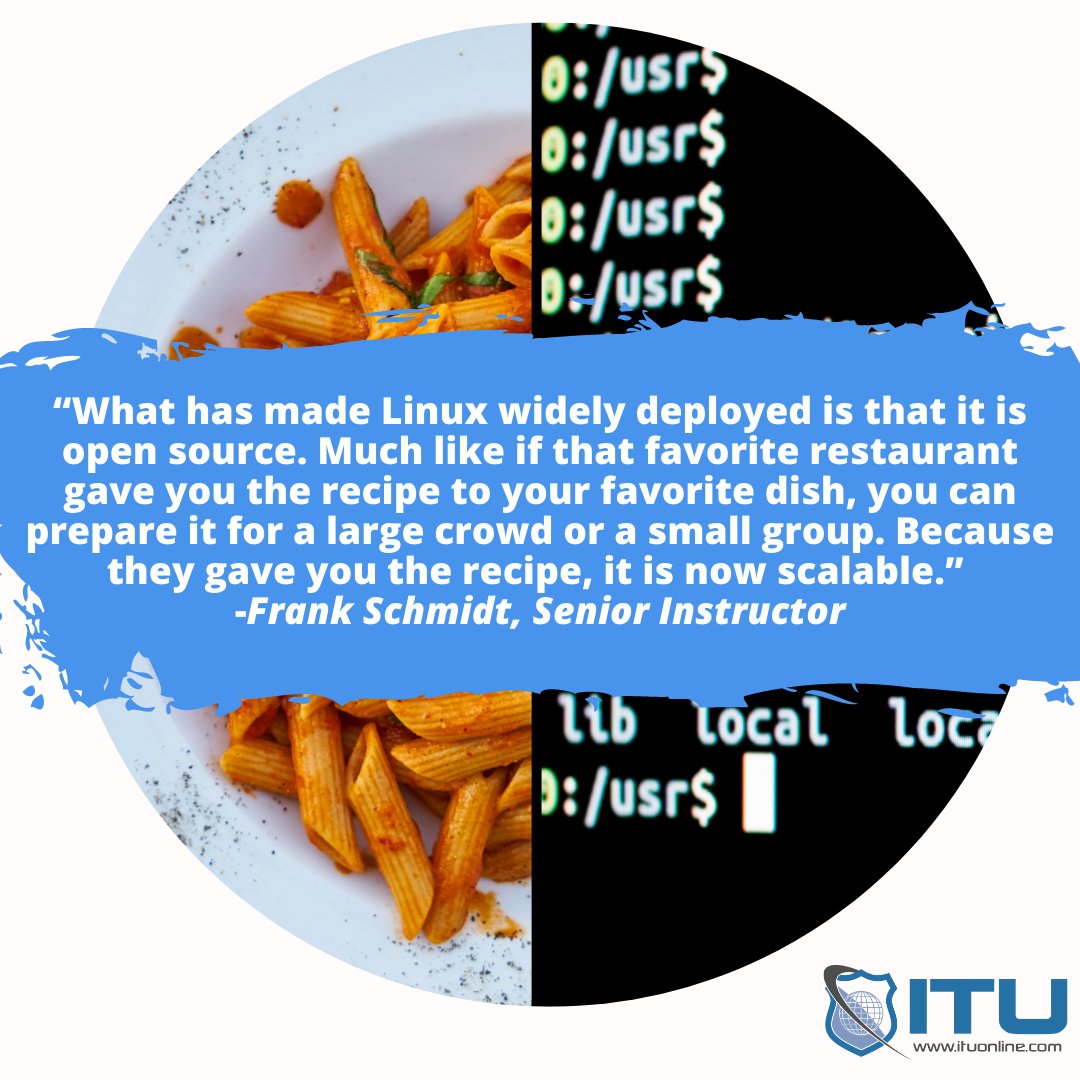
Linux training - not as tasty as pasta, but the food analogy still stands!
#linux #linuxplus #linuxxk0004 #xk0004 #linuxtasks #shellcommands #opensource #linuxuser #superuser #linuxpermissions #learnlinux #linuxsources #linuxstorage #linuxgui #linuxsudo
4
3
12 Jan 2021
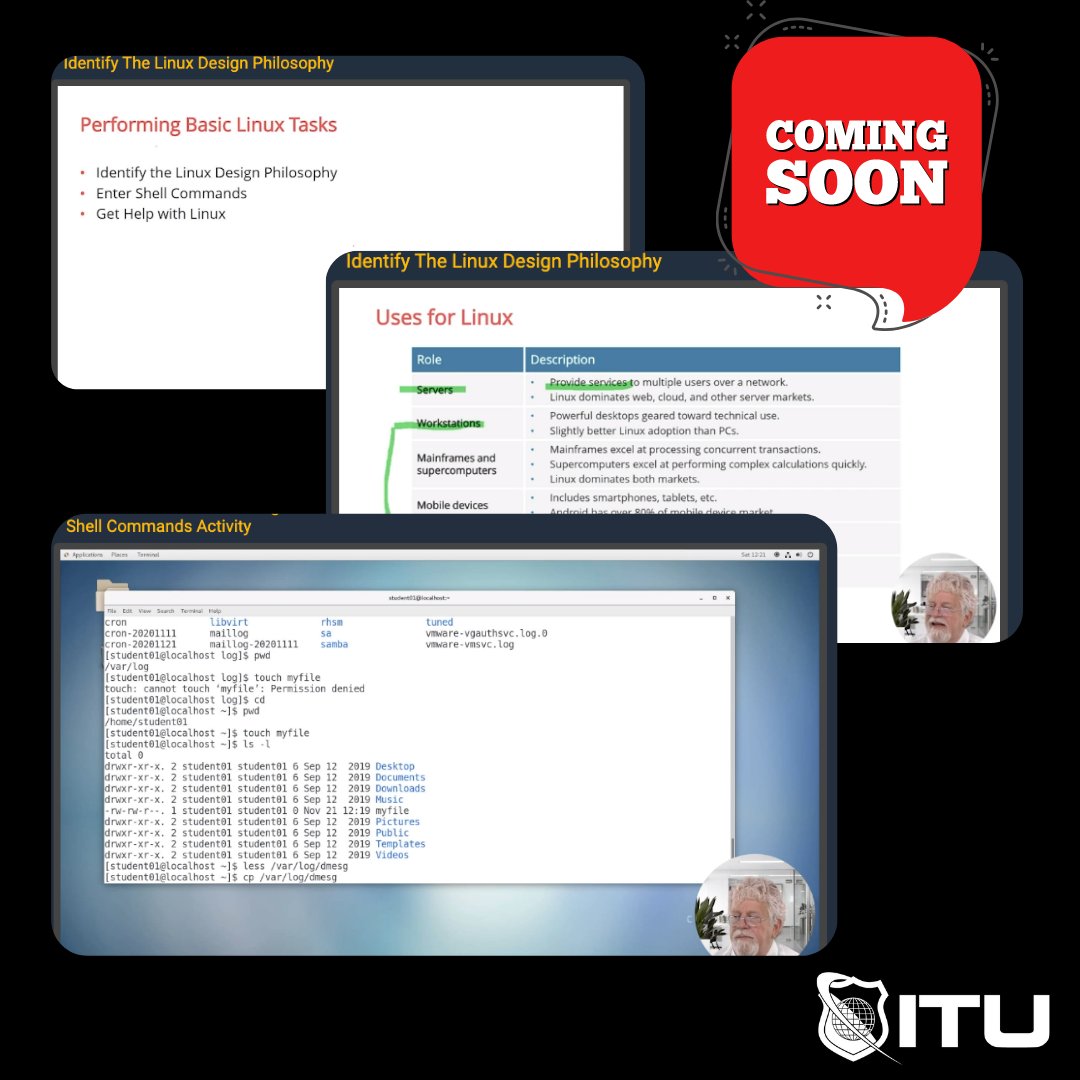
New Linux course, coming soon!
#techtuesday #ituonline #trainingdomination #linux #comptialinux #linuxplus #linuxxk0004 #xk0004 #linuxtasks #opensource #linuxuser #superuser #linuxpermissions #linuxtroubleshooting #learnlinux #linuxsources #linuxsudo #howtouselinux #linuxkernel
5
1