
#HighlyCitedPaper in @photochem_mdpi
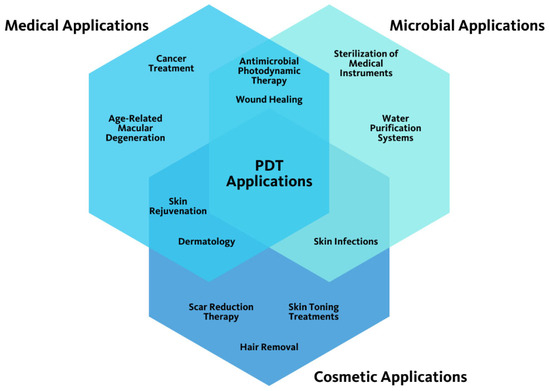
Photodynamic Therapy Review: Past, Present, Future, Opportunities and Challenges by Dr. Ali Oguz Er et al.
mdpi.com/2673-7256/4/4/27
#PhotodynamicTherapy #Photosensitizer #LightSources #Phototherapy
8

Jun 5
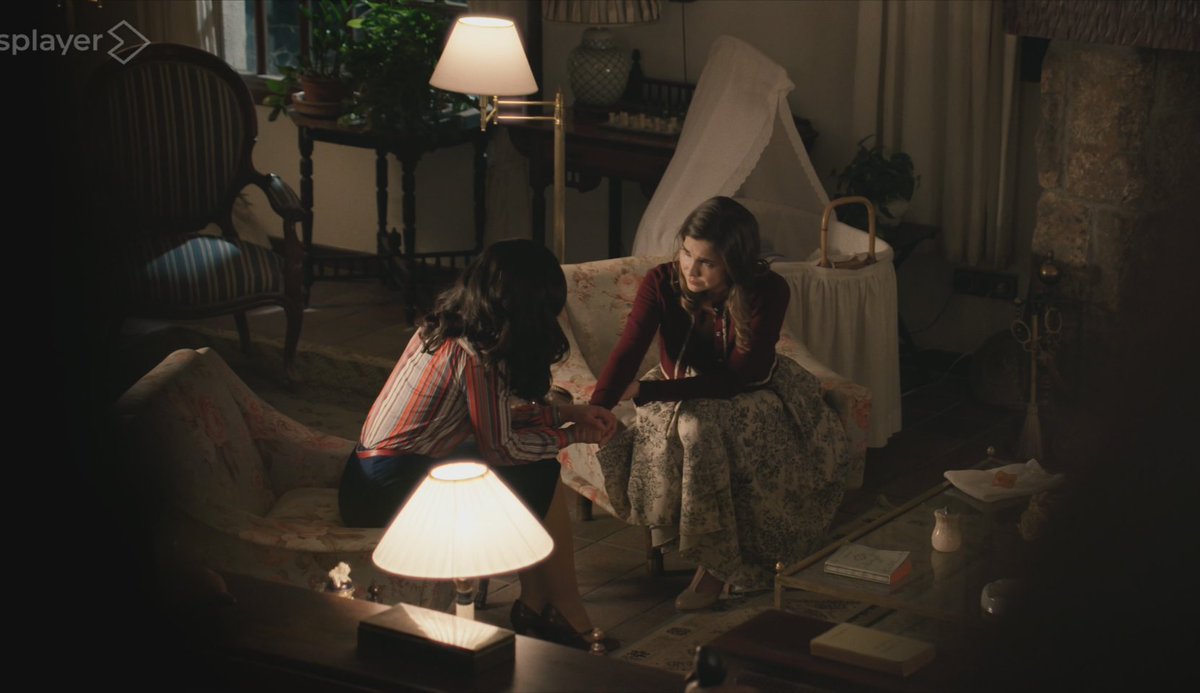
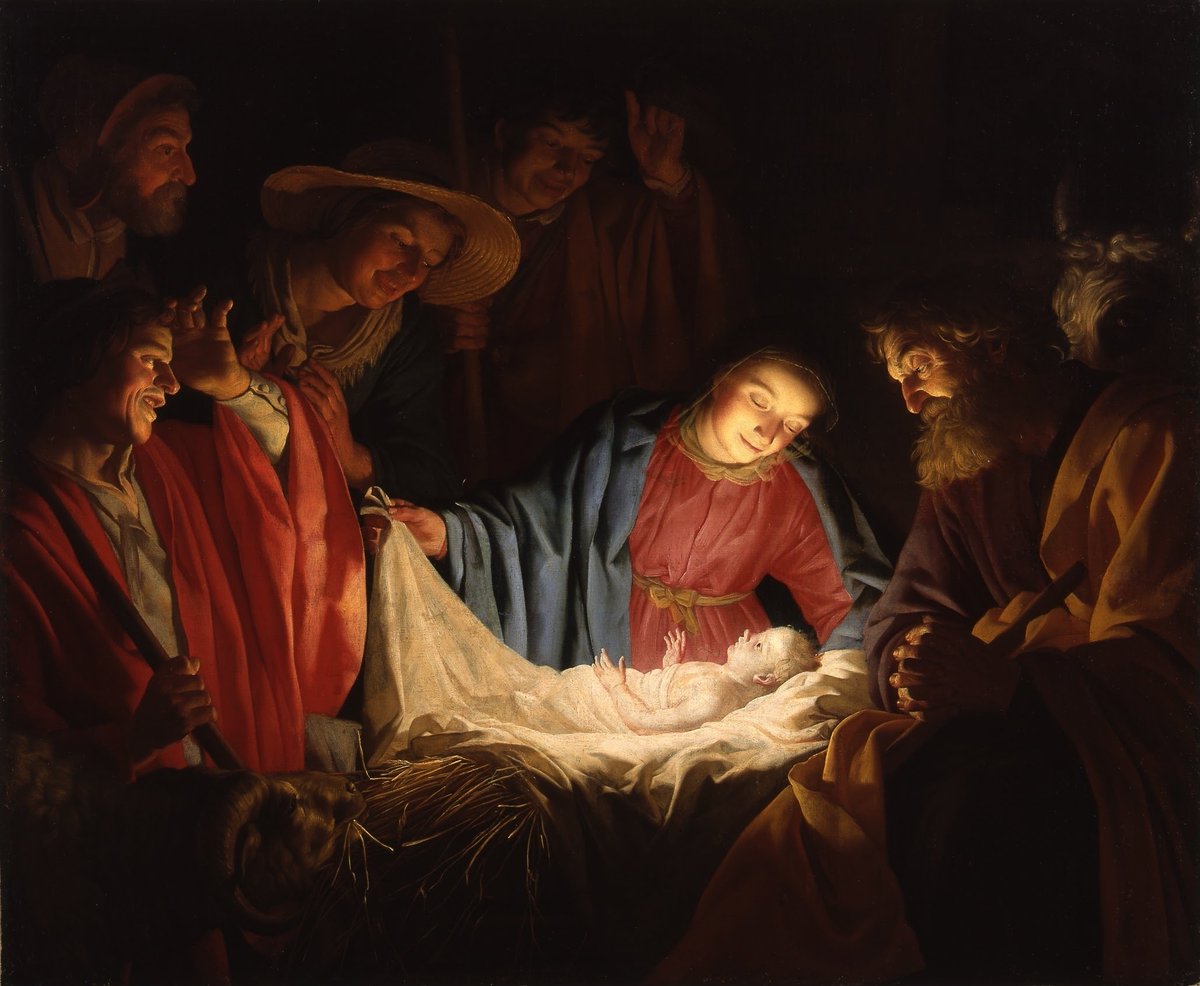
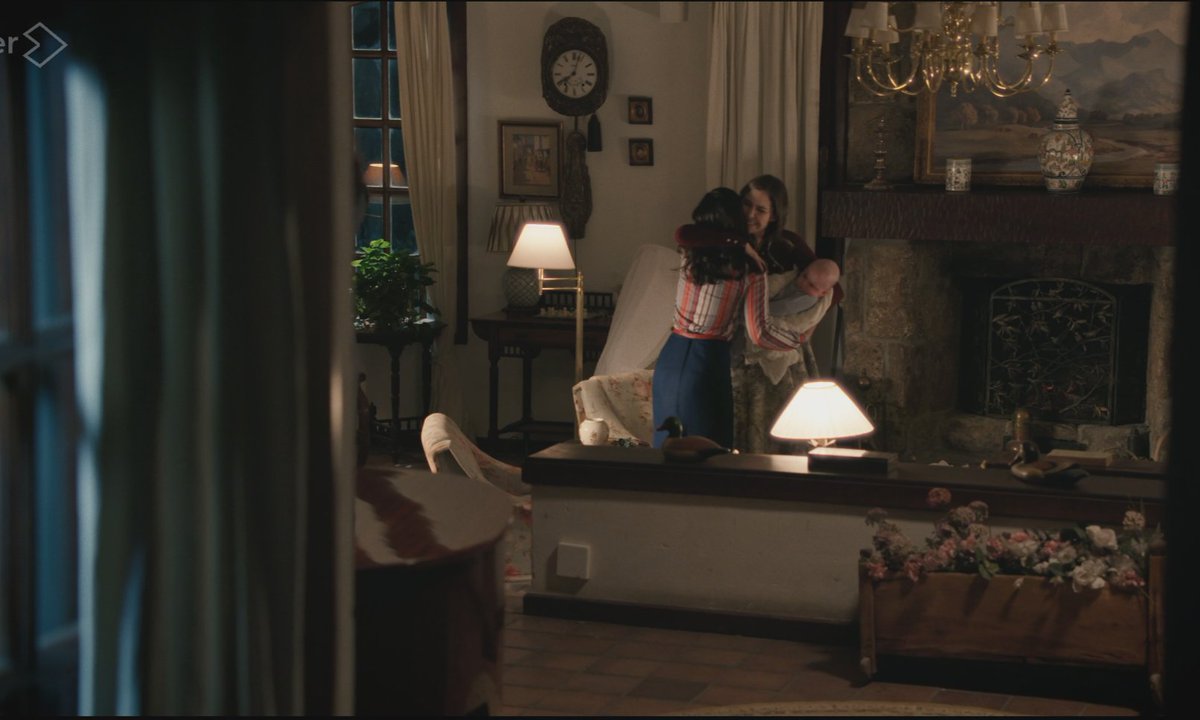
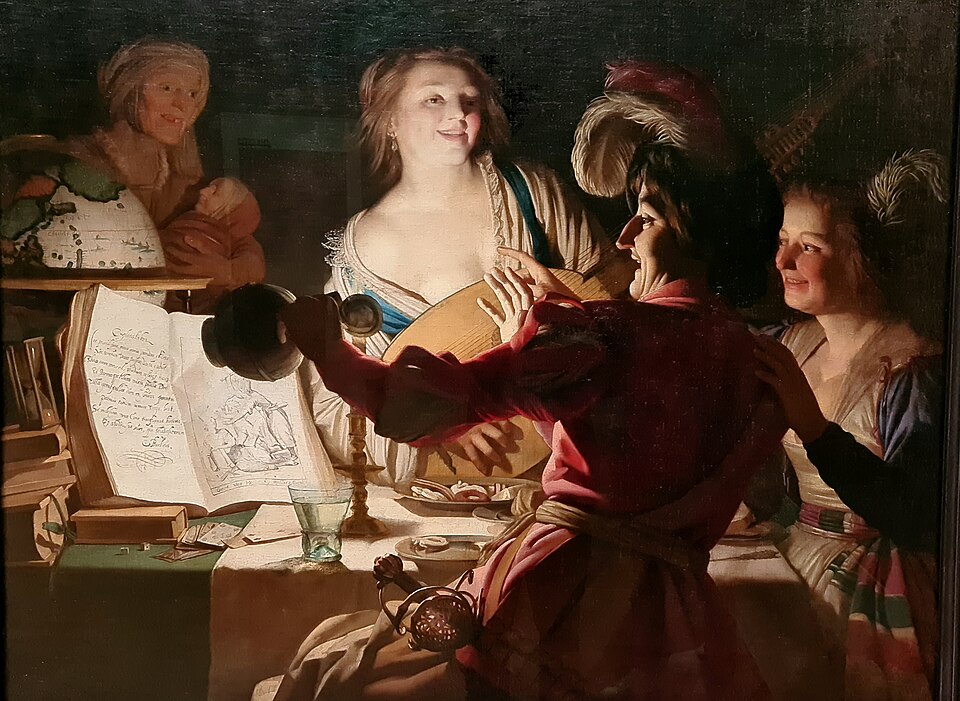
the candle-lit vibes of yesterday's Luzgoña scene reminded me of 17th century Utrecht caravaggist painter Gerard van Honthorst. Limited light, just enough to reveal expressions pulls you in. Despite lamps here Luz feels like one of the lightsources, similar to Jesus in his work.
1
4
14
1,022

Via #OPG_AO: Engineering short-wavelength emission in Tm3 -doped silica fibers via ring-shaped core doping bit.ly/3QiqSOV #LightSources #SilicaFibers
2
8
348

May 31
This is true, games have been doing this for decades, Portal for example usually uses various forms of lightsources to catch your attention to specific things, if a game had ledges you could grab they on were clearly different from those you couldn't and items used to just glow
1
4
217

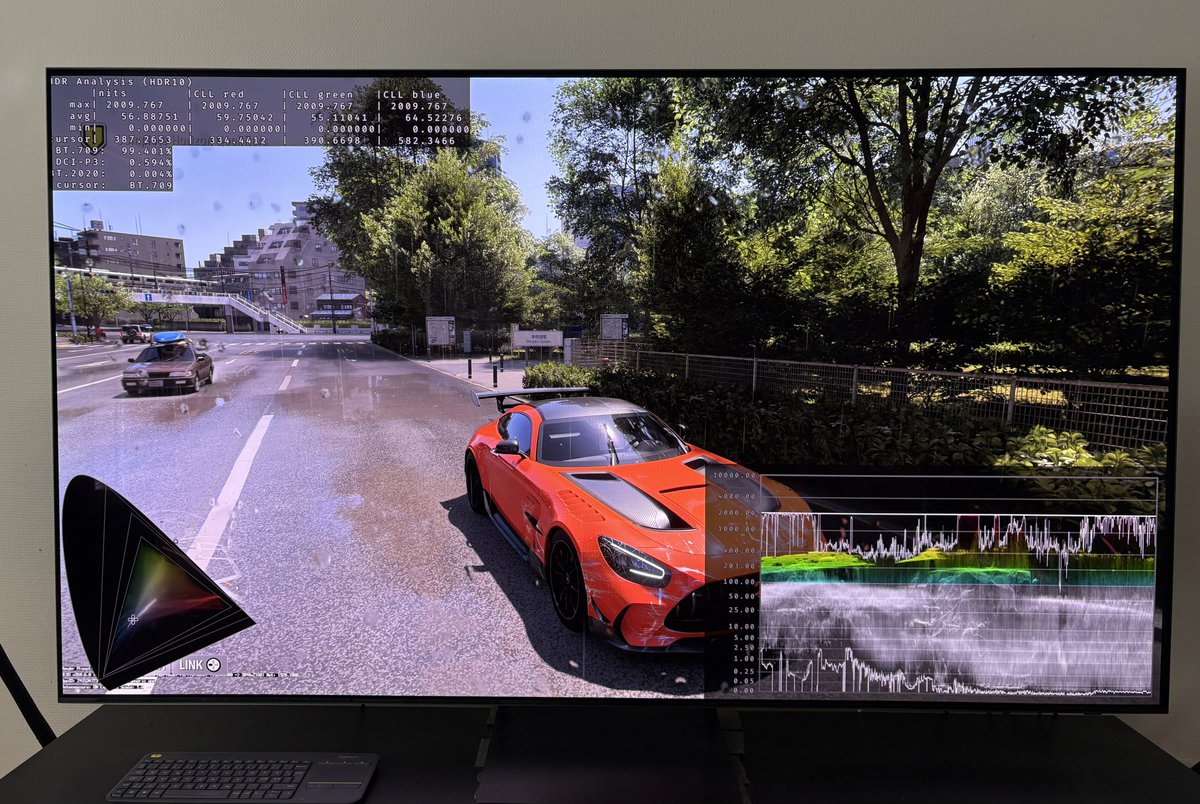
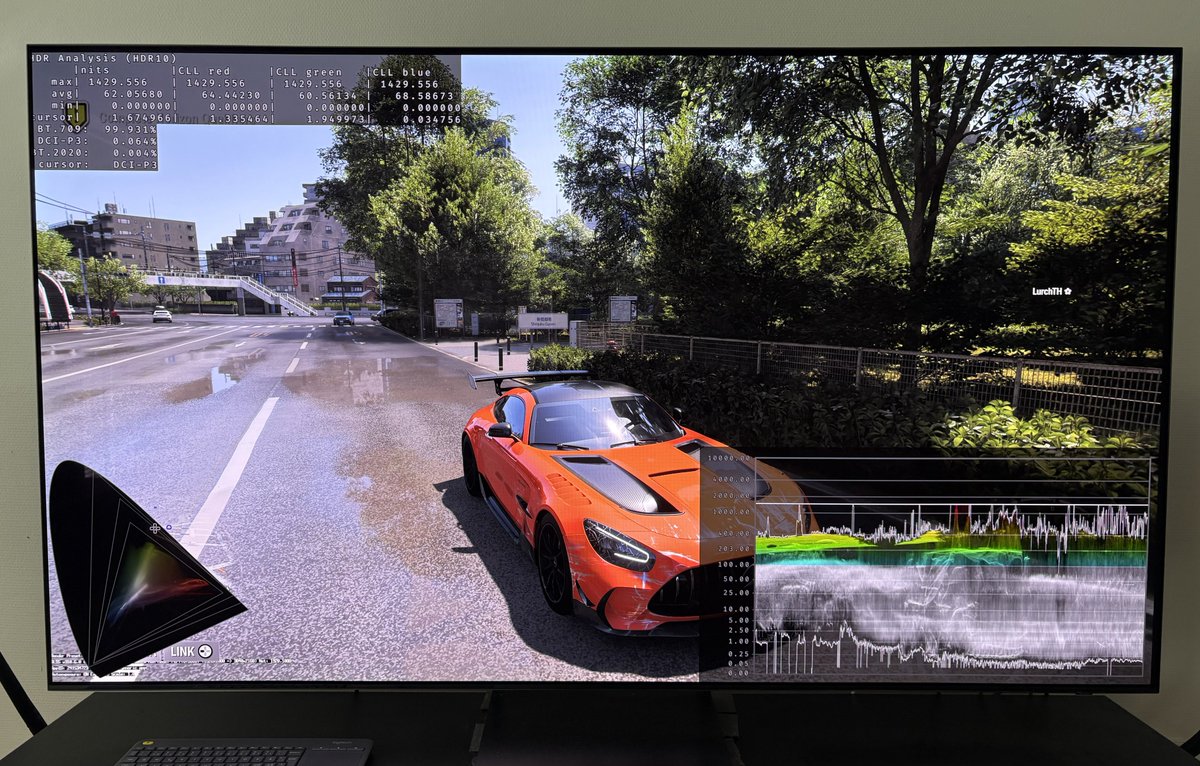
There is now a RenoDX HDR mod for #ForzaHorizon6 on PC (no longer in beta).
Its a great mod 👍 It adresses all the issues I had with the games HDR.
It especially helps gamers with higher nits displays (above 800-1000 nits). They can now fully utilize their displays full brightness capabilities. All gamers on PC can benefit from its lower black levels.
Link to mod in next post.
The mod uses the games in-game sliders for peak brightness and paper white. So we don’t get the RenoDX mods usual settings to further fine tuning our HDR setup.
There is a cool feature - where you with the press of a buttom can change between in-game HDR and the mods HDR.
Peak brightness:
Many lightsources no longer have different brightness output (no longer capped too low) depending on time of day or area.
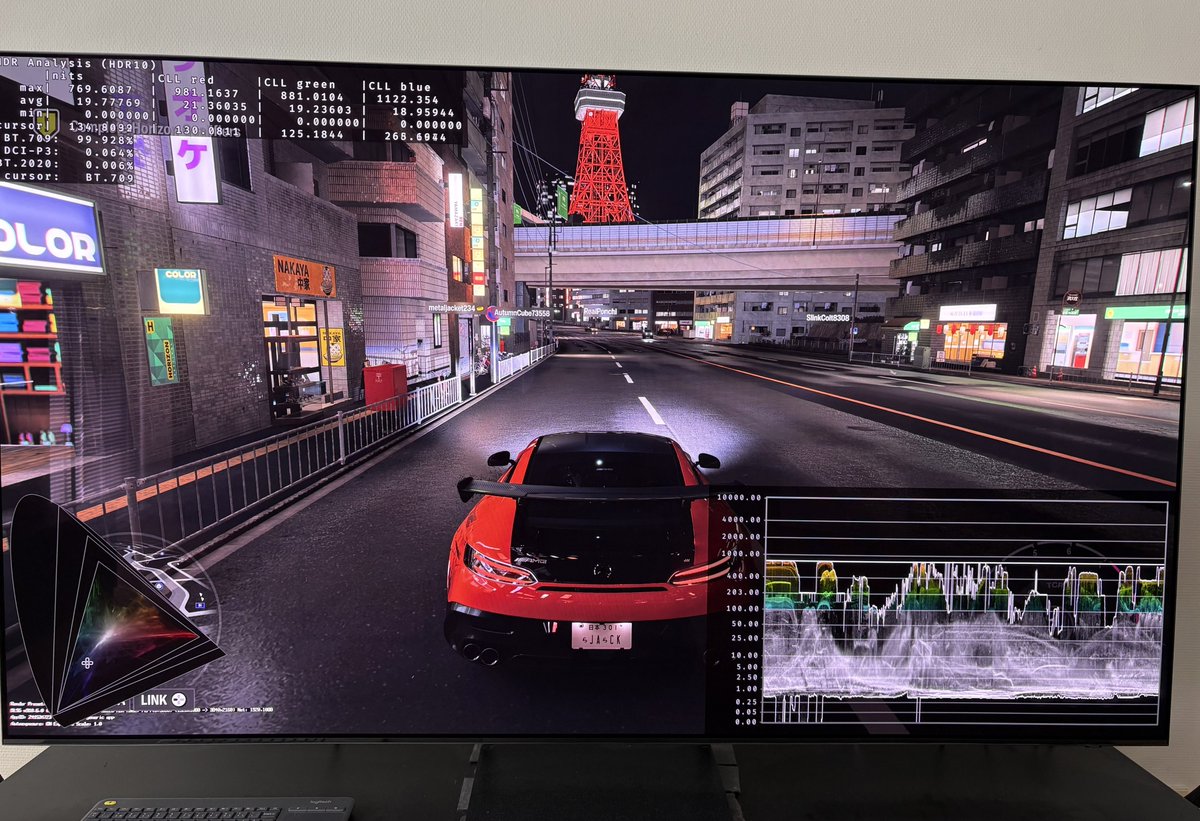
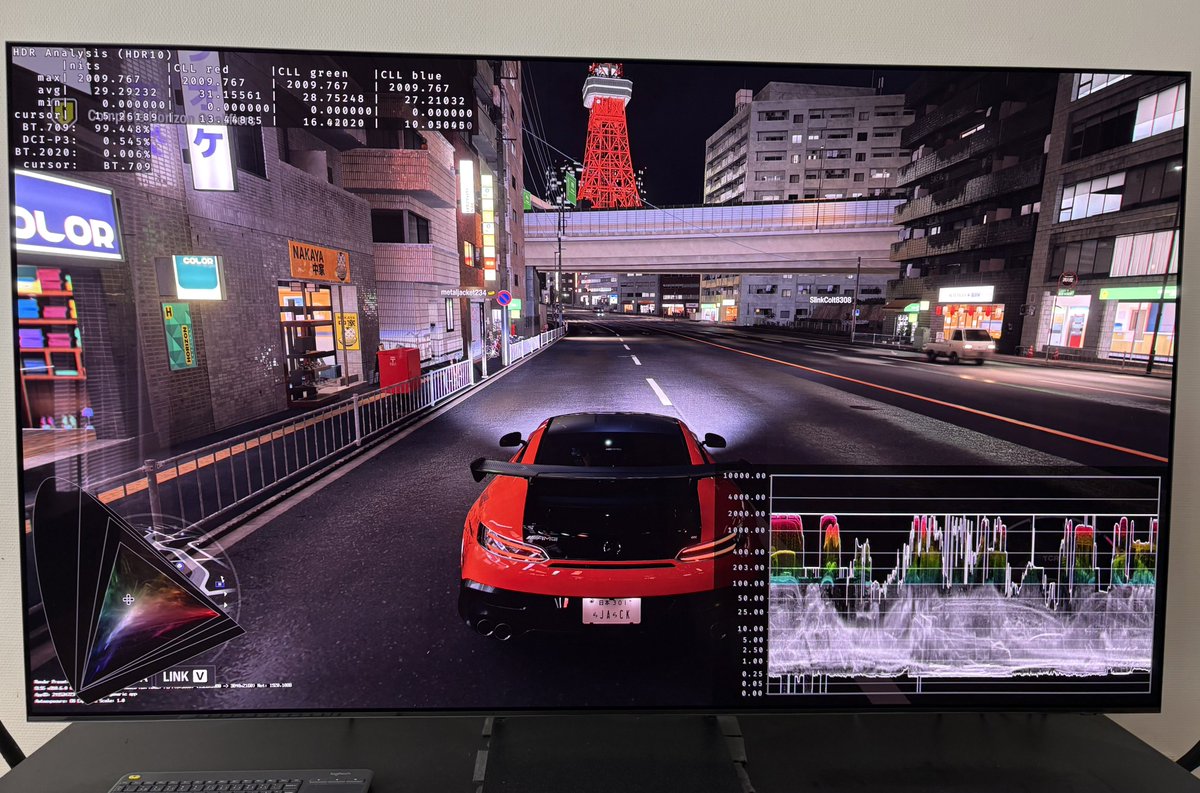
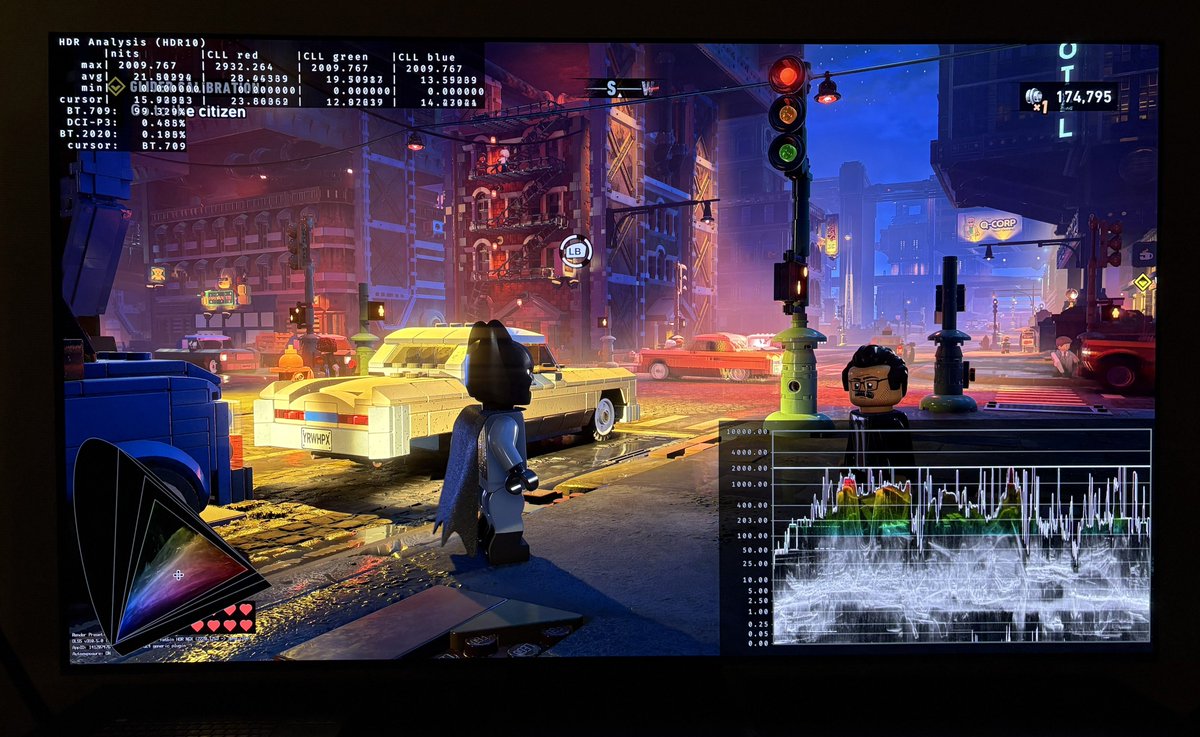
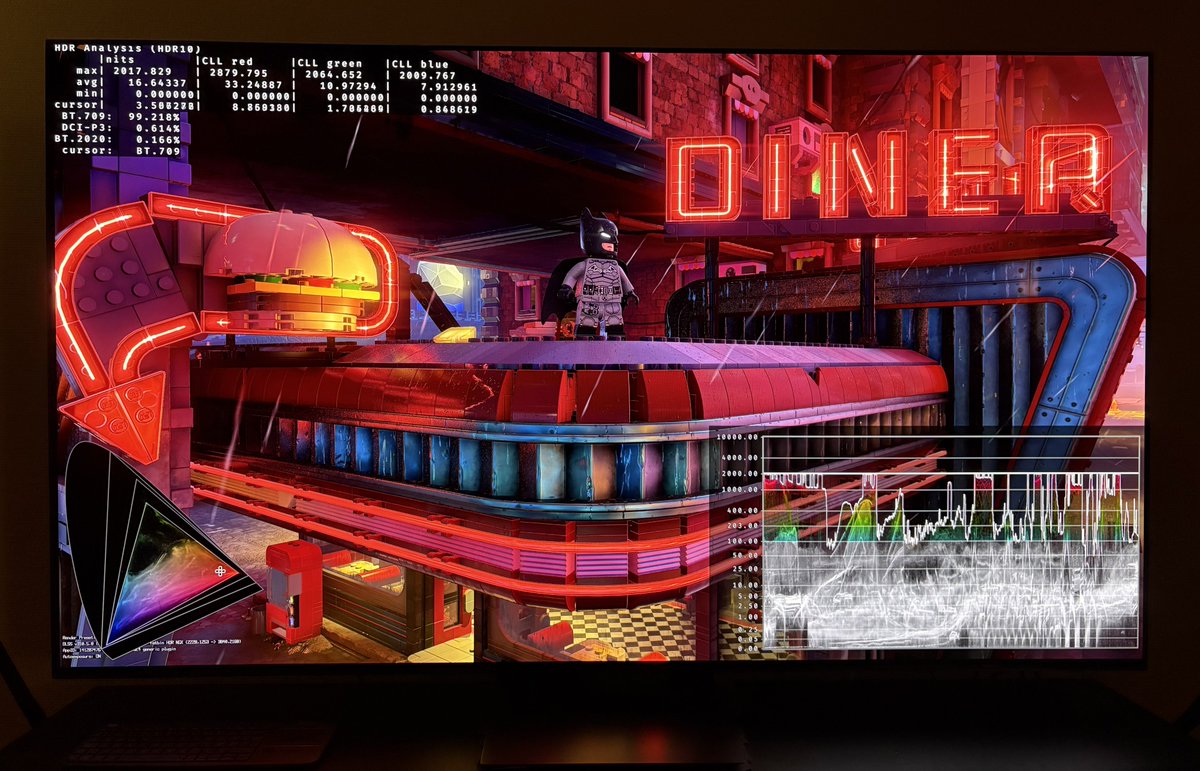
Picture 1 is in-game HDR output being capped at 760 nits even though I have setup peak brightness to 2000 nits (250 nits paper white). Picture 2 shows 2000 nits output with RenoDX.
During daytime I get 600 higher nits output for my 2000 nits TV (see picture 3 and 4).
Black levels / Shadows:
Black levels are much lower. That in itself is great, giving us better contrast. See the lower part of the waveform on picture 3 and 4.
Lower shadows is also great because it effectively means we now can increase paper white more without shadows / black levels increasing too much (increasing paper white increases upper shadows). This keept me from increasing paper white above 250 nits, even though I wanted higher midtone brightness. I now use 330 nits.
I can now start my playthrough of Forza Horizon 6😊
16
14
213
26,971
The HDR output of #007FirstLight can be explained in a much more simple way than I did in my earlier post (a bit of sleep helped☺️).
We have one in-game brightness slider.
This slider is what sets up peak brightness and paper white / midtone brightness in the game. It increases the brightness (midtones, highlights) in a liniar way. We see that in the data below. However, it does not effect the black level floor - not much anyway.
First number is brightness on the in-game slider. Second number is what the game maxium outputs in the Crash Site scene.
100 / 470
150 / 700
200 / 930
250 / 1140
300 / 1360
350 / 1560
400 / 1760
450 / 1950
500 / 2130
550 / 2300
600 / 2450
700 / 2730
800 / 2960
The game cuts all detail in highlights above your peak brightness, that the game automatically gets from Xbox's and PS5's HDR system settings or Windows HDR calibration App.
Your TV wont be able to output more anyway, if peak brightness is setup correctly.
This is how simple it is, basically.
You should setup the brightness slider to what looks must natural to you. This value is somewhat dependend on personal preference and ambient light in the room.
However, I think if you game in a dark room then you can use these brightness values as guidelines or starting points;
- 180-250 nits brightness (500-1000 nits displays)
- 250-300 nits brightness (1000-1500 nits displays)
- 300-350 nits brightness (1500-2300 nits displays)
The conclusion in my earlier post is the same:
I don't like that paper white (brightness) and peak brightess are not decoupled when setting up HDR. It's not intuitive to me and it usually means higher nits displays gets underutilized.
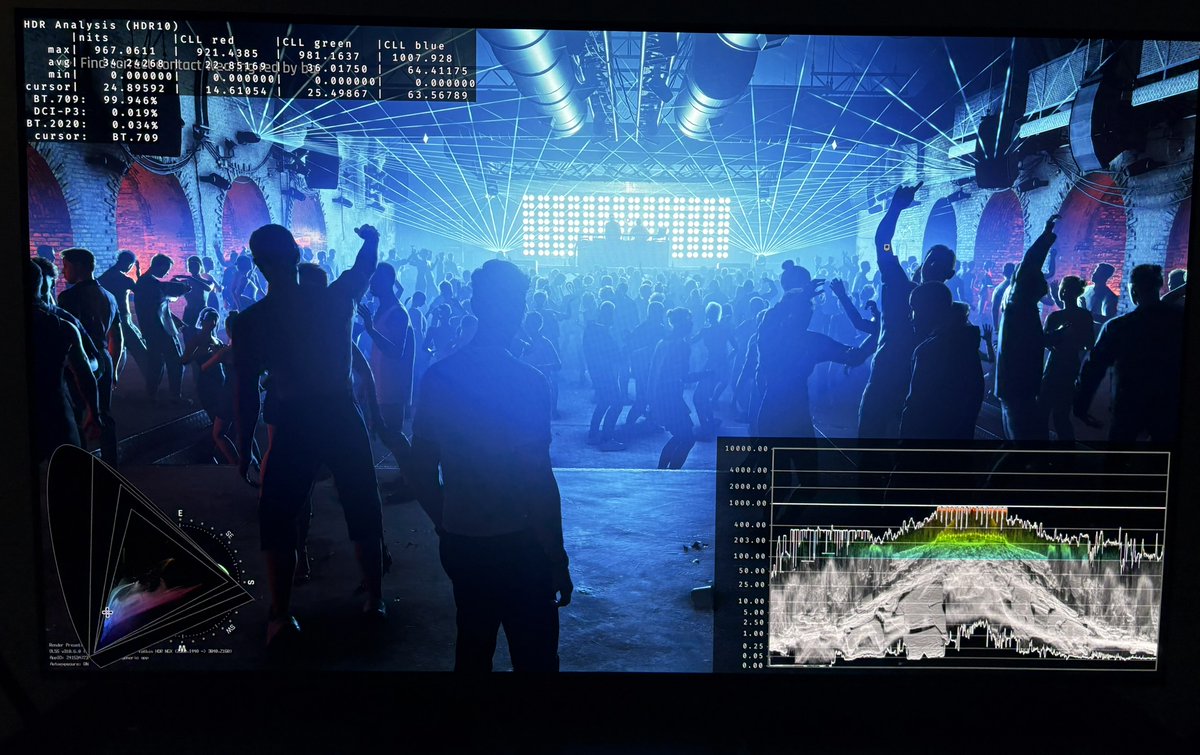
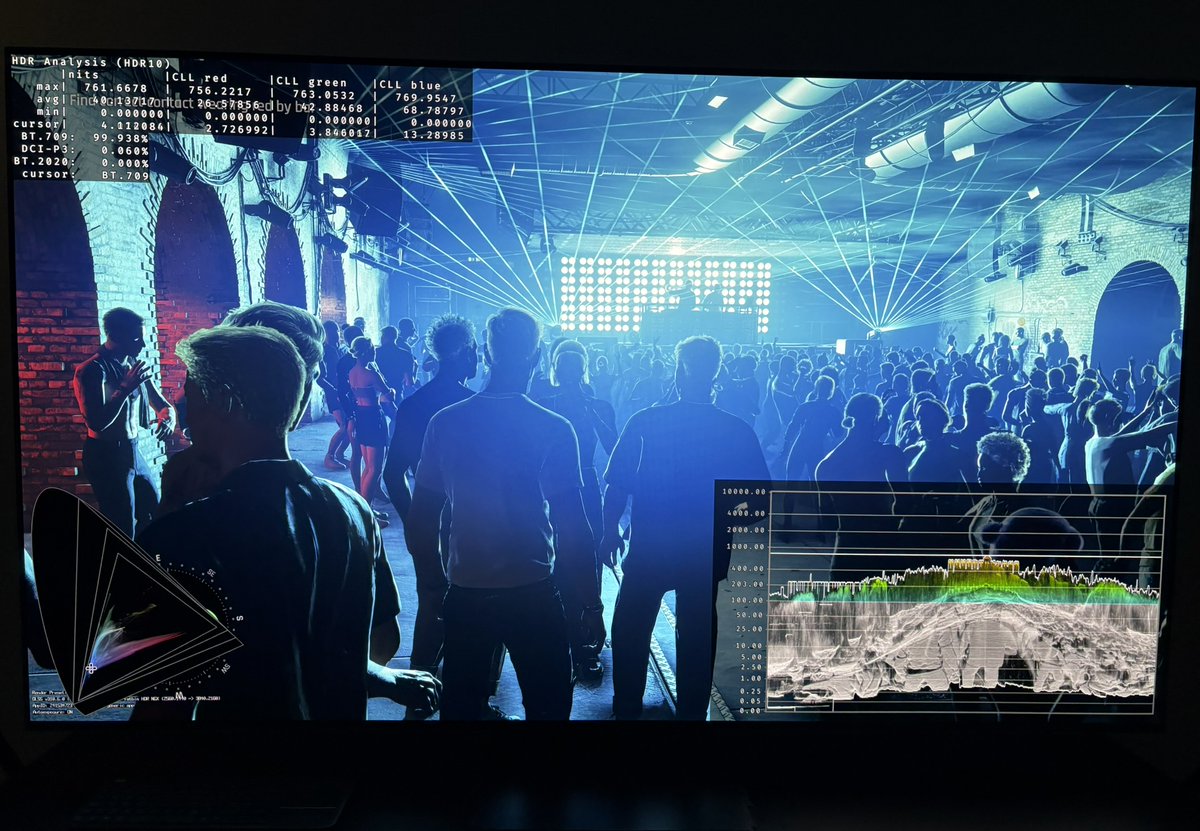
On top of the above, the games bright lightsources are mostly much dimmer than the above tested peak brightness output. I showed that we only get around 1000-1200 nits peak brightness in disco lights in the Night Club scene on my 2000 nits OLED display. OLED Displays in 2026 have up to 3000 nits peak brightness. So a huge under-utilization of current display technology.

HDR analysis and setup guide for #007FirstLight on PC and Xbox (and PS5). Setup guide at the end.
I have not tried it on PS5, but it most likely is implemented exactly the same on PS5 as it is on Xbox/PC.
I really like the game, but HDR is not implemented in a way I like. The games highligts are very dim on higher nits displays, so it does not utilize higher nits displays capabilities (above 800-1000 nits).
Its also very un-intuitive to setup for gamers, because setting up paper white / brightness is not decoupled from peak brightness. And highlights gets clipped as we move up the brigtness slider.
The game does look much better with HDR than in SDR. Thats for sure.
HDR peak brightness:
The game automatically gets the peak brightness from Xbox's HDR system calibration, Windows HDR calibration app (and most likely also from PS5s HDR system settings).
I have tested up to 2500 nits, but the game might output much higher.
The game will not output higher nits than this value. It clips everything above.
Black levels:
The game has great black levels in darker scenes and the brightness slider does not effect it. However, the game uses a lot of tiny layer of fog and a brown color filter that raises black levels in some scenes. That is an artistic choice. I do find some scenes quite ugly with poor contrast because of this. Other scenes look great.
Don't worry about the black levels. They are fine and we can't change them anyway.
Paper White (brightness):
In-game we only have one slider. Its a brightness or paper white slider. It will have the value from zero to your peak brightness. So if you have set peak brightness to 1000 nits, the slider will show 1000 nits. If you have set peak brightness to 1500 nits, the slider will show 1500 nits.
It increases everything from upper shadows, midtones and highlights.
What it does is to push everything upwards, except black levels, as we increase the slider. Its means brighter lightsources gets pushed up against the ceiling, peak brigtness. Everything above peak brightness gets clipped so we lose detail in brighter highligts if we increase it too much.
I don't like when a brightness / paper white slider is not decoupled from peak brightness. It makes it very difficult to setup HDR for gamers and it means we wont get to utilize our displays peak brightness (see Brightness Output section below), unless we are so lucky that the paper white we want gets us the peak brightness we want.
I instead want a brightness / paper white slider to mostly adjust midtones. Everything above paper white and up to peak brightness should be compressed or stretched in a non-liniar way as we adjust midtones.
Brightness output:
Below I show what the game outputs in the brightest lightsources I could find in the Q-lap and Crash site scenes. I will show pictures from the two scenes in my next post so you can see the lightsources I tested.
As we can see gamers with higher nits displays are getting significantly lower brightness output in highlights, depending on brightness set on the slider, than gamers with lower nits displays (below 1000 nits).
Most lightsources are much dimmer than the tested lightsources. See the 4 pictures below from the Night Club scene.
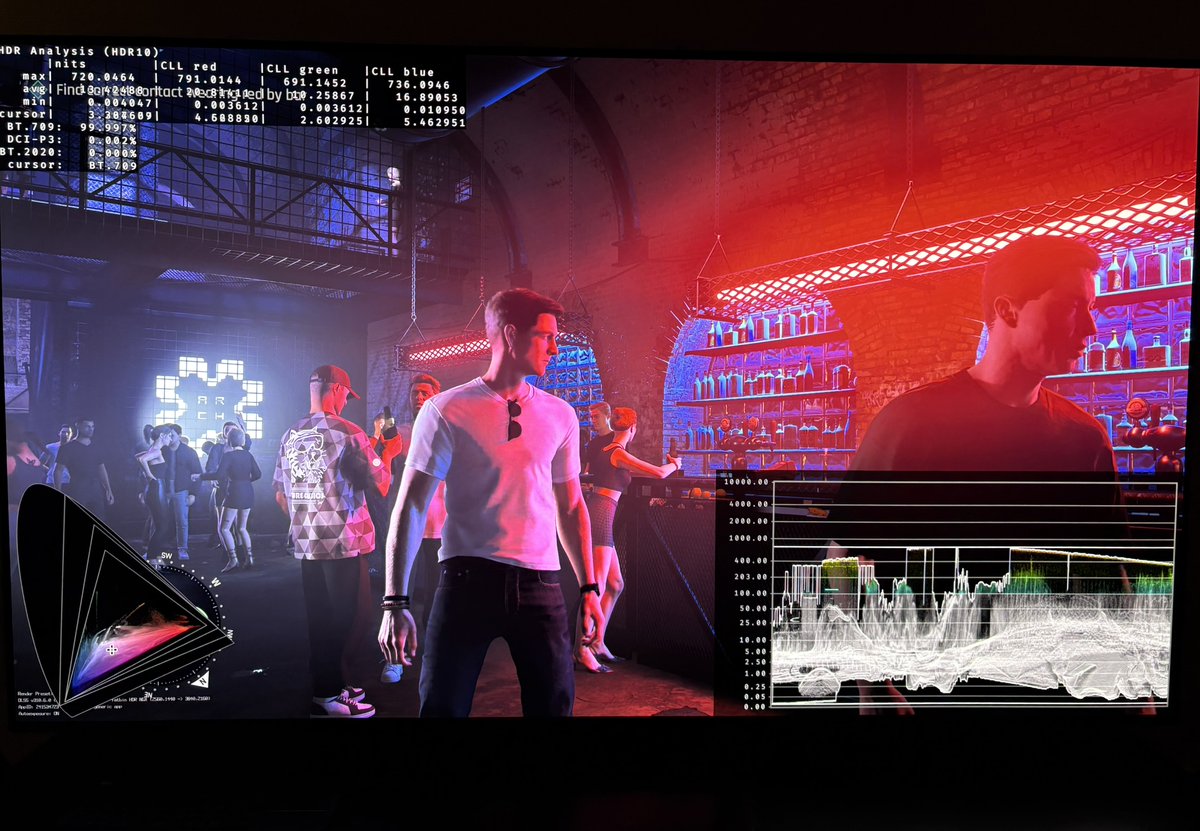
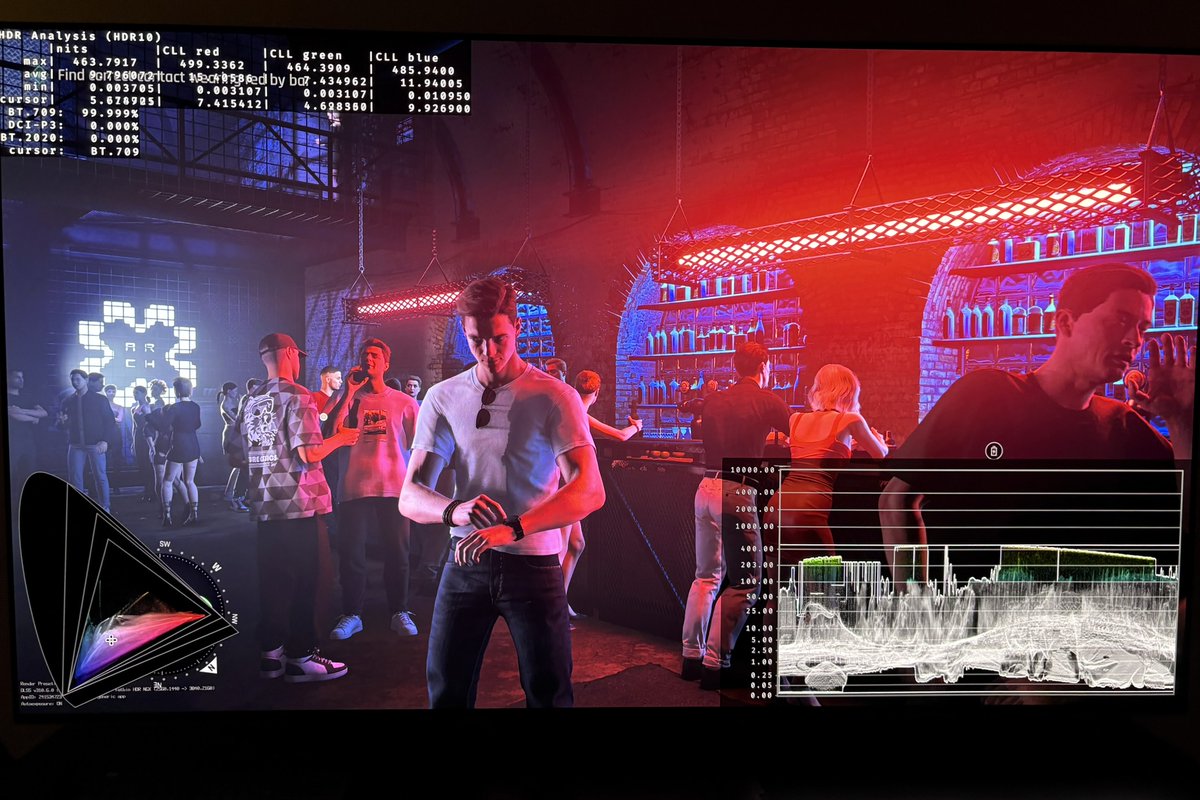
Picture 1 and 3 are with 2000 nits peak brightness and 400 nits on the brightness slider. The game here only outputs 1000-1200 nits in the brightest lightsouces in the scene (picture 1) and 720 nits in the neon lights in the bar (picture 2).
Picture 2 and 4 are with 1000 nits peak brightness and 250 nits on the brightness slider. The game only outputs a max of 760 nits in picture 2 and 460 nits in picture 4.
Q-lap:
500/150=450
500/(180-500)=500
800/200=736
800/(230-800)=800
1000/200=750
1000/250=880
1000/(300-1000)=1000
1500/200=820
1500/250=1000
1500/300=1160
1500/430-1500=1500
2000/250=1040
2000/300=1230
2000/400=1550
2000/500=1840
2000/((570-2000)=2000
2500/190=800
2500/240=1000
2500/300=1240
2500/370=1500
2500/520=2000
2500/640=2300
2500(730-2500)=2500
Crash site:
1000/200=720
1000/250=840
1000/360-1000=1000
2000/200=900
2000/300=1300
2000/400=1630
2000/500=1900
2000/560-2000=2000
Setup guide:
First make sure your peak brightness is setup to what your display can do on a 2-10% window. Its a starting point.
Then setup the overall brigtness, using the in-game brightness slider, to what looks most natural to you. When doing this, also look at bright bigger lightsources to see if detail gets clipped. Stop increasing the brightness slider if highlights gets clipped.
When you have done that, you can chose to use the above data for peak brightness output to further increase your peak brightness. It can also help with some clipping.
Use the above peak brightness output to get a better understanding of the games peak brightness output.
33
9
210
424,673
HDR analysis and setup guide for #007FirstLight on PC and Xbox (and PS5). Setup guide at the end.
I have not tried it on PS5, but it most likely is implemented exactly the same on PS5 as it is on Xbox/PC.
I really like the game, but HDR is not implemented in a way I like. The games highligts are very dim on higher nits displays, so it does not utilize higher nits displays capabilities (above 800-1000 nits).
Its also very un-intuitive to setup for gamers, because setting up paper white / brightness is not decoupled from peak brightness. And highlights gets clipped as we move up the brigtness slider.
The game does look much better with HDR than in SDR. Thats for sure.
HDR peak brightness:
The game automatically gets the peak brightness from Xbox's HDR system calibration, Windows HDR calibration app (and most likely also from PS5s HDR system settings).
I have tested up to 2500 nits, but the game might output much higher.
The game will not output higher nits than this value. It clips everything above.
Black levels:
The game has great black levels in darker scenes and the brightness slider does not effect it. However, the game uses a lot of tiny layer of fog and a brown color filter that raises black levels in some scenes. That is an artistic choice. I do find some scenes quite ugly with poor contrast because of this. Other scenes look great.
Don't worry about the black levels. They are fine and we can't change them anyway.
Paper White (brightness):
In-game we only have one slider. Its a brightness or paper white slider. It will have the value from zero to your peak brightness. So if you have set peak brightness to 1000 nits, the slider will show 1000 nits. If you have set peak brightness to 1500 nits, the slider will show 1500 nits.
It increases everything from upper shadows, midtones and highlights.
What it does is to push everything upwards, except black levels, as we increase the slider. Its means brighter lightsources gets pushed up against the ceiling, peak brigtness. Everything above peak brightness gets clipped so we lose detail in brighter highligts if we increase it too much.
I don't like when a brightness / paper white slider is not decoupled from peak brightness. It makes it very difficult to setup HDR for gamers and it means we wont get to utilize our displays peak brightness (see Brightness Output section below), unless we are so lucky that the paper white we want gets us the peak brightness we want.
I instead want a brightness / paper white slider to mostly adjust midtones. Everything above paper white and up to peak brightness should be compressed or stretched in a non-liniar way as we adjust midtones.
Brightness output:
Below I show what the game outputs in the brightest lightsources I could find in the Q-lap and Crash site scenes. I will show pictures from the two scenes in my next post so you can see the lightsources I tested.
As we can see gamers with higher nits displays are getting significantly lower brightness output in highlights, depending on brightness set on the slider, than gamers with lower nits displays (below 1000 nits).
Most lightsources are much dimmer than the tested lightsources. See the 4 pictures below from the Night Club scene.
Picture 1 and 3 are with 2000 nits peak brightness and 400 nits on the brightness slider. The game here only outputs 1000-1200 nits in the brightest lightsouces in the scene (picture 1) and 720 nits in the neon lights in the bar (picture 2).
Picture 2 and 4 are with 1000 nits peak brightness and 250 nits on the brightness slider. The game only outputs a max of 760 nits in picture 2 and 460 nits in picture 4.
Q-lap:
500/150=450
500/(180-500)=500
800/200=736
800/(230-800)=800
1000/200=750
1000/250=880
1000/(300-1000)=1000
1500/200=820
1500/250=1000
1500/300=1160
1500/430-1500=1500
2000/250=1040
2000/300=1230
2000/400=1550
2000/500=1840
2000/((570-2000)=2000
2500/190=800
2500/240=1000
2500/300=1240
2500/370=1500
2500/520=2000
2500/640=2300
2500(730-2500)=2500
Crash site:
1000/200=720
1000/250=840
1000/360-1000=1000
2000/200=900
2000/300=1300
2000/400=1630
2000/500=1900
2000/560-2000=2000
Setup guide:
First make sure your peak brightness is setup to what your display can do on a 2-10% window. Its a starting point.
Then setup the overall brigtness, using the in-game brightness slider, to what looks most natural to you. When doing this, also look at bright bigger lightsources to see if detail gets clipped. Stop increasing the brightness slider if highlights gets clipped.
When you have done that, you can chose to use the above data for peak brightness output to further increase your peak brightness. It can also help with some clipping.
Use the above peak brightness output to get a better understanding of the games peak brightness output.
20
13
241
51,209
HDR helps the visuals a lot in this game.
Lots of bright lightsources, colors and great shadows and contrast.
8
1,584

May 20
Props and multiple lightsources, i think its a one time purchase for the lower tier and then to unlock it fully its a subscription, but the OTP is more than enough to work it :D
4
525

May 11
I bake the vertex colors from lightsources on a duplicate model that has only a solid white material and then use the data transfer modifier to copy it over to the textured version.
Vertex alpha is done using another vcol layer and required a custom exporter to do.
2
2
42
1,002

May 5
that's because it is facing the wrong way and the lightsources actually work, unlike the beta image
71
4,188

May 2
Looks like it uses lightsources and shading/saders like GPU renduring methods.. kinda like the Super ZSNES emulator can do.
2
461

Dont be daft ya moron. Plasma cant have shadows on its surface like the moon. And lightsources like the sun are not reflective. Stop being gullible
2
3
38

Apr 29
Graphics in #Saros is from a technical perspective mediocre and HDR broken. I expected more on PS5 Pro.
- It uses Unreal Engine 5, but don’t use any of UE5s big features like Lumen for better global illumination (indirect lighting) and reflections, no use of Nanite for much more geometric detail and objects on screen with no popin (the game has popin) and no use of Virtual Shadow Maps for much better shadowing of the game world.
In picture 1 and 2 we see nothing reflects in the ground. Its the case in most surfaces in the game.
The lack of proper indirect lighting and very little reflection in most surfaces of lightsources makes the game look very flat and almost last gen.
The HDR implementation is broken. In picture 3 we see clipping of highlights and that the game only outputs 1300 nits for my 2000 nits TV. There are no adjustments ingame to adjust shadows, midtones (paper white) or max luminance Independently of each other.
I also think the game could have looked more detailed. It uses PSSR 2 from a high internal resolution of 1440p. A sharpness slider would have been nice to have.
Picture 4 shows a wall in a cave lit up even if there are no lightsources around. The developers just placed an invincible lightsource there ???
I also don’t understand why we dont get an unlocked mode upscaling from 1080p using PSSR 2. It could probably run at 90-100 fps in such a mode.
The game is under-utilizing PS5 Pro by not using PS5 Pro’s stronger Ray Tracing hardware and by not utilizing PSSR 2s ability to do a good upscale from as low as 1080p or even lower.
The game is good, the atmosfare and artstyle is good and I like the sound and how it uses the Dual Sense’s features. Graphics are mediocre and HDR broken, but still impactful.


30
1
30
16,785

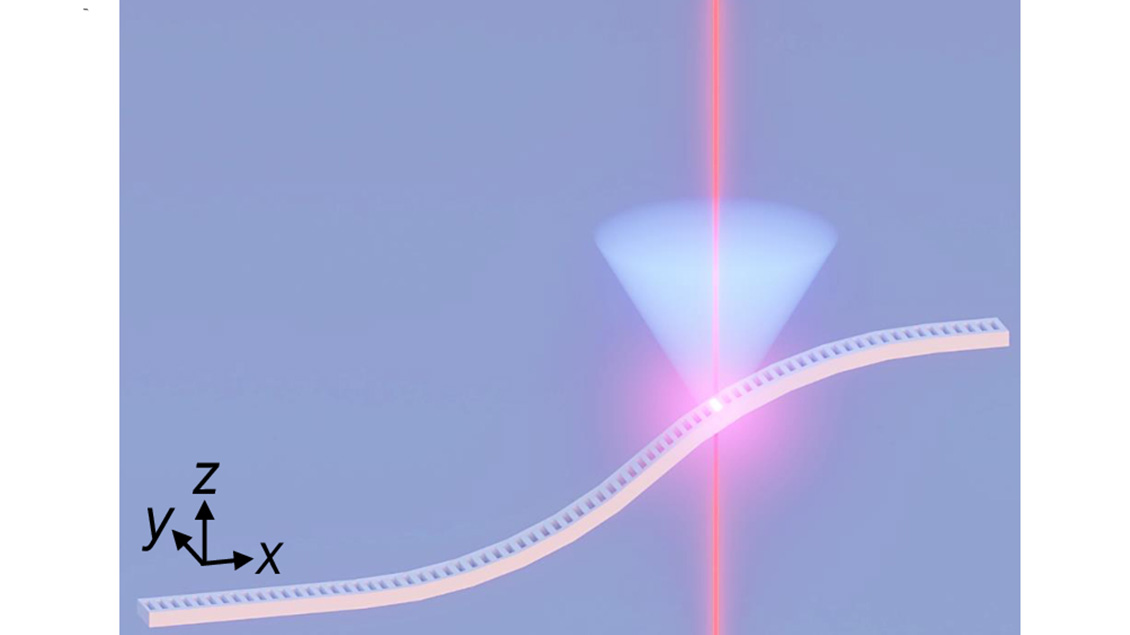
Via #OPG_OL: Curved-shape topological photonic crystal edge-state nanolasers in the telecom C-band bit.ly/4lJHFpi #PhotonicCrystals #LightSources @SCUT1918
2
7
256

Mar 20
How can the lighting be off in the original model that is the one being affected by light in engine? You mean the model that has new non existent lightsources is the accurate?
1
3
133

Mar 19
AI hallucinated lightsources and you claim 'improved occlusion, shadowing and material detail'. 🤣🤣🤣🤡
2
23

But it doesn't add LIPSTICK. IT DOESN'T ADD LIGHTSOURCES WHERE IT DOESN'T EXIST. You guys are fucking lying for outrage clicks, you guys are the parasites of twitter.
1
7
262

it is adding new lightsources which you can see in some of the examples which completelly changes the scene.
2
9
300