
Jun 13
How to Scan Documents & Create PDFs on Your Phone #PDFCreator #DocumentScanner #ScanDocuments #PDFTools
8

youtu.be/59ZpEgxtI3s
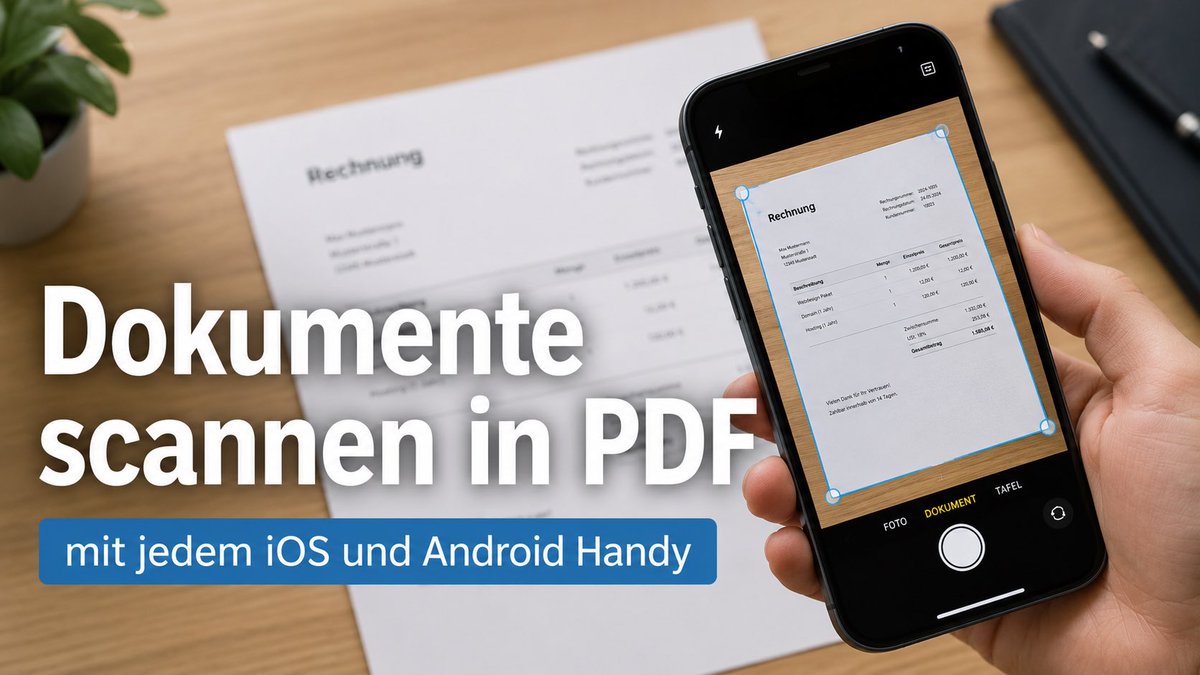
🇩🇪 Dokumente scannen in PDF, mit jedem Handy
🇬🇧 Scan documents to PDF with any cell phone
#DokumenteScannen #PDFmitHandy #Papierlos #ScanDocuments #PDFonYourPhone #GoogleDrive #ScanningTip #Paperless
8

Your scans are just photos until OCR makes them actually useful: search, edit, summarize, translate — all from a piece of paper 📄 👇
#ProductivityTips #iScanner #PDF #ScanToText #ScannerApp #OCR #ScanDocuments
youtu.be/qwtbVCsbOS0
41

28 May 2025
Google Drive has a nifty little feature that lets you quickly scan a document, save it as a PDF and upload without having to manually go through the process. #GoogleDrive #PDF #ScanDocuments #Android
indianexpress.com/article/te…
1
2
118
27 May 2025
Google Drive has a nifty little feature that lets you quick scan a document, save it as a PDF and upload without having to manually go through the process. #GoogleDrive #PDF #ScanDocuments #Android
indianexpress.com/article/te…
1
2
104

9 Jan 2025
Day 9/365
Steps to scan documents directly in WhatsApp:-
Step 1: Open the WhatsApp chat where you want to send the scanned document, and open the share menu ( ). This is the menu from where you usually choose to send regular documents, live locations, etc.
Step 2: Choose ‘Documents’ and you should see a new option called ‘Scan document’ as third option. Tap on the option to choose it.
Step 3: You will now see the camera open up with a slightly tweaked UI that is optimized for document scanning. Simply point the camera at the document you want to scan and capture. WhatsApp will automatically detect the document, now crop and adjust it, allowing you to move to the next page (in case of multi-page documents).
Once all the pages are scanned, you can also tap on the preview of the last scanned page on the bottom-left to see all the pages and crop/adjust them if required.
Here, you can also choose between filters like Colour, Greyscale, Black & White, and Photo. The Photo option is the one that sends the scan as is in the picture, without extra effects to make the text more legible.
Once all adjustments for all pages are done, you can tap on the ‘Done’ button on the top left and WhatsApp will automatically convert the document into a pdf file and send it ahead. In case of multiple pages, all pages will be put in a single pdf file.
#Thursday #TechThursday #Technology
#Scan #ScanDocuments #Whatsapp
Note: The document scanning feature on WhatsApp has just been rolled out and is available in iOS, and not all OS would have received it at once. This’ll take a while to be enabled in all OS.
2 Jan 2025

Day 2/365
Check out this link to find the page:
info.cern.ch/hypertext/WWW/T…
#Technology #TechThursday
#TimBernersLee #FirstWebpage

1
3
239

29 Dec 2023
📲✨ Scan documents in a snap with this iPhone shortcut! 📄 No more hassle, just tap and scan on the go. 🚀
Learn more: bit.ly/43QzCgn
#iPhoneMagic #ScanDocuments #ShortcutWizardry
3
127
29 Jun 2023
📄 Scan Documents on iPhone 📸
🌟 Discover the power of going paperless with our convenient document scanning tip for iPhone! 📱✨
#ScanDocuments #iPhoneScanner #wondershare #drfone
Learn more about Dr.Fone: bit.ly/43QzCgn
2
84

18 Aug 2022
How to scan documents on your phone using Google Drive
#googledrive #Drive #scandocuments
gadgetsnow.com/how-to/how-to…
2

28 Feb 2022
Scan documents from mobile | Image to PDF | Image to text (OCR) & much more
youtu.be/XfL1OTQ6E3I
#TechAlert #howto #scan #vflat #scandocuments #photo #image #technology #tech #love @vFlat_offical

3
3

16 Feb 2022
Scan your documents & be good for the Planet.! Watch to know more.
#scandocuments #documentscanning #smart #innovation #Docupile #dms #paperlessoffice
2

20 Jan 2021
If you are looking for How to scan documents from a printer to my laptop? you are on the right page. hear is Detalis Guide
#printer #printerever #scandocuments
#HowtoScanDocumentsFromaPrintertoMyLaptop
printerever.com/how-to-scan-…
3

29 Mar 2019
A Japanese #Insurance company is replacing 34 workers with #ArtificialIntelligence
#AI #ScanDocuments #Data #future #IoT #Robotics #Tech #MachineIntelligence #DeepLearning #IndustrialIoT #IIoT
@JohnSnowai @Ross_Quintana @WarrenWhitlock @jessicanaziri @EliseQuevedo
4

I use #OfficeLens sir. Very good app. Its from @Microsoft play.google.com/store/apps/d… #ScanDocuments #android
2
4

27 Jul 2018
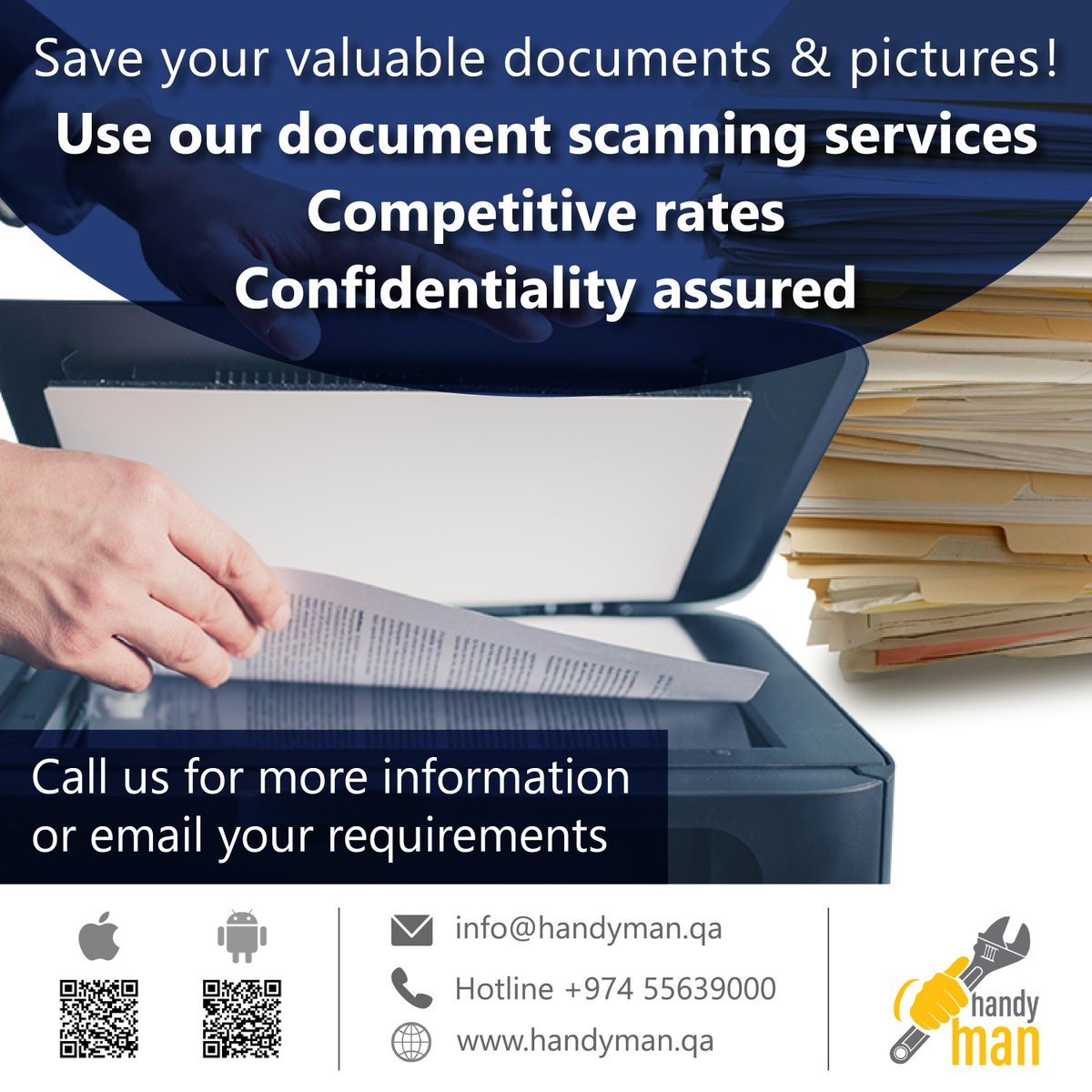
Save your Valuable Documents & Pictures!
Use our Document Scanning Services.
visit handyman.qa
info@handyman.qa
#Scanner #scandocuments #savedocuments #handyman #importantdocuments
1
1

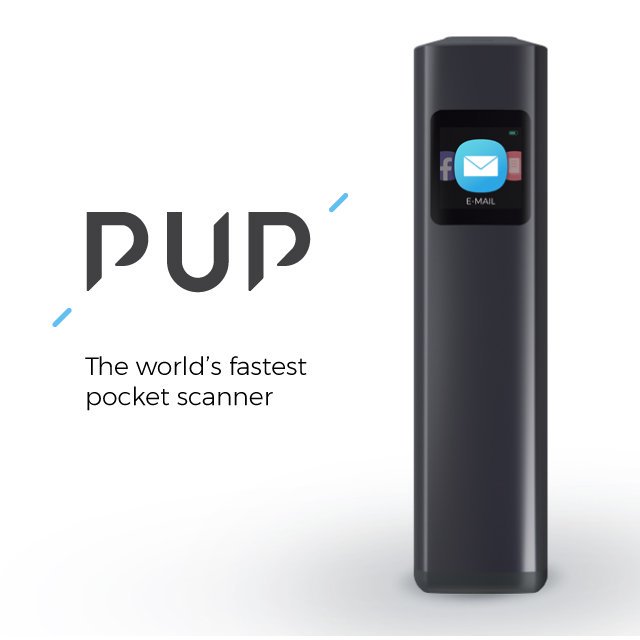
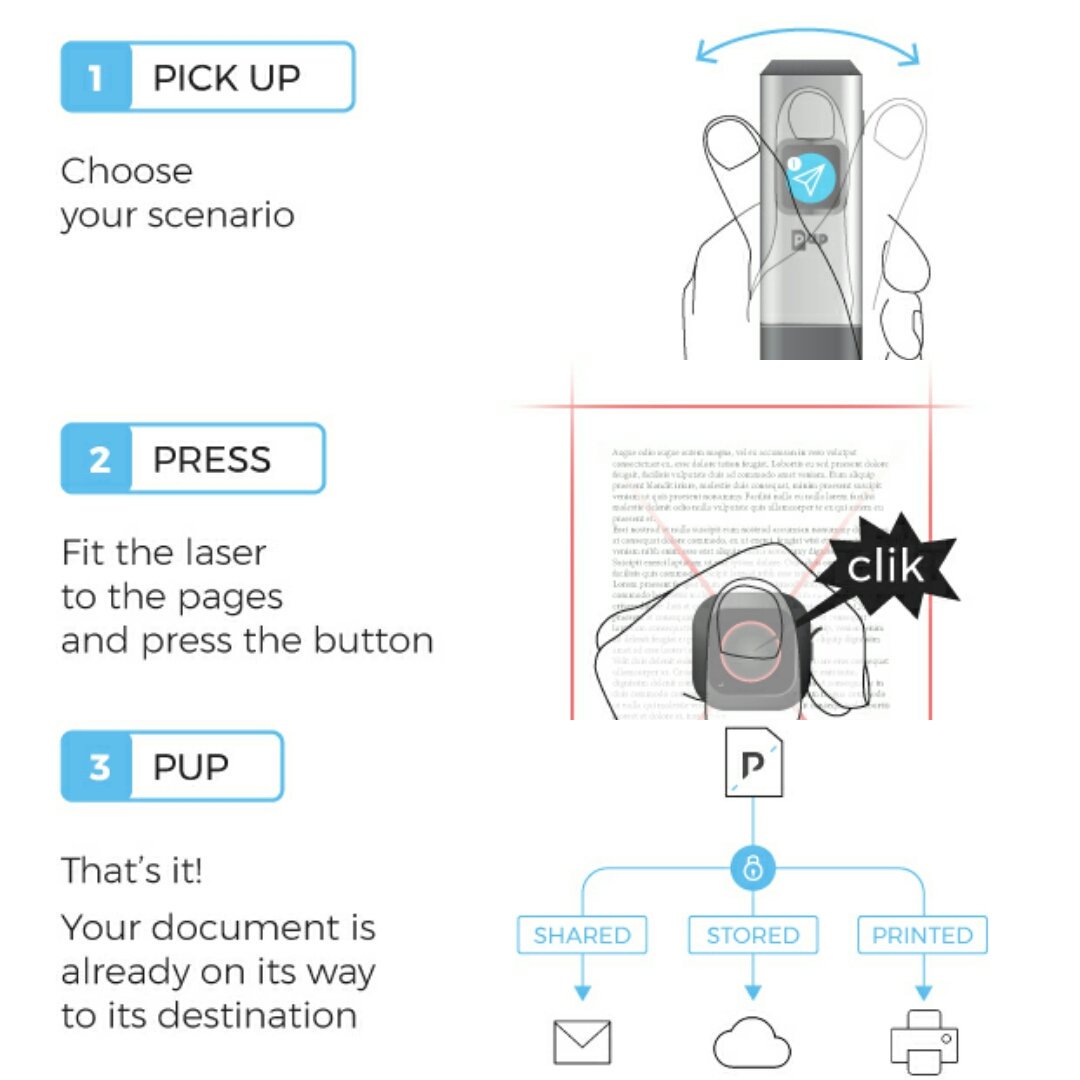
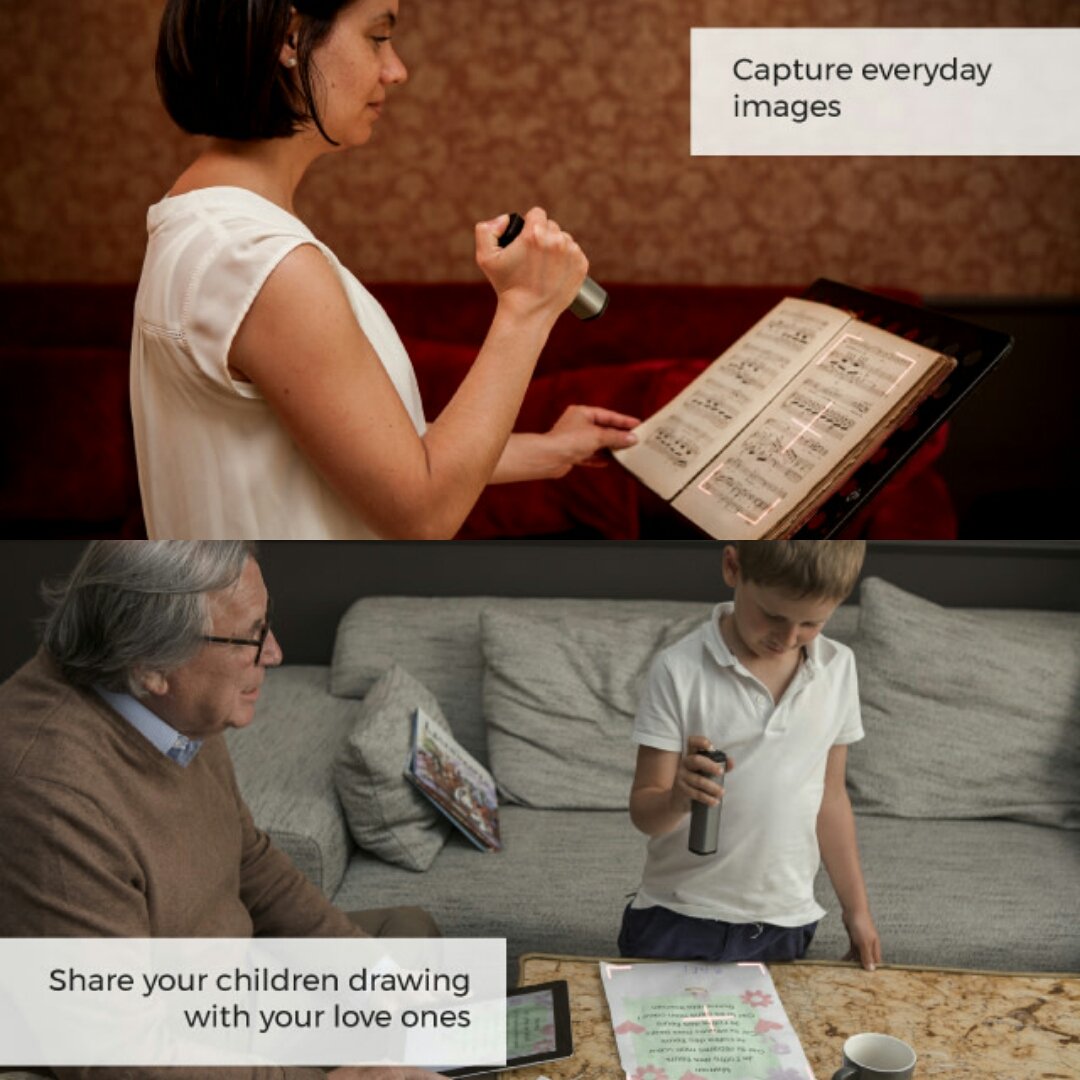
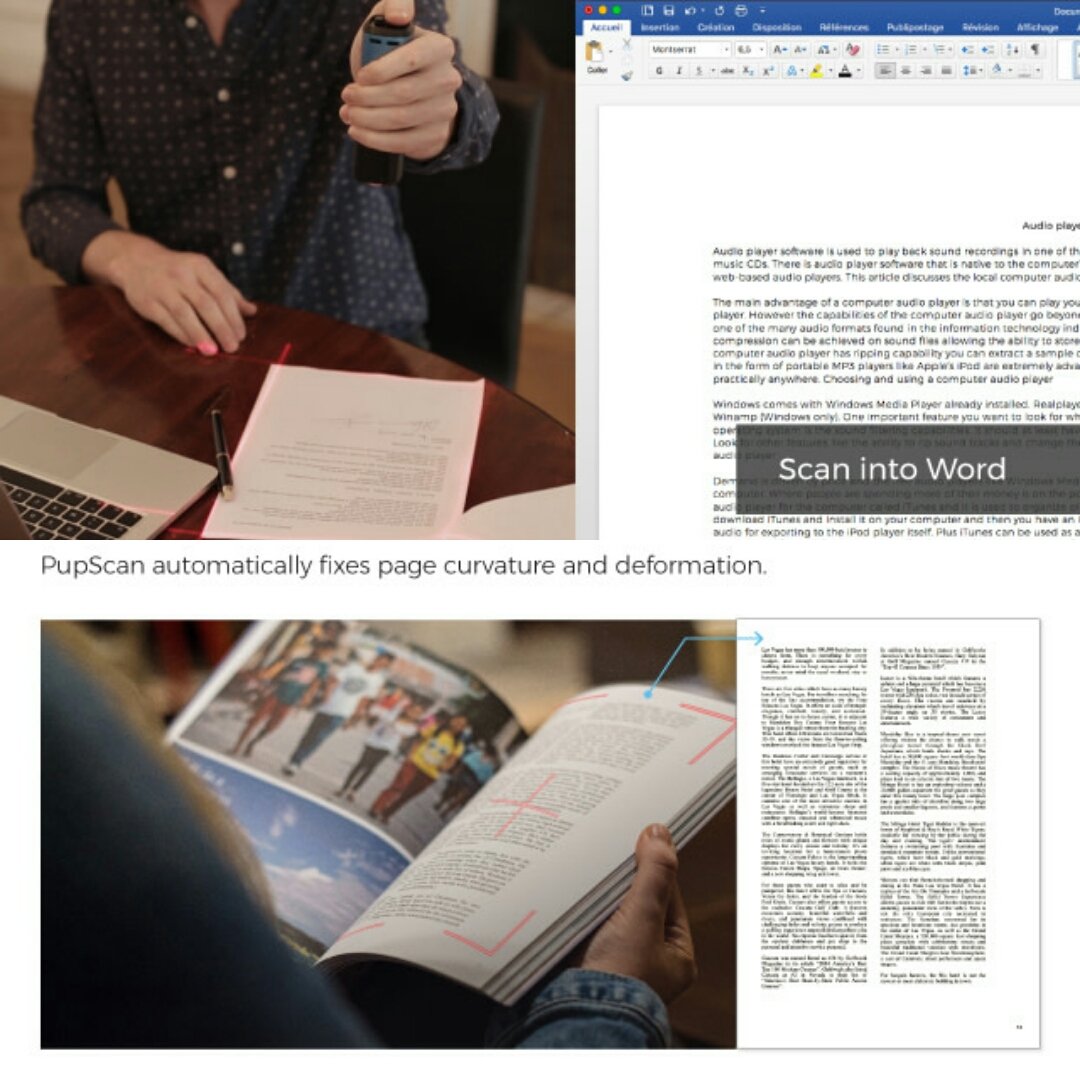
PUP Scan - Fastest pocket scanner.
Receipts, books, contracts, pictures. PUP Scan allows you to scan, store and share anything.
#startdet #startup #scanner #pocketscanner #compact #scandocuments #documents #pictures #art #share #books #facebook #twitter
2
3

2 Nov 2017
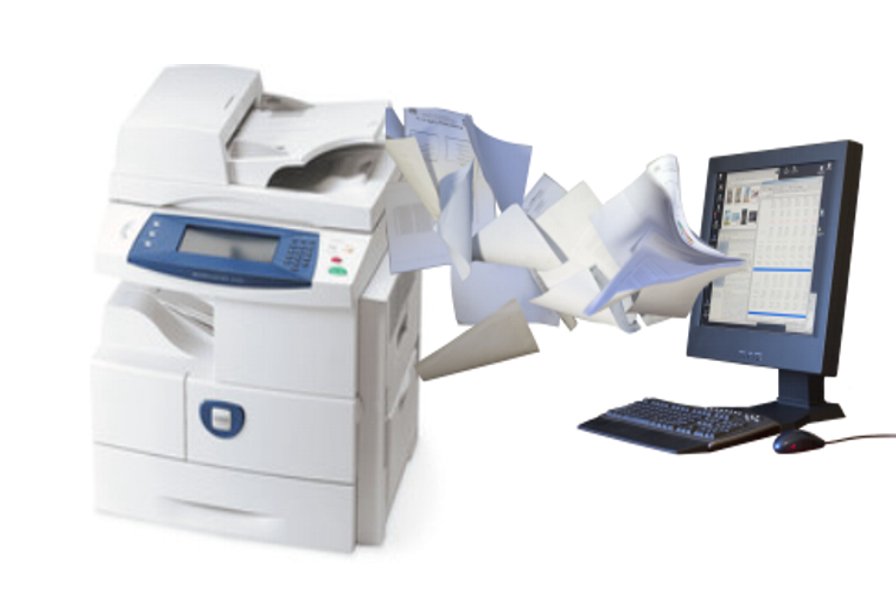
Would you like an option where you just #scandocuments and the index is done "magically"? #Magic Indexing is #comingsoon to Dokmee Capture.
1
8 Aug 2017
Would you like an option where you just #scandocuments and the index is done "magically"? #Magic Indexing is #comingsoon to Dokmee Capture.
13 Jul 2017
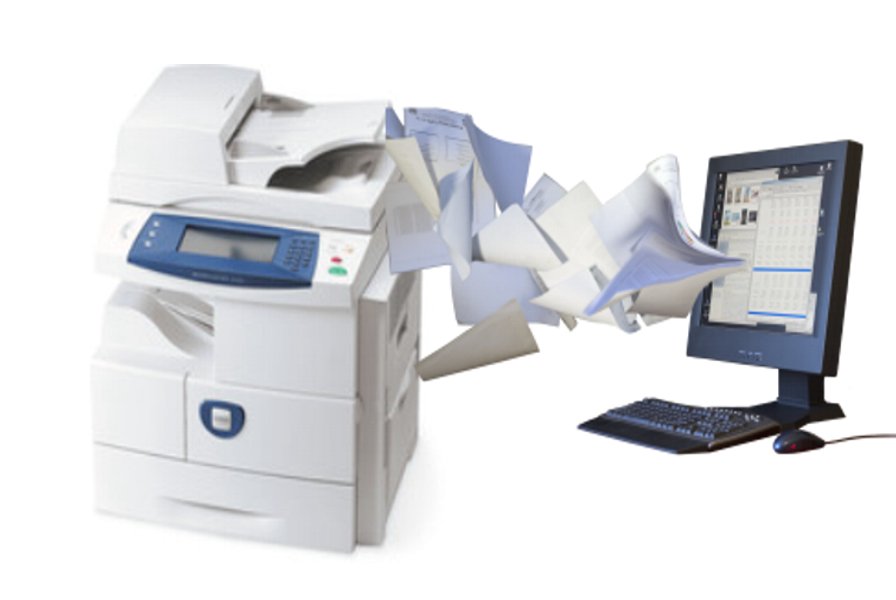
Would you like an option where you just #scandocuments and the index is done "magically"? #Magic Indexing is #comingsoon to Dokmee Capture.

2
4

22 May 2017
@indian_passport warm welcome to #gurutransfer ask #Indians to upload #scandocuments to #cloudstorage & walk free hands #passportinterview
4
4