
Jun 9
sudo ethtool -S enp0s31f6 | grep -E "crc|error|drop|miss|align"
rx_crc_errors: 2614
LANケーブルかな
21


hey validators,
lets make solana faster by enabling xdp.
xdp improves turbine packet handling by cutting packet overhead, copies and context switches. more shred propagation headroom = better validator performance under load and more room for solana to scale.
add:
--experimental-poh-pinned-cpu-core <core> \
--experimental-retransmit-xdp-cpu-cores <core> \
--experimental-retransmit-xdp-zero-copy
bnxt_en:
--experimental-poh-pinned-cpu-core <core> \
--experimental-retransmit-xdp-cpu-cores <core> \
--experimental-retransmit-xdp-interface <physical_interface> \
extend your systemd service:
AmbientCapabilities=CAP_NET_RAW CAP_NET_ADMIN CAP_BPF CAP_PERFMON
CapabilityBoundingSet=CAP_NET_RAW CAP_NET_ADMIN CAP_BPF CAP_PERFMON
LimitMEMLOCK=2000000000
notes:
- dont run poh and xdp on the same physical core
- keep poh away from the xdp cores shared L3 / numa domain
- validate your actual topology with lscpu -e/hwloc or solanahcl/solanahcl/blob/main/public/topology/
easy rule of thumb:
- 7965wx: 24c across 4x ccds -> 6 cores/ccd first ccd: 0–5c, next ccd starts at 6c
- 9375f: 32c across 8x ccds -> 4 cores/ccd first ccd: 0–3c, next ccd starts at 4c
common xdp-capable drivers:
i40e, ixgbe, ice, igc,
mlx5_core, mlx4_core,
bnxt_en
dont use bonded interface with xdp.
for broadcom / bnxt_en: dont enable zero-copy. copy mode is the safe path.
if you run into "huge page alloc failed", remove the zero-copy flag and set the xdp interface to the physical interface:
--experimental-retransmit-xdp-interface <physical_interface>
check the ring sizes: it needs to be power of 2
IFACE=$(ip route get 1.1.1.1 | awk '{for(i=1;i<=NF;i ) if($i=="dev") print $(i 1)}')
sudo ethtool -g "$IFACE"
# if you see values like rx: 511 or tx: 511, thats likely the issue.
sudo ethtool -G "$IFACE" rx 512 tx 512
restart and voila, you are not a potato anymore.
4
14
37
3,911

May 14
Hal duplex or full... Sudo oi link set eth0 down sudo ethtool eth0 look for your half and full duplex on advertised links.
sudo ethtool -s eth0 speed 1000 duplex full autoneg off, && sudo ethtool -s eth0 autoneg on then sudo IP link set eth0 up sudo systemctl restart networkman
1
2
15

Many of us are using Tailscale to access our devices remotely.
This is insanely useful as you have access to your Tailnet (all devices with Tailscale installed form your Tailnet) from your phone!
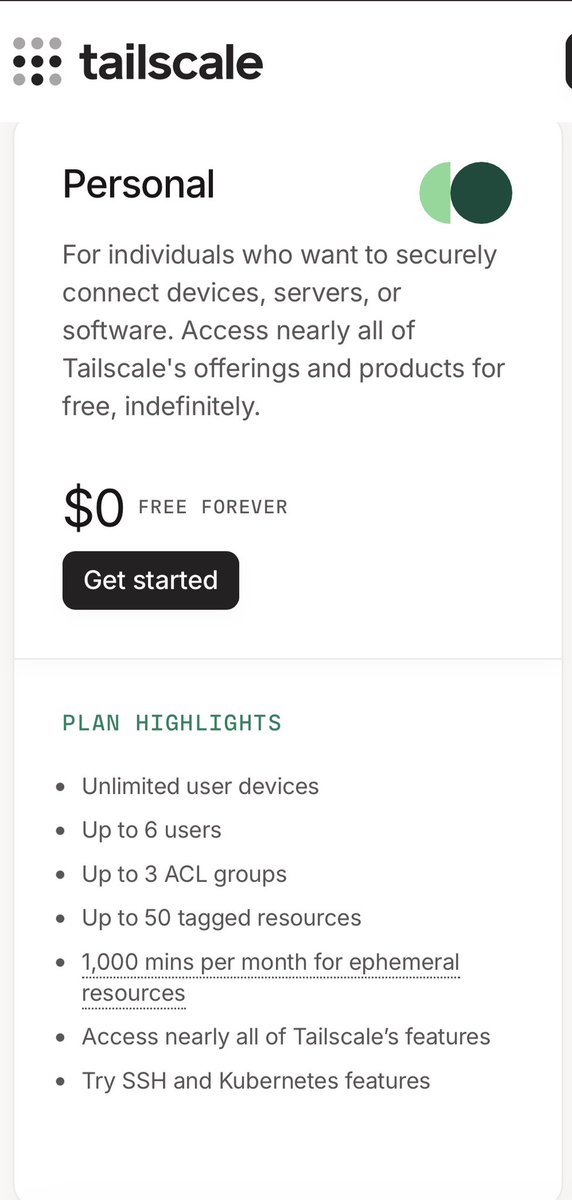
Setup can be daunting but it’s actually quite simple once you know what to do! The personal (free) tier is incredibly generous and allows up to 100 devices. If you haven’t added Tailscale to your stack, I made this for you!
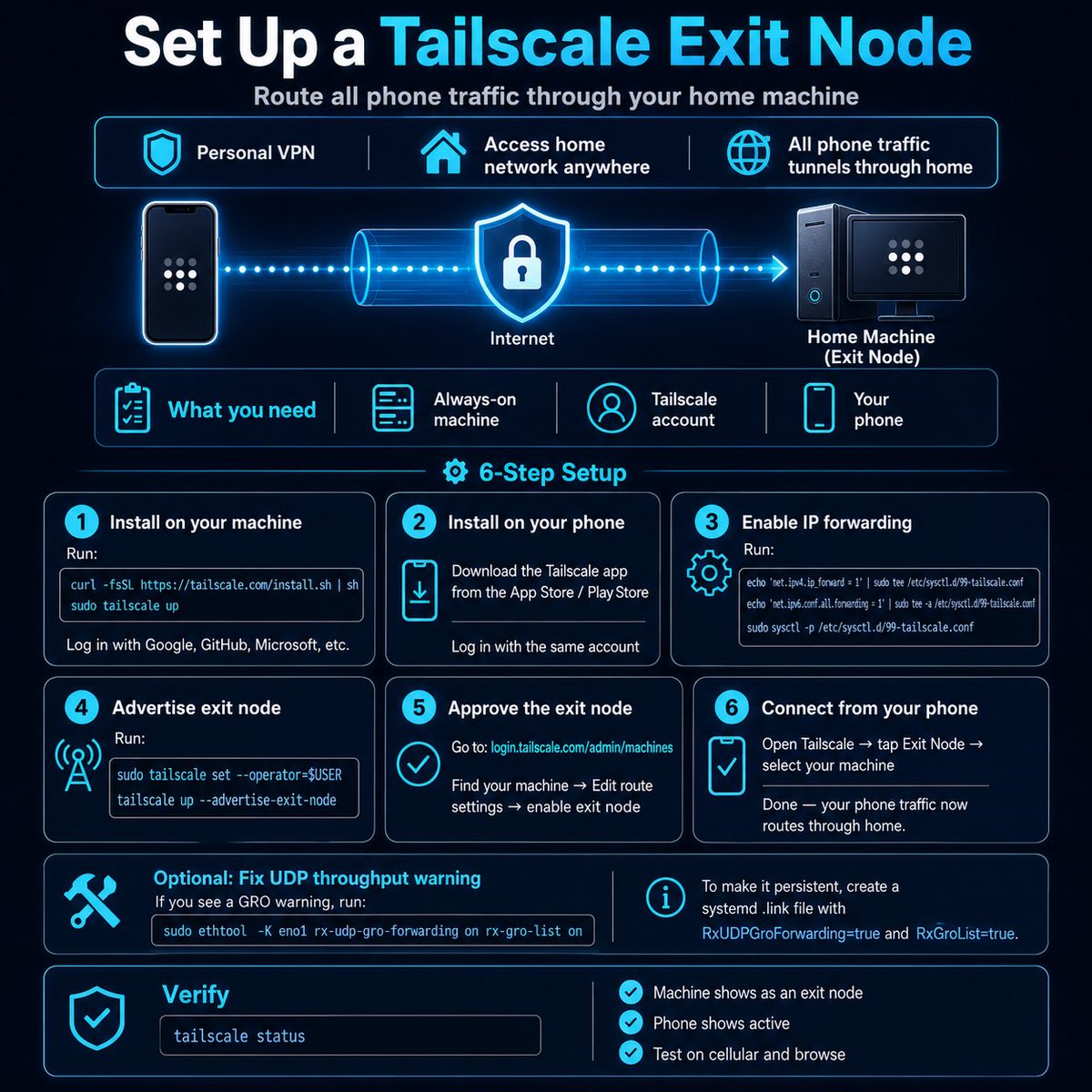
Set Up Tailscale Exit Node (Route All Phone Traffic Through Your Home Machine)
What You Get
Access your home network from anywhere in the world. All phone traffic tunnels through your machine — works like a personal VPN.
Prerequisites
- A machine that's always on (Linux box, home server, etc.)
- A Tailscale account (free for personal use)
- Your phone
---
1. Install Tailscale on Your Machine
curl -fsSL tailscale.com/install.sh | sh
sudo tailscale up
Log in with your provider (Google, GitHub, Microsoft, etc.).
2. Install Tailscale on Your Phone
Download from the App Store / Play Store and log in with the same account.
3. Enable IP Forwarding
echo 'net.ipv4.ip_forward = 1' | sudo tee /etc/sysctl.d/99-tailscale.conf
echo 'net.ipv6.conf.all.forwarding = 1' | sudo tee -a /etc/sysctl.d/99-tailscale.conf
sudo sysctl -p /etc/sysctl.d/99-tailscale.conf
4. Advertise as Exit Node
sudo tailscale set --operator=$USER
tailscale up --advertise-exit-node
5. Approve the Exit Node
Go to login.tailscale.com/admin/ma…, find your machine, click ⋯ → Edit route settings → enable exit node.
6. Connect from Your Phone
Open Tailscale app → tap the exit node option → select your machine. Done.
---
Optional: Fix UDP Throughput Warning
If you see the GRO warning:
sudo ethtool -K eno1 rx-udp-gro-forwarding on rx-gro-list on
Make it persistent:
echo -e '[Match]\nOriginalName=eno1\n\n[Link]\nRxUDPGroForwarding=true\nRxGroList=true' | sudo tee /etc/systemd/network/50-tailscale.link
Verify
tailscale status
Your phone should show active (be sure you’ve downloaded the Tailscale app and it’s running on your phone 🤓) and your machine should show as an exit node. Test by disconnecting from WiFi on your phone, selecting the exit node in Tailscale, and browsing — all traffic now routes through your home machine.
5
8
82
5,414

Linux Networking Tools — Practical Breakdown 💀🔥
Connectivity & Requests ⬇️
1.🌐 ping → Check if host is reachable
2.🔗 curl → Make HTTP requests (API testing)
3.⚡ httpie → Simplified HTTP requests
4.📥 wget → Download files
5.🐢 tc → Traffic control (limit/simulate network)
━━━━━━━━━━━━━━━━━━
DNS & Domain Info
6.🔍 dig / nslookup → DNS queries
7.📄 whois → Domain registration info
━━━━━━━━━━━━━━━━━━
Remote Access & File Transfer
8.🔐 ssh → Secure remote access
9.📂 scp → Copy files over SSH
10.🔁 rsync → Sync files efficiently
━━━━━━━━━━━━━━━━━━
Packet Analysis & Sniffing
11.🧵 ngrep → Search network traffic
12.📡 tcpdump → Capture packets (CLI)
13.👁️ Wireshark → GUI packet analysis
14.⚙️ tshark → CLI Wireshark
15.🔗 tcpflow → Reconstruct TCP streams
━━━━━━━━━━━━━━━━━━
Network Configuration
16.🖥️ ifconfig → View IP (legacy)
17.🧭 route → Routing table
18.⚡ ip → Modern replacement (important)
19.📡 arp → ARP table
━━━━━━━━━━━━━━━━━━
Scanning & Enumeration
20.🔎 nmap → Port scanning & discovery
21.🖼️ zenmap → GUI for nmap
22.🧬 p0f → Passive OS fingerprinting
━━━━━━━━━━━━━━━━━━
VPN & Secure Tunneling
23.🔐 openvpn → VPN solution
24.⚡ wireguard → Modern VPN
━━━━━━━━━━━━━━━━━━
Network Connections & Debugging
25.🔌 nc (netcat) → Manual TCP connections
26.🔁 socat → Advanced socket relay
27.📡 telnet → Legacy remote access
28.📂 ftp / sftp → File transfer
29.📊 netstat / ss → Open ports & connections
30.🧠 lsof / fuser → Process ↔ port mapping
━━━━━━━━━━━━━━━━━━
Firewall & Packet Crafting
31.🔥 iptables → Firewall rules
32.⚙️ nftables → Modern firewall
33.🧪 hping3 → Craft custom packets
━━━━━━━━━━━━━━━━━━
Routing & Path Analysis
34.🧭 traceroute / mtr → Path to destination
35.📡 tcptraceroute → TCP-based tracing
━━━━━━━━━━━━━━━━━━
System & Network Tuning
36.⚙️ ethtool → NIC configuration
37.📶 iw / iwconfig → Wireless settings
38.🧠 sysctl → Kernel networking config
━━━━━━━━━━━━━━━━━━
Encryption & Proxies
39.🔐 openssl → SSL/TLS operations
40.🛡️ stunnel → SSL tunneling
41.🕵️ mitmproxy → Inspect HTTPS traffic
━━━━━━━━━━━━━━━━━━
Monitoring & Performance
42.📊 iptraf / nethogs → Bandwidth usage
43.⚡ iftop / nload → Real-time traffic
44.🚀 iperf → Network performance testing
━━━━━━━━━━━━━━━━━━
Misc / Utility
45.🐍 python3 -m http.server → Quick file server
46.📐 ipcalc → IP calculations
47.📦 nsenter → Enter network namespaces
━━━━━━━━━━━━━━━━━━
Reality:
You don’t need all of these.
If you’re serious:
Focus first on → nmap, tcpdump, Wireshark, ip, ssh, netcat
That’s enough to understand 70% of real-world network behavior.
#Linux #CyberSecurity #Networking #Infosec
27
174
6,387

May 2
For the benefit of others, I want to document a bug in the Nvidia GB10 chipset devices such as DGX Spark, also variations made by companies like MSI.
This Nvidia bug affects all GB10-based systems (NVIDIA DGX Spark, ASUS Ascent GX10, and by extension MSI's EdgeXpert/GB10 variant) because they share the same SoC and ConnectX-7 wiring.
Two DGX Sparks connected via QSFP, with both interfaces negotiating 200 Gbps via ethtool, but actual throughput capped at ~13 Gbps under both TCP (iperf3) and RDMA (ib_write_bw).
So instead of 200 Gbps or 120 Gbps between two boxes, you get just 12.9 Gbps which is super super slow when trying to distribute an LLM.
The root cause is: "The ConnectX-7 firmware reports "insufficient power on the PCIe slot (27W)" and throttles both PCIe domains. RDMA hits the same wall as TCP, which rules out the kernel networking stack and points to firmware/hardware below the software layer."
Updating the driver from 580.126 to 580.142 via apt full-upgrade resolves it completely. The power warning persists in logs but no longer throttles. Use apt full-upgrade to achieve this (with sudo of course).
Problem solved. Hope this saves you some time. NVIDIA should have told customers about this, and they should have shipped the units with the updates in place, but they didn't.
8
13
78
6,703


Apr 20
I installed Nobara. The only issues I've had are some weird update conflicts which were resolved with an answer from grok with a single command line and some troubleshooting I had to do to get wake on lan working with ethtool for Sunshine/Moonlight.
2
992

StellarMate 2は環境保全のためpacmanで導入可能なアプリが制限されている
調査などにちょっとしたコマンドを導入できず不便
そんなときに便利な archlinuxarm.org/ を発見
aarch64 のバイナリを取得できる
less, tcpdump, ethtool がなくて困っていたのも解決した
2
52

Mar 7
Linux top 30 networking interview questions.
𝐁𝐀𝐒𝐈𝐂 𝐋𝐄𝐕𝐄𝐋 𝐍𝐄𝐓𝐖𝐎𝐊𝐈𝐍𝐆 𝐐𝐔𝐄𝐒𝐓𝐈𝐎𝐍𝐒
1. What is an IP address?
Explain IPv4 vs IPv6.
Difference between public and private IPs.
2. What is a MAC address?
Why is it needed if we have IP?
3. What does the ping command do?
What protocols does it use?
What happens in the background when you ping an address?
4. What is DNS?
How does a DNS query work?
Explain A, CNAME, MX records.
5. Explain the OSI and TCP/IP model.
Name all layers and their function.
6. What is the purpose of /etc/hosts and /etc/resolv.conf?
7. What is netstat, ss, and what info do they provide?
8. Difference between TCP and UDP?
Examples where each is used.
9. What is a subnet mask?
10. What command shows current IP address on Linux?
(ip a, ifconfig, hostname -I)
𝐈𝐍𝐓𝐄𝐑𝐌𝐄𝐃𝐈𝐀𝐓𝐄 𝐋𝐄𝐕𝐄𝐋 𝐍𝐄𝐓𝐖𝐎𝐊𝐈𝐍𝐆 𝐐𝐔𝐄𝐒𝐓𝐈𝐎𝐍𝐒
11. What is ARP? How does it work?
What command shows the ARP table?
12. What is MTU (Maximum Transmission Unit)?
How to check and change it?
What happens if MTU is misconfigured?
13. What is the use of tcpdump or wireshark in Linux?
14. Explain the process of how a packet travels from your system to google dot com?
15. What is NAT?
Types: SNAT, DNAT, PAT
16. How do you troubleshoot a network issue on a Linux system?
Step-by-step (e.g., ping, traceroute, dig, nslookup, curl, telnet/nc)
17. How do routing tables work in Linux?
ip route, route -n
18. What is the difference between a bridge, switch, and router?
19. What is the purpose of iptables or nftables?
Difference between the two.
20. How do you configure a static IP on Linux?
𝐀𝐃𝐕𝐀𝐍𝐂𝐄𝐃 𝐋𝐄𝐕𝐄𝐋 𝐍𝐄𝐓𝐖𝐎𝐊𝐈𝐍𝐆 𝐐𝐔𝐄𝐒𝐓𝐈𝐎𝐍𝐒
21. What are the different states of a TCP connection?
SYN, ESTABLISHED, TIME_WAIT, CLOSE_WAIT, etc.
22. How does iptables work internally?
What are tables, chains, rules?
23. What is TCP congestion control?
TCP slow start, window scaling, etc.
24. Explain the role of kernel parameters in networking (sysctl).
Example: net.ipv4.ip_forward, net.core.rmem_max
25. What are VXLANs, GRE tunnels, or VPNs?
When and why are they used?
26. How does load balancing work at L4 and L7?
Differences and examples.
27. Explain ethtool, ip link, and nmcli.
Use-cases in debugging driver or speed/duplex issues.
28. What is bonding/teaming in Linux?
Modes: round-robin, active-backup, LACP, etc.
29. What happens when a packet with TTL=1 is received by a router?
30. How would you analyze and debug packet drops in Linux?
dmesg, netstat -s, dropwatch, /proc/net/dev
1
1
5
126




oah, diese Linuxer...
da hat man sich grad bei Debian an den kruden Network-Manager gewohnt, probiert man ubuntu aus und landet beim ethtool.
Können die nicht einmal was richtig machen?
#rant
2
3
159

Jan 25
結論としてはGRO/GSOのオフロードが有効になっていて、受信時に複数のTCPパケットが1つのskbにまとめられ、それをsocket_readで読んでしまう。AF_PACKETのsock_rawであっても。
ということでルーター側でethtoolを使ってGRO/GSOをオフにして解決。
1
2
195

【現場の知恵】「遅い」時に疑う4つのポイント🐢
どうやって見つける?(最短手順)
「遅い」は"体感"のままだと沼るので、
まず「数字」で当てにいきます。
━━━━━━━━━━━━━━
0️⃣ 最初に聞く(30秒)
- いつから?(常に/たまに/朝だけ)
- 何が遅い?(Web/ファイルなど)
- どこ→どこ?(端末→社内/社外/特定サーバ)
- 誰が遅い?(全員/特定部署/1人だけ)
👉 ここで切り分けの9割が決まる!
━━━━━━━━━━━━━━
1️⃣ まず測る: 遅いの正体はどれ?
🔍 ping
→ 遅延(RTT) / ロス
🔍 traceroute
→ どこで遅くなるか(段差を見る)
🔍 速度計測
→ 帯域不足か(転送速度が遅い)
💡 判断のコツ(ざっくり)
- RTTが高い = 遅延寄り
- ロスがある = 混雑 or 物理エラー寄り
- 速度が低い = 帯域不足 or サーバ側ボトルネック
━━━━━━━━━━━━━━
2️⃣ L1/L2: リンク速度が落ちてない?
⚠️ よくあるパターン
- 1Gbpsのはずが100Mbpsでリンク
- Duplex/AutoNeg不一致
- ケーブル/ポート劣化
🔍 見つけ方
Cisco:
show interfaces GigabitEthernet0/1
→ speed/duplex と error を確認
端末:
- Windows: アダプタのリンク速度
- Linux: ethtool eth0
━━━━━━━━━━━━━━
3️⃣ エラー/再送が出てない?
(「遅い」の王道原因)
⚠️ よくあるパターン
- CRC / input error / discard が増える
- TCP再送が多い
🔍 見つけ方
Cisco:
show interfaces
→ エラーカウンタが増えてるか(差分で見る)
Wireshark:
tcp.analysis.retransmission
→ 再送が多いか確認
💡 判断のコツ
- 秒単位で errors が増える = 物理層の可能性が高い
- 再送が多い = ロス or 混雑の可能性が高い
━━━━━━━━━━━━━━
4️⃣ 帯域を食い尽くしてない?(混雑)
⚠️ よくあるパターン
- バックアップ/クラウド同期
- OS更新
- 特定ホストの大容量転送
🔍 見つけ方
- IF利用率(監視ツール/NMS)
- Top Talker(NetFlow/sFlow)
- FWログで通信量確認
Cisco例:
show interfaces | include rate
💡 判断(目安)
- 利用率が張り付き気味 = 混雑の疑い
(80%は目安。線形に遅くなるとは限らない)
━━━━━━━━━━━━━━
📋 最短の順番
① ヒアリング(30秒)
② ping/traceroute で測定
③ リンク速度
④ エラーカウンタ
⑤ 帯域利用率
👉 この順番で潰すと、迷子になりにくい🔍
#ネットワーク #トラブルシューティング #インフラ運用 #保存版
1
3
32
1,948

22 Dec 2025
also a quick update. to find the packet drops at the ENI level run the following command.
> ethtool -S eth0 | grep linklocal
dns errors often show zero in coredns
21 Dec 2025

My TOP learning today:
if you face dns failures in your prod eks cluster, remember that it may not always because of CoreDNS pod problem. Sometimes the issues can be at AWS instance-level network limits too.
this happens because the network packets are dropped at EC2 instance level. Because incoming packets on ec2 instance can exceed the packets-per-second (PPS) limit.
If that's the case, how to fix? (2 ways)
1. increase number of CoreDNS replicas
2. implement NodeLocal DNSCache
both approaches (individually or together) can help you fix the problem.
Bookmark this for later. If this is useful, appreciate if you can repost ♻️
thank yo for reading. see you tomorrow. bye.
1
1
2
522


16 Dec 2025
If it’s an explicit blocklist could ethtool ntuples also do the trick? It should be easy to do in hw assuming a decent nic (intel, solarflare, or Mellanox) is used.
1
2
115

24 Nov 2025
en.gamegpu.com/iron/yadro-li…
NVIDIA is preparing the Linux kernel for the next generation of AI networking. Patches have been queued for Linux 6.19 to support 1.6 Tb/s (1600 Gbps) link modes on NVIDIA-Mellanox hardware.
The update defines a new 1600Gbps mode using 8 lanes at 200 Gbps each. It also updates ethtool and the Mellanox MLX5 driver to handle these extreme speeds.
NVIDIA notes they are currently testing this on simulated hardware. This groundwork is crucial for future AI data centers hungry for bandwidth. Linux 6.19 is expected to land in February 2026.
#Linux #Kernel #Nvidia #Mellanox #Networking #1600Gbps #Datacenter

1
2
116