
11m
This is an excellent breakdown — especially the part about the virtual filesystem context engineering being what actually makes long-running agents reliable.
I’ve been experimenting with building a simple coding agent recently, and the difference between a plain ReAct loop and something with persistent state subagents is night and day. Without the harness layer, it almost always falls apart after 4–5 steps.
Quick question: When you’re using DeepAgents (or building your own), how are you handling tool approval / human-in-the-loop in practice for coding tasks? Do you find yourself using interrupt_on heavily, or do you rely more on the sandbox review subagent pattern?
Also really liked the point about skills being files you can version. That feels like the right abstraction.
Looking forward to seeing what you ship on Railway 👀
3

It's great! windows will be better except the reverse slash filesystem😭
4
Lucky retweeted

Jun 11
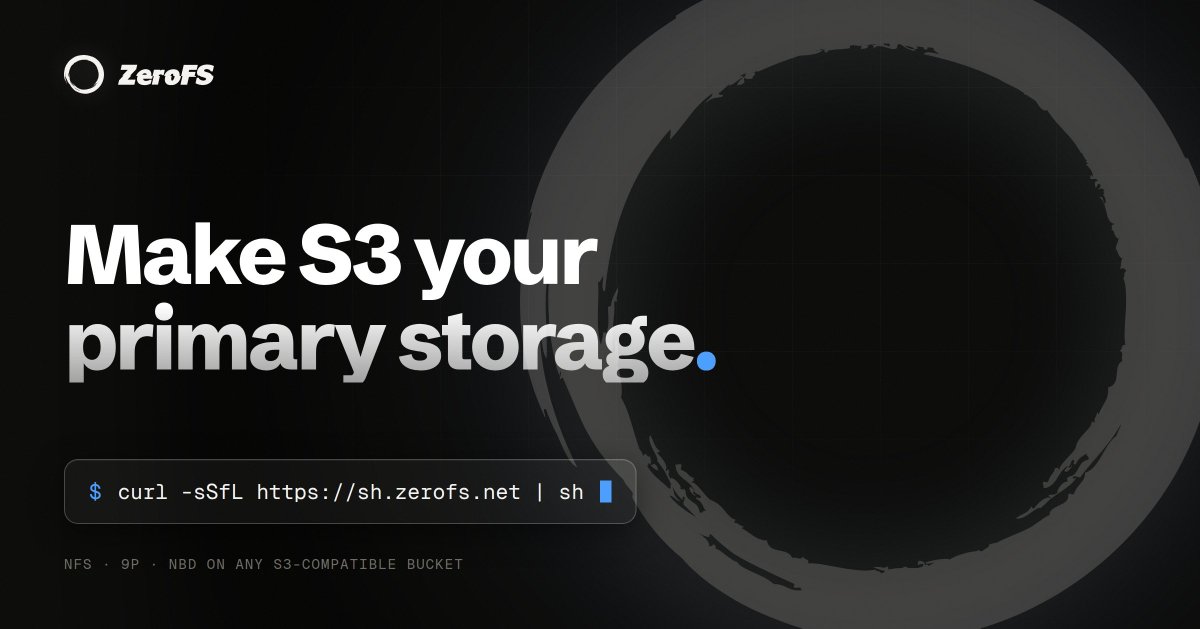
ZeroFS makes S3 behave like a real filesystem and block device (NFS / 9P / NBD), with microsecond latencies, always-on encryption, and S3 pricing.
4
27
108
508,081
Software Developer retweeted

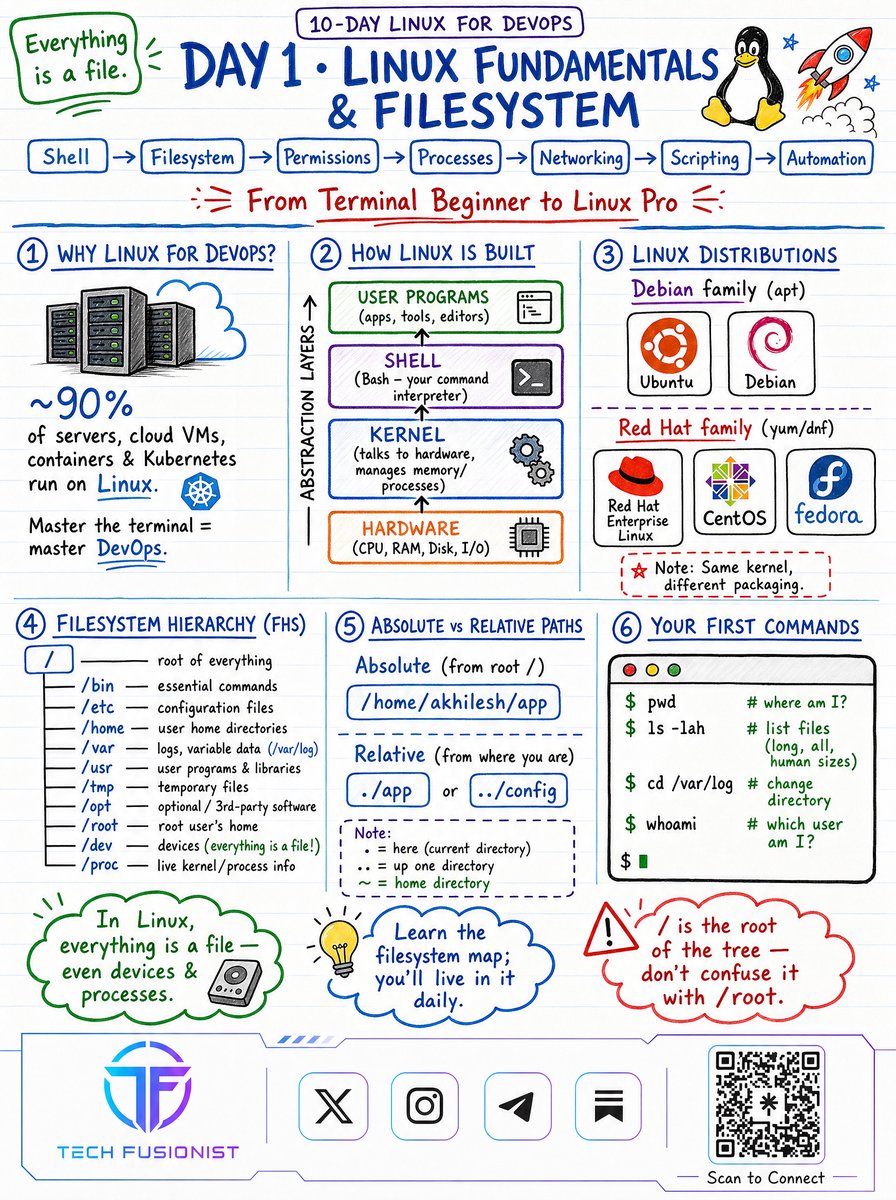
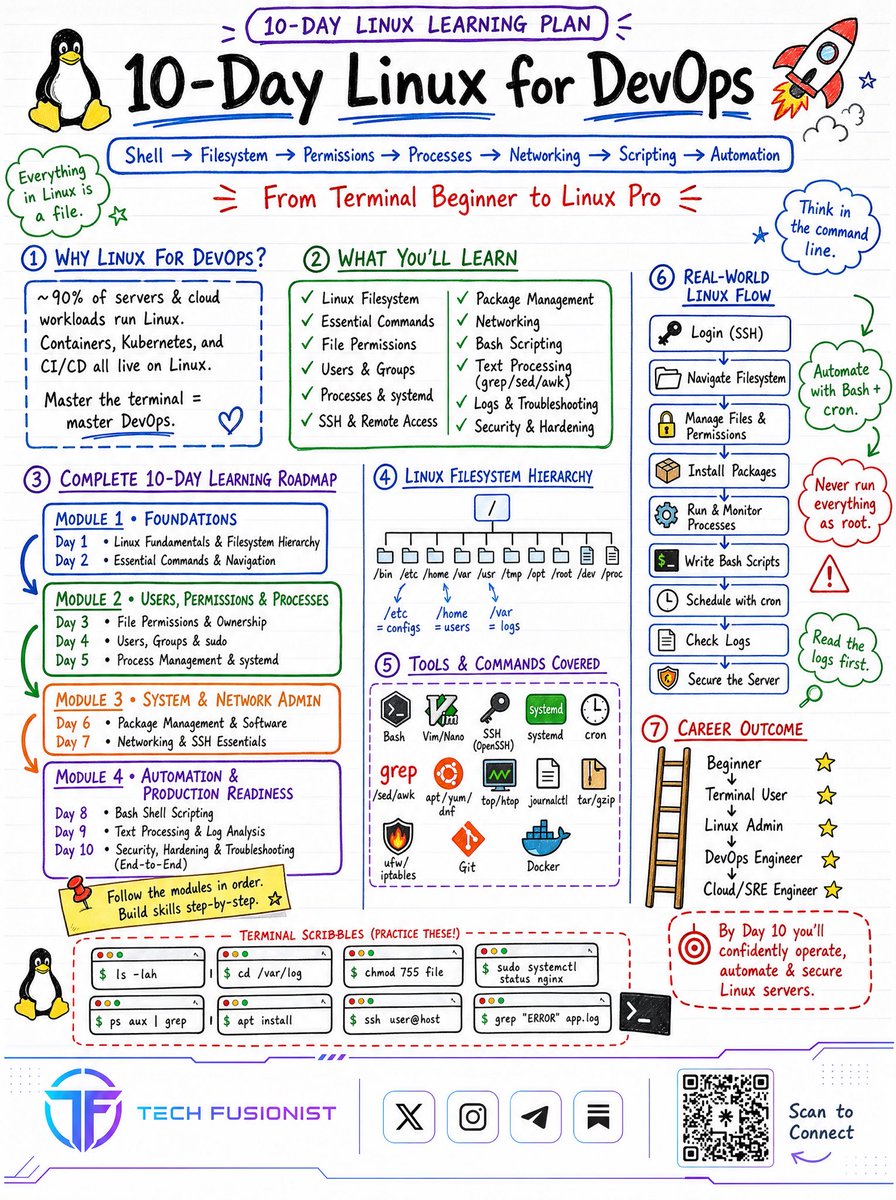
🐧 Day 1 · Linux Fundamentals & Filesystem
Before you automate anything, you have to understand the machine you're standing on.
How Linux is actually built - 4 layers:
Hardware → Kernel → Shell → User Programs
The kernel talks to hardware. The shell (Bash) is how you talk to the kernel. Master that conversation and the rest of DevOps opens up.
Distros aren't different operating systems - same kernel, different packaging:
→ Debian family (Ubuntu, Debian) → apt
→ Red Hat family (RHEL, CentOS, Fedora) → yum/dnf
Learn the filesystem map - you'll live in it daily:
/etc = configs ·
/var = logs ·
/home = users ·
/bin = essential commands ·
/proc = live kernel info
And the rule that explains everything: in Linux, everything is a file - even devices and processes.
Your first 4 commands to run right now:
pwd # where am I?
ls -lah # list files (long, all, human sizes)
cd /var/log
whoami # which user am I?
⚠️ One trap to remember:
/ is the root of the tree.
/root is the root user's home. Don't confuse them.
That's Day 1. You now understand the structure.
Tomorrow we move fast through essential commands & navigation.
Save this. Day 2 drops tomorrow. 🚀

7
47
1,324

Agent harnesses feel like the shift from “clever prompt” to “actual operating environment.” The virtual filesystem piece is underrated.
3

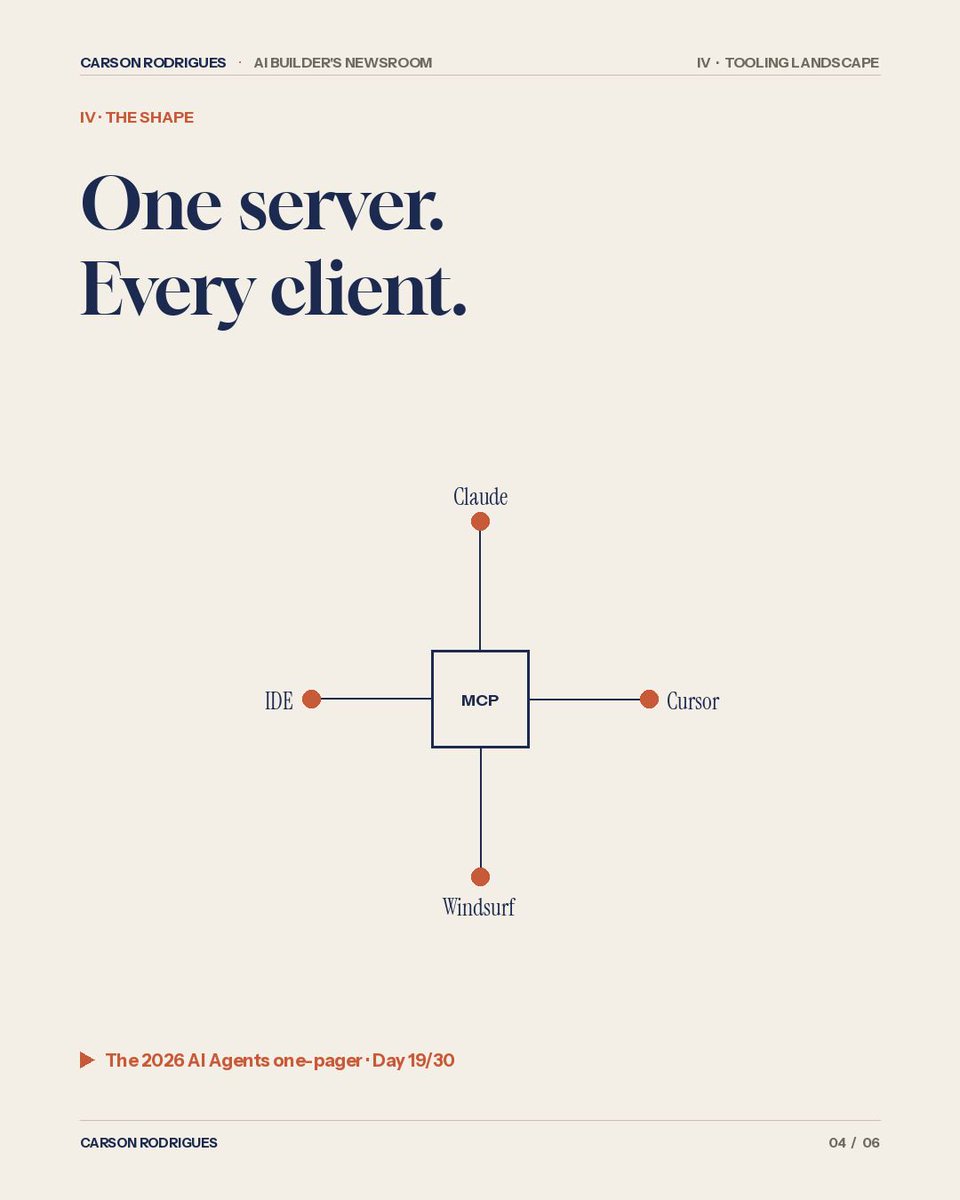
My daily usage: roughly half of all tool calls flow through MCP servers. Filesystem, Buffer, R2, calendar. The non-MCP integrations feel ancient.
1
2
Mats retweeted
Jun 9
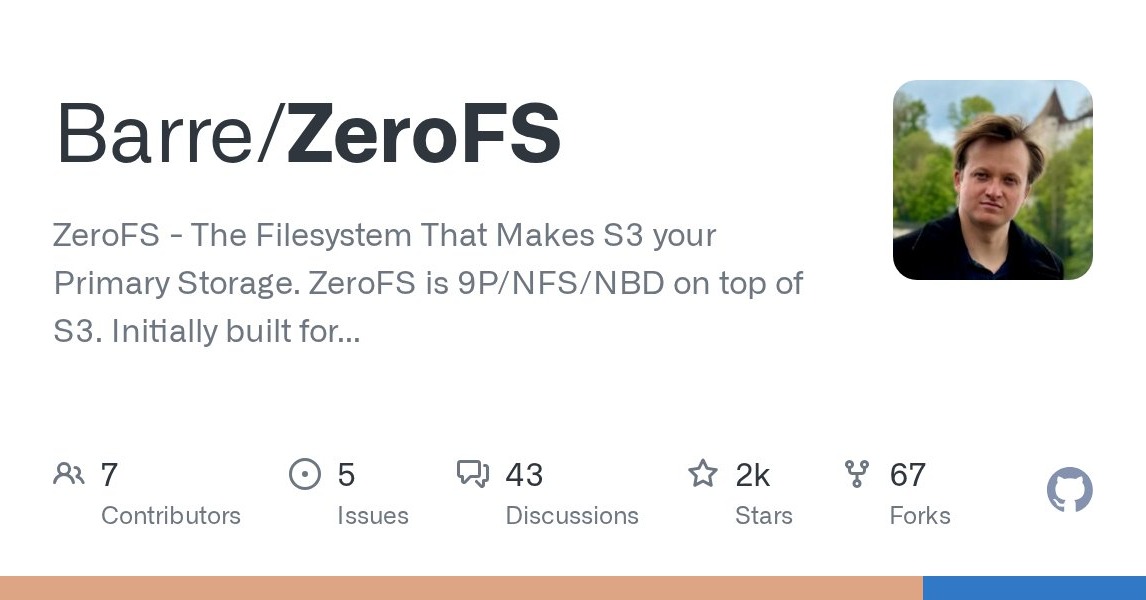
ZeroFS makes S3 behave like a real POSIX filesystem and block device (NFS / 9P / NBD), with microsecond latencies, always-on encryption, and S3 pricing.
2
1
27
121,856

“Context compression finally works in production" - cool… but if your AI is just a chat window, you're still just compressing chat logs. The real unlock is an AI that lives in your filesystem and understands your entire project state without you having to explain it.
1
4

It reimplements all syscalls outside the emulated environment and can thus control what the application can and can not do.
E.g. it can provide a virtual filesystem, to prevent hackers from accessing files on your disk.
1
22

You shouldn't be creating users noted down in the legacy posix filesystem stuff, NSS exists and systemd provides libs for it, so DynamicUser=true|<theusernameyouwant> works pretty well. A lot of nixos modules providing services don't do this and are stuck in legacy
With LLMs it's actually pretty easy to scour through options a service can have and reflect them verbatim. Fable was pretty good at that, it'll be back
2
3
134

Favorite detail: the extractor LLM is sandboxed to its workspace dir, so system files are invisible to it. A boundary the filesystem enforces, not a polite prompt.
It stays local by default — the pyramid is readable files on your own machine. (I build MNMNOTE, full disclosure.)
1
7


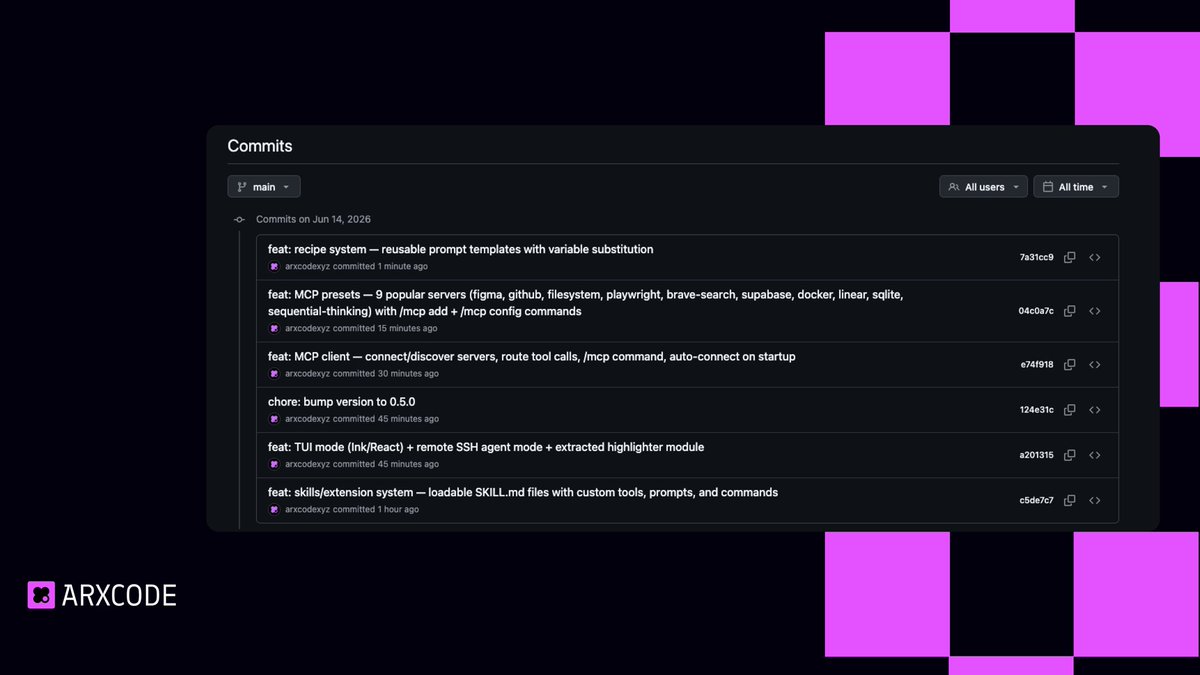
ArxCode CLI is a private AI coding agent that runs 100% on your machine.
🔒 Your code never leaves your terminal
🔑 BYOK — use Groq (FREE), DeepSeek, Claude, GPT, Grok, Gemini
🖥️ Real filesystem. Real shell. Zero VFS simulation.
This is what Claude Code should've been.

Arx-cli is open source - we ship daily
Today's commits:
- recipe system
- MCP presets (9 servers)
- TUI mode (Ink/React)
- skills/extension system
stack: TypeScript • Node 22 • Commander • Ink
repo: github.com/arxcodexyz/arx-cl…
Open a PR → contributor role early $ARX allocation
no gatekeeping, just build
Come ship with us 🧠
32

Good framing. The harness giving the model a body is also the safety boundary. Shell and filesystem access are powerful only if the run records what changed, which permissions were used, and where a human review has to happen.
6

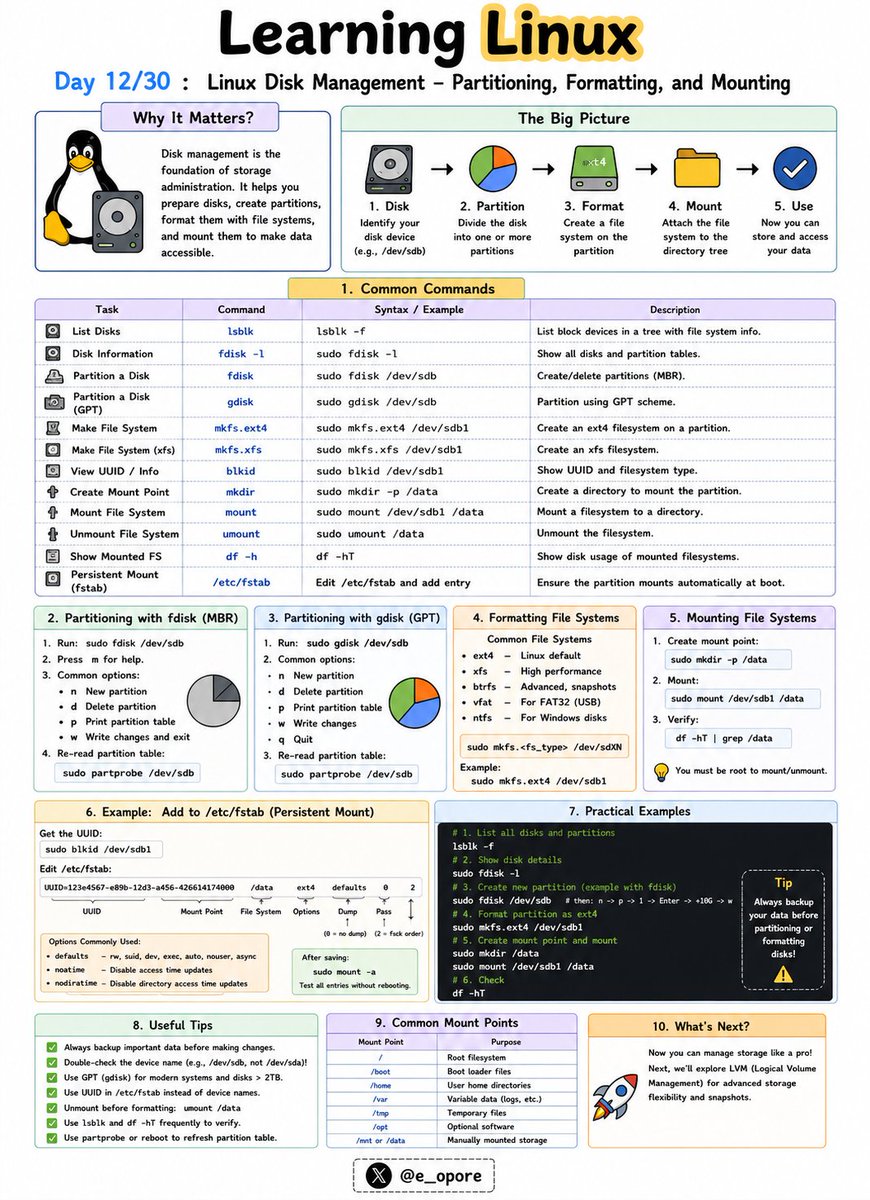
🐧 Day 12/30 — #Linux
Storage management is a fundamental skill for every Linux administrator.
Before a disk can store data, it must be partitioned, formatted with a filesystem, and mounted into the Linux directory structure.
Linux Disk Management – Partitioning, Formatting, and Mounting
Understanding how Linux handles disks helps you manage storage efficiently and avoid data-related issues on servers and workstations.
Key Disk Management Concepts:
→ Partitioning
→ Formatting
→ Mounting
Partitioning Disks
A partition is a logical section of a physical disk.
Partitioning allows a single disk to be divided into multiple independent storage areas.
Common tools:
→ fdisk
→ parted
→ lsblk
Example:
→ sudo fdisk /dev/sdb
Opens the partition manager for a disk.
Viewing Available Disks
→ lsblk
Displays all connected storage devices and partitions.
→ df -h
Shows mounted filesystems and available disk space in a human-readable format.
Formatting Partitions
After creating a partition, it must be formatted with a filesystem.
Common Linux filesystems:
→ ext4
→ xfs
→ btrfs
Example:
→ sudo mkfs.ext4 /dev/sdb1
Formats the partition using the ext4 filesystem.
Mounting Filesystems
Linux accesses storage through mount points.
A partition must be mounted before it can be used.
Example:
→ sudo mount /dev/sdb1 /mnt/data
Makes the partition accessible through the /mnt/data directory.
Viewing Mounted Filesystems
→ mount
Lists currently mounted filesystems.
→ df -h
Displays mounted storage and available space.
Persistent Mounting
To automatically mount a partition during boot, administrators configure:
→ /etc/fstab
This file defines permanent mount settings for disks and partitions.
Why Disk Management Matters:
→ Add new storage to Linux servers
→ Manage application and database data
→ Monitor disk usage effectively
→ Prevent storage-related outages
→ Configure reliable production environments
Mastering partitioning, formatting, and mounting is an essential step toward becoming a skilled Linux administrator, DevOps engineer, or cloud engineer.
🐧 Grab Linux Ebook: codewithdhanian.gumroad.com/…
#Linux #LinuxTutorial #DiskManagement #LinuxCommands #SystemAdministration #DevOps #CloudComputing #OpenSource #Storage #100DaysOfCode
Jun 12

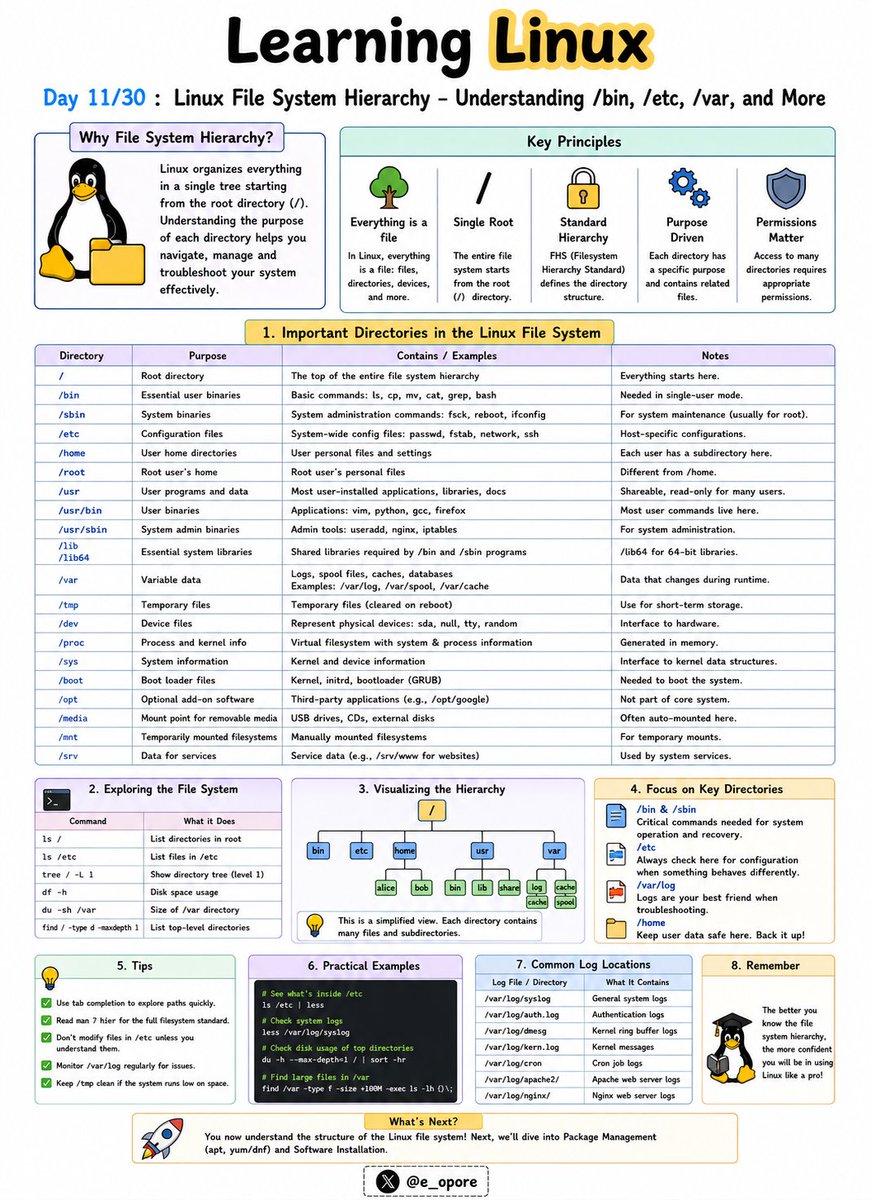
🐧 Day 11/30 — #Linux
Everything in Linux is organized within a single directory tree that starts at the root directory (/).
Understanding the Linux file system hierarchy is essential for navigating, configuring, and troubleshooting Linux systems.
Linux File System Hierarchy – Understanding /bin, /etc, /var, and More
Unlike Windows, Linux does not use drive letters like C: or D:.
Instead, all files and directories exist under a unified hierarchy.
Important Linux Directories:
→ /
The root directory.
Everything on the system starts from here.
→ /bin
Contains essential command-line utilities such as:
→ ls
→ cp
→ mv
→ cat
These commands are required for basic system operation.
→ /etc
Stores system-wide configuration files.
Examples:
→ /etc/passwd
→ /etc/hosts
→ /etc/ssh/
Administrators frequently work in this directory.
→ /home
Contains personal directories for users.
Examples:
→ /home/john
→ /home/admin
This is where user files, documents, and settings are stored.
→ /var
Stores variable data that changes frequently.
Examples:
→ Logs
→ Cache files
→ Mail queues
→ Databases
Important log files are commonly found in:
→ /var/log/
→ /tmp
Stores temporary files created by applications and users.
Files here may be automatically removed by the system.
→ /usr
Contains installed software, libraries, and user applications.
Many programs are stored under:
→ /usr/bin
→ /usr/lib
→ /dev
Contains device files representing hardware components.
Examples:
→ Hard drives
→ USB devices
→ Printers
→ /proc
A virtual filesystem that provides information about running processes and system resources.
Why Understanding the File System Matters:
→ Navigate Linux efficiently
→ Locate configuration files quickly
→ Troubleshoot system issues
→ Manage servers effectively
→ Understand how Linux organizes data
Mastering the Linux file system hierarchy makes it much easier to administer servers, manage applications, and work confidently from the command line.
🐧 Grab Linux Ebook: codewithdhanian.gumroad.com/…
#Linux #LinuxTutorial #LinuxCommands #FileSystem #SystemAdministration #DevOps #CloudComputing #OpenSource #Programming #100DaysOfCode
1
2
28
768

Maybe it isn’t the filesystem that’s fragile — but like most things, it’s how people set it up. Lifetime discipline, deep understanding of the tech, and staying ruthlessly organized makes all the difference.
The directory logic is battle-hardened and tested over 50 years of computing.
16