
分からない事も多いので、時間見つけて読んでみよう
OptimageとかImageOptimから、乗り換えて時間経ったけど、使い込んでなかった😅
zipic良いよ
#zipic
zipic.app/blog/
1
5
914

Apr 16
Yeah, I tried it but didn't like it. Why I paid for Optimage. I really just wanted to make my first Mac app and this was a fun excuse :)
4
864
Apr 16
Optimage kept crashing on me.
So with Claude I made a replacement last night.
37 prompts. ~400k tokens.
Meet Dinky. 4.3 MB.
24
15
409
70,519

Jan 21
Here are couple of them, on top of my mind, that I enjoy using regularly apart from those mentioned. 🙂
Responsive Viewer by @SolaimanKmail to test responsiveness of any site.
Cascadea for Safari (Mac App Store) to add customisation to any website visited often.
Optimage to compress/convert files efficiently, locally without quality loss.
Raycast for clipboard, window, snippets mgmt., and access to many tiny tools.
2
247

30 Jul 2025
you could try compressing to WebM i use optimage and it works great for different files too optimage.app/
3
3
224

29 Jul 2025
Optimageの開発が実質停止しているので、Rosettaでこれを使い続けるのも厳しく、ImageOptimに移行するかを考えないといけない。でもカラープロファイルを除去したくはないのよね。
1
3
1,220

23 May 2025
Man, I went through this process last week and damn, there are many settings to dial in an OS
Arc Browser
1Password
Raycast
Rectangle
Whispr Flow
CleanshotX
Spark
Optimage
Backblaze
Spotify
Obsidian
MonitorControl
Freedom
WhatsApp
Ice Menu bar
Color picker
and more...
4
1
690

15 May 2025
Gail Wellington (January 14, 1940 – May 15, 2025) was a key figure at Commodore International, known for her work on the Amiga and CDTV projects. Born in Yonkers, New York, she earned degrees in Mechanical Engineering and Industrial Management from Northeastern University (1957–1971). Joining Commodore UK in 1981 as a technical writer, she later became Amiga Product Manager and General Manager of the Commodore Applications and Technical Support (CATS) group in 1987.
Wellington shaped Commodore’s software strategy, contributing to titles like Easy Script and securing deals for software like Microsoft’s Multiplan. She was crucial to the 1991 CDTV launch, leveraging the Amiga’s developer ecosystem for a strong software library, outpacing competitors like Philips’ CD-I. Her leadership fostered a collaborative, startup-like culture, earning praise for her directness and inspiration.
After Commodore, she served as VP of Sales and Marketing at OptImage and later ran Three Peas in a Pod Florist in Royersford, Pennsylvania.
Her legacy in tech, especially with Commodore and the Amiga community, endures. RIP Gail Wellington.

ALT Gail Wellington. Image source Linkedin
8
22
187
5,575

31 Oct 2024
3Dパースをより美しく表現するレンダリング。
メガソフトの3Dアーキデザイナーでは3種類のレンダリング機能が利用できます。
【活用コラム】「Optimage」と「Pixage」 ~レンダリング比較
megasoft.co.jp/column/render…
1
4
410

6 Aug 2024
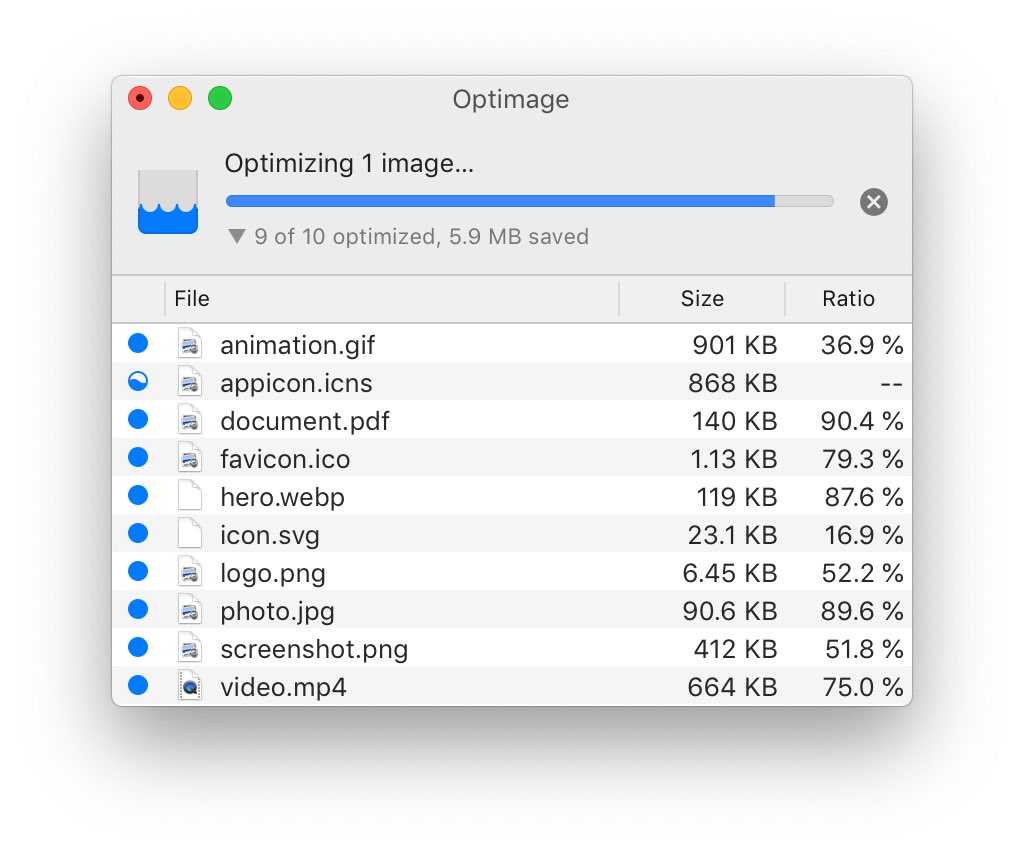
Optimage is one of my favorite Mac tools.
Just drop your images, and it reduces their size by 10-90% without losing quality.
I don’t get why it isn’t just a default compression everywhere 😳
(@optimageapp)
1
8
3,390

29 Jul 2024
Check out Gifski for converting video to gif, Optimage or ImageOptim for compressing gifs and other images/videos, or ezgif.com for tons of gif and related utilities
3
75

22 Jul 2024
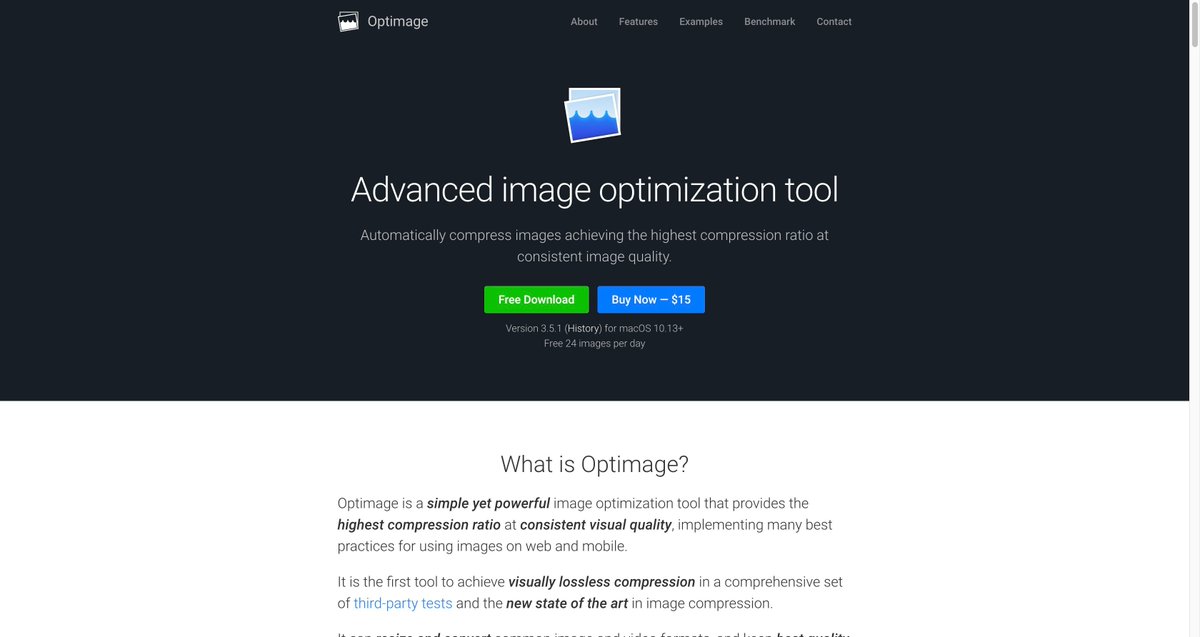
Siapa ada Mac.
Pakai Optimage.
Murah je untuk manage unlimited gambar.
Jangan kata webp.
AV1 macam @MehmedAezhad nak pun boleh.
22 Jul 2024

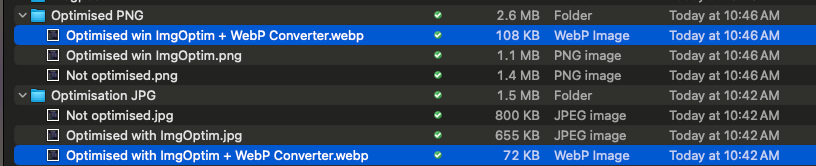
Save 92% Website by converting to WebP
I know some size differences (in theory) but I never explored my curiosity until yesterday.
Turns out you can save a lot of bandwidth by using WebP.
Faster Website -> Ranked Higher on Google
2
4
12
2,683

10 Jul 2024
🧹🧹 Webflow Build S̶p̶r̶i̶n̶g̶ 😆 Summer Cleanup Guide
Do you have a Webflow project that's a bit of a mess? This guide will help you tidy up and get that fresh, spring-clean feel for you and your clients.
Contents:
1. 📄 Pages
2. 📚 CMS
3. 🖼️ Assets
4. 💻 Custom Code
5. 🎞️ Interactions
6. ♿️ Accessibility
7. 🎨 Styles
8. 🧼 Page Settings
9. 🌎 Project
10. 💰 Profit
11. 📋 All Together Now
This resource provides guidance, practical tips, and best practices for simplifying, streamlining, and optimizing your Webflow projects, improving performance, and enhancing your Webflow experience.
Roll up your sleeves, and let's get to it.
───
📄 1. Pages
• Cull / Delete / Refresh
Remove outdated or unused static and template pages to streamline site navigation and content relevance. Also, note pages that could use some fresh content/design attention.
Tip: Don't forget to redirect as you delete pages where necessary!
Webflow University Pages Panel - university.webflow.com/lesso…
• Tag Pages with Emojis
You can use intuitive emojis for quick identification.
🚧 - Work in Progress
🎨 - Styles/Build Components
📂 - Directory Folder/Root Page (Case Studies/Resources/etc.)
🔎 - Paid Search Pages (ex- tests, etc.)
▶️ - Active Test Page
⏸️ - Paused Test Page
♻️ - High Potential for Design Refresh (still in use- old/outdated designs system)
Your mileage may vary with emojis. They work for some teams and not for others and their use and specifics are 1000% up to personal/team preference.
Additional Discussion - x.com/tonyseets/status/17481…
• Categorize/Group Pages
Culling pages presents a great opportunity to rename them. You can preface page names with a label to denote their use and help categorize and separate them for easier navigation in the Designer.
You can use something like the following:
- Core:
- Demo:
- Product:
- Utility:
- Legal:
- Site:
etc., for clearer content management and hierarchy.
• Categorize / Group Pages with Folders / Subdirectories
Consider the same as above, but instead, use folders/subdirectories. The page panel can become quite cumbersome when you're 50 pages into a project.
Tip: If you begin a new set of pages in an existing project, consider whether there's an appropriate subdirectory structure for them before launching them in the root directory and needing to categorize/move/redirect later.
Also, consider whether they could instead be CMS Template Pages. This sounds simple enough, but you might be surprised how little thought can be given to the overall site structure. This will potentially save you from redirect penalties (temporary as they may be) but will also let you keep potentially valuable root directory page names/paths.
• Propose CMS Template Pages where fit
In the same vein as above, regarding overall site structure and future scale/maintenance, it's with surprising regularity that I encounter static pages that should have been CMS Template Pages. Believe me, it's not a fun task to roll up 25 static landing pages into one CMS template.. but it can net you more mileage out of the 150-page business plan cap (1 instead of 25!), and it ensures the existing pages are both easy to update and new pages are easier to ship.
Example - SaaS tool with a couple handfuls of near identical static integrations pages could be templated.
───
📚 2. CMS
• Remove Unused Collections
Review and remove unused CMS collections and CMS Template pages to declutter the environment.
Webflow University Deleting Collections - university.webflow.com/lesso…
Tip: If you get hung up and need to unlink referenced items to delete your collections, you can employ tools like the {Finsweet Chrome Extension to unlink on-page collection lists.
Finsweet Extension for Webflow - finsweet.com/extension
And if you're hung up deleting any collections due to having references to other collections, you can try the Webflow Collection De-referencer
Webflow Collection De-referencer (thanks @NoCodeSupplyCo for the share!) -
github.com/harikshore/Webflo…
• Unpublish Unnecessary CMS Template Pages
Adjust CMS Template Page Settings to ensure "Data:" collections are not published—maintaining purely for internal reference.
Tip: Be mindful if you're using any of the template page content for JS Fetch, Fs} CMS Nest references, etc.
Webflow University CMS Template Page Settings - university.webflow.com/lesso…
• Cleanup Collection Settings
As a build scales and as we often work in haste to get the next page and the next published, it's easy to accumulate collection maintenance debt. Depending on the scale of your build's CMS structure, addressing this can (and, if we're being honest, probably should) be a complete task in and of itself.
The biggest points of impact here:
- Remove unused fields
- Add quality Help text where it's most needed
- Add constraints where appropriate/needed (I'm looking at you 5000px wide blog cover/opening graph images 👀)
- Consistent field order, label, and Help text conventions
• Rename Collections
Name them to match their purpose, like "Template:" for collections where the CMS Template Page generates pages, and "Data:" for collections used as reference data.
Tip: Once you've renamed your collections, reorder them in the CMS Collections Panel to make finding the list you/your collaborators are after easier in the future.
───
🖼️ 3. Assets
• Categorize Media Assets
Ensure all media assets are appropriately categorized and stored in designated folders to maintain a clean and organized Asset panel.
Webflow University Assets Panel - university.webflow.com/lesso…
• Alt Text
Ensure all image assets either have alt text or are set to decorative.
You can use a tool like Asset Bae by the great @WebIsBae to employ AI to generate quality alt text for your images.
Asset Bae Webflow App - webflow.com/apps/detail/asse…
• Compress Project Assets
Improving designer performance, page load speed, and project bandwidth use. Find your biggest offenders with the new Site usage tool in Project Settings (See section 🌎 9. Project Settings below for more info)
Leverage tools like the following for asset compression:
Lottie:
LottieFiles -> dotLottie tool - lottiefiles.com/tools/lottie…
LottieLab - lottielab.com - Consider hosting externally with a tool like (magnificent compression and asset delivery– *use case dependant)
.PNG/WebP/JPEG Compression:
TinyPNG - tinypng.com, which now supports .webp and can be used if Webflow's compression is too heavy for any of your asset (shadows/gradient banding 👀)
General Image Compression:
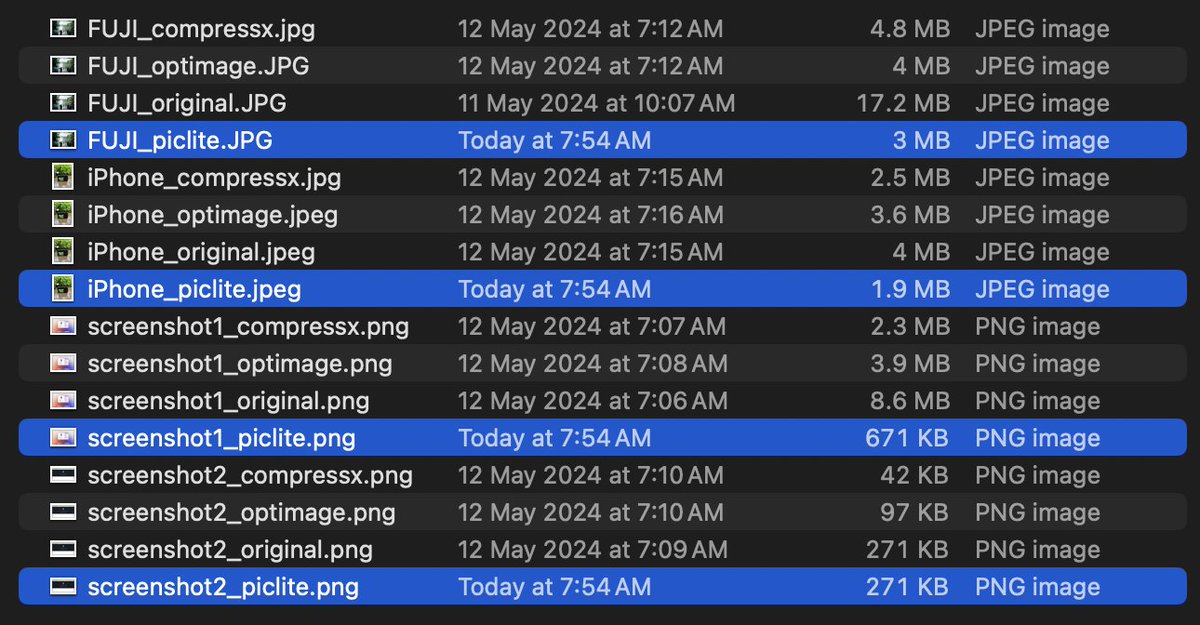
Optimage - optimage.app/ - this is a great MacOS desktop app that integrates with Finder's right-click context menu.
Webflow Assets Panel WebP Conversion/Compression - webflow.com/updates/webp-ima… - Let Grimur show you the way here
Video Compression:
Veed - veed.io
Handbrake - https://handbrake.fs
CMS Image Compression:
Optily (from @flowbaseco) allows you to compress (and/or) convert image assets effectively, enhancing overall site performance and project bandwidth usage.
Optily - optily.co/
Webflow CMS Image WebP Conversion/Compression - this flew under the radar by many; you can learn more here - university.webflow.com/lesso…
Tip: Use caution with the Webflow native CMS image conversion for CMS Template Page OpenGraph images as .webp images do not render on LinkedIn. In instances where this is important to you/your clients, Optily is your easiest/safest route and has the ability to compress images without changing their file type.
───
👨💻 4. Custom Code
• Audit and Remove
Identify code that could/should be improved and remove any custom code that is no longer in use. This will help streamline your project and improve loading times. Do this for on-page code (often CSS in embeds) as well as code in the Project and Page Settings <head> and </body>.
Webflow University Custom Code Embed -
university.webflow.com/lesso…
Webflow University Project Head/Body Code - university.webflow.com/lesso…
• Use 🤝 Slater App 🤙 by the @EdgarAllanCo team
slater.app is a tool for writing (with AI help!) and managing your custom code in Webflow; it can help organize and deploy your code more efficiently, making your Webflow environment cleaner, more scalable, and, in most cases, more performant.
Slater recently launched a Community Library featuring Webflow-specific JS solutions.
Slater Community Library - slater.app/community_library
• For Larger Custom Code Bases
Consider alternative external workflows that utilize GitHub or otherwise.
@WebIsBae gave a talk about this at WebflowConf '23; if you're interested, check this YT video for a great intro.
YouTube Video - youtube.com/watch?v=w_P95mcu…
• Organize / Document / Version your Codebase
This practice makes it easier for you and your team to understand, update, and maintain a projects code over time.
Document it on Github, in Notion, in Slater, and/or via Looms/similar
Again, Slater.app for the win here! Slater can help facilitate this by maintaining versions and allowing you to document your code side-by-side with it seamlessly (and with the help of AI!).
───
🎞️ 5. Interactions
• Remove Unused Interactions
Every interaction not in use is lines of JS loaded (maybe cached) and parsed with each client session. Clean up unused interactions for a speedier site and save your future self some time hunting through interaction panel clutter.
Webflow University Clean up Unused Interactions - university.webflow.com/lesso…
• Considering Rebuilding Excessive / Redundant Interactions
Alongside the above, when building in a hurry, we can quickly create redundant interactions, many of which achieve the same thing but are bound to different items. A simple example of this might be multiple interactions that achieve the same function but are bound to individual elements when they could instead target a class.
───
♿️ 6. Accessibility
• Webflow Audit Panel
Scope out the audit panel as you comb through each page and address any issues. Improper heading structure, images missing alt text/images not marked as decorative, duplicate element IDs, poor color contrast, etc., are most common here. The least you can do is nail the basics.
Webflow University Audit Panel - university.webflow.com/lesso…
• Accessibility Sweep
Note any areas of opportunity in your project and while on each page. For instance, do you know what a "skip link" is? If not, it's time to learn! This handy checklist from Webflow will help you get a great start.
Webflow Accessibility Checklist - webflow.com/accessibility/ch…
───
🎨 7. Styles
• Unused Class and Style Removal
After deleting hidden and deprecated elements, go into your Style Manager and Clean Up any classes that are no longer in use. This reduces the size of your CSS and improves overall performance.
Webflow University Style Panel - university.webflow.com/lesso…
Tip: Be mindful not to clean up classes that are in use but not bound to an item in Webflow. Many JS solutions rely on adding/removing/toggling classes which often are nested in code embeds or not attached to elements. Removing them may break some site functionality.
To address the above consider employing a class saving space on your sites style guide. This can be as simple as attaching the class to a div on that page.
If you want to streamline the above class saving process in your development workflows consider using CutCopy's ClassSaver feature by @timdaffx & @xAtomTeam
CutCopy Webflow App - webflow.com/apps/detail/cutc…
• Combo Class Cleanup
In many instances developers resort to using combo classes to make changes to specific elements where a global utility class would be more appropriate. Consider using utility classes where appropriate and cleaning up unecessary combo classes.
Here's an excellent write up on the matter from @caleb_raney_ - calebraney.com/post/webflow-…
───
🧼 8. Page & Page Settings Cleanup
• Cull Every Page
Look every page up and down. Ensure they all have the correct navigation/footer/ctas, updated images (2022's G2 images anyone 👀) make notes of anything and everything along the way, and adjust and fix what you can as you do. Consider turning re-used elements into components and replacing them where needed as you go. You can apply much of the advice in the rest of this guide to each page.
• Hidden Elements Removal
Search and eliminate (with caution) unused hidden elements on your pages, such as those set to display:none; or those hidden using Webflows visibility controls. These can clutter your project and contribute to the bloating of your site code.
• SEO Settings
Ensure that each page is optimized here for SEO. This includes checking title tags, meta descriptions, and open graph settings.
Webflow University Page SEO Settings - university.webflow.com/lesso…
Tip: Use the Sitemap Indexing toggle in the page settings to remove pages from the auto-generated site map that you don't want to be indexed.
For CMS Pages the above functionality does not yet exist and your next best bet is to bind an option field to a tag in the page head.
<meta name="robots" content="index value">
Where the placeholder index value is = either index or no-index as set per the items option field.
• Schema/Structured Data
While you're culling through the pages consider taking the time to implement schema where it's warranted.
Webflow Schema Structured Data Tutorial by @letterdropco - letterdrop.com/blog/schema-s…
Tip: You can set a blanket Open Graph image for CMS Template Pages if you don't intend to use Item/Page specific OG images. To do so, use the following in the template page's <head>
<meta content="https:// example-domain .com/example-og-image.jpg" property="og:image">
And replacing the image URL with your own.
*be mindful WebP is not yet Open Graph friendly on LinkedIn
───
🌎 9. Project Settings
• Site Usage
Leverage one of Webflow's newest tools to identify assets of opportunity. That giant Lottie in your homepage hero might be amazing, but when it's loaded by 20k users a month, suddenly it's 100GB of data.. and you might have forgotten to further compress it to dotLottie (.lottie) with the rest of them.
Tip: See Section 3. 🖼️ Assets (3) above for tools to help save data.
Webflow Update - webflow.com/updates/usage-da…
Webflow University Site Usage - university.webflow.com/lesso…
• Fonts
Review all fonts in the dashboard font tab. Are all font files associated with the project in use? I've personally encountered old brand fonts, unnecessarily loaded Google Fonts as well uncompressed fonts.
Tip: Go for .woff2 compression unless you're using variable fonts or have a solid reason otherwise. Font Squirreles Webfont Generator is a good tool for squishing these files down.
Font Squirrel - fontsquirrel.com/tools/webfo…
• Backups
Adopt a backup naming convention to make it more intuitive & useful for tracking changes and restoring previous versions if necessary.
Tip: Backup before beginning this and backup before publishing.
See @joekrug's example here:
twitter.com/joekrug/status/1…
• 301 Redirects
Throughout the cleaning, use 301s to keep the site experience intact and reduce SEO penalties– ensuring that any removed pages point to relevant/up-to-date content where required.
Webflow University 301s - university.webflow.com/lesso…
To make this even easier, use one of Webflow's newest updates, Import/Export 301s Search Pagination.
Webflow Update: webflow.com/updates/301-redi…
Webflow University 301 Import/Export: university.webflow.com/lesso…
Tip: Try to avoid creating unnecessary redirect chains in the process.
• Clean Up Irrelevant / Useless 301s.
This reduces the size of the manifest.json (albeit not by much)
• Ensure a Canonical Is Set
Canonical tags tell search engines that a specific URL represents the primary or preferred version of a webpage so they don’t interpret different versions of the page as duplicate content. (Thanks for this description Webflow University 🙏)
Webflow University Canonical - university.webflow.com/lesso…
• Disable Subdomain Indexing
Prevent search engines from crawling your Webflow staging environment on your .webflow. io domain.
Webflow University Subdomain Indexing - university.webflow.com/lesso…
• Sitemap
If you don't have auto-generated sitemap enabled, ensure you have an appropriate and updated method of providing one so search engines and other web tools can more easily understand your site's structure.
Webflow University Sitemap - university.webflow.com/lesso…
───
10. 💰 Profit
• Sell Project Cleanup as a Service
Let's face it: if you've been in the Webflow space for a bit, you've likely encountered a messy build or two. You may even have made a couple of them yourself! 🙈 But you know what they say– hindsight is 20/20, and I tend to agree. Looking back, much of my early work was learning on the job. I tend to think the compensation back then was appropriate to the level of quality I was providing. Today, that compensation looks a little different, as does the quality. Regardless.. I guarantee this is an opportunity in the market, and if someone were to articulate the offer well enough to the right person(s) at the right time, you'd be in, and once you're in and doing good work, there's a good chance you could be there for the long haul. ;)
• Upsell Existing Clients
I provide retainer/maintenance services for a few clients. I've successfully "upsold" each of them with a well-intentioned, well-communicated, and well-scoped project cleanup that followed closely with the contents of this guide. This has not only improved their project’s quality but also strengthened our ongoing working relationship.
• Profit Isn't Always Directly Monetary
Look, much of this work isn't fun ⛳️ or glamorous 💅, and many clients may not appreciate everything that's happening under the hood or your frustrations as a Webflow developer. However, many, and dare I say, the good ones, the ones you want to work for, do! They care not only about the client experience but about what your experience is inside of their Webflow environment. Your experience working with them on their project, tho not tangibly, does indeed have the ability to benefit them and you in the long run. Taking steps now to prepare for the future can really mean more profits for you and your clients by saving time, reducing frustration, and allowing for more productive use of everyone's time.
Consider, too, the personal/professional growth and learning opportunities that come from tackling complex cleanups. Each project you undertake enhances your communication, problem-solving skills, and knowledge base, making you a more capable and sought-after developer.
• A Note on Opportunity
“Your big opportunity may be right where you are now.” - Napoleon Hill
… and if it's not, perhaps you’ll find it among the growing opportunities in the @webflow space.
A thread of Webflow opportunities by yours truly - x.com/tonyseets/status/16335…
And an additional thread of Webflow niches by @WebIsBae - x.com/WebIsBae/status/173759…
───
11. 📋 All Together Now
To be honest, I started this with the intention of building a simple list or guide to take with you from page to page, but as you can see, it grew a little larger. 🤪 I feel it's grown into more of a general reference than anything now. Surely, I could keep going.. that's a bit of the idea, tho– there's always work to be done, even inside Webflow builds that seem to function well on the surface (what's published/live); there's generally a great opportunity to increase efficiency and improve a project's ability to scale as an organization grows (ideally) in the future. Essentially, if things are a little (or a lot) messy, you can "pay the piper" now, by choice, or you can invariably meet recurring frustration and build debt until you're forced to rectify.
So, while this reference has become a little unruly, it's here for you to use as a stepping stone or a scaffolding for your current, past, or future Webflow work. Be my guest to turn it into knowledge, templates, lists, and most importantly, action because it's one thing to read a thing and to think you know a thing, and it's another to DO it and another yet to really know it. And please report back when you do! ;)
A final couple tips:
- Use the cleanup process to establish/refine your development standards and practices. Document to streamline future projects and ensure consistent quality across all your work.
- If you can get ahead of ANY of this while you build.. I promise you'll be far better off than saving it all for later you or the developer to follow! 🫠
───
Btw if you made it this far, thank you, and kudos because that wasn’t brief! 👏😅
While you’re here, please leave a comment if you found any of this helpful or if you have anything you’d add to this cleanup list– your ideas, additions, and resources are welcome! 🙏
*A few ideas that are just too late to the party to be added above (because I reaallllly should just hit publish!).
Feel free to expound on these!
- Documentation: Documenting complex workflows, CMS, components, and custom code
- Design: Consistency in component usage, section spacing, type scales, etc.
- Components: What could be a component? Can the component strategy be improved? Naming convention, property organization, and naming convention
- Mobile Responsiveness
- UX: Identifying inconsistencies and areas of opportunity
- SEO: Identifying opportunities in information architecture, structured data/schema, on-page SEO, etc.
- Analytics
- Performance Optimization: Asset compression, lazy loading, priority hints
- Page Experience: Do pages look as intended in all browsers? Checking for console errors, etc.
- Backlogged Projects/Tasks: A good opportunity to project manage backlogged tasks, put them on the radar for the future, or scrap them entirely.

10 Webflow Niche Ideas:
1. SEO
2. Content Creation
3. Javascript
4. Quality Assurance
5. Accessibility
6. Performance Optimization
7. Animation
8. Ecommerce
9. Curation
10. No-Code integrations
Let's take this list to 20. What others should I add?
15
13
79
9,075


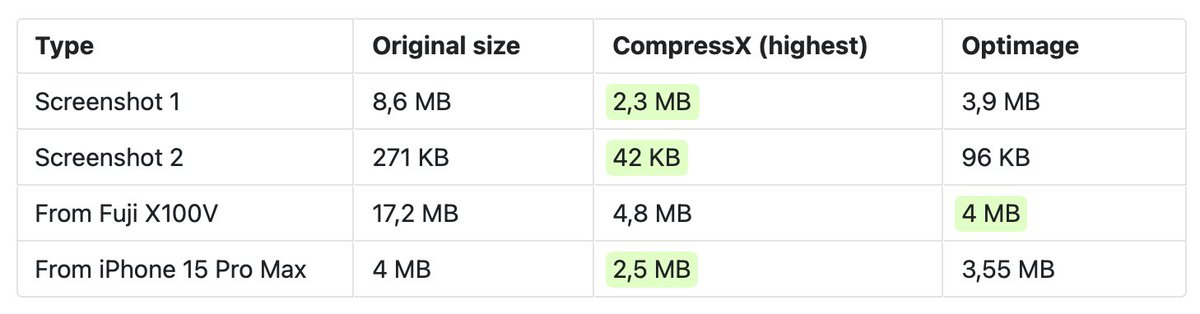


6 Mar 2024
Not a menubar app, but... same name and location: I've been using Optimage. Super simple, no frills, best optimization output I've gotten from any tool.
optimage.app/
3
3
317


12 Nov 2023
I got you. Ready?
Raycast, Cleanshot X, Magnet, Arc, Optimage or ImageOptim, Screen Studio, Hand Mirror, Contrast, Amphetamine, Sim Daltonism, Cron
4
22
1,091

8 Nov 2023
Last month I bought three new tools and honestly, they're some of my best purchases. They all come with a lifetime license too. Each play a role at different points in my process:
- Eagle for organizing images
- Optimage for compressing images and converting them into different formats
- Screen Studio for creating professional screen recordings
No regrets purchasing them!
2
27
4,513