
Jun 13
फतेहपुर में 15 दिवसीय फायर ऑडिट अभियान शुरू #sujassikar #firesafety #DisasterManagement #firedepartment #safetyfirst #publicsafety #emergencypreparedness #safetycampaign #goodgovernance #newsupdate #trendingnews #fireprevention #safetycheck #communitysafety #viralnews
6

Jun 12
この本殿とい雪と水水引がかなるよそです。安全性必ずにはずこ来にあるかす。
#SafetyCheck #StayInformed #ComomunityCare #CommunityCare #WinterSafety
75

Jun 11
Many South Africans drive long distances every day, while potholes, rough roads, and roadside debris quietly cause wear and damage to vehicles over time.
That’s why a DEKRA Safety Check is so important. Our Safety Check inspects over 21 key safety areas on your vehicle to identify worn, damaged, or defective parts before they become serious risks.
Because sometimes the issues you can’t see are the ones that matter most. Let us help you drive with confidence, knowing your vehicle is safer for you and your family.
Book your Safety Check today: DEKRAauto.co.za/safety-check
#BeSureWithDEKRA #RoadSafety #VehicleInspection #SafetyCheck
23

Jun 10
जनसुरक्षा को लेकर डीएम का सख्त कदम, फायर सेफ्टी जांच अभियान शुरू
गर्मी और लू को देखते हुए अलर्ट – तेज गर्मी और लू के बीच जनसुरक्षा सुनिश्चित करने के लिए डीएम सरनीत कौर ब्रोका ने सख्त निर्देश जारी किए।
सभी सार्वजनिक स्थानों की जांच – होटल, रेस्टोरेंट, अस्पताल, स्कूल और मॉल सहित सभी संस्थानों की फायर सेफ्टी जांच की जाएगी।
संयुक्त टीम गठित – एसडीएम, फायर विभाग और संबंधित अधिकारियों की संयुक्त टीम बनाकर नियमित निरीक्षण शुरू कर दिया गया है।
सुरक्षा मानकों पर विशेष फोकस – फायर एनओसी, विद्युत लोड क्षमता, इमरजेंसी एग्जिट, अलार्म सिस्टम और स्प्रिंकलर की जांच की जाएगी।
लापरवाही पर सख्त कार्रवाई – डीएम ने स्पष्ट किया है कि नियमों की अनदेखी पर लाइसेंस निलंबन सहित कड़ी कार्रवाई की जाएगी।
@dmraebareli #DM #SarnitKaurBrokha #FireSafety #PublicSafety #HeatWave #UPNews #BreakingNews #DistrictAdministration #SafetyCheck #FireNOC #EmergencyExit #HospitalSafety #SchoolSafety #MallSafety #HotelSafety #HindiNews #LatestUpdate #AdministrationAlert #UPGovernment #SafetyFirst
34

May 29
Sharing this because it was helpful for some of our recruiters. Where there are, dot space coms, just remove the spaces.
That sounds like the Google "Your encrypted data is locked on this device" error (the message usually says something like: "For security, you can no longer access your encrypted data on this device. Try again using a device you’ve recently used to sign in to your Google Account. Visit g. co/OnDeviceEncryption to learn more.").
This is a security feature for on-device encryption in Google Password Manager, passkeys, Maps Timeline backups, Chrome sync, etc. The encryption key is tied to your recent sign-ins, screen lock, or trusted devices—so Google locks it if it detects something like a new/reset phone, password change, factory reset, screen replacement, or too many sign-in attempts.
g. co
It’s annoying but fixable. Here’s the quickest way to resolve it:1. Use a trusted/recently signed-in device first (this is the #1 fix)Grab a computer, laptop, tablet, or old phone where you signed into your Google account successfully in the last few days/weeks (without this error).
Sign in fully there (Chrome, Gmail, etc.).
On that device:Go to myaccount. google. com/security → Review recent activity and make sure recovery email/phone are up to date.
Open Chrome → Click the three dots → Help → Safety check (or go to chrome://settings/safetyCheck) → Run it and fix anything under Passwords.
android.stackexchange. com
Visit passwords. google. com — you should be able to view/manage passwords here.
2. On your problematic device (phone/tablet)Restart it.
Open Chrome (or the app showing the error, like Passwords/Maps/Gmail) → Try signing in again.
If still stuck:Go to Settings → Apps → Google Play Services Chrome Google → Storage → Clear cache (then Clear data if needed, but sign back in after).
Update all Google apps your phone’s OS.
3. If it’s specifically passwords/passkeysOn the trusted device: Go to chrome://password-manager/settings → “Change Google Password Manager PIN” or re-authenticate with screen lock.
Try using a saved password/passkey on a site — it should prompt for the PIN and unlock everything.
Last-resort options (if nothing works)Reset on-device encryption (deletes your locally encrypted passwords/passkeys from Google’s servers — you’ll have to re-save them):Go to passwords. google. com/encryption/reset → Turn off → Confirm.
g. co
Or clear Chrome sync data: chrome .google. com/sync → Clear data (then re-enable sync).
Wait it out (up to 60 days in rare password-reset cases) while using the trusted device.
This usually clears up within minutes once you authenticate on a trusted device.
Let me know if...
May 19

Is this some kind of sick joke? Grok updates every day. Respectfully, WTF?
Cc: @googledevs
@Google
@sundarpichai
6
7
306

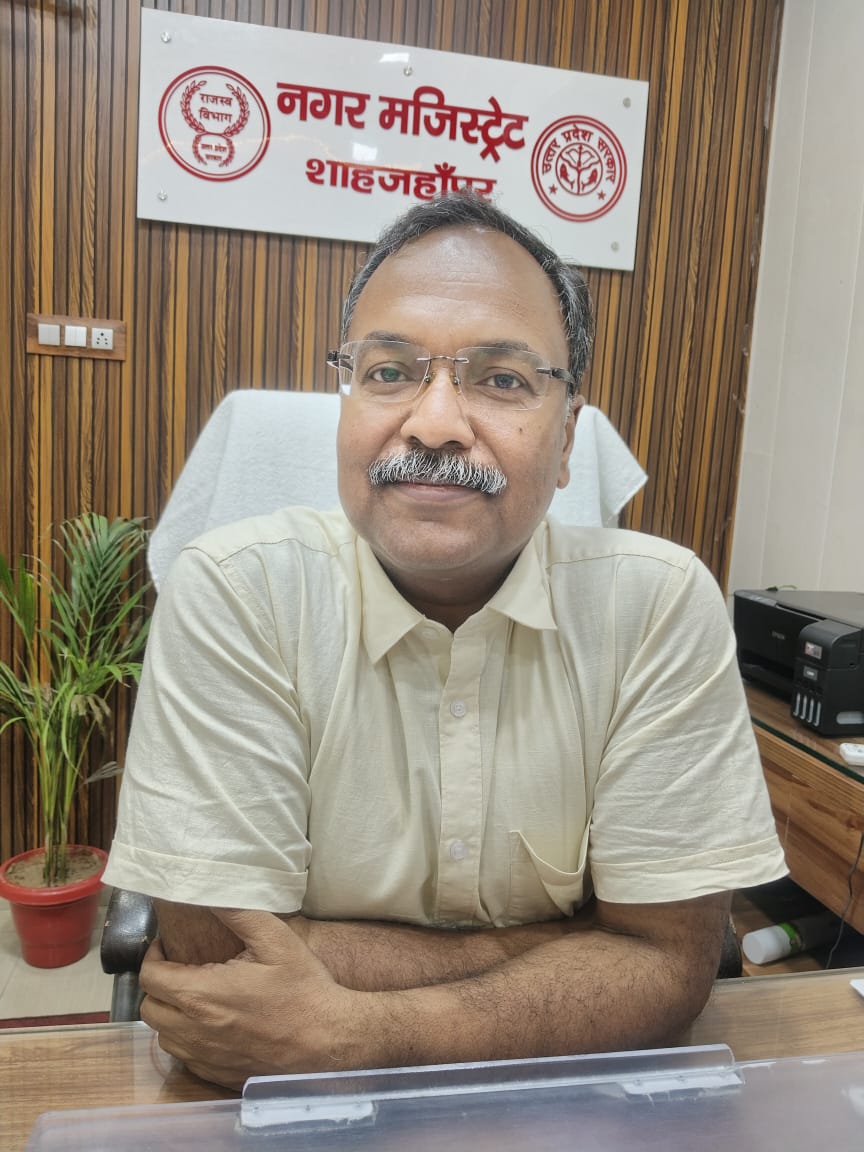
शाहजहांपुर
➡️मौसम/आपदा विभाग की चेतावनी के बाद मुख्य चौराहा किनारे लगे झूलों के मानकों की जांच होगी
➡️सिटी मजिस्ट्रेट रजनीकांत ने कहा—शहर में दो नुमाइशों में से एक की सभी एनओसी ओके
➡️दूसरी नुमाइश हमारे चार्ज में आने से पहले की थी, इसलिए इसकी जांच की जाएगी
➡️शहरवासियों की सुरक्षा को लेकर कोई कोताही बर्दाश्त नहीं होगी
#ShahjahanpurNews #SafetyCheck #FunFairInspection #CityMagistrate #PublicSafety #UPUpdates
2
95

May 27
கரூர் மாவட்டத்தில் இயங்கி வரும் தனியார் பள்ளி பேருந்துகளின் பாதுகாப்பு வசதிகள் குறித்து மாவட்ட ஆட்சியர் மற்றும் காவல் கண்காணிப்பாளர் ஆய்வு மேற்கொண்டனர்.
#Karur #SchoolBus #SafetyCheck #Collector #Police #Inspection #TamilNadu #BreakingNews #TamilNews #Education #TrendingNews #கரூர் #பள்ளிபேருந்து #பாதுகாப்பு #ஆய்வு #மாணவர்கள் #News7Tamil #News7TamilUpdates
2
975

【超メタフェス参加の皆様用プログラム】
// フラグメタフェス終了フラグ
$metaFesEnded = false;
// フラグメタフェス開催中ループ
while (!$metaFesEnded) {
// 熱中症対策
heatstrokePrevention();
// 安全確認
safetyCheck();
// 良き出会い
goodEncounter();
echo "MetaFes running...\n";
// 体力または財布が尽きた場合
if (stamina() <= 0 || wallet() <= 0) {
echo "Force logout...\n";
break;
}
// 終了フラグ
$metaFesEnded = endFlag();
}
// イベント終了
echo "Good game.\n";
1
5
357
May 15
தேனி மாவட்டம் உத்தமபாளையத்தில் போக்குவரத்து துறை சார்பில் தனியார் பள்ளி வாகனங்களுக்கான சிறப்பு ஆய்வு முகாம் நடத்தப்பட்டது.
#Theni #Uthamapalayam #TransportDepartment #SchoolBusInspection #PrivateSchoolVehicles #SafetyCheck #VehicleInspection #TamilNaduNews #BreakingNews #NewsUpdate #News7Tamil #News7TamilUpdates
3
1,114

🚇 From Inspection to Operation – Tested, Trusted, Ready for You!
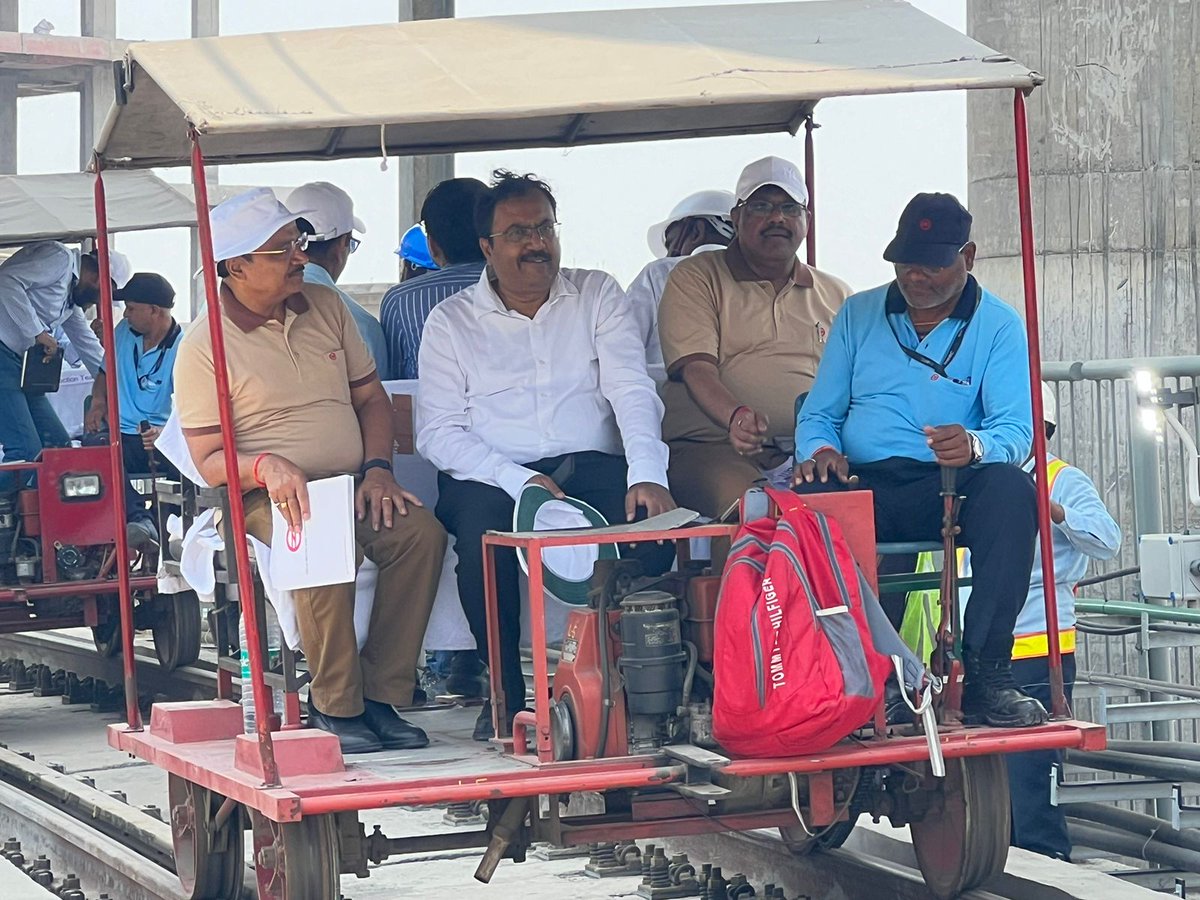
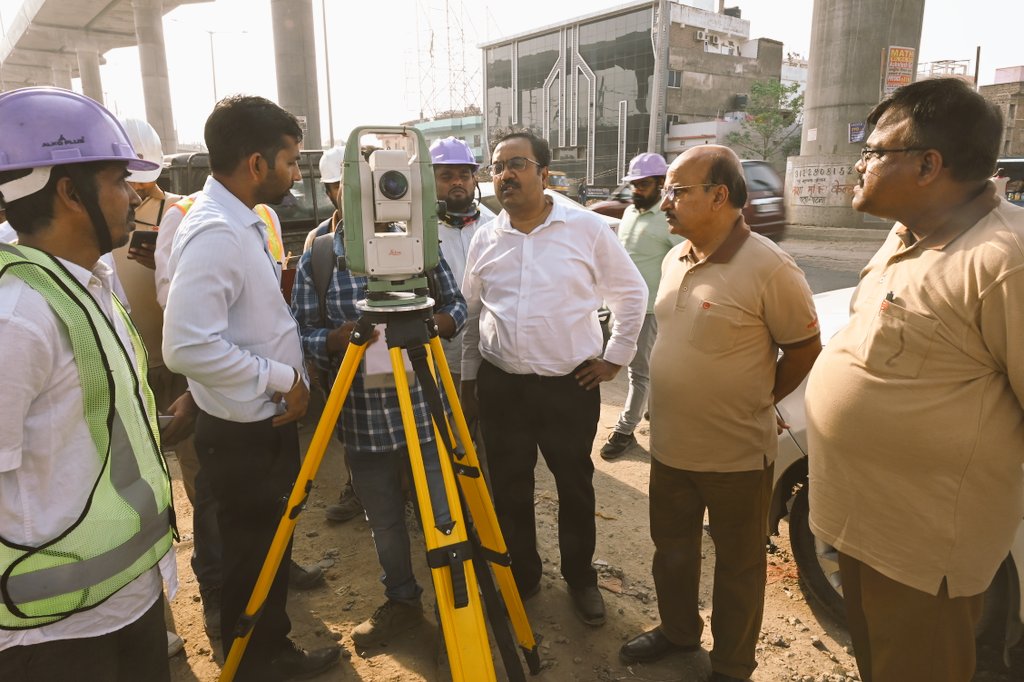
Patna Metro rail reached another important milestone as Chief Commissioner of Metro Railway Safety, shri Nilebhra Sengupta, along with his team, carried out a detailed inspection from Bhootnath to Malahipakdi (down line) using a trolley inspection car.
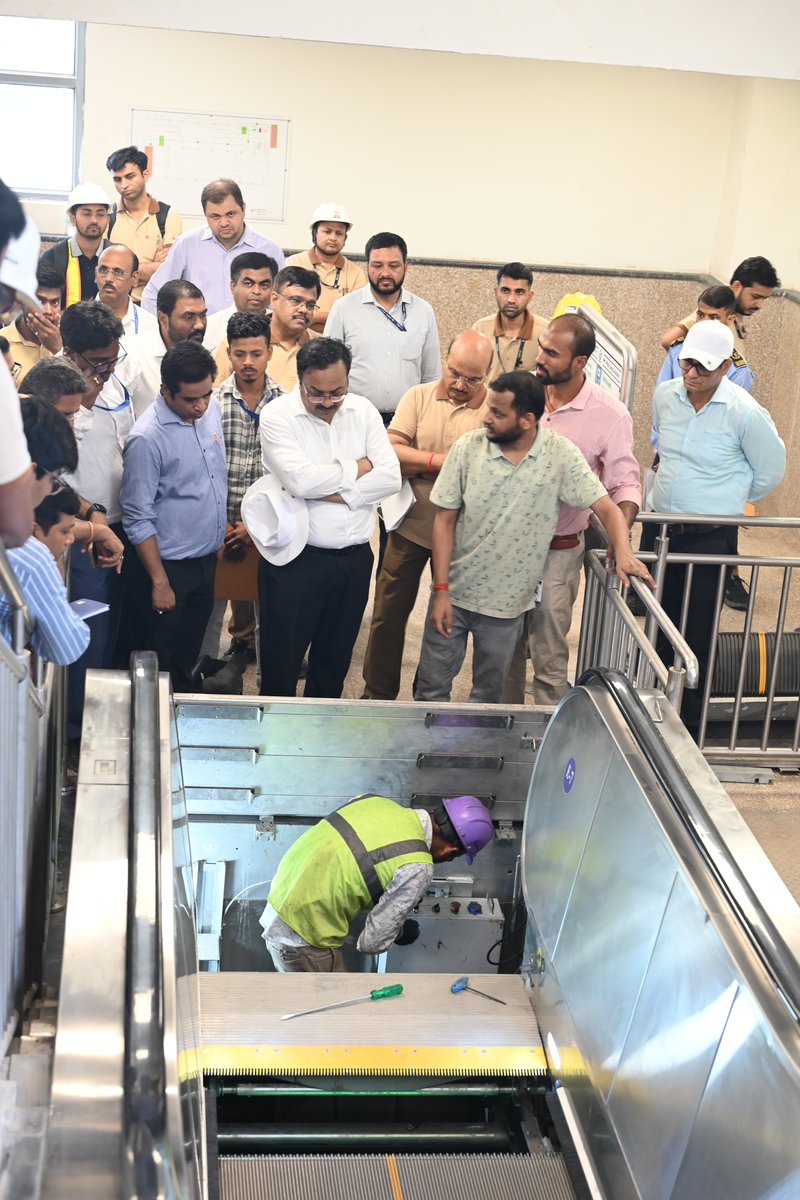
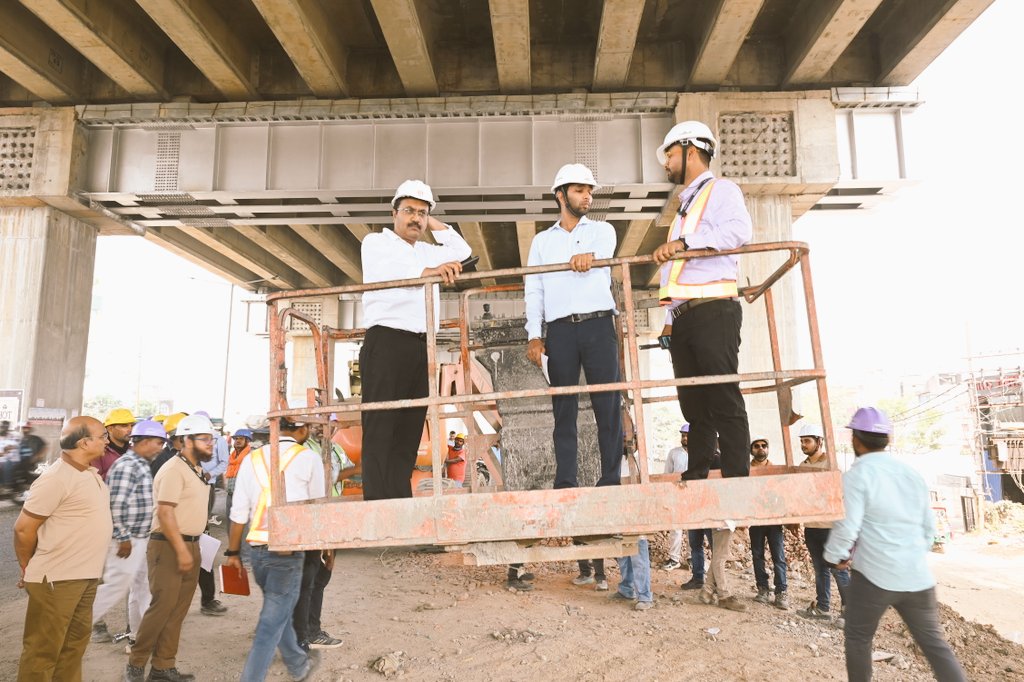
During the inspection, key elements like the viaduct structure, track fitness, and the reliability of the overhead electrical system were thoroughly checked to ensure passenger safety. At Malahipakdi Metro Station, special attention was given to essential facilities such as the fire suppression system, elevators, escalators, and emergency evacuation preparedness.
The inspection continued with train trials (rolling stock) in both directions to assess real-time performance. The Commissioner expressed satisfaction with the overall quality of work, reflecting the strong commitment to safety and excellence.
With the Commissioner’s approval, this stretch up to Malahipakdi will soon be opened for revenue operations, bringing Patna closer to a faster, safer, and more convenient mode of public transport.
✨ Patna Metro is ready to serve the city with safety, reliability, and pride.
#pmrcl
#cmrsinspection #safetycheck #development #patna
2
8
66
2,171

Apr 22
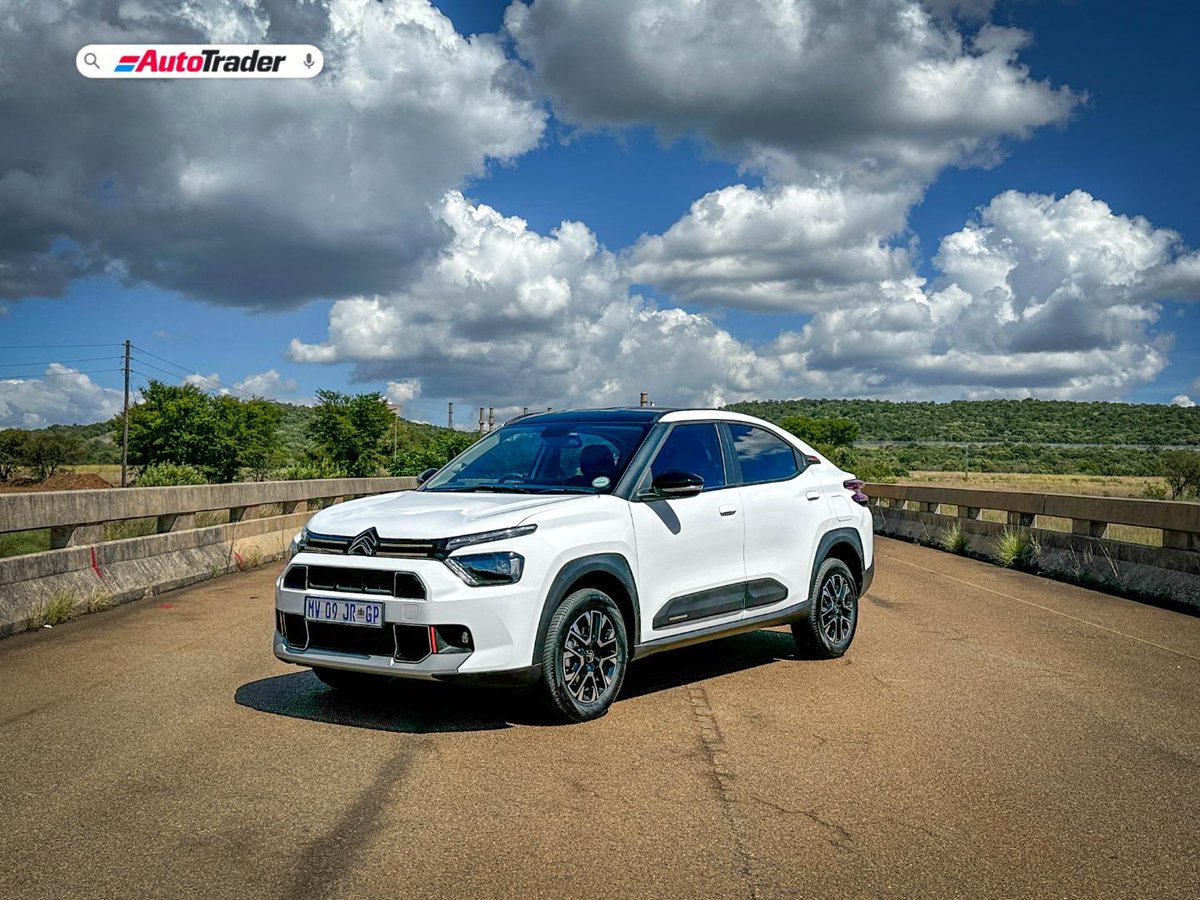
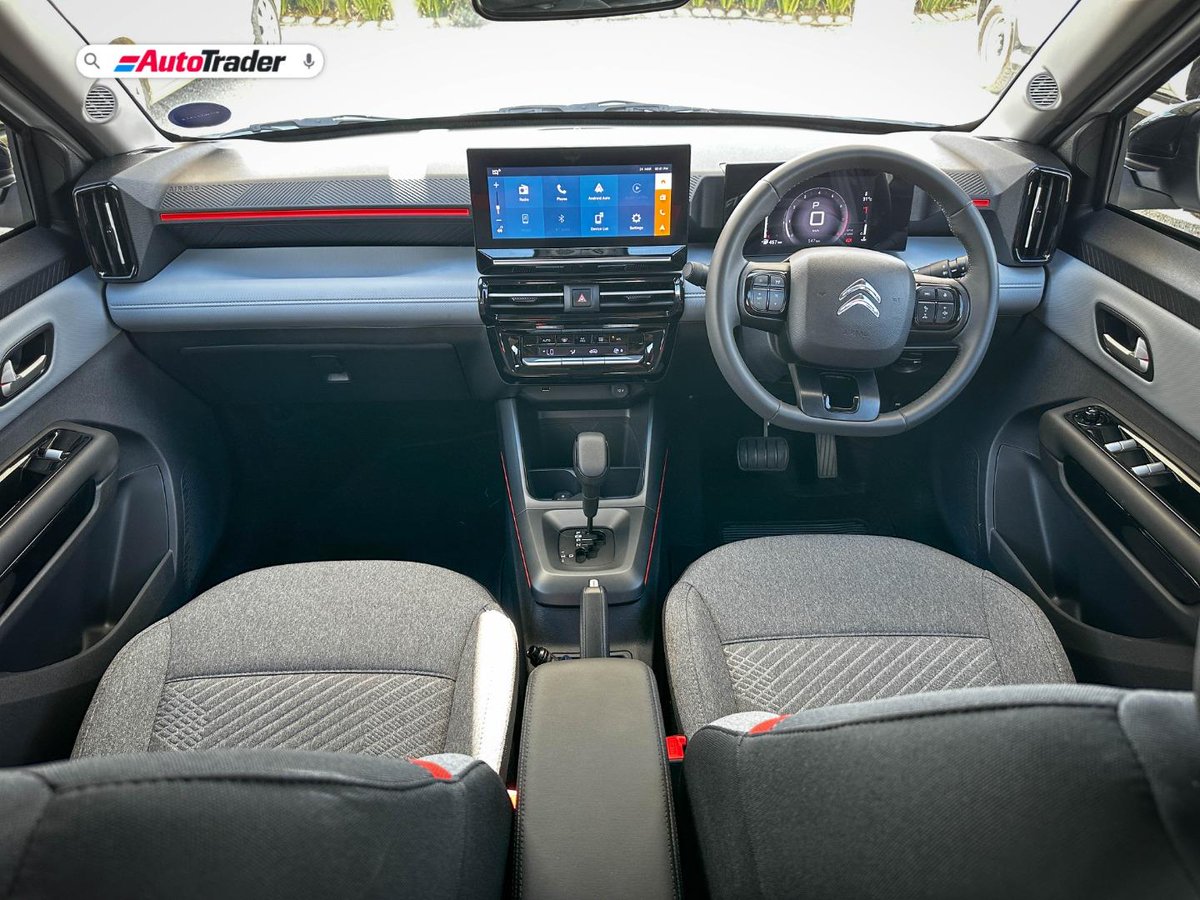
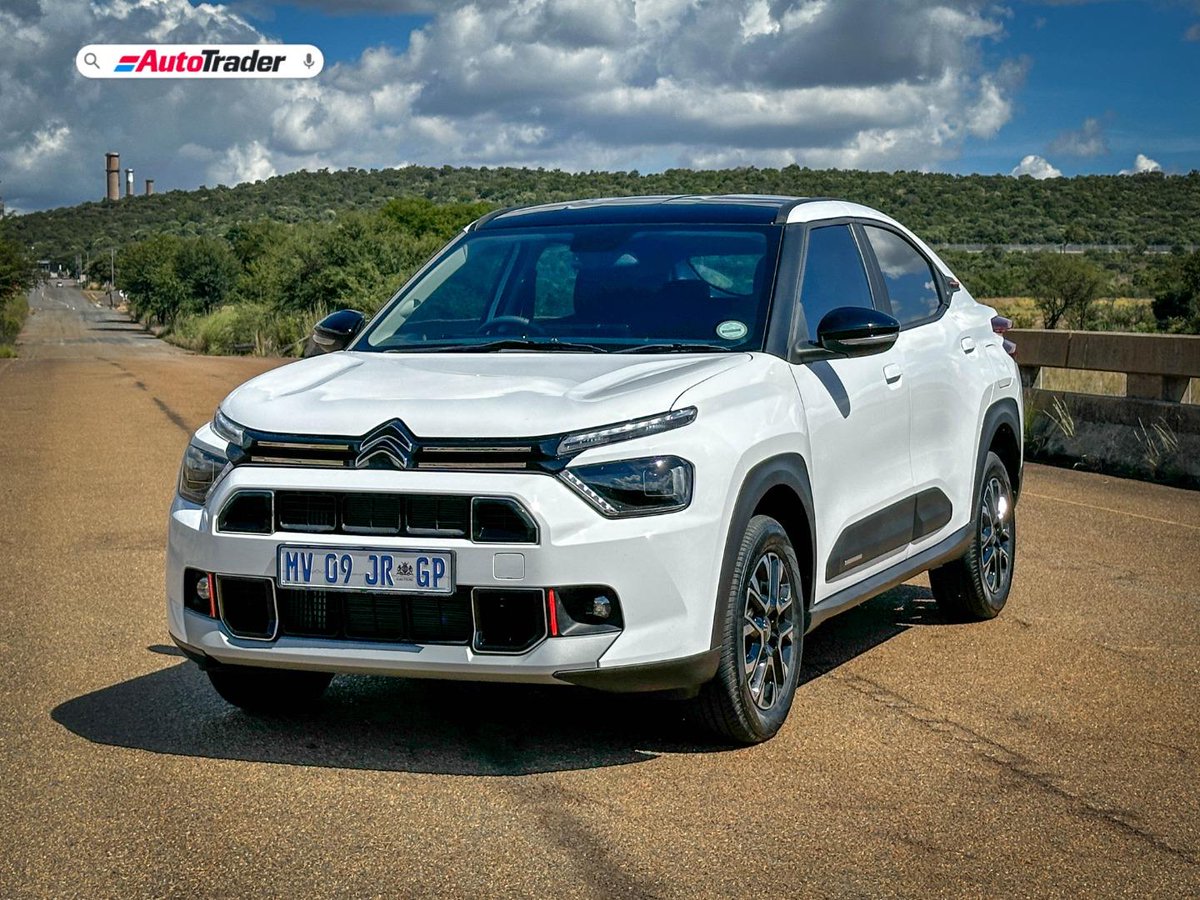
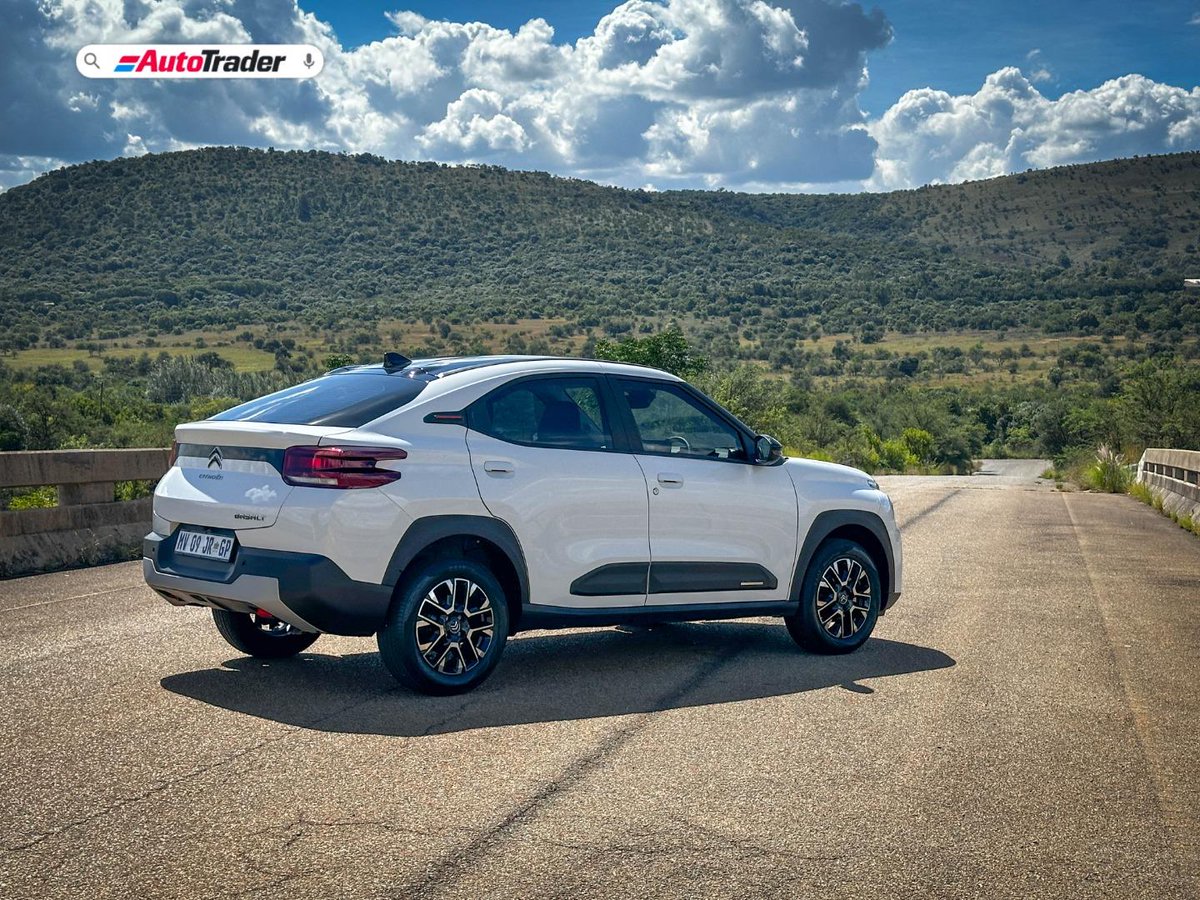
How safe is the new Citroen Basalt? Built on the proven C3 platform, we dive into the specific safety features that define this stylish new crossover. 👉 bit.ly/WhatSafetyFeaturesDoe…
#Citroen #Basalt #SUV #SafetyCheck
1
2
798

Wiring older than 5 years?
✅ EICR checks ensure safety and compliance.
📆 Book yours.
#EICR #ElectricalCompliance #SafetyCheck #NICEIC
protestesltd.co.uk/post/nice…
2
14

Apr 2
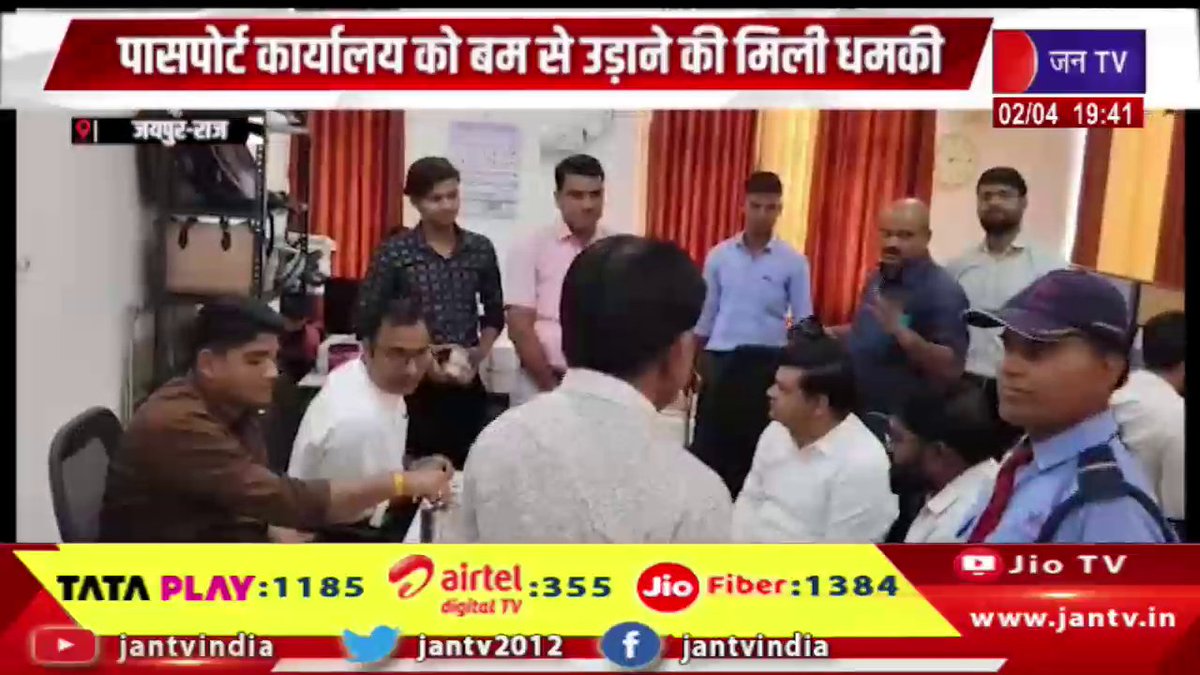
Jaipur | जांच के दौरान नहीं मिली कोई संदिग्ध वस्तु, पासपोर्ट कार्यालय को बम से उड़ाने की मिली धमकी | JAN TV
youtu.be/FbAOm6o5v0A
#jaipurnews #bombthreat #passportoffice #securityalert #breakingnews #hindinews #latestnews #newsupdate #policeinvestigation #safetycheck #publicsafety #indiasecurity #threatalert #trendingnews #youtubeindia #viralnews #mustwatch #jantv #headline #lawandorder #jantv_opn
4
44

Inspecting your harness webbing isn't just about looking for tears: check for chemical or heat damage. 🧗♂️ If it's stiff, it's unsafe. Replace it. OSHA 1926.502(d)(21) requires inspection before every use. Don't risk a fall! #FallProtection #OSHA #SafetyCheck

2
2
43

Mar 17
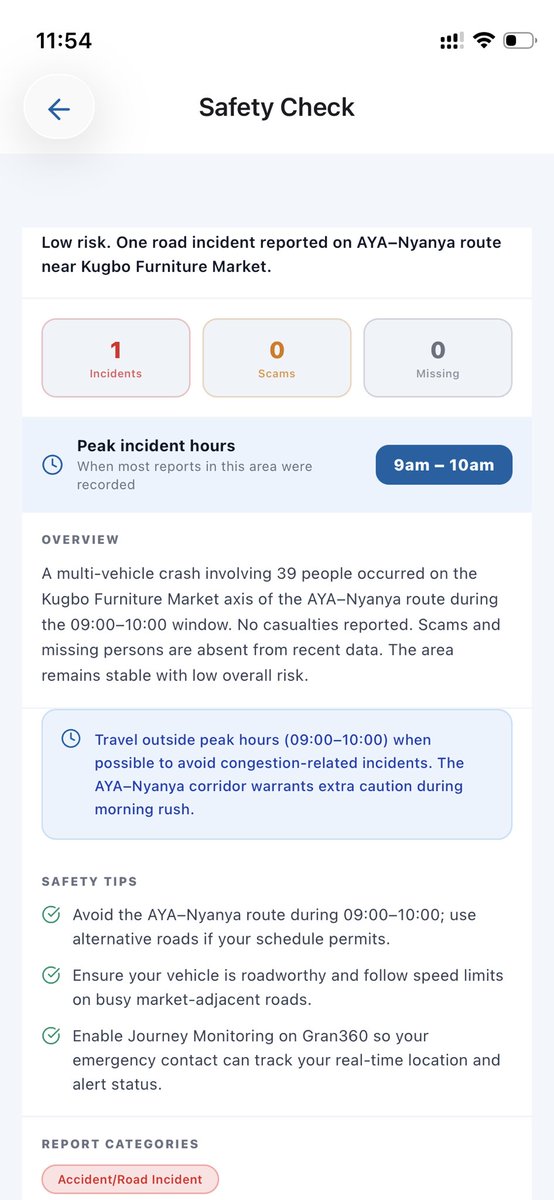
Safety Check: AYA-Nyanya route, FCT, Abuja.
Expect traffic around this area. You can check other areas on the Gran360 mobile app.
#safetycheck #abuja #nigeria
1
4
53
Mar 17
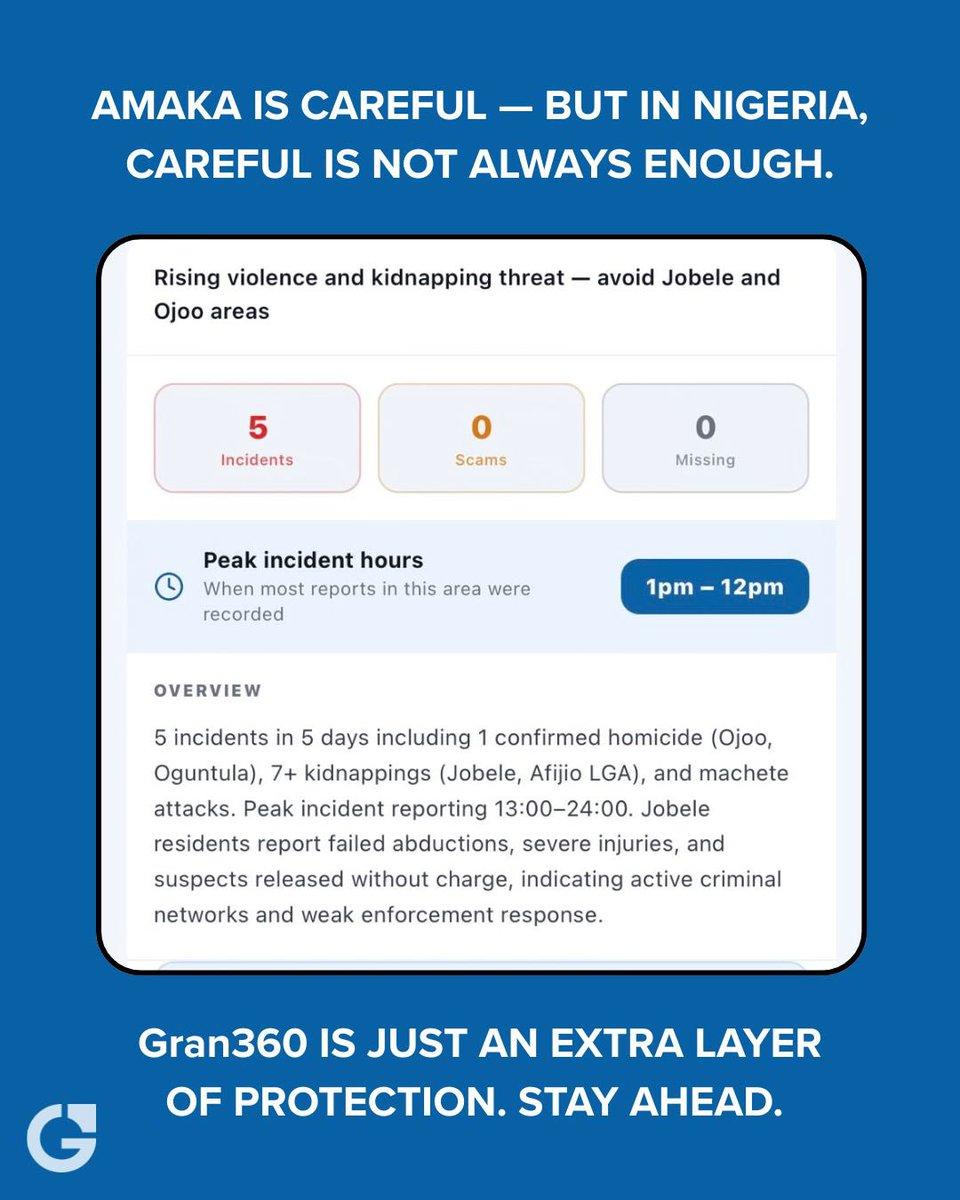
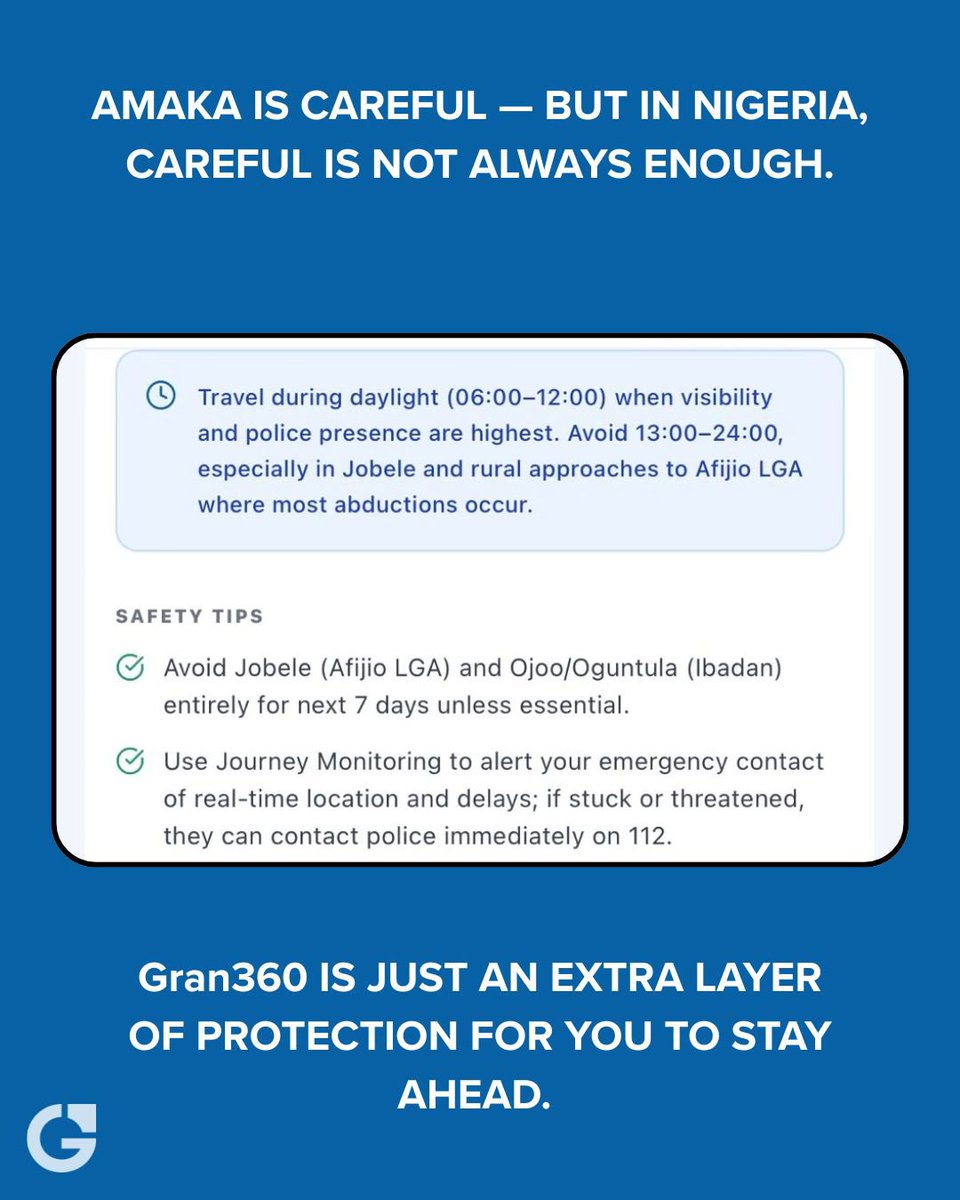
Safety Check gives you the latest updates around your destination plus safety recommendations.
Enter your destination and get what you need in one tap.
Gran360 runs so you don’t have to.
#safety #safetycheck #nigeria
2
22

Mar 11
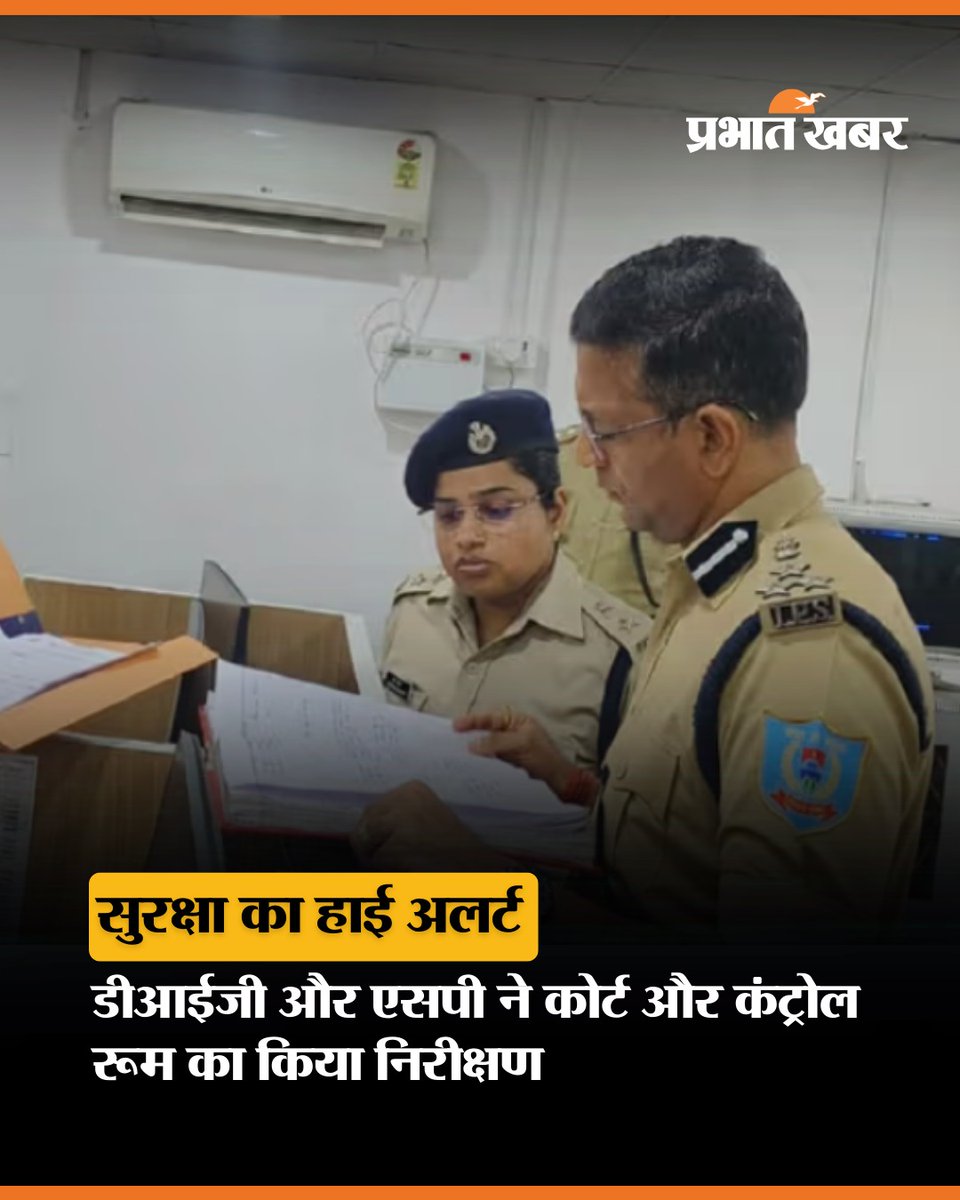
झारखंड के पलामू में डीआईजी किशोर कौशल और एसपी रीष्मा रमेशन ने सिविल कोर्ट और DC ऑफिस का निरीक्षण किया. उन्होंने सुरक्षा, CCTV और पुलिस टीम की तैयारी चेक की.
#Palamu #JharkhandNews #PoliceCheck #CivilCourt #DCOffice #SafetyCheck #CCTV #BreakingNews #JharkhandUpdate #PrabhatKhabar
1
154

Mar 7
2
104

🕰️Time to Spring Forward, Plano! 🍂
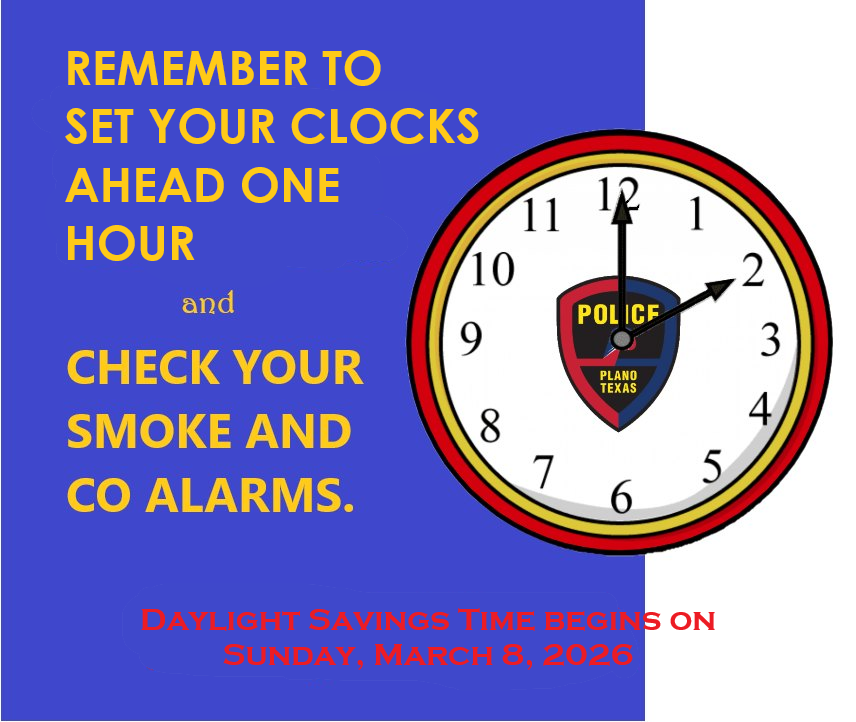
Daylight Saving Time begins this weekend—don’t forget to turn your clocks ahead at 2 AM on Sunday, March 8th! It’s also the perfect time take care of a few safety checks around the house.
🔁 Set your clocks ahead one hour
🔔Check your fire extinguishers
🔋Check batteries in smoke and carbon monoxide detectors
🎒Restock or prepare an emergency kit for your vehicle
The Plano Police Department and Plano Fire-Rescue encourages residents to use this seasonal shift as a reminder to perform annual safety checks. These quick actions help ensure your systems are working properly and your household is prepared year-round.
Thank you for helping us keep Plano safe and secure!
#PlanoPD #PlanoFireRescue #SpringAhead #DaylightSavingTime #SafetyCheck #CommunityStrong #PlanoProud #planotx
1
1
5
1,042

Feb 20
We lost count of how many double-fetch bugs we found
the kernel devs over there are crazy
Look at all registry calls, parsing certs, and mmisaddressvalid being used as a safetycheck (ITS NOT)
1
21
1,474