🐧 Day 12/30 — #Linux
Storage management is a fundamental skill for every Linux administrator.
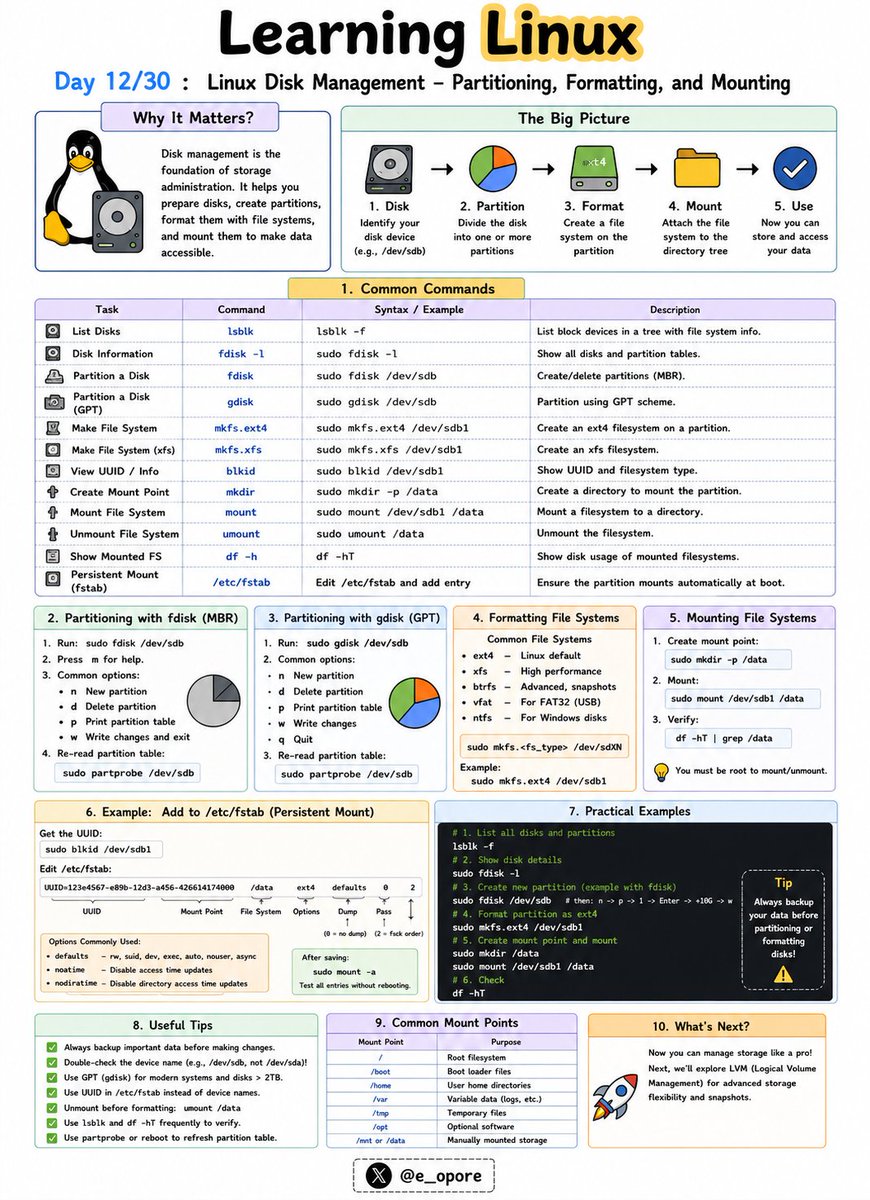
Before a disk can store data, it must be partitioned, formatted with a filesystem, and mounted into the Linux directory structure.
Linux Disk Management – Partitioning, Formatting, and Mounting
Understanding how Linux handles disks helps you manage storage efficiently and avoid data-related issues on servers and workstations.
Key Disk Management Concepts:
→ Partitioning
→ Formatting
→ Mounting
Partitioning Disks
A partition is a logical section of a physical disk.
Partitioning allows a single disk to be divided into multiple independent storage areas.
Common tools:
→ fdisk
→ parted
→ lsblk
Example:
→ sudo fdisk /dev/sdb
Opens the partition manager for a disk.
Viewing Available Disks
→ lsblk
Displays all connected storage devices and partitions.
→ df -h
Shows mounted filesystems and available disk space in a human-readable format.
Formatting Partitions
After creating a partition, it must be formatted with a filesystem.
Common Linux filesystems:
→ ext4
→ xfs
→ btrfs
Example:
→ sudo mkfs.ext4 /dev/sdb1
Formats the partition using the ext4 filesystem.
Mounting Filesystems
Linux accesses storage through mount points.
A partition must be mounted before it can be used.
Example:
→ sudo mount /dev/sdb1 /mnt/data
Makes the partition accessible through the /mnt/data directory.
Viewing Mounted Filesystems
→ mount
Lists currently mounted filesystems.
→ df -h
Displays mounted storage and available space.
Persistent Mounting
To automatically mount a partition during boot, administrators configure:
→ /etc/fstab
This file defines permanent mount settings for disks and partitions.
Why Disk Management Matters:
→ Add new storage to Linux servers
→ Manage application and database data
→ Monitor disk usage effectively
→ Prevent storage-related outages
→ Configure reliable production environments
Mastering partitioning, formatting, and mounting is an essential step toward becoming a skilled Linux administrator, DevOps engineer, or cloud engineer.
🐧 Grab Linux Ebook: codewithdhanian.gumroad.com/…
#Linux #LinuxTutorial #DiskManagement #LinuxCommands #SystemAdministration #DevOps #CloudComputing #OpenSource #Storage #100DaysOfCode
Jun 12

🐧 Day 11/30 — #Linux
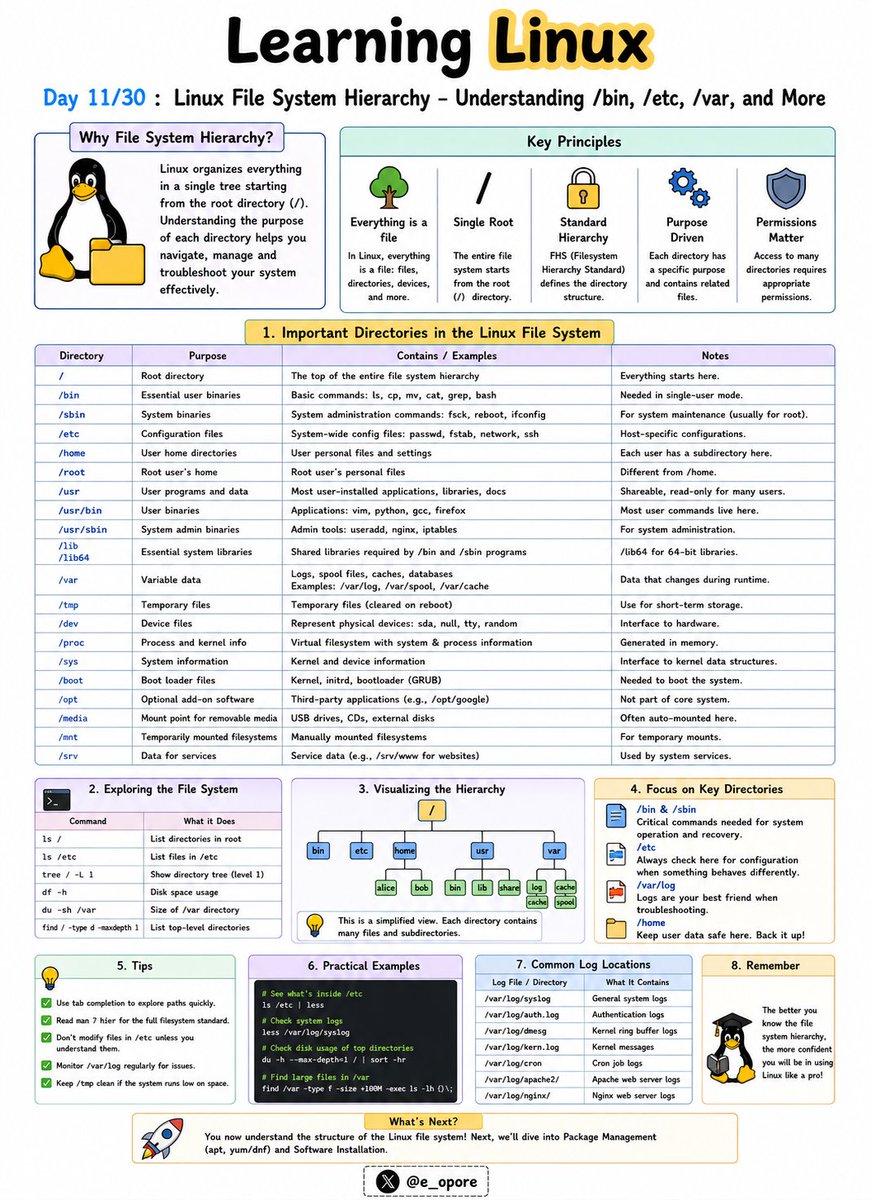
Everything in Linux is organized within a single directory tree that starts at the root directory (/).
Understanding the Linux file system hierarchy is essential for navigating, configuring, and troubleshooting Linux systems.
Linux File System Hierarchy – Understanding /bin, /etc, /var, and More
Unlike Windows, Linux does not use drive letters like C: or D:.
Instead, all files and directories exist under a unified hierarchy.
Important Linux Directories:
→ /
The root directory.
Everything on the system starts from here.
→ /bin
Contains essential command-line utilities such as:
→ ls
→ cp
→ mv
→ cat
These commands are required for basic system operation.
→ /etc
Stores system-wide configuration files.
Examples:
→ /etc/passwd
→ /etc/hosts
→ /etc/ssh/
Administrators frequently work in this directory.
→ /home
Contains personal directories for users.
Examples:
→ /home/john
→ /home/admin
This is where user files, documents, and settings are stored.
→ /var
Stores variable data that changes frequently.
Examples:
→ Logs
→ Cache files
→ Mail queues
→ Databases
Important log files are commonly found in:
→ /var/log/
→ /tmp
Stores temporary files created by applications and users.
Files here may be automatically removed by the system.
→ /usr
Contains installed software, libraries, and user applications.
Many programs are stored under:
→ /usr/bin
→ /usr/lib
→ /dev
Contains device files representing hardware components.
Examples:
→ Hard drives
→ USB devices
→ Printers
→ /proc
A virtual filesystem that provides information about running processes and system resources.
Why Understanding the File System Matters:
→ Navigate Linux efficiently
→ Locate configuration files quickly
→ Troubleshoot system issues
→ Manage servers effectively
→ Understand how Linux organizes data
Mastering the Linux file system hierarchy makes it much easier to administer servers, manage applications, and work confidently from the command line.
🐧 Grab Linux Ebook: codewithdhanian.gumroad.com/…
#Linux #LinuxTutorial #LinuxCommands #FileSystem #SystemAdministration #DevOps #CloudComputing #OpenSource #Programming #100DaysOfCode
1
3
39
1,019

Jun 12
🐧 Day 11/30 — #Linux
Everything in Linux is organized within a single directory tree that starts at the root directory (/).
Understanding the Linux file system hierarchy is essential for navigating, configuring, and troubleshooting Linux systems.
Linux File System Hierarchy – Understanding /bin, /etc, /var, and More
Unlike Windows, Linux does not use drive letters like C: or D:.
Instead, all files and directories exist under a unified hierarchy.
Important Linux Directories:
→ /
The root directory.
Everything on the system starts from here.
→ /bin
Contains essential command-line utilities such as:
→ ls
→ cp
→ mv
→ cat
These commands are required for basic system operation.
→ /etc
Stores system-wide configuration files.
Examples:
→ /etc/passwd
→ /etc/hosts
→ /etc/ssh/
Administrators frequently work in this directory.
→ /home
Contains personal directories for users.
Examples:
→ /home/john
→ /home/admin
This is where user files, documents, and settings are stored.
→ /var
Stores variable data that changes frequently.
Examples:
→ Logs
→ Cache files
→ Mail queues
→ Databases
Important log files are commonly found in:
→ /var/log/
→ /tmp
Stores temporary files created by applications and users.
Files here may be automatically removed by the system.
→ /usr
Contains installed software, libraries, and user applications.
Many programs are stored under:
→ /usr/bin
→ /usr/lib
→ /dev
Contains device files representing hardware components.
Examples:
→ Hard drives
→ USB devices
→ Printers
→ /proc
A virtual filesystem that provides information about running processes and system resources.
Why Understanding the File System Matters:
→ Navigate Linux efficiently
→ Locate configuration files quickly
→ Troubleshoot system issues
→ Manage servers effectively
→ Understand how Linux organizes data
Mastering the Linux file system hierarchy makes it much easier to administer servers, manage applications, and work confidently from the command line.
🐧 Grab Linux Ebook: codewithdhanian.gumroad.com/…
#Linux #LinuxTutorial #LinuxCommands #FileSystem #SystemAdministration #DevOps #CloudComputing #OpenSource #Programming #100DaysOfCode
Jun 11
🐧 Day 10/30 — #Linux
Linux is a multi-user operating system designed to allow multiple people and services to work securely on the same machine.
Managing users properly is one of the most important responsibilities of a Linux administrator.
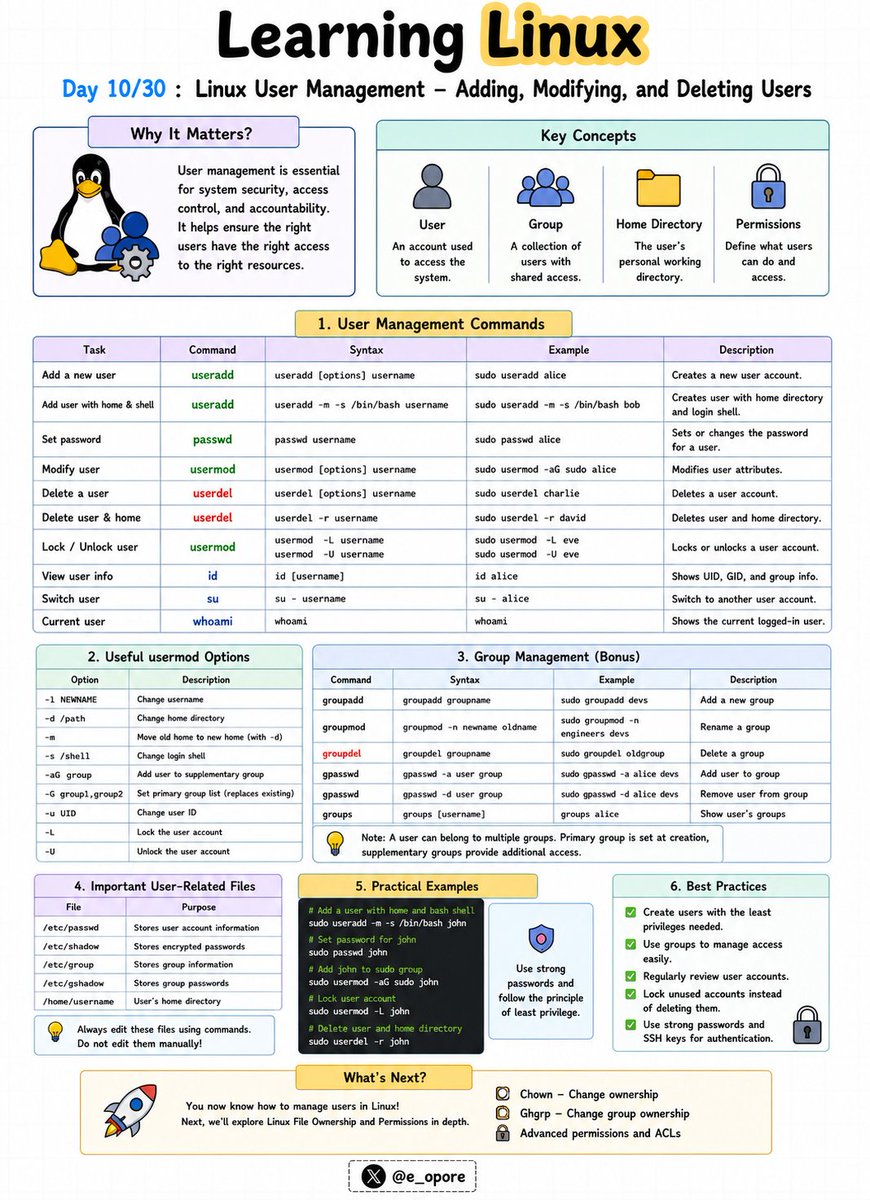
Linux User Management – Adding, Modifying, and Deleting Users
Every user in Linux has a unique username, user ID (UID), home directory, and set of permissions.
Essential User Management Commands:
→ useradd
→ passwd
→ usermod
→ userdel
→ id
→ whoami
Adding a User
→ sudo useradd john
Creates a new user named john.
To set a password:
→ sudo passwd john
Linux will prompt you to create and confirm a password.
Viewing User Information
→ id john
Displays the user's UID, GID, and group memberships.
→ whoami
Displays the currently logged-in user.
Modifying a User
→ sudo usermod -l johnny john
Changes the username from john to johnny.
→ sudo usermod -aG developers john
Adds the user john to the developers group.
Deleting a User
→ sudo userdel john
Removes the user account.
→ sudo userdel -r john
Removes the user account and deletes the user's home directory.
Understanding User Groups
Groups simplify permission management by allowing multiple users to share access to files and resources.
Examples:
→ developers
→ admins
→ docker
Instead of assigning permissions individually, administrators can manage access through groups.
Why User Management Matters:
→ Improve system security
→ Control resource access
→ Manage team environments
→ Protect sensitive files
→ Administer Linux servers effectively
Mastering user management is a foundational skill for Linux administrators, DevOps engineers, cloud engineers, and cybersecurity professionals.
🐧 Grab Linux Ebook: codewithdhanian.gumroad.com/…
#Linux #LinuxTutorial #LinuxCommands #UserManagement #SystemAdministration #DevOps #CloudComputing #CyberSecurity #OpenSource #100DaysOfCode
14
75
3,121
Jun 11
🐧 Day 10/30 — #Linux
Linux is a multi-user operating system designed to allow multiple people and services to work securely on the same machine.
Managing users properly is one of the most important responsibilities of a Linux administrator.
Linux User Management – Adding, Modifying, and Deleting Users
Every user in Linux has a unique username, user ID (UID), home directory, and set of permissions.
Essential User Management Commands:
→ useradd
→ passwd
→ usermod
→ userdel
→ id
→ whoami
Adding a User
→ sudo useradd john
Creates a new user named john.
To set a password:
→ sudo passwd john
Linux will prompt you to create and confirm a password.
Viewing User Information
→ id john
Displays the user's UID, GID, and group memberships.
→ whoami
Displays the currently logged-in user.
Modifying a User
→ sudo usermod -l johnny john
Changes the username from john to johnny.
→ sudo usermod -aG developers john
Adds the user john to the developers group.
Deleting a User
→ sudo userdel john
Removes the user account.
→ sudo userdel -r john
Removes the user account and deletes the user's home directory.
Understanding User Groups
Groups simplify permission management by allowing multiple users to share access to files and resources.
Examples:
→ developers
→ admins
→ docker
Instead of assigning permissions individually, administrators can manage access through groups.
Why User Management Matters:
→ Improve system security
→ Control resource access
→ Manage team environments
→ Protect sensitive files
→ Administer Linux servers effectively
Mastering user management is a foundational skill for Linux administrators, DevOps engineers, cloud engineers, and cybersecurity professionals.
🐧 Grab Linux Ebook: codewithdhanian.gumroad.com/…
#Linux #LinuxTutorial #LinuxCommands #UserManagement #SystemAdministration #DevOps #CloudComputing #CyberSecurity #OpenSource #100DaysOfCode
Jun 10
🐧 Day 9/30 — #Linux
One of Linux's greatest strengths is the ability to connect commands together and control where data flows.
Instead of manually copying output between programs, Linux allows commands to communicate seamlessly.
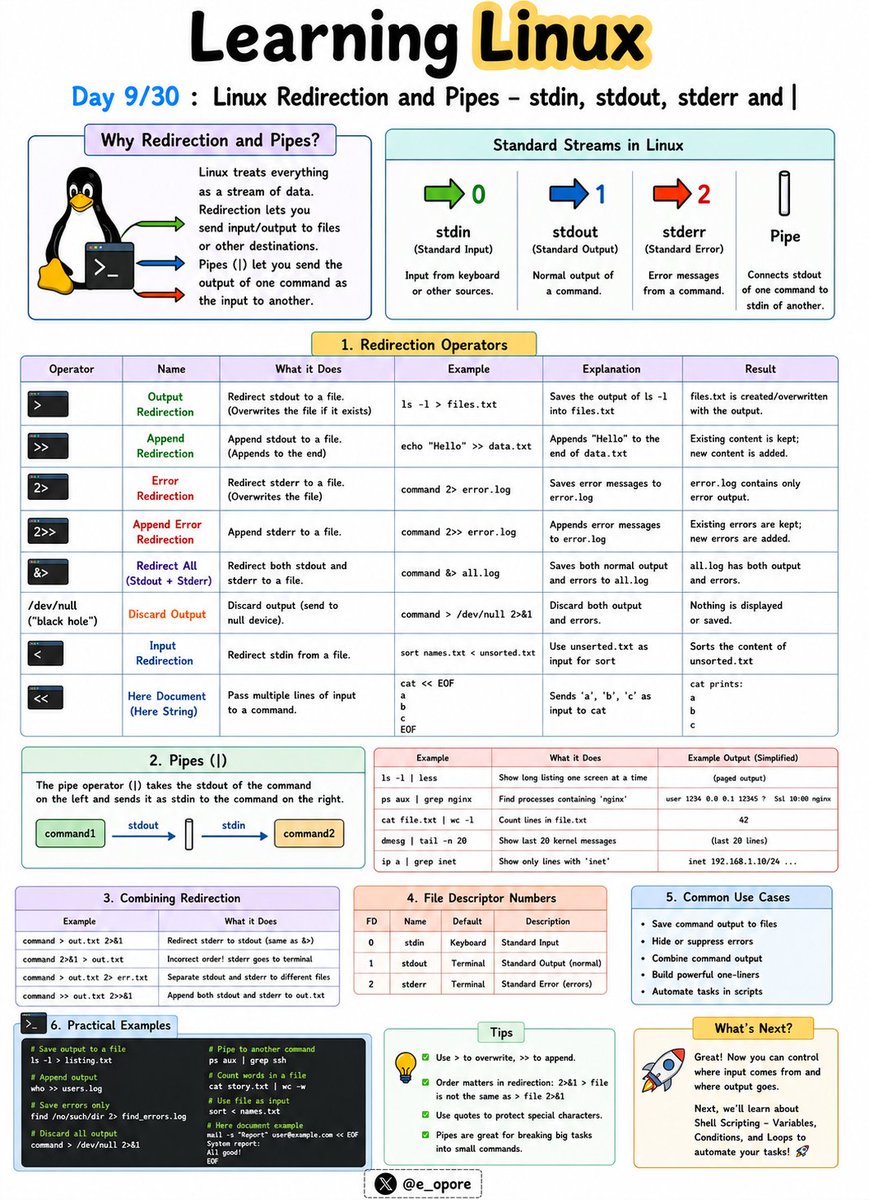
Linux Redirection and Pipes – stdin, stdout, stderr and |
Every Linux command works with three standard data streams:
→ stdin (Standard Input)
→ stdout (Standard Output)
→ stderr (Standard Error)
Understanding these streams is essential for automation, scripting, and system administration.
stdin (Standard Input)
stdin is the input a command receives.
Example:
→ sort < names.txt
The contents of names.txt are provided as input to the sort command.
stdout (Standard Output)
stdout is the normal output generated by a command.
Example:
→ ls > files.txt
Saves the output of ls into files.txt instead of displaying it on the screen.
stderr (Standard Error)
stderr contains error messages generated by commands.
Example:
→ ls missingfile 2> errors.txt
Saves error messages to errors.txt.
Redirection Operators
→ > = Overwrite output to a file
→ >> = Append output to a file
→ < = Read input from a file
→ 2> = Redirect error output
Examples:
→ echo "Hello Linux" > message.txt
Creates a file and writes text into it.
→ echo "More text" >> message.txt
Appends text to an existing file.
Pipes (|)
The pipe operator (|) sends the output of one command directly as input to another command.
Example:
→ ls | grep ".txt"
Lists only text files.
→ ps aux | grep nginx
Finds running nginx processes.
→ cat users.txt | sort
Sorts the contents of a file.
Why Redirection and Pipes Matter:
→ Automate repetitive tasks
→ Combine multiple commands efficiently
→ Filter and process large amounts of data
→ Build powerful shell scripts
→ Troubleshoot systems more effectively
Mastering redirection and pipes is a major step toward becoming productive in the Linux command line environment.
🐧 Grab Linux Ebook: codewithdhanian.gumroad.com/…
#Linux #LinuxTutorial #LinuxCommands #ShellScripting #Terminal #DevOps #SystemAdministration #OpenSource #Programming #100DaysOfCode
1
13
84
4,941
Jun 10
🐧 Day 9/30 — #Linux
One of Linux's greatest strengths is the ability to connect commands together and control where data flows.
Instead of manually copying output between programs, Linux allows commands to communicate seamlessly.
Linux Redirection and Pipes – stdin, stdout, stderr and |
Every Linux command works with three standard data streams:
→ stdin (Standard Input)
→ stdout (Standard Output)
→ stderr (Standard Error)
Understanding these streams is essential for automation, scripting, and system administration.
stdin (Standard Input)
stdin is the input a command receives.
Example:
→ sort < names.txt
The contents of names.txt are provided as input to the sort command.
stdout (Standard Output)
stdout is the normal output generated by a command.
Example:
→ ls > files.txt
Saves the output of ls into files.txt instead of displaying it on the screen.
stderr (Standard Error)
stderr contains error messages generated by commands.
Example:
→ ls missingfile 2> errors.txt
Saves error messages to errors.txt.
Redirection Operators
→ > = Overwrite output to a file
→ >> = Append output to a file
→ < = Read input from a file
→ 2> = Redirect error output
Examples:
→ echo "Hello Linux" > message.txt
Creates a file and writes text into it.
→ echo "More text" >> message.txt
Appends text to an existing file.
Pipes (|)
The pipe operator (|) sends the output of one command directly as input to another command.
Example:
→ ls | grep ".txt"
Lists only text files.
→ ps aux | grep nginx
Finds running nginx processes.
→ cat users.txt | sort
Sorts the contents of a file.
Why Redirection and Pipes Matter:
→ Automate repetitive tasks
→ Combine multiple commands efficiently
→ Filter and process large amounts of data
→ Build powerful shell scripts
→ Troubleshoot systems more effectively
Mastering redirection and pipes is a major step toward becoming productive in the Linux command line environment.
🐧 Grab Linux Ebook: codewithdhanian.gumroad.com/…
#Linux #LinuxTutorial #LinuxCommands #ShellScripting #Terminal #DevOps #SystemAdministration #OpenSource #Programming #100DaysOfCode
Jun 9
🐧 Day 8/30 — #Linux
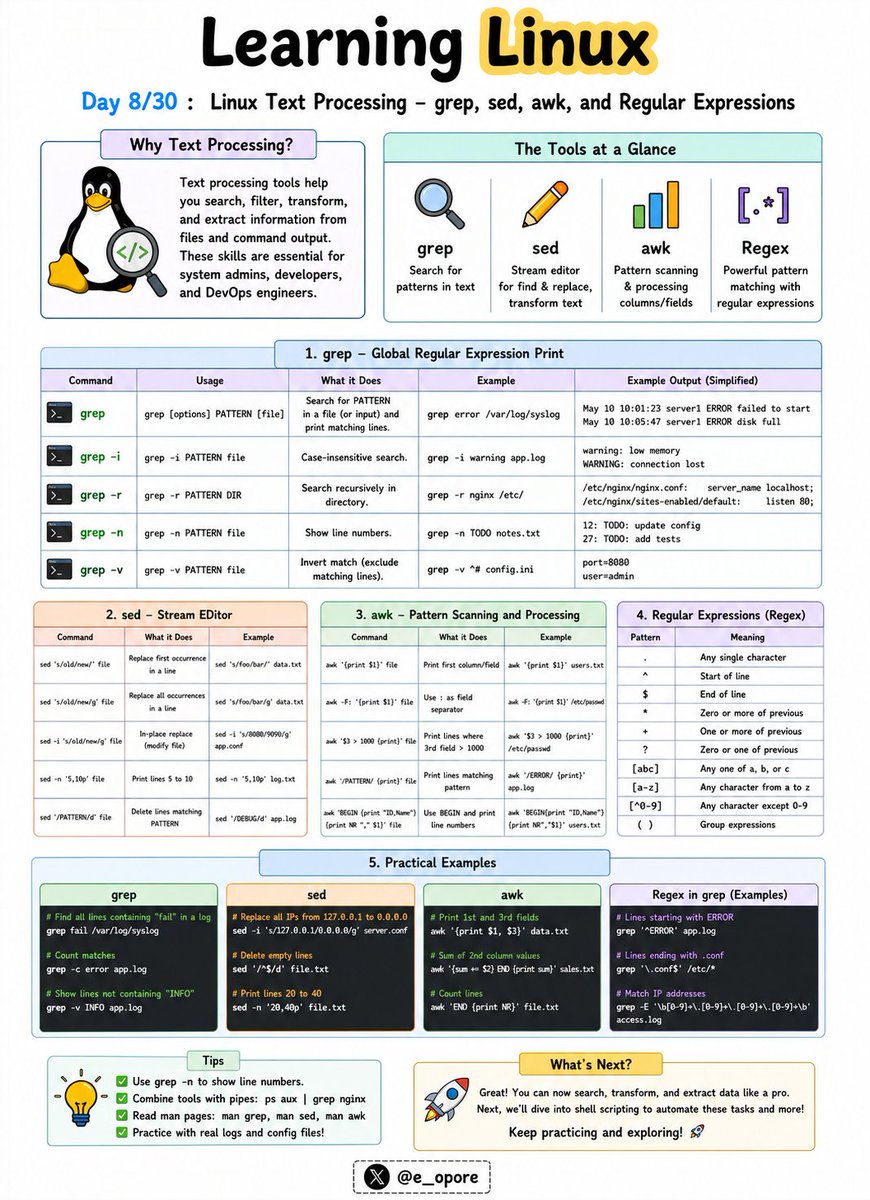
Linux truly becomes powerful when you can process, search, and manipulate text directly from the command line.
System logs, configuration files, source code, and data files can all be analyzed using built-in text-processing tools.
Linux Text Processing – grep, sed, awk, and Regular Expressions
These tools are essential for developers, system administrators, cybersecurity professionals, and DevOps engineers.
grep – Search for Text
The grep command searches files for specific words or patterns.
Examples:
→ grep "error" logs.txt
Finds all lines containing the word "error".
→ grep -i "linux" file.txt
Performs a case-insensitive search.
sed – Stream Editor
The sed command is used to modify text without opening a file manually.
Examples:
→ sed 's/Linux/Ubuntu/' file.txt
Replaces the first occurrence of Linux with Ubuntu.
→ sed 's/Linux/Ubuntu/g' file.txt
Replaces all occurrences in each line.
awk – Data Extraction and Reporting
The awk command processes structured text and extracts specific fields.
Example:
→ awk '{print $1}' users.txt
Displays the first column from a file.
→ awk '{print $1, $3}' users.txt
Displays selected columns.
Regular Expressions (Regex)
Regular expressions are patterns used to match text.
Common Regex Patterns:
→ . = Any character
→ * = Zero or more occurrences
→ ^ = Start of line
→ $ = End of line
→ [0-9] = Any digit
→ [a-z] = Any lowercase letter
Example:
→ grep "^[0-9]" file.txt
Finds lines that start with a number.
Why These Tools Matter:
→ Search large log files quickly
→ Automate text manipulation
→ Extract valuable data from files
→ Analyze server activity
→ Build powerful shell scripts
Mastering grep, sed, awk, and regular expressions can save hours of manual work and is one of the defining skills of advanced Linux users.
🐧 Grab the Linux Ebook: codewithdhanian.gumroad.com/…
#Linux #LinuxTutorial #LinuxCommands #grep #sed #awk #Regex #DevOps #SystemAdministration #100DaysOfCode
3
19
98
6,085

Jun 9
Follow akun @cloudkilat untuk dapet info menarik seputar dunia IT!
#linux #linuxtutorial #archivelinux #extractlinux
1
9
Jun 9
🐧 Day 8/30 — #Linux
Linux truly becomes powerful when you can process, search, and manipulate text directly from the command line.
System logs, configuration files, source code, and data files can all be analyzed using built-in text-processing tools.
Linux Text Processing – grep, sed, awk, and Regular Expressions
These tools are essential for developers, system administrators, cybersecurity professionals, and DevOps engineers.
grep – Search for Text
The grep command searches files for specific words or patterns.
Examples:
→ grep "error" logs.txt
Finds all lines containing the word "error".
→ grep -i "linux" file.txt
Performs a case-insensitive search.
sed – Stream Editor
The sed command is used to modify text without opening a file manually.
Examples:
→ sed 's/Linux/Ubuntu/' file.txt
Replaces the first occurrence of Linux with Ubuntu.
→ sed 's/Linux/Ubuntu/g' file.txt
Replaces all occurrences in each line.
awk – Data Extraction and Reporting
The awk command processes structured text and extracts specific fields.
Example:
→ awk '{print $1}' users.txt
Displays the first column from a file.
→ awk '{print $1, $3}' users.txt
Displays selected columns.
Regular Expressions (Regex)
Regular expressions are patterns used to match text.
Common Regex Patterns:
→ . = Any character
→ * = Zero or more occurrences
→ ^ = Start of line
→ $ = End of line
→ [0-9] = Any digit
→ [a-z] = Any lowercase letter
Example:
→ grep "^[0-9]" file.txt
Finds lines that start with a number.
Why These Tools Matter:
→ Search large log files quickly
→ Automate text manipulation
→ Extract valuable data from files
→ Analyze server activity
→ Build powerful shell scripts
Mastering grep, sed, awk, and regular expressions can save hours of manual work and is one of the defining skills of advanced Linux users.
🐧 Grab the Linux Ebook: codewithdhanian.gumroad.com/…
#Linux #LinuxTutorial #LinuxCommands #grep #sed #awk #Regex #DevOps #SystemAdministration #100DaysOfCode
Jun 8
🐧 Day 7/30 — #Linux
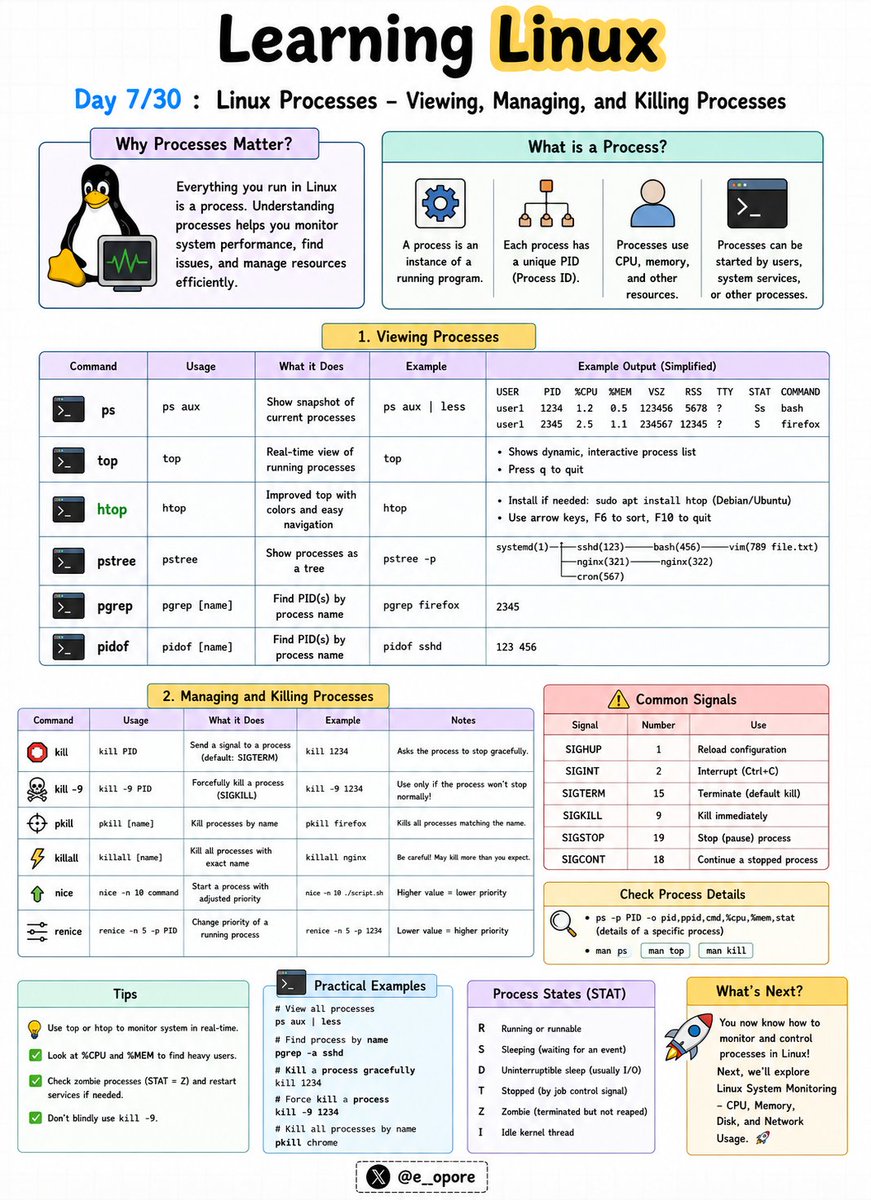
Every application running on Linux is a process.
Understanding how to view, manage, and stop processes is a critical skill for developers, system administrators, and DevOps engineers.
Linux Processes – Viewing, Managing, and Killing Processes
A process is simply a program that is currently running on your system.
Each process is assigned a unique Process ID (PID) that Linux uses to track and manage it.
Essential Process Commands:
→ ps
→ top
→ htop
→ pidof
→ kill
→ killall
Viewing Processes
→ ps
Displays currently running processes.
→ ps aux
Shows detailed information about all running processes.
→ top
Provides a real-time view of CPU usage, memory usage, and active processes.
→ htop
An interactive and user-friendly alternative to top.
Finding Process IDs
→ pidof nginx
Returns the PID of a running process.
Stopping Processes
→ kill PID
Sends a termination signal to a specific process.
Example:
→ kill 1234
Stops the process with PID 1234.
Force Killing a Process
→ kill -9 PID
Immediately terminates a process that refuses to stop.
Example:
→ kill -9 1234
Killing Processes by Name
→ killall firefox
Terminates all Firefox processes.
Why Process Management Matters:
→ Monitor system performance
→ Troubleshoot application issues
→ Free system resources
→ Manage server workloads
→ Control background services effectively
Mastering process management is essential because Linux systems constantly run hundreds of processes behind the scenes.
🐧 Grab the Linux Ebook: codewithdhanian.gumroad.com/…
#Linux #LinuxTutorial #LinuxCommands #SystemAdministration #DevOps #OpenSource #Terminal #CloudComputing #Programming #100DaysOfCode
11
22
112
6,564
Jun 8
🐧 Day 7/30 — #Linux
Every application running on Linux is a process.
Understanding how to view, manage, and stop processes is a critical skill for developers, system administrators, and DevOps engineers.
Linux Processes – Viewing, Managing, and Killing Processes
A process is simply a program that is currently running on your system.
Each process is assigned a unique Process ID (PID) that Linux uses to track and manage it.
Essential Process Commands:
→ ps
→ top
→ htop
→ pidof
→ kill
→ killall
Viewing Processes
→ ps
Displays currently running processes.
→ ps aux
Shows detailed information about all running processes.
→ top
Provides a real-time view of CPU usage, memory usage, and active processes.
→ htop
An interactive and user-friendly alternative to top.
Finding Process IDs
→ pidof nginx
Returns the PID of a running process.
Stopping Processes
→ kill PID
Sends a termination signal to a specific process.
Example:
→ kill 1234
Stops the process with PID 1234.
Force Killing a Process
→ kill -9 PID
Immediately terminates a process that refuses to stop.
Example:
→ kill -9 1234
Killing Processes by Name
→ killall firefox
Terminates all Firefox processes.
Why Process Management Matters:
→ Monitor system performance
→ Troubleshoot application issues
→ Free system resources
→ Manage server workloads
→ Control background services effectively
Mastering process management is essential because Linux systems constantly run hundreds of processes behind the scenes.
🐧 Grab the Linux Ebook: codewithdhanian.gumroad.com/…
#Linux #LinuxTutorial #LinuxCommands #SystemAdministration #DevOps #OpenSource #Terminal #CloudComputing #Programming #100DaysOfCode
Jun 7
🐧 Day 6/30 — #Linux
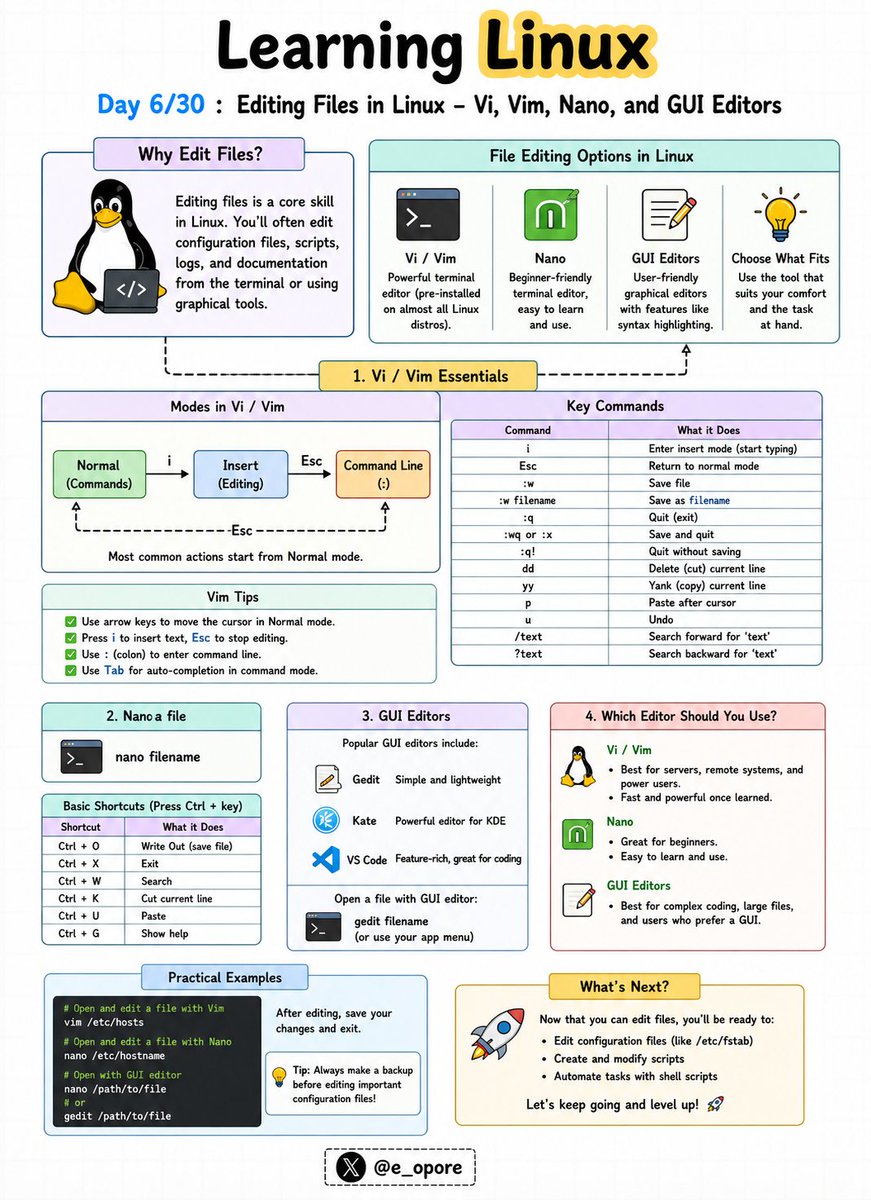
Every Linux user eventually needs to edit configuration files, scripts, logs, and application settings.
Knowing how to use a text editor is a fundamental Linux skill.
Editing Files in Linux – Vi, Vim, Nano, and GUI Editors
Linux offers both terminal-based and graphical text editors, each designed for different workflows and experience levels.
Popular Linux Editors:
→ Vi
→ Vim
→ Nano
→ GUI Editors
Vi Editor
Vi is the classic text editor found on almost every Linux system.
Benefits:
→ Lightweight
→ Available by default on most distributions
→ Useful for server administration
Basic Commands:
→ i = Enter insert mode
→ Esc = Exit insert mode
→ :w = Save file
→ :q = Quit editor
→ :wq = Save and quit
Vim Editor
Vim (Vi Improved) extends Vi with advanced features.
Benefits:
→ Syntax highlighting
→ Auto-completion
→ Powerful navigation shortcuts
→ Plugin ecosystem
Many developers and system administrators prefer Vim for daily work.
Nano Editor
Nano is one of the easiest Linux text editors for beginners.
Basic Commands:
→ Ctrl O = Save file
→ Ctrl X = Exit editor
→ Ctrl K = Cut line
→ Ctrl U = Paste line
Nano is ideal if you're new to Linux and want a simple editing experience.
GUI Editors
Desktop Linux distributions also provide graphical editors such as:
→ Gedit
→ Kate
→ Mousepad
These editors work similarly to Notepad or other desktop text editors.
Why This Matters:
→ Edit configuration files
→ Write shell scripts
→ Manage server settings
→ Update application files
→ Become comfortable working entirely from the terminal
Learning at least one terminal editor is essential because many Linux servers operate without a graphical interface.
🐧 Grab Linux Ebook: codewithdhanian.gumroad.com/…
#Linux #LinuxTutorial #Vim #Vi #Nano #Terminal #OpenSource #DevOps #SystemAdministration #100DaysOfCode
9
44
203
10,128

New video! Dive into Ubuntu 25.04 "Plucky Puffin." We'll install it on QEMU, explore new features, and show the setup: ISO, qemu-img disk, and QEMU launch with KVM.
youtu.be/LHE6BMCGMPU
#Ubuntu2504 #LinuxTutorial #QEMU #TechReview
#EmbeddedCraft #gdb #gdbserver
23
Jun 7
🐧 Day 6/30 — #Linux
Every Linux user eventually needs to edit configuration files, scripts, logs, and application settings.
Knowing how to use a text editor is a fundamental Linux skill.
Editing Files in Linux – Vi, Vim, Nano, and GUI Editors
Linux offers both terminal-based and graphical text editors, each designed for different workflows and experience levels.
Popular Linux Editors:
→ Vi
→ Vim
→ Nano
→ GUI Editors
Vi Editor
Vi is the classic text editor found on almost every Linux system.
Benefits:
→ Lightweight
→ Available by default on most distributions
→ Useful for server administration
Basic Commands:
→ i = Enter insert mode
→ Esc = Exit insert mode
→ :w = Save file
→ :q = Quit editor
→ :wq = Save and quit
Vim Editor
Vim (Vi Improved) extends Vi with advanced features.
Benefits:
→ Syntax highlighting
→ Auto-completion
→ Powerful navigation shortcuts
→ Plugin ecosystem
Many developers and system administrators prefer Vim for daily work.
Nano Editor
Nano is one of the easiest Linux text editors for beginners.
Basic Commands:
→ Ctrl O = Save file
→ Ctrl X = Exit editor
→ Ctrl K = Cut line
→ Ctrl U = Paste line
Nano is ideal if you're new to Linux and want a simple editing experience.
GUI Editors
Desktop Linux distributions also provide graphical editors such as:
→ Gedit
→ Kate
→ Mousepad
These editors work similarly to Notepad or other desktop text editors.
Why This Matters:
→ Edit configuration files
→ Write shell scripts
→ Manage server settings
→ Update application files
→ Become comfortable working entirely from the terminal
Learning at least one terminal editor is essential because many Linux servers operate without a graphical interface.
🐧 Grab Linux Ebook: codewithdhanian.gumroad.com/…
#Linux #LinuxTutorial #Vim #Vi #Nano #Terminal #OpenSource #DevOps #SystemAdministration #100DaysOfCode
Jun 5
🐧 Day 5/30 — #Linux
Security is one of Linux's greatest strengths.
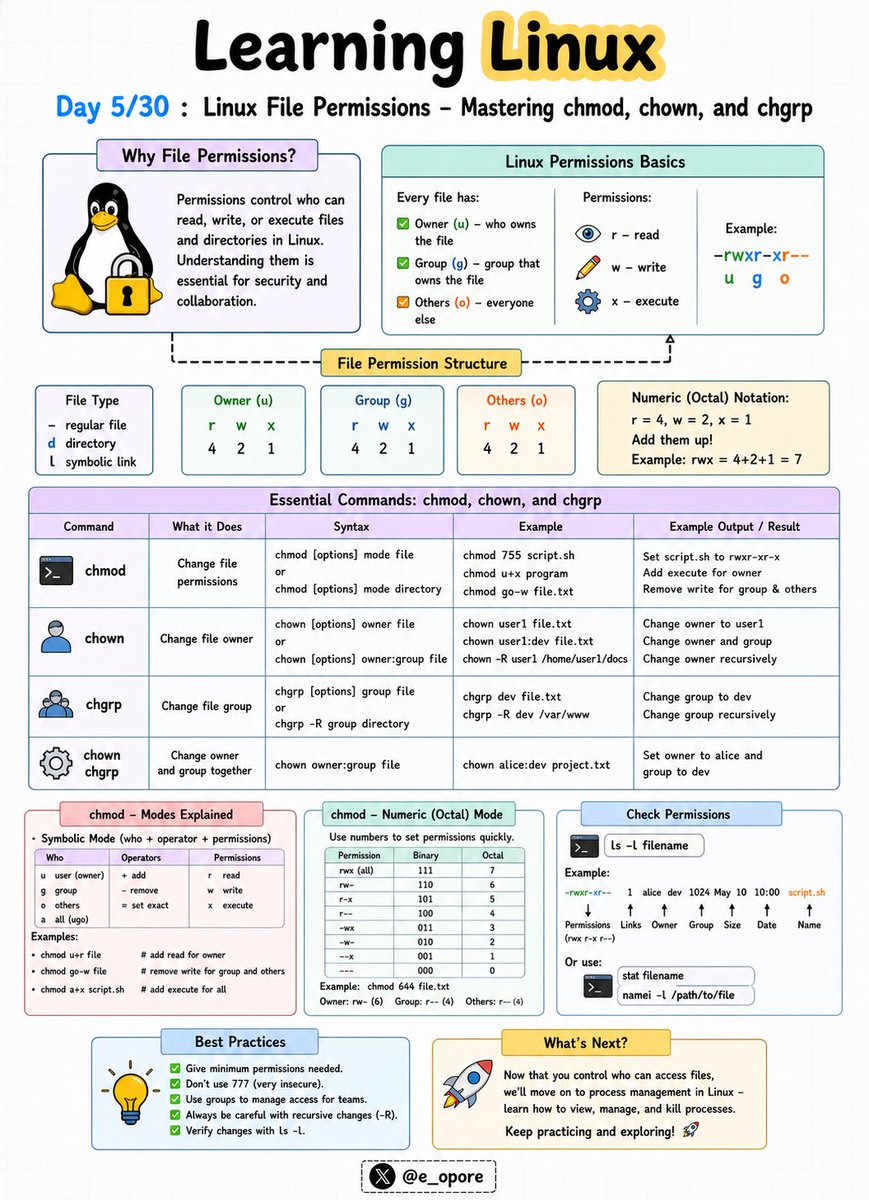
Every file and directory in Linux has permissions that determine who can read, write, or execute it.
Linux File Permissions – Mastering chmod, chown, and chgrp
Understanding permissions is essential for protecting files, managing users, and administering servers securely.
Viewing Permissions
Use the command:
→ ls -l
Example output:
-rwxr-xr--
This permission string is divided into three groups:
→ Owner permissions
→ Group permissions
→ Others permissions
Permission Symbols:
→ r = Read (4)
→ w = Write (2)
→ x = Execute (1)
Important Commands:
→ chmod — Change file permissions
→ chown — Change file owner
→ chgrp — Change file group
Examples:
→ chmod 755 script.sh
Permissions become:
Owner: rwx
Group: r-x
Others: r-x
→ chmod 644 file.txt
Permissions become:
Owner: rw-
Group: r--
Others: r--
→ chown john file.txt
Changes the file owner to john.
→ chgrp developers file.txt
Changes the file group to developers.
Why File Permissions Matter:
→ Protect sensitive files
→ Prevent unauthorized access
→ Secure Linux servers
→ Control application execution
→ Manage multi-user systems effectively
Mastering chmod, chown, and chgrp is one of the most important skills for Linux administrators, DevOps engineers, and backend developers.
🐧 Grab the Linux Ebook: codewithdhanian.gumroad.com/…
8
27
136
11,159
Jun 1
🎉 Happy New Month!
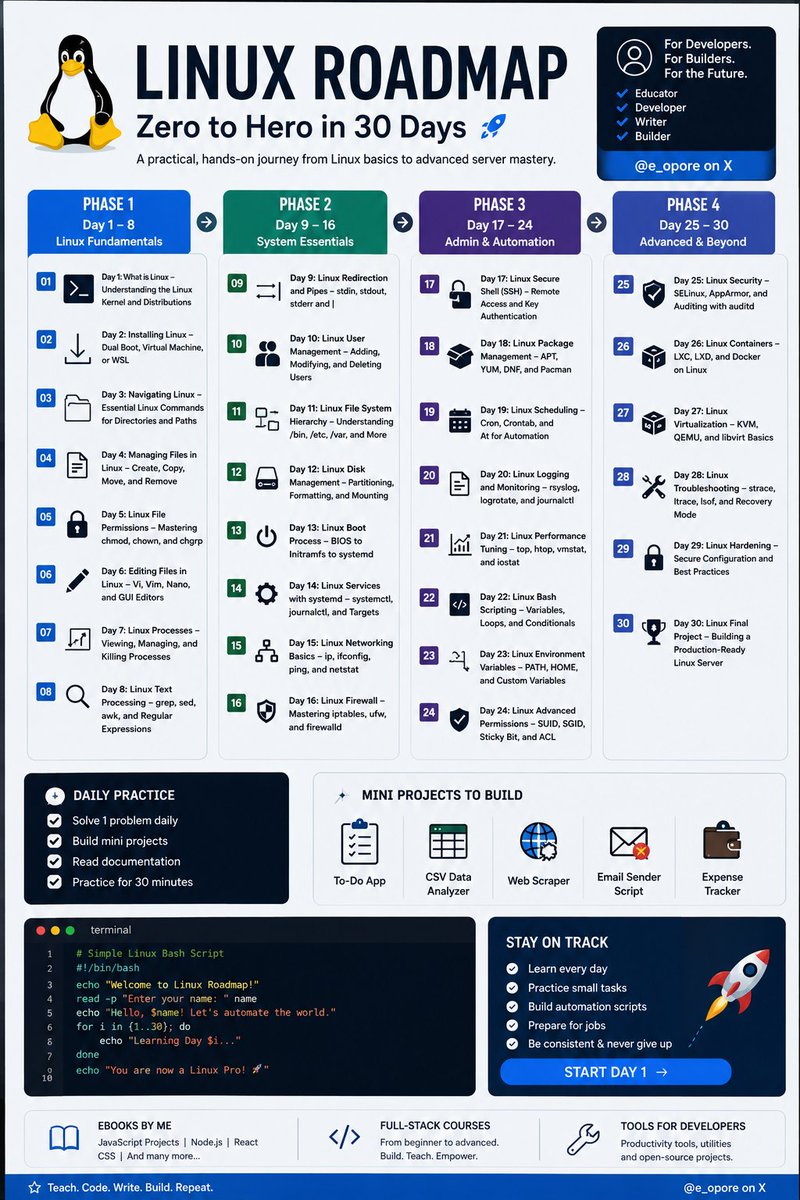
Linux tutorial series, structured as Day 1 through Day 30:
1. Day 1: What is Linux – Understanding the Linux Kernel and Distributions
2. Day 2: Installing Linux – Dual Boot, Virtual Machine, or WSL
3. Day 3: Navigating Linux – Essential Linux Commands for Directories and Paths
4. Day 4: Managing Files in Linux – Create, Copy, Move, and Remove
5. Day 5: Linux File Permissions – Mastering chmod, chown, and chgrp
6. Day 6: Editing Files in Linux – Vi, Vim, Nano, and GUI Editors
7. Day 7: Linux Processes – Viewing, Managing, and Killing Processes
8. Day 8: Linux Text Processing – grep, sed, awk, and Regular Expressions
9. Day 9: Linux Redirection and Pipes – stdin, stdout, stderr and |
10. Day 10: Linux User Management – Adding, Modifying, and Deleting Users
11. Day 11: Linux File System Hierarchy – Understanding /bin, /etc, /var, and More
12. Day 12: Linux Disk Management – Partitioning, Formatting, and Mounting
13. Day 13: Linux Boot Process – BIOS to Initramfs to systemd
14. Day 14: Linux Services with systemd – systemctl, journalctl, and Targets
15. Day 15: Linux Networking Basics – ip, ifconfig, ping, and netstat
16. Day 16: Linux Firewall – Mastering iptables, ufw, and firewalld
17. Day 17: Linux Secure Shell (SSH) – Remote Access and Key Authentication
18. Day 18: Linux Package Management – APT, YUM, DNF, and Pacman
19. Day 19: Linux Scheduling – Cron, Crontab, and At for Automation
20. Day 20: Linux Logging and Monitoring – rsyslog, logrotate, and journalctl
21. Day 21: Linux Performance Tuning – top, htop, vmstat, and iostat
22. Day 22: Linux Bash Scripting – Variables, Loops, and Conditionals
23. Day 23: Linux Environment Variables – PATH, HOME, and Custom Variables
24. Day 24: Linux Advanced Permissions – SUID, SGID, Sticky Bit, and ACL
25. Day 25: Linux Security – SELinux, AppArmor, and Auditing with auditd
26. Day 26: Linux Containers – LXC, LXD, and Docker on Linux
27. Day 27: Linux Virtualization – KVM, QEMU, and libvirt Basics
28. Day 28: Linux Troubleshooting – strace, ltrace, lsof, and Recovery Mode
29. Day 29: Linux Hardening – Secure Configuration and Best Practices
30. Day 30: Linux Final Project – Building a Production-Ready Linux Server
Grab the Linux Ebook: codewithdhanian.gumroad.com/…
#Linux #LinuxTutorial #DevOps #SystemAdministration #OpenSource #Programming #Developer #CodeNewbie #100DaysOfCode #LinuxLearning #TechEducation #SoftwareEngineering #CloudComputing #CyberSecurity #BashScripting
Follow @e_opore on X to learn more.
29
70
398
20,233

May 8
😱 Conseguí un PENDRIVE USB Multi-LINUX y... ES GRATIS | @IP-adictos youtu.be/oBDX9N8qn7s #TrucosLinux #IPadictos #AdictosLinux #LinuxAdictos #WindowsVsLinux
#Linux
#MultiLinux
#Ventoy
#USBBooteable
#LinuxTutorial
#Ubuntu
#LinuxMint
#Fedora
#Debian
#ArchLinux
#MultibootUSB

3
4
27


ICYMI: If you want to #LearnLinux, this hands-on lab will help you combine #rsync and #systemd to set up automatic daily backups. Check out this #tutorial and let's build something fun! youtu.be/F3UzOrEtMYI #Linux #LinuxTutorial #LinuxCommands
1
18
1,086
If you want to #LearnLinux, this hands-on lab will help you combine #rsync and #systemd to set up automatic daily backups. Check out this #tutorial and let's build something fun! youtu.be/F3UzOrEtMYI #Linux #LinuxTutorial #LinuxCommands
1
3
16
951

🚨 Lost a Partition in Linux? Here’s How to Recover Your Data Step by Step 🐧💾
#LinuxDataRecovery #LinuxTutorial #HetmanPartitionRecovery
1
3
4
121

27 Oct 2025
For those of you who've never installed @ubuntu before, I've updated my full installation tutorial for #Ubuntu 25.10. youtu.be/_chjY4Ipsqw #LinuxTutorial #LearnLinux
1
9
1,399
15 Sep 2025
ICYMI: In a recent video on #LearnLinuxTV, the #eza command was covered, which is a "modern" replacement for ls. This #tutorial overs installation, common options, and more! youtu.be/-VWrSPVudRY #Linux #LearnLinux #LinuxTutorial
1
2
15
2,463

🚀 Nouveau tuto #Linux pour la #Cybersécurité 🔐
👉 Gestion des services & processus
✅ systemctl start/stop/status
✅ ps, top, kill
✅ Cas pratique : redémarrer un service planté
🎥 Vidéo ici 👉 youtu.be/gUgqDNxxtj8
#EthicalHacking #SysAdmin #LinuxTutorial

2
2
24
19 Aug 2025
ICYMI: In a recent video on #LearnLinuxTV, the #eza command was covered, which is a "modern" replacement for ls. This #tutorial overs installation, common options, and more! youtu.be/-VWrSPVudRY #Linux #LearnLinux #LinuxTutorial
2
2
12
1,717

8 Aug 2025
SITUP Challenge D86
Embrace my belly #anthonyrichardson
#anubis #bastet #scarab #dickgregory
#xrp #AMZN #MD5sum #charlestonwhite #Myrongolden #ascii #hp12c
#linuxtutorial #hatshepsut #muaythai #bangladesh
RUNNING TOTAL
MO - 500
TU - 500
WE - 500
TH - 500
FR - 425**
1
1
83