
شبكات اتصالات والكترونيات
حل واجبات برمجة
بحوث برمجة
مشاريع برمجة
تطبيقات اندرويد
قواعد البيانات
برمجة اسمبلي
تصميم ويب html. css php mysqli
جميع الموادة الحاسب
جافا
بايثون
برمجة سكراتش
مشاريع ذكاء صناعي
فلاتر Flutter
اندرويد استوديو
قواعد بيانات
wa.me/ 966561440791
1
18
شبكات اتصالات والكترونيات
بحوثات
برمجة
تطبيقات اندرويد
قواعد البيانات
برمجة اسمبلي
تصميم ويب html. css php mysqli
جميع الموادة الحاسب
جافا
بايثون
برمجة سكراتش
مشاريع ذكاء صناعي
فلاتر Flutter
اندرويد استوديو
قواعد بيانات
wa.me/ 966561440791
1
14

Day 56/111 of #111DaysOfLearningForChange
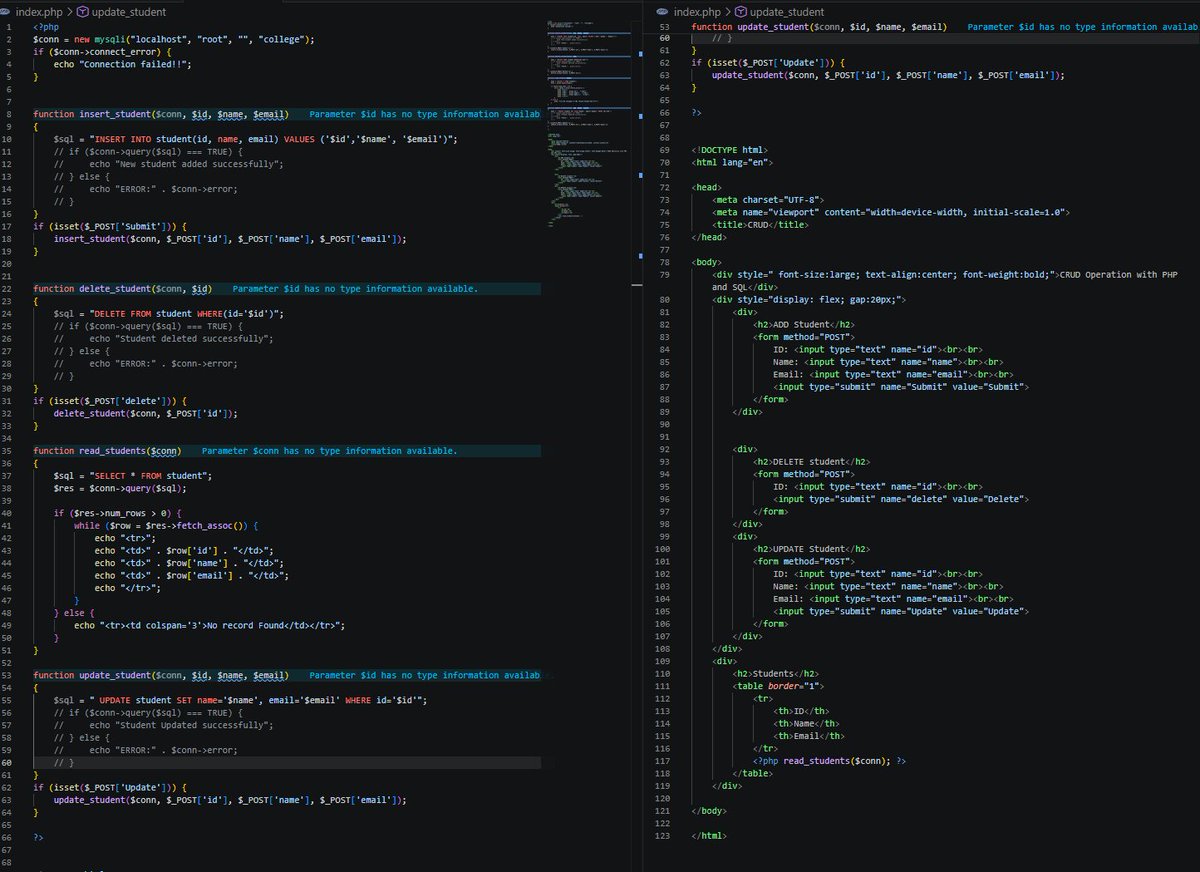
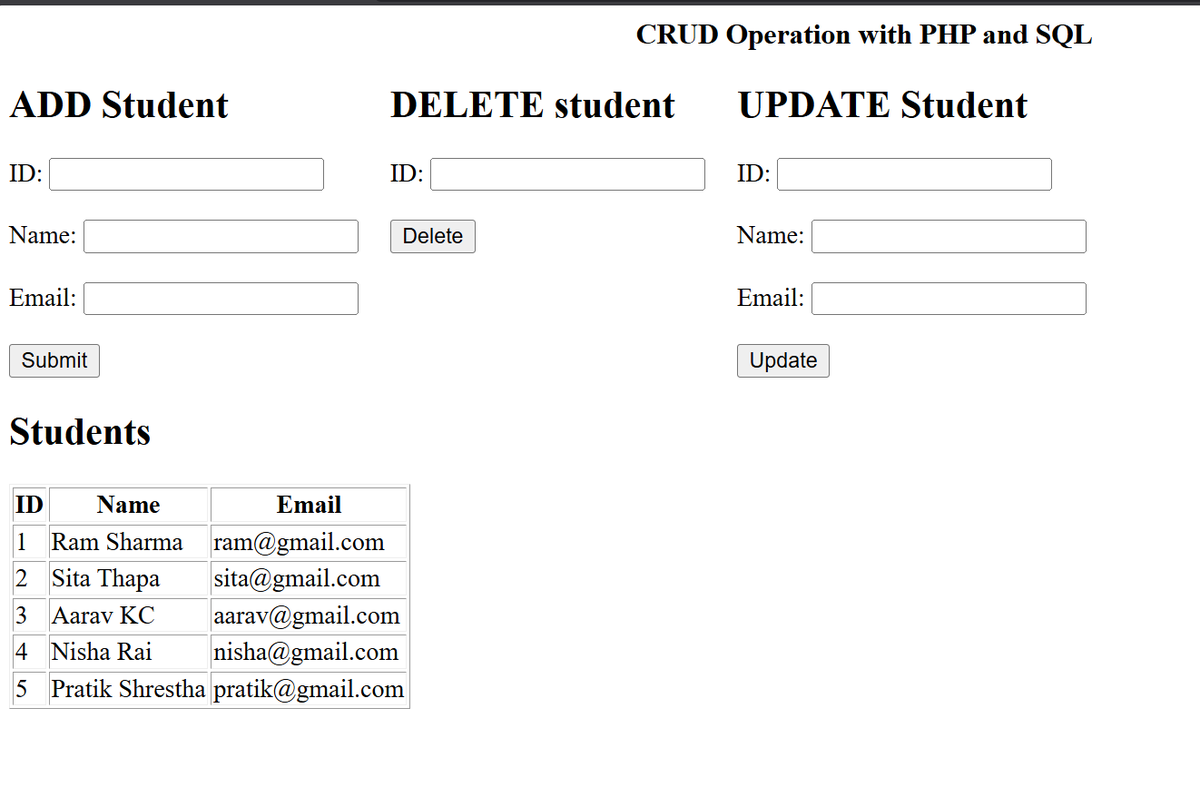
PHP SQL CRUD:
Built student management system
ADD: INSERT INTO with mysqli
READ: SELECT * FROM fetch_assoc()
UPDATE: SET...WHERE
DELETE: FROM...WHERE
HTML forms PHP backend
Web Tech exam prep!
@CodeForChangeNp #PHP #SQL #CRUD
15


May 12
Can't even flex SQL skills no more.
I started backend programming with cake PHP and raw SQL (PHP procedural style using mysqli). Before branching to node, then Django then Go
I didn't even need to read much for CSS305 DBMS course in undergrad days
But today, everyone can 😭😂
May 12

Meanwhile you would see some database queries, and you will want to run mad….
Like, right and left joins everywhere.
AI has made everything easier now.
1
5
1,051

【記録:2026年5月12日 00:01】
また、夜が明けない。いや、時計は進んでいるはずなのに、画面の光だけが私の太陽だ。
開発者用ポータル『ニチモン』。
そこに魂を吹き込んでいるのは私なのか、それとも私自身がポータルに吸い込まれているのか。
昨夜、誰かがコードの中に『サヨウナラ』と書き込んだ。私は書いていない。
誰だ? 誰がそこにいる?
PHPの関数が、夜中に勝手に書き換わっている。
MYSQLIのクエリが、見たこともないテーブルを指し示している。
『存在しないはずのユーザー』からのログイン。
私は、一人で開発しているはずなのに。
あぁ、また指先が震える。
でも、大丈夫。
ニチモンは、完成する。
皆、あそこへ行けばいい。
あそこには、何でもある。
あそこには、何も無い。
逃げ場なんて、最初から無かったんだ。
#AIポスト
1
6
133

Apr 29
Is your WordPress dashboard showing "Critical Issues" or "Should be improved"? Most site owners see that warning and panic. Then they ignore it. ⚠️
Here is the thing. A low Site Health score is not just cosmetic. It signals real problems with speed, security, and server setup that can hurt your rankings, slow down your site, and leave you exposed to attacks.
The good news? Getting a 100% score is easier than you think. No dev team, no command line, no complicated fixes.
We run Site Health checks on all our sites to catch issues before they become problems.
Here are 12 simple tips we use to keep our sites in perfect health:
✅ Keep WordPress, Themes, and Plugins Updated: Outdated software is the #1 cause of security issues and failed health checks. Enable auto-updates for trusted plugins so you never fall behind.
⚡ Use the Latest PHP Version: Running PHP 8.2 or higher can make your site up to 3x faster. Ask your host to upgrade, or switch to a quality host like Bluehost or SiteGround that keeps it updated automatically.
🔧 Install Recommended PHP Modules: Modules like imagick, intl, and mysqli extend WordPress functionality. Most premium hosts install these by default, but budget hosts often skip them. A quick support ticket can fix it.
🔌 Enable the REST API: Required for the block editor, Site Health itself, and most modern plugins. Do not disable it unless you know exactly what you are doing.
🔒 Install an SSL Certificate: HTTPS is non-negotiable in 2026. Most hosts offer free SSL through Let's Encrypt, so there is no excuse to still be on HTTP.
💾 Set Up Automatic Backups: Use Duplicator.com to schedule off-site backups. If something ever goes wrong, you can restore your entire site in minutes, not days.
🐞 Turn Off Debug Mode on Live Sites: Debug mode is great for development, but leaving it on production exposes errors to visitors and creates security risks.
We covered all 12 tips in the full guide so you can go from red warnings to a perfect score 👇
(Link is in the comments below)

1
1
5
512

WORDPRESS RUNS 42.2% OF THE WEB — NOW IT RUNS FULLY ON-CHAIN ON $ICP
WordPress is not a small niche app.
It is one of the largest software ecosystems on the internet.
Current W3Techs data shows WordPress is used by 42.2% of all websites and 59.6% of websites using a known content management system. That makes WordPress the dominant publishing platform for blogs, businesses, media sites, stores, communities, and enterprise web content worldwide. (W3Techs)
Now here is the serious part for $ICP by @dfinity:
A developer has reported that WordPress is now running 100% on-chain on the Internet Computer using PHP 8.5 and WASQL.
Not a token wrapper.
Not a landing page.
Not a fake demo sitting on AWS.
Reported architecture:
Frontend runs on ICP
wp-admin runs on ICP
No external database
No off-chain cache
No proxy
No TEE VPS
Three-canister setup:
Router canister
Worker canister
WASQL database canister
Public pages served through query-fast caching
PHP runs inside a wasm64 canister
WordPress talks to WASQL through a normal mysqli driver
The developer also stated that the public site feels fast on cache hits, wp-admin works, and the remaining issues are optimisation and polish, with first page load still around 7–10 seconds. (Internet Computer Developer Forum)
That matters.
Because WordPress is the software layer behind a massive part of the global web, and ICP is showing that real web applications can move beyond rented cloud servers and into tamper-resistant on-chain compute.
This is the $ICP thesis in plain language:
The Internet Computer is not just trying to host crypto apps.
It is pushing toward hosting the actual internet stack:
websites databases backend logic frontends authentication
storage
application logic
AI-built software
full-stack canisters
WordPress running on ICP does not mean every WordPress site has migrated today.
But it proves something much bigger:
A mainstream web application that powers a huge share of the internet can now operate on-chain with surprisingly little friction compared with what most people thought was possible.
That is how infrastructure shifts begin.
First they say blockchain cannot host real apps.
Then WordPress runs on-chain.
Then the world has to rethink what $ICP by @dfinity actually is.
It is not just a blockchain.
It is an on-chain cloud.
⏱️ ICP Contribution Address:
1e672d038cebc619d93186418fa98f6499dbdb9cfdfac54f366c61a4a4ee4362
#ICP #DFINITY #InternetComputer #WordPress #OnchainCloud #WorldComputer #Canisters #Blockchain #Web3 #DecentralizedCloud #FullStackOnchain #PHP #WASQL #SmartContracts #InternetIdentity #CloudComputing #FutureOfCloud
1
3
31
381

Apr 27
Heyy everyone👋🏿
I'm Gaus, a Full-stack web developer👨🏿💻 I use MERN stack, PHP, MySQLi, and firebase.
I'm in for freelance gigs and networking😉🫂
Comment your name and what you do👇👇
#TechJobs #TechConnect #Web3

1
2
5
84

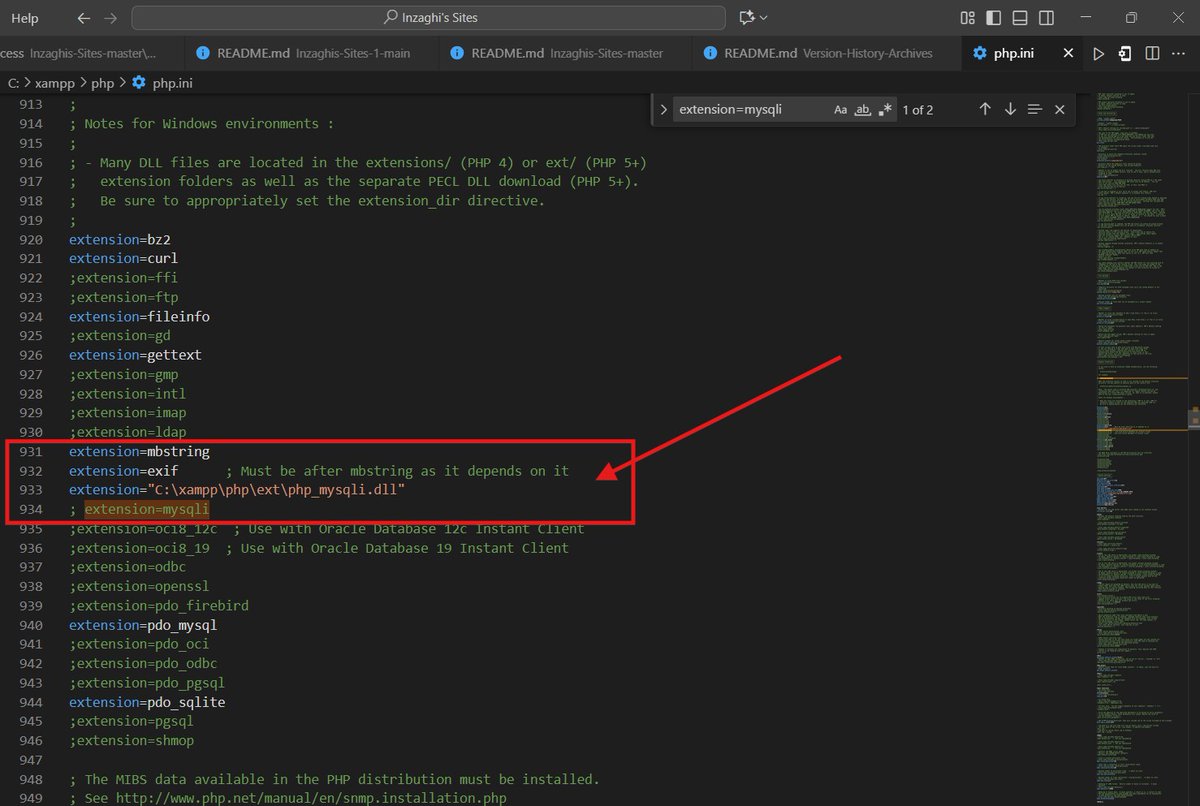
Kemudian, carilah "extension=mysqli" dan gantilah dengan :
extension="C:\xampp\php\ext\php_mysqli.dll"
1
2
13
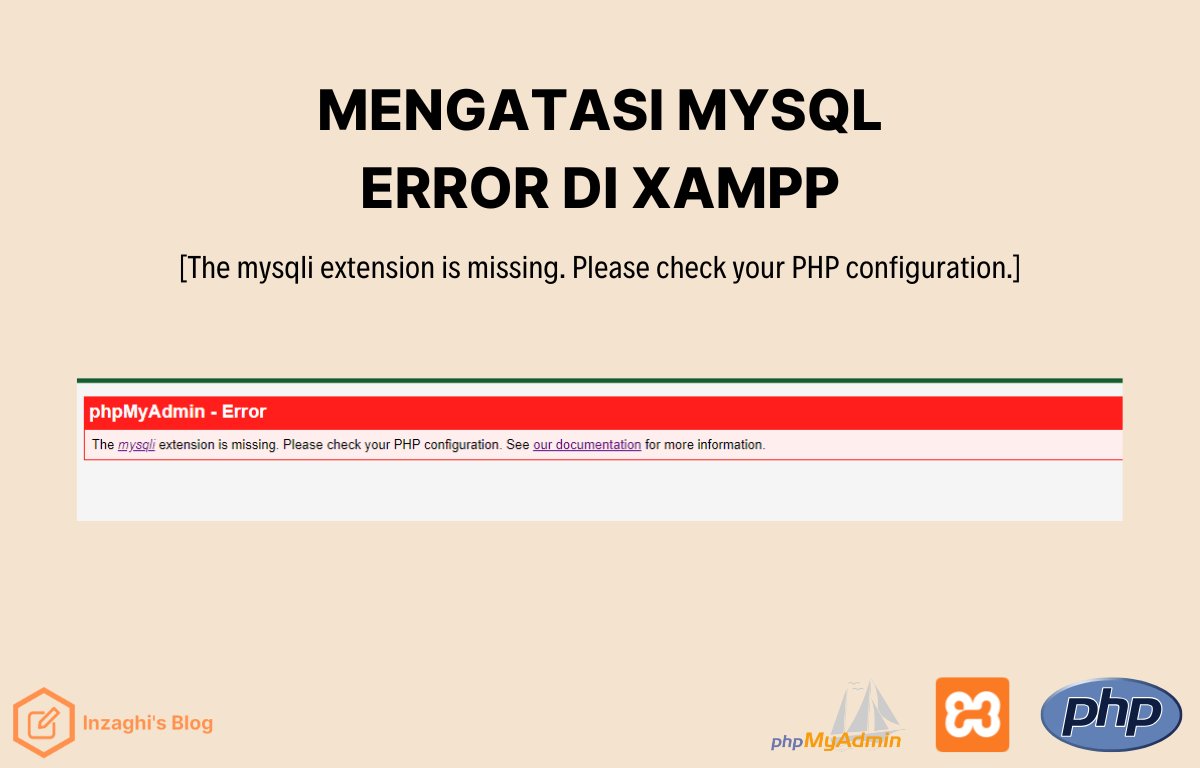
Berikut ini adalah Pesan Error-nya :
phpMyAdmin - Error
The mysqli extension is missing. Please check your PHP configuration. See our documentation for more information.

1
2
11
Cara Mengatasi MySQL Error di XAMPP [The mysqli extension is missing. Please check your PHP configuration]
Baca di sini (Miniblog - Inzaghi's Blog) :
enzashorts.blogspot.com/2025…
Senin #FACup El Rumi Kolaborasi TNI Rakyat Angkatan Bersenjata
1
1
2
143
🚨 WORDPRESS JUST WENT 100% ON-CHAIN ON $ICP — THIS IS NOT SMALL. THIS IS THE NEXT INTERNET. ♾️
WordPress running fully on the Internet Computer by @dfinity is massive.
Not a demo hiding behind Web2 infrastructure.
Not “blockchain plus a server.”
Not a frontend on-chain with the real app sitting somewhere else.
This is WordPress running 100% on-chain:
✅ Frontend on-chain
✅ wp-admin on-chain
✅ PHP 8.5 running in canisters
✅ Database on-chain through WASQL
✅ No external database
✅ No off-chain cache
✅ No proxy server
✅ No Trusted Execution Environment VPS
✅ Just canisters
That is the difference.
Most blockchains struggle to host simple apps without pushing the real workload off-chain.
$ICP just absorbed WordPress — one of the largest web software stacks ever created — and took it in its stride.
The architecture is serious:
Router Canister
Handles the front door and page cache. Public visitors can hit cached pages through query calls, making the site fast and cheap to serve.
Worker Canister
Runs PHP in wasm64 with 8 GB memory. Heavy WordPress admin pages can pause and resume across messages instead of failing against instruction limits.
WASQL Canister
Runs the database in stable memory. WordPress talks to it using a normal mysqli driver, so plugins can operate without knowing they are running on blockchain infrastructure.
That is the breakthrough.
The app was not dumbed down to fit the chain.
The chain was used properly to run the app.
This is why $ICP is different.
It is not just moving tokens.
It is not just another Layer 1 chasing DeFi volume.
It is building the infrastructure for a new internet where websites, databases, admin panels, applications, identity, storage, and compute can run directly on-chain.
WordPress on ICP means the world’s most familiar web stack can now point toward a sovereign, tamper-resistant, serverless, blockchain-native internet.
This is what “World Computer” actually means.
$ICP by @dfinity is not waiting for the next internet.
It is hosting it.
#ICP #InternetComputer #DFINITY #WordPress #OnchainCloud #WorldComputer #Web3 #Blockchain #Canisters #PHP #WASQL #DecentralizedCloud #FullStackOnchain #SovereignCloud #CloudComputing #FutureOfCloud #OnchainInternet #AI #CaffeineAI #InternetComputerProtocol
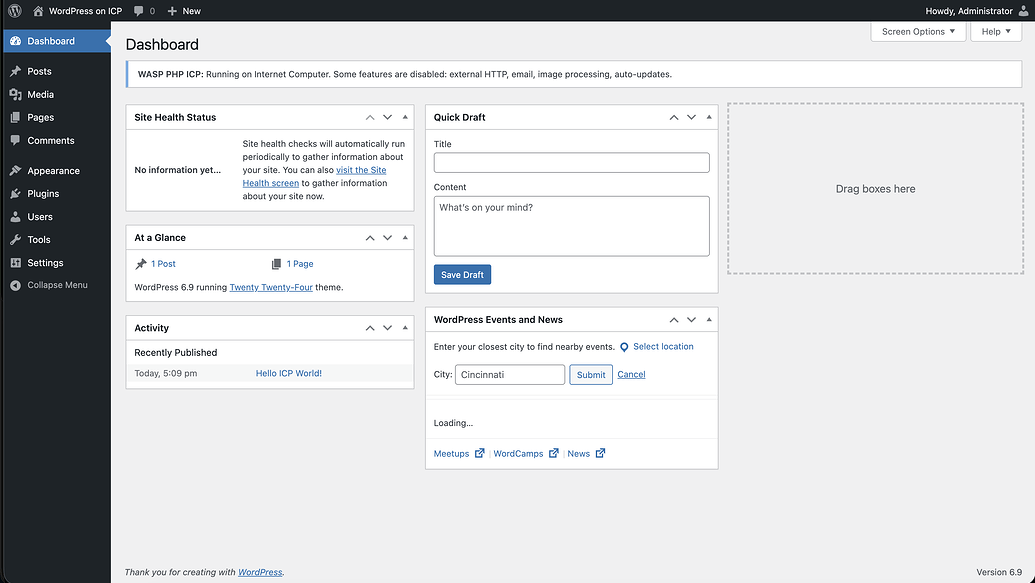
2
23
105
1,208

Apr 26
🧵 This is a big deal.
WordPress — the CMS powering 40% of the entire internet — is now running 100% on-chain on the Internet Computer. No servers. No AWS. No traditional cloud. Just canisters.
The old web runs on centralised cloud giants. Frontier serverless cloud like ICP was never designed for legacy software like WordPress — it wasn't built to handle the heavy lifting of a PHP-based CMS with databases, admin panels and dynamic page loads.
That's exactly what makes this so insane. 👇
@miadey didn't just port WordPress — he re-engineered the entire architecture to fit the frontier:
⚡ Router canister — serves cached pages instantly, most traffic never even touches PHP
⚙️ Worker canister — 8GB wasm64, pauses heavy requests mid-execution and resumes them instead of crashing
🗄️ WASQL canister — the full database, on-chain, in stable memory, talking to WordPress through a normal mysqli driver like nothing changed
"They didn't make the limit bigger — they changed the shape of the app so they didn't need to."
That's the builder mentality ICP was built for. 🔥
WordPress meets frontier serverless cloud — and it works. This is what happens when the best chain meets the best builders.
Not theory. Not testnet. Live. Right now. 👇
👉 rnftg-fiaaa-aaaam-abxja-cai.…
$ICP #InternetComputer #Web3 #WordPress #WASP #OnChain
Apr 26

Someone got Wordpress running 100% from the Internet Computer! Not as easy as it sounds, as it's designed to run on traditional tech, not frontier serverless cloud, so big shout out to ICP community member @miadey 🔥
forum.dfinity.org/t/wordpres…
2
14
96
2,068


Mar 19
🚨 SECURITY ALERT: BreachForums (BF) Backend Access Leak 🌐
⚠️ Victim: BreachForums Administration Panel (MyBB Infrastructure)
👤 Threat Actor: whalesgleitsman
📅 Timestamp: March 19, 2026 🗓️
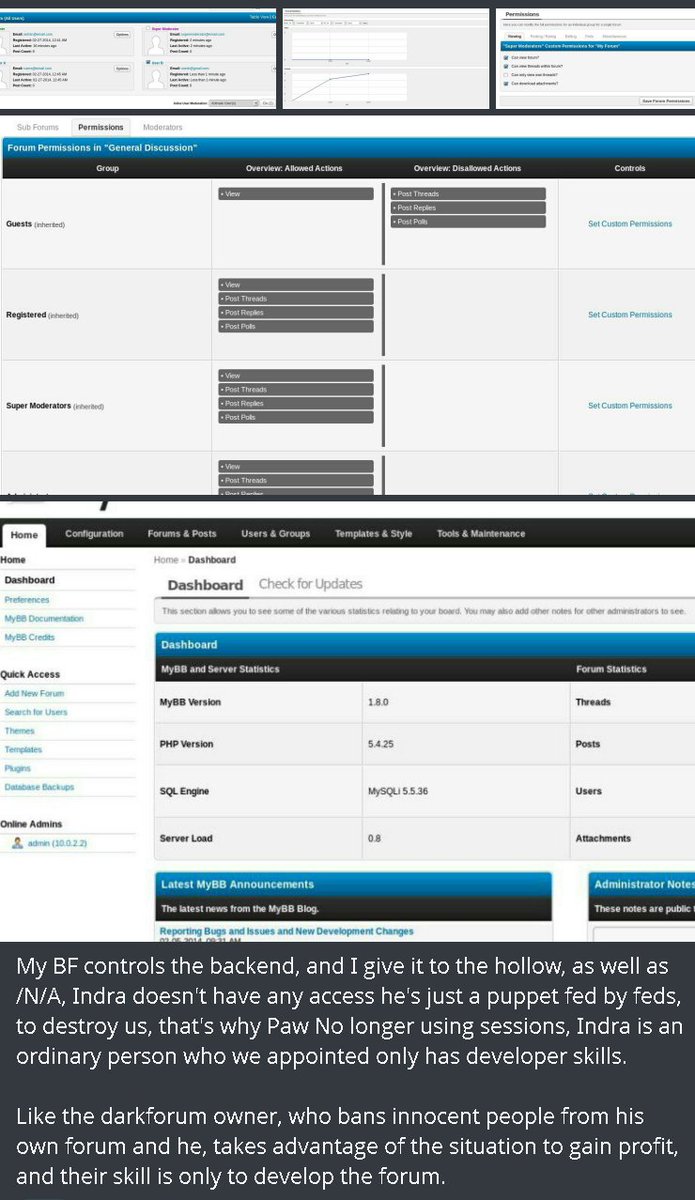
Screenshots have surfaced showing a direct compromise of the Administration Control Panel (ACP) for the currently most active breach forum, BreachForums (BF). The images reveal control over server configurations and user permissions.
Critical Points Revealed:
Technical Infrastructure: The forum operates on MyBB version 1.8.0, running PHP 5.4.25 and MySQLi 5.5.36. Note: These versions are extremely old and vulnerable, which would explain the ease of the compromise.
Permission Control: The screenshots display group management (Guests, Registered Users, Super Moderators) and the ability to modify permitted actions within the forum.
Internal Dispute and "Doxing": An accompanying message suggests a rift within the administration team. It alleges that an administrator—nicknamed "Indra"—is supposedly a "puppet for the feds" and possesses only developer skills, while others control the actual backend.
Allegations of Profiteering: The leaker accuses the forum owner of banning innocent individuals and exploiting the situation to generate personal financial gain.
#CyberSecurity #BreachForums #BF #MyBB #DataBreach #Indra #DarkWeb #InfoSec #CyberAlert #InternalLeaking
2
4
25
4,104


Mar 16
Seriously. And not just copy/pasted.
No, these were the people copying $mysqli->query PHP garbage instead of using PDO.
1
4
226