
Apr 24
Reclaim absolute authority. 🛡️
Your system. Your rules. Experience optimized performance and uncompromising privacy without complexity or compromise.
Take control. Stay in command.
#CyberSecurity #DigitalControl #PrivacyFirst #SystemOptimization #TechPower #InfoSec #SecureYourSystem #Fvtal #Stealth
7
12
116

#QuickTip
Stay updated, stay cyber-safe—keep your anti-malware on auto-update.
#DigitalSafety #MalwareProtection #AutoUpdate #CyberSecurity #StaySecure #TechAwareness #CyberHygiene #DataProtection #OnlineSafety #SecureYourSystem
2
88

23 Jul 2025
#Tipoftheday
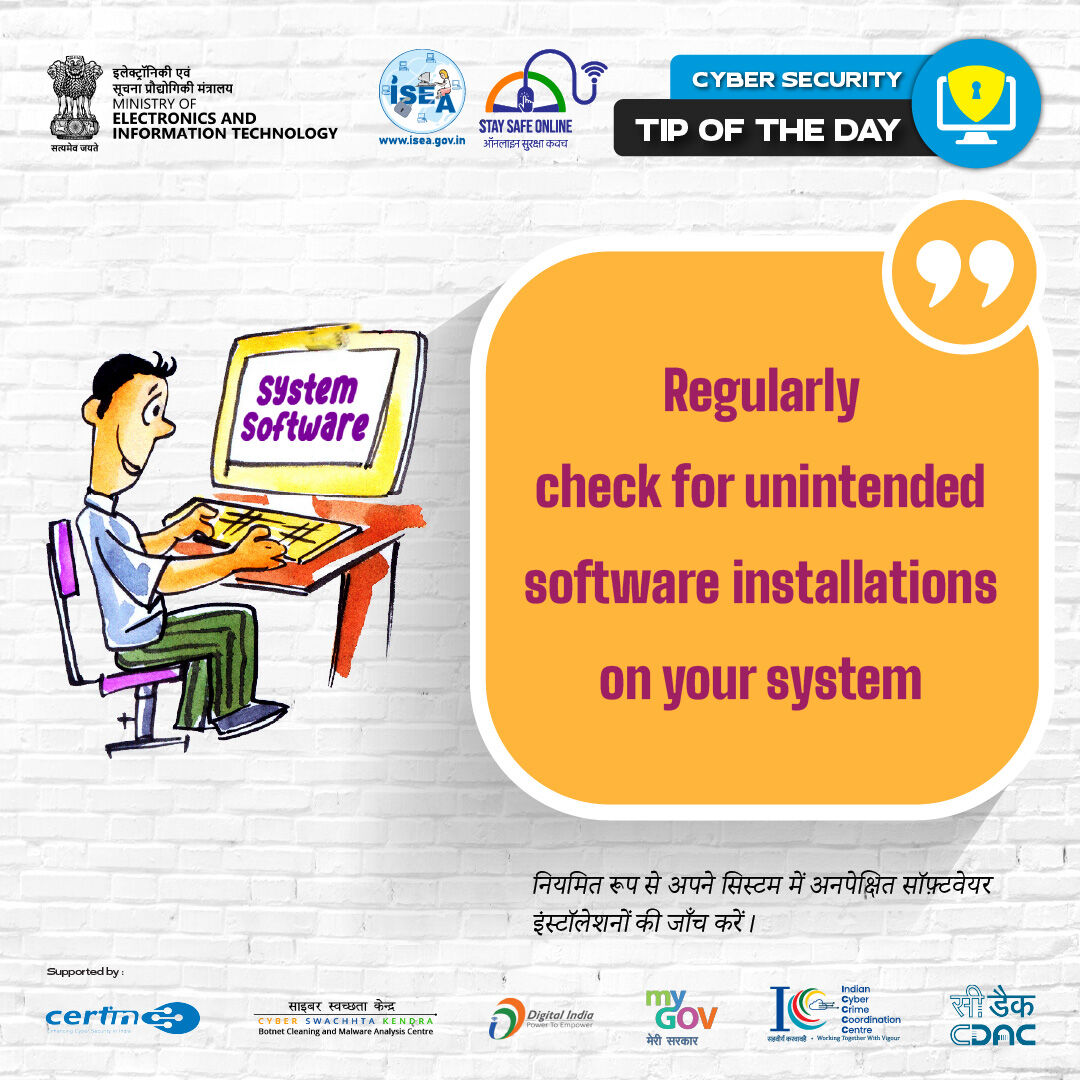
🧐 Is your system hiding unwanted guests? Check before it’s too late!
#CyberSecurity #UnwantedSoftware #SystemSafety #DigitalHygiene #StaySafeOnline #ISEAIndia #InfoSecIndia #SecureYourSystem #ThinkBeforeYouClick #CyberTip
2
4
267

#CyberMonday
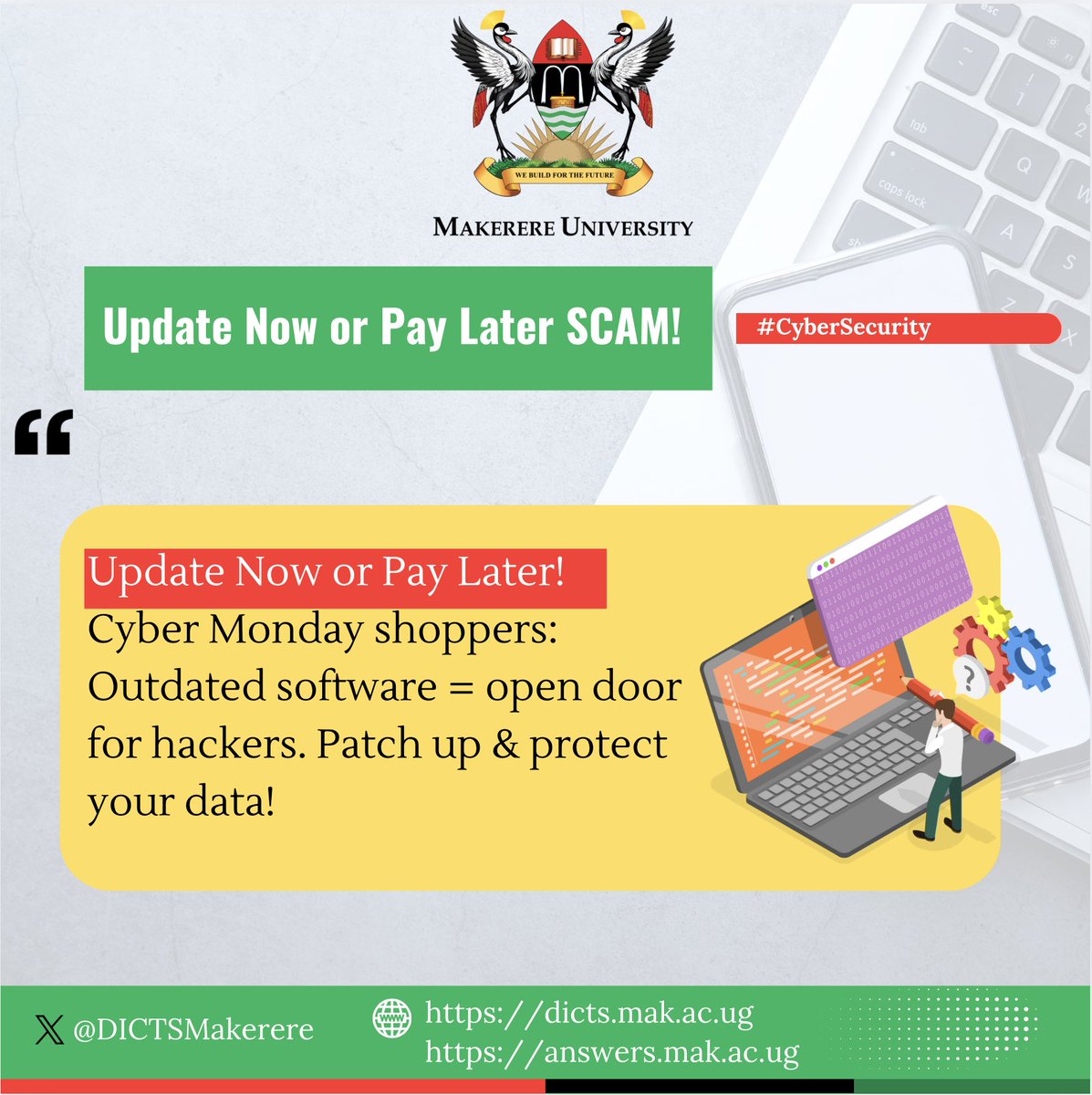
💻 Update Now or Pay Later!
Cyber Monday shoppers: Outdated software = open door for hackers. Patch up & protect your data!
🔗 Avoid Ransomware Disasters: dicts.mak.ac.ug/articles/how…
#TechTips #SecureYourSystem
ALT #CyberMonday 💻 Update Now or Pay Later! Cyber Monday shoppers: Outdated software = open door for hackers. Patch up & protect your data! 🔗 Avoid Ransomware Disasters: https://dicts.mak.ac.ug/articles/how-did-ransomware-get-so-bad #TechTips #SecureYourSystem
1
2
2
99

12 Jul 2024
🛡️ Dive into the Linux security realm with us! Keep your Linux fortress unbreachable. Subscribe now.
🔗 linuxsecurity.com/newsletter…
#StayInformed #SecureYourSystem
1
67

4 Apr 2024
💻Why traditional OS's aren't secure? 🔒 Learn how you can improve your OS security with one step 🚀🔐 #CyberSecurity #Hacking #SecureYourSystem
1
2
14
905
24 Mar 2024
Defending Linux systems against Glibc bugs is the 'endgame'! Find out how to secure your fortress and keep the bugs outside the gates 🏰 #SecureYourSystem #SystemProtection bit.ly/glibc-vuln
1
293

14 Oct 2023
What is Operating system hardening?
Operating system hardening is the process of securing a computer's operating system to reduce vulnerabilities and protect it from various threats. In the context of Linux, hardening involves configuring and managing the system to make it more resistant to unauthorized access, malware, and other potential risks. Below, I'll provide a detailed post on Linux OS hardening, including simple examples and explanations:
1. Keep the System Updated:
Regularly updating your Linux system is crucial for security. Updates often include patches for known vulnerabilities. To update your system, use the following commands:
sudo apt update
sudo apt upgrade
Explanation: The `apt update` command updates the package lists, and `apt upgrade` installs available updates.
2. Disable Unnecessary Services:
Many services run by default on a Linux system. Review and disable any services that are not needed. For example, to stop and disable the Apache web server:
sudo systemctl stop apache2
sudo systemctl disable apache2
Explanation: The `systemctl` command is used to manage services, and `disable` prevents the service from starting on boot.
3. Set Strong Passwords:
Ensure that user passwords are strong. You can use the `passwd` command to change a user's password:
sudo passwd username
Explanation: Strong passwords should be a combination of letters (both upper and lower case), numbers, and special characters.
4. Implement Firewalls:
Firewalls are essential for controlling incoming and outgoing network traffic. On Linux, `ufw` (Uncomplicated Firewall) is a user-friendly option:
sudo apt install ufw
sudo ufw enable
Explanation: `ufw` simplifies firewall management and can be configured to allow or deny specific ports and services.
5. Restrict SSH Access:
Secure Shell (SSH) is commonly used for remote access. To improve security, only allow SSH access to specific users or IP addresses. Edit the SSH configuration file:
sudo nano /etc/ssh/sshd_config
Change the following line to allow only specific users or IPs:
AllowUsers user1 user2
Explanation: This restricts SSH access to the listed users.
6. Monitor Logs:
Regularly review system logs to detect and respond to suspicious activities. Use the `journalctl` command to view system logs:
sudo journalctl
Explanation: System logs can provide insights into system events and potential security issues.
7. Install Security Software:
Consider using security software like Fail2ban or ClamAV to protect against brute-force attacks and malware. Install them using your package manager.
Example:
sudo apt install fail2ban
Explanation: These tools add an extra layer of security and help in identifying and blocking potential threats.
8. Use File System Permissions:
Properly set file and directory permissions to restrict access to sensitive data. The `chmod` and `chown` commands are used for this purpose.
Example:
chmod 600 /path/to/file
chown user:group /path/to/file
Explanation: The above commands change file permissions and ownership, ensuring only authorized users can access or modify the file.
By following these steps, you can significantly improve the security of your Linux system. Remember that security is an ongoing process, and staying vigilant and keeping your system up to date is essential for protecting your data and resources.
#LinuxSecurity #CyberSecurity #SystemUpdates #VulnerabilityManagement #SoftwareUpdates #LinuxMaintenance #SecurityBestPractices #CyberHygiene #SecureYourSystem #LinuxHardening #StaySecure #PatchManagement #SystemStability #UpdateYourLinux #SecurityAwareness

2
8
343

7 Sep 2017
7 Sep 2017

'Locky' is 2017's largest #malware campaign: Here's everything you need to know about it #CyberSecurity bit.ly/2xRfigT

1

10 Nov 2016
“Microsoft Patches Windows Zero-Day Flaw Disclosed by Google” buff.ly/2fFEyOC #SecureYourSystem #Security #TeamAIT